audio CHEVROLET TAHOE 2010 3.G User Guide
[x] Cancel search | Manufacturer: CHEVROLET, Model Year: 2010, Model line: TAHOE, Model: CHEVROLET TAHOE 2010 3.GPages: 608, PDF Size: 6.53 MB
Page 220 of 608
Section 4 Instrument Panel
Tire Pressure Light . . . . . . . . . . . . . . . . . . . . . . . . . . . . 4-38
Malfunction Indicator Lamp . . . . . . . . . . . . . . . . . . . . 4-39
Oil Pressure Gauge . . . . . . . . . . . . . . . . . . . . . . . . . . . . 4-42
Oil Pressure Light . . . . . . . . . . . . . . . . . . . . . . . . . . . . . 4-43
Security Light . . . . . . . . . . . . . . . . . . . . . . . . . . . . . . . . . . 4-44
Fog Lamp Light . . . . . . . . . . . . . . . . . . . . . . . . . . . . . . . . 4-44
Cruise Control Light . . . . . . . . . . . . . . . . . . . . . . . . . . . 4-44
Highbeam On Light . . . . . . . . . . . . . . . . . . . . . . . . . . . . 4-44
Tow/Haul Mode Light . . . . . . . . . . . . . . . . . . . . . . . . . . 4-45
Fuel Gauge . . . . . . . . . . . . . . . . . . . . . . . . . . . . . . . . . . . . 4-45
Low Fuel Warning Light . . . . . . . . . . . . . . . . . . . . . . . . 4-46
Driver Information Center (DIC) . . . . . . . . . . . . . . . . . . 4-47
DIC Operation and Displays (With DIC Buttons) . . . . . . . . . . . . . . . . . . . . . . . . . . . . . . . . . . . . . 4-47
DIC Operation and Displays (Without DIC Buttons) . . . . . . . . . . . . . . . . . . . . . . . . . . . . . . . . . . . . . 4-55
DIC Compass . . . . . . . . . . . . . . . . . . . . . . . . . . . . . . . . . . 4-58
DIC Warnings and Messages . . . . . . . . . . . . . . . . . . 4-61
DIC Vehicle Customization (With DIC Buttons) . . . . . . . . . . . . . . . . . . . . . . . . . . . . . . . . . . . . . 4-71 Audio System(s)
. . . . . . . . . . . . . . . . . . . . . . . . . . . . . . . . . . 4-80
Setting the Clock . . . . . . . . . . . . . . . . . . . . . . . . . . . . . . 4-81
Radio(s) . . . . . . . . . . . . . . . . . . . . . . . . . . . . . . . . . . . . . . . 4-82
Using an MP3 (Radios with CD) . . . . . . . . . . . . . . . 4-99
Using an MP3 (Radios with CD and DVD) . . . . 4-106
XM Radio Messages . . . . . . . . . . . . . . . . . . . . . . . . . 4-113
Navigation/Radio System . . . . . . . . . . . . . . . . . . . . . 4-114
Bluetooth
®. . . . . . . . . . . . . . . . . . . . . . . . . . . . . . . . . . . . 4-114
Rear Seat Entertainment (RSE) System . . . . . . 4-125
Rear Seat Audio (RSA) . . . . . . . . . . . . . . . . . . . . . . . 4-134
Theft-Deterrent Feature . . . . . . . . . . . . . . . . . . . . . . 4-135
Audio Steering Wheel Controls . . . . . . . . . . . . . . . 4-136
Radio Reception . . . . . . . . . . . . . . . . . . . . . . . . . . . . . . 4-138
Rear Side Window Antenna . . . . . . . . . . . . . . . . . . 4-139
XM™ Satellite Radio Antenna System . . . . . . . . 4-139
4-2
Page 246 of 608
Rear Air Conditioning and Heating
System and Electronic Climate
Controls
For vehicles with the rear heat and air conditioning
controls, they are integrated with the rear seat audio
controls located in the center console. The system can
be controlled from the front controls as well as the rear
controls.
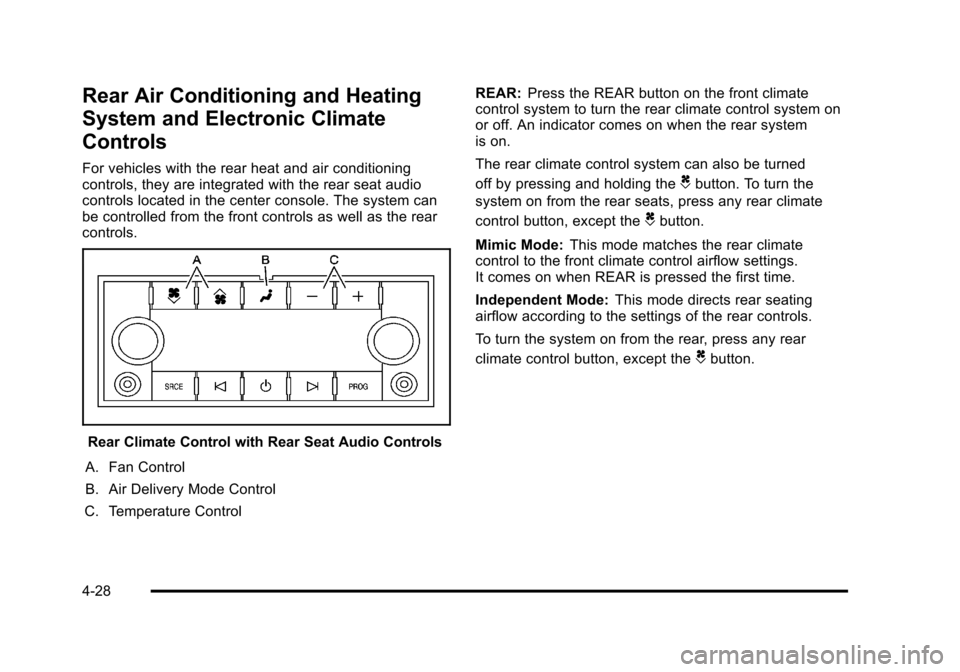
Rear Climate Control with Rear Seat Audio Controls
A. Fan Control
B. Air Delivery Mode Control
C. Temperature Control REAR:
Press the REAR button on the front climate
control system to turn the rear climate control system on
or off. An indicator comes on when the rear system
is on.
The rear climate control system can also be turned
off by pressing and holding the
Cbutton. To turn the
system on from the rear seats, press any rear climate
control button, except the
Cbutton.
Mimic Mode: This mode matches the rear climate
control to the front climate control airflow settings.
It comes on when REAR is pressed the first time.
Independent Mode: This mode directs rear seating
airflow according to the settings of the rear controls.
To turn the system on from the rear, press any rear
climate control button, except the
Cbutton.
4-28
Page 247 of 608

Automatic Operation, If Equipped.
AUTO:Press the air delivery mode button until this
setting is selected to control the inside temperature, air
delivery, and fan speed. AUTO appears in the display
when automatic operation is active.
+/− (Increase/Decrease Temperature) : Press
the + or −buttons to increase or decrease the cabin
temperature. The rear control temperature display will
show the temperature setting increasing or decreasing.
The display only indicates climate control functions
when the system is in rear independent mode.
Manual Operation
D C(Fan Control): Press these buttons on the rear
seat audio control panel to increase or decrease the
airflow. Pressing the fan up button when the system is
off will turn the system on. The air delivery mode will
remain under automatic control.
+/− (Temperature Control): Press these buttons to
adjust the temperature of the air flowing into the
passenger area. Press the + button for warmer air
and press the −button for cooler air.
N(Air Delivery Mode Control): Press the mode
button to change the direction of the airflow in the
vehicle. Repeatedly press the button until the desired
mode appears on the display. Multiple presses will cycle
through the delivery selections.
Warning Lights, Gauges, and
Indicators
Warning lights and gauges can signal that something is
wrong before it becomes serious enough to cause an
expensive repair or replacement. Paying attention to the
warning lights and gauges could prevent injury.
Warning lights come on when there might be or there is
a problem with one of the vehicle's functions. Some
warning lights come on briefly when the engine is
started to indicate they are working.
Gauges can indicate when there might be or there is
a problem with one of the vehicle's functions. Often
gauges and warning lights work together to indicate a
problem with the vehicle.
When one of the warning lights comes on and stays on
while driving, or when one of the gauges shows there
could be a problem, check the section that explains
what to do. Follow this manual's advice. Waiting to do
repairs can be costly and even dangerous.
4-29
Page 279 of 608

DIC Warnings and Messages
Messages are displayed on the DIC to notify the driver
that the status of the vehicle has changed and that
some action may be needed by the driver to correct the
condition. Multiple messages may appear one after
another.
Some messages may not require immediate action, but
you can press any of the DIC buttons on the instrument
panel or the trip odometer reset stem on the instrument
panel cluster to acknowledge that you received the
messages and to clear them from the display.
Some messages cannot be cleared from the DIC
display because they are more urgent. These
messages require action before they can be cleared.
You should take any messages that appear on the
display seriously and remember that clearing the
messages will only make the messages disappear, not
correct the problem.
The following are the possible messages that can be
displayed and some information about them.
If your vehicle is a Two-mode Hybrid, see the
Two-mode Hybrid manual for more information.
BATTERY LOW START VEHICLE
When the vehicle’s battery is severely discharged, this
message will display and four chimes will sound. Start
the vehicle immediately. If the vehicle is not started and
the battery continues to discharge, the climate controls,
heated seats, and audio systems will shut off and the
vehicle may require a jump start. These systems will
function again after the vehicle is started.
CHANGE ENGINE OIL SOON
This message displays when the engine oil needs to
be changed. When you change the engine oil, be sure
to reset the CHANGE ENGINE OIL SOON message.
See Engine Oil Life System
on page 6‑20for
information on how to reset the message. See Engine
Oil
on page 6‑17and Scheduled Maintenanceon
page 7‑3for more information.
4-61
Page 298 of 608
EXIT FEATURE SETTINGS
This feature allows you to exit the feature
settings menu.
Press the customization button until PRESS
VTO EXIT
FEATURE SETTINGS appears in the DIC display.
Press the set/reset button once to exit the menu.
If you do not exit, pressing the customization button
again will return you to the beginning of the feature
settings menu.
Exiting the Feature Settings Menu
The feature settings menu will be exited when any of
the following occurs:
.The vehicle is no longer in ON/RUN.
.The trip/fuel or vehicle information DIC buttons are
pressed.
.The end of the feature settings menu is reached
and exited.
.A 40 second time period has elapsed with no
selection made.
Audio System(s)
Determine which radio the vehicle has and read the
following pages to become familiar with its features.
{WARNING:
Taking your eyes off the road for extended periods
could cause a crash resulting in injury or death to
you or others. Do not give extended attention to
entertainment tasks while driving.
This system provides access to many audio and non
audio listings.
To minimize taking your eyes off the road while driving,
do the following while the vehicle is parked:
.Become familiar with the operation and controls of
the audio system.
.Set up the tone, speaker adjustments, and preset
radio stations.
For more information, see Defensive Driving
on
page 5‑2.
4-80
Page 299 of 608
Notice:Contact your dealer before adding any
equipment.
Adding audio or communication equipment could
interfere with the operation of the vehicle's engine,
radio, or other systems, and could damage them.
Follow federal rules covering mobile radio and
telephone equipment.
The vehicle has Retained Accessory Power (RAP). With
RAP, the audio system can be played even after the
ignition is turned off. See Retained Accessory Power
(RAP)
on page 3‑28for more information.
Setting the Clock
To set the time and date:
1. Turn the ignition key to ACC/ACCESSORY or ON/RUN, then press the
Obutton to turn the
radio on.
2. Press the
Hbutton to display HR, MIN, MM, DD,
YYYY (hour, minute, month, day, and year).
3. Press the softkey located under any one of the tabs to change that setting. 4. To increase the time or date, do one of the
following:
.Press the softkey below the selected tab.
.Press the¨SEEK button.
.Press the\FWD button.
.Turn thefknob clockwise.
5. To decrease the time or date, do one of the following:
.Press the©SEEK button.
.Press thesREV button.
.Turn thefknob counterclockwise.
To change the time default setting from 12 hour to
24 hour or to change the date default setting from
month/day/year to day/month/year:
1. Press the
Hbutton and then the softkey located
below the forward arrow tab. 12H, 24H, the date
MM/DD (month and day), and DD/MM/ (day and
month) displays.
2. Press the softkey located below the desired option.
3. Press the
Hbutton again to apply the desired
option, or let the screen time out.
4-81
Page 300 of 608
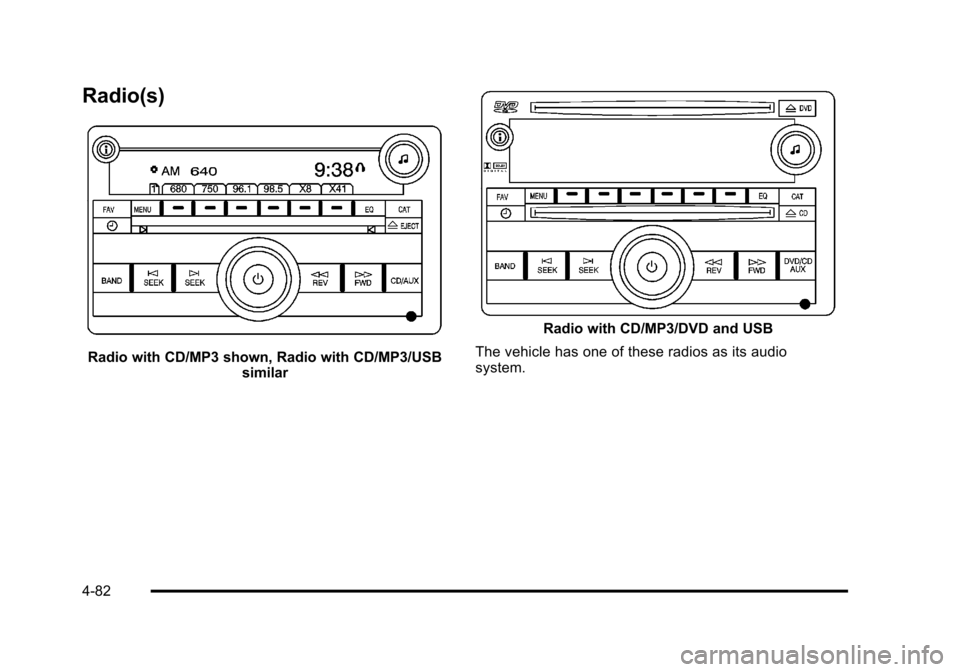
Radio(s)
Radio with CD/MP3 shown, Radio with CD/MP3/USBsimilar
Radio with CD/MP3/DVD and USB
The vehicle has one of these radios as its audio
system.
4-82
Page 301 of 608
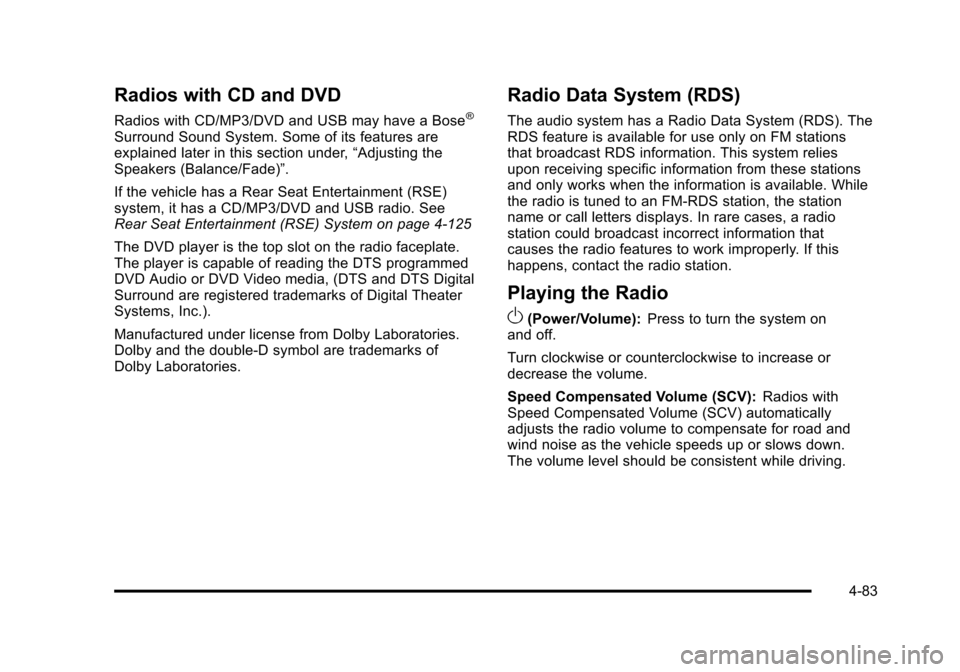
Radios with CD and DVD
Radios with CD/MP3/DVD and USB may have a Bose®
Surround Sound System. Some of its features are
explained later in this section under,“Adjusting the
Speakers (Balance/Fade)”.
If the vehicle has a Rear Seat Entertainment (RSE)
system, it has a CD/MP3/DVD and USB radio. See
Rear Seat Entertainment (RSE) System on page 4‑125
The DVD player is the top slot on the radio faceplate.
The player is capable of reading the DTS programmed
DVD Audio or DVD Video media, (DTS and DTS Digital
Surround are registered trademarks of Digital Theater
Systems, Inc.).
Manufactured under license from Dolby Laboratories.
Dolby and the double-D symbol are trademarks of
Dolby Laboratories.
Radio Data System (RDS)
The audio system has a Radio Data System (RDS). The
RDS feature is available for use only on FM stations
that broadcast RDS information. This system relies
upon receiving specific information from these stations
and only works when the information is available. While
the radio is tuned to an FM-RDS station, the station
name or call letters displays. In rare cases, a radio
station could broadcast incorrect information that
causes the radio features to work improperly. If this
happens, contact the radio station.
Playing the Radio
O
(Power/Volume): Press to turn the system on
and off.
Turn clockwise or counterclockwise to increase or
decrease the volume.
Speed Compensated Volume (SCV): Radios with
Speed Compensated Volume (SCV) automatically
adjusts the radio volume to compensate for road and
wind noise as the vehicle speeds up or slows down.
The volume level should be consistent while driving.
4-83
Page 302 of 608
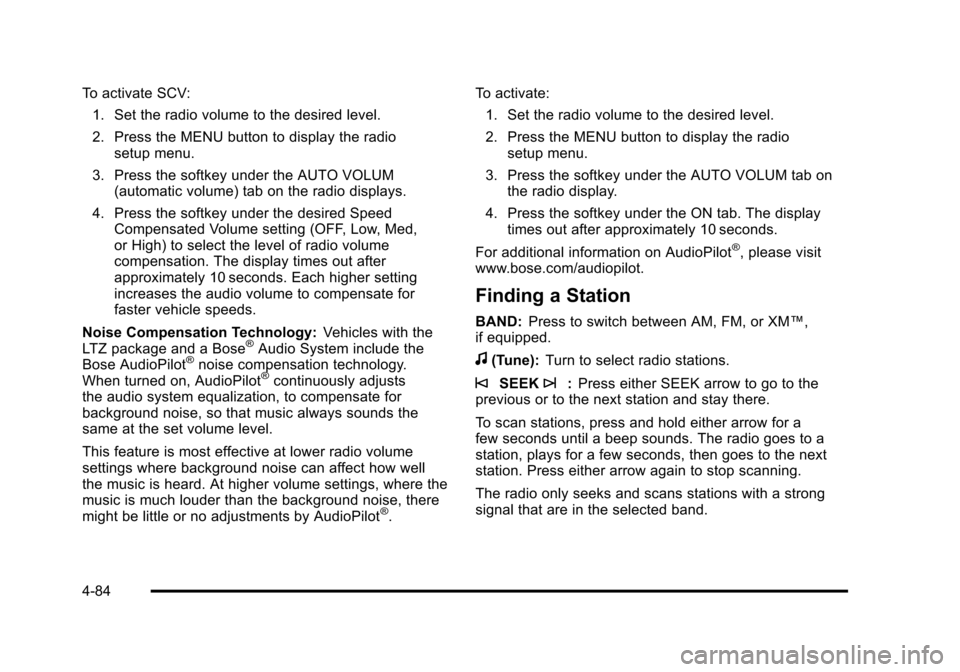
To activate SCV:1. Set the radio volume to the desired level.
2. Press the MENU button to display the radio setup menu.
3. Press the softkey under the AUTO VOLUM (automatic volume) tab on the radio displays.
4. Press the softkey under the desired Speed Compensated Volume setting (OFF, Low, Med,
or High) to select the level of radio volume
compensation. The display times out after
approximately 10 seconds. Each higher setting
increases the audio volume to compensate for
faster vehicle speeds.
Noise Compensation Technology: Vehicles with the
LTZ package and a Bose
®Audio System include the
Bose AudioPilot®noise compensation technology.
When turned on, AudioPilot®continuously adjusts
the audio system equalization, to compensate for
background noise, so that music always sounds the
same at the set volume level.
This feature is most effective at lower radio volume
settings where background noise can affect how well
the music is heard. At higher volume settings, where the
music is much louder than the background noise, there
might be little or no adjustments by AudioPilot
®. To activate:
1. Set the radio volume to the desired level.
2. Press the MENU button to display the radio setup menu.
3. Press the softkey under the AUTO VOLUM tab on the radio display.
4. Press the softkey under the ON tab. The display times out after approximately 10 seconds.
For additional information on AudioPilot
®, please visit
www.bose.com/audiopilot.
Finding a Station
BAND: Press to switch between AM, FM, or XM™,
if equipped.
f(Tune): Turn to select radio stations.
©SEEK¨:Press either SEEK arrow to go to the
previous or to the next station and stay there.
To scan stations, press and hold either arrow for a
few seconds until a beep sounds. The radio goes to a
station, plays for a few seconds, then goes to the next
station. Press either arrow again to stop scanning.
The radio only seeks and scans stations with a strong
signal that are in the selected band.
4-84
Page 304 of 608
Setting the Tone (Bass/Midrange/Treble)
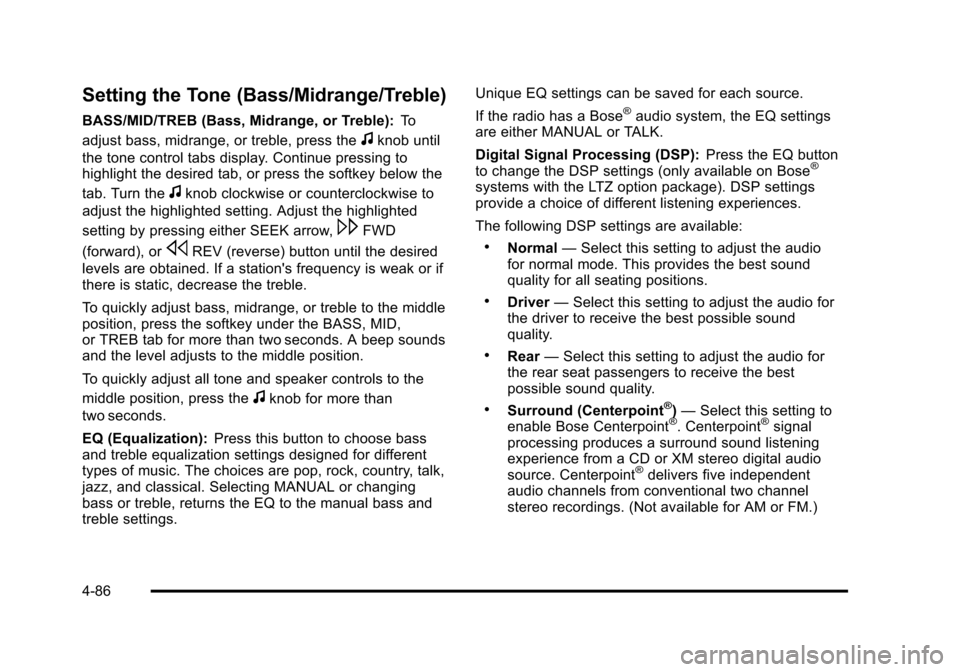
BASS/MID/TREB (Bass, Midrange, or Treble):To
adjust bass, midrange, or treble, press the
fknob until
the tone control tabs display. Continue pressing to
highlight the desired tab, or press the softkey below the
tab. Turn the
fknob clockwise or counterclockwise to
adjust the highlighted setting. Adjust the highlighted
setting by pressing either SEEK arrow,
\FWD
(forward), or
sREV (reverse) button until the desired
levels are obtained. If a station's frequency is weak or if
there is static, decrease the treble.
To quickly adjust bass, midrange, or treble to the middle
position, press the softkey under the BASS, MID,
or TREB tab for more than two seconds. A beep sounds
and the level adjusts to the middle position.
To quickly adjust all tone and speaker controls to the
middle position, press the
fknob for more than
two seconds.
EQ (Equalization): Press this button to choose bass
and treble equalization settings designed for different
types of music. The choices are pop, rock, country, talk,
jazz, and classical. Selecting MANUAL or changing
bass or treble, returns the EQ to the manual bass and
treble settings. Unique EQ settings can be saved for each source.
If the radio has a Bose
®audio system, the EQ settings
are either MANUAL or TALK.
Digital Signal Processing (DSP): Press the EQ button
to change the DSP settings (only available on Bose
®
systems with the LTZ option package). DSP settings
provide a choice of different listening experiences.
The following DSP settings are available:
.Normal —Select this setting to adjust the audio
for normal mode. This provides the best sound
quality for all seating positions.
.Driver —Select this setting to adjust the audio for
the driver to receive the best possible sound
quality.
.Rear —Select this setting to adjust the audio for
the rear seat passengers to receive the best
possible sound quality.
.Surround (Centerpoint®) — Select this setting to
enable Bose Centerpoint®. Centerpoint®signal
processing produces a surround sound listening
experience from a CD or XM stereo digital audio
source. Centerpoint
®delivers five independent
audio channels from conventional two channel
stereo recordings. (Not available for AM or FM.)
4-86