display CHEVROLET TRAIL BLAZER 2007 1.G Owners Manual
[x] Cancel search | Manufacturer: CHEVROLET, Model Year: 2007, Model line: TRAIL BLAZER, Model: CHEVROLET TRAIL BLAZER 2007 1.GPages: 574, PDF Size: 2.94 MB
Page 290 of 574
z(Set-up Menu):Press thezbutton to
adjust the color, tint, brightness, contrast,
display mode, and dynamic range compression.
The dynamic range compression feature can
be used to reduce loud audio and increase
low audio produced by some DVDs.
To change a feature back to the factory default
setting, press the
zbutton to display the feature,
then press and hold this button until the default
setting displays.
While playing an Audio or DVD disc, press and
hold the
zbutton to display and to remove
the track and time information.
n,q,p,o(Menu Navigation Arrows):
Use the arrows to navigate through a menu.
r(Enter):Press therbutton to select
the choices that are highlighted in any menu.
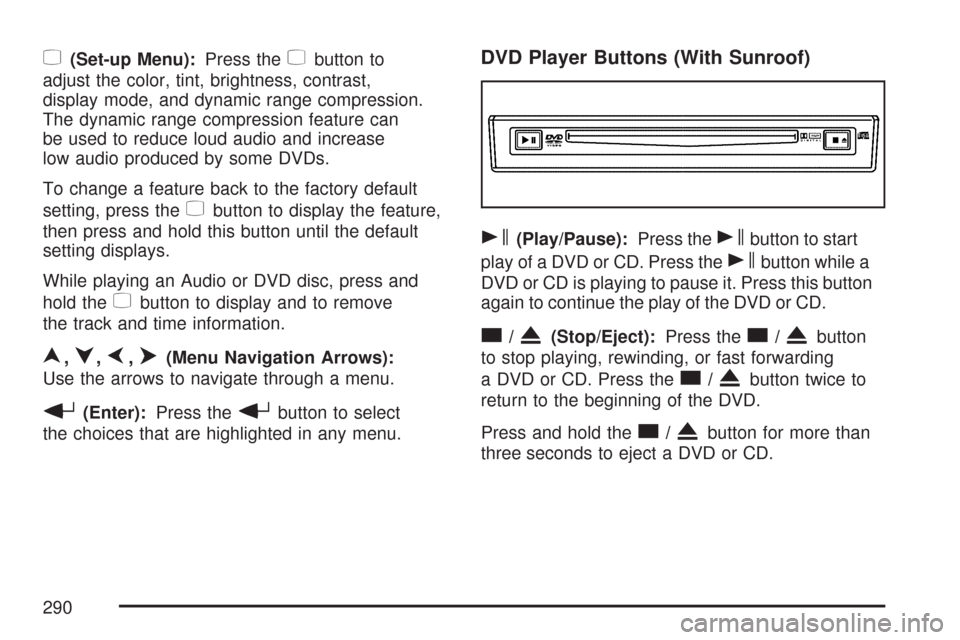
DVD Player Buttons (With Sunroof)
s(Play/Pause):Press thesbutton to start
play of a DVD or CD. Press the
sbutton while a
DVD or CD is playing to pause it. Press this button
again to continue the play of the DVD or CD.
c/X(Stop/Eject):Press thec/Xbutton
to stop playing, rewinding, or fast forwarding
a DVD or CD. Press the
c/Xbutton twice to
return to the beginning of the DVD.
Press and hold the
c/Xbutton for more than
three seconds to eject a DVD or CD.
290
Page 293 of 574
z(Set-up Menu):Press thezbutton to adjust
the color, tint, brightness, contrast, display
mode, and dynamic range compression. The
dynamic range compression feature can be used
to reduce loud audio and increase low audio
produced by some DVDs.
e(Audio):Press theebutton to display a menu
that only appears when a DVD is being played.
The format and content of this function varies
for each disc.
r(Fast Reverse):Press therbutton to fast
reverse the DVD or CD. To stop fast reversing,
press the
rbutton again. This button might not
work when the DVD is playing the copyright
information or the previews.
SRCE (Source):Press this button to switch
between the DVD player and an auxiliary source.
c(Stop):Press thecbutton to stop playing,
rewinding, or fast forwarding a DVD or CD.
Press the
cbutton twice to return to the
beginning of the DVD.
t(Previous Track/Chapter):Press thetbutton
to return to the start of the current track or chapter.
Press the
tbutton again to return to the previous
track or chapter. This button might not work when
the DVD is playing the copyright information or
the previews.
1 through 0 (Numeric Keypad):The numeric
keypad provides you with the capability of
direct chapter, title, and track number selection.
}10 (Double Digit Entries):Press the}button
to select chapter, title, and track numbers
greater than 9. Press the
}button before
inputting the number.
\(Clear):Press the\button within three
seconds after inputting a number to clear
the number(s).
P(Illumination):Press thePbutton to turn the
remote control backlight on. The backlight times
out after about 7 to 10 seconds if no other button
is pressed while the backlight is on.
293
Page 295 of 574
Battery Replacement
To change the batteries, do the following:
1. Remove the battery compartment door located
on the bottom of the remote control.
2. Replace the two AA batteries in the
compartment. Make sure that they are
installed correctly, using the diagram on
the inside of the battery compartment.
3. Close the battery door securely.
If the remote control is to be stored for a long
period of time, remove the batteries and keep
them in a cool, dry place.
Problem Recommended Action
No power. The ignition might not
be in on or accessory.
The parental control
button might have been
turned on. The power
indicator light ashes.
Disc will not play. The system might be off.
The parental control
button might have been
turned on. The power
indicator light ashes.
The system might be in
auxiliary mode.
The disc is upside down
or is not compatible.
The picture does not ll
the screen. There are
black borders on the
top and bottom or on
both sides or it looks
stretched out.Check the display
mode settings in the
display menu.
The disc was ejected,
but it was pulled back
into the DVD player.The disc is being stored
in the DVD player. Press
the eject button again to
eject the disc.
295
Page 297 of 574
Problem Recommended Action
Sometimes the wireless
headphone audio cuts
out or buzzes.Check for obstructions,
low batteries, reception
range, and interference
from cellular telephone
towers or by using
your cellular telephone
in the vehicle.
Check that the
headphones are facing
the front of the vehicle.
I lost the remote and/or
the headphones.See your dealer/retailer
for assistance.
The DVD is playing,
but there is no picture
or sound.Check that the DVD
player is in DVD mode.
The audio/video skips
or jumps.The DVD or CD could
be dirty, scratched,
or damaged.
The audio from the
radio for the Radio with
Six-Disc CD and XM™
has taken over the
audio from the DVD
or CD when using the
wired headphones.The RSE is working
correctly.
Use the wireless
headphones or have
the front seat passengers
listen to another audio
source.DVD Messages
The following errors can display on the video
screen:
Disc Format Error:This message displays if a
disc is inserted upside down, if the disc is not
readable, or if the format is not compatible with
the DVD player.
Load/Eject Error:This message displays if the
disc is not properly loaded or ejected.
Disc Play Error:This message displays if the
DVD player cannot play the disc. Scratched
or damaged discs cause this error.
Region Code Error:This message displays if
the region code of the DVD is not compatible
with the region code of the DVD player.
No Disc:This message displays if any of the
buttons on the DVD faceplate or remote control
are pressed and no disc is present in the
DVD player.
297
Page 299 of 574
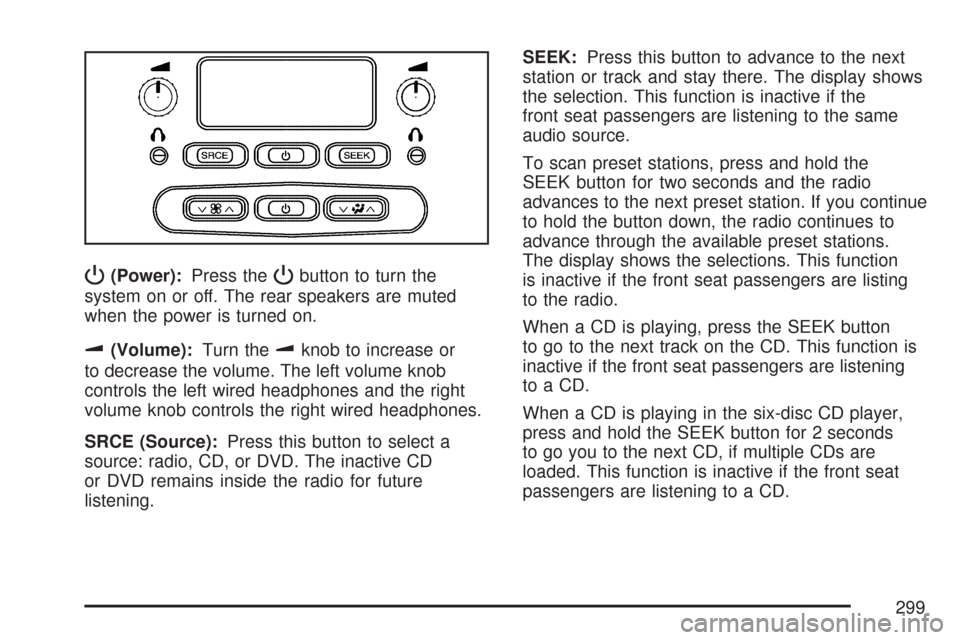
P(Power):Press thePbutton to turn the
system on or off. The rear speakers are muted
when the power is turned on.
u(Volume):Turn theuknob to increase or
to decrease the volume. The left volume knob
controls the left wired headphones and the right
volume knob controls the right wired headphones.
SRCE (Source):Press this button to select a
source: radio, CD, or DVD. The inactive CD
or DVD remains inside the radio for future
listening.SEEK:Press this button to advance to the next
station or track and stay there. The display shows
the selection. This function is inactive if the
front seat passengers are listening to the same
audio source.
To scan preset stations, press and hold the
SEEK button for two seconds and the radio
advances to the next preset station. If you continue
to hold the button down, the radio continues to
advance through the available preset stations.
The display shows the selections. This function
is inactive if the front seat passengers are listing
to the radio.
When a CD is playing, press the SEEK button
to go to the next track on the CD. This function is
inactive if the front seat passengers are listening
to a CD.
When a CD is playing in the six-disc CD player,
press and hold the SEEK button for 2 seconds
to go you to the next CD, if multiple CDs are
loaded. This function is inactive if the front seat
passengers are listening to a CD.
299
Page 300 of 574
Theft-Deterrent Feature
THEFTLOCK®is designed to discourage theft
of your vehicle’s radio. The feature works
automatically by learning a portion of the
Vehicle Identication Number (VIN). If the
radio is moved to a different vehicle, it does
not operate and LOCKED displays.
When the radio and vehicle are turned off, the
blinking red light indicates that THEFTLOCK
®
is armed.
With THEFTLOCK
®activated, the radio does
not operate if stolen.
Audio Steering Wheel Controls
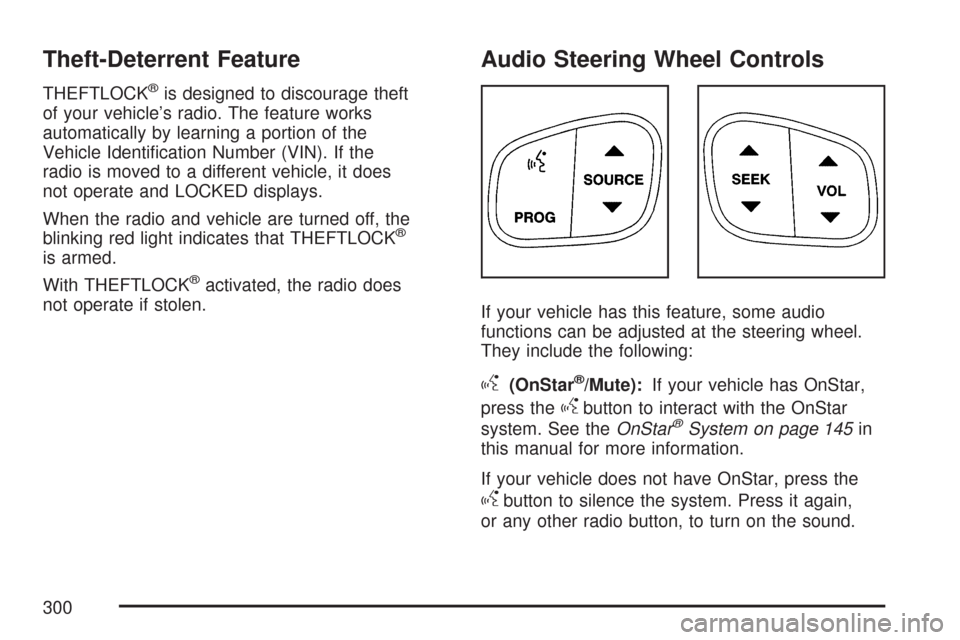
If your vehicle has this feature, some audio
functions can be adjusted at the steering wheel.
They include the following:
g(OnStar®/Mute):If your vehicle has OnStar,
press the
gbutton to interact with the OnStar
system. See theOnStar®System on page 145in
this manual for more information.
If your vehicle does not have OnStar, press the
gbutton to silence the system. Press it again,
or any other radio button, to turn on the sound.
300
Page 301 of 574
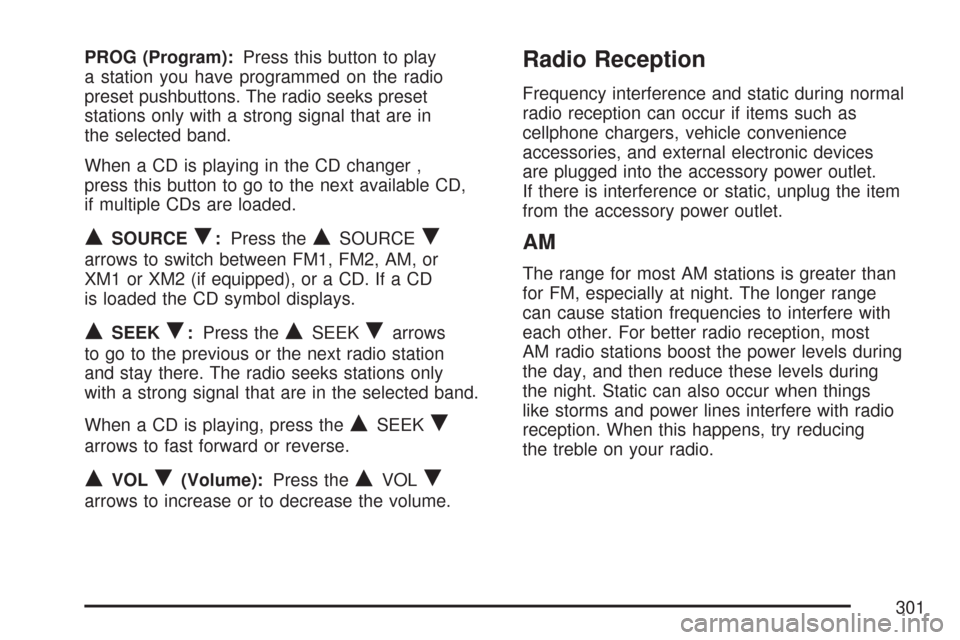
PROG (Program):Press this button to play
a station you have programmed on the radio
preset pushbuttons. The radio seeks preset
stations only with a strong signal that are in
the selected band.
When a CD is playing in the CD changer ,
press this button to go to the next available CD,
if multiple CDs are loaded.
QSOURCER:Press theQSOURCER
arrows to switch between FM1, FM2, AM, or
XM1 or XM2 (if equipped), or a CD. If a CD
is loaded the CD symbol displays.
QSEEKR:Press theQSEEKRarrows
to go to the previous or the next radio station
and stay there. The radio seeks stations only
with a strong signal that are in the selected band.
When a CD is playing, press the
QSEEKR
arrows to fast forward or reverse.
QVOLR(Volume):Press theQVOLR
arrows to increase or to decrease the volume.
Radio Reception
Frequency interference and static during normal
radio reception can occur if items such as
cellphone chargers, vehicle convenience
accessories, and external electronic devices
are plugged into the accessory power outlet.
If there is interference or static, unplug the item
from the accessory power outlet.
AM
The range for most AM stations is greater than
for FM, especially at night. The longer range
can cause station frequencies to interfere with
each other. For better radio reception, most
AM radio stations boost the power levels during
the day, and then reduce these levels during
the night. Static can also occur when things
like storms and power lines interfere with radio
reception. When this happens, try reducing
the treble on your radio.
301
Page 302 of 574
FM Stereo
FM stereo gives the best sound, but FM signals
reach about 10 to 40 miles (16 to 65 km). Tall
buildings or hills can interfere with FM signals,
causing the sound to fade in and out.
XM™ Satellite Radio Service
XM™ Satellite Radio Service gives digital radio
reception from coast-to-coast in the 48 contiguous
United States, and in Canada. Just as with FM,
tall buildings or hills can interfere with satellite
radio signals, causing the sound to fade in and out.
In addition, traveling or standing under heavy
foliage, bridges, garages, or tunnels can cause
loss of the XM™ signal for a period of time.
The radio could display NO XM SIGNAL to
indicate interference.
Care of Your CDs and DVDs
Handle CDs carefully. Store them in their original
cases or other protective cases and away from
direct sunlight and dust. The CD player scans
the bottom surface of the disc. If the surface of
a CD is damaged, such as cracked, broken,
or scratched, the CD does not play properly or
not at all. If the surface of a CD is soiled, take
a soft, lint free cloth or dampen a clean, soft cloth
in a mild, neutral detergent solution mixed with
water, and clean it. Make sure the wiping process
starts from the center to the edge.
Do not touch the bottom side of a CD while
handling it; this could damage the surface.
Pick up CDs by grasping the outer edges or
the edge of the hole and the outer edge.
Care of the CD and DVD Player
The use of CD lens cleaners for CDs is not
advised, due to the risk of contaminating the lens
of the CD optics with lubricants internal to the
CD mechanism.
302
Page 303 of 574
Fixed Mast Antenna
The xed mast antenna can withstand most car
washes without being damaged. If the mast should
ever become slightly bent, straighten it out by
hand. If the mast is badly bent, replace it.
Check occasionally to make sure the mast is
still tightened to the fender. If tightening is
required, tighten by hand, then with a wrench
one quarter turn.
XM™ Satellite Radio Antenna
System
The XM™ Satellite Radio antenna is located on
the roof of your vehicle. Keep this antenna clear
of snow and ice build up for clear radio reception.
A vehicle with a sunroof might not get the best
performance from the XM™ system if the sunroof
is open.
Loading items onto the roof of your vehicle can
interfere with the performance of the XM™ system.
Make sure the XM™ Satellite Radio antenna is
not obstructed.
Chime Level Adjustment
The radio is used to adjust the vehicle’s chime
level. To change the volume level of the chime,
press and hold pushbutton 6 with the ignition
on and the radio power off. The volume level
will change from the normal level to loud,
and LOUD CHIME will appear on the radio display.
To change back to the default or normal setting,
press and hold pushbutton 6 again. The volume
level will change from the loud level to normal,
and NORMAL CHIME will appear on the
radio display. Removing the radio and not
replacing it with a factory radio or chime module
will disable vehicle chimes.
303
Page 313 of 574
Remember: ABS does not change the time you
need to get your foot up to the brake pedal or
always decrease stopping distance. If you get too
close to the vehicle in front of you, you will not have
time to apply the brakes if that vehicle suddenly
slows or stops. Always leave enough room up
ahead to stop, even though you have ABS.
Using ABS
Do not pump the brakes. Just hold the brake
pedal down rmly and let anti-lock work for you.
You might feel the brakes vibrate or notice
some noise, but this is normal.
Braking in Emergencies
With ABS, you can steer and brake at the same
time. In many emergencies, steering can help you
more than even the very best braking.
Locking Rear Axle
If your vehicle has this feature, your locking rear
axle can give you additional traction on snow, mud,
ice, sand or gravel. It works like a standard axle
most of the time, but when one of the rear wheels
has no traction and the other does, this feature will
allow the wheel with traction to move the vehicle.
StabiliTrak®System
Your vehicle is equipped with StabiliTrak®,
Electronic Stability Control (ESC) which combines
antilock brake, traction and stability control
systems and helps the driver maintain directional
control of the vehicle in most driving conditions.
Traction control activates when the controller
senses wheel spin. StabiliTrak
®will selectively
apply the brakes and reduce engine torque to
help regain traction.
Stability control activates when the controller
senses a discrepancy between your intended
path and the direction the vehicle is travelling.
StabiliTrak
®selectively applies braking pressure
at any one of the vehicle’s brakes to help guide the
vehicle in the direction which you are steering.
When you rst start your vehicle and begin to drive
away, the system performs several diagnostic
checks to insure there are no problems. You may
hear or feel the system working. This is normal
and does not mean there is a problem with
your vehicle. If driving conditions delay system
initialization, the STABILITRAK NOT READY
message may be displayed. If this is the case,
your vehicle does not need servicing.
313