lock CHEVROLET TRAIL BLAZER 2008 1.G Repair Manual
[x] Cancel search | Manufacturer: CHEVROLET, Model Year: 2008, Model line: TRAIL BLAZER, Model: CHEVROLET TRAIL BLAZER 2008 1.GPages: 472, PDF Size: 2.57 MB
Page 158 of 472
Rear Window Defogger
If your vehicle has the rear window defogger a warming
grid is used to remove fog from the rear window.
<(Rear):Press this button to turn the rear window
defogger on or off.
An indicator light in the button will come on to let you
know that the rear window defogger is activated.
The rear window defogger will turn off approximately
10 minutes after the button is pressed. If you need
additional warming time, press the button again.
If your vehicle has heated mirrors, they will come on
when this button is pressed.
Notice:Do not use a razor blade or sharp object
to clear the inside rear window. Do not adhere
anything to the defogger grid lines in the rear glass.
These actions may damage the rear defogger.
Repairs would not be covered by your warranty.
Outlet Adjustment
Use the air outlets located in the center and on the side
of the instrument panel to direct the airow. Use the
thumbwheels near the air outlets to open or close off
the airow.
Operation Tips
Clear away any ice, snow, or leaves from air inlets
at the base of the windshield that could block the
ow of air into the vehicle.
Keep the path under the front seats clear of objects
to help circulate the air inside of the vehicle more
effectively.
Use of non-GM approved hood deectors can
adversely affect the performance of the system.
Check with your dealer/retailer before adding
equipment to the outside of your vehicle.
Rear Climate Control System
Your vehicle has one of the following rear climate
control systems. With either of these systems, the rear
climate controls will be disabled when the front
climate control system is in defrost. This occurs to
provide maximum airow to clear the windshield.
3-28
Page 169 of 472
CAUTION: (Continued)
to an accident. If the light is still on after you
have pulled off the road and stopped carefully,
have the vehicle towed for service.
Anti-lock Brake System (ABS)
Warning Light
For vehicles with the
Antilock Brake System
(ABS), this light comes on
briey when the engine
is started.
That is normal. If the light does not come on then, have it
xed so it will be ready to warn you if there is a problem.
If the ABS light stays on, turn the ignition off, if the
light comes on when you are driving, stop as soon
as it is safely possible and turn the ignition off.Then start the engine again to reset the system. If the
ABS light still stays on, or comes on again while you are
driving, your vehicle needs service. If the regular brake
system warning light is not on, your vehicle still has
brakes, but not antilock brakes. If the regular brake
system warning light is also on, your vehicle does not
have antilock brakes and there is a problem with the
regular brakes. SeeBrake System Warning Light on
page 3-38.
For vehicles with a Driver Information Center (DIC),
seeDIC Warnings and Messages on page 3-53for all
brake related DIC messages.
StabiliTrak Service Light
This light will come on
briey when the engine
is started.
This light will come on if a problem is detected in the
StabiliTrak
®system.
For more information seeStabiliTrak
®System on
page 4-5.
3-39
Page 188 of 472
DIC Vehicle Customization
Your vehicle may have customization capabilities that
allow you to program some features to one setting
based on your preference. All of the customizable
options listed may not be available on your vehicle.
Only the options available display on the Driver
Information Center (DIC).
The default settings for the customization features were
set when your vehicle left the factory, but may have
been changed from their default state since then.
To change feature preferences, make sure the ignition
is on and the vehicle is in PARK (P). To avoid
excessive drain on the battery, it is recommended that
the headlamps are turned off.
Press the customization button to scroll through the
available customizable options.
After pressing the customization button, VEHICLE
SETTINGS momentarily displays before going to a
customization option.
Lock Doors
Press the customization button until LOCK DOORS: IN
GEAR appears in the display. To select your preference
for automatic locking, press the select button while LOCK
DOORS: IN GEAR is displayed on the DIC. Pressing the
select button will scroll through the following settings:
LOCK DOORS: IN GEAR (default):The doors will lock
when the vehicle is shifted out of PARK (P).
LOCK DOORS: WITH SPEED:The doors will lock
when the vehicle speed is above 8 mph (13 km/h) for
three seconds.
To select a setting and move on to the next feature,
press the customization button while the desired setting
is displayed on the DIC.
SeeProgrammable Automatic Door Locks on page 2-8
for more information.
3-58
Page 189 of 472
Unlock Doors
Press the customization button until UNLOCK DOORS:
IN PARK appears in the display. To select your
preference for automatic unlocking, press the select
button while UNLOCK DOORS: IN PARK is displayed
on the DIC. Pressing the select button will scroll through
the following settings:
UNLOCK DOORS: IN PARK (default):All of the doors
will unlock when the vehicle is shifted into PARK (P).
UNLOCK DRIVER: IN PARK:The driver’s door will be
unlocked when the vehicle is shifted into PARK (P).
UNLOCK DOORS: KEY OUT:All of the doors
will unlock when the key is taken out of the ignition.
UNLOCK DOORS: MANUALLY:The doors will not be
unlocked automatically.
To select a setting and move on to the next feature,
press the customization button while the desired setting
is displayed on the DIC.
SeeProgrammable Automatic Door Locks on page 2-8
for more information.
Lock Feedback
Press the customization button until LOCK FEEDBACK:
BOTH appears in the display. To select your preference
for the feedback you receive when locking the vehicle
with the Remote Keyless Entry (RKE) transmitter, press
the select button while LOCK FEEDBACK: BOTH is
displayed on the DIC. Pressing the select button
will scroll through the following settings:
LOCK FEEDBACK: BOTH (default):The parking
lamps will ash each time you press the button with the
lock symbol on the RKE transmitter and the horn will
chirp the second time you press the lock button.
LOCK FEEDBACK: OFF:There will be no feedback
when locking the vehicle.
LOCK FEEDBACK: LAMPS:The parking lamps will
ash each time you press the button with the lock
symbol on the RKE transmitter.
LOCK FEEDBACK: HORN:The horn will chirp the
second time you press the button with the lock symbol
on the RKE transmitter.
To select a setting and move on to the next feature,
press the customization button while the desired setting
is displayed on the DIC.
3-59
Page 190 of 472
Unlock Feedback
Press the customization button until UNLOCK
FEEDBACK: LAMPS appears in the display. To select
your preference for the feedback you will receive
when unlocking the vehicle with the Remote Keyless
Entry (RKE) transmitter, press the select button
while UNLOCK FEEDBACK: LAMPS is displayed on the
DIC. Pressing the select button will scroll through the
following settings:
UNLOCK FEEDBACK: LAMPS (default):The parking
lamps will ash each time you press the button with
the unlock symbol on the RKE transmitter.
UNLOCK FEEDBACK: HORN:The horn will chirp the
second time you press the button with the unlock
symbol on the RKE transmitter.
UNLOCK FEEDBACK: BOTH:The parking lamps will
ash each time you press the button with the unlock
symbol on the RKE transmitter and the horn will
chirp the second time you press the unlock button.
UNLOCK FEEDBACK: OFF:There will be no feedback
when unlocking the vehicle.
To select a setting and move on to the next feature,
press the customization button while the desired setting
is displayed on the DIC.
Headlamp Delay
Press the customization button until HEADLAMP
DELAY: 10 SEC appears in the display. To select your
preference for how long the headlamps will stay on
after you turn off the vehicle, press the select button
while HEADLAMP DELAY: 10 SEC is displayed on the
DIC. Pressing the select button will scroll through
the following settings:
HEADLAMP DELAY: 10 SEC (Seconds) (default):
The headlamps will stay on for 10 seconds.
HEADLAMP DELAY: 20 SEC:The headlamps will stay
on for 20 seconds.
HEADLAMP DELAY: 40 SEC:The headlamps will stay
on for 40 seconds.
HEADLAMP DELAY: 1 MIN (Minute):The headlamps
will stay on for 1 minute.
HEADLAMP DELAY: 2 MIN:The headlamps will stay
on for 2 minutes.
HEADLAMP DELAY: 3 MIN:The headlamps will stay
on for 3 minutes.
HEADLAMP DELAY: OFF:The headlamps will not
turn on.
To select a setting and move on to the next feature,
press the customization button while the desired setting
is displayed on the DIC.
3-60
Page 191 of 472
Perimeter Lights
Press the customization button until PERIMETER
LIGHTS: ON appears in the display. To select your
preference for perimeter lighting, press the select button
while PERIMETER LIGHTS: ON is displayed on the
DIC. Pressing the select button will scroll through
the following settings:
PERIMETER LIGHTS: ON (default):The headlamps
and back-up lamps will come on for 40 seconds,
if it is dark enough outside, when you unlock the vehicle
with the Remote Keyless Entry (RKE) transmitter.
PERIMETER LIGHTS: OFF:The perimeter lights will
not come on when you unlock the vehicle with the
RKE transmitter.
To select a setting and move on to the next feature,
press the customization button while the desired setting
is displayed on the DIC.
Easy Exit Seat
Press the customization button until EASY EXIT SEAT:
OFF appears in the display. To select your preference
for seat position exit, press the select button while EASY
EXIT SEAT: OFF is displayed on the DIC. Pressing
the select button will scroll through the following settings:
EASY EXIT SEAT: OFF (default):No seat exit recall
will occur.
EASY EXIT SEAT: ON:The driver’s seat will move to
the exit position when the key is removed from the
ignition.
To select a setting and move on to the next feature,
press the customization button while the desired setting
is displayed on the DIC.
See “Easy Exit Seat” underMemory Seat, Mirrors, and
Pedals on page 1-4for more information.
3-61
Page 192 of 472
Seat Recall
Press the customization button until SEAT RECALL:
OFF appears in the display. To select your preference
for recall of the driver’s memory seat and adjustable
pedals, if your vehicle has this feature, press the select
button while SEAT RECALL: OFF is displayed on
the DIC. Pressing the select button will scroll through
the following settings:
SEAT RECALL: OFF (default):The driver’s memory
seat and adjustable pedals position you saved will
only be recalled when the memory button 1 or 2
is pressed.
SEAT RECALL: AT KEY IN:The driver’s memory seat
and adjustable pedals position you saved will be
recalled when you put the key in the ignition.
SEAT RECALL: ON REMOTE:The driver’s memory
seat and adjustable pedals position you saved will
be recalled when you unlock the vehicle with the
Remote Keyless Entry (RKE) transmitter.
To select a setting and move on to the next feature,
press the customization button while the desired setting
is displayed on the DIC.
SeeMemory Seat, Mirrors, and Pedals on page 1-4
for more information.
Curb View
Press the customization button until CURB VIEW: OFF
appears in the display. To select your preference for
curb view, press the select button while CURB VIEW:
OFF is displayed on the DIC. Pressing the select button
will scroll through the following settings:
CURB VIEW: OFF (default):The passenger’s outside
mirror will not be tilted down when the vehicle is
shifted into REVERSE (R).
CURB VIEW: PASSENGER:The passenger’s outside
mirror will be tilted down when the vehicle is shifted
into REVERSE (R).
When the vehicle is placed in PARK (P) or in any
forward gear, the mirror will return to the normal driving
position, following a short delay.
To select a setting and move on to the next feature,
press the customization button while the desired setting
is displayed on the DIC.
SeeOutside Curb View Assist Mirror on page 2-46
for more information.
3-62
Page 196 of 472
Setting the Clock
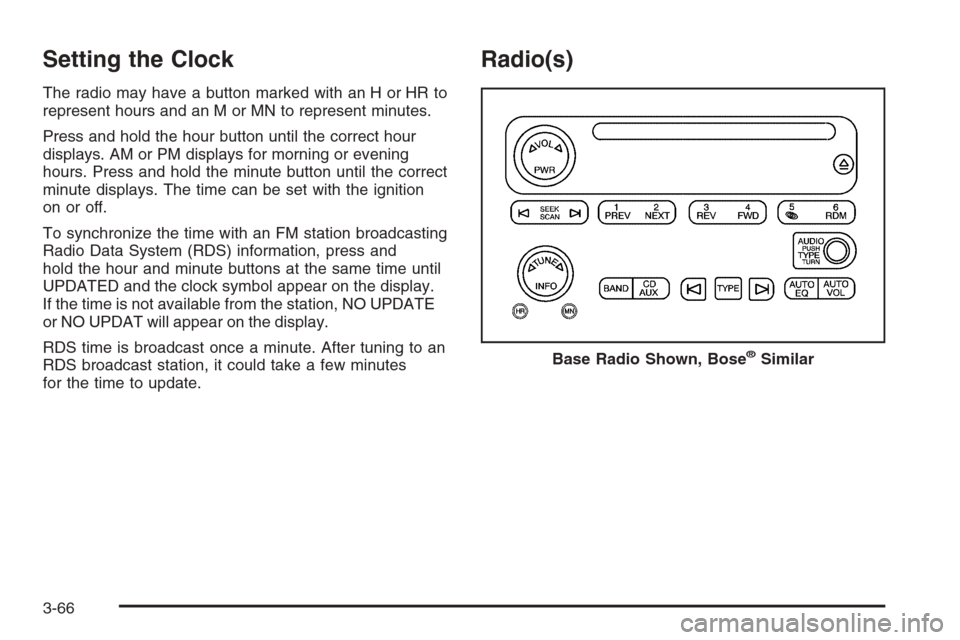
The radio may have a button marked with an H or HR to
represent hours and an M or MN to represent minutes.
Press and hold the hour button until the correct hour
displays. AM or PM displays for morning or evening
hours. Press and hold the minute button until the correct
minute displays. The time can be set with the ignition
on or off.
To synchronize the time with an FM station broadcasting
Radio Data System (RDS) information, press and
hold the hour and minute buttons at the same time until
UPDATED and the clock symbol appear on the display.
If the time is not available from the station, NO UPDATE
or NO UPDAT will appear on the display.
RDS time is broadcast once a minute. After tuning to an
RDS broadcast station, it could take a few minutes
for the time to update.
Radio(s)
Base Radio Shown, Bose®Similar
3-66
Page 198 of 472
Radio Data System (RDS)
The audio system has a Radio Data System (RDS).
RDS features are available for use only on FM stations
that broadcast RDS information.
With RDS, the radio can do the following:
Seek to stations broadcasting the selected type of
programming.
Receive announcements concerning local and
national emergencies.
Display messages from radio stations.
This system relies upon receiving specic information
from these stations and only works when the information
is available. In rare cases, a radio station can broadcast
incorrect information that causes the radio features
to work improperly. If this happens, contact the radio
station.
While the radio is tuned to an RDS station, the station
name or call letters display instead of the frequency.
RDS stations can also provide the time of day, a
program type (PTY) for current programming, and the
name of the program being broadcast.
Playing the Radio
PWR (Power):Push to turn the system on and off.
opVOL or VOLUME:Turn clockwise or
counterclockwise to increase or to decrease the volume.
DISPL (Display) or INFO (Information):While the
ignition is off, press the DISPL or INFO knob to display
the time.
For RDS, press the DISPL or INFO knob to change
what displays while using RDS. The display options are
station name, RDS station frequency, PTY (program
type), and the name of the program (if available).
For XM™ (if equipped), press the DISPL or INFO knob
while in XM™ mode to retrieve four different categories
of information related to the current song or channel:
Artist, Song Title, Category or PTY, Channel Number/
Channel Name.
To change the default on the display, press the DISPL
or INFO knob until you see the desired display, then
briey press and hold the knob until a beep is heard.
The selected display becomes the default.
3-68
Page 204 of 472
The radio plays the traffic announcement if the volume
is low. The radio interrupts the play of a CD if the
last tuned station broadcasts traffic announcements.
This function does not apply to XM™ Satellite Radio
Service.
INFO (Information):If the current station has a
message, the information symbol or INFO displays.
Press this button to see the message. The message
can display the artist, song title, call in phone
numbers, etc.
If the entire message is not displayed, parts of the
message appears every three seconds. To scroll
through the message, press and release the INFO
button. A new group of words displays after every press
of this button. Once the complete message has
displayed, the information symbol or INFO disappears
from the display until another new message is received.
The last message is displayed by pressing the INFO
button. View the last message until a new message is
received or you tune to a different station.Radio Messages
CAL ERR (Calibration Error):The audio system
has been calibrated for your vehicle from the factory.
If CAL ERR displays, it means that the radio has
not been congured properly for the vehicle and must
be returned to your dealer/retailer for service.
LOCKED:This message displays when the
THEFTLOCK
®system has locked up. Take the
vehicle to your dealer/retailer for service.
If any error occurs repeatedly, or if an error cannot be
corrected, contact your dealer/retailer.
XM™ Satellite Radio Service
XM™ is a satellite radio service that is based in the
48 contiguous United States and 10 Canadian
provinces. XM Satellite Radio has a wide variety
of programming and commercial-free music,
coast-to-coast, and in digital-quality sound. During your
trial or when you subscribe, you will get unlimited
access to XM Radio Online for when you are not in
your vehicle. A service fee is required to receive the
XM service. For more information, contact XM at
www.xmradio.com or call 1-800-929-2100 in the U.S.
and www.xmradio.ca or call 1-877-438-9677 in Canada.
3-74