remote start CHEVROLET TRAVERSE 2009 1.G User Guide
[x] Cancel search | Manufacturer: CHEVROLET, Model Year: 2009, Model line: TRAVERSE, Model: CHEVROLET TRAVERSE 2009 1.GPages: 422, PDF Size: 2.06 MB
Page 112 of 422
Do not use the Universal Home
Remote with any garage door
opener that does not have the stop
and reverse feature. This includes
any garage door opener model
manufactured before April 1, 1982.
Read the instructions completely
before attempting to program
the Universal Home Remote.
Because of the steps involved, it
may be helpful to have another
person available to assist you in the
programming the Universal Home
Remote.
Keep the original hand-held
transmitter for use in other vehicles
as well as for future Universal
Home Remote programming. It is
also recommended that upon
the sale of the vehicle, the
programmed Universal Home
Remote buttons should be erased
for security purposes. See “Erasing
Universal Home Remote Buttons”
later in this section.When programming a garage door,
park outside of the garage. Park
directly in line with and facing
the garage door opener motor-head
or gate motor-head. Be sure that
people and objects are clear of the
garage door or gate that is being
programmed.
It is recommended that a new
battery be installed in your
hand-held transmitter for quicker
and more accurate transmission of
the radio-frequency signal.
Programming the Universal
Home Remote System
For questions or help programming
the Universal Home Remote
System, call 1-800-355-3515 or
go to www.homelink.com.
Programming a garage door opener
involves time-sensitive actions,
so read the entire procedure before
starting. Otherwise, the device
will time out and the procedure will
have to be repeated.To program up to three devices:
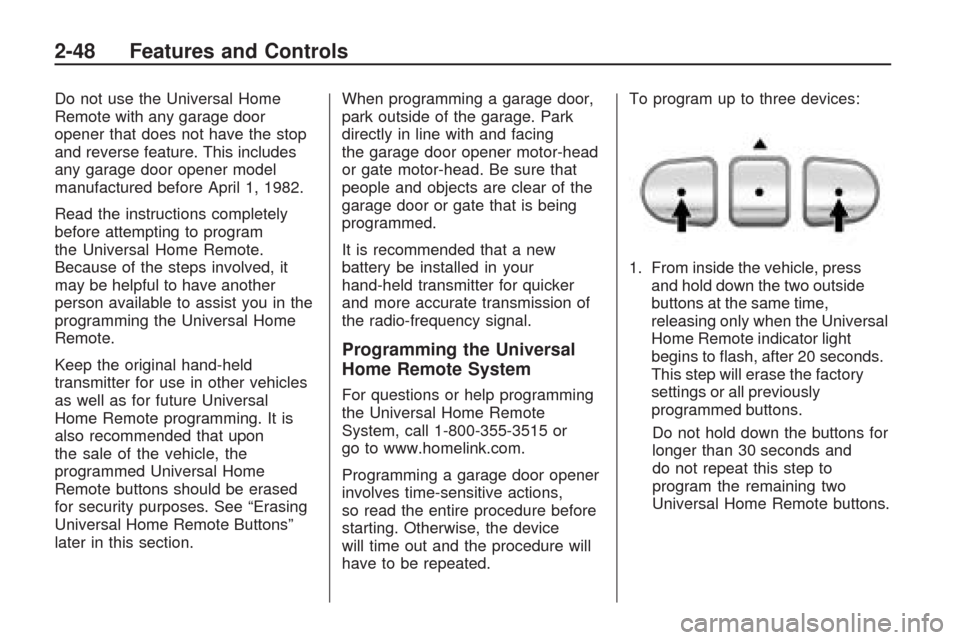
1. From inside the vehicle, press
and hold down the two outside
buttons at the same time,
releasing only when the Universal
Home Remote indicator light
begins to ash, after 20 seconds.
This step will erase the factory
settings or all previously
programmed buttons.
Do not hold down the buttons for
longer than 30 seconds and
do not repeat this step to
program the remaining two
Universal Home Remote buttons.
2-48 Features and Controls
Page 138 of 422
Power Outlet 115 Volt
Alternating Current
For vehicles with this power outlet,
it can be used to plug in electrical
equipment that uses a maximum
limit of 150 watts.
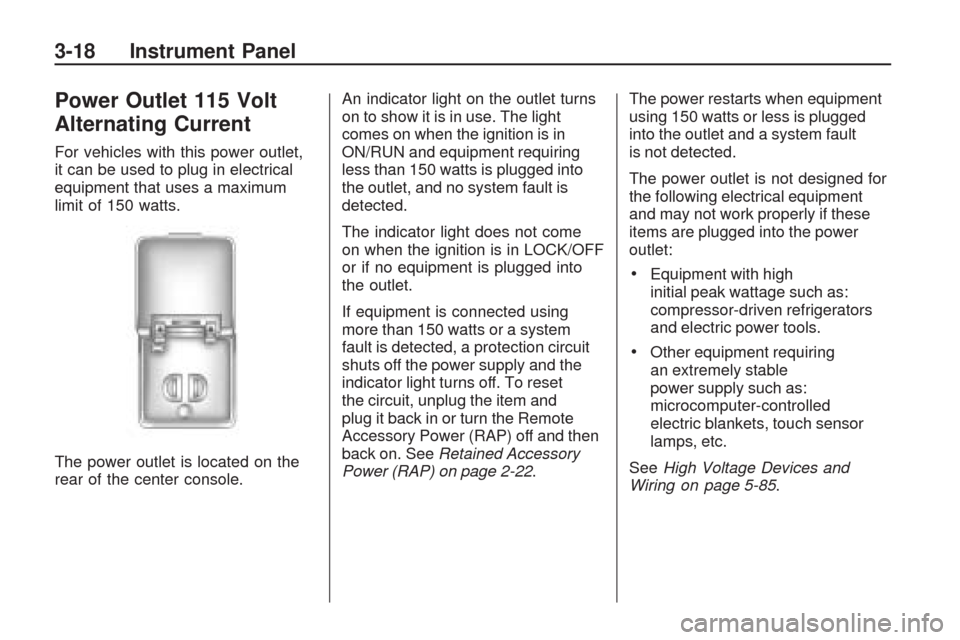
The power outlet is located on the
rear of the center console.An indicator light on the outlet turns
on to show it is in use. The light
comes on when the ignition is in
ON/RUN and equipment requiring
less than 150 watts is plugged into
the outlet, and no system fault is
detected.
The indicator light does not come
on when the ignition is in LOCK/OFF
or if no equipment is plugged into
the outlet.
If equipment is connected using
more than 150 watts or a system
fault is detected, a protection circuit
shuts off the power supply and the
indicator light turns off. To reset
the circuit, unplug the item and
plug it back in or turn the Remote
Accessory Power (RAP) off and then
back on. SeeRetained Accessory
Power (RAP) on page 2-22.The power restarts when equipment
using 150 watts or less is plugged
into the outlet and a system fault
is not detected.
The power outlet is not designed for
the following electrical equipment
and may not work properly if these
items are plugged into the power
outlet:
Equipment with high
initial peak wattage such as:
compressor-driven refrigerators
and electric power tools.
Other equipment requiring
an extremely stable
power supply such as:
microcomputer-controlled
electric blankets, touch sensor
lamps, etc.
SeeHigh Voltage Devices and
Wiring on page 5-85.
3-18 Instrument Panel
Page 153 of 422
Airbag Readiness Light
This light shows if there is an
electrical problem. The system
check includes the airbag sensor,
the pretensioners, the airbag
modules, the wiring and the crash
sensing and diagnostic module.
For more information on the airbag
system, seeAirbag System on
page 1-46.
This light will come on and stay on
for several seconds when the vehicle
is started. Then the light should
go out.
If the airbag readiness light stays
on after the vehicle has been started
or comes on when while driving,
the airbag system may not work
properly. Have the vehicle serviced
right away.{CAUTION
If the airbag readiness light stays
on after the vehicle is started or
comes on while driving, it means
the airbag system might not be
working properly. The airbags in
the vehicle might not inate in a
crash, or they could even inate
without a crash. To help avoid
injury, have the vehicle serviced
right away.
Passenger Airbag Status
Indicator
The vehicle has a passenger
sensing system. SeePassenger
Sensing System on page 1-53
for important safety information.
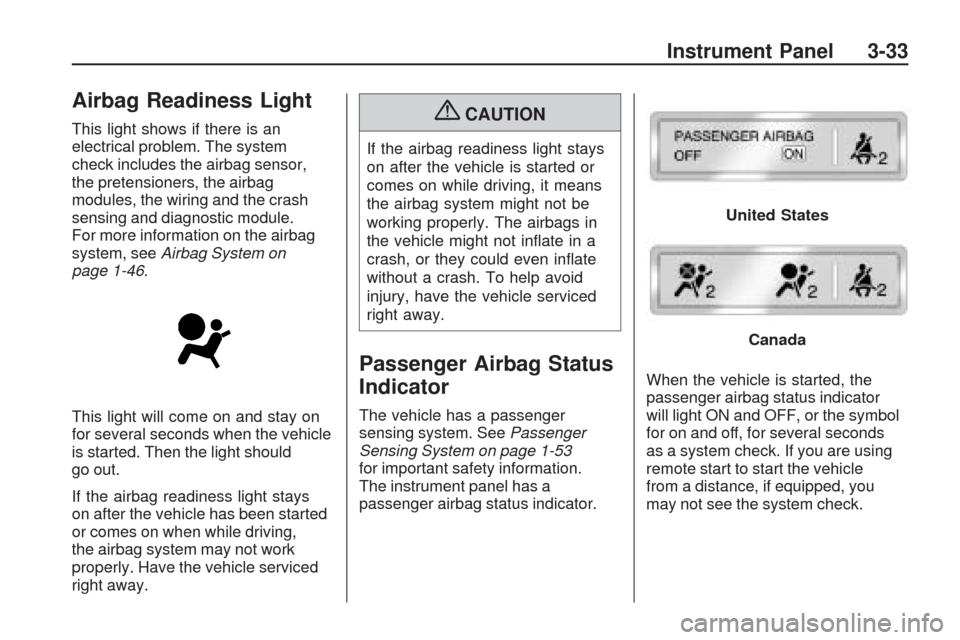
The instrument panel has a
passenger airbag status indicator.When the vehicle is started, the
passenger airbag status indicator
will light ON and OFF, or the symbol
for on and off, for several seconds
as a system check. If you are using
remote start to start the vehicle
from a distance, if equipped, you
may not see the system check.
United States
Canada
Instrument Panel 3-33
Page 173 of 422
PARK ASSIST
To access this display, the vehicle
must be in P (Park). If your vehicle
has the Ultrasonic Rear Parking
Assist (URPA) system, press the trip
odometer reset stem until PARK
ASSIST displays. This display allows
the system to be turned on or off.
Once in this display, press and hold
the trip odometer reset stem to select
between ON or OFF. If you choose
ON, the system will be turned on.
If you choose OFF, the system will
be turned off. The URPA system
automatically turns back on after
each vehicle start. When the URPA
system is turned off and the vehicle
is shifted out of P (Park), the DIC
will display the PARK ASSIST OFF
message as a reminder that the
system has been turned off.
SeeDIC Warnings and Messages
on page 3-56andUltrasonic Rear
Parking Assist (URPA) on page 2-36
for more information.RELEARN REMOTE KEY
To access this display, the vehicle
must be in P (Park). This display
allows you to match Remote Keyless
Entry (RKE) transmitters to your
vehicle. This procedure will erase
all previously learned transmitters.
Therefore, they must be relearned
as additional transmitters.
To match an RKE transmitter to
your vehicle:
1. Press the trip odometer reset
stem until RELEARN REMOTE
KEY displays.
2. Press and hold the trip odometer
reset stem until REMOTE KEY
LEARNING ACTIVE is displayed.
3. Press and hold the lock and
unlock buttons on the rst
transmitter at the same time
for about 15 seconds.
On vehicles with memory recall
seats, the rst transmitter learned
will match driver 1 and the
second will match driver 2.A chime will sound indicating
that the transmitter is matched.
4. To match additional transmitters
at this time, repeat Step 3.
Each vehicle can have a
maximum of eight transmitters
matched to it.
5. To exit the programming mode,
you must cycle the key to
LOCK/OFF.
UNITS
To access this display, the vehicle
must be in P (Park). Press the trip
odometer reset stem until UNITS
displays. This display allows you to
select between English or Metric
units of measurement. Once in
this display, press and hold the
trip odometer reset stem to select
between ENGLISH or METRIC units.
All of the vehicle information will
then be displayed in the unit of
measurement selected.
Instrument Panel 3-53
Page 181 of 422
REMOTE KEY LEARNING
ACTIVE
This message displays while you are
matching a Remote Keyless Entry
(RKE) transmitter to your vehicle.
See “Matching Transmitter(s) to
Your Vehicle” underRemote Keyless
Entry (RKE) System Operation on
page 2-4andDIC Operation and
Displays (With DIC Buttons) on
page 3-45orDIC Operation and
Displays (Without DIC Buttons)
on page 3-51for more information.
REPLACE BATTERY IN
REMOTE KEY
This message displays if a Remote
Keyless Entry (RKE) transmitter
battery is low. The battery needs
to be replaced in the transmitter.
See “Battery Replacement” under
Remote Keyless Entry (RKE)
System Operation on page 2-4.
RIGHT REAR DOOR OPEN
This message displays and a chime
sounds if the passenger side rear
door is not fully closed and the
vehicle is shifted out of P (Park).
Stop and turn off the vehicle, check
the door for obstructions, and close
the door again. Check to see if the
message still appears on the DIC.
SERVICE A/C
(Air Conditioning) SYSTEM
This message displays when
the electronic sensors that control
the air conditioning and heating
systems are no longer working.
Have the climate control system
serviced by your dealer/retailer
if you notice a drop in heating
and air conditioning efficiency.
SERVICE AIR BAG
This message displays if there is
a problem with the airbag system.
Have your dealer/retailer inspect the
system for problems. SeeAirbag
Readiness Light on page 3-33and
Airbag System on page 1-46for
more information.
SERVICE ALL WHEEL DRIVE
If your vehicle has the All-Wheel
Drive (AWD) system, this message
displays if there is a problem with
this system. If this message appears,
stop as soon as possible and turn
off the vehicle. Restart the vehicle
after 30 seconds and check for the
message on the DIC display. If the
message is still displayed or appears
again when you begin driving, the
AWD system needs service.
See your dealer/retailer.
Instrument Panel 3-61
Page 192 of 422
REMOTE START
If your vehicle has this feature,
it allows you to turn the remote start
off or on. The remote start feature
allows you to start the engine from
outside of the vehicle using the
Remote Keyless Entry (RKE)
transmitter. SeeRemote Vehicle
Start on page 2-6for more
information.
Press the customization button until
REMOTE START appears on the
DIC display. Press the set/reset
button once to access the settings
for this feature. Then press the
customization button to scroll
through the following settings:
OFF:The remote start feature will
be disabled.
ON (default):The remote start
feature will be enabled.NO CHANGE:No change will be
made to this feature. The current
setting will remain.
To select a setting, press the
set/reset button while the desired
setting is displayed on the DIC.
FACTORY SETTINGS
This feature allows you to set all of
the customization features back
to their factory default settings.
Press the customization button until
FACTORY SETTINGS appears on
the DIC display. Press the set/reset
button once to access the settings
for this feature. Then press the
customization button to scroll
through the following settings:
RESTORE ALL (default):The
customization features will be set
to their factory default settings.DO NOT RESTORE:The
customization features will not be
set to their factory default settings.
To select a setting, press the
set/reset button while the desired
setting is displayed on the DIC.
EXIT FEATURE SETTINGS
This feature allows you to exit the
feature settings menu.
Press the customization button until
FEATURE SETTINGS PRESS
VTO
EXIT appears in the DIC display.
Press the set/reset button once to
exit the menu.
If you do not exit, pressing the
customization button again will return
you to the beginning of the feature
settings menu.
3-72 Instrument Panel
Page 197 of 422
Playing the Radio
O(Power/Volume):Press to turn
the system on and off. Turn to
increase or decrease the volume.
For vehicles with a Rear
Entertainment System (RSE),
press and hold for more than
two seconds to turn off the entire
radio and RSE system and to start
the parental control feature. Parental
control prevents the rear seat
occupant from operating the Rear
Seat Audio (RSA) system or remote
control.
A lock symbol displays next to
the clock display while the parental
control feature is being used.
The feature remains on until
Ois
pressed and held for more than
two seconds, or the driver turns the
ignition off and exits the vehicle.
4(Information):Press to switch the
display between the radio station
frequency and the time. When
the ignition is in the OFF position,
press
4to display the time.
For vehicles with XM, MP3, WMA
or RDS features, press
4to display
additional text information related
to the current FM-RDS or XM
station; or CD, MP3 or WMA song.
If information is available during XM,
CD, MP3 or WMA playback, the song
title information displays on the
top line of the display and artist
information displays on the bottom
line. When information is not
available, “NO INFO” is displayed.
Speed Compensated Volume
(SCV):The Speed Compensated
Volume (SCV) feature automatically
adjusts the radio volume to
compensate for road and wind noise
as the vehicle speeds up or slows
down, so that the volume level is
consistent.To activate SCV:
1. Set the radio volume to the
desired level.
2. Press the MENU button to
display the radio setup menu.
3. Press the pushbutton under
the AUTO VOLUM (automatic
volume) label on the radio
display.
4. Press the pushbutton under the
desired Speed Compensated
Volume setting (OFF, Low, Med,
or High) to select the level of radio
volume compensation. Press the
pushbutton located below the
BACK label on the MENU SETUP
display or let the display time out
after approximately 10 seconds.
Each higher setting allows for
more radio volume compensation
at faster vehicle speeds.
Instrument Panel 3-77
Page 207 of 422
Using the DVD Player
The DVD player can be controlled
by the buttons on the remote control,
the RSA system, or by the buttons
on the radio faceplate. See “Remote
Control”, underRear Seat
Entertainment (RSE) System on
page 3-114andRear Seat Audio
(RSA) on page 3-123for more
information.
The DVD player is only compatible
with DVDs of the appropriate region
code that is printed on the jacket of
most DVDs.
The DVD slot of the radio is
compatible with most audio
CDs, CD-R, CD-RW, DVD-Video,
DVD-Audio, DVD-R/RW, DVD+R/
RW media along with MP3 and
WMA formats.
If an error message displays on
the video screen or the radio, see
“DVD Display Error Messages”
under,Rear Seat Entertainment
(RSE) System on page 3-114and
“DVD Radio Error Messages” in
this section for more information.Playing a DVDf(Tune):Turn to change tracks
on a CD or DVD, to manually tune
a radio station, or to change clock
or date settings, while in the clock
or date setting mode. See the
information given earlier in this
section specic to the radio, CD,
and the DVD. Also, see “Setting the
Clock” in the index, for setting the
clock and date.
©SEEK (Previous Track/
Chapter):Press to return to the
start of the current track or chapter.
Press
©again to go to the previous
track or chapter. This button may not
work when the DVD is playing the
copyright information or the
previews.
SEEK
¨(Next Track/Chapter):
Press to go to the next track or
chapter. This button may not work
when the DVD is playing the
copyright information or the
previews.
sREV (Fast Reverse):Press
to quickly reverse the DVD at
ve times the normal speed.
The radio displays the elapsed time
while in fast reverse. To stop fast
reversing, press again. This button
may not work when the DVD is
playing the copyright information
or the previews.
\FWD (Fast Forward):Press
to fast forward the DVD. The radio
displays the elapsed time and fast
forwards ve times the normal
speed. To stop fast forwarding,
press again. This button may not
work when the DVD is playing
the copyright information or the
previews.
Z(Eject):Press to eject a
DVD. If the DVD is ejected, but not
removed, the player automatically
pulls it back in after 15 seconds.
If loading and reading of a DVD
cannot be completed, because of an
unknown format, etc., and the disc
fails to eject, press and hold for more
than ve seconds to force the disc to
eject.
Instrument Panel 3-87
Page 208 of 422
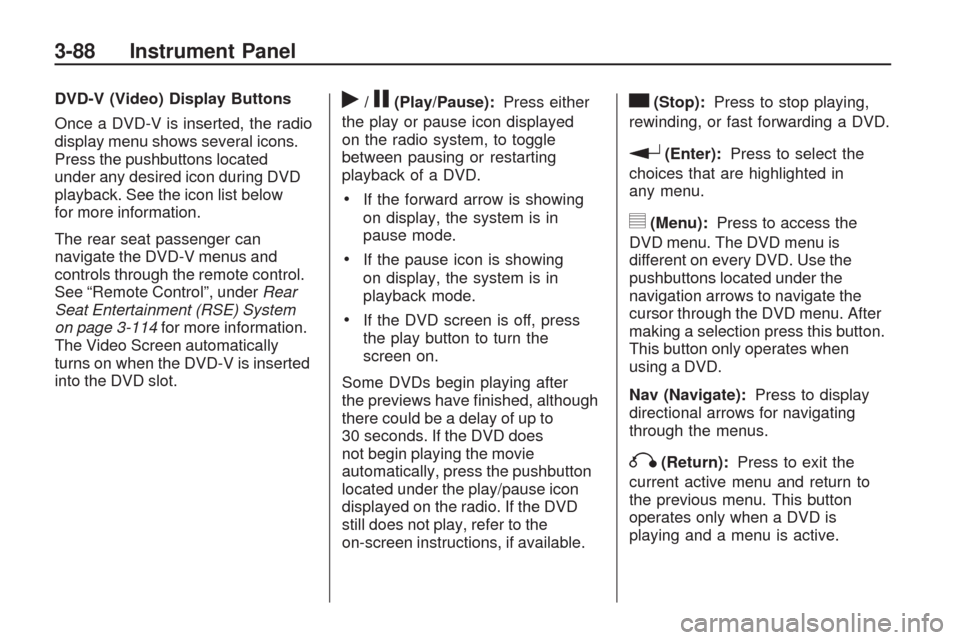
DVD-V (Video) Display Buttons
Once a DVD-V is inserted, the radio
display menu shows several icons.
Press the pushbuttons located
under any desired icon during DVD
playback. See the icon list below
for more information.
The rear seat passenger can
navigate the DVD-V menus and
controls through the remote control.
See “Remote Control”, underRear
Seat Entertainment (RSE) System
on page 3-114for more information.
The Video Screen automatically
turns on when the DVD-V is inserted
into the DVD slot.r/j(Play/Pause):Press either
the play or pause icon displayed
on the radio system, to toggle
between pausing or restarting
playback of a DVD.
If the forward arrow is showing
on display, the system is in
pause mode.
If the pause icon is showing
on display, the system is in
playback mode.
If the DVD screen is off, press
the play button to turn the
screen on.
Some DVDs begin playing after
the previews have nished, although
there could be a delay of up to
30 seconds. If the DVD does
not begin playing the movie
automatically, press the pushbutton
located under the play/pause icon
displayed on the radio. If the DVD
still does not play, refer to the
on-screen instructions, if available.
c(Stop):Press to stop playing,
rewinding, or fast forwarding a DVD.
r(Enter):Press to select the
choices that are highlighted in
any menu.
y(Menu):Press to access the
DVD menu. The DVD menu is
different on every DVD. Use the
pushbuttons located under the
navigation arrows to navigate the
cursor through the DVD menu. After
making a selection press this button.
This button only operates when
using a DVD.
Nav (Navigate):Press to display
directional arrows for navigating
through the menus.
q(Return):Press to exit the
current active menu and return to
the previous menu. This button
operates only when a DVD is
playing and a menu is active.
3-88 Instrument Panel
Page 209 of 422
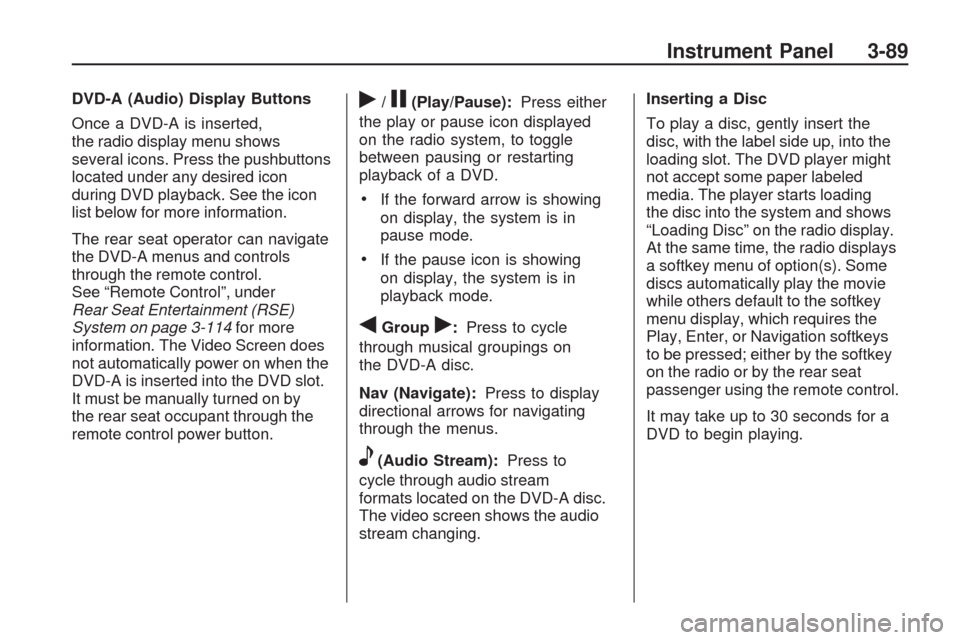
DVD-A (Audio) Display Buttons
Once a DVD-A is inserted,
the radio display menu shows
several icons. Press the pushbuttons
located under any desired icon
during DVD playback. See the icon
list below for more information.
The rear seat operator can navigate
the DVD-A menus and controls
through the remote control.
See “Remote Control”, under
Rear Seat Entertainment (RSE)
System on page 3-114for more
information. The Video Screen does
not automatically power on when the
DVD-A is inserted into the DVD slot.
It must be manually turned on by
the rear seat occupant through the
remote control power button.r/j(Play/Pause):Press either
the play or pause icon displayed
on the radio system, to toggle
between pausing or restarting
playback of a DVD.
If the forward arrow is showing
on display, the system is in
pause mode.
If the pause icon is showing
on display, the system is in
playback mode.
qGroupr:Press to cycle
through musical groupings on
the DVD-A disc.
Nav (Navigate):Press to display
directional arrows for navigating
through the menus.
e(Audio Stream):Press to
cycle through audio stream
formats located on the DVD-A disc.
The video screen shows the audio
stream changing.Inserting a Disc
To play a disc, gently insert the
disc, with the label side up, into the
loading slot. The DVD player might
not accept some paper labeled
media. The player starts loading
the disc into the system and shows
“Loading Disc” on the radio display.
At the same time, the radio displays
a softkey menu of option(s). Some
discs automatically play the movie
while others default to the softkey
menu display, which requires the
Play, Enter, or Navigation softkeys
to be pressed; either by the softkey
on the radio or by the rear seat
passenger using the remote control.
It may take up to 30 seconds for a
DVD to begin playing.
Instrument Panel 3-89