ad blue CHEVROLET TRAVERSE 2018 Owner's Guide
[x] Cancel search | Manufacturer: CHEVROLET, Model Year: 2018, Model line: TRAVERSE, Model: CHEVROLET TRAVERSE 2018Pages: 419, PDF Size: 5.92 MB
Page 197 of 419
Chevrolet Traverse Owner Manual (GMNA-Localizing-U.S./Canada/Mexico-
10603118) - 2018 - CRC - 1/29/18
196 Infotainment System
Returning to the Beginning of the
Current Song
Touch
gafter two seconds of
playback time.
Search
Touch and hold
gorlto rewind
or fast forward.
Playing Music Randomly
Touch
Zduring playback. Touch
again to return to normal play.
This function may not be supported
depending on the Bluetooth device.
Do not change the track too quickly
when playing Bluetooth music.
Conditions that may occur when
playing Bluetooth music:
. It takes time to transmit data
from the Bluetooth device to the
infotainment system.
. If the cell phone or Bluetooth
device is not in the waiting
screen mode, it may not
automatically play. .
The infotainment system
transmits the order to play from
the Bluetooth device in the
Bluetooth music play mode.
If this is done in a different
mode, then the device transmits
the order to stop. Depending on
the Bluetooth device options,
this order to play/stop may take
time to activate.
. If the Bluetooth music playback
is not functioning, then check to
see if the Bluetooth device is in
the waiting screen mode.
. Sounds may be cut off during
the Bluetooth music playback.
. The infotainment system outputs
the audio from the cell phone or
Bluetooth device as it is
transmitted.
Apple CarPlay and
Android Auto
If equipped, Android Auto and/or
Apple CarPlay capability may be
available through a compatible
smartphone. If available, PROJECTION will appear on the
Home Page of the infotainment
display.
To use Android Auto or Apple
CarPlay:
1. Download the Android Auto app to your phone from the
Google Play store. No app is
required for Apple CarPlay.
2. Connect an Android phone or iPhone by using the compatible
phone USB cable and plugging
into a USB data port. For best
performance, use the device’ s
factory-provided USB cable.
Aftermarket or third-party
cables may not work.
3. When the phone is first connected to activate Apple
CarPlay or Android Auto, the
message “Device Projection
Privacy Consent” will appear.
. Select Continue to launch
Apple CarPlay or
Android Auto.
Page 198 of 419
Chevrolet Traverse Owner Manual (GMNA-Localizing-U.S./Canada/Mexico-
10603118) - 2018 - CRC - 1/29/18
Infotainment System 197
.Select Disable to remove
Apple CarPlay and Android
Auto capability from the
vehicle Settings menu.
Other functions may
still work.
PROJECTION on the Home Page
will change to Android Auto or Apple
CarPlay depending on the phone.
Android Auto and/or Apple CarPlay
may automatically launch upon USB
connection. If not, touch the
ANDROID AUTO and/or APPLE
CARPLAY icon on the Home Page
to launch.
Press
{on the center stack to
return to the Home Page.
For further information on how to set
up Android Auto and Apple CarPlay
in the vehicle, see my.chevrolet.com
or see Customer Assistance Offices
0 382.
Android Auto is provided by
Google and is subject to Google’ s
terms and privacy policy. Apple
CarPlay is provided by Apple and is
subject to Apple’ s terms and privacy
policy. Data plan rates apply. For Android Auto support see
https://support.google.com/
androidauto. For Apple CarPlay
support see www.apple.com/ios/
carplay/. Apple or Google may
change or suspend availability at
any time. Android Auto, Android,
Google, Google Play, and other
marks are trademarks of Google
Inc.; Apple CarPlay is a trademark
of Apple Inc.
Hands-Free Phone
General Information
Vehicles with a Hands-Free Phone
system can use a Bluetooth-capable
cell phone with a hands-free profile
to make and receive phone calls.
The infotainment system and voice
commands are used to operate the
system. Not all phones support all
functions and not all phones work
with the Hands-Free Phone system.
Hands-Free Phone Controls
Use the controls on the infotainment
system and the steering wheel to
operate the Hands-Free Phone
system.Steering Wheel Controls
Steering wheel controls can be
used to:
.
Answer incoming calls.
. Confirm system information.
. End a call.
. Decline a call.
. Cancel an operation.
. Make outgoing calls using the
call list.
g:Press to answer incoming calls.
c:Press to end a call, decline a
call, or cancel an operation.
Making a Call by Entering a Phone
Number
. Press
5on the center stack.
. Press
{, then touch PHONE on
the infotainment display.
. Press
gon the steering wheel.
If a wrong number is entered, touch
}to delete the number one digit at
a time, or touch and hold
}to
delete all digits of the number.
Page 199 of 419
Chevrolet Traverse Owner Manual (GMNA-Localizing-U.S./Canada/Mexico-
10603118) - 2018 - CRC - 1/29/18
198 Infotainment System
Switching a Call to the Cell Phone
(Private Mode)
To switch the call from the cell
phone to hands-free:1. Touch
0.
2. Touch
0again to switch back
to hands-free.
Turning the Microphone On
and Off
Touch
3to turn the microphone on
or off.
Calling by Redial
To call by using redial:
. Press
gon the steering wheel
controls to display the redial
guidance screen.
. Touch
5on the infotainment
display, or press
5on the center
stack.
Redialing is not possible when there
is no call history. Taking Calls
When a phone call comes through
the connected Bluetooth cell phone,
the audio system will be muted or
paused and the phone will ring with
the relevant information displayed.
Press
gon the steering wheel
controls, touch
5on the
infotainment display, or press
5on
the center stack.
To decline the call, press
con the
steering wheel controls or touch
Reject on the infotainment display.
Using the Contacts Menu
1. Touch contacts on the phone screen.
2. Touch
QorRto scroll through
the list.
3. Touch the phone book entry to call.
4. If there is more than one number associated with the
name, touch the number
to dial. Searching for Contacts Entries
1. Touch contacts on the phone screen.
2. Touch
9on the contacts
screen.
3. Use the keypad to input the name to search. For details,
see “Searching for a Name”
following.
4. Touch the phone book entry to call.
5. If there is more than one number associated with the
name, touch the number
to dial.
When the Bluetooth device and
infotainment system are
successfully paired, the phone book
will download. Some phones may
not download automatically. If this
happens, connect it again or
proceed with the phone book
download on the phone.
Page 200 of 419
Chevrolet Traverse Owner Manual (GMNA-Localizing-U.S./Canada/Mexico-
10603118) - 2018 - CRC - 1/29/18
Infotainment System 199
Searching for a Name
Select characters by using the
keypad on the phone book screen.
As characters are selected, the
names that include those characters
will display on the phone book
screen. As more characters of the
name are entered, the list of
possible names is shortened.
To search for the name Alex:1. Touch (abc) to select the first character.
2. Touch (jkl) three times to select the second character.
3. Touch (def) two times to select the third character.
4. Touch (wxy) two times to select the fourth character.
Making a Call from Call History 1. Touch Call History on the phone screen. 2. Touch one of the following for:
.
WAll calls history.
.
[Dialed calls.
.
YMissed calls.
.
XReceived calls.
3. Select the contact entry to call.
Making a Call with Speed Dial
Numbers
Touch and hold the speed dial
number using the keypad on the
phone screen.
Only speed dial numbers already
stored on the cell phone can be
used for speed dial calls. Up to
two-digit speed dial numbers are
supported.
For two-digit speed dial numbers,
press and hold the second digit to
make a call to the speed dial
number.
Trademarks and
License Agreements
Bluetooth
The Bluetooth word mark and logos
are owned by the Bluetooth SIG,
Inc. and any use of such marks by
General Motors is under license.
Other trademarks and trade names
are those of their respective owners.
“Made for iPod” and“Made for
iPhone” mean that an electronic
accessory has been designed to
connect specifically to iPod or
iPhone and has been certified by
the developer to meet Apple
performance standards.
iPod and iPhone are trademarks of
Apple Computer, Inc., registered in
the U.S. and other countries.
Page 250 of 419
Chevrolet Traverse Owner Manual (GMNA-Localizing-U.S./Canada/Mexico-
10603118) - 2018 - CRC - 1/29/18
Driving and Operating 249
The ACC indicator displays on the
instrument cluster. When ACC is
turned on, the indicator will be lit
white.
Be mindful of speed limits,
surrounding traffic speeds, and
weather conditions when selecting
the set speed.
Resuming a Set Speed
If the ACC is set at a desired speed
and then the brakes are applied,
ACC is disengaged without erasing
the set speed from memory.
To begin using ACC again, press
RES+ up briefly. The vehicle returns
to the previous set speed.
.If the vehicle is moving, it returns
to the previous set speed.
. If the vehicle is stopped with
the brake pedal applied, press
RES+ and release the brake pedal. ACC will hold the vehicle
until RES+ or the accelerator
pedal is pressed.
A green ACC indicator and the set
speed display on the instrument
cluster. The vehicle ahead indicator
may be flashing if a vehicle ahead
was present and moved. See
“Approaching and Following a
Vehicle” later in this section.
Once ACC has resumed, if there is
no vehicle ahead, if the vehicle
ahead is beyond the selected
following gap, or if the vehicle has
exited a sharp curve, then the
vehicle speed will increase to the
set speed.
Increasing Speed While ACC Is at
a Set Speed
Do one of the following:
. Use the accelerator to get to the
higher speed. Press SET– .
Release the control and the
accelerator pedal. The vehicle
will now cruise at the higher
speed. When the accelerator pedal is
pressed, ACC will not brake
because it is overridden. The
ACC indicator will turn blue on
the instrument cluster.
. Press and hold RES+ until the
desired set speed appears on
the display, then release it.
. To increase vehicle speed in
small increments, press RES+.
For each press, the vehicle goes
1 km/h (1 mph) faster.
When it is determined that there is
no vehicle ahead or the vehicle
ahead is beyond the selected
following gap, then the vehicle
speed will increase to the set speed.
The set speed can also be
increased while the vehicle is
stopped.
. If stopped with the brake
applied, press RES+ until the
desired set speed is displayed.
. If ACC is holding the vehicle at a
stop and there is another vehicle
directly ahead, pressing RES+
will increase the set speed.
Page 253 of 419
Chevrolet Traverse Owner Manual (GMNA-Localizing-U.S./Canada/Mexico-
10603118) - 2018 - CRC - 1/29/18
252 Driving and Operating
Notification to Resume ACC
ACC will maintain a follow gap
behind a detected vehicle and slow
your vehicle to a stop behind that
vehicle.
If the stopped vehicle ahead has
driven away and ACC has not
resumed, the vehicle ahead
indicator will flash as a reminder to
check traffic ahead before
proceeding. In addition, the left and
right sides of the Safety Alert Seat
will pulse three times, or three
beeps will sound. See”Alert Type”
and“Adaptive Cruise Go Notifier” in
“Collision/Detection Systems” under
Vehicle Personalization 0154.
When the vehicle ahead drives
away, press RES+ or the
accelerator pedal to resume ACC.
If stopped for more than
two minutes or if the driver door is
opened and the driver seat belt is
unbuckled, the ACC automatically
applies the Electric Parking Brake
(EPB) to hold the vehicle. The
Electric Parking Brake status light will turn on. See
Electric Parking
Brake 0237. To resume ACC and
release the EPB, press the
accelerator pedal.
A DIC warning message may
display indicating to shift to P (Park)
before exiting the vehicle. See
Vehicle Messages 0153.
{Warning
If ACC has stopped the vehicle,
and if ACC is disengaged, turned
off, or canceled, the vehicle will
no longer be held at a stop. The
vehicle can move. When ACC is
holding the vehicle at a stop,
always be prepared to manually
apply the brakes.
{Warning
Leaving the vehicle without
placing it in P (Park) can be
dangerous. Do not leave the
vehicle while it is being held at a
(Continued)
Warning (Continued)
stop by ACC. Always place the
vehicle in P (Park) and turn off
the ignition before leaving the
vehicle.
ACC Override
If using the accelerator pedal while
ACC is active, the ACC indicator
turns blue on the instrument cluster.
ACC will resume operation when the
accelerator pedal is not being
pressed.
{Warning
The ACC will not automatically
apply the brakes if your foot is
resting on the accelerator pedal.
You could crash into a vehicle
ahead of you.
Page 281 of 419
Chevrolet Traverse Owner Manual (GMNA-Localizing-U.S./Canada/Mexico-
10603118) - 2018 - CRC - 1/29/18
280 Driving and Operating
1. Front of Vehicle
2. Body-to-Ground Distance
When using a weight-distributing
hitch, the hitch must be adjusted so
that the distance (2) remains the
same both before and after coupling
the trailer to the tow vehicle.
Safety Chains
Always attach chains between the
vehicle and the trailer. Cross the
safety chains under the tongue of
the trailer to help prevent the tongue
from contacting the road if it
becomes separated from the hitch.
Always leave just enough slack so
the rig can turn. Never allow safety
chains to drag on the ground.
Trailer Brakes
A loaded trailer that weighs more
than 450 kg (1,000 lb) needs to have
its own brake system that is
adequate for the weight of the
trailer. Be sure to read and follow
the instructions for the trailer brakes
so they are installed, adjusted, and
maintained properly.Because the vehicle has antilock
brakes, do not try to tap into the
vehicle's hydraulic brake system.
If you do, both brake systems will
not work well, or at all.
Trailer Wiring Harness
Basic Trailer Wiring
The trailer wiring harness, with a
seven-pin connector, is located at
the rear of the vehicle and is tied to
the vehicle's frame. The harness
connector can be plugged into a
seven-pin universal heavy-duty
trailer connector available through
your dealer.
Use only a round, seven-wire
connector with flat blade terminals
meeting SAE J2863 specifications
for proper electrical connectivity.
The seven-wire harness contains
the following trailer circuits:
.
Yellow/Blue: Left Stop/Turn
Signal
. Green/Brown: Right Stop/Turn
Signal
. Gray/Brown: Taillamps .
Black: Ground
. White/Green: Back-up Lamps
. Red/Green: Battery Feed
. Blue: Trailer Brake*
*The fuse for this circuit is installed
in the underhood electrical center,
but the wires are not connected.
They should be connected by your
dealer or a qualified service center.
If the back-up lamp circuit is not
functional, contact your dealer.
If a remote (non-vehicle) battery is
being charged, select Tow/Haul
Mode on Driver Mode Control knob
on the center console. This will
boost the vehicle system voltage
and properly charge the battery.
If the trailer is too light for Tow/Haul
Mode, turn on the headlamps
(non-HID only) as a second way to
boost the vehicle system and
charge the battery.
Page 282 of 419
Chevrolet Traverse Owner Manual (GMNA-Localizing-U.S./Canada/Mexico-
10603118) - 2018 - CRC - 1/29/18
Driving and Operating 281
Electric Trailer Brake Control
Wiring Provisions
These wiring provisions for an
electric trailer brake controller are
included with the vehicle as part of
the trailer wiring package. The body
harness, inside the front driver side
instrument panel, contains blunt cut
wires below the headlamp switch for
the electric trailer brake controller.
The harness contains the following
wires:
.Blue: “To Trailer”
. Red/Black or Red/Blue:
Battery Feed
. White/Blue: Brake Apply Signal
. Black: Ground
The electric trailer brake controller
should be installed by your dealer or
a qualified service center.Conversions and
Add-Ons
Add-On Electrical
Equipment
{Warning
The Data Link Connector (DLC) is
used for vehicle service
and Emission Inspection/
Maintenance testing. See
Malfunction Indicator Lamp
(Check Engine Light) 0141.
A device connected to the DLC —
such as an aftermarket fleet or
driver-behavior tracking device —
may interfere with vehicle
systems. This could affect vehicle
operation and cause a crash.
Such devices may also access
information stored in the vehicle’s
systems.
Caution
Some electrical equipment can
damage the vehicle or cause
components to not work and
would not be covered by the
vehicle warranty. Always check
with your dealer before adding
electrical equipment.
Add-on equipment can drain the
vehicle's 12-volt battery, even if the
vehicle is not operating.
The vehicle has an airbag system.
Before attempting to add anything
electrical to the vehicle, see
Servicing the Airbag-Equipped
Vehicle 095 and Adding Equipment
to the Airbag-Equipped Vehicle
0 95.
Page 395 of 419
Chevrolet Traverse Owner Manual (GMNA-Localizing-U.S./Canada/Mexico-
10603118) - 2018 - CRC - 1/29/18
394 OnStar
OnStar
OnStar Overview
OnStar Overview . . . . . . . . . . . . . 394
OnStar Services
Emergency . . . . . . . . . . . . . . . . . . . 395
Security . . . . . . . . . . . . . . . . . . . . . . 396
Navigation . . . . . . . . . . . . . . . . . . . . 396
Connections . . . . . . . . . . . . . . . . . . 397
Diagnostics . . . . . . . . . . . . . . . . . . . 399
OnStar Additional Information
OnStar AdditionalInformation . . . . . . . . . . . . . . . . . . 400
OnStar Overview
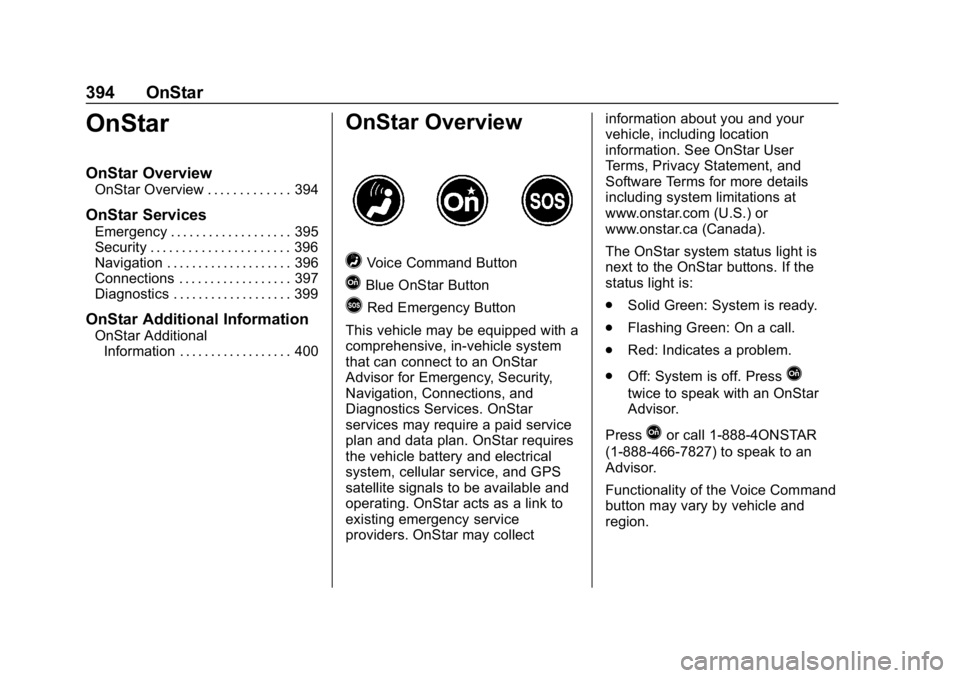
=Voice Command Button
QBlue OnStar Button
>Red Emergency Button
This vehicle may be equipped with a
comprehensive, in-vehicle system
that can connect to an OnStar
Advisor for Emergency, Security,
Navigation, Connections, and
Diagnostics Services. OnStar
services may require a paid service
plan and data plan. OnStar requires
the vehicle battery and electrical
system, cellular service, and GPS
satellite signals to be available and
operating. OnStar acts as a link to
existing emergency service
providers. OnStar may collect information about you and your
vehicle, including location
information. See OnStar User
Terms, Privacy Statement, and
Software Terms for more details
including system limitations at
www.onstar.com (U.S.) or
www.onstar.ca (Canada).
The OnStar system status light is
next to the OnStar buttons. If the
status light is:
.
Solid Green: System is ready.
. Flashing Green: On a call.
. Red: Indicates a problem.
. Off: System is off. Press
Q
twice to speak with an OnStar
Advisor.
Press
Qor call 1-888-4ONSTAR
(1-888-466-7827) to speak to an
Advisor.
Functionality of the Voice Command
button may vary by vehicle and
region.
Page 408 of 419

Chevrolet Traverse Owner Manual (GMNA-Localizing-U.S./Canada/Mexico-
10603118) - 2018 - CRC - 1/29/18
Index 407
Apple CarPlay andAndroid Auto . . . . . . . . . . . . . . . . . . 196
Assistance Program, Roadside . . . . . . . . . . . . . . . . . . . . . . 384
Assistance Systems for Driving . . . . . . . . . . . . . . . . . . . . . . . . 259
Assistance Systems for
Parking and Backing . . . . . . . . . . 256
Audio Theft-Deterrent Feature . . . . . . . 176
Automatic
Dimming Mirrors . . . . . . . . . . . . . . . . 54
Door Locks . . . . . . . . . . . . . . . . . . . . . 42
Forward Braking . . . . . . . . . . . . . . 261
Headlamp System . . . . . . . . . . . . 169
Transmission . . . . . . . . . . . . . . . . . 232
Transmission Fluid . . . . . . . . . . . 292
Automatic Transmission Manual Mode . . . . . . . . . . . . . . . . . 234
Shift Lock Control FunctionCheck . . . . . . . . . . . . . . . . . . . . . . . 303
Auxiliary Devices . . . . . . . . . . . . . . . . . . . . . . . 190
Avoiding Untrusted Media Devices . . . . . . . . . . . . . . . . . . . . . . . 184B
Battery
Exterior Lighting BatterySaver . . . . . . . . . . . . . . . . . . . . . . . 174
Load Management . . . . . . . . . . . . 173
Power Protection . . . . . . . . . . . . . 174
Battery - North America . . . . 302, 348
Blade Replacement, Wiper . . . . . 304
Bluetooth Overview . . . . . . . . . . . . . . . . 191, 192
Brake Parking, Electric . . . . . . . . . . . . . . 237
System Warning Light . . . . . . . . 143
Brakes . . . . . . . . . . . . . . . . . . . . . . . . . . 300
Antilock . . . . . . . . . . . . . . . . . . . . . . . 236
Assist . . . . . . . . . . . . . . . . . . . . . . . . . 238
Fluid . . . . . . . . . . . . . . . . . . . . . . . . . . 301
Braking . . . . . . . . . . . . . . . . . . . . . . . . . 209 Automatic Forward . . . . . . . . . . . 261
Braking System Front Pedestrian (FPB) . . . . . . . 263
Break-In, New Vehicle . . . . . . . . . . 223
Bulb Replacement Headlamp Aiming . . . . . . . . . . . . . 307
Headlamps . . . . . . . . . . . . . . . . . . . 307
Headlamps, Front Turn
Signal, and Sidemarker . . . . . 308 Bulb Replacement (cont'd)
High Intensity Discharge
(HID) Lighting . . . . . . . . . . . . . . . 307
License Plate Lamps . . . . . . . . . 308
Buying New Tires . . . . . . . . . . . . . . . 334
C
Calibration . . . . . . . . . . . . . . . . . . . . . . 127
California Fuel Requirements . . . . . . . . . . . 270
Perchlorate Materials
Requirements . . . . . . . . . . . . . . . 284
California Proposition
65 Warning . . . . . . . . . .283, 302, 348,
Back Cover
Canadian Vehicle Owners . . . . . . . . 2
Capacities and Specifications . . . . . . . . . . . . . . . . . 377
Carbon Monoxide Engine Exhaust . . . . . . . . . . . . . . . 231
Liftgate . . . . . . . . . . . . . . . . . . . . . . . . . 44
Winter Driving . . . . . . . . . . . . . . . . 217
Cargo
Management System . . . . . . . . . .119
Caution, Danger, and Warning . . . . 3
Center Console Storage . . . . . . . . 119
Chains, Tire . . . . . . . . . . . . . . . . . . . . 339