Lane CHEVROLET TRAVERSE 2023 User Guide
[x] Cancel search | Manufacturer: CHEVROLET, Model Year: 2023, Model line: TRAVERSE, Model: CHEVROLET TRAVERSE 2023Pages: 369, PDF Size: 16.89 MB
Page 147 of 369
Chevrolet Traverse Owner Manual (GMNA-Localizing-U.S./Canada/Mexico-
16411537) - 2023 - CRC - 3/28/22
146 Infotainment System
Map Preferences
Touch to choose between basic map feature
configurations:
Map Colors
.Auto–Touch to automatically change
modes based on lighting conditions.
.Day (Light)
.Night (Dark)
3D Landmark (Default is On) : Touch On or
Off. When turned on, the system will
display all 3D Landmarks on the map
depending on the zoom level.
3D Building (Default is Off) : Touch On or
Off. When turned on, the system will
display all of the possible 3D building shapes
on the map depending on the zoom level.
Show Terrain in 3D (Default is Off) :
If equipped, touch On or Off. When turned
on, the system will display terrain
information on the map in 3D view.
Auto-Zoom (Default is On) : Touch On or
Off. When turned on, the system will
automatically adjust the zoom level when
the vehicle is approaching a turn. After the
turn is completed, the system automatically
brings the zoom back to the originally set
level. If the vehicle is approaching a turn with the next turn occurring shortly after,
the Auto-Zoom will remain on until both
turns are completed.
Route Preferences
Touch to access the Route Preferences. The
choices are:
.Preferred Route
–Choose from two
different route options: Fastest or
Eco-Friendly.
‐ Fastest would be the route with the
shortest drive time.
‐ Eco-Friendly would be the most
fuel-efficient route.
.Avoid on Current Route –Choose any of
the road features to avoid while on route:
‐ Highways
‐ Unpaved Roads
‐ Ferries
‐ Carpool Lanes
‐ Toll Roads
‐ Tunnels
‐ Country Borders
Navigation Voice Control
Touch to access the voice control setting
display.
.Navigation Volume –To adjust the
volume level, touch the up and down
arrows. If the voice guidance prompt is
being heard, volume can also be adjusted
using the knob on the center stack or the
volume switch on the steering wheel.
.Navigation Voice Prompt Level during a
Call. Options available are:
‐ Full Prompt (Selected by default)
‐ Tone Only
‐ None
Traffic Events (If Equipped)
This feature provides a list of events that
are on the route or nearby. Touch
Aand
then select Traffic Events. A connected
Navigation service plan is required.
Traffic Preferences (If Equipped)
While in Map View, touch
A, then Settings
and then Map and Navigation Settings to
access Traffic Preferences. When Show
Traffic on Map is turned on, the feature
provides an overview of the traffic flow
using different coded colors. The following
options are available for rerouting:
Page 151 of 369
Chevrolet Traverse Owner Manual (GMNA-Localizing-U.S./Canada/Mexico-
16411537) - 2023 - CRC - 3/28/22
150 Infotainment System
Map Gestures and Map Scale
Use the following gestures on the
infotainment display to adjust the map scale
and display options.
.Pinch to zoom in or out.
.Pan the map.
.Use two fingers to tilt down and change
from 2D to 3D. Tilt up to change back
to 2D.
.Rotate the map.
See Using the System 0135.
Mute
When in active guidance, the audio prompts
while using navigation can be muted. Touch
the speaker icon on the right side of the
upper bar. A slash will appear on the
speaker to indicate voice guidance is muted.
Active Guidance View
When a destination is chosen and a
navigation session is active, the navigation
system enters into an Active Guidance
View (AGV). Map Orientation
Touch
Aon the map to access map
orientation settings. Map orientation is 3D
Heading Up by default.
Available settings are:
.3D Heading Up (Default): 3D map with
the vehicle pointing up. In this mode, the
current location icon will always head up
and the map will rotate around it.
.2D Heading Up: 2D map with the vehicle
pointing up. In this mode, the current
location icon will always head up and the
map will rotate around it.
.2D North Up: 2D map with North pointing
up. In this mode, the current location icon
will shift as the vehicle turns left and
right.
Touch the icon to change the map type. The
icon and label will also update accordingly.
Depending on the zoom level of the 2D
Heading Up and 3D Heading Up maps, the
system may automatically switch to the 2D
North Up map.
When in AGV, the entire route can be
viewed in 2D North Up by touching the
traffic bar. The map will zoom out and
readjust to display the full route. When in 2D North Up Route View, the Recenter icon
will appear in the middle of the display.
Touch either the Recenter icon or the traffic
bar again to return to the previous view,
either 2D or 3D.
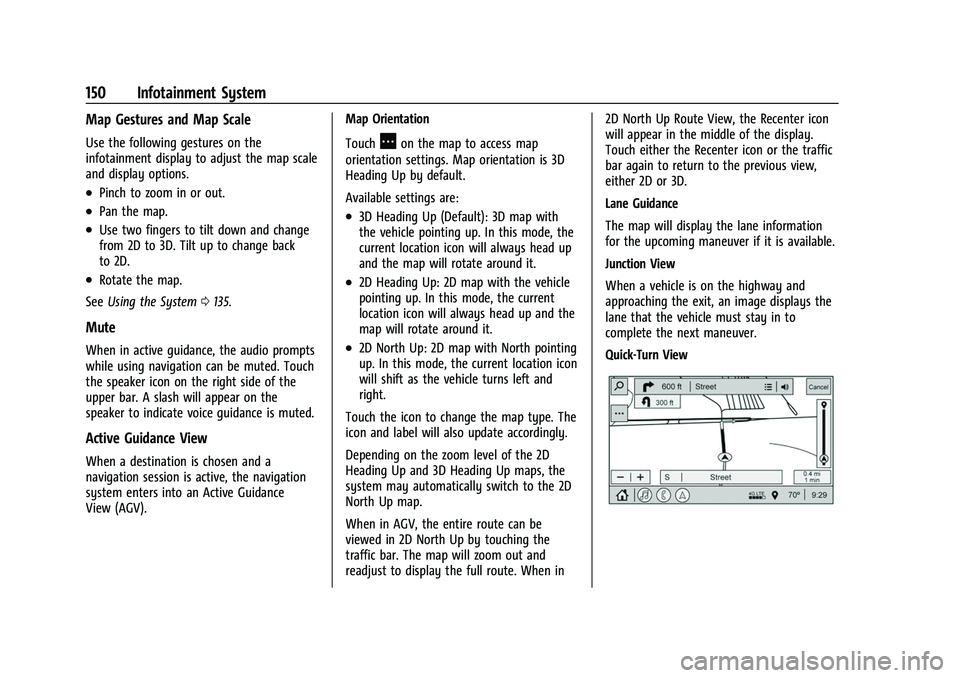
Lane Guidance
The map will display the lane information
for the upcoming maneuver if it is available.
Junction View
When a vehicle is on the highway and
approaching the exit, an image displays the
lane that the vehicle must stay in to
complete the next maneuver.
Quick-Turn View
Page 187 of 369
Chevrolet Traverse Owner Manual (GMNA-Localizing-U.S./Canada/Mexico-
16411537) - 2023 - CRC - 3/28/22
186 Driving and Operating
Driving and Operating
Driving Information
Driving for Better Fuel Economy . . . . . . . 187
Distracted Driving . . . . . . . . . . . . . . . . . . . . . 187
Defensive Driving . . . . . . . . . . . . . . . . . . . . . . 188
Impaired Driving . . . . . . . . . . . . . . . . . . . . . . 188
Control of a Vehicle . . . . . . . . . . . . . . . . . . . 188
Braking . . . . . . . . . . . . . . . . . . . . . . . . . . . . . . . . 188
Steering . . . . . . . . . . . . . . . . . . . . . . . . . . . . . . . 189
Off-Road Recovery . . . . . . . . . . . . . . . . . . . . . 189
Loss of Control . . . . . . . . . . . . . . . . . . . . . . . . 190
Off-Road Driving . . . . . . . . . . . . . . . . . . . . . . . 190
Driving on Wet Roads . . . . . . . . . . . . . . . . . 193
Hill and Mountain Roads . . . . . . . . . . . . . . 194
Winter Driving . . . . . . . . . . . . . . . . . . . . . . . . . 195
If the Vehicle Is Stuck . . . . . . . . . . . . . . . . . 196
Vehicle Load Limits . . . . . . . . . . . . . . . . . . . . 196
Starting and Operating
New Vehicle Break-In . . . . . . . . . . . . . . . . . . 199
Ignition Positions . . . . . . . . . . . . . . . . . . . . . 200
Starting the Engine . . . . . . . . . . . . . . . . . . . . 201
Stop/Start System . . . . . . . . . . . . . . . . . . . . . 202
Engine Heater . . . . . . . . . . . . . . . . . . . . . . . . . 203
Retained Accessory Power (RAP) . . . . . . 204
Shifting Into Park . . . . . . . . . . . . . . . . . . . . . 205
Shifting out of Park . . . . . . . . . . . . . . . . . . . 205Parking over Things That Burn . . . . . . . . 206
Extended Parking . . . . . . . . . . . . . . . . . . . . . 206
Engine Exhaust
Engine Exhaust . . . . . . . . . . . . . . . . . . . . . . . . 206
Running the Vehicle While Parked . . . . . 207
Automatic Transmission
Automatic Transmission . . . . . . . . . . . . . . . 207
Manual Mode . . . . . . . . . . . . . . . . . . . . . . . . . 208
Drive Systems
All-Wheel Drive . . . . . . . . . . . . . . . . . . . . . . . 209
Brakes
Antilock Brake System (ABS) . . . . . . . . . . . 210
Electric Parking Brake . . . . . . . . . . . . . . . . . . 210
Brake Assist . . . . . . . . . . . . . . . . . . . . . . . . . . . . 211
Hill Start Assist (HSA) . . . . . . . . . . . . . . . . . . 212
Ride Control Systems
Traction Control/Electronic Stability
Control . . . . . . . . . . . . . . . . . . . . . . . . . . . . . . . 212
Driver Mode Control . . . . . . . . . . . . . . . . . . . 214
Cruise Control
Cruise Control . . . . . . . . . . . . . . . . . . . . . . . . . 216
Adaptive Cruise Control (Advanced) . . . . 218
Driver Assistance Systems
Driver Assistance Systems . . . . . . . . . . . . . 226
Assistance Systems for Parking or Backing . . . . . . . . . . . . . . . . . . . . . . . . . . . . . . 227
Rear Vision Camera (RVC) . . . . . . . . . . . . . 228
Surround Vision System . . . . . . . . . . . . . . . 228
Park Assist . . . . . . . . . . . . . . . . . . . . . . . . . . . . 230
Rear Pedestrian Alert . . . . . . . . . . . . . . . . . . 232
Rear Cross Traffic Alert (RCTA) System . . . . . . . . . . . . . . . . . . . . . . . . . . . . . . 233
Assistance Systems for Driving . . . . . . . . 233
Forward Collision Alert (FCA) System . . . . . . . . . . . . . . . . . . . . . . . . . . . . . . 233
Automatic Emergency Braking (AEB) . . . 235
Front Pedestrian Braking (FPB) System . . . . . . . . . . . . . . . . . . . . . . . . . . . . . . 237
Side Blind Zone Alert (SBZA) . . . . . . . . . . . 238
Lane Change Alert (LCA) . . . . . . . . . . . . . . . 239
Lane Keep Assist (LKA) . . . . . . . . . . . . . . . . 240
Fuel
Top Tier Fuel . . . . . . . . . . . . . . . . . . . . . . . . . . 242
Recommended Fuel . . . . . . . . . . . . . . . . . . . . 242
Prohibited Fuels . . . . . . . . . . . . . . . . . . . . . . . 243
Fuels in Foreign Countries . . . . . . . . . . . . . 243
Fuel Additives . . . . . . . . . . . . . . . . . . . . . . . . . 243
Filling the Tank . . . . . . . . . . . . . . . . . . . . . . . . 243
Filling a Portable Fuel Container . . . . . . . 245
Page 190 of 369
Chevrolet Traverse Owner Manual (GMNA-Localizing-U.S./Canada/Mexico-
16411537) - 2023 - CRC - 3/28/22
Driving and Operating 189
applied. Once the power assist is used up, it
can take longer to stop and the brake pedal
will be harder to push.
Steering
Caution
To avoid damage to the steering system,
do not drive over curbs, parking barriers,
or similar objects at speeds greater than
3 km/h (1 mph). Use care when driving
over other objects such as lane dividers
and speed bumps. Damage caused by
misuse of the vehicle is not covered by
the vehicle warranty.
Electric Power Steering
The vehicle is equipped with an electric
power steering system, which reduces the
amount of effort needed to steer the
vehicle. It does not have power steering
fluid. Regular maintenance is not required.
If the vehicle experiences a system
malfunction and loses power steering,
greater steering effort may be required.
Power steering assist also may be reduced if
you turn the steering wheel as far as it can
turn and hold it there with force for an
extended period of time.
See your dealer if there is a problem.
Curve Tips
.Take curves at a reasonable speed.
.Reduce speed before entering a curve.
.Maintain a reasonable steady speed
through the curve.
.Wait until the vehicle is out of the curve
before accelerating gently into the
straightaway.
Steering in Emergencies
.There are some situations when steering
around a problem may be more effective
than braking.
.Holding both sides of the steering wheel
allows you to turn 180 degrees without
removing a hand.
.The Antilock Brake System (ABS) allows
steering while braking.
Off-Road Recovery
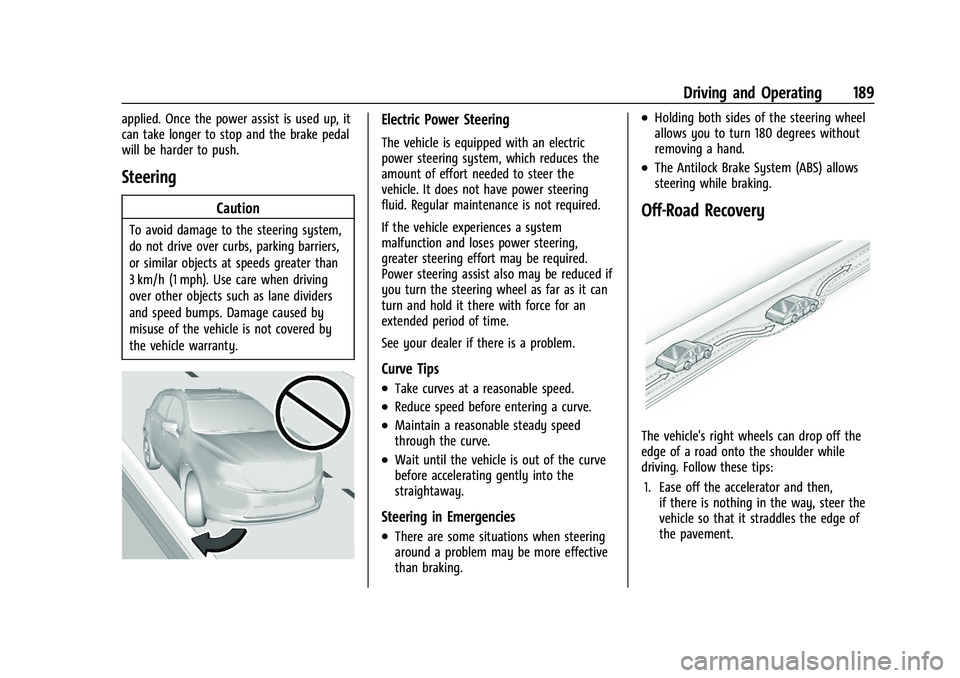
The vehicle's right wheels can drop off the
edge of a road onto the shoulder while
driving. Follow these tips:1. Ease off the accelerator and then, if there is nothing in the way, steer the
vehicle so that it straddles the edge of
the pavement.
Page 195 of 369
Chevrolet Traverse Owner Manual (GMNA-Localizing-U.S./Canada/Mexico-
16411537) - 2023 - CRC - 3/28/22
194 Driving and Operating
{Warning
Wet brakes can cause crashes. They
might not work as well in a quick stop
and could cause pulling to one side. You
could lose control of the vehicle.
After driving through a large puddle of
water or a car/vehicle wash, lightly apply
the brake pedal until the brakes work
normally.
Flowing or rushing water creates strong
forces. Driving through flowing water
could cause the vehicle to be carried
away. If this happens, you and other
vehicle occupants could drown. Do not
ignore police warnings and be very
cautious about trying to drive through
flowing water.
Hydroplaning
Hydroplaning is dangerous. Water can build
up under the vehicle's tires so they actually
ride on the water. This can happen if the
road is wet enough and you are going fast
enough. When the vehicle is hydroplaning, it
has little or no contact with the road.There is no hard and fast rule about
hydroplaning. The best advice is to slow
down when the road is wet.
Other Rainy Weather Tips
Besides slowing down, other wet weather
driving tips include:
.Allow extra following distance.
.Pass with caution.
.Keep windshield wiping equipment in
good shape.
.Keep the windshield washer fluid reservoir
filled.
.Have good tires with proper tread depth.
See
Tires 0286.
.Turn off cruise control.
.Activate All-Wheel Drive (AWD) mode. See
Driver Mode Control 0214.
Hill and Mountain Roads
Driving on steep hills or through mountains
is different than driving on flat or rolling
terrain. Tips include:
.Keep the vehicle serviced and in good
shape.
.Check all fluid levels and brakes, tires,
cooling system, and transmission.
.Shift to a lower gear when going down
steep or long hills.
{Warning
Using the brakes to slow the vehicle on a
long downhill slope can cause brake
overheating, can reduce brake
performance, and could result in a loss of
braking. Shift the transmission to a lower
gear to let the engine assist the brakes
on a steep downhill slope.
{Warning
Coasting downhill in N (Neutral) or with
the ignition off is dangerous. This can
cause overheating of the brakes and loss
of steering assist. Always have the engine
running and the vehicle in gear.
.Drive at speeds that keep the vehicle in
its own lane. Do not swing wide or cross
the center line.
.Be alert on top of hills; something could
be in your lane (e.g., stalled car, crash).
.Pay attention to special road signs (e.g.,
falling rocks area, winding roads, long
grades, passing or no-passing zones) and
take appropriate action.
Page 219 of 369
Chevrolet Traverse Owner Manual (GMNA-Localizing-U.S./Canada/Mexico-
16411537) - 2023 - CRC - 3/28/22
218 Driving and Operating
downshift in order to use engine braking to
slow the vehicle and maintain the set speed.
Also, you may have to brake or shift to a
lower gear to keep your speed down. If the
brake pedal is applied, cruise control
disengages.
Ending Cruise Control
There are four ways to end cruise control:
.Step lightly on the brake pedal.
.Press*.
.Shift the transmission to N (Neutral).
.PressJ.
Erasing Speed Memory
The cruise control set speed is erased from
memory if
Jis pressed or if the ignition is
turned off.
Adaptive Cruise Control
(Advanced)
If equipped with Adaptive Cruise Control
(ACC), it allows the driver to select the
cruise control set speed and following gap.
Read this entire section before using this
system. The following gap is the following
time between your vehicle and a vehicle
detected directly ahead in your path,
moving in the same direction. If no vehicle is detected in your path, ACC works like
regular cruise control. ACC uses camera and
radar sensors. See
Radio Frequency
Statement 0346.
If a vehicle is detected in your path, ACC can
apply acceleration or limited, moderate
braking to maintain the selected following
gap. To disengage ACC, apply the brake.
If ACC is controlling your vehicle speed
when the Traction Control System (TCS) or
StabiliTrak/Electronic Stability Control (ESC)
system activates, the ACC may automatically
disengage. See Traction Control/Electronic
Stability Control 0212. When road
conditions allow ACC to be safely used, the
ACC can be turned back on.
Disabling the TCS or StabiliTrak/ESC system
will disengage and prevent engagement
of ACC.
ACC can reduce the need for you to
frequently brake and accelerate, especially
when used on expressways, freeways, and
interstate highways. When used on other
roads, you may need to take over the
control of braking or acceleration more
often. ACC automatically slows the vehicle down
while navigating the curve and may increase
speed out of the curve, but will not exceed
the set speed.
{Warning
ACC has limited braking ability and may
not have time to slow the vehicle down
enough to avoid a collision with another
vehicle you are following. This can occur
when vehicles suddenly slow or stop
ahead, or enter your lane. Also see
“Alerting the Driver”
in this section.
Complete attention is always required
while driving and you should be ready to
take action and apply the brakes. See
Defensive Driving 0188.
Page 224 of 369
Chevrolet Traverse Owner Manual (GMNA-Localizing-U.S./Canada/Mexico-
16411537) - 2023 - CRC - 3/28/22
Driving and Operating 223
Passing a Vehicle While Using ACC
If the set speed is high enough, and the left
turn signal is used to pass a vehicle ahead
in the selected following gap, ACC may
assist by gradually accelerating the vehicle
prior to the lane change.
{Warning
When using ACC to pass a vehicle or
perform a lane change, the following
distance to the vehicle being passed may
be reduced. ACC may not apply sufficient
acceleration or braking when passing a
vehicle or performing a lane change.
Always be ready to manually accelerate
or brake to complete the pass or lane
change.
Stationary or Very Slow-Moving Objects
{Warning
ACC may not detect and react to stopped
or slow-moving vehicles ahead of you. For
example, the system may not brake for a
vehicle it has never detected moving. This
can occur in stop-and-go traffic or when a
vehicle suddenly appears due to a vehicle (Continued)
Warning (Continued)
ahead changing lanes. Your vehicle may
not stop and could cause a crash. Use
caution when using ACC. Your complete
attention is always required while driving
and you should be ready to take action
and apply the brakes.
Irregular Objects Affecting ACC
ACC may have difficulty detecting the
following objects:
.Vehicles with cargo extending from the
back end.
.Non-standard shaped vehicles, such as
vehicle transport, vehicles with a side car
fitted, or horse carriages.
.Objects that are close to the front of your
vehicle.
ACC Automatically Disengages
ACC may automatically disengage and the
driver will need to manually apply the
brakes to slow the vehicle if:
.The sensors are blocked.
.The Traction Control System (TCS) or
StabiliTrak/ESC system has activated or
been disabled.
.There is a fault in the system.
.The radar falsely reports blockage when
driving in a desert or remote area with
no other vehicle or roadside objects.
.A DIC message may display to indicate
that ACC is temporarily unavailable.
The ACC indicator will turn white when ACC
is no longer active.
In some cases, when ACC will not activate,
regular cruise control may be used. See
“Switching Between ACC and Regular Cruise
Control” previously in this section. Always
consider driving conditions before using
either cruise control system.
Notification to Resume ACC
ACC will maintain a follow gap behind a
detected vehicle and slow your vehicle to a
stop behind that vehicle.
If the stopped vehicle ahead has driven
away and ACC has not resumed, the vehicle
ahead indicator will flash as a reminder to
check traffic before proceeding. In addition,
the left and right sides of the Safety Alert
Seat (if equipped) will pulse three times,
or three beeps will sound. Touch the
Settings icon on the infotainment home
page. Select “Vehicle”to display the list of
Page 225 of 369
Chevrolet Traverse Owner Manual (GMNA-Localizing-U.S./Canada/Mexico-
16411537) - 2023 - CRC - 3/28/22
224 Driving and Operating
available options and select”Alert Type”and
“Adaptive Cruise Go Notifier” in“Collision/
Detection Systems”.
When the vehicle ahead drives away, ACC
resumes automatically if the stop was brief.
If necessary, press RES+ or the accelerator
pedal to resume ACC. If stopped for more
than two minutes or if the driver door is
opened and the driver seat belt is
unbuckled, the ACC automatically applies the
Electric Parking Brake (EPB) to hold the
vehicle. The EPB status light will turn on.
See Electric Parking Brake 0210. To release
the EPB, press the accelerator pedal.
A DIC warning message may display
indicating to shift to P (Park) before exiting
the vehicle. See Vehicle Messages 0121.
{Warning
If ACC has stopped the vehicle, and if ACC
is disengaged, turned off, or canceled, the
vehicle will no longer be held at a stop.
The vehicle can move. When ACC is
holding the vehicle at a stop, always be
prepared to manually apply the brakes.
{Warning
Leaving the vehicle without placing it in
P (Park) can be dangerous. Do not leave
the vehicle while it is being held at a
stop by ACC. Always place the vehicle in
P (Park) and turn off the ignition before
leaving the vehicle.
ACC Override
If using the accelerator pedal while ACC is
active, the ACC indicator turns blue on the
instrument cluster. ACC will resume
operation when the accelerator pedal is not
being pressed.
{Warning
The ACC will not automatically apply the
brakes if your foot is resting on the
accelerator pedal. You could crash into a
vehicle ahead of you. Curves in the Road
{Warning
On curves, ACC may not detect a vehicle
ahead in your lane. You could be startled
if the vehicle accelerates up to the set
speed, especially when following a vehicle
exiting or entering exit ramps. You could
lose control of the vehicle or crash. Do
not use ACC while driving on an entrance
or exit ramp. Always be ready to use the
brakes if necessary.
{Warning
On curves, ACC may respond to a vehicle
in another lane, or may not have time to
react to a vehicle in your lane. You could
crash into a vehicle ahead of you, or lose
control of your vehicle. Give extra
attention in curves and be ready to use
the brakes if necessary. Select an
appropriate speed while driving in curves.
ACC may operate differently in a sharp
curve. It may reduce the vehicle speed if the
curve is too sharp.
Page 226 of 369
Chevrolet Traverse Owner Manual (GMNA-Localizing-U.S./Canada/Mexico-
16411537) - 2023 - CRC - 3/28/22
Driving and Operating 225
ACC automatically slows the vehicle down
while navigating the curve and may increase
speed out of the curve, but will not exceed
the set speed.
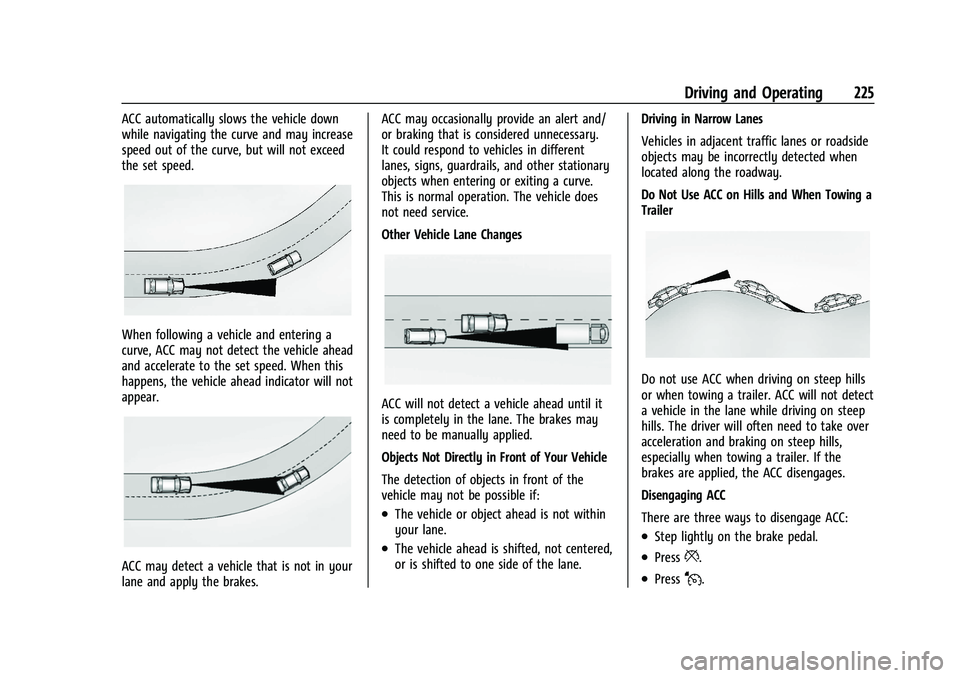
When following a vehicle and entering a
curve, ACC may not detect the vehicle ahead
and accelerate to the set speed. When this
happens, the vehicle ahead indicator will not
appear.
ACC may detect a vehicle that is not in your
lane and apply the brakes.ACC may occasionally provide an alert and/
or braking that is considered unnecessary.
It could respond to vehicles in different
lanes, signs, guardrails, and other stationary
objects when entering or exiting a curve.
This is normal operation. The vehicle does
not need service.
Other Vehicle Lane Changes
ACC will not detect a vehicle ahead until it
is completely in the lane. The brakes may
need to be manually applied.
Objects Not Directly in Front of Your Vehicle
The detection of objects in front of the
vehicle may not be possible if:
.The vehicle or object ahead is not within
your lane.
.The vehicle ahead is shifted, not centered,
or is shifted to one side of the lane.
Driving in Narrow Lanes
Vehicles in adjacent traffic lanes or roadside
objects may be incorrectly detected when
located along the roadway.
Do Not Use ACC on Hills and When Towing a
Trailer
Do not use ACC when driving on steep hills
or when towing a trailer. ACC will not detect
a vehicle in the lane while driving on steep
hills. The driver will often need to take over
acceleration and braking on steep hills,
especially when towing a trailer. If the
brakes are applied, the ACC disengages.
Disengaging ACC
There are three ways to disengage ACC:
.Step lightly on the brake pedal.
.Press*.
.PressJ.
Page 231 of 369
Chevrolet Traverse Owner Manual (GMNA-Localizing-U.S./Canada/Mexico-
16411537) - 2023 - CRC - 3/28/22
230 Driving and Operating
Front/Rear Overhead View :Displays a Front
or Rear Overhead View of the vehicle.
Touching the button will toggle between the
two views.
Side Forward/Rearward View : Displays a
view that shows objects next to the front or
rear sides of the vehicle. Touch Side
Forward/Rearward View on the infotainment
display when a camera view is active.
Touching the button multiple times will
toggle between forward and rearward views.
Park Assist and RCTA overlays are not
available when Side Forward/Rearward View
is active.
Hitch View : Assists while connecting to a
trailer. Displays a zoomed-in view of the
hitch to help align the vehicle’s hitch ball
with the trailer coupler. Shifting into
P (Park) while in this view will automatically
engage the Electric Parking Brake (EPB).
Guidance Lines : Displays available
guidelines. The horizontal markings
represent distance from the vehicle.
Top Down View : Displays an image of the
area surrounding the vehicle, along with
other views in the infotainment display. Top
Down can be enabled or disabled by
touching the Top Down View button
multiple times. Hitch Guidance
If equipped, this feature displays a single,
centered guideline on the camera display to
assist with aligning a vehicle’s hitch ball
with a trailer coupler. Select the trailer
guidance line button, then align the trailer
guidance line over the trailer coupler.
Continuously steer the vehicle to keep the
guidance line centered on the coupler when
backing. RVC Park Assist overlays will not
display when the trailer guidance line is
active. Hitch Guidance is only available in
Standard View.
To check the trailer when in a forward gear
above 12 km/h (8 mph), touch CAMERA on
the infotainment display to view the rear
camera. Touch X to exit the view or it will
be removed automatically after
eight seconds.
{Warning
Use Hitch Guidance only to help back the
vehicle to a trailer hitch or, when
traveling above 12 km/h (8 mph), to
briefly check the status of your trailer. Do
not use for any other purpose, such as
making lane change decisions. Before
(Continued)
Warning (Continued)
making a lane change, always check the
mirrors and glance over your shoulder.
Improper use could result in serious
injury to you or others.
Park Assist
The vehicle may be equipped with Front and
Rear Park Assist (FRPA). Under certain
conditions, the Park Assist system can assist
the driver during backing and parking
maneuvers when the vehicle is driven at no
more than 9 km/h (6 mph). An illuminated
indicator in the Park Assist button indicates
the system is ready.
Sensors located in the bumpers measure the
distance between the vehicle and objects
using sonar technology. These sensors are
designed to detect certain objects up to
2.5 m (8 ft) behind and 1.2 m (4 ft) in front of
your vehicle that are taller than
25 cm (10 in).
Different environmental conditions may
affect whether and how far the Park Assist
system can detect objects. Keep the sensors
clean of mud, dirt, snow, ice, and slush; and
clean sensors after a car wash in freezing