display CHEVROLET TRAX 2013 1.G Service Manual
[x] Cancel search | Manufacturer: CHEVROLET, Model Year: 2013, Model line: TRAX, Model: CHEVROLET TRAX 2013 1.GPages: 408, PDF Size: 6.59 MB
Page 180 of 408
Black plate (28,1)Chevrolet TRAX Owner Manual - 2013 - CRC - 3/6/13
7-28 Infotainment System
‐Press route preview to preview
the route. The distance
information among turns from
current position to destination
can be checked. Check the
distance information by
pressing
QorR. If there is no
operation for about
five seconds, the current
Turn-by-Turn Navigation
information is displayed.
‐ Press repeat to repeat the
Turn-by-Turn Navigation voice
guidance.
‐ While the route is calculating,
the Cancel route menu is only
activated.
Blue OnStar
Press
Qto be connected to a
specially trained OnStar Advisor
who can verify account information
and answer questions about the
system. Emergency
With Automatic Crash Response,
the built-in system can automatically
connect to help in a crash even if
you cannot ask for it.
Press
]to connect to an
Emergency Advisor. GPS
technology is used to identify the
vehicle location and can provide
critical information to emergency
personnel. The Advisor is also
trained to offer critical assistance in
emergency situations.
OnStar SMS
When the Short Message Service
(SMS) is received by the vehicle, a
pop-up screen with the message is
displayed.
OnStar Welcome
When the user joins and operates
the OnStar service for the first time,
the pop-up screen “Get OnStar
started now please push the blue
button” is displayed.
Phone
Bluetooth (Overview)
For vehicles equipped with
Bluetooth capability, the system can
interact with many cell phones,
allowing:
.Placement and receipt of calls in
a hands-free mode.
.Sharing of the cell phone’s
address book or contact list with
the vehicle.
To minimize driver distraction,
before driving, and with the vehicle
parked:
.Become familiar with the
features of the cell phone.
Organize the phone book and
contact lists clearly and delete
duplicate or rarely used entries.
If possible, program speed dial
or other shortcuts.
.Review the controls and
operation of the infotainment
system.
Page 181 of 408
Black plate (29,1)Chevrolet TRAX Owner Manual - 2013 - CRC - 3/6/13
Infotainment System 7-29
.Pair cell phone(s) to the vehicle.
The system may not work with
all cell phones. See“Pairing”in
this section.
.If the cell phone has voice
dialing capability, learn to use
that feature to access the
address book or contact list.
See “Voice Pass-Thru” in this
section.
.See “Storing and Deleting Phone
Numbers” in this section.
{WARNING
When using a cell phone, it can
be distracting to look too long or
too often at the screen of the
phone or the infotainment
(navigation) system. Taking your
eyes off the road too long or too
often could cause a crash
resulting in injury or death. Focus
your attention on driving. Vehicles with a Bluetooth system
can use a Bluetooth-capable cell
phone with a Hands-Free Profile to
make and receive phone calls.
The infotainment system and voice
recognition are used to control the
system. The system can be used
while in ON/RUN or ACC/
ACCESSORY. The range of the
Bluetooth system can be up to 9.1 m
(30 ft). Not all phones support all
functions and not all phones work
with the Bluetooth system. See
www.gm.com/bluetooth for more
information about compatible
phones.Bluetooth Controls
Use the buttons located on the
infotainment system and the
steering wheel to operate the
Bluetooth system.
Steering Wheel Controls
b/g(Push to Talk):
Press to
answer incoming calls, confirm
system information, and start voice
recognition.
$/i(Mute/End Call): Press to
end a call, reject a call, or cancel an
operation.
Infotainment System Controls
If equipped, the infotainment system
allows certain controls to be
selected on the infotainment display.
For information about how to
navigate the menu system using the
infotainment controls, see Operation
on page 7‑8.
5/>(Phone): Press to enter the
Phone main menu.
Voice Recognition
The voice recognition system uses
commands to control the system
and dial phone numbers.
Noise: The system may not
recognize voice commands if there
is too much background noise. Do
not point the center air vents directly
upward.
Page 183 of 408
Black plate (31,1)Chevrolet TRAX Owner Manual - 2013 - CRC - 3/6/13
Infotainment System 7-31
.If multiple paired cell phones are
within range of the system, the
system connects to the first
available paired cell phone in the
order that they were first paired
to the system. To link to a
different paired phone, see
“Linking to a Different Phone”
later in this section.
Pairing a Phone as a Hands-Free
Device
1. Press the CONFIG button.
2. Select Phone Settings or Bluetooth Settings.
3. Select Bluetooth.
4. Select Pair Device (Hands-Free). A four-digit
Personal Identification Number
(PIN) appears on the display.
The PIN is used is Step 6.
5. Start the pairing process on the cell phone to be paired to the
vehicle. See the cell phone
manufacturer's user guide for
information on this process. 6. Locate the device named
“Your
Vehicle” in the list on the cell
phone. Follow the instructions
on the cell phone to enter the
PIN provided in Step 4. After the
PIN is successfully entered, the
system prompts you to provide a
name for the paired cell phone.
This name will be used to
indicate which phones are
paired and connected to the
vehicle. The system responds
with “
successfully paired” after the
pairing process is complete.
7. Repeat Steps 1−6 to pair additional phones.
Listing All Paired and Connected
Phones
1. Press the CONFIG button.
2. Select Phone Settings or Bluetooth Settings.
3. Select Bluetooth.
4. Select Device List. Deleting a Paired Phone
1. Press the CONFIG button.
2. Select Phone Settings or
Bluetooth Settings.
3. Select Bluetooth.
4. Select Device List.
5. Select the phone to delete and follow the on-screen prompts.
Linking to a Different Phone
To link to a different phone, the new
phone must be in the vehicle and
available to be connected to the
Bluetooth system before the
process is started.
1. Press the CONFIG button.
2. Select Phone Settings or Bluetooth Settings.
3. Select Bluetooth.
4. Select Device List.
Page 186 of 408
Black plate (34,1)Chevrolet TRAX Owner Manual - 2013 - CRC - 3/6/13
7-34 Infotainment System
Pairing With Touchscreen
A Bluetooth-enabled cell phone
must be paired to the Bluetooth
system and then connected to the
vehicle before it can be used. See
your cell phone manufacturer's user
guide for Bluetooth functions before
pairing the cell phone. If a Bluetooth
phone is not connected, calls will be
made using OnStar Hands-Free
Calling, if available. SeeOnStar
®
System on page 7‑26.
Pairing Information
.A Bluetooth phone with MP3
capability cannot be paired to
the vehicle as a phone and an
MP3 player at the same time.
.Up to five cell phones can be
paired to the Bluetooth system.
.The pairing process is disabled
when the vehicle is moving.
.Pairing only needs to be
completed once, unless the
pairing information on the cell
phone changes or the cell phone
is deleted from the system.
.Only one paired cell phone can
be connected to the Bluetooth
system at a time.
.If multiple paired cell phones are
within range of the system, the
system connects to the first
available paired cell phone in the
order that they were first paired
to the system. To link to a
different paired phone, see
“Linking to a Different Phone”
later in this section.
When the Bluetooth device and
infotainment system are
successfully paired, the phone book
is downloaded automatically.
However, the phone book may not
be downloaded automatically
according to the type of the phone.
In this case, proceed with the
phonebook download on phone.
Pairing a Phone
When there is no paired device on
the infotainment system and the
Simple Secure Pairing (SSP) is
supported:
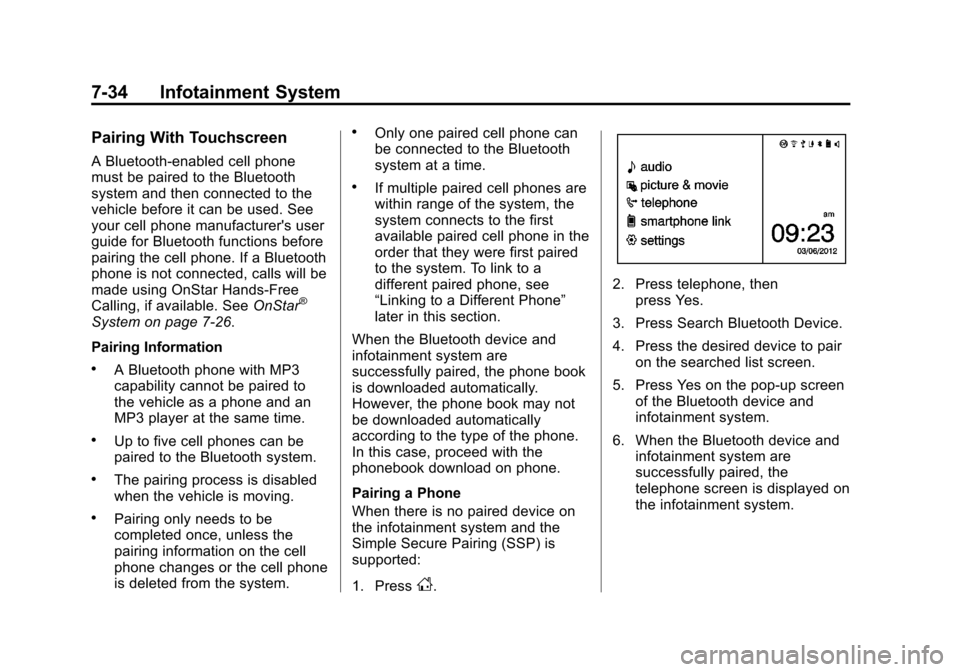
1. Press
D.
2. Press telephone, then press Yes.
3. Press Search Bluetooth Device.
4. Press the desired device to pair on the searched list screen.
5. Press Yes on the pop-up screen of the Bluetooth device and
infotainment system.
6. When the Bluetooth device and infotainment system are
successfully paired, the
telephone screen is displayed on
the infotainment system.
Page 187 of 408
Black plate (35,1)Chevrolet TRAX Owner Manual - 2013 - CRC - 3/6/13
Infotainment System 7-35
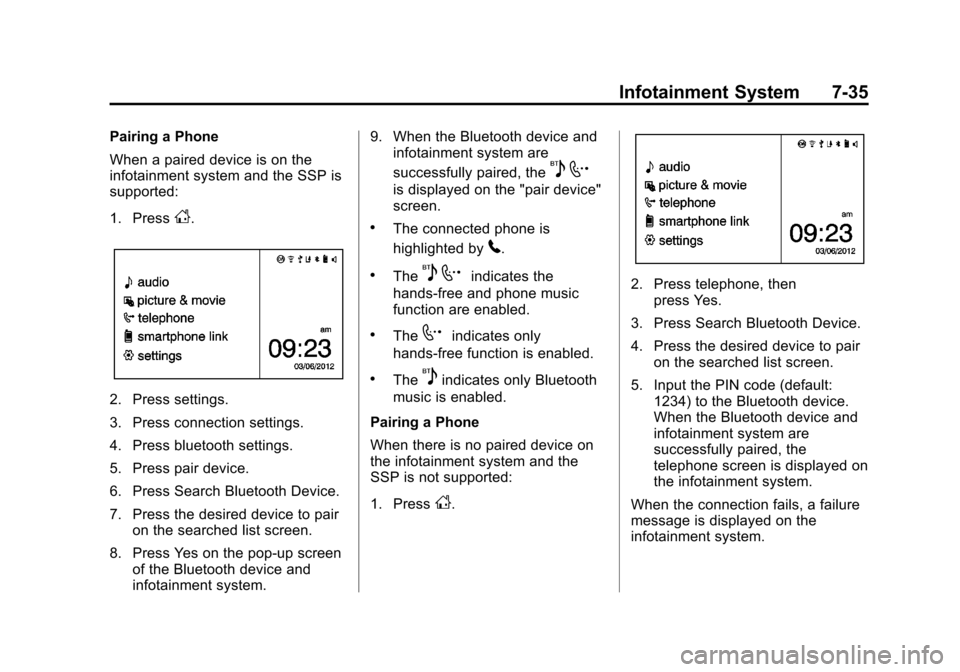
Pairing a Phone
When a paired device is on the
infotainment system and the SSP is
supported:
1. Press
D.
2. Press settings.
3. Press connection settings.
4. Press bluetooth settings.
5. Press pair device.
6. Press Search Bluetooth Device.
7. Press the desired device to pairon the searched list screen.
8. Press Yes on the pop-up screen of the Bluetooth device and
infotainment system. 9. When the Bluetooth device and
infotainment system are
successfully paired, the
5 7
is displayed on the "pair device"
screen.
.The connected phone is
highlighted by
5.
.The5 7indicates the
hands-free and phone music
function are enabled.
.The7indicates only
hands-free function is enabled.
.The5indicates only Bluetooth
music is enabled.
Pairing a Phone
When there is no paired device on
the infotainment system and the
SSP is not supported:
1. Press
D.
2. Press telephone, then press Yes.
3. Press Search Bluetooth Device.
4. Press the desired device to pair on the searched list screen.
5. Input the PIN code (default: 1234) to the Bluetooth device.
When the Bluetooth device and
infotainment system are
successfully paired, the
telephone screen is displayed on
the infotainment system.
When the connection fails, a failure
message is displayed on the
infotainment system.
Page 188 of 408
Black plate (36,1)Chevrolet TRAX Owner Manual - 2013 - CRC - 3/6/13
7-36 Infotainment System
If a Bluetooth device was previously
connected, the infotainment system
executes the auto connection.
However, if the Bluetooth setting on
the Bluetooth device is turned off, a
failure message is displayed on the
infotainment system.
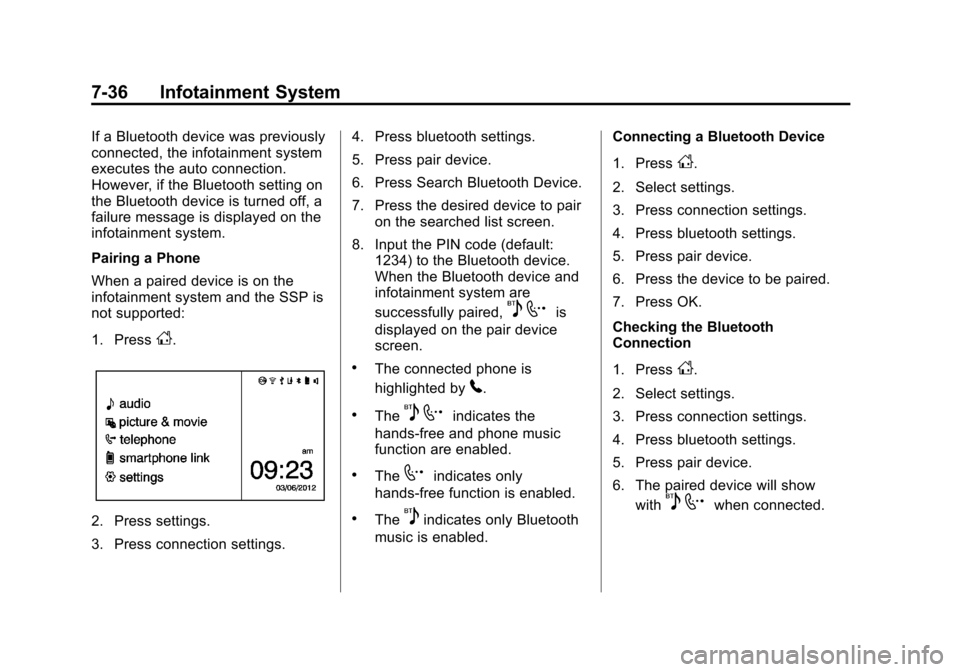
Pairing a Phone
When a paired device is on the
infotainment system and the SSP is
not supported:
1. Press
D.
2. Press settings.
3. Press connection settings.4. Press bluetooth settings.
5. Press pair device.
6. Press Search Bluetooth Device.
7. Press the desired device to pair
on the searched list screen.
8. Input the PIN code (default: 1234) to the Bluetooth device.
When the Bluetooth device and
infotainment system are
successfully paired,
5 7is
displayed on the pair device
screen.
.The connected phone is
highlighted by
5.
.The5 7indicates the
hands-free and phone music
function are enabled.
.The7indicates only
hands-free function is enabled.
.The5indicates only Bluetooth
music is enabled. Connecting a Bluetooth Device
1. Press
D.
2. Select settings.
3. Press connection settings.
4. Press bluetooth settings.
5. Press pair device.
6. Press the device to be paired.
7. Press OK.
Checking the Bluetooth
Connection
1. Press
D.
2. Select settings.
3. Press connection settings.
4. Press bluetooth settings.
5. Press pair device.
6. The paired device will show with
5 7when connected.
Page 198 of 408
Black plate (46,1)Chevrolet TRAX Owner Manual - 2013 - CRC - 3/6/13
7-46 Infotainment System
Switching a Call to the Cell Phone
(Private Mode)
To switch the call from the cell
phone to hands-free:
1. Press
0.
2. Press
0again to switch back to
hands-free.
Turning the Microphone On
and Off
Press
3to turn the microphone on
or off.
Calling by Redial
To call by using redial:
.Pressb/gon the steering
wheel controls to display the
redial guidance screen.
.Press and hold5on the
telephone screen.
Redialing is not possible when there
is no call history. Taking calls
When a phone call comes through
the connected Bluetooth cell phone,
the playing track will be cut off and
the phone will ring with the relevant
information displayed.
Press
b/gon the steering wheel
controls or press Accept on the
screen.
To decline the call, press
$/ion
the steering wheel controls or press
Reject on the screen.
Using the Phone Book Menu
1. Press Phone Book on the telephone screen.
2. Press
QorRto scroll through
the list.
3. Select the phone book entry to call.
4. Press the number to dial.
Searching for Phone Book Entries
1. Press Phone Book on the telephone screen. 2. Press
9on the phone book
screen.
3. Use the keypad to input the name to search. For details,
refer to the “Searching for a
Name” later in this section.
4. Select the phone book entry to call.
5. Press the number to dial.
When the Bluetooth device and
infotainment system are
successfully paired, the phone book
will download. Some phones may
not download automatically. If this
happens, connect it again or
proceed with the phone book
download on the phone.
Searching for a Name
Select characters by using the
keypad on the phone book screen.
As characters are selected, the
names that include those characters
will display on the phone book
screen. As more characters of the
name are entered, the list of
possible names is shortened.
Page 200 of 408
Black plate (48,1)Chevrolet TRAX Owner Manual - 2013 - CRC - 3/6/13
7-48 Infotainment System
Stitcher SmartRadio is an Internet
radio service that streams news,
sports, and entertainment shows
through the audio system. Create
personalized, on-demand stations or
discover new shows through
Stitcher's preset stations. To set up
an account, download the
application from the Android Market
or iTunes Store, or go to
www.stitcher.com.
A phone or tablet with Internet
connection and the Pandora and/or
Stitcher application installed is
required. Personal cell phone data
plans are used. Make sure the latest
version is installed on the device
and the volume is turned up.
Supported Smartphone
Applications
Pandora
.iPod®/iPhone®, through the USB
connection.
.Android™ phone, through
Bluetooth®wireless.
.On a BlackBerry®phone,
through Bluetooth wireless.
Stitcher
.iPod/iPhone, through the USB
connection.
.Android phone, through
Bluetooth wireless.
iPod/iPhone Error Messages and
Solution
If the infotainment system fails to
activate the application on your
iPod/iPhone connected through the
USB port, the error message is
displayed as, “Unable to start
application, possible reasons.”
.Your iPhone is locked. To
resolve, unlock the iPhone.
.You have another active
application open. To resolve,
close the other active
application.
.You have not installed the
application on your iPhone. To
resolve, install the application on
the iPhone. iOS Version Error
If the iOS version of the iPhone is
less than 4.0, the error message is
displayed as,
“Your iPhone does
not allow this application to be
opened on a USB connection.
Please refer to owner ’s manual.”
.Activate the application on your
iPhone, then press the desired
application menu on the
infotainment system.
Connecting Application Error
If the infotainment system fails to
activate the application on the
smartphone connected through
Bluetooth wireless technology, the
error message is displayed as,
“Connecting application error.”
.Reset all settings related to the
phone, then press the desired
application menu on the
infotainment system.
.Reconnect the smartphone and
Infotainment system through
Bluetooth wireless technology,
Page 201 of 408
Black plate (49,1)Chevrolet TRAX Owner Manual - 2013 - CRC - 3/6/13
Infotainment System 7-49
then press the desired
application menu on the
infotainment system.
.When the application is stopped
on the smartphone, it usually
takes time to return to normal
operation. Try to activate the
application after 10–20 seconds.
To switch between Stitcher or
Pandora while playing the other on
the iPod/iPhone connected through
the USB port, press the
Dbutton of
the iPod/iPhone, then press Stitcher
or Pandora on the smartphone link
menu of the infotainment system.
Switching Between a USB
Connected Device and a
Bluetooth Device
When the iPhone is connected to
the infotainment system through the
USB port, and the infotainment
system is connected to another
phone through Bluetooth wireless
technology, it is possible to switch
between the two applications, using
the smartphone list menu.
.Press iPhone or bluetooth phone
on the smartphone list menu to
switch to the desired device.
Displaying or Hiding Application
Icons
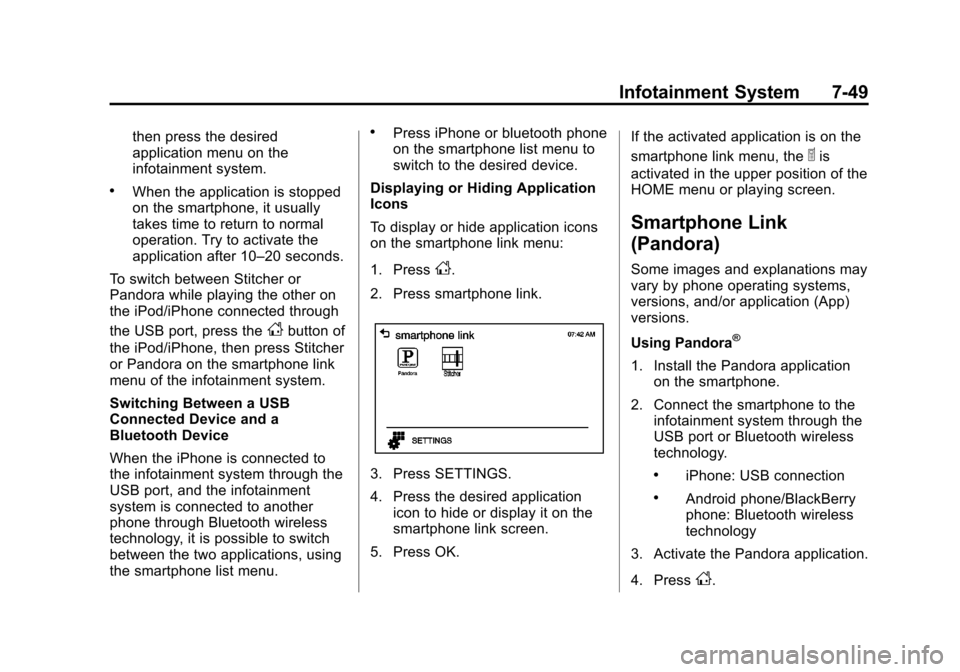
To display or hide application icons
on the smartphone link menu:
1. Press
D.
2. Press smartphone link.
3. Press SETTINGS.
4. Press the desired application icon to hide or display it on the
smartphone link screen.
5. Press OK. If the activated application is on the
smartphone link menu, the
^is
activated in the upper position of the
HOME menu or playing screen.
Smartphone Link
(Pandora)
Some images and explanations may
vary by phone operating systems,
versions, and/or application (App)
versions.
Using Pandora
®
1. Install the Pandora application on the smartphone.
2. Connect the smartphone to the infotainment system through the
USB port or Bluetooth wireless
technology.
.iPhone: USB connection
.Android phone/BlackBerry
phone: Bluetooth wireless
technology
3. Activate the Pandora application.
4. Press
D.
Page 202 of 408
Black plate (50,1)Chevrolet TRAX Owner Manual - 2013 - CRC - 3/6/13
7-50 Infotainment System
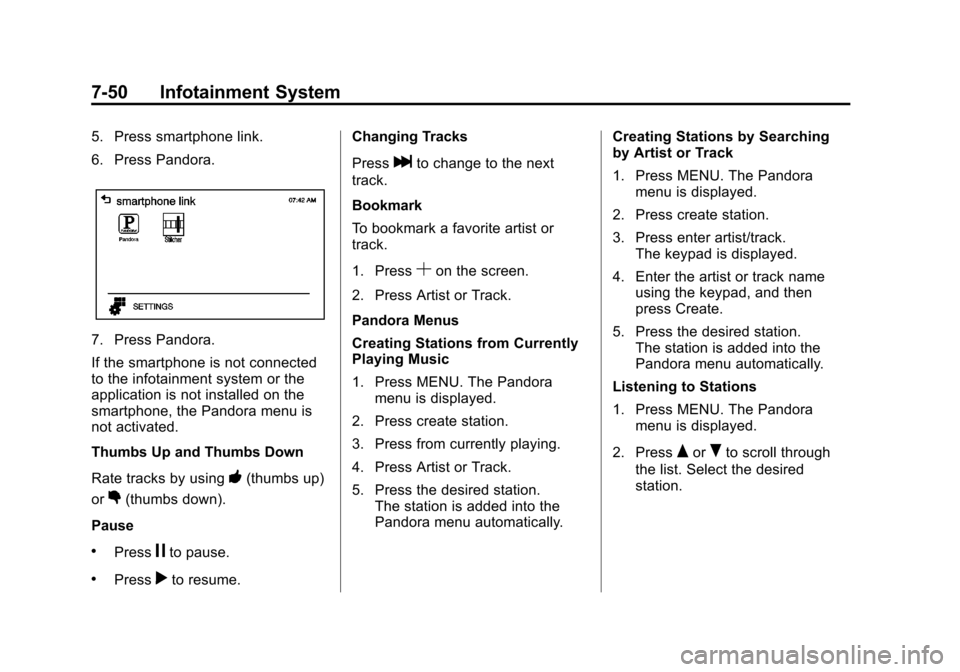
5. Press smartphone link.
6. Press Pandora.
7. Press Pandora.
If the smartphone is not connected
to the infotainment system or the
application is not installed on the
smartphone, the Pandora menu is
not activated.
Thumbs Up and Thumbs Down
Rate tracks by using
-(thumbs up)
or
,(thumbs down).
Pause
.Pressjto pause.
.Pressrto resume. Changing Tracks
Press
lto change to the next
track.
Bookmark
To bookmark a favorite artist or
track.
1. Press
Son the screen.
2. Press Artist or Track.
Pandora Menus
Creating Stations from Currently
Playing Music
1. Press MENU. The Pandora menu is displayed.
2. Press create station.
3. Press from currently playing.
4. Press Artist or Track.
5. Press the desired station. The station is added into the
Pandora menu automatically. Creating Stations by Searching
by Artist or Track
1. Press MENU. The Pandora
menu is displayed.
2. Press create station.
3. Press enter artist/track. The keypad is displayed.
4. Enter the artist or track name using the keypad, and then
press Create.
5. Press the desired station. The station is added into the
Pandora menu automatically.
Listening to Stations
1. Press MENU. The Pandora menu is displayed.
2. Press
QorRto scroll through
the list. Select the desired
station.