manual radio set CHEVROLET TRAX 2016 1.G User Guide
[x] Cancel search | Manufacturer: CHEVROLET, Model Year: 2016, Model line: TRAX, Model: CHEVROLET TRAX 2016 1.GPages: 358, PDF Size: 5.07 MB
Page 132 of 358
Chevrolet TRAX Owner Manual (GMNA-Localizing-U.S./Canada/Mexico-
9159371) - 2016 - crc - 5/21/15
Infotainment System 131
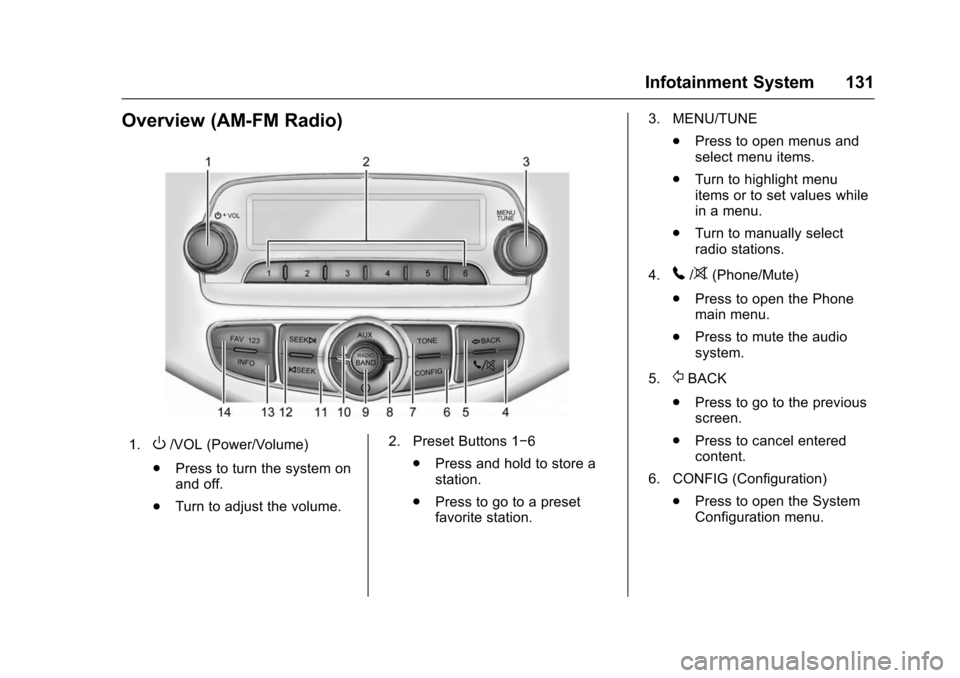
Overview (AM-FM Radio)
1.O/VOL (Power/Volume)
. Press to turn the system on
and off.
. Turn to adjust the volume. 2. Preset Buttons 1−6
.Press and hold to store a
station.
. Press to go to a preset
favorite station. 3. MENU/TUNE
.Press to open menus and
select menu items.
. Turn to highlight menu
items or to set values while
in a menu.
. Turn to manually select
radio stations.
4.
5/>(Phone/Mute)
. Press to open the Phone
main menu.
. Press to mute the audio
system.
5.
/BACK
. Press to go to the previous
screen.
. Press to cancel entered
content.
6. CONFIG (Configuration) .Press to open the System
Configuration menu.
Page 133 of 358

Chevrolet TRAX Owner Manual (GMNA-Localizing-U.S./Canada/Mexico-
9159371) - 2016 - crc - 5/21/15
132 Infotainment System
7. TONE.Press to open the
Tone menu.
8.
H(Clock)
. Press to enter the Time and
Date Settings menu.
9. RADIO/BAND .Press to select AM, FM,
or band.
. Press to select the radio
when listening to a different
audio source.
10. AUX (Auxiliary) .Press to access the
auxiliary input device.
11.
©SEEK (Previous)
. Press to seek the previous
station.
. Press and hold to reverse
through the currently
playing song on an external
audio device. 12. SEEK
¨(Next)
. Press to seek the next
station.
. Press and hold to fast
forward through the
currently playing song on
an external audio device.
13. INFO (Information) .Press to view current radio
station and current song
information.
14. FAV 123 (Favorites) .Press to go to a
favorite page.
Page 134 of 358
Chevrolet TRAX Owner Manual (GMNA-Localizing-U.S./Canada/Mexico-
9159371) - 2016 - crc - 5/21/15
Infotainment System 133
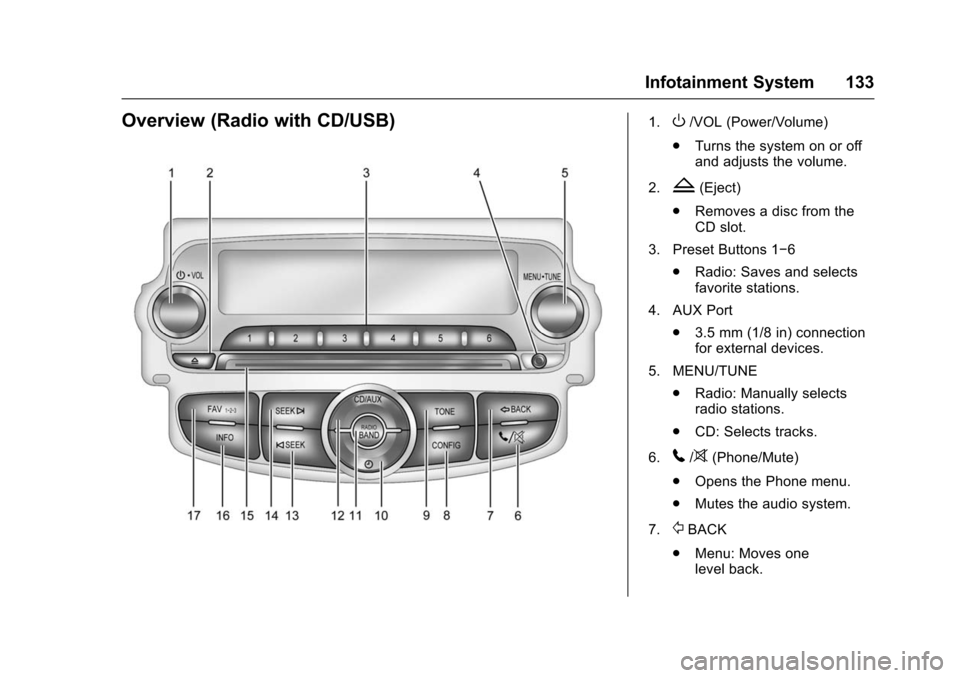
Overview (Radio with CD/USB)1.O/VOL (Power/Volume)
. Turns the system on or off
and adjusts the volume.
2.
Z(Eject)
. Removes a disc from the
CD slot.
3. Preset Buttons 1−6 .Radio: Saves and selects
favorite stations.
4. AUX Port .3.5 mm (1/8 in) connection
for external devices.
5. MENU/TUNE .Radio: Manually selects
radio stations.
. CD: Selects tracks.
6.
5/>(Phone/Mute)
. Opens the Phone menu.
. Mutes the audio system.
7.
/BACK
. Menu: Moves one
level back.
Page 137 of 358
Chevrolet TRAX Owner Manual (GMNA-Localizing-U.S./Canada/Mexico-
9159371) - 2016 - crc - 5/21/15
136 Infotainment System
7telephone :Press to activate
the phone features (if equipped).
See Bluetooth (Voice Recognition)
0 162 orBluetooth (Overview) 0153
or Bluetooth (Infotainment Controls)
0 154.
^smartphone link : Press to listen
to Pandora®(if equipped), Stitcher®,
or available application. See
Smartphone Link (Overview) 0170
or Smartphone Link (Pandora)
0 172 orSmartphone Link (Stitcher)
0 174.
8settings : Press to access the
Personalization menu. See Vehicle
Personalization 0114.
Operation
Radio Controls without
Touchscreen
The infotainment system is operated
by using the pushbuttons,
multifunction knobs, and menus
shown on the display.
Turning the System On or Off
O/VOL (Power/Volume) : Press to
turn the radio on and off.
Automatic Switch-Off
If the infotainment system has been
turned on after the ignition is turned
off, the system will turn off
automatically after 10 minutes.
Volume Control
O/VOL (Power/Volume) : Turn to
adjust the volume.
5/>(Phone/Mute) : Press5/>to
activate OnStar. See OnStar
Overview 0337.
Press and hold
5/>to mute the
infotainment system. Press
5/>
again or turn theO/VOL knob to
cancel mute.
Menu System
Controls
The MENU/TUNE knob and
/
BACK button are used to navigate
the menu system.
MENU/TUNE Knob:
Turn to:
. Highlight a menu option.
. Select a value.
Press to:
. Enter the menu system.
. Select or activate the highlighted
menu option.
. Confirm a set value.
. Turn a system setting on or off.
/BACK:
Press to:
. Exit a menu.
. Go back to the previous menu
screen.
. Delete the last character in a
sequence.
Page 138 of 358
Chevrolet TRAX Owner Manual (GMNA-Localizing-U.S./Canada/Mexico-
9159371) - 2016 - crc - 5/21/15
Infotainment System 137
.Press and hold to delete the
entire character sequence.
Submenus
An arrow on the right-hand edge of
the menu indicates that it has a
submenu with other options.
Audio Settings
The audio settings can be set for
each radio band and each audio
player source.
Adjusting the Bass, Midrange,
Treble, Fader, and Balance 1. Press the TONE button.
2. Turn the MENU/TUNE knob to the desired tone.
3. Press the MENU/TUNE knob to select the desired tone.
4. Turn the MENU/TUNE knob to adjust the desired tone.
5. Press the MENU/TUNE knob to save the setting.
Press the
/BACK button to go
back to the Tone Settings menu. Adjusting the EQ (Equalizer)
1. Press the TONE button.
2. Turn the MENU/TUNE knob to EQ.
3. Press the MENU/TUNE knob.
4. Turn the MENU/TUNE knob to the desired setting.
5. Press the MENU/TUNE knob it select it.
Press the
/BACK button to go
back to the Tone Settings menu.
System Settings
Configuring the Number of
Favorite Pages
Up to six favorite pages can be
saved, and each page can store up
to six radio stations.
To configure the number of available
favorite pages:
1. Press the CONFIG button.
2. Select Radio Settings.
3. Select Radio Favorites.
4. Select the number of available favorite pages to display. 5. Press the
/BACK button to go
back to the System
Configuration menu.
Auto Volume
This feature automatically adjusts
the radio volume to compensate for
road and wind noise.
The level of volume compensation
can be selected, or the feature can
be turned off. 1. Press the CONFIG button.
2. Select Radio Settings.
3. Select Auto Volume.
4. Select the setting.
5. Press the
/BACK button to go
back to the System
Configuration menu.
Radio Controls with
Touchscreen
The infotainment system is operated
by using the pushbuttons, menus
shown on the display, and steering
wheel controls.
Page 139 of 358
Chevrolet TRAX Owner Manual (GMNA-Localizing-U.S./Canada/Mexico-
9159371) - 2016 - crc - 5/21/15
138 Infotainment System
Turning the System On or Off
O(Power) :Press and hold to turn
the radio on and off.
Automatic Switch-Off
If the infotainment system has been
turned on after the ignition is turned
off, the system will turn off
automatically after 10 minutes.
Volume Control
zVOLy(Volume) : Press to
increase or decrease the volume or
press the volume bar.
>(Mute) : PresszVOLy, then
press
>to mute and unmute the
system.
System Settings
Auto Volume
This feature automatically adjusts
the radio volume to compensate for
road and wind noise.
The level of volume compensation
can be selected, or the feature can
be turned off.
1. Press
D. 2. Select Settings.
3. Select Radio Settings.
4. Select Auto Volume.
5. Select the setting by
pressing
SorT.
6. Press the
4screen button to
go back to the System
Configuration menu.
Auto Store (AS)
This feature automatically stores the
stations with the strongest
reception.
To store or update the stations,
press and hold the AS screen
button.
To listen to an auto stored station: 1. Select AM or FM.
2. Press the AS screen button.
3. Press
SorTrepeatedly to
select the desired AS page.
4. Press the desired preset station screen button. Audio Settings
The audio settings can be set for
each radio band and each audio
player source.
Tone Settings :
Press menu, then
tone settings from the AM or
FM menu.
. EQ (Equalizer): Press
SorTto
select a sound style or turn off
the sound style. When in tone
settings, Manual and Talk may
be the only settings available
depending on the sound system.
. Bass, Mid (Midrange), or Treble:
Press −or + to change the
desired sound style from −12
to +12.
. Fader or Balance: Adjust the
front/rear or left/right speakers
by dragging the dot in the
vehicle image on the screen.
. Reset: Restore the settings back
to default settings.
Press OK to exit Tone Settings.
Page 140 of 358
Chevrolet TRAX Owner Manual (GMNA-Localizing-U.S./Canada/Mexico-
9159371) - 2016 - crc - 5/21/15
Infotainment System 139
Radio
AM-FM Radio
Playing the Radio without
Touchscreen
Audio Source Menu
O/VOL (Power/Volume):Press to
turn the system on and off. Turn to
increase or decrease the volume.
MENU/TUNE : Turn to change the
radio station.
RADIO/BAND : Press to select AM
and FM.
INFO : Press to display additional
information that may be available for
the current song.
FAV 123 : Press to open the
favorites list and select a
favorite page.
Preset Buttons 1–6 : Press to
select preset stations.
Radio Broadcast Data
System (RBDS)
RBDS is a service by FM stations
that makes it easier to find radio
stations with fault-free reception.
RBDS stations are indicated by the
program name instead of the
broadcasting frequency.
View RBDS Broadcast
Information
Press the INFO button to view the
RBDS broadcasting information that
is being received.
Selecting a Band
Press the RADIO/BAND button to
choose AM or FM. The last station
that was playing starts playing
again.
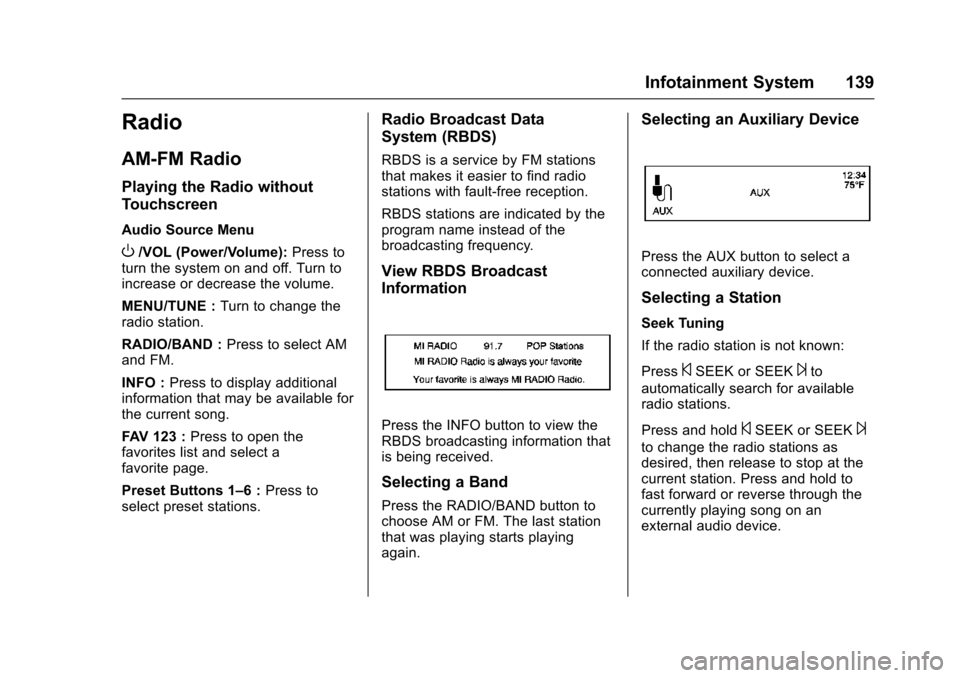
Selecting an Auxiliary Device
Press the AUX button to select a
connected auxiliary device.
Selecting a Station
Seek Tuning
If the radio station is not known:
Press
©SEEK or SEEK¨to
automatically search for available
radio stations.
Press and hold
©SEEK or SEEK¨
to change the radio stations as
desired, then release to stop at the
current station. Press and hold to
fast forward or reverse through the
currently playing song on an
external audio device.
Page 142 of 358
Chevrolet TRAX Owner Manual (GMNA-Localizing-U.S./Canada/Mexico-
9159371) - 2016 - crc - 5/21/15
Infotainment System 141
During the AM or FM broadcasting
list update, press the MENU/TUNE
knob or
/BACK button to stop the
updates.
Storing a Station as a Favorite
Stations from all bands can be
stored in any order in the favorite
pages.
Up to six stations can be stored in
each favorite page.
Storing Stations
Press the FAV 123 button to select
the desired page of saved favorites.
To store the station to a position in
the list, press the corresponding
preset button 1−6 until a beep is
heard.
Playing the Radio with
Touchscreen
Audio Source Menu
zVOLy(Volume): Press to
increase or decrease the volume.
O(Power) : Press and hold to turn
the system on and off.
D(Home Page) : Press to enter
the Home Page.
RDS (Radio Data System)
If equipped, the RDS feature is
available for use only on FM
stations that broadcast RDS
information. This feature only works
when the information from the radio
station is available. In rare cases, a
radio station could broadcast
incorrect information that causes the
radio features to work improperly.
If this happens, contact the radio
station.
While the radio is tuned to an
FM-RDS station, the station name
or call letters display.
Selecting a Band
PressD, audio, then SourceRto
choose AM, FM, or SiriusXM®,
if equipped. The last station that
was playing starts playing again.
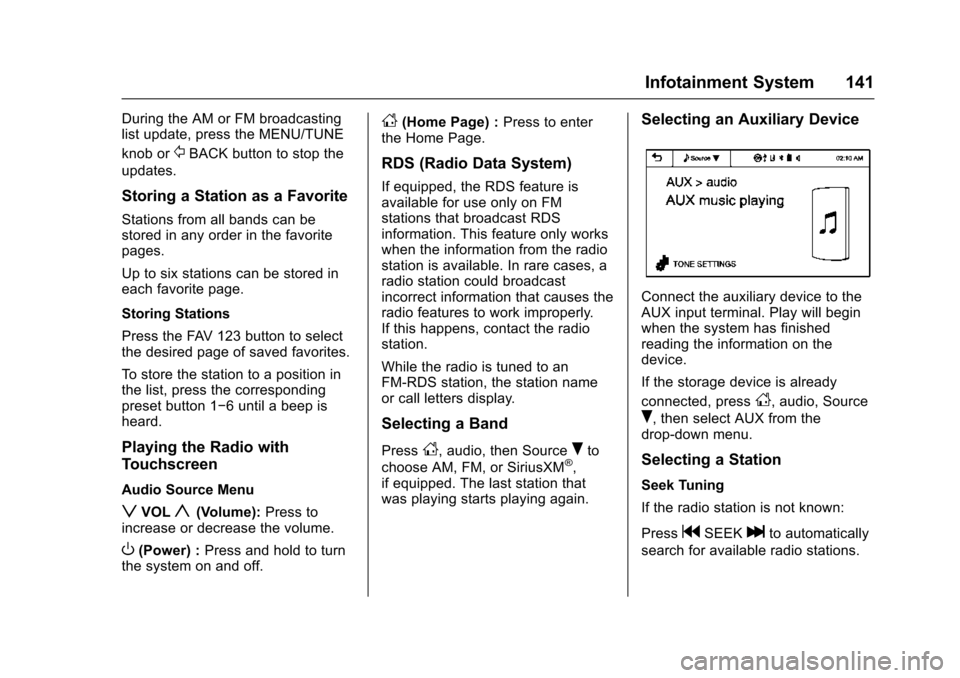
Selecting an Auxiliary Device
Connect the auxiliary device to the
AUX input terminal. Play will begin
when the system has finished
reading the information on the
device.
If the storage device is already
connected, press
D, audio, Source
R, then select AUX from the
drop-down menu.
Selecting a Station
Seek Tuning
If the radio station is not known:
Press
gSEEKlto automatically
search for available radio stations.
Page 144 of 358
Chevrolet TRAX Owner Manual (GMNA-Localizing-U.S./Canada/Mexico-
9159371) - 2016 - crc - 5/21/15
Infotainment System 143
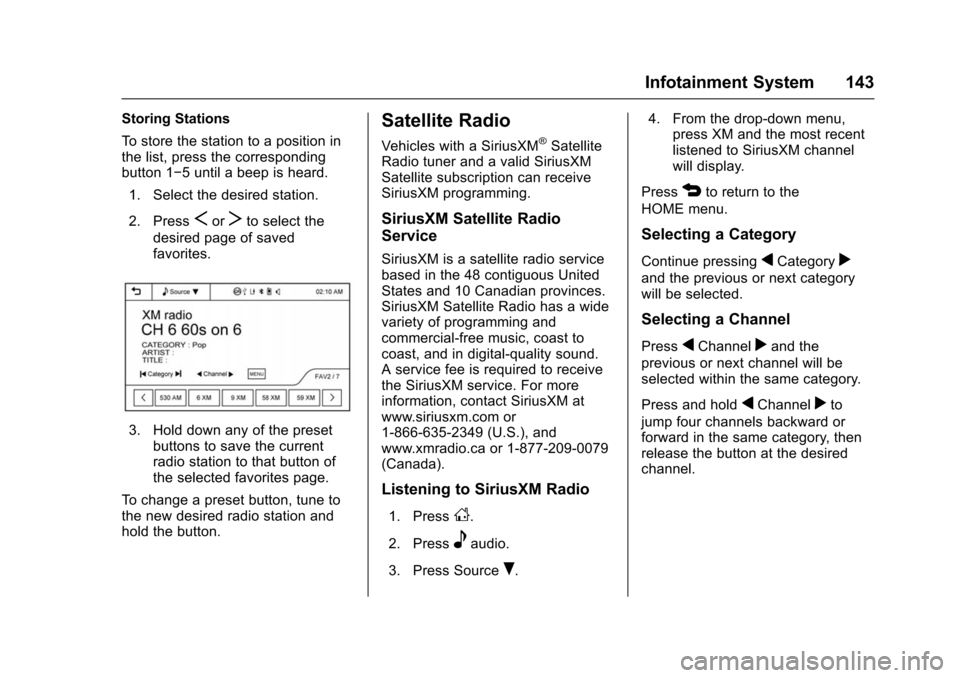
Storing Stations
To store the station to a position in
the list, press the corresponding
button 1−5 until a beep is heard.1. Select the desired station.
2. Press
SorTto select the
desired page of saved
favorites.
3. Hold down any of the preset buttons to save the current
radio station to that button of
the selected favorites page.
To change a preset button, tune to
the new desired radio station and
hold the button.
Satellite Radio
Vehicles with a SiriusXM®Satellite
Radio tuner and a valid SiriusXM
Satellite subscription can receive
SiriusXM programming.
SiriusXM Satellite Radio
Service
SiriusXM is a satellite radio service
based in the 48 contiguous United
States and 10 Canadian provinces.
SiriusXM Satellite Radio has a wide
variety of programming and
commercial-free music, coast to
coast, and in digital-quality sound.
A service fee is required to receive
the SiriusXM service. For more
information, contact SiriusXM at
www.siriusxm.com or
1-866-635-2349 (U.S.), and
www.xmradio.ca or 1-877-209-0079
(Canada).
Listening to SiriusXM Radio
1. PressD.
2. Press
eaudio.
3. Press Source
R. 4. From the drop-down menu,
press XM and the most recent
listened to SiriusXM channel
will display.
Press
4to return to the
HOME menu.
Selecting a Category
Continue pressingqCategoryr
and the previous or next category
will be selected.
Selecting a Channel
PressqChannelrand the
previous or next channel will be
selected within the same category.
Press and hold
qChannelrto
jump four channels backward or
forward in the same category, then
release the button at the desired
channel.
Page 145 of 358
Chevrolet TRAX Owner Manual (GMNA-Localizing-U.S./Canada/Mexico-
9159371) - 2016 - crc - 5/21/15
144 Infotainment System
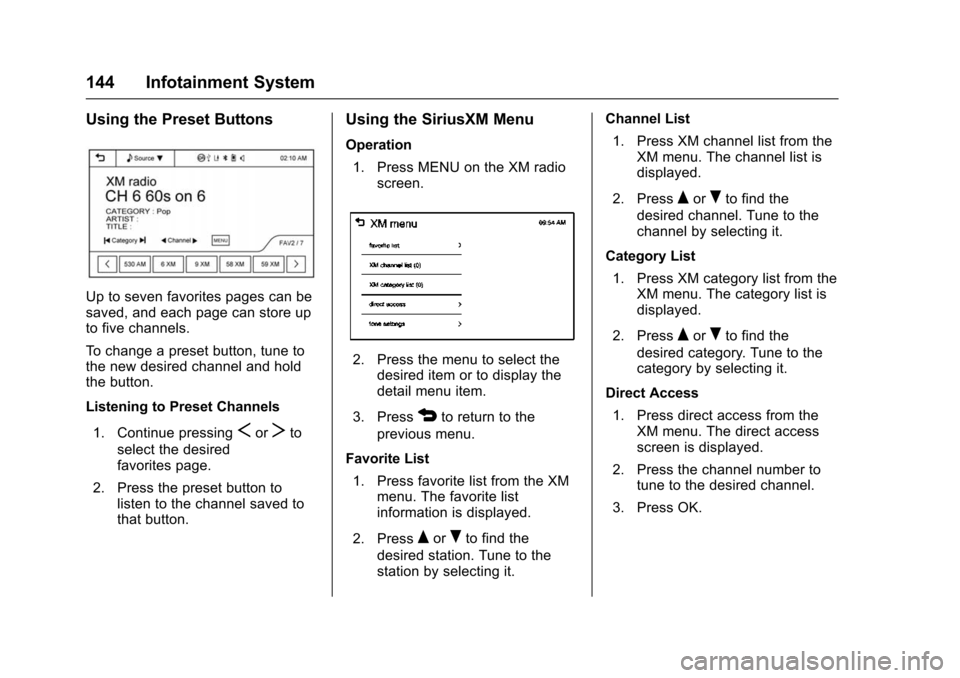
Using the Preset Buttons
Up to seven favorites pages can be
saved, and each page can store up
to five channels.
To change a preset button, tune to
the new desired channel and hold
the button.
Listening to Preset Channels1. Continue pressing
SorTto
select the desired
favorites page.
2. Press the preset button to listen to the channel saved to
that button.
Using the SiriusXM Menu
Operation
1. Press MENU on the XM radio screen.
2. Press the menu to select thedesired item or to display the
detail menu item.
3. Press
4to return to the
previous menu.
Favorite List 1. Press favorite list from the XM menu. The favorite list
information is displayed.
2. Press
QorRto find the
desired station. Tune to the
station by selecting it. Channel List
1. Press XM channel list from the XM menu. The channel list is
displayed.
2. Press
QorRto find the
desired channel. Tune to the
channel by selecting it.
Category List 1. Press XM category list from the XM menu. The category list is
displayed.
2. Press
QorRto find the
desired category. Tune to the
category by selecting it.
Direct Access 1. Press direct access from the XM menu. The direct access
screen is displayed.
2. Press the channel number to tune to the desired channel.
3. Press OK.