manual radio set CHEVROLET TRAX 2016 1.G Owner's Manual
[x] Cancel search | Manufacturer: CHEVROLET, Model Year: 2016, Model line: TRAX, Model: CHEVROLET TRAX 2016 1.GPages: 358, PDF Size: 5.07 MB
Page 146 of 358
Chevrolet TRAX Owner Manual (GMNA-Localizing-U.S./Canada/Mexico-
9159371) - 2016 - crc - 5/21/15
Infotainment System 145
Tone Settings
From the tone settings menu, the
sound features can be set up for
SiriusXM audio and each audio
player’s functions.
1. Press tone settings from the XM menu. The tone settings
screen is displayed. See “Tone
Settings” underOperation
0 136.
2. Press OK.
Radio Reception
Frequency interference and static
can occur during normal radio
reception if items such as mobile
phone chargers, vehicle
convenience accessories, and
external electronic devices are
plugged into the accessory power
outlet. If there is interference or
static, unplug the item from the
accessory power outlet.
FM
FM signals only reach about 16 to
65 km (10 to 40 mi). Although the
radio has a built-in electronic circuit
that automatically works to reduce interference, some static can occur,
especially around tall buildings or
hills, causing the sound to fade in
and out.
AM
The range for most AM stations is
greater than for FM, especially at
night. The longer range can cause
station frequencies to interfere with
each other. Static can occur when
things like storms and power lines
interfere with radio reception. When
this happens, try reducing the treble
on the radio.
SiriusXM®Satellite Radio
Service
SiriusXM Satellite Radio Service
gives digital radio reception from
coast to coast in the 48 contiguous
United States, and in Canada. Just
as with FM, tall buildings or hills can
interfere with satellite radio signals,
causing the sound to fade in and
out. In addition, traveling or standing
under heavy foliage, bridges,
garages, or tunnels may cause loss
of the SiriusXM signal for a period
of time.
Cellular Phone Usage
Cellular phone usage can cause
interference with the vehicle's radio.
Fixed Mast Antenna
The AM-FM antenna is located on
the roof of the vehicle.
Driving through an automatic car
wash without removing the antenna
could damage it.
To remove the antenna, turn it
counterclockwise. To replace the
antenna, turn it clockwise until hand
tightened.
Multi-Band Antenna
If equipped, the multi-band antenna
is on the roof of the vehicle. The
antenna is used for the AM-FM
radio, OnStar, the SiriusXM Satellite
Radio Service System, and GPS
(Global Positioning System), if the
vehicle has these features. Keep
the antenna clear of obstructions for
clear reception.
Page 148 of 358
Chevrolet TRAX Owner Manual (GMNA-Localizing-U.S./Canada/Mexico-
9159371) - 2016 - crc - 5/21/15
Infotainment System 147
Removing a CD
PressZ.
The disc is pushed out of the
CD slot.
If the disc is not removed after it is
ejected, it is pulled back in after a
few seconds.
Playing a CD or MP3 CD
Press the AUX or CD/AUX button.
If there is a disc in the player, it
begins playing.
Information about the disc and
current track is shown on the
display depending on the data
stored.
Selecting a CD Track
Using the control buttons:
. Press SEEK
¨or©SEEK to
select the next or previous track.
. Turn the MENU/TUNE knob.
Using the CD Menu: 1. Turn the MENU/TUNE knob.
2. Select Tracks List.
3. Select the track. Playing Tracks in Random Order
Turn the MENU/TUNE knob and set
Shuffle Songs to On.
Fast Forward and Rewind
Press and hold SEEK
¨or©SEEK
to fast forward or rewind within the
current track.
Selecting an MP3 Track
Using the control buttons:
. Press SEEK
¨or©SEEK to
select the next or previous track.
. Turn the MENU/TUNE knob.
Using the CD Menu: 1. Turn the MENU/TUNE knob.
2. Select Playlists/Folders.
3. Select the playlist or folder.
4. Select the track.
Searching for MP3 Tracks
The search feature may take some
time to display the information after
reading the disc due to the amount
of information stored on the disc.
FM automatically plays while the
disc is being read. Tracks can be searched by:
.
Playlists
. Artists
. Albums
. Song Titles
. Genres
. Folder View
To search for tracks: 1. Turn the MENU/TUNE knob.
2. Select Search.
3. Select: Playlists, Artists, Albums, Song Titles, Genres,
or Folder View.
4. Select the track.
USB Port
The USB port is in the storage area
to the right of the infotainment
system. See Overview (Radio with
Touchscreen) 0135 orOverview
(AM-FM Radio) 0131 orOverview
(Radio with CD/USB) 0133.
Portable devices are controlled by
using the menu system described in
Operation 0136.
Page 149 of 358
Chevrolet TRAX Owner Manual (GMNA-Localizing-U.S./Canada/Mexico-
9159371) - 2016 - crc - 5/21/15
148 Infotainment System
Radio without Touchscreen
If equipped with a USB port, the
following devices may be connected
and controlled by the infotainment
system:
.iPods
. PlaysForSure Devices (PFDs)
. USB Drives
. Zunes
®
Not all iPods, PFDs, USB Drives,
and Zunes are compatible with the
infotainment system.
Connecting and Controlling
an iPod®
Not all iPods can be controlled by
the infotainment system.
Connecting an iPod
Connect the iPod to the USB port.
Searching for a Track
Tracks can be searched for by:
.Playlists
. Artists
. Albums .
Song Titles
. Podcasts
. Genres
. Audiobooks
. Composers
To search for tracks:
1. Turn the MENU/TUNE knob.
2. Select Search.
3. Select: Playlists, Artists, Albums, Song Titles, Podcasts,
Genres, Audiobooks,
or Composers.
4. Select the track.
Shuffle
Turn the MENU/TUNE knob and set
Shuffle Songs (Random) to On or
Off, then press the
/BACK button
to return to the main screen.
On : Plays tracks in the current
folder in random order.
Off : Plays tracks in the current
folder in sequential order. Repeat
Turn the MENU/TUNE knob and set
Repeat to On or Off, then press the
/BACK button to return to the main
screen.
On : Repeats the current track.
Off : Playback starts from the
beginning of the current track after
the last track finishes.
Connecting and Controlling a
PlaysForSure Device (PFD)
or Zune
Connecting a PFD or Zune
Connect the PFD or Zune to the
USB port.
Searching for a Track
Tracks can be searched for by:
. Playlists
. Artists
. Albums
. Song Titles
. Podcasts
. Genres
Page 151 of 358
Chevrolet TRAX Owner Manual (GMNA-Localizing-U.S./Canada/Mexico-
9159371) - 2016 - crc - 5/21/15
150 Infotainment System
Repeat Functionality
Turn the MENU/TUNE knob and set
Repeat to On or Off.
Repeat On :Repeats the current
track.
Repeat Off : Playback starts from
the beginning of the current track
after the last track finishes.
Radio with Touchscreen
The infotainment system can play
music or movies by connecting an
auxiliary device to the USB port.
USB Support
USB Supported Devices
. USB Flash Drives
. Portable USB Hard Drives
. 2G-5G iPod nano
®
.1G-3G iPod touch®
.120GB/160GB iPod classic®
.
3G/3GS/4/4S iPhone®
Not all iPods and USB drives are
compatible with the USB port. Make sure the iPod has the latest
firmware from Apple
®for proper
operation. iPod firmware can be
updated using the latest iTunes
®
application. See www.apple.com/
itunes.
For help with identifying your iPod,
go to www.apple.com/support.
The USB port can play both lower
and upper case .mp3, .wma, .ogg,
and .wav files stored on a USB
storage device.
USB Supported File and Folder
Structure
The Infotainment system supports:
. Up to 2,500 folders.
. Up to 10 folders in depth.
. Up to 2,500 music files.
. Up to 2,500 photo files.
. Up to 250 movie files.
. ID3 Tag (versions 1.0/1.1/2.2/
2.3/2.4).
. FAT16.
. FAT32.
. exFAT.
Connecting a USB Storage
Device or iPod/iPhone
To connect a USB storage device,
connect the device to the USB port.
To connect an iPod/iPhone, connect
one end of the device’ s cable to the
iPod/iPhone and the other end to
the USB port.
The iPod/iPhone charges while it is
connected to the vehicle if the
vehicle is in the ACC/ACCESSORY
or ON/RUN position. When the
vehicle is turned off, the iPod/
iPhone automatically powers off and
will not charge or draw power from
the vehicle's battery.
For more information on USB
usage, see “Audio System” in
Pictures and Movies (Picture
System) 0181 orPictures and
Movies (Movie System) 0182 or
Pictures and Movies (Audio System)
0 175.
Page 152 of 358
Chevrolet TRAX Owner Manual (GMNA-Localizing-U.S./Canada/Mexico-
9159371) - 2016 - crc - 5/21/15
Infotainment System 151
Auxiliary Devices
The 3.5 mm (1/8 in) AUX input jack,
if equipped, is on the front of the
infotainment system. SeeOverview
(Radio with Touchscreen) 0135 or
Overview (AM-FM Radio) 0131 or
Overview (Radio with CD/USB)
0 133.
Portable devices are controlled by
using the menu system described in
Operation 0136.
Radio without Touchscreen
Connect a 3.5 mm (1/8 in) cable to
the auxiliary input jack to use a
portable audio player.
The infotainment system will
automatically switch to the device
when the device is connected to the
AUX input jack. Press the CD/AUX
button to switch to a device that is
already connected.
Playback of an audio device that is
connected to the 3.5 mm (1/8 in)
jack can only be controlled using
the controls on the device. Adjusting the Volume
Turn the
O/VOL knob to adjust the
volume of the infotainment system
after the volume level has been set
on the portable audio device.
Radio with Touchscreen
The infotainment system can play
music or movies connected by the
auxiliary device.
Play will begin when the system has
finished reading the information on
the device.
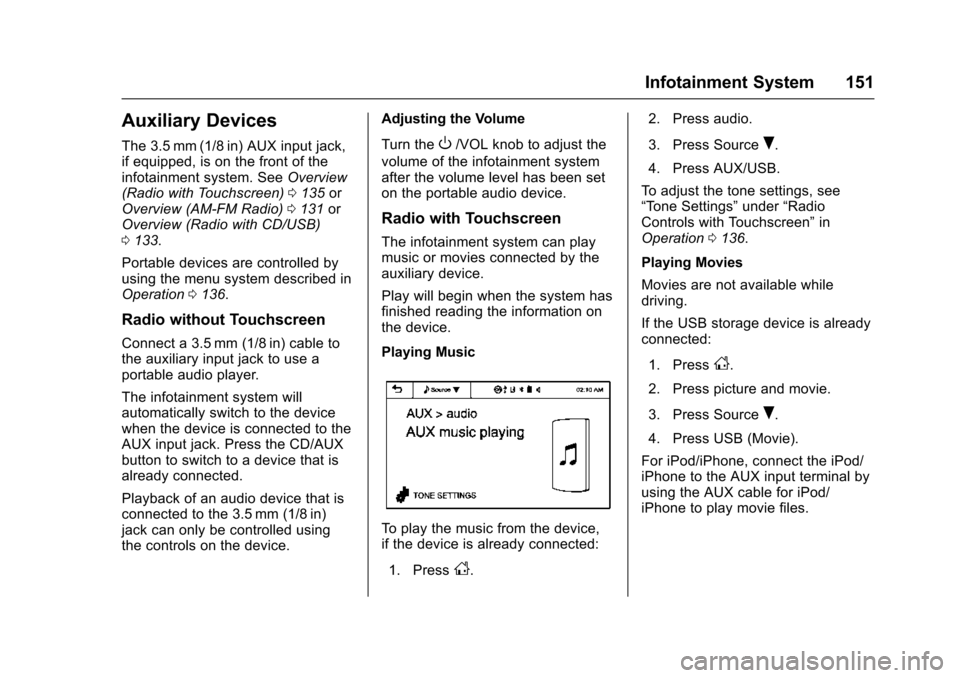
Playing Music
To play the music from the device,
if the device is already connected:
1. Press
D. 2. Press audio.
3. Press Source
R.
4. Press AUX/USB.
To adjust the tone settings, see
“Tone Settings” under“Radio
Controls with Touchscreen” in
Operation 0136.
Playing Movies
Movies are not available while
driving.
If the USB storage device is already
connected:
1. Press
D.
2. Press picture and movie.
3. Press Source
R.
4. Press USB (Movie).
For iPod/iPhone, connect the iPod/
iPhone to the AUX input terminal by
using the AUX cable for iPod/
iPhone to play movie files.
Page 153 of 358
Chevrolet TRAX Owner Manual (GMNA-Localizing-U.S./Canada/Mexico-
9159371) - 2016 - crc - 5/21/15
152 Infotainment System
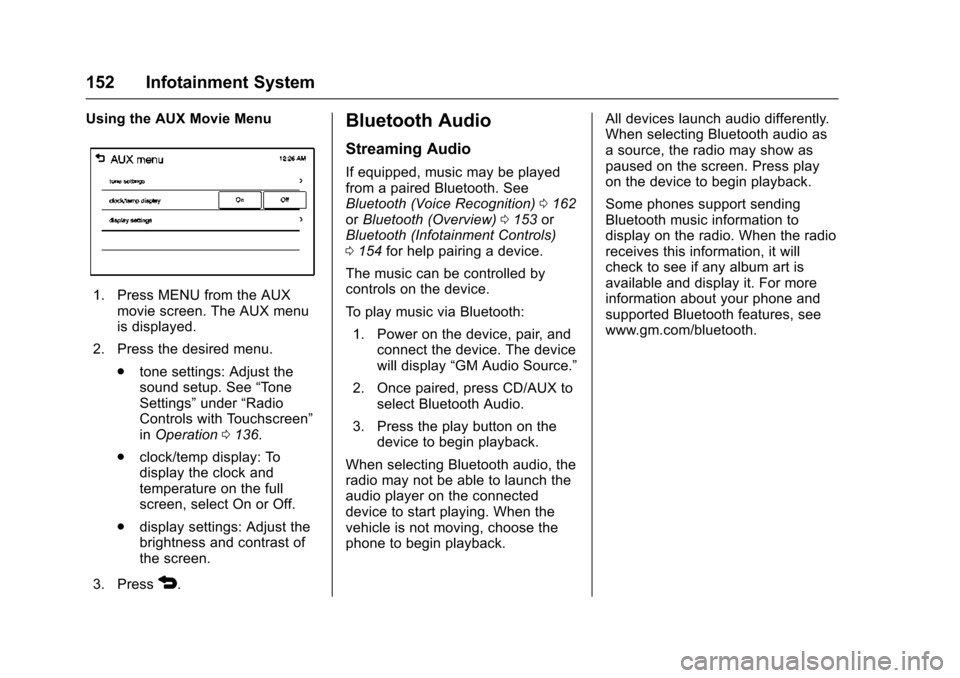
Using the AUX Movie Menu
1. Press MENU from the AUXmovie screen. The AUX menu
is displayed.
2. Press the desired menu. .tone settings: Adjust the
sound setup. See “Tone
Settings” under“Radio
Controls with Touchscreen”
in Operation 0136.
. clock/temp display: To
display the clock and
temperature on the full
screen, select On or Off.
. display settings: Adjust the
brightness and contrast of
the screen.
3. Press
4.
Bluetooth Audio
Streaming Audio
If equipped, music may be played
from a paired Bluetooth. See
Bluetooth (Voice Recognition) 0162
or Bluetooth (Overview) 0153 or
Bluetooth (Infotainment Controls)
0 154 for help pairing a device.
The music can be controlled by
controls on the device.
To play music via Bluetooth: 1. Power on the device, pair, and connect the device. The device
will display “GM Audio Source.”
2. Once paired, press CD/AUX to select Bluetooth Audio.
3. Press the play button on the device to begin playback.
When selecting Bluetooth audio, the
radio may not be able to launch the
audio player on the connected
device to start playing. When the
vehicle is not moving, choose the
phone to begin playback. All devices launch audio differently.
When selecting Bluetooth audio as
a source, the radio may show as
paused on the screen. Press play
on the device to begin playback.
Some phones support sending
Bluetooth music information to
display on the radio. When the radio
receives this information, it will
check to see if any album art is
available and display it. For more
information about your phone and
supported Bluetooth features, see
www.gm.com/bluetooth.
Page 171 of 358
Chevrolet TRAX Owner Manual (GMNA-Localizing-U.S./Canada/Mexico-
9159371) - 2016 - crc - 5/21/15
170 Infotainment System
Always accept the phone book
request on the initial pairing of the
phone.
Searching for a Name
Select characters by using the
keypad on the phone book screen.
As characters are selected, the
names that include those characters
will display on the phone book
screen. As more characters of the
name are entered, the list of
possible names is shortened.
To search for the name Alex:1. Press (abc) to select the first character.
2. Press (jkl) to select the second character.
3. Press (def) to select the third character.
4. Press (wxy) to select the fourth character.
Making a Call from Call History 1. Press Call History on the telephone screen. 2. Press one of the following for:
.
2Dialed calls.
.
4Missed calls.
.
9Received calls.
3. Select the phone book entry to call.
Making a Call with Speed Dial
Numbers
Press and hold the speed dial
number using the keypad on the
telephone screen.
Only speed dial numbers already
stored on the cell phone can be
used for speed dial calls. Up to
two-digit speed dial numbers are
supported.
For two-digit speed dial numbers,
press and hold the second digit to
make a call to the speed dial
number.
Downloadable
Applications
Smartphone Link
(Overview)
Before Using Smartphone Link
If equipped, the vehicle can connect
to Pandora
®, Stitcher SmartRadio®,
or other available applications
through the infotainment system.
The applications must be
downloaded to the device first, then
the device can be connected to the
infotainment system.
Pandora is a free Internet radio
service that streams personalized
radio stations based on artists,
songs, genres, and comedians.
Create stations using the Pandora
website or smartphone application,
then use
-(thumbs up) or,
(thumbs down) to personalize
stations. To set up an account, or for
more information, go to
www.pandora.com. Pandora may
not be available in Canada or
Mexico.
Page 172 of 358
Chevrolet TRAX Owner Manual (GMNA-Localizing-U.S./Canada/Mexico-
9159371) - 2016 - crc - 5/21/15
Infotainment System 171
Stitcher SmartRadio is an Internet
radio service that streams news,
sports, and entertainment shows
through the audio system. Create
personalized, on-demand stations or
discover new shows through
Stitcher's preset stations. To set up
an account, download the
application from the Android Market
or iTunes Store, or go to
www.stitcher.com.
A phone or tablet with Internet
connection and the application
installed is required. Personal cell
phone data plans are used. Make
sure the latest version is installed
on the device and the volume is
turned up.
Smartphone Supported by
Application
To use Applications:
.Connect an iPod/iPhone using
the USB port.
. Connect Andriod™ phones
through Bluetooth. iPod/iPhone Error Messages and
Solutions
If the system fails to activate the
application on the iPod/iPhone
connected, an error message is
displayed as,
“Unable to start
application, possible reasons.”
. Your iPhone is locked. To
resolve, unlock the iPhone.
. You have another active
application open. To resolve,
close the other active
application.
. You have not installed the
application on your iPhone. To
resolve, install the application on
the iPhone.
iOS Version Error
If the iOS version of the iPhone is
less than 4.0, the error message is
displayed as, “Your iPhone does not
allow this application to be opened
on a USB connection. Please refer
to owner ’s manual.”
. Activate the application on your
iPhone, then touch the desired
application menu on the
infotainment system. Connecting Application Error
If the infotainment system fails to
activate the application on the
smartphone connected through
Bluetooth wireless technology, the
error message is displayed as,
“Connecting application failed.”
.
Reset all settings related to the
phone, then touch the desired
application menu on the
infotainment system.
. Reconnect the smartphone and
infotainment system through
Bluetooth wireless technology,
then touch the desired
application menu on the
infotainment system.
. When the application is stopped
on the smartphone, it usually
takes time to return to normal
operation. Try to activate the
application after 10–20 seconds.
To switch to another application
while playing an application and
connected through the USB port,
touch HOME on the iPod/iPhone,
then touch the application icon on
the infotainment system.
Page 175 of 358
Chevrolet TRAX Owner Manual (GMNA-Localizing-U.S./Canada/Mexico-
9159371) - 2016 - crc - 5/21/15
174 Infotainment System
Tone Settings1. Press MENU. The Pandora menu is displayed.
2. Press tone settings. The tone settings menu is displayed.
See “Tone Settings” under
“Radio Controls with
Touchscreen” inOperation
0 136.
Smartphone Link
(Stitcher)
Some images and explanations may
vary by phone operating systems,
versions, and/or application (App)
versions.
Using Stitcher
1. Install the Stitcher application on the smartphone.
2. Connect the smartphone to the infotainment system through
the USB port or Bluetooth
wireless technology.
.iPhone: USB connection. .
Android phone/BlackBerry
phone: Bluetooth wireless
technology.
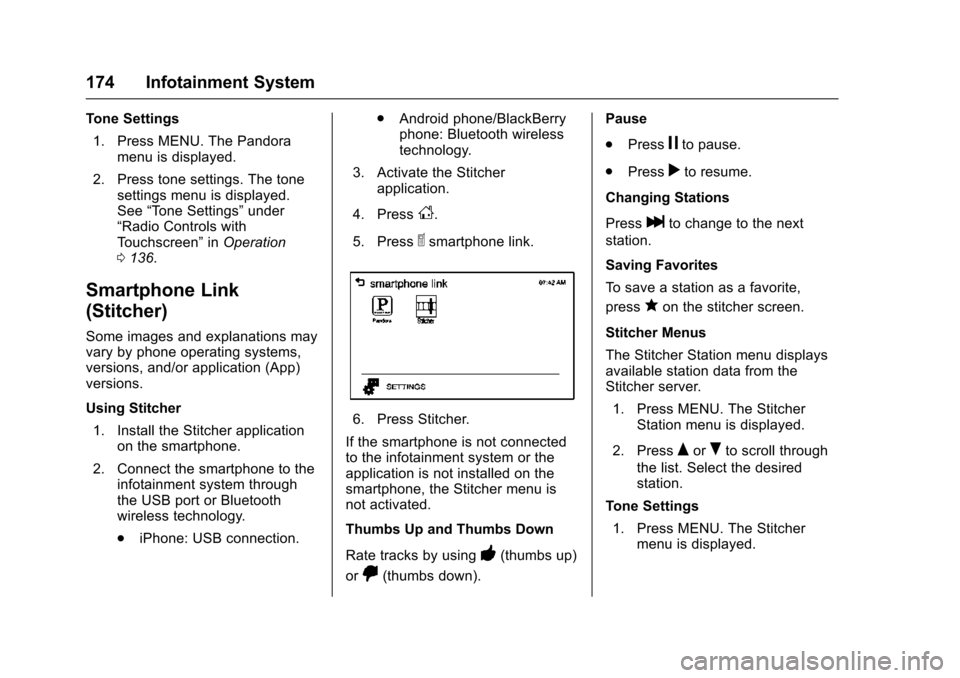
3. Activate the Stitcher application.
4. Press
D.
5. Press
^smartphone link.
6. Press Stitcher.
If the smartphone is not connected
to the infotainment system or the
application is not installed on the
smartphone, the Stitcher menu is
not activated.
Thumbs Up and Thumbs Down
Rate tracks by using
-(thumbs up)
or
,(thumbs down). Pause
.
Press
jto pause.
. Press
rto resume.
Changing Stations
Press
lto change to the next
station.
Saving Favorites
To save a station as a favorite,
press
qon the stitcher screen.
Stitcher Menus
The Stitcher Station menu displays
available station data from the
Stitcher server. 1. Press MENU. The Stitcher Station menu is displayed.
2. Press
QorRto scroll through
the list. Select the desired
station.
Tone Settings 1. Press MENU. The Stitcher menu is displayed.
Page 176 of 358
Chevrolet TRAX Owner Manual (GMNA-Localizing-U.S./Canada/Mexico-
9159371) - 2016 - crc - 5/21/15
Infotainment System 175
2. Press tone settings. The tonesettings menu is displayed.
See “Tone Settings” under
“Radio Controls with
Touchscreen” inOperation
0 136.
Stitcher usage recommendations:
. Data transference speed must
be 3G or greater.
. Make sure the latest version of
Stitcher is installed, selecting the
correct download depending on
the cellular system.
. Turn the phone Off and restart
after the download of Stitcher is
complete.
. Apple products (iPhone, iPod,
iPAD), the iOS must be 4.0 or
greater.
. Android products version must
be 2.0 or greater.
. If error messages are received
from the radio or phone, turn the
phone off and remove the
battery.
. Avoid switching between Audio
Bluetooth and Stitcher sources. .
Launch Stitcher from the radio
every time the vehicle is
turned on.
Stitcher offers podcast audio based
on phone characteristics, meaning
the launch of audio would depend
on the podcast size and phone
connection.
Phone connection factors are:
. Speed and traffic of
transmission data.
. Hours on usage.
. Applications stored on the
device.
. Available memory of phone.Bluetooth Phone/
Devices
Pictures and Movies
(Audio System)
The infotainment system can play
the music files contained in the USB
storage device or iPod/iPhone
products.
Audio System Information
Using MP3/WMA/OGG/WAV Files
.Music files with .mp3, .wma,
.ogg, and .wav file name
extensions can be played.
. MP3 files that can be played are:
Bit rate: 8 kbps to 320 kbps -
Sampling frequency: 48 kHz,
44.1 kHz, 32 kHz, 24 kHz, 22.05
kHz, and 16 kHz.
. Files with a bit rate above
128 kbps will result in higher
quality sound.
. ID3 Tag information for MP3
files, such as the album name
and the artist, can be played.