AUX CHEVROLET VOLT 2011 User Guide
[x] Cancel search | Manufacturer: CHEVROLET, Model Year: 2011, Model line: VOLT, Model: CHEVROLET VOLT 2011Pages: 516, PDF Size: 6.61 MB
Page 217 of 516
Black plate (27,1)Chevrolet Volt Owner Manual - 2011
Infotainment System 7-27
Recording from a CD to the
Hard Drive
The speed of the recording
increases if you are listening to
another source while recording.
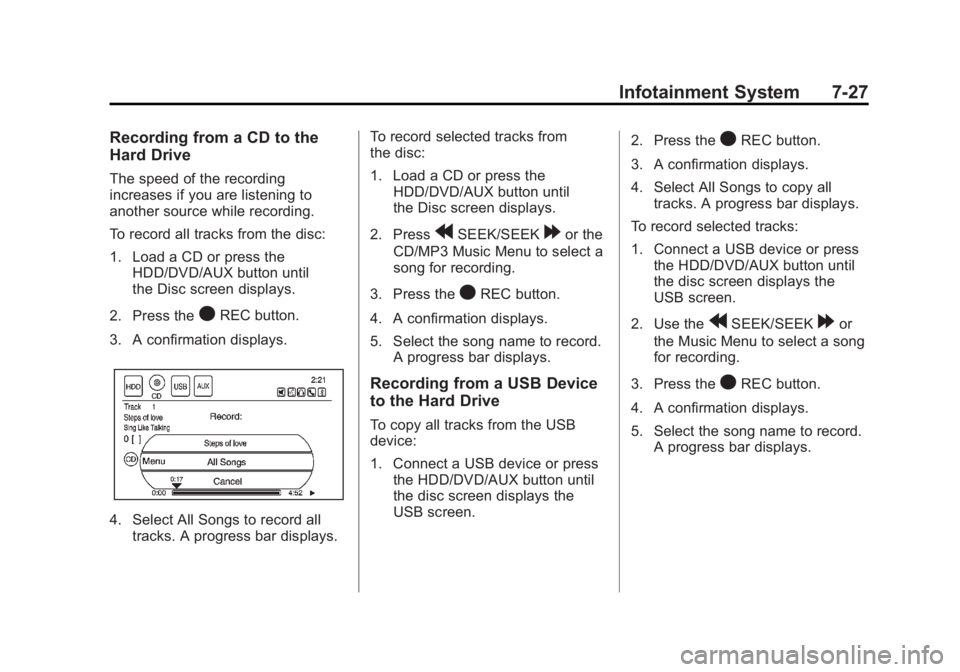
To record all tracks from the disc:
1. Load a CD or press theHDD/DVD/AUX button until
the Disc screen displays.
2. Press the
OREC button.
3. A confirmation displays.
4. Select All Songs to record all tracks. A progress bar displays. To record selected tracks from
the disc:
1. Load a CD or press the
HDD/DVD/AUX button until
the Disc screen displays.
2. Press
rSEEK/SEEK[or the
CD/MP3 Music Menu to select a
song for recording.
3. Press the
OREC button.
4. A confirmation displays.
5. Select the song name to record. A progress bar displays.
Recording from a USB Device
to the Hard Drive
To copy all tracks from the USB
device:
1. Connect a USB device or pressthe HDD/DVD/AUX button until
the disc screen displays the
USB screen. 2. Press the
OREC button.
3. A confirmation displays.
4. Select All Songs to copy all tracks. A progress bar displays.
To record selected tracks:
1. Connect a USB device or press the HDD/DVD/AUX button until
the disc screen displays the
USB screen.
2. Use the
rSEEK/SEEK[or
the Music Menu to select a song
for recording.
3. Press the
OREC button.
4. A confirmation displays.
5. Select the song name to record. A progress bar displays.
Page 221 of 516
Black plate (31,1)Chevrolet Volt Owner Manual - 2011
Infotainment System 7-31
USB-Supported Devices
The USB connector uses the
following:
.USB 2.0.
.USB flash sticks or pen drives.
.Portable USB Hard Drives.
Special care needs to be taken
related to the power source
of these devices (USB bus
powered vs. external power).
.Portable media adapters that
support SD Flash, Compact
Flash, or SD Micro.
Depending on the USB mass
storage device, some devices
might not be recognized.
Music can be played directly from
the USB device and controlled
through the MP3 control functions
and menu.
Playing from a USB
A USB mass storage device can be
connected to the USB port to copy
compressed audio files onto the
hard drive. Content can also be
played directly from the USB
device.
The USB port is in the center
console.
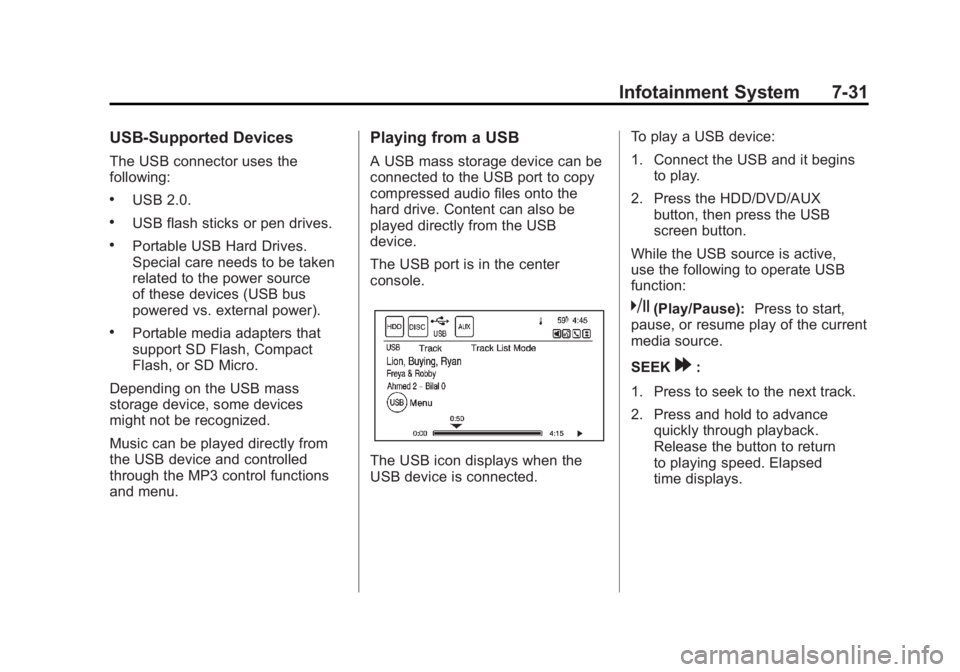
The USB icon displays when the
USB device is connected. To play a USB device:
1. Connect the USB and it begins
to play.
2. Press the HDD/DVD/AUX button, then press the USB
screen button.
While the USB source is active,
use the following to operate USB
function:
k(Play/Pause): Press to start,
pause, or resume play of the current
media source.
SEEK
[:
1. Press to seek to the next track.
2. Press and hold to advance quickly through playback.
Release the button to return
to playing speed. Elapsed
time displays.
Page 223 of 516
Black plate (33,1)Chevrolet Volt Owner Manual - 2011
Infotainment System 7-33
Eject USB:Press when the USB
is to be removed. If the USB is
disconnected without selecting
Eject USB, the files could become
corrupted.
Playing from an iPod®
This feature supports the following
iPod models:
.iPod (fifth generation or later)
.iPod nano (first, second, third,
fourth, and fifth generation)
.iPod classic
.iPod touch (first and second
generation) For proper operation, make sure
the iPod has the latest firmware
from Apple
®. iPod firmware can be
updated using the latest iTunes®
application. For more information,
visit www.apple.com/itunes.
Recording from the iPod to the
HDD is not supported. Media must
be recorded using a USB mass
storage device.
To connect and control an iPod,
connect one end of the standard
iPod USB cable to the iPod's dock
connector. Connect the other end to
the USB port in the center console.
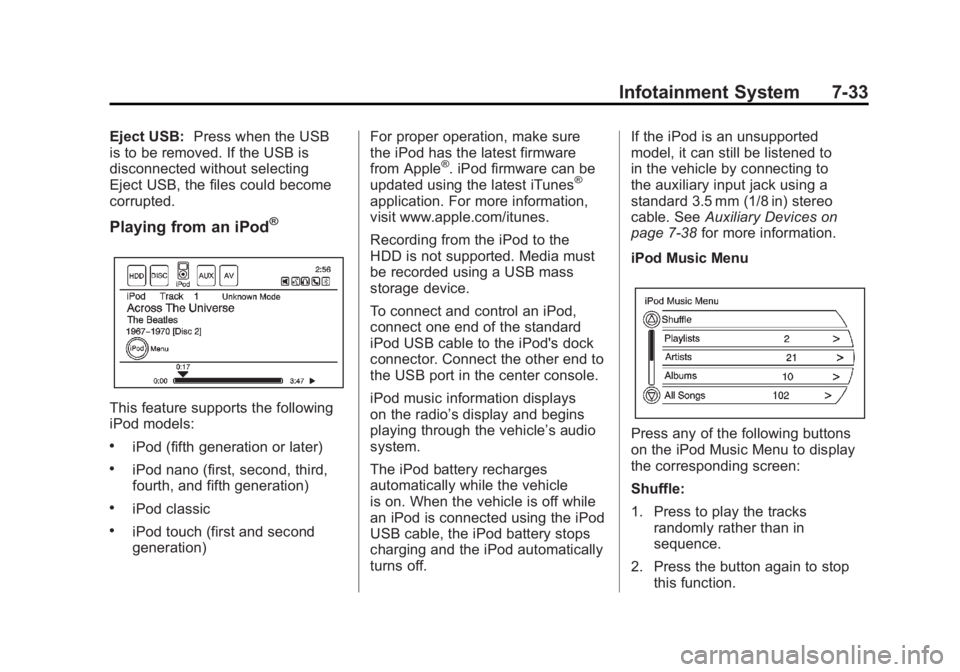
iPod music information displays
on the radio’s display and begins
playing through the vehicle’s audio
system.
The iPod battery recharges
automatically while the vehicle
is on. When the vehicle is off while
an iPod is connected using the iPod
USB cable, the iPod battery stops
charging and the iPod automatically
turns off. If the iPod is an unsupported
model, it can still be listened to
in the vehicle by connecting to
the auxiliary input jack using a
standard 3.5 mm (1/8 in) stereo
cable. See
Auxiliary Devices on
page 7‑38 for more information.
iPod Music Menu
Press any of the following buttons
on the iPod Music Menu to display
the corresponding screen:
Shuffle:
1. Press to play the tracks randomly rather than in
sequence.
2. Press the button again to stop this function.
Page 226 of 516
Black plate (36,1)Chevrolet Volt Owner Manual - 2011
7-36 Infotainment System
Playing Audio Book Content
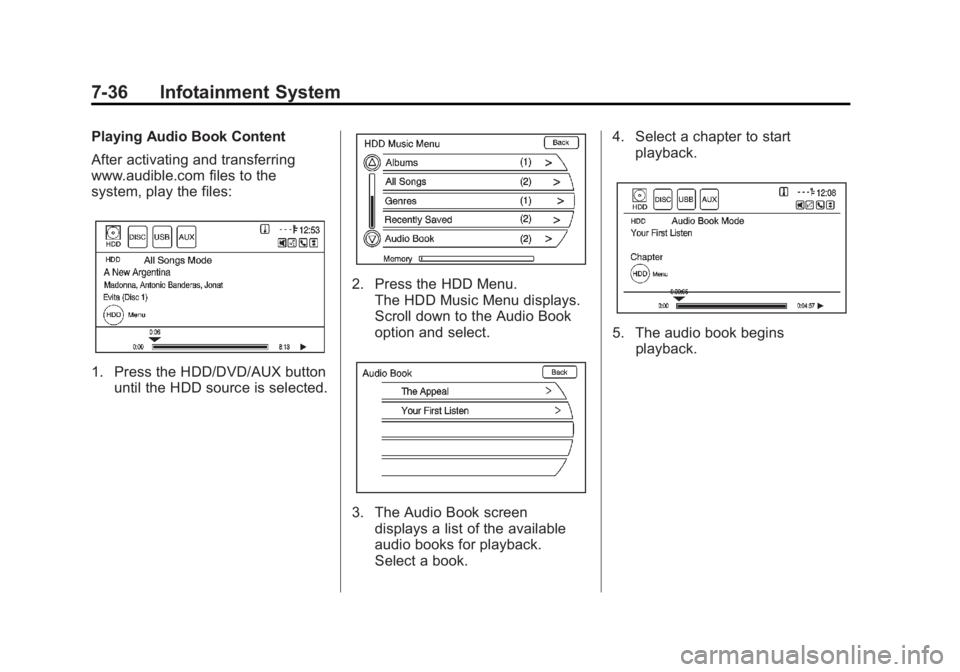
After activating and transferring
www.audible.com files to the
system, play the files:
1. Press the HDD/DVD/AUX buttonuntil the HDD source is selected.
2. Press the HDD Menu.
The HDD Music Menu displays.
Scroll down to the Audio Book
option and select.
3. The Audio Book screendisplays a list of the available
audio books for playback.
Select a book. 4. Select a chapter to start
playback.
5. The audio book beginsplayback.
Page 228 of 516
Black plate (38,1)Chevrolet Volt Owner Manual - 2011
7-38 Infotainment System
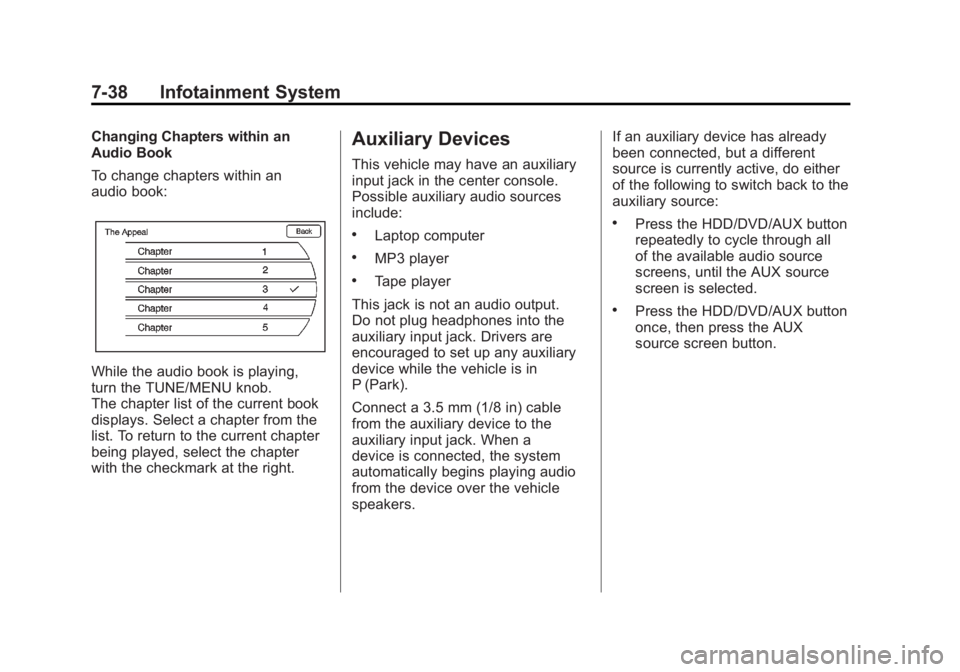
Changing Chapters within an
Audio Book
To change chapters within an
audio book:
While the audio book is playing,
turn the TUNE/MENU knob.
The chapter list of the current book
displays. Select a chapter from the
list. To return to the current chapter
being played, select the chapter
with the checkmark at the right.
Auxiliary Devices
This vehicle may have an auxiliary
input jack in the center console.
Possible auxiliary audio sources
include:
.Laptop computer
.MP3 player
.Tape player
This jack is not an audio output.
Do not plug headphones into the
auxiliary input jack. Drivers are
encouraged to set up any auxiliary
device while the vehicle is in
P (Park).
Connect a 3.5 mm (1/8 in) cable
from the auxiliary device to the
auxiliary input jack. When a
device is connected, the system
automatically begins playing audio
from the device over the vehicle
speakers. If an auxiliary device has already
been connected, but a different
source is currently active, do either
of the following to switch back to the
auxiliary source:
.Press the HDD/DVD/AUX button
repeatedly to cycle through all
of the available audio source
screens, until the AUX source
screen is selected.
.Press the HDD/DVD/AUX button
once, then press the AUX
source screen button.
Page 230 of 516
Black plate (40,1)Chevrolet Volt Owner Manual - 2011
7-40 Infotainment System
Always be alert and obey traffic
and roadway laws and instructions,
regardless of the guidance from
the navigation system. Because
the navigation system uses street
map information that does not
include all traffic restrictions or
the latest road changes, it may
suggest using a road that is now
closed for construction or a turn
that is prohibited by signs at the
intersection. Because the system
uses limited information, always
evaluate whether following the
system's directions is safe and
legal for the current conditions.
Use the buttons on the navigation
system and the available screen
buttons on the navigation screen to
operate the system. SeeOverview
on page 7‑3.
Various functions are disabled when
the vehicle is moving.Infotainment Control Buttons
The buttons on the faceplate are
used to start primary functions
while using the infotainment system.
See Overview on page 7‑3. These
buttons are:
RADIO BAND: Press to select AM,
FM, or XM, if equipped.
HDD/DVD/AUX (Source): Change
to the Hard Drive, CD, DVD, USB,
or AUX by pressing the HDD/DVD/
AUX button until the desired source
is selected.
The audio sources can also be
changed by using the steering
wheel controls. See Steering Wheel
Controls on page 5‑6 for more
information.
FAV (Favorites): Press to display
the current page number above the
preset buttons. The stored stations
for each list display on the preset
buttons at the bottom of the touch
screen. The number of preset FAV
lists can be changed. TUNE/MENU:
Turn to highlight
a feature. Press to activate the
highlighted feature.
}BACK: Press to return to
the previous screen in a menu.
The
}BACK button does not work
in primary screens, such as the
map, audio, leaf, or climate screens.
TONE: Press to open the tone
menu for sound adjustment.
CONFIG (Configure): Press to
adjust features for radio, navigation,
display, phone, vehicle, and time.
See Configure Menu on page 7‑66
for more information.
SEEK
[:
1. Press to seek to the next track or chapter.
2. Press and hold to advance quickly through playback.
3. Release the button to return to playing speed. Elapsed time
displays.
Page 293 of 516
Black plate (1,1)Chevrolet Volt Owner Manual - 2011
Climate Controls 8-1
Climate Controls
Climate Control Systems
Automatic Climate ControlSystem . . . . . . . . . . . . . . . . . . . . . . 8-1
Air Vents
Air Vents . . . . . . . . . . . . . . . . . . . . . . 8-9
Climate Control
Systems
Automatic Climate
Control System
The climate control buttons and the
touch screen are used to adjust the
heating, cooling, and ventilation.
The vehicle may require the
use of an auxiliary heat source
under certain cold conditions. This provides additional heating
and defrost capability obtained
by running the engine, even if the
high voltage battery is adequately
charged. Under these conditions,
the engine will start and use fuel.
Make sure there is fuel in the tank.
Do not allow the vehicle to remain
in extreme temperatures for long
periods without being driven or
being plugged in.
Page 505 of 516
Black plate (1,1)Chevrolet Volt Owner Manual - 2011
INDEX i-1
A
Accessories andModifications . . . . . . . . . . . . . . . . . 10-4
Accessory Power . . . . . . . . . . . . . . 9-22
Add-On Electrical Equipment . . . . . . . . . . . . . . . . . . . 9-63
Air Cleaner/Filter, Engine . . . . . 10-16
Air Conditioning . . . . . . . . . . . . . . . . 8-1
Air Vents . . . . . . . . . . . . . . . . . . . . . . . 8-9
Airbag Adding Equipment to the
Vehicle . . . . . . . . . . . . . . . . . . . . . . 3-38
Airbag System Check . . . . . . . . . . . . . . . . . . . . . . . . 3-40
How Does an AirbagRestrain? . . . . . . . . . . . . . . . . . . . 3-30
Passenger Sensing System . . . . . . . . . . . . . . . . . . . . . . 3-33
What Makes an Airbag Inflate? . . . . . . . . . . . . . . . . . . . . . . 3-30
What Will You See after an Airbag Inflates? . . . . . . . . . . . . . 3-31
When Should an Airbag Inflate? . . . . . . . . . . . . . . . . . . . . . . 3-28
Where Are the Airbags? . . . . . . 3-27 Airbags
Passenger Status Indicator . . . 5-20
Readiness Light . . . . . . . . . . . . . . 5-19
Servicing Airbag-Equipped
Vehicles . . . . . . . . . . . . . . . . . . . . . 3-38
System Check . . . . . . . . . . . . . . . . 3-25
Alarm System
Anti-theft . . . . . . . . . . . . . . . . . . . . . . 2-13
Alert Pedestrian Friendly . . . . . . . . . . . . 6-2
AM-FM Radio . . . . . . . . . . . . . . . . . . 7-10
Antenna
Multi-band . . . . . . . . . . . . . . . . . . . . 7-18
Anti-theft Alarm System . . . . . . . . . . . . . . . . 2-13
Alarm System Messages . . . . . 5-51
Antilock Brake System (ABS) . . . . . . . . . . . . . . . . 9-33
Warning Light . . . . . . . . . . . . . . . . . 5-26
Appearance Care Exterior . . . . . . . . . . . . . . . . . . . . . 10-89
Interior . . . . . . . . . . . . . . . . . . . . . . 10-93
Assistance Program, Roadside . . . . . . . . . . . . . . . . . . . . . 13-6 Audio Players
CD/DVD . . . . . . . . . . . . . . . . . . . . . . 7-18
MP3 . . . . . . . . . . . . . . . . . . . . . . . . . . 7-23
Audio System Hard Drive Device (HDD) . . . . . 7-26
Radio Reception . . . . . . . . . . . . . . 7-17
Theft-Deterrent Feature . . . . . . . . 7-3
Automatic Climate Control System . . . . . . . . 8-1
Door Locks . . . . . . . . . . . . . . . . . . . 2-11
Auxiliary Devices . . . . . . . . . . . . . . 7-38
B
Battery . . . . . . . . . . . . . . . . . . . . . . . 10-28
Gauge . . . . . . . . . . . . . . . . . . . . . . . . 5-16
High Voltage . . . . . . . . . . . . . . . . . . 5-16
Jump Starting . . . . . . . . . . . . . . . 10-79
Power Protection . . . . . . . . . . . . . . 6-6
Battery and Charging Messages. . . . . . . . . . . . . . . . . . . . 5-45
Blade Replacement, Wiper . . . 10-31
Bluetooth . . . . . . . . . . . . . . . . . . . . . . 7-85
Brake Parking, Electric . . . . . . . . . . . . . . 9-35
Page 507 of 516
Black plate (3,1)Chevrolet Volt Owner Manual - 2011
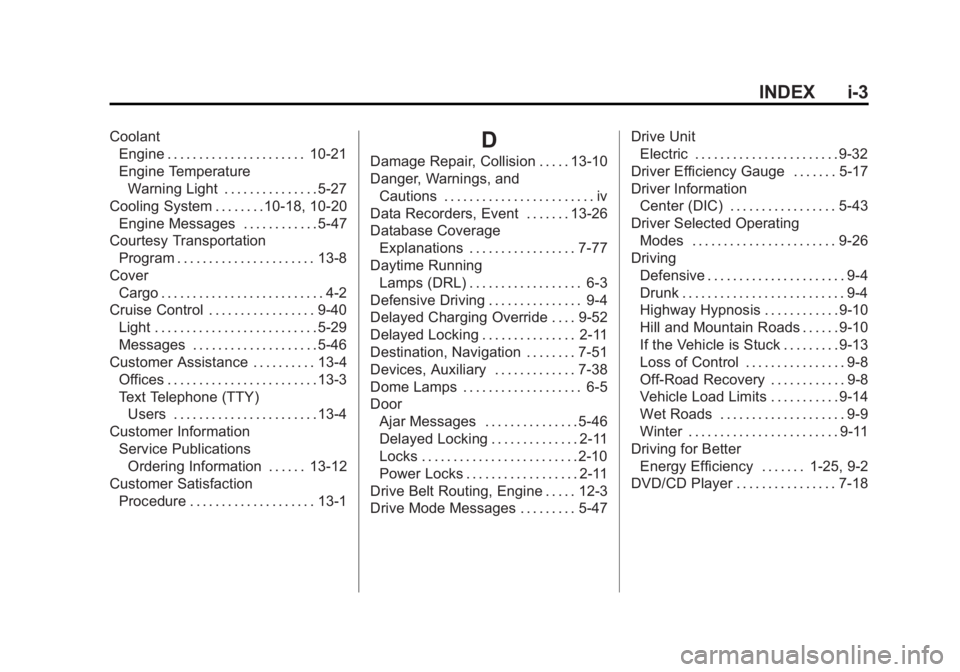
INDEX i-3
CoolantEngine . . . . . . . . . . . . . . . . . . . . . . 10-21
Engine Temperature
Warning Light . . . . . . . . . . . . . . . 5-27
Cooling System . . . . . . . .10-18, 10-20 Engine Messages . . . . . . . . . . . . 5-47
Courtesy Transportation
Program . . . . . . . . . . . . . . . . . . . . . . 13-8
Cover Cargo . . . . . . . . . . . . . . . . . . . . . . . . . . 4-2
Cruise Control . . . . . . . . . . . . . . . . . 9-40
Light . . . . . . . . . . . . . . . . . . . . . . . . . . 5-29
Messages . . . . . . . . . . . . . . . . . . . . 5-46
Customer Assistance . . . . . . . . . . 13-4 Offices . . . . . . . . . . . . . . . . . . . . . . . . 13-3
Text Telephone (TTY)Users . . . . . . . . . . . . . . . . . . . . . . . 13-4
Customer Information Service PublicationsOrdering Information . . . . . . 13-12
Customer Satisfaction
Procedure . . . . . . . . . . . . . . . . . . . . 13-1D
Damage Repair, Collision . . . . . 13-10
Danger, Warnings, andCautions . . . . . . . . . . . . . . . . . . . . . . . . iv
Data Recorders, Event . . . . . . . 13-26
Database Coverage Explanations . . . . . . . . . . . . . . . . . 7-77
Daytime Running Lamps (DRL) . . . . . . . . . . . . . . . . . . 6-3
Defensive Driving . . . . . . . . . . . . . . . 9-4
Delayed Charging Override . . . . 9-52
Delayed Locking . . . . . . . . . . . . . . . 2-11
Destination, Navigation . . . . . . . . 7-51
Devices, Auxiliary . . . . . . . . . . . . . 7-38
Dome Lamps . . . . . . . . . . . . . . . . . . . 6-5
Door Ajar Messages . . . . . . . . . . . . . . . 5-46
Delayed Locking . . . . . . . . . . . . . . 2-11
Locks . . . . . . . . . . . . . . . . . . . . . . . . . 2-10
Power Locks . . . . . . . . . . . . . . . . . . 2-11
Drive Belt Routing, Engine . . . . . 12-3
Drive Mode Messages . . . . . . . . . 5-47 Drive Unit
Electric . . . . . . . . . . . . . . . . . . . . . . . 9-32
Driver Efficiency Gauge . . . . . . . 5-17
Driver Information Center (DIC) . . . . . . . . . . . . . . . . . 5-43
Driver Selected Operating Modes . . . . . . . . . . . . . . . . . . . . . . . 9-26
Driving Defensive . . . . . . . . . . . . . . . . . . . . . . 9-4
Drunk . . . . . . . . . . . . . . . . . . . . . . . . . . 9-4
Highway Hypnosis . . . . . . . . . . . . 9-10
Hill and Mountain Roads . . . . . . 9-10
If the Vehicle is Stuck . . . . . . . . . 9-13
Loss of Control . . . . . . . . . . . . . . . . 9-8
Off-Road Recovery . . . . . . . . . . . . 9-8
Vehicle Load Limits . . . . . . . . . . . 9-14
Wet Roads . . . . . . . . . . . . . . . . . . . . 9-9
Winter . . . . . . . . . . . . . . . . . . . . . . . . 9-11
Driving for Better Energy Efficiency . . . . . . . 1-25, 9-2
DVD/CD Player . . . . . . . . . . . . . . . . 7-18