AUX CHEVROLET VOLT 2011 Owner's Manual
[x] Cancel search | Manufacturer: CHEVROLET, Model Year: 2011, Model line: VOLT, Model: CHEVROLET VOLT 2011Pages: 516, PDF Size: 6.61 MB
Page 21 of 516

Black plate (15,1)Chevrolet Volt Owner Manual - 2011
In Brief 1-15
Vehicle Features
Radio(s)
This vehicle's radio is part of the
navigation system. SeeInfotainment
on page 7‑2.
Satellite Radio
Vehicles with an XM™ Satellite
Radio tuner and a valid XM Satellite
Radio subscription can receive XM
programming.
XM Satellite Radio Service
XM is a satellite radio service based
in the 48 contiguous United States
and 10 Canadian provinces. XM
Satellite Radio has a wide variety of
programming and commercial-free
music, coast to coast, and in
digital-quality sound. A fee is
required to receive the XM service.
For more information refer to:
.www.xmradio.com or call
1-800-929-2100 (U.S.).
.www.xmradio.ca or call
1-877-438-9677 (Canada).
For more information, see Satellite
Radio on page 7‑16.
Portable Audio Devices
This vehicle has a 3.5 mm (1/8 in)
auxiliary input and a USB port
located in the center stack.
External devices such as iPods
®,
laptop computers, MP3 players, CD
changers, and USB storage devices
may be connected, depending on
the audio system.
For more information, see Auxiliary
Devices on page 7‑38.
Page 119 of 516
Black plate (1,1)Chevrolet Volt Owner Manual - 2011
Storage 4-1
Storage
Storage Compartments
Instrument Panel Storage . . . . 4-1
Glove Box . . . . . . . . . . . . . . . . . . . . 4-1
Floor Console Storage . . . . . . . . 4-1
Umbrella Storage . . . . . . . . . . . . . 4-2
Additional Storage Features
Cargo Cover . . . . . . . . . . . . . . . . . . 4-2
Storage
Compartments
Instrument Panel Storage
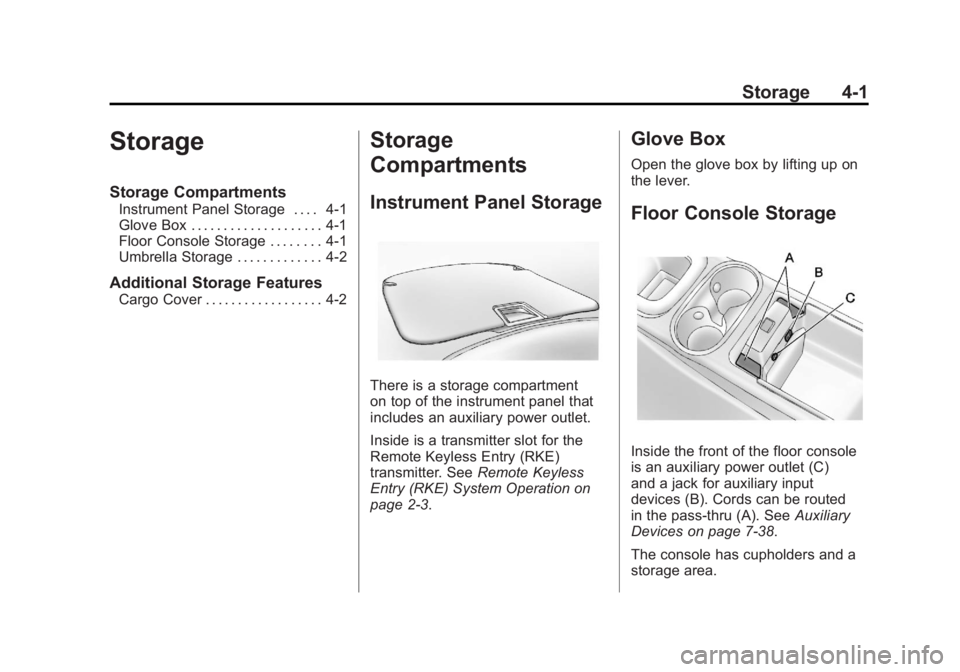
There is a storage compartment
on top of the instrument panel that
includes an auxiliary power outlet.
Inside is a transmitter slot for the
Remote Keyless Entry (RKE)
transmitter. SeeRemote Keyless
Entry (RKE) System Operation on
page 2‑3.
Glove Box
Open the glove box by lifting up on
the lever.
Floor Console Storage
Inside the front of the floor console
is an auxiliary power outlet (C)
and a jack for auxiliary input
devices (B). Cords can be routed
in the pass‐thru (A). See Auxiliary
Devices on page 7‑38.
The console has cupholders and a
storage area.
Page 120 of 516
Black plate (2,1)Chevrolet Volt Owner Manual - 2011
4-2 Storage
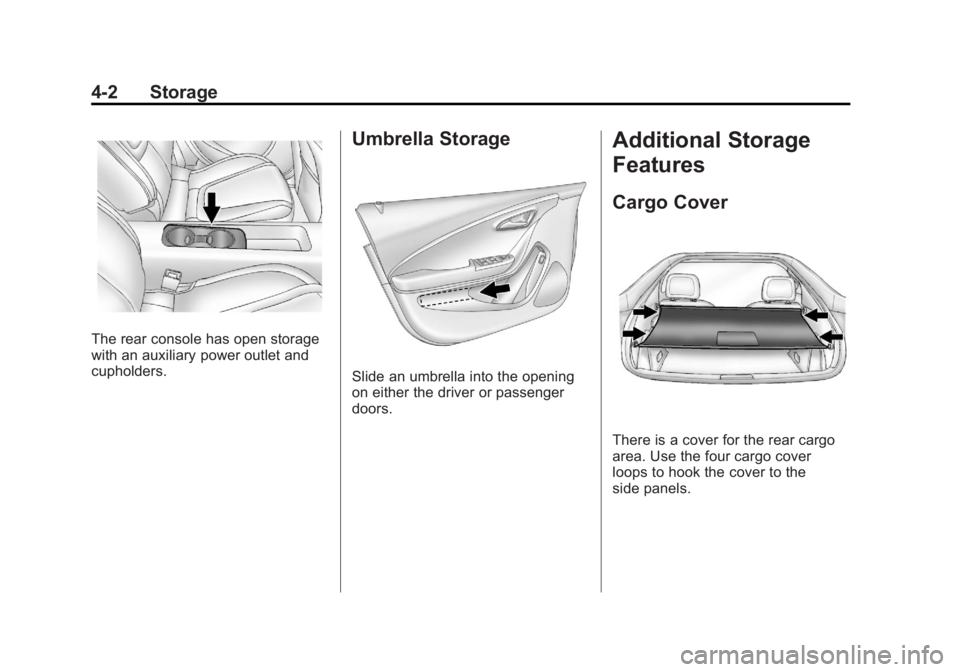
The rear console has open storage
with an auxiliary power outlet and
cupholders.
Umbrella Storage
Slide an umbrella into the opening
on either the driver or passenger
doors.
Additional Storage
Features
Cargo Cover
There is a cover for the rear cargo
area. Use the four cargo cover
loops to hook the cover to the
side panels.
Page 191 of 516

Black plate (1,1)Chevrolet Volt Owner Manual - 2011
Infotainment System 7-1
Infotainment
System
Introduction
Infotainment . . . . . . . . . . . . . . . . . . . 7-2
Theft-Deterrent Feature . . . . . . . 7-3
Overview . . . . . . . . . . . . . . . . . . . . . . 7-3
Radio
AM-FM Radio . . . . . . . . . . . . . . . . 7-10
Satellite Radio . . . . . . . . . . . . . . . 7-16
Radio Reception . . . . . . . . . . . . . 7-17
Multi-Band Antenna . . . . . . . . . . 7-18
Audio Players
CD/DVD Player . . . . . . . . . . . . . . 7-18
MP3 . . . . . . . . . . . . . . . . . . . . . . . . . 7-23
Hard Drive Device (HDD) . . . . 7-26
Auxiliary Devices . . . . . . . . . . . . 7-38
Navigation
Using the NavigationSystem . . . . . . . . . . . . . . . . . . . . . 7-39
Maps . . . . . . . . . . . . . . . . . . . . . . . . 7-44
Navigation Symbols . . . . . . . . . 7-47
Destination . . . . . . . . . . . . . . . . . . 7-51
OnStar
®Destination
Download . . . . . . . . . . . . . . . . . . 7-64
Configure Menu . . . . . . . . . . . . . 7-66
Global Positioning System (GPS) . . . . . . . . . . . . . . 7-74 Vehicle Positioning . . . . . . . . . . 7-75
Problems with Route
Guidance . . . . . . . . . . . . . . . . . . . 7-76
If the System Needs Service . . . . . . . . . . . . . . . . . . . . . 7-76
Ordering Map DVDs . . . . . . . . . 7-76
Database Coverage Explanations . . . . . . . . . . . . . . . 7-77
Voice Recognition
Voice Recognition . . . . . . . . . . . 7-77
Phone
Bluetooth . . . . . . . . . . . . . . . . . . . . 7-85
Page 194 of 516

Black plate (4,1)Chevrolet Volt Owner Manual - 2011
7-4 Infotainment System
A. RADIO BAND (AM, FM, XM)
B. HDD/DVD/AUX (Source)
C. FAV (Favorite)
D. TUNE/MENU
E.
}BACK
F. TONE
G. CONFIG (Configuration)
H.
rSEEK/SEEK[
I.V/0(Phone/Mute)
J. TP (Time Program)
K. DEL (Delete)
L.
OREC (Record)
M.
k(Play/Pause)
N. VOL/
O(Volume/Power)
O. INFO (Information)
P. DEST (Destination)
Q. NAV (Navigation)
R. RPT (Repeat)
Page 200 of 516

Black plate (10,1)Chevrolet Volt Owner Manual - 2011
7-10 Infotainment System
Radio
AM-FM Radio
Playing the Radio
Audio Source Menu
VOL/
O(Volume/Power):
1. Press to turn the radio on or off.
2. Turn to increase or decrease the volume. The volume is
adjusted for the current audio
source, active navigation voice
guidance, voice prompts,
or audio cues.
The steering wheel controls can
also be used to adjust the volume.
See Steering Wheel Controls on
page 5‑6 for more information.
TUNE/MENU: Turn to change
the radio station. See “Finding a
Station” in this section for more
information. RADIO BAND:
Press to select the
AM, FM, and XM (if equipped) band.
The audio sources can also be
changed by using the steering
wheel controls. See Steering
Wheel Controls on page 5‑6
for more information.
HDD/DVD/AUX: Change to the
Hard Drive, CD, DVD, USB, or AUX
by pressing the HDD/DVD/AUX
button until the desired source is
selected.
If the audio source is on while
viewing a map screen, a source
indicator button displays at the
top of the map screen.
Press the source indicator button
to display the current audio source
screen. The display shows a split
screen with the audio source screen
on the left side and the map or
guidance screen on the right side.
Press the Full Map button to exit the
split screen.
Page 210 of 516
Black plate (20,1)Chevrolet Volt Owner Manual - 2011
7-20 Infotainment System
There are two ways to play a
CD/DVD:
.Insert the disc and play starts
automatically.
.Press the HDD/DVD/AUX
button, then press the disc
screen button.
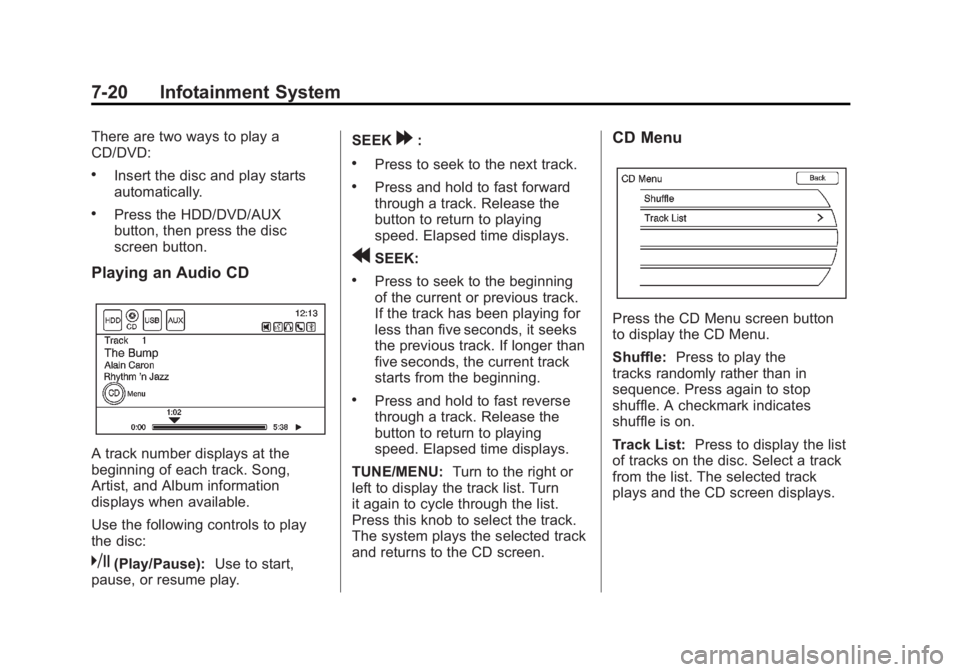
Playing an Audio CD
A track number displays at the
beginning of each track. Song,
Artist, and Album information
displays when available.
Use the following controls to play
the disc:
k(Play/Pause):Use to start,
pause, or resume play. SEEK
[:
.Press to seek to the next track.
.Press and hold to fast forward
through a track. Release the
button to return to playing
speed. Elapsed time displays.
rSEEK:
.Press to seek to the beginning
of the current or previous track.
If the track has been playing for
less than five seconds, it seeks
the previous track. If longer than
five seconds, the current track
starts from the beginning.
.Press and hold to fast reverse
through a track. Release the
button to return to playing
speed. Elapsed time displays.
TUNE/MENU: Turn to the right or
left to display the track list. Turn
it again to cycle through the list.
Press this knob to select the track.
The system plays the selected track
and returns to the CD screen.
CD Menu
Press the CD Menu screen button
to display the CD Menu.
Shuffle: Press to play the
tracks randomly rather than in
sequence. Press again to stop
shuffle. A checkmark indicates
shuffle is on.
Track List: Press to display the list
of tracks on the disc. Select a track
from the list. The selected track
plays and the CD screen displays.
Page 211 of 516
Black plate (21,1)Chevrolet Volt Owner Manual - 2011
Infotainment System 7-21
Playing an Audio and
Video DVD
To view the DVD video, the vehicle
must be in P (Park) or the parking
brake must be engaged.
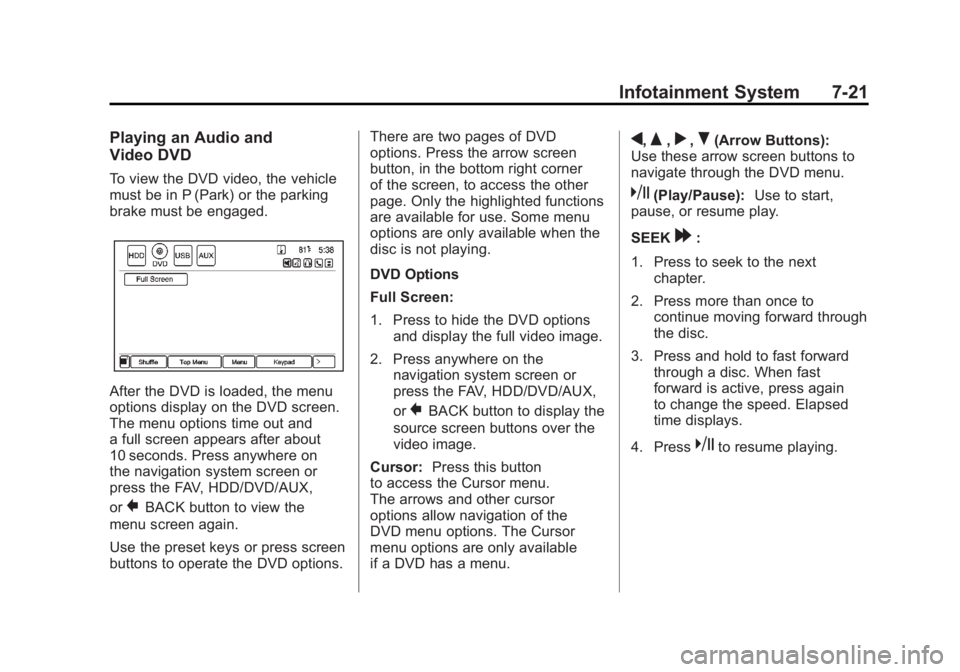
After the DVD is loaded, the menu
options display on the DVD screen.
The menu options time out and
a full screen appears after about
10 seconds. Press anywhere on
the navigation system screen or
press the FAV, HDD/DVD/AUX,
or
}BACK button to view the
menu screen again.
Use the preset keys or press screen
buttons to operate the DVD options. There are two pages of DVD
options. Press the arrow screen
button, in the bottom right corner
of the screen, to access the other
page. Only the highlighted functions
are available for use. Some menu
options are only available when the
disc is not playing.
DVD Options
Full Screen:
1. Press to hide the DVD options
and display the full video image.
2. Press anywhere on the navigation system screen or
press the FAV, HDD/DVD/AUX,
or
}BACK button to display the
source screen buttons over the
video image.
Cursor: Press this button
to access the Cursor menu.
The arrows and other cursor
options allow navigation of the
DVD menu options. The Cursor
menu options are only available
if a DVD has a menu.
q,Q,r,R(Arrow Buttons):
Use these arrow screen buttons to
navigate through the DVD menu.
k(Play/Pause): Use to start,
pause, or resume play.
SEEK
[:
1. Press to seek to the next chapter.
2. Press more than once to continue moving forward through
the disc.
3. Press and hold to fast forward through a disc. When fast
forward is active, press again
to change the speed. Elapsed
time displays.
4. Press
kto resume playing.
Page 214 of 516
Black plate (24,1)Chevrolet Volt Owner Manual - 2011
7-24 Infotainment System
.The Artist/Album/Song Titles/
Genre information requires a
CD to be fully scanned before
the music navigator works with
these menus. Disc scanning
does not occur when the disc
is being played.
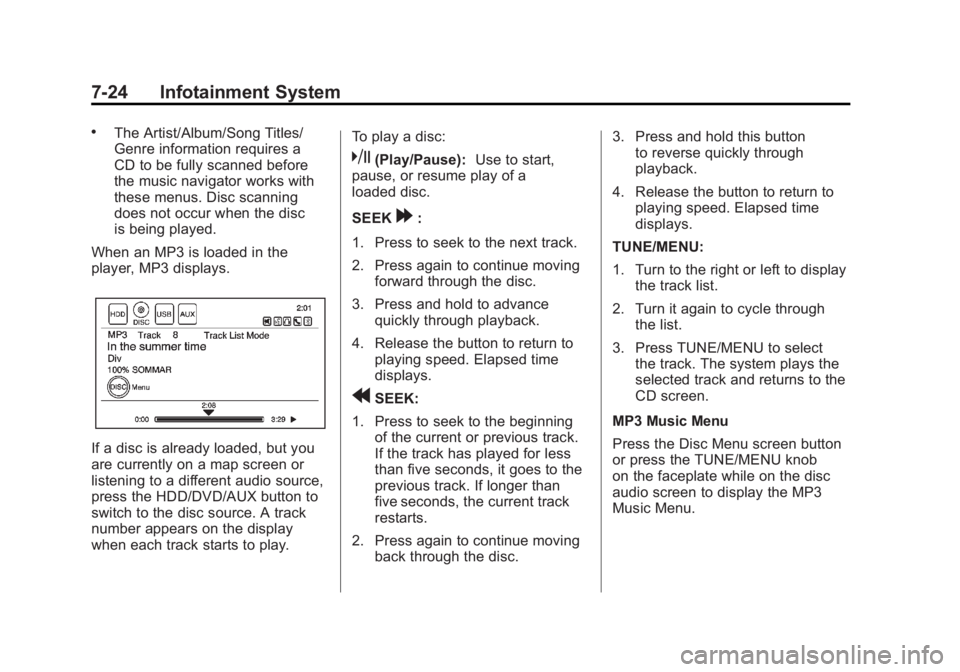
When an MP3 is loaded in the
player, MP3 displays.
If a disc is already loaded, but you
are currently on a map screen or
listening to a different audio source,
press the HDD/DVD/AUX button to
switch to the disc source. A track
number appears on the display
when each track starts to play. To play a disc:
k(Play/Pause):
Use to start,
pause, or resume play of a
loaded disc.
SEEK
[:
1. Press to seek to the next track.
2. Press again to continue moving forward through the disc.
3. Press and hold to advance quickly through playback.
4. Release the button to return to playing speed. Elapsed time
displays.
rSEEK:
1. Press to seek to the beginning of the current or previous track.
If the track has played for less
than five seconds, it goes to the
previous track. If longer than
five seconds, the current track
restarts.
2. Press again to continue moving back through the disc. 3. Press and hold this button
to reverse quickly through
playback.
4. Release the button to return to playing speed. Elapsed time
displays.
TUNE/MENU:
1. Turn to the right or left to display the track list.
2. Turn it again to cycle through the list.
3. Press TUNE/MENU to select the track. The system plays the
selected track and returns to the
CD screen.
MP3 Music Menu
Press the Disc Menu screen button
or press the TUNE/MENU knob
on the faceplate while on the disc
audio screen to display the MP3
Music Menu.
Page 216 of 516
Black plate (26,1)Chevrolet Volt Owner Manual - 2011
7-26 Infotainment System
Empty Directory or Folder
If a root directory or folder is empty
or contains only folders, the player
advances to the next folder in
the file structure that contains a
compressed audio file. The empty
folder(s) are not displayed or
numbered.
No Folder
When the CD only contains
compressed audio files without
any folders or playlists, all files
are under the root folder.
File System and Naming
The displayed song title is taken
from the file's ID3 tag. If a song
title is not present in the ID3 tag,
the radio displays the file name
as the track name.Preprogrammed Playlists
The radio recognizes
preprogrammed playlists;
however, there is no editing
capability. These playlists are
treated as special folders containing
compressed audio song files.
Hard Drive Device (HDD)
With a Hard Drive Device (HDD),
songs can be recorded.
The types of formats supported by
the HDD are:
.MP3
.MP3-Pro
.WMA
.Audible.com
.M4A
Songs can be recorded from
a CD player or a mass media
storage device connected by a
USB connector. The hard drive has
30 GB memory capacity for storage
of media files. For optimal recording performance,
make sure the disc is clean with
no damage; otherwise the system
might partially record the track.
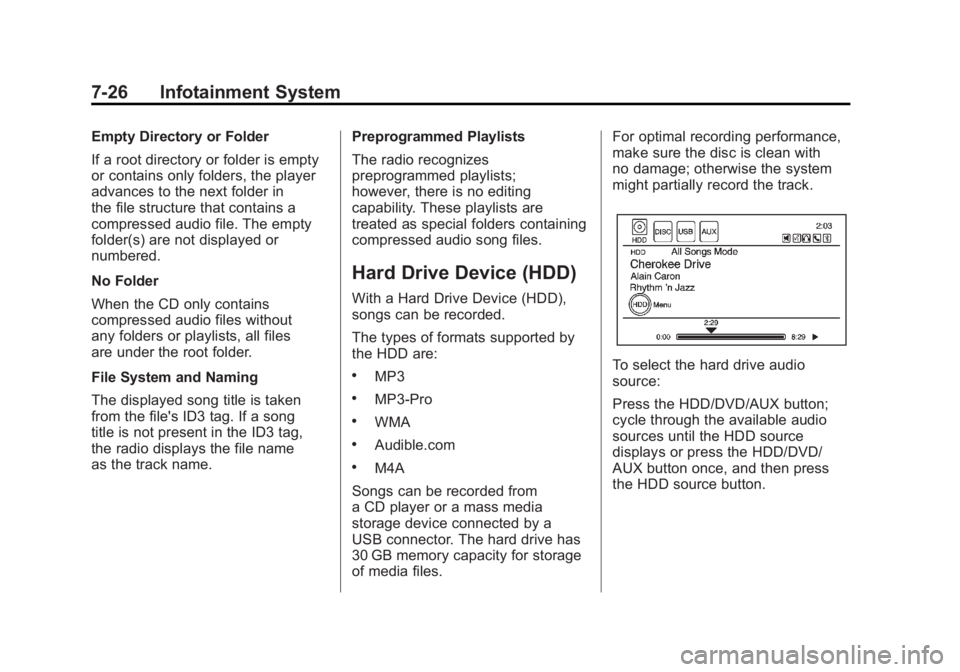
To select the hard drive audio
source:
Press the HDD/DVD/AUX button;
cycle through the available audio
sources until the HDD source
displays or press the HDD/DVD/
AUX button once, and then press
the HDD source button.