climate control CHEVROLET VOLT 2011 User Guide
[x] Cancel search | Manufacturer: CHEVROLET, Model Year: 2011, Model line: VOLT, Model: CHEVROLET VOLT 2011Pages: 516, PDF Size: 6.61 MB
Page 62 of 516
Black plate (6,1)Chevrolet Volt Owner Manual - 2011
3-6 Seats and Restraints
Heated Front Seats
{WARNING
If you cannot feel temperature
change or pain to the skin, the
seat heater may cause burns
even at low temperatures.
To reduce the risk of burns,
people with such a condition
should use care when using
the seat heater, especially for
long periods of time. Do not
place anything on the seat that
insulates against heat, such
as a blanket, cushion, cover,
or similar item. This may cause
the seat heater to overheat.
An overheated seat heater may
cause a burn or may damage
the seat.
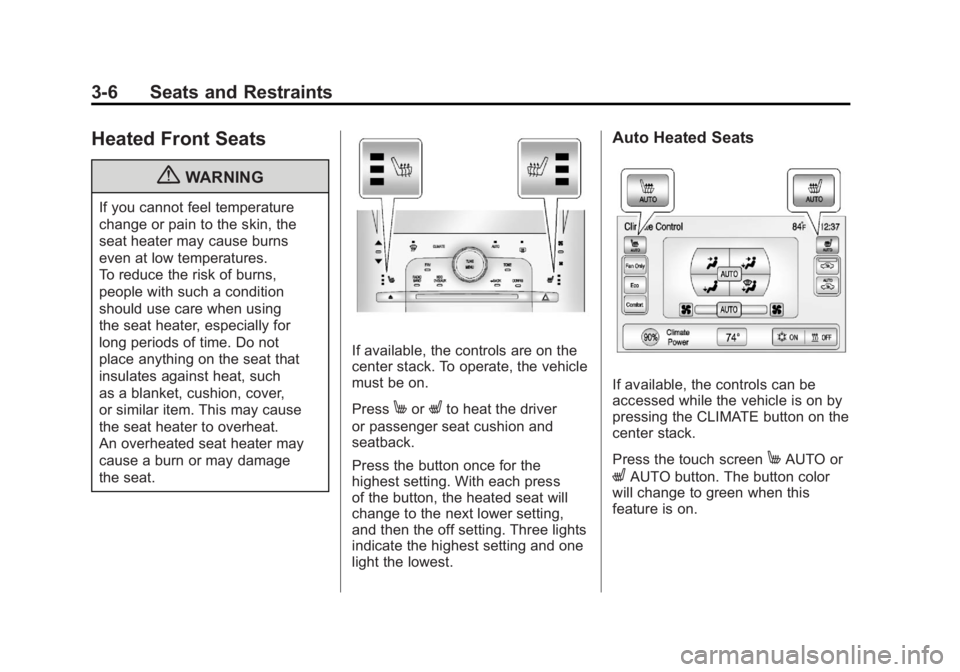
If available, the controls are on the
center stack. To operate, the vehicle
must be on.
Press
MorLto heat the driver
or passenger seat cushion and
seatback.
Press the button once for the
highest setting. With each press
of the button, the heated seat will
change to the next lower setting,
and then the off setting. Three lights
indicate the highest setting and one
light the lowest.
Auto Heated Seats
If available, the controls can be
accessed while the vehicle is on by
pressing the CLIMATE button on the
center stack.
Press the touch screen
MAUTO or
LAUTO button. The button color
will change to green when this
feature is on.
Page 125 of 516
Black plate (5,1)Chevrolet Volt Owner Manual - 2011
Instruments and Controls 5-5
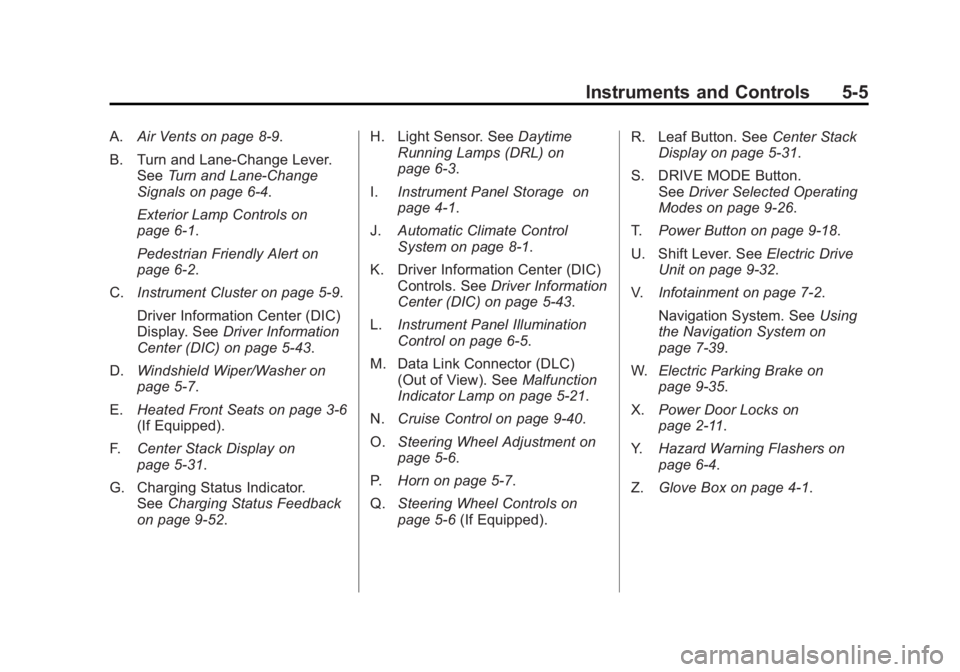
A.Air Vents on page 8‑9.
B. Turn and Lane‐Change Lever. See Turn and Lane-Change
Signals on page 6‑4.
Exterior Lamp Controls on
page 6‑1.
Pedestrian Friendly Alert on
page 6‑2.
C. Instrument Cluster on page 5‑9.
Driver Information Center (DIC)
Display. See Driver Information
Center (DIC) on page 5‑43.
D. Windshield Wiper/Washer on
page 5‑7.
E. Heated Front Seats on page 3‑6
(If Equipped).
F. Center Stack Display on
page 5‑31.
G. Charging Status Indicator. See Charging Status Feedback
on page 9‑52. H. Light Sensor. See
Daytime
Running Lamps (DRL) on
page 6‑3.
I. Instrument Panel Storage on
page 4‑1.
J. Automatic Climate Control
System on page 8‑1.
K. Driver Information Center (DIC) Controls. See Driver Information
Center (DIC) on page 5‑43.
L. Instrument Panel Illumination
Control on page 6‑5.
M. Data Link Connector (DLC) (Out of View). See Malfunction
Indicator Lamp on page 5‑21.
N. Cruise Control on page 9‑40.
O. Steering Wheel Adjustment on
page 5‑6.
P. Horn on page 5‑7.
Q. Steering Wheel Controls on
page 5‑6 (If Equipped). R. Leaf Button. See
Center Stack
Display on page 5‑31.
S. DRIVE MODE Button. See Driver Selected Operating
Modes on page 9‑26.
T. Power Button on page 9‑18.
U. Shift Lever. See Electric Drive
Unit on page 9‑32.
V. Infotainment on page 7‑2.
Navigation System. See Using
the Navigation System on
page 7‑39.
W. Electric Parking Brake on
page 9‑35.
X. Power Door Locks on
page 2‑11.
Y. Hazard Warning Flashers on
page 6‑4.
Z. Glove Box on page 4‑1.
Page 151 of 516
Black plate (31,1)Chevrolet Volt Owner Manual - 2011
Instruments and Controls 5-31
Information Displays
Center Stack Display
The center stack screen displays
Charging, Power Flow, and Energy
Information. See the information that
follows.
The Climate Control, Infotainment,
and Vehicle Personalization also
display information in this screen.
For more information on these
systems, see:
.Automatic Climate Control
System on page 8‑1.
.Infotainment on page 7‑2.
.Vehicle Personalization on
page 5‑53.
The center stack controls only need
a light touch to operate and work
best with bare hands. The controls
will work with most gloves although
they may take longer to respond. Use the finger pad rather than the
finger tip to minimize response time.
If the controls are not responding,
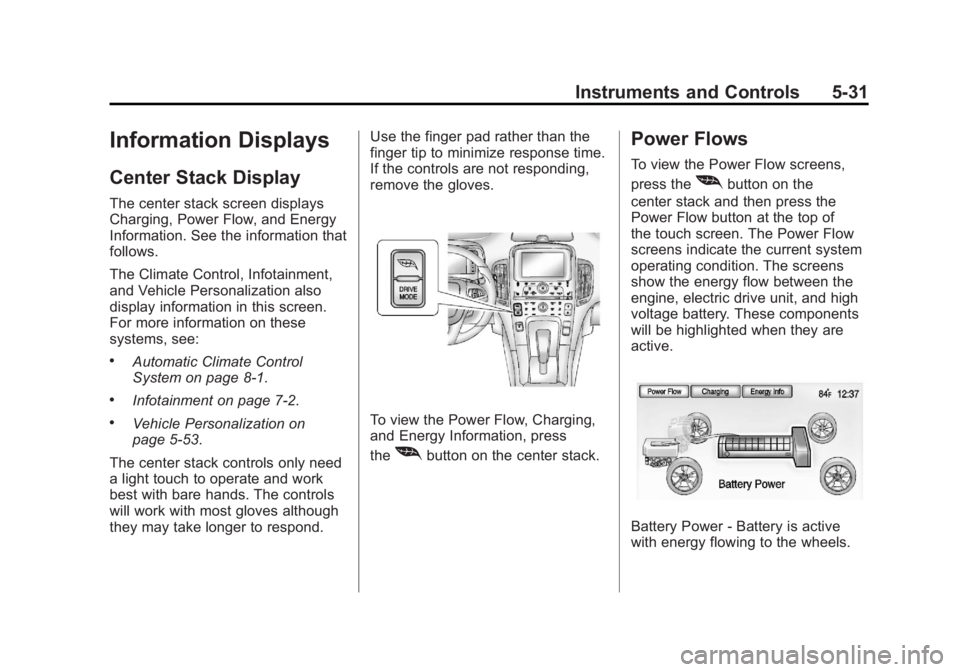
remove the gloves.To view the Power Flow, Charging,
and Energy Information, press
the
[button on the center stack.
Power Flows
To view the Power Flow screens,
press the
[button on the
center stack and then press the
Power Flow button at the top of
the touch screen. The Power Flow
screens indicate the current system
operating condition. The screens
show the energy flow between the
engine, electric drive unit, and high
voltage battery. These components
will be highlighted when they are
active.
Battery Power ‐Battery is active
with energy flowing to the wheels.
Page 162 of 516
Black plate (42,1)Chevrolet Volt Owner Manual - 2011
5-42 Instruments and Controls
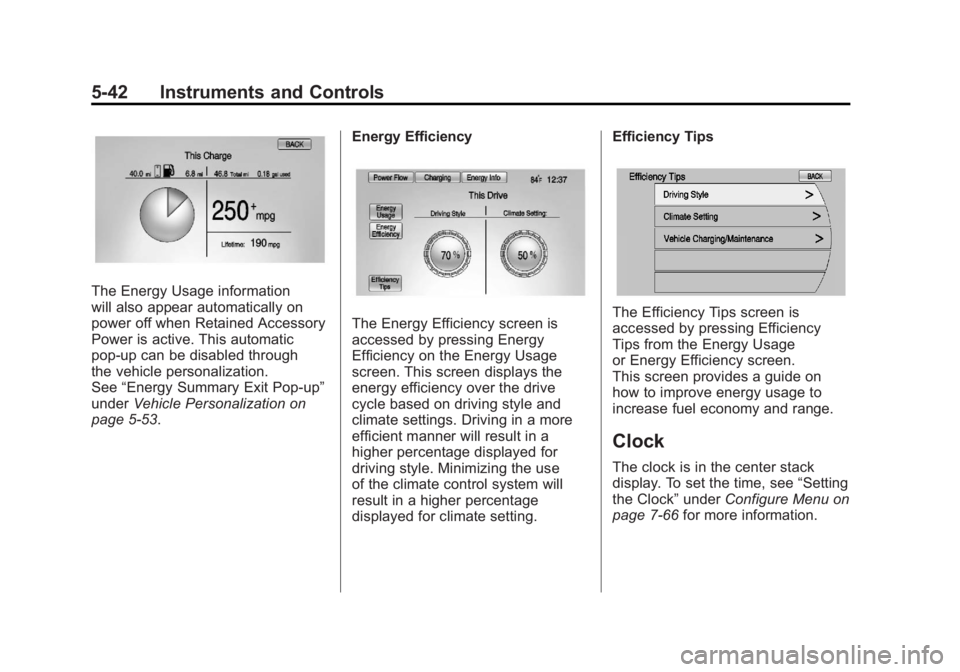
The Energy Usage information
will also appear automatically on
power off when Retained Accessory
Power is active. This automatic
pop-up can be disabled through
the vehicle personalization.
See“Energy Summary Exit Pop-up”
under Vehicle Personalization on
page 5‑53. Energy Efficiency
The Energy Efficiency screen is
accessed by pressing Energy
Efficiency on the Energy Usage
screen. This screen displays the
energy efficiency over the drive
cycle based on driving style and
climate settings. Driving in a more
efficient manner will result in a
higher percentage displayed for
driving style. Minimizing the use
of the climate control system will
result in a higher percentage
displayed for climate setting.Efficiency TipsThe Efficiency Tips screen is
accessed by pressing Efficiency
Tips from the Energy Usage
or Energy Efficiency screen.
This screen provides a guide on
how to improve energy usage to
increase fuel economy and range.
Clock
The clock is in the center stack
display. To set the time, see
“Setting
the Clock” underConfigure Menu on
page 7‑66 for more information.
Page 174 of 516
Black plate (54,1)Chevrolet Volt Owner Manual - 2011
5-54 Instruments and Controls
Turning a Function On or Off
1. Turn the TUNE/MENU knob tohighlight the function.
2. Press the TUNE/MENU knob to turn the function on or off.
A checkmark next to the function
indicates that the function is on.
Using the Touch Screen
Use the touch screen icons and
menus on the center stack display
to select personalization features.
w:Touch to scroll up.
x:Touch to scroll down.
Back: Touch Back in the upper
right corner of the display to return
to the previous menu. Submenus
An arrow on the right‐hand edge
of the menu indicates that it has a
submenu with other options.
Selecting a Menu Option
Touch any one of the available
menu options on the touch screen
to select the option. A checkmark
next to the option indicates the
selected option.
Turning a Function On or Off
Touch the screen where the
available function is listed to turn it
on or off. A checkmark next to the
function indicates that the function
is on.
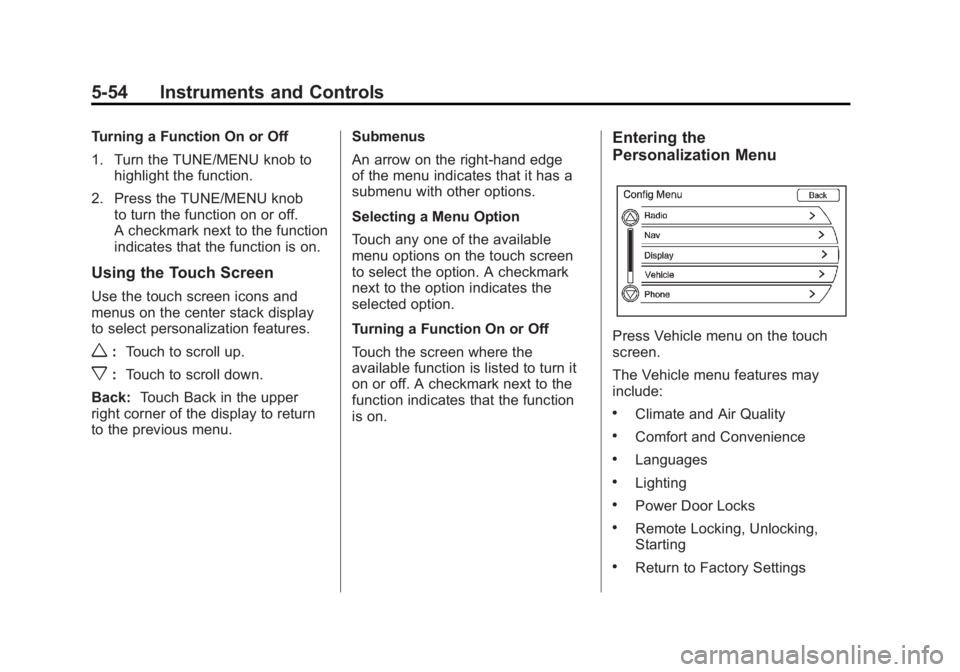
Entering the
Personalization Menu
Press Vehicle menu on the touch
screen.
The Vehicle menu features may
include:
.Climate and Air Quality
.Comfort and Convenience
.Languages
.Lighting
.Power Door Locks
.Remote Locking, Unlocking,
Starting
.Return to Factory Settings
Page 175 of 516
Black plate (55,1)Chevrolet Volt Owner Manual - 2011
Instruments and Controls 5-55
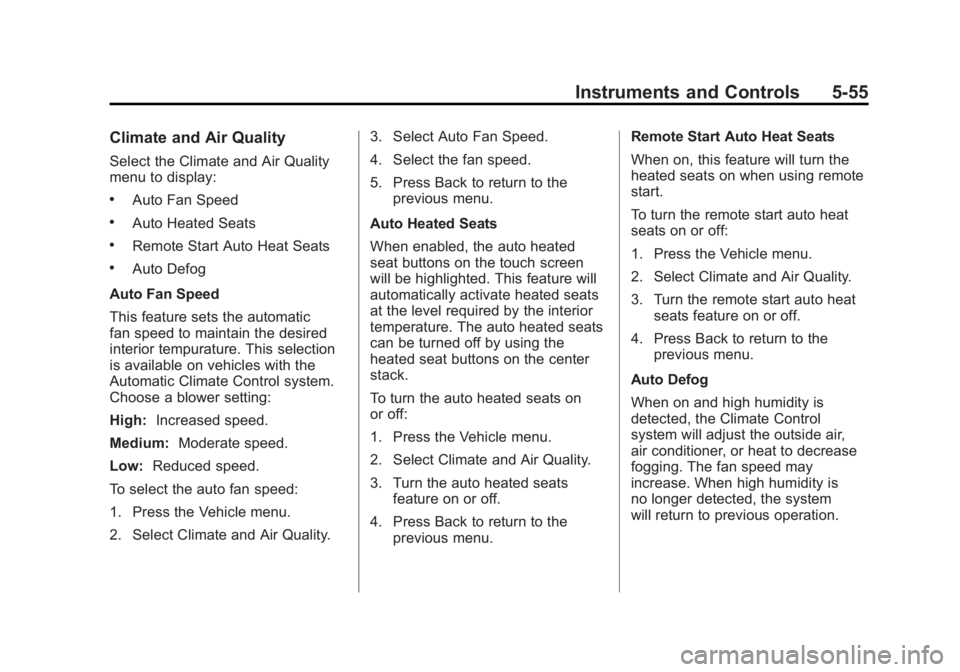
Climate and Air Quality
Select the Climate and Air Quality
menu to display:
.Auto Fan Speed
.Auto Heated Seats
.Remote Start Auto Heat Seats
.Auto Defog
Auto Fan Speed
This feature sets the automatic
fan speed to maintain the desired
interior tempurature. This selection
is available on vehicles with the
Automatic Climate Control system.
Choose a blower setting:
High: Increased speed.
Medium: Moderate speed.
Low: Reduced speed.
To select the auto fan speed:
1. Press the Vehicle menu.
2. Select Climate and Air Quality. 3. Select Auto Fan Speed.
4. Select the fan speed.
5. Press Back to return to the
previous menu.
Auto Heated Seats
When enabled, the auto heated
seat buttons on the touch screen
will be highlighted. This feature will
automatically activate heated seats
at the level required by the interior
temperature. The auto heated seats
can be turned off by using the
heated seat buttons on the center
stack.
To turn the auto heated seats on
or off:
1. Press the Vehicle menu.
2. Select Climate and Air Quality.
3. Turn the auto heated seats feature on or off.
4. Press Back to return to the previous menu. Remote Start Auto Heat Seats
When on, this feature will turn the
heated seats on when using remote
start.
To turn the remote start auto heat
seats on or off:
1. Press the Vehicle menu.
2. Select Climate and Air Quality.
3. Turn the remote start auto heat
seats feature on or off.
4. Press Back to return to the previous menu.
Auto Defog
When on and high humidity is
detected, the Climate Control
system will adjust the outside air,
air conditioner, or heat to decrease
fogging. The fan speed may
increase. When high humidity is
no longer detected, the system
will return to previous operation.
Page 176 of 516
Black plate (56,1)Chevrolet Volt Owner Manual - 2011
5-56 Instruments and Controls
To turn the auto defog on or off:
1. Press the Vehicle menu.
2. Select Climate and Air Quality.
3. Turn the auto defog feature onor off.
4. Press Back to return to the previous menu.
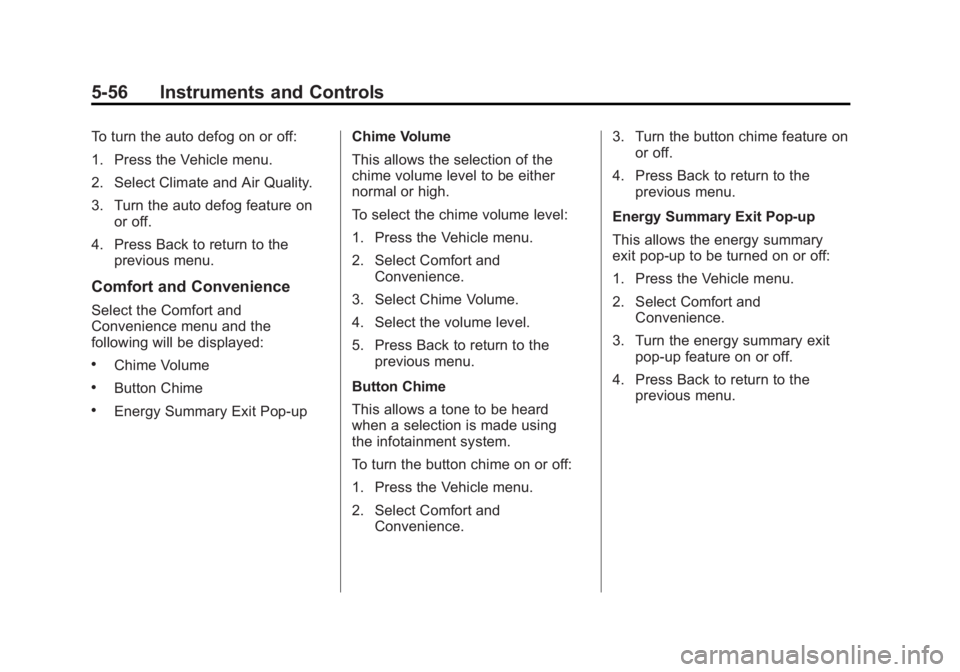
Comfort and Convenience
Select the Comfort and
Convenience menu and the
following will be displayed:
.Chime Volume
.Button Chime
.Energy Summary Exit Pop‐up Chime Volume
This allows the selection of the
chime volume level to be either
normal or high.
To select the chime volume level:
1. Press the Vehicle menu.
2. Select Comfort and
Convenience.
3. Select Chime Volume.
4. Select the volume level.
5. Press Back to return to the previous menu.
Button Chime
This allows a tone to be heard
when a selection is made using
the infotainment system.
To turn the button chime on or off:
1. Press the Vehicle menu.
2. Select Comfort and Convenience. 3. Turn the button chime feature on
or off.
4. Press Back to return to the previous menu.
Energy Summary Exit Pop‐up
This allows the energy summary
exit pop‐up to be turned on or off:
1. Press the Vehicle menu.
2. Select Comfort and Convenience.
3. Turn the energy summary exit pop‐up feature on or off.
4. Press Back to return to the previous menu.
Page 230 of 516
Black plate (40,1)Chevrolet Volt Owner Manual - 2011
7-40 Infotainment System
Always be alert and obey traffic
and roadway laws and instructions,
regardless of the guidance from
the navigation system. Because
the navigation system uses street
map information that does not
include all traffic restrictions or
the latest road changes, it may
suggest using a road that is now
closed for construction or a turn
that is prohibited by signs at the
intersection. Because the system
uses limited information, always
evaluate whether following the
system's directions is safe and
legal for the current conditions.
Use the buttons on the navigation
system and the available screen
buttons on the navigation screen to
operate the system. SeeOverview
on page 7‑3.
Various functions are disabled when
the vehicle is moving.Infotainment Control Buttons
The buttons on the faceplate are
used to start primary functions
while using the infotainment system.
See Overview on page 7‑3. These
buttons are:
RADIO BAND: Press to select AM,
FM, or XM, if equipped.
HDD/DVD/AUX (Source): Change
to the Hard Drive, CD, DVD, USB,
or AUX by pressing the HDD/DVD/
AUX button until the desired source
is selected.
The audio sources can also be
changed by using the steering
wheel controls. See Steering Wheel
Controls on page 5‑6 for more
information.
FAV (Favorites): Press to display
the current page number above the
preset buttons. The stored stations
for each list display on the preset
buttons at the bottom of the touch
screen. The number of preset FAV
lists can be changed. TUNE/MENU:
Turn to highlight
a feature. Press to activate the
highlighted feature.
}BACK: Press to return to
the previous screen in a menu.
The
}BACK button does not work
in primary screens, such as the
map, audio, leaf, or climate screens.
TONE: Press to open the tone
menu for sound adjustment.
CONFIG (Configure): Press to
adjust features for radio, navigation,
display, phone, vehicle, and time.
See Configure Menu on page 7‑66
for more information.
SEEK
[:
1. Press to seek to the next track or chapter.
2. Press and hold to advance quickly through playback.
3. Release the button to return to playing speed. Elapsed time
displays.
Page 231 of 516
Black plate (41,1)Chevrolet Volt Owner Manual - 2011
Infotainment System 7-41
rSEEK:
1. Press to seek to the beginning of the current or previous track or
chapter. If the track or chapter
has been playing for less than
five seconds, the previous track
or chapter plays. If playing
longer than five seconds, the
current track or chapter restarts.
2. Press and hold to reverse quickly through playback.
Release the button to return
to playing speed. Elapsed
time displays.
V/0(Phone): SeeBluetooth on
page 7‑85 for more information.
k(Play/Pause): Press to start,
pause, or resume play of the current
media source.
TP (Time Program): Press
to display the Time settings.
This button can be pressed to
quickly go to the Time menu instead
of pathing through the Config
menu and the TUNE/MENU knob. Adjust the time as needed. See
Configure Menu on page 7‑66
later
in this section.
OREC (Record): Press to record
from a CD player or a mass media
storage device connected by a USB
connector.
DEL (Delete): Press to delete XM
categories and information from the
hard drive.
VOL/
O(Volume/Power): Press to
turn the system on and off. Turn this
knob to adjust the volume for the
audio, OnStar, voice guidance, and
voice recognition voice prompts.
DEST (Destination): Press to
plan a route through the Select
Destination menu. If route guidance
is active, press to access the
Route menu. See Destination on
page 7‑51 for more information. NAV (Navigation):
Press to view
the vehicle's current position on
the map screen. Continue pressing
to cycle through the full map and
split screen. Full Map displays the
screen in full view; Split Screen
displays both map and audio
information.
INFO (Information): Press for
weather information, if equipped,
and climate control displays,
if equipped.
RPT (Navigation Repeat): Press
to repeat the last voice guidance
prompt.
AS1–2 (Autostore): The stations
that can be received best in an AM
or FM band can be searched for
and stored automatically through the
autostore function. Each band has
two autostore lists (AS 1, AS 2), in
each of which six stations can be
stored. To update station list press
and hold AS 1-2 button for more
than two seconds.
X(CD/DVD Eject): Press to eject
a CD or a DVD.
Page 268 of 516
Black plate (78,1)Chevrolet Volt Owner Manual - 2011
7-78 Infotainment System
Canceling Voice Recognition
1. Press and release the$i
steering wheel button to cancel
a command, or if the system
response does not match the
verbal command.
2. The system replies, “Voice
recognition canceled.”
Pressing any other radio or
steering wheel control, other
than the volume knob or the
volume steering wheel button
cancels the session.
3. Press and release the
b g
steering wheel button to restart
the voice recognition session.
Helpful Hints for Speaking
Commands
.When multiple commands are
available, choose the command
that best works for you.
.Words that are in brackets are
optional. For example, for the
command “Radio (band) FM,”
saying “Radio FM” or“Radio
Band FM” are both valid
commands.
.Words separated by a ( / ) mean
there is a choice of using a
word on either side of the slash.
For example, for the command
(CD/DVD/Disc) (help), you can
say “CD (help)” or“DVD (help)”
or “Disc (help).”
.When the system recognizes the
command, the system will either
perform the function or ask to
confirm the choice by clearly
saying “yes”or“no.”
.When the system does not
recognize the command,
the system issues an error
message such as “pardon”
or “command not recognized.”
The system could also say,
“voice recognition canceled.”
.If experiencing difficulty with the
system recognizing a command,
confirm that the command is
correct. Try saying the command
clearly or wait for a brief moment
after the beep.
.Background noise such as a
climate control fan positioned
on high, open windows, and
very loud outside noises, even
if the windows are closed, can
cause voice commands to be
misunderstood.