wheel CHEVROLET VOLT 2011 Owner's Guide
[x] Cancel search | Manufacturer: CHEVROLET, Model Year: 2011, Model line: VOLT, Model: CHEVROLET VOLT 2011Pages: 516, PDF Size: 6.61 MB
Page 147 of 516
Black plate (27,1)Chevrolet Volt Owner Manual - 2011
Instruments and Controls 5-27
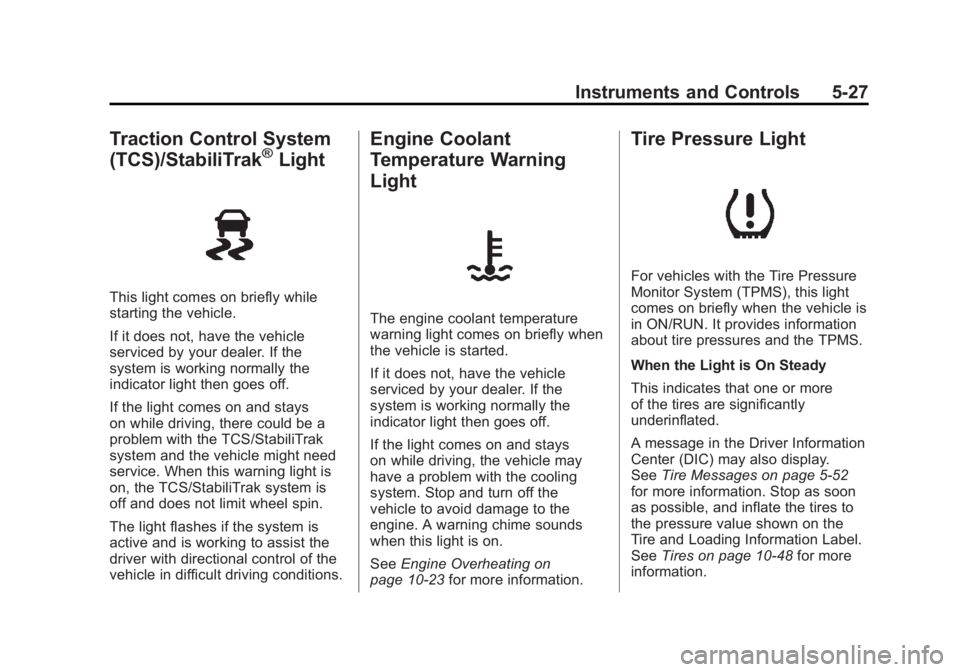
Traction Control System
(TCS)/StabiliTrak®Light
This light comes on briefly while
starting the vehicle.
If it does not, have the vehicle
serviced by your dealer. If the
system is working normally the
indicator light then goes off.
If the light comes on and stays
on while driving, there could be a
problem with the TCS/StabiliTrak
system and the vehicle might need
service. When this warning light is
on, the TCS/StabiliTrak system is
off and does not limit wheel spin.
The light flashes if the system is
active and is working to assist the
driver with directional control of the
vehicle in difficult driving conditions.
Engine Coolant
Temperature Warning
Light
The engine coolant temperature
warning light comes on briefly when
the vehicle is started.
If it does not, have the vehicle
serviced by your dealer. If the
system is working normally the
indicator light then goes off.
If the light comes on and stays
on while driving, the vehicle may
have a problem with the cooling
system. Stop and turn off the
vehicle to avoid damage to the
engine. A warning chime sounds
when this light is on.
SeeEngine Overheating on
page 10‑23 for more information.
Tire Pressure Light
For vehicles with the Tire Pressure
Monitor System (TPMS), this light
comes on briefly when the vehicle is
in ON/RUN. It provides information
about tire pressures and the TPMS.
When the Light is On Steady
This indicates that one or more
of the tires are significantly
underinflated.
A message in the Driver Information
Center (DIC) may also display.
SeeTire Messages on page 5‑52
for more information. Stop as soon
as possible, and inflate the tires to
the pressure value shown on the
Tire and Loading Information Label.
See Tires on page 10‑48 for more
information.
Page 151 of 516
Black plate (31,1)Chevrolet Volt Owner Manual - 2011
Instruments and Controls 5-31
Information Displays
Center Stack Display
The center stack screen displays
Charging, Power Flow, and Energy
Information. See the information that
follows.
The Climate Control, Infotainment,
and Vehicle Personalization also
display information in this screen.
For more information on these
systems, see:
.Automatic Climate Control
System on page 8‑1.
.Infotainment on page 7‑2.
.Vehicle Personalization on
page 5‑53.
The center stack controls only need
a light touch to operate and work
best with bare hands. The controls
will work with most gloves although
they may take longer to respond. Use the finger pad rather than the
finger tip to minimize response time.
If the controls are not responding,
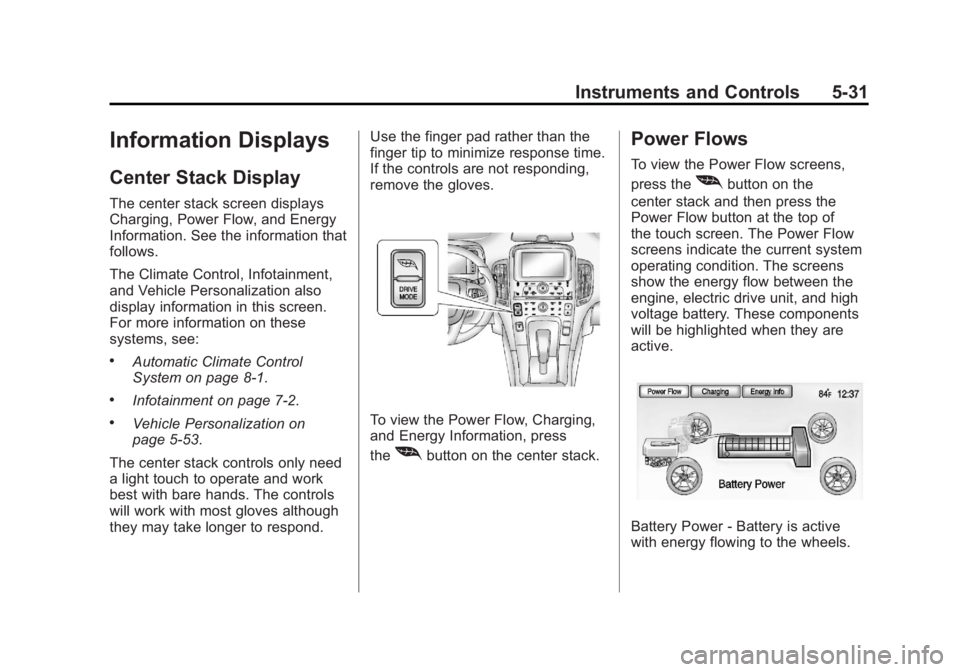
remove the gloves.To view the Power Flow, Charging,
and Energy Information, press
the
[button on the center stack.
Power Flows
To view the Power Flow screens,
press the
[button on the
center stack and then press the
Power Flow button at the top of
the touch screen. The Power Flow
screens indicate the current system
operating condition. The screens
show the energy flow between the
engine, electric drive unit, and high
voltage battery. These components
will be highlighted when they are
active.
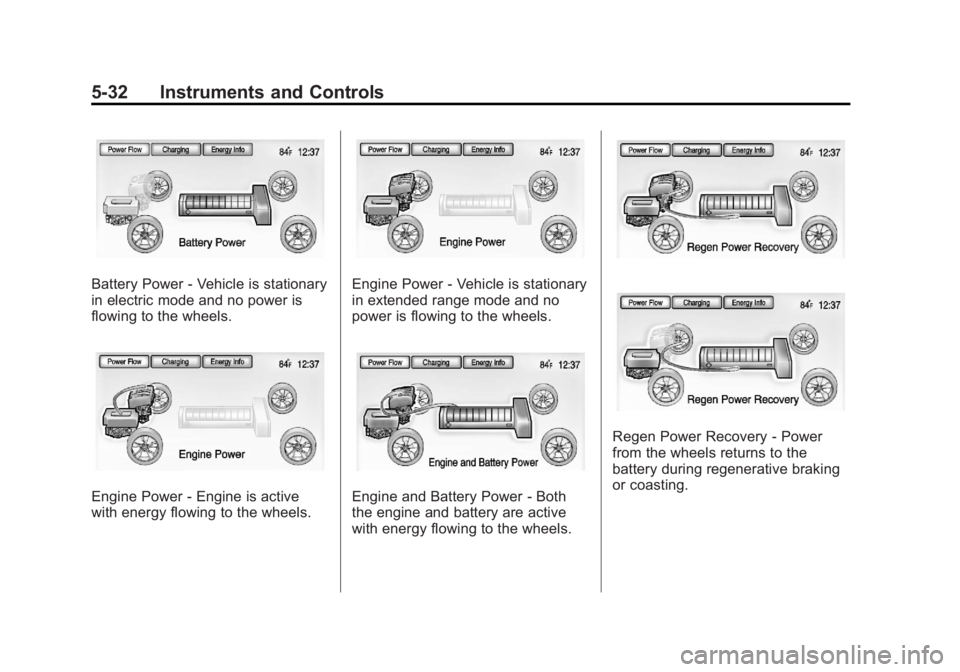
Battery Power ‐Battery is active
with energy flowing to the wheels.
Page 152 of 516
Black plate (32,1)Chevrolet Volt Owner Manual - 2011
5-32 Instruments and Controls
Battery Power‐Vehicle is stationary
in electric mode and no power is
flowing to the wheels.
Engine Power ‐Engine is active
with energy flowing to the wheels.
Engine Power ‐Vehicle is stationary
in extended range mode and no
power is flowing to the wheels.
Engine and Battery Power ‐Both
the engine and battery are active
with energy flowing to the wheels.
Regen Power Recovery ‐Power
from the wheels returns to the
battery during regenerative braking
or coasting.
Page 153 of 516
Black plate (33,1)Chevrolet Volt Owner Manual - 2011
Instruments and Controls 5-33
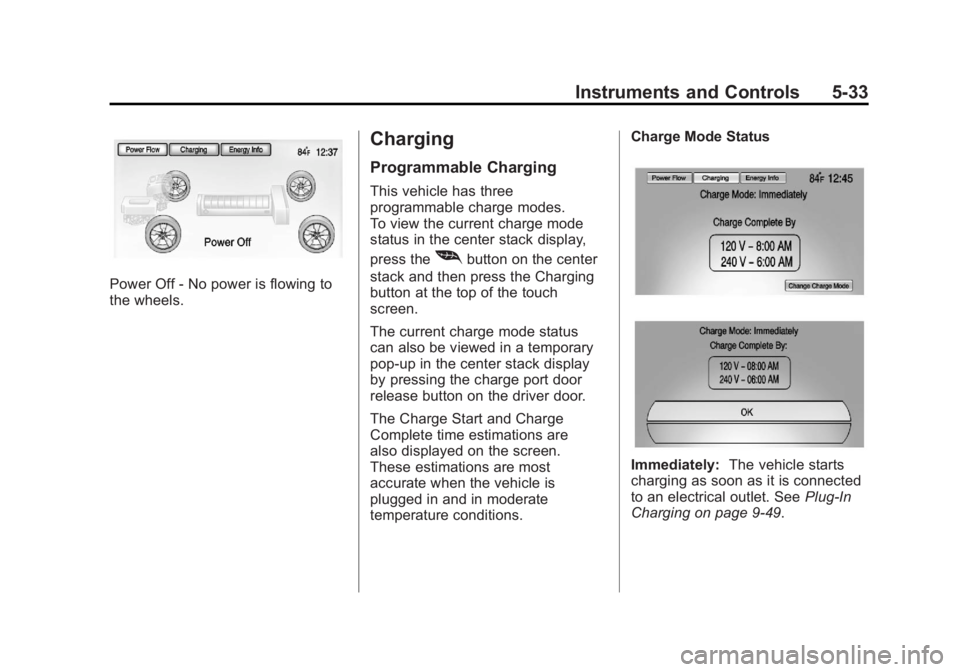
Power Off‐No power is flowing to
the wheels.
Charging
Programmable Charging
This vehicle has three
programmable charge modes.
To view the current charge mode
status in the center stack display,
press the
[button on the center
stack and then press the Charging
button at the top of the touch
screen.
The current charge mode status
can also be viewed in a temporary
pop-up in the center stack display
by pressing the charge port door
release button on the driver door.
The Charge Start and Charge
Complete time estimations are
also displayed on the screen.
These estimations are most
accurate when the vehicle is
plugged in and in moderate
temperature conditions. Charge Mode Status
Immediately:
The vehicle starts
charging as soon as it is connected
to an electrical outlet. See Plug-In
Charging on page 9‑49.
Page 163 of 516
Black plate (43,1)Chevrolet Volt Owner Manual - 2011
Instruments and Controls 5-43
Driver Information
Center (DIC)
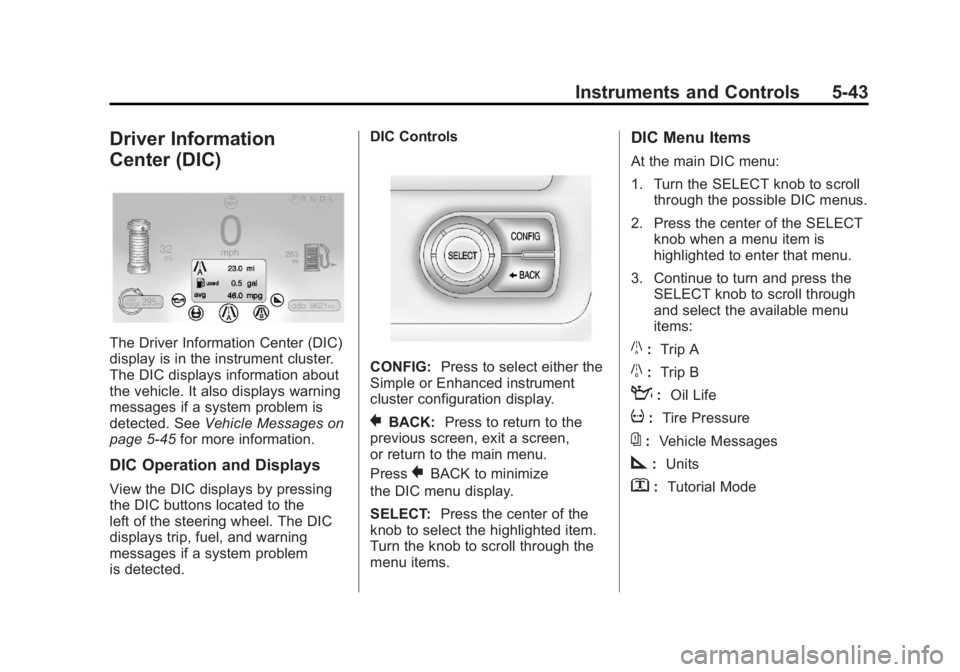
The Driver Information Center (DIC)
display is in the instrument cluster.
The DIC displays information about
the vehicle. It also displays warning
messages if a system problem is
detected. SeeVehicle Messages on
page 5‑45 for more information.
DIC Operation and Displays
View the DIC displays by pressing
the DIC buttons located to the
left of the steering wheel. The DIC
displays trip, fuel, and warning
messages if a system problem
is detected. DIC Controls
CONFIG:
Press to select either the
Simple or Enhanced instrument
cluster configuration display.
}BACK: Press to return to the
previous screen, exit a screen,
or return to the main menu.
Press
}BACK to minimize
the DIC menu display.
SELECT: Press the center of the
knob to select the highlighted item.
Turn the knob to scroll through the
menu items.
DIC Menu Items
At the main DIC menu:
1. Turn the SELECT knob to scroll through the possible DIC menus.
2. Press the center of the SELECT knob when a menu item is
highlighted to enter that menu.
3. Continue to turn and press the SELECT knob to scroll through
and select the available menu
items:
}:Trip A
x:Trip B
:: Oil Life
v:Tire Pressure
{:Vehicle Messages
z:Units
y: Tutorial Mode
Page 189 of 516

Black plate (5,1)Chevrolet Volt Owner Manual - 2011
Lighting 6-5
Interior Lighting
Instrument Panel
Illumination Control
The brightness of the instrument
panel cluster display, infotainment
display and controls, steering wheel
controls, and all other illuminated
controls, as well as feature status
indicators can be adjusted.The thumbwheel is on the
instrument panel to the left
of the steering column.
Move the thumbwheel up or down to
brighten or dim the lights.
Dome Lamps
The dome lamp controls are in the
overhead console.
To operate, press the following
buttons:
+(On):
Press to turn on the
dome lamps.
1(Door): Press to turn the lamps
on automatically when a door is
opened.
*(Off): Press to turn the lamps
off, even when a door is open.
Reading Lamps
The front reading lamps are in the
overhead console.
# $: Press to turn each lamp on
or off.
Lighting Features
Entry Lighting
The headlamps, parking lamps,
taillamps, back‐up lamps, and the
interior lights turn on briefly, when
the Remote Keyless Entry (RKE)
transmitter
Kis pressed. The lights
turn off immediately when the
POWER
Obutton is pressed or
automatically after a brief period.
Page 200 of 516

Black plate (10,1)Chevrolet Volt Owner Manual - 2011
7-10 Infotainment System
Radio
AM-FM Radio
Playing the Radio
Audio Source Menu
VOL/
O(Volume/Power):
1. Press to turn the radio on or off.
2. Turn to increase or decrease the volume. The volume is
adjusted for the current audio
source, active navigation voice
guidance, voice prompts,
or audio cues.
The steering wheel controls can
also be used to adjust the volume.
See Steering Wheel Controls on
page 5‑6 for more information.
TUNE/MENU: Turn to change
the radio station. See “Finding a
Station” in this section for more
information. RADIO BAND:
Press to select the
AM, FM, and XM (if equipped) band.
The audio sources can also be
changed by using the steering
wheel controls. See Steering
Wheel Controls on page 5‑6
for more information.
HDD/DVD/AUX: Change to the
Hard Drive, CD, DVD, USB, or AUX
by pressing the HDD/DVD/AUX
button until the desired source is
selected.
If the audio source is on while
viewing a map screen, a source
indicator button displays at the
top of the map screen.
Press the source indicator button
to display the current audio source
screen. The display shows a split
screen with the audio source screen
on the left side and the map or
guidance screen on the right side.
Press the Full Map button to exit the
split screen.
Page 230 of 516
Black plate (40,1)Chevrolet Volt Owner Manual - 2011
7-40 Infotainment System
Always be alert and obey traffic
and roadway laws and instructions,
regardless of the guidance from
the navigation system. Because
the navigation system uses street
map information that does not
include all traffic restrictions or
the latest road changes, it may
suggest using a road that is now
closed for construction or a turn
that is prohibited by signs at the
intersection. Because the system
uses limited information, always
evaluate whether following the
system's directions is safe and
legal for the current conditions.
Use the buttons on the navigation
system and the available screen
buttons on the navigation screen to
operate the system. SeeOverview
on page 7‑3.
Various functions are disabled when
the vehicle is moving.Infotainment Control Buttons
The buttons on the faceplate are
used to start primary functions
while using the infotainment system.
See Overview on page 7‑3. These
buttons are:
RADIO BAND: Press to select AM,
FM, or XM, if equipped.
HDD/DVD/AUX (Source): Change
to the Hard Drive, CD, DVD, USB,
or AUX by pressing the HDD/DVD/
AUX button until the desired source
is selected.
The audio sources can also be
changed by using the steering
wheel controls. See Steering Wheel
Controls on page 5‑6 for more
information.
FAV (Favorites): Press to display
the current page number above the
preset buttons. The stored stations
for each list display on the preset
buttons at the bottom of the touch
screen. The number of preset FAV
lists can be changed. TUNE/MENU:
Turn to highlight
a feature. Press to activate the
highlighted feature.
}BACK: Press to return to
the previous screen in a menu.
The
}BACK button does not work
in primary screens, such as the
map, audio, leaf, or climate screens.
TONE: Press to open the tone
menu for sound adjustment.
CONFIG (Configure): Press to
adjust features for radio, navigation,
display, phone, vehicle, and time.
See Configure Menu on page 7‑66
for more information.
SEEK
[:
1. Press to seek to the next track or chapter.
2. Press and hold to advance quickly through playback.
3. Release the button to return to playing speed. Elapsed time
displays.
Page 267 of 516
Black plate (77,1)Chevrolet Volt Owner Manual - 2011
Infotainment System 7-77
Database Coverage
Explanations
Coverage areas vary with respect to
the level of map detail available for
any given area. Some areas feature
greater levels of detail than others.
If this happens, it does not mean
there is a problem with the system.
As the map data is updated, more
detail can become available for
areas which previously had limited
detail. SeeOrdering Map DVDs on
page 7‑76 for more information.
Voice Recognition
The navigation system's voice
recognition allows for hands-free
operation of the navigation system
and the audio system features.
Voice recognition only works if the
map database is installed in the
system.
If the radio is off, the only
commands would be Hands
Free and Help.
Navigation voice commands are not
available until the I Agree button
has been selected.
Voice recognition can be used when
the vehicle is on or when Retained
Accessory Power (RAP) is active.
SeeRetained Accessory Power
(RAP) on page 9‑22 for more
information.
Using Voice Recognition
1. Press and release theb g
steering wheel button. The audio
system mutes, and a beep is
heard. A voice prompt stating,
“Please start speaking after the
beep” might be heard.
If there is no beep, make sure
that the voice volume setting is
not turned down. See Configure
Menu on page 7‑66 for more
information.
While voice recognition is active,
the system displays a
gsymbol.
2. Clearly speak one of the commands listed later in this
section.
Page 268 of 516
Black plate (78,1)Chevrolet Volt Owner Manual - 2011
7-78 Infotainment System
Canceling Voice Recognition
1. Press and release the$i
steering wheel button to cancel
a command, or if the system
response does not match the
verbal command.
2. The system replies, “Voice
recognition canceled.”
Pressing any other radio or
steering wheel control, other
than the volume knob or the
volume steering wheel button
cancels the session.
3. Press and release the
b g
steering wheel button to restart
the voice recognition session.
Helpful Hints for Speaking
Commands
.When multiple commands are
available, choose the command
that best works for you.
.Words that are in brackets are
optional. For example, for the
command “Radio (band) FM,”
saying “Radio FM” or“Radio
Band FM” are both valid
commands.
.Words separated by a ( / ) mean
there is a choice of using a
word on either side of the slash.
For example, for the command
(CD/DVD/Disc) (help), you can
say “CD (help)” or“DVD (help)”
or “Disc (help).”
.When the system recognizes the
command, the system will either
perform the function or ask to
confirm the choice by clearly
saying “yes”or“no.”
.When the system does not
recognize the command,
the system issues an error
message such as “pardon”
or “command not recognized.”
The system could also say,
“voice recognition canceled.”
.If experiencing difficulty with the
system recognizing a command,
confirm that the command is
correct. Try saying the command
clearly or wait for a brief moment
after the beep.
.Background noise such as a
climate control fan positioned
on high, open windows, and
very loud outside noises, even
if the windows are closed, can
cause voice commands to be
misunderstood.