steering wheel CHEVROLET VOLT 2012 1.G User Guide
[x] Cancel search | Manufacturer: CHEVROLET, Model Year: 2012, Model line: VOLT, Model: CHEVROLET VOLT 2012 1.GPages: 454, PDF Size: 7.89 MB
Page 89 of 454
Black plate (31,1)Chevrolet Volt Owner Manual - 2012
Seats and Restraints 3-31
Servicing the
Airbag-Equipped Vehicle
Airbags affect how the vehicle
should be serviced. There are parts
of the airbag system in several
places around the vehicle. Your
dealer and the service manual have
information about servicing the
vehicle and the airbag system. To
purchase a service manual, see
Service Publications Ordering
Information on page 13‑13.
{WARNING
For up to 10 seconds after the
vehicle is turned off and the
12‐volt battery is disconnected,
an airbag can still inflate during
improper service. You can be
injured if you are close to an
airbag when it inflates. Avoid
yellow connectors. They are
probably part of the airbag
system. Be sure to follow proper
service procedures, and make
sure the person performing work
for you is qualified to do so.
Adding Equipment to the
Airbag-Equipped Vehicle
Adding accessories that change the
vehicle's frame, bumper system,
height, front end, or side sheet
metal may keep the airbag system
from working properly.
The operation of the airbag system
can also be affected by changing or
moving any parts of the front seats,
safety belts, airbag sensing and
diagnostic module, steering wheel,
instrument panel, roof-rail airbag
modules, ceiling or pillar garnish
trim, overhead console, front
sensors, side impact sensors,
rollover sensor module, or airbag
wiring.
Your dealer and the service manual
have information about the location
of the airbag sensors, sensing and
diagnostic module, and airbag
wiring.
Page 117 of 454
Black plate (1,1)Chevrolet Volt Owner Manual - 2012
Instruments and Controls 5-1
Instruments and
Controls
Instrument Panel Overview
Instrument Panel Overview . . . . 5-3
Controls
Steering Wheel Adjustment . . . 5-5
Steering Wheel Controls . . . . . . 5-5
Horn . . . . . . . . . . . . . . . . . . . . . . . . . . 5-6
Pedestrian Friendly Alert . . . . . . 5-6
Windshield Wiper/Washer . . . . . 5-6
Power Outlets . . . . . . . . . . . . . . . . . 5-8
Warning Lights, Gauges, and
Indicators
Warning Lights, Gauges, andIndicators . . . . . . . . . . . . . . . . . . . . 5-8
Instrument Cluster . . . . . . . . . . . . 5-9
Speedometer . . . . . . . . . . . . . . . . 5-14
Odometer . . . . . . . . . . . . . . . . . . . . 5-14
Trip Odometer . . . . . . . . . . . . . . . 5-14
Compass . . . . . . . . . . . . . . . . . . . . 5-14
Battery Gauge (High Voltage) . . . . . . . . . . . . . . . . . . . . 5-14
Fuel Gauge . . . . . . . . . . . . . . . . . . 5-15
Driver Efficiency Gauge . . . . . . 5-15 Total Vehicle Range . . . . . . . . . 5-15
Safety Belt Reminders . . . . . . . 5-16
Airbag Readiness Light . . . . . . 5-17
Passenger Airbag Status
Indicator . . . . . . . . . . . . . . . . . . . . 5-18
Charging System Light (12-Volt Battery) . . . . . . . . . . . . 5-19
Malfunction Indicator Lamp . . . . . . . . . . . . . 5-19
Brake System Warning Light . . . . . . . . . . . . . . . . . . . . . . . 5-22
Electric Parking Brake Light . . . . . . . . . . . . . . . . . . . . . . . 5-22
Service Electric Parking Brake Light . . . . . . . . . . . . . . . . . . . . . . . 5-23
Antilock Brake System (ABS) Warning Light . . . . . . . . . . . . . . 5-23
Sport Mode Light . . . . . . . . . . . . 5-24
Mountain Mode Light . . . . . . . . 5-24
Traction Off Light . . . . . . . . . . . . 5-24
StabiliTrak
®OFF Light . . . . . . . 5-24
Traction Control System (TCS)/StabiliTrak
®Light . . . . 5-25
Engine Coolant Temperature Warning Light . . . . . . . . . . . . . . 5-25
Tire Pressure Light . . . . . . . . . . 5-25
Engine Oil Pressure Light . . . . 5-26
Low Fuel Warning Light . . . . . . 5-27
Security Light . . . . . . . . . . . . . . . . 5-27 Vehicle Ready Light . . . . . . . . . 5-27
High-Beam On Light . . . . . . . . . 5-27
Lamps On Reminder . . . . . . . . . 5-28
Cruise Control Light . . . . . . . . . 5-28
Door, Hood, or Hatch Open
Light . . . . . . . . . . . . . . . . . . . . . . . 5-28
Information Displays
Center Stack Display . . . . . . . . 5-29
Power Flows . . . . . . . . . . . . . . . . . 5-30
Charging . . . . . . . . . . . . . . . . . . . . . 5-32
Energy Information . . . . . . . . . . 5-43
Clock . . . . . . . . . . . . . . . . . . . . . . . . 5-44
Driver InformationCenter (DIC) . . . . . . . . . . . . . . . 5-45
Vehicle Messages
Vehicle Messages . . . . . . . . . . . 5-47
Battery and ChargingMessages . . . . . . . . . . . . . . . . . . 5-47
Brake System Messages . . . . 5-48
Cruise Control Messages . . . . 5-49
Door Ajar Messages . . . . . . . . . 5-49
Drive Mode Messages . . . . . . . 5-49
Electric Drive Unit Messages . . . . . . . . . . . . . . . . . . 5-49
Engine Cooling System Messages . . . . . . . . . . . . . . . . . . 5-49
Engine Oil Messages . . . . . . . . 5-50
Page 120 of 454

Black plate (4,1)Chevrolet Volt Owner Manual - 2012
5-4 Instruments and Controls
A.Air Vents on page 8‑8.
B. Turn and Lane‐Change Lever. See Turn and Lane-Change
Signals on page 6‑4.
Exterior Lamp Controls on
page 6‑1.
Pedestrian Friendly Alert on
page 5‑6.
C. Instrument Cluster on page 5‑9.
Driver Information Center (DIC)
Display. See Driver Information
Center (DIC) on page 5‑45.
D. Windshield Wiper/Washer on
page 5‑6.
E. Heated Front Seats on page 3‑6
(If Equipped).
F. Center Stack Display on
page 5‑29.
G. Charging Status Indicator. See Charging Status Feedback on
page 9‑52. H. Light Sensor. See
Daytime
Running Lamps (DRL) on
page 6‑2.
I. Instrument Panel Storage on
page 4‑1.
J. Automatic Climate Control
System on page 8‑1.
K. Driver Information Center (DIC) Controls. See Driver Information
Center (DIC) on page 5‑45.
L. Instrument Panel Illumination
Control on page 6‑4.
M. Data Link Connector (DLC) (Out of View). See Malfunction
Indicator Lamp on page 5‑19.
N. Cruise Control on page 9‑40.
O. Steering Wheel Adjustment on
page 5‑5.
P. Horn on page 5‑6. Q.
Steering Wheel Controls on
page 5‑5 (If Equipped).
R. Leaf Button. See Center Stack
Display on page 5‑29.
S. DRIVE MODE Button. See Driver Selected Operating
Modes on page 9‑25.
T. Power Button on page 9‑18.
U. Shift Lever. See Electric Drive
Unit on page 9‑31.
V. Infotainment on page 7‑1.
Navigation System. See the
separate navigation system
manual.
W. Electric Parking Brake on
page 9‑34.
X. Power Door Locks on
page 2‑12.
Y. Hazard Warning Flashers on
page 6‑3.
Page 121 of 454
Black plate (5,1)Chevrolet Volt Owner Manual - 2012
Instruments and Controls 5-5
Controls
Steering Wheel
Adjustment
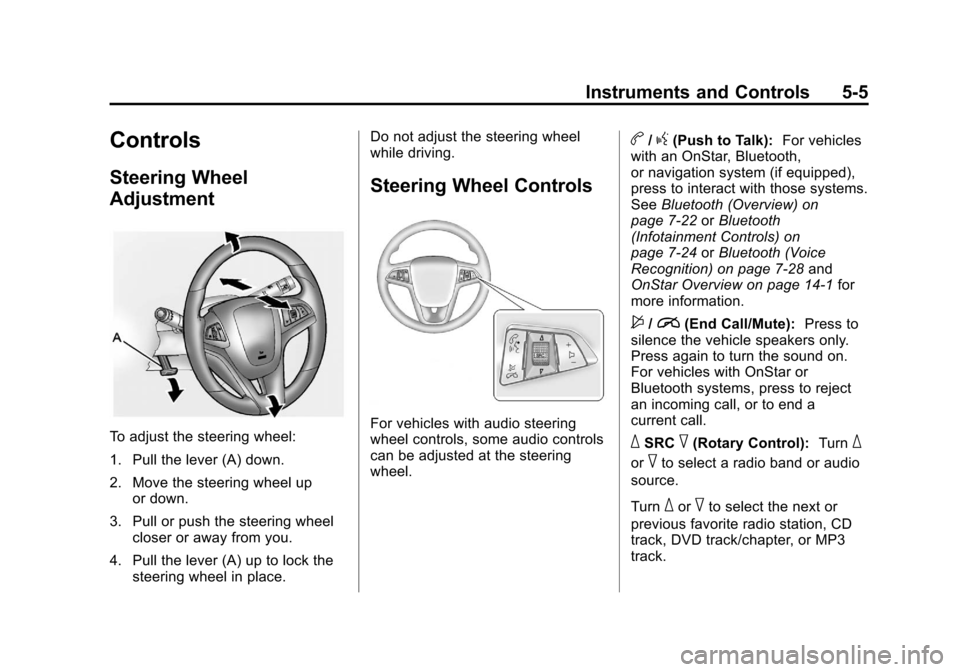
To adjust the steering wheel:
1. Pull the lever (A) down.
2. Move the steering wheel upor down.
3. Pull or push the steering wheel closer or away from you.
4. Pull the lever (A) up to lock the steering wheel in place. Do not adjust the steering wheel
while driving.
Steering Wheel Controls
For vehicles with audio steering
wheel controls, some audio controls
can be adjusted at the steering
wheel.
b/g(Push to Talk):
For vehicles
with an OnStar, Bluetooth,
or navigation system (if equipped),
press to interact with those systems.
See Bluetooth (Overview) on
page 7‑22 orBluetooth
(Infotainment Controls) on
page 7‑24 orBluetooth (Voice
Recognition) on page 7‑28 and
OnStar Overview on page 14‑1 for
more information.
$/i(End Call/Mute): Press to
silence the vehicle speakers only.
Press again to turn the sound on.
For vehicles with OnStar or
Bluetooth systems, press to reject
an incoming call, or to end a
current call.
_SRC^(Rotary Control): Turn_
or^to select a radio band or audio
source.
Turn
_or^to select the next or
previous favorite radio station, CD
track, DVD track/chapter, or MP3
track.
Page 129 of 454
Black plate (13,1)Chevrolet Volt Owner Manual - 2012
Instruments and Controls 5-13
Instrument Cluster Display
Configurations
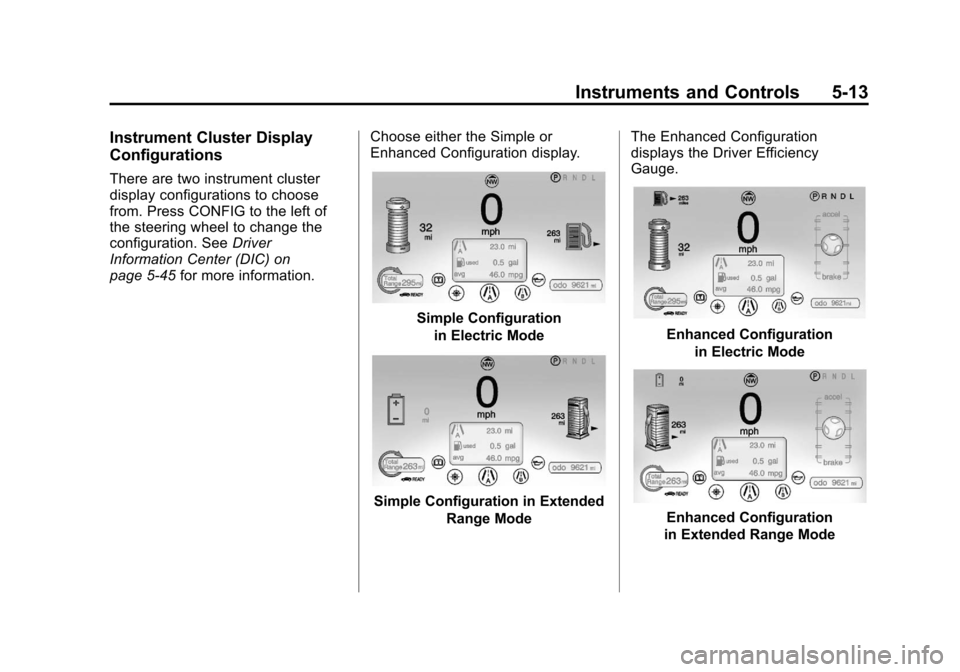
There are two instrument cluster
display configurations to choose
from. Press CONFIG to the left of
the steering wheel to change the
configuration. SeeDriver
Information Center (DIC) on
page 5‑45 for more information. Choose either the Simple or
Enhanced Configuration display.
Simple Configuration
in Electric Mode
Simple Configuration in Extended Range Mode The Enhanced Configuration
displays the Driver Efficiency
Gauge.
Enhanced Configuration
in Electric Mode
Enhanced Configuration
in Extended Range Mode
Page 137 of 454
Black plate (21,1)Chevrolet Volt Owner Manual - 2012
Instruments and Controls 5-21
If none of the above have made the
light turn off, your dealer can check
the vehicle. The dealer has the
proper test equipment and
diagnostic tools to fix any
mechanical or electrical problems
that might have developed.
Emissions Inspection and
Maintenance Programs
Some state and local governments
have or might begin programs to
inspect the emission control
equipment on the vehicle. Failure to
pass this inspection could prevent
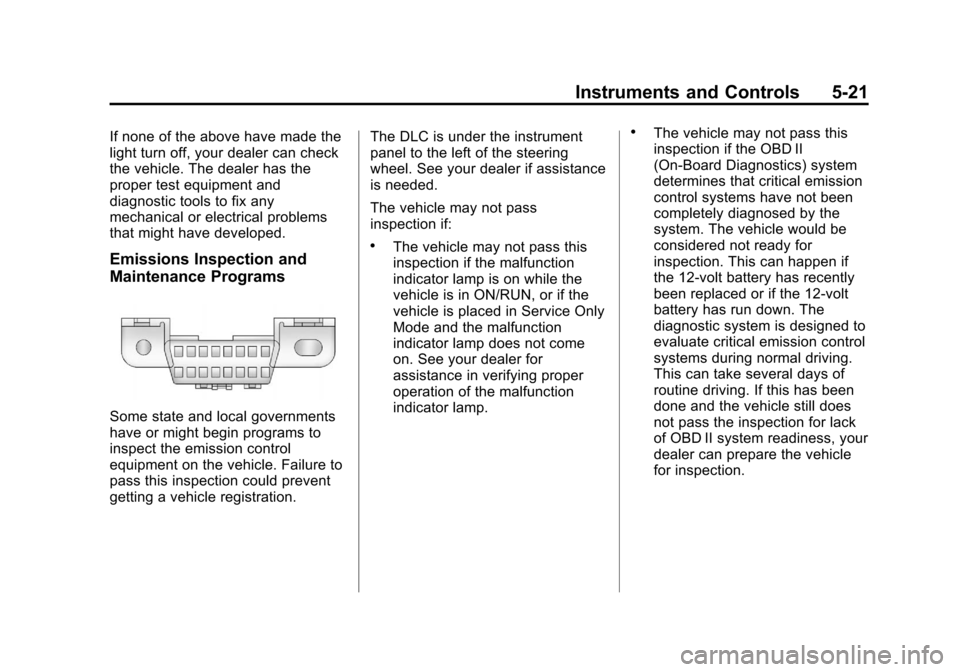
getting a vehicle registration.The DLC is under the instrument
panel to the left of the steering
wheel. See your dealer if assistance
is needed.
The vehicle may not pass
inspection if:
.The vehicle may not pass this
inspection if the malfunction
indicator lamp is on while the
vehicle is in ON/RUN, or if the
vehicle is placed in Service Only
Mode and the malfunction
indicator lamp does not come
on. See your dealer for
assistance in verifying proper
operation of the malfunction
indicator lamp.
.The vehicle may not pass this
inspection if the OBD II
(On-Board Diagnostics) system
determines that critical emission
control systems have not been
completely diagnosed by the
system. The vehicle would be
considered not ready for
inspection. This can happen if
the 12‐volt battery has recently
been replaced or if the 12‐volt
battery has run down. The
diagnostic system is designed to
evaluate critical emission control
systems during normal driving.
This can take several days of
routine driving. If this has been
done and the vehicle still does
not pass the inspection for lack
of OBD II system readiness, your
dealer can prepare the vehicle
for inspection.
Page 161 of 454
Black plate (45,1)Chevrolet Volt Owner Manual - 2012
Instruments and Controls 5-45
Driver Information
Center (DIC)
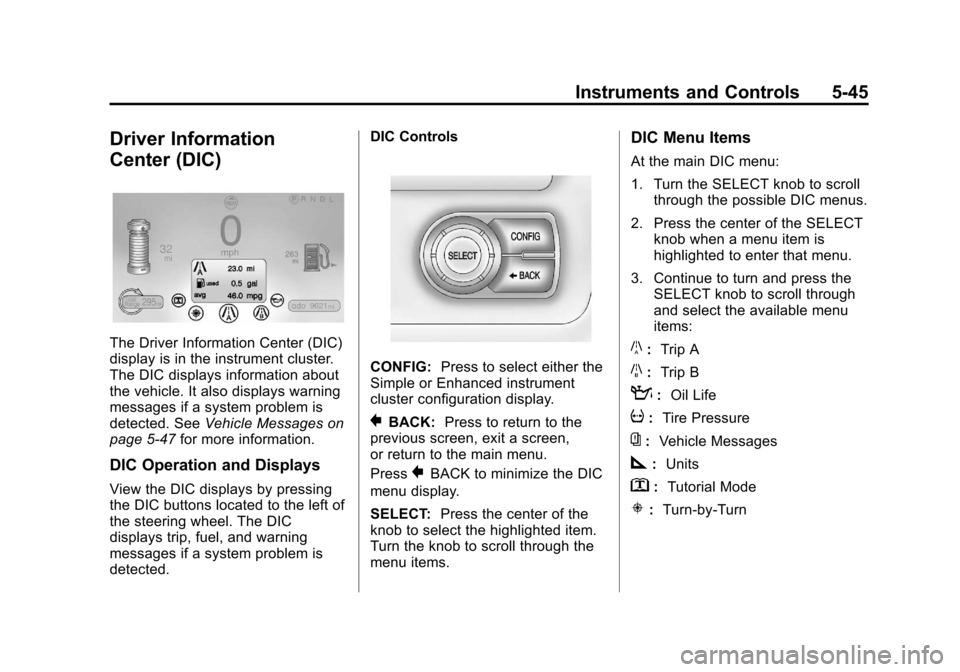
The Driver Information Center (DIC)
display is in the instrument cluster.
The DIC displays information about
the vehicle. It also displays warning
messages if a system problem is
detected. SeeVehicle Messages on
page 5‑47 for more information.
DIC Operation and Displays
View the DIC displays by pressing
the DIC buttons located to the left of
the steering wheel. The DIC
displays trip, fuel, and warning
messages if a system problem is
detected. DIC Controls
CONFIG:
Press to select either the
Simple or Enhanced instrument
cluster configuration display.
}BACK: Press to return to the
previous screen, exit a screen,
or return to the main menu.
Press
}BACK to minimize the DIC
menu display.
SELECT: Press the center of the
knob to select the highlighted item.
Turn the knob to scroll through the
menu items.
DIC Menu Items
At the main DIC menu:
1. Turn the SELECT knob to scroll through the possible DIC menus.
2. Press the center of the SELECT knob when a menu item is
highlighted to enter that menu.
3. Continue to turn and press the SELECT knob to scroll through
and select the available menu
items:
}:Trip A
x:Trip B
:: Oil Life
v:Tire Pressure
{:Vehicle Messages
z:Units
y: Tutorial Mode
u:Turn-by-Turn
Page 190 of 454
Black plate (4,1)Chevrolet Volt Owner Manual - 2012
6-4 Lighting
Turn and Lane-Change
Signals
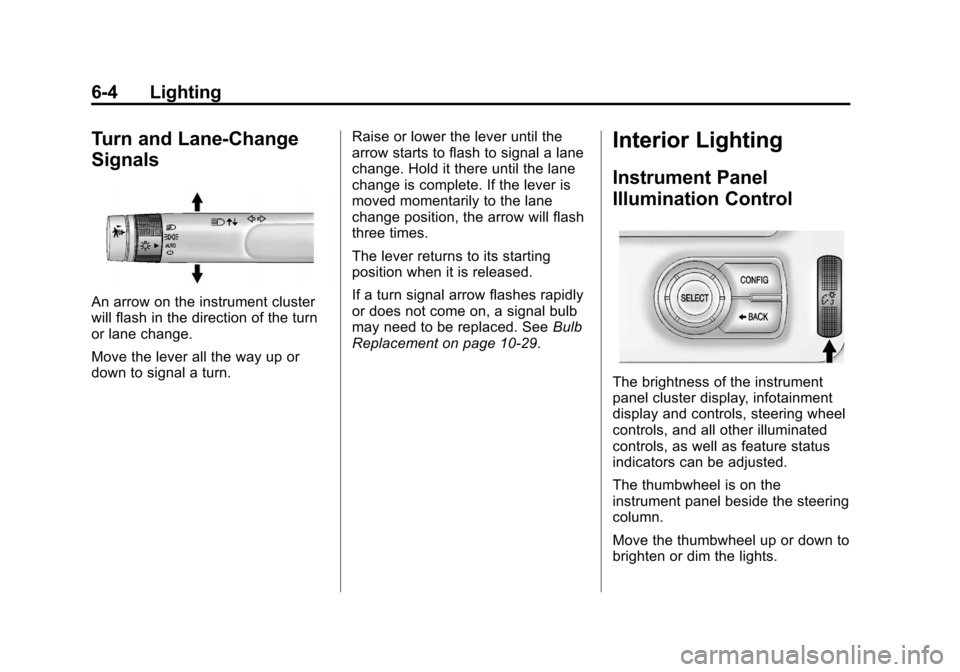
An arrow on the instrument cluster
will flash in the direction of the turn
or lane change.
Move the lever all the way up or
down to signal a turn.Raise or lower the lever until the
arrow starts to flash to signal a lane
change. Hold it there until the lane
change is complete. If the lever is
moved momentarily to the lane
change position, the arrow will flash
three times.
The lever returns to its starting
position when it is released.
If a turn signal arrow flashes rapidly
or does not come on, a signal bulb
may need to be replaced. See
Bulb
Replacement on page 10‑29.
Interior Lighting
Instrument Panel
Illumination Control
The brightness of the instrument
panel cluster display, infotainment
display and controls, steering wheel
controls, and all other illuminated
controls, as well as feature status
indicators can be adjusted.
The thumbwheel is on the
instrument panel beside the steering
column.
Move the thumbwheel up or down to
brighten or dim the lights.
Page 200 of 454
Black plate (8,1)Chevrolet Volt Owner Manual - 2012
7-8 Infotainment System
Radio
AM-FM Radio
Playing the Radio
For vehicles equipped with the
MyLink or IntelliLink infotainment
system, see the separate MyLink/
IntelliLink Features and Functions
Guide for more information.
Audio Source
VOL/
O(Volume/Power):
1. Press to turn the radio on or off.
2. Turn to increase or decrease the volume of the active source
(i.e., current audio source, active
navigation voice guidance,
or traffic prompts).
The steering wheel controls can
also be used to adjust the volume.
See “Steering Wheel Controls” in
the vehicle owner manual for more
information. To access the radio main page,
press the SOURCE button on the
faceplate, the Now Playing screen
button, or one of the audio screen
buttons on the Home Page.
While on the audio main page,
press the Source button repeatedly
to display and cycle through the
available sources (AM, FM, and XM
(if equipped), CD, USB/iPod,
and AUX).Infotainment System Settings
Tone Settings
To access the tone settings, press
the Home Page Tone button or the
TONE button on the faceplate.
Use the tone settings to adjust the
following features:
.Setting the tone
.Adjusting the speakers
Setting the Tone
To adjust the tone:
.Treble: Press + or
−to change
the level.
.Middle (Midrange): Press +
or −to change the level.
.Bass: Press + or −to change
the level.
Adjusting the Speakers
To adjust the speaker balance:
.Press the left arrow on the
bottom for more sound from the
left speakers or the right arrow
on the bottom for more sound
from the right speakers. The
middle position balances the
sound between the left and right
speakers.
Page 215 of 454
Black plate (23,1)Chevrolet Volt Owner Manual - 2012
Infotainment System 7-23
{WARNING
When using a cell phone, it can
be distracting to look too long or
too often at the screen of the
phone or the infotainment
(navigation) system. Taking your
eyes off the road too long or too
often could cause a crash
resulting in injury or death. Focus
your attention on driving.
Vehicles with a Bluetooth system
can use a Bluetooth‐capable cell
phone with a Hands‐Free Profile to
make and receive phone calls. The
infotainment system and voice
recognition are used to control the
system. The system can be used
while in ON/RUN or ACC/
ACCESSORY. The range of the
Bluetooth system can be up to 9.1 m
(30 ft). Not all phones support all
functions and not all phones work
with the Bluetooth system. See www.gm.com/bluetooth for
more information about compatible
phones.
Bluetooth Controls
Use the buttons located on the
infotainment system and the
steering wheel to operate the
Bluetooth system.
Steering Wheel Controls
b/g(Push To Talk) :
Press to
answer incoming calls, confirm
system information, and start voice
recognition.
$/i(End Call/Mute): Press to
end a call, reject a call, or cancel an
operation. Infotainment System Controls
For information about how to
navigate the menu system using the
infotainment controls, see
Overview
on page 7‑2.
V(Phone): Press to enter the
Phone main menu.
Voice Recognition
The voice recognition system uses
commands to control the system
and dial phone numbers.
Noise: The system may not
recognize voice commands if there
is too much background noise.
When to Speak: A tone sounds to
indicate that the system is ready for
a voice command. Wait for the tone
and then speak.
How to Speak: Speak clearly in a
calm and natural voice.