infotainment CHEVROLET VOLT 2014 1.G User Guide
[x] Cancel search | Manufacturer: CHEVROLET, Model Year: 2014, Model line: VOLT, Model: CHEVROLET VOLT 2014 1.GPages: 394, PDF Size: 5.86 MB
Page 163 of 394
(55,1)Chevrolet VOLT Owner Manual (GMNA-Localizing-U.S./Canada-6014139) -
2014 - CRC - 9/16/13
Instruments and Controls 5-55
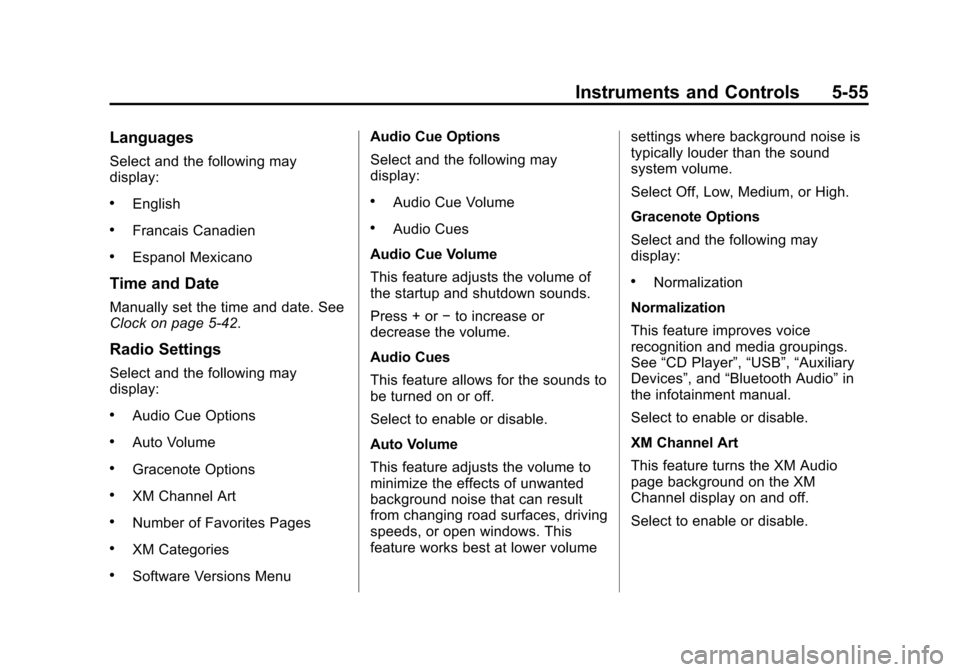
Languages
Select and the following may
display:
.English
.Francais Canadien
.Espanol Mexicano
Time and Date
Manually set the time and date. See
Clock on page 5-42.
Radio Settings
Select and the following may
display:
.Audio Cue Options
.Auto Volume
.Gracenote Options
.XM Channel Art
.Number of Favorites Pages
.XM Categories
.Software Versions MenuAudio Cue Options
Select and the following may
display:
.Audio Cue Volume
.Audio Cues
Audio Cue Volume
This feature adjusts the volume of
the startup and shutdown sounds.
Press + or −to increase or
decrease the volume.
Audio Cues
This feature allows for the sounds to
be turned on or off.
Select to enable or disable.
Auto Volume
This feature adjusts the volume to
minimize the effects of unwanted
background noise that can result
from changing road surfaces, driving
speeds, or open windows. This
feature works best at lower volume settings where background noise is
typically louder than the sound
system volume.
Select Off, Low, Medium, or High.
Gracenote Options
Select and the following may
display:
.Normalization
Normalization
This feature improves voice
recognition and media groupings.
See “CD Player”, “USB”,“Auxiliary
Devices”, and “Bluetooth Audio” in
the infotainment manual.
Select to enable or disable.
XM Channel Art
This feature turns the XM Audio
page background on the XM
Channel display on and off.
Select to enable or disable.
Page 164 of 394
(56,1)Chevrolet VOLT Owner Manual (GMNA-Localizing-U.S./Canada-6014139) -
2014 - CRC - 9/16/13
5-56 Instruments and Controls
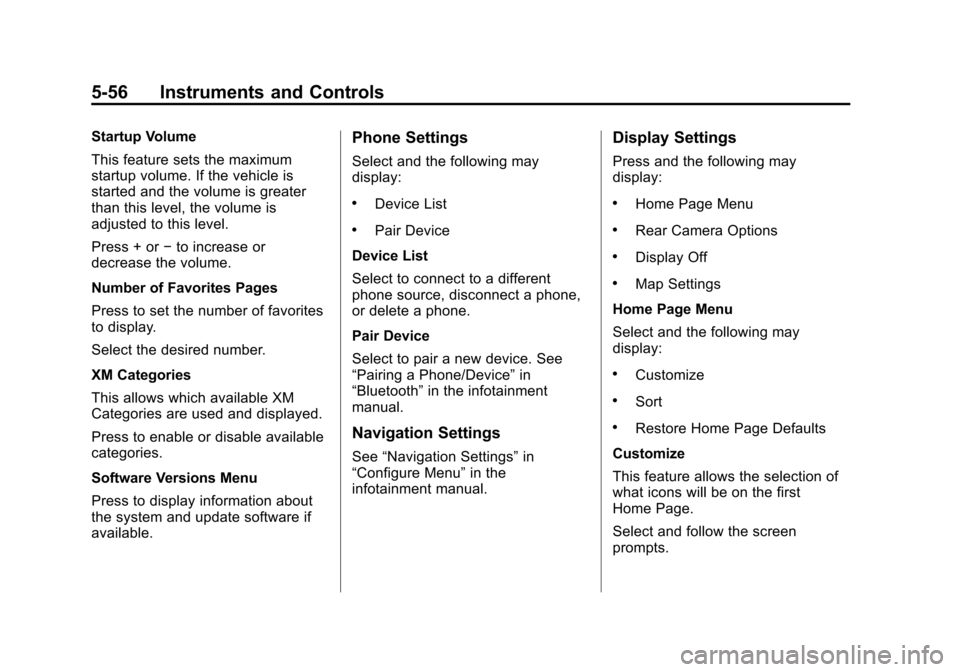
Startup Volume
This feature sets the maximum
startup volume. If the vehicle is
started and the volume is greater
than this level, the volume is
adjusted to this level.
Press + or−to increase or
decrease the volume.
Number of Favorites Pages
Press to set the number of favorites
to display.
Select the desired number.
XM Categories
This allows which available XM
Categories are used and displayed.
Press to enable or disable available
categories.
Software Versions Menu
Press to display information about
the system and update software if
available.Phone Settings
Select and the following may
display:
.Device List
.Pair Device
Device List
Select to connect to a different
phone source, disconnect a phone,
or delete a phone.
Pair Device
Select to pair a new device. See
“Pairing a Phone/Device” in
“Bluetooth” in the infotainment
manual.
Navigation Settings
See “Navigation Settings” in
“Configure Menu” in the
infotainment manual.
Display Settings
Press and the following may
display:
.Home Page Menu
.Rear Camera Options
.Display Off
.Map Settings
Home Page Menu
Select and the following may
display:
.Customize
.Sort
.Restore Home Page Defaults
Customize
This feature allows the selection of
what icons will be on the first
Home Page.
Select and follow the screen
prompts.
Page 165 of 394
(57,1)Chevrolet VOLT Owner Manual (GMNA-Localizing-U.S./Canada-6014139) -
2014 - CRC - 9/16/13
Instruments and Controls 5-57
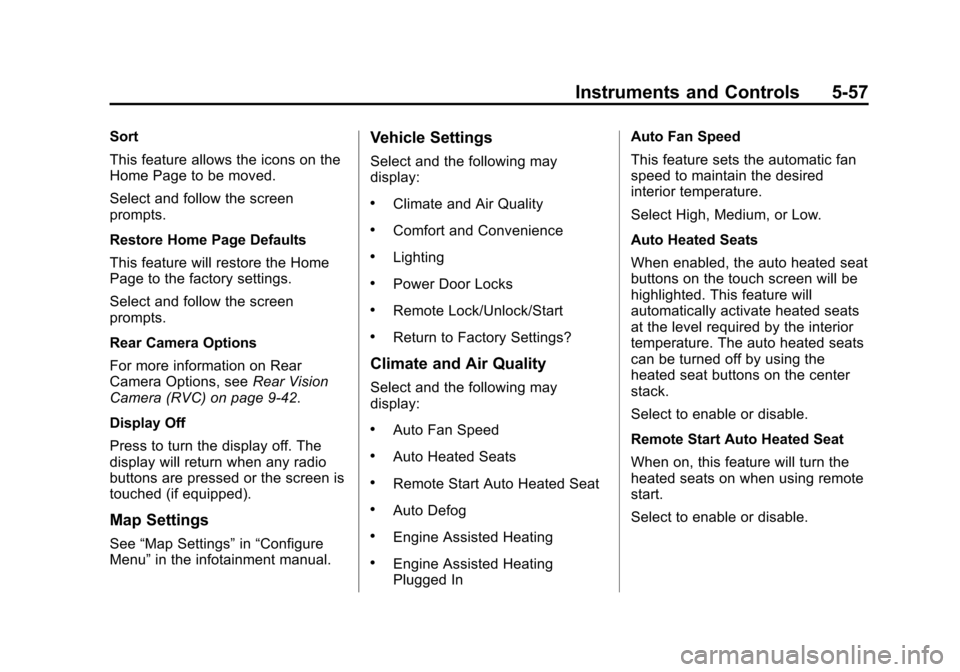
Sort
This feature allows the icons on the
Home Page to be moved.
Select and follow the screen
prompts.
Restore Home Page Defaults
This feature will restore the Home
Page to the factory settings.
Select and follow the screen
prompts.
Rear Camera Options
For more information on Rear
Camera Options, seeRear Vision
Camera (RVC) on page 9-42.
Display Off
Press to turn the display off. The
display will return when any radio
buttons are pressed or the screen is
touched (if equipped).
Map Settings
See “Map Settings” in“Configure
Menu” in the infotainment manual.
Vehicle Settings
Select and the following may
display:
.Climate and Air Quality
.Comfort and Convenience
.Lighting
.Power Door Locks
.Remote Lock/Unlock/Start
.Return to Factory Settings?
Climate and Air Quality
Select and the following may
display:
.Auto Fan Speed
.Auto Heated Seats
.Remote Start Auto Heated Seat
.Auto Defog
.Engine Assisted Heating
.Engine Assisted Heating
Plugged In Auto Fan Speed
This feature sets the automatic fan
speed to maintain the desired
interior temperature.
Select High, Medium, or Low.
Auto Heated Seats
When enabled, the auto heated seat
buttons on the touch screen will be
highlighted. This feature will
automatically activate heated seats
at the level required by the interior
temperature. The auto heated seats
can be turned off by using the
heated seat buttons on the center
stack.
Select to enable or disable.
Remote Start Auto Heated Seat
When on, this feature will turn the
heated seats on when using remote
start.
Select to enable or disable.
Page 166 of 394
(58,1)Chevrolet VOLT Owner Manual (GMNA-Localizing-U.S./Canada-6014139) -
2014 - CRC - 9/16/13
5-58 Instruments and Controls
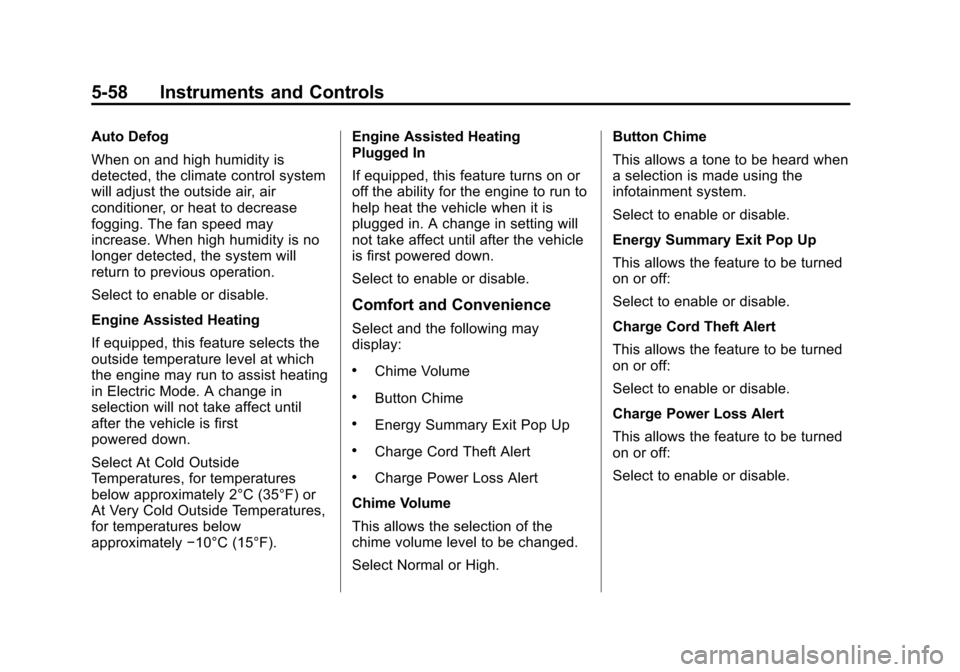
Auto Defog
When on and high humidity is
detected, the climate control system
will adjust the outside air, air
conditioner, or heat to decrease
fogging. The fan speed may
increase. When high humidity is no
longer detected, the system will
return to previous operation.
Select to enable or disable.
Engine Assisted Heating
If equipped, this feature selects the
outside temperature level at which
the engine may run to assist heating
in Electric Mode. A change in
selection will not take affect until
after the vehicle is first
powered down.
Select At Cold Outside
Temperatures, for temperatures
below approximately 2°C (35°F) or
At Very Cold Outside Temperatures,
for temperatures below
approximately−10°C (15°F). Engine Assisted Heating
Plugged In
If equipped, this feature turns on or
off the ability for the engine to run to
help heat the vehicle when it is
plugged in. A change in setting will
not take affect until after the vehicle
is first powered down.
Select to enable or disable.
Comfort and Convenience
Select and the following may
display:
.Chime Volume
.Button Chime
.Energy Summary Exit Pop Up
.Charge Cord Theft Alert
.Charge Power Loss Alert
Chime Volume
This allows the selection of the
chime volume level to be changed.
Select Normal or High. Button Chime
This allows a tone to be heard when
a selection is made using the
infotainment system.
Select to enable or disable.
Energy Summary Exit Pop Up
This allows the feature to be turned
on or off:
Select to enable or disable.
Charge Cord Theft Alert
This allows the feature to be turned
on or off:
Select to enable or disable.
Charge Power Loss Alert
This allows the feature to be turned
on or off:
Select to enable or disable.
Page 176 of 394
(4,1)Chevrolet VOLT Owner Manual (GMNA-Localizing-U.S./Canada-6014139) -
2014 - CRC - 9/16/13
6-4 Lighting
If after signaling a turn or lane
change, the arrow flashes rapidly or
does not come on, a signal bulb
may be burned out.
Have any burned out bulbs
replaced. If a bulb is not burned out,
check the fuse. SeeInstrument
Panel Fuse Block (Left Side) on
page 10-35 orInstrument Panel
Fuse Block (Right Side) on
page 10-36.Interior Lighting
Instrument Panel
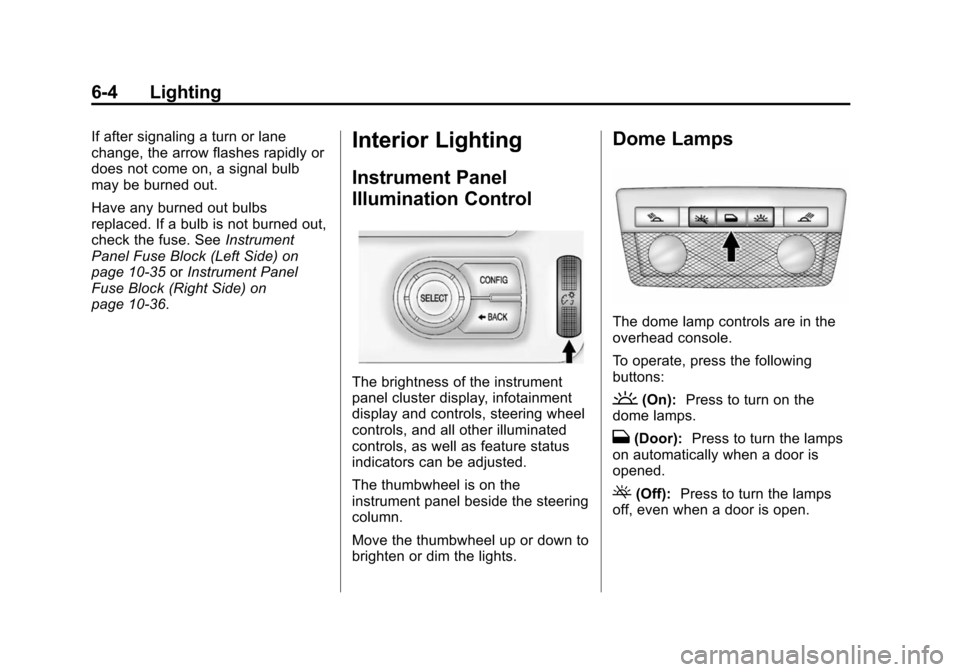
Illumination Control
The brightness of the instrument
panel cluster display, infotainment
display and controls, steering wheel
controls, and all other illuminated
controls, as well as feature status
indicators can be adjusted.
The thumbwheel is on the
instrument panel beside the steering
column.
Move the thumbwheel up or down to
brighten or dim the lights.
Dome Lamps
The dome lamp controls are in the
overhead console.
To operate, press the following
buttons:
'(On): Press to turn on the
dome lamps.
H(Door): Press to turn the lamps
on automatically when a door is
opened.
((Off): Press to turn the lamps
off, even when a door is open.
Page 179 of 394
(1,1)Chevrolet VOLT Owner Manual (GMNA-Localizing-U.S./Canada-6014139) -
2014 - CRC - 9/16/13
Infotainment System 7-1
Infotainment
System
Introduction
Infotainment . . . . . . . . . . . . . . . . . . . 7-1
Introduction
Infotainment
Your vehicle has an infotainment
system. See the infotainment
manual.
Page 180 of 394
(2,1)Chevrolet VOLT Owner Manual (GMNA-Localizing-U.S./Canada-6014139) -
2014 - CRC - 9/16/13
7-2 Infotainment System
2NOTES
Page 193 of 394
(5,1)Chevrolet VOLT Owner Manual (GMNA-Localizing-U.S./Canada-6014139) -
2014 - CRC - 9/16/13
Driving and Operating 9-5
{Warning
Taking your eyes off the road too
long or too often could cause a
crash resulting in injury or death.
Focus your attention on driving.
Refer to the infotainment section for
more information on using that
system and the navigation system,
if equipped, including pairing and
using a cell phone.
Defensive Driving
Defensive driving means “always
expect the unexpected.” The first
step in driving defensively is to wear
the safety belt. See Safety Belts on
page 3-9.
.Assume that other road users
(pedestrians, bicyclists, and
other drivers) are going to be
careless and make mistakes.
Anticipate what they might do
and be ready.
.Allow enough following distance
between you and the driver in
front of you.
.Focus on the task of driving.
Drunk Driving
Death and injury associated with
drinking and driving is a global
tragedy.
{Warning
Drinking and then driving is very
dangerous. Your reflexes,
perceptions, attentiveness, and
judgment can be affected by even
a small amount of alcohol. You
can have a serious —or even
fatal —collision if you drive after
drinking.
Do not drink and drive or ride with
a driver who has been drinking.
Ride home in a cab; or if you are
with a group, designate a driver
who will not drink.
Control of a Vehicle
Braking, steering, and accelerating
are important factors in helping to
control a vehicle while driving.
Braking
Braking action involves perception
time and reaction time. Deciding to
push the brake pedal is perception
time. Actually doing it is
reaction time.
Average driver reaction time is
about three-quarters of a second. In
that time, a vehicle moving at
100 km/h (60 mph) travels 20 m
(66 ft), which could be a lot of
distance in an emergency.
Helpful braking tips to keep in mind
include:
.Keep enough distance between
you and the vehicle in front
of you.
.Avoid needless heavy braking.
.Keep pace with traffic.
Page 231 of 394
(43,1)Chevrolet VOLT Owner Manual (GMNA-Localizing-U.S./Canada-6014139) -
2014 - CRC - 9/16/13
Driving and Operating 9-43
To see the previous screen sooner,
do one of the following:
.Press a button on the
infotainment system.
.Shift into P (Park).
.Reach a vehicle speed of
8 km/h (5 mph).
Turning the Rear Vision Camera
System On or Off
To turn the RVC system on or off:
1. Shift into P (Park).
2. Press the CONFIG button on the center stack.
3. Select Display.
4. Select Camera. When a checkmark appears next to
Camera, then the RVC system
is on. Symbols
The navigation system may have a
feature that lets the driver view
symbols on the navigation screen
while using the RVC. The Ultrasonic
Front and Rear Parking Assist
(UFRPA) or Ultrasonic Rear Parking
Assist (URPA) system must not be
disabled to use the caution symbols.
The error message REAR PARKING
ASSIST SYMBOLS UNAVAILABLE
may display if parking assist has
been disabled and the symbols
have been turned on. See
Ultrasonic Parking Assist on
page 9-40.
The symbols appear and may cover
an object when viewing the
navigation screen when an object is
detected by the parking assist
system.
To turn the symbols on or off:
1. Shift into P (Park).
2. Press the CONFIG button on the
center stack.
3. Select Display.
4. Select Symbols. When a checkmark appears next to
Symbols, symbols will appear.
Rear Vision Camera Error
Messages
SERVICE REAR VISION CAMERA
SYSTEM: If this message appears
in the center stack display, the
system may need service.
If any other problem occurs or if a
problem persists, see your dealer.
Page 283 of 394
(35,1)Chevrolet VOLT Owner Manual (GMNA-Localizing-U.S./Canada-6014139) -
2014 - CRC - 9/16/13
Vehicle Care 10-35
Instrument Panel Fuse
Block (Left Side)
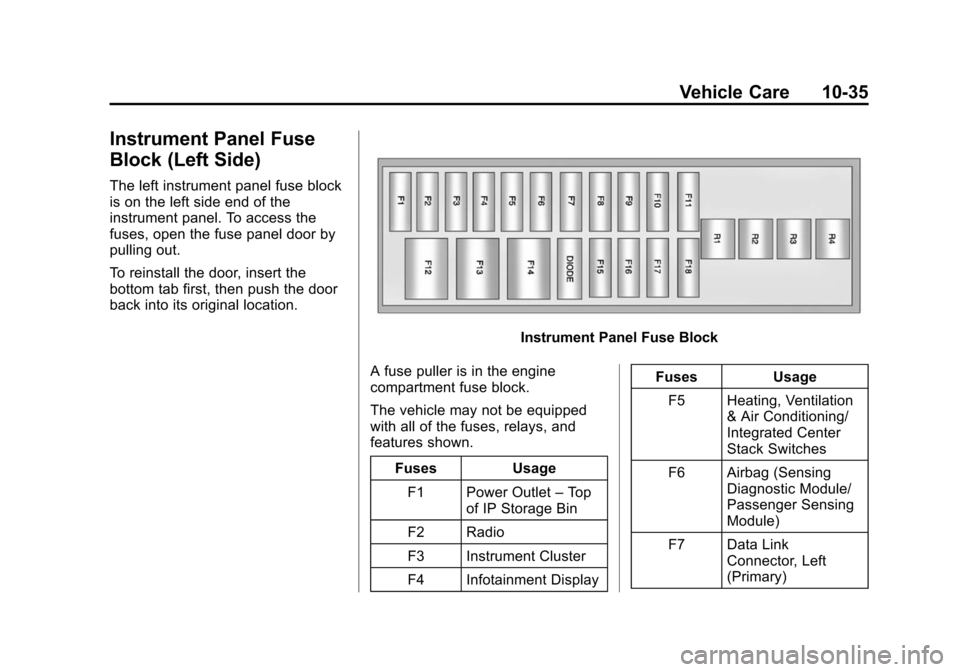
The left instrument panel fuse block
is on the left side end of the
instrument panel. To access the
fuses, open the fuse panel door by
pulling out.
To reinstall the door, insert the
bottom tab first, then push the door
back into its original location.
Instrument Panel Fuse Block
A fuse puller is in the engine
compartment fuse block.
The vehicle may not be equipped
with all of the fuses, relays, and
features shown. Fuses UsageF1 Power Outlet –Top
of IP Storage Bin
F2 Radio
F3 Instrument Cluster
F4 Infotainment Display Fuses Usage
F5 Heating, Ventilation & Air Conditioning/
Integrated Center
Stack Switches
F6 Airbag (Sensing Diagnostic Module/
Passenger Sensing
Module)
F7 Data Link Connector, Left
(Primary)