buttons CHRYSLER 300 LX 2005 Owner's Manual
[x] Cancel search | Manufacturer: CHRYSLER, Model Year: 2005, Model line: 300 LX, Model: CHRYSLER 300 LX 2005Pages: 374, PDF Size: 7.09 MB
Page 169 of 374
Buttons1-6(Radio Mode)
These buttons tune the Radio to the stations that you
commit to push-button memory {12AM, 12 FM, and 12
Satellite (if equipped) stations}.
Operation Instructions - (CD MODE For CD Audio
Play)
NOTE:
The ignition switch must be in the ON or ACC
position to operate the radio.
NOTE:Note: This Radio is capable of playing compact
discs (CD), recordable compact discs (CD-R), rewritable
compact discs (CD-RW) compact discs with MP3 tracks
and multisession compact discs with CD and MP3 tracks.
Inserting Compact Disc(s)
Gently insert one CD into the CD player with the CD
label facing up. The CD will automatically be pulled into
the CD Player and the CD icon will illuminate on the
radio display.
CAUTION!
This CD player will accept 4 3/4 inch (12 cm) discs
only. The use of other sized discs may damage the
CD player mechanism.
You may eject a disc with the radio OFF.
If you insert a disc with the ignition ON and the radio
ON, the unit will switch from radio to CD mode and
begin to play when you insert the disc. The display will
show the disc number, the track number, and index time
in minutes and seconds. Play will begin at the start of
track 1.
SEEK Button (CD MODE For CD Audio Play)
Press the right side of the SEEK button for the next
selection on the CD. Press the left side of the button to
return to the beginning of the current selection, or return
to the beginning of the previous selection if the CD is
within the first 10 seconds of the current selection.
UNDERSTANDING YOUR INSTRUMENT PANEL 169
4
ProCarManuals.com
Page 171 of 374
The disc can be ejected with the radio and ignition OFF.
TIME Button (CD MODE For CD Audio Play)
Press this button to change the display from a large CD
playing time display to a small CD playing time display.
RW/FF (CD MODE For CD Audio Play)
Press and hold FF (Fast Forward) and the CD player will
begin to fast forward until FF is released or RW or
another CD button is pressed. The RW (Reverse) button
works in a similar manner.
TUNE Control (CD MODE For CD Audio Play)
Pressing the TUNE control allows the setting of the Tone,
Fade, and Balance. See Radio Mode.
AM/FM Button (CD MODE For CD Audio Play)
Switches the Radio to the Radio mode.
RND/PTY Button (Random Play Button) (CD
MODE For CD Audio Play)
Press this button while the CD is playing to activate
Random Play. This feature plays the selections on the
compact disc in random order to provide an interesting
change of pace.Press the SEEK button to move to the next randomly
selected track.
Press and hold the FF button to fast forward through the
tracks. Release the FF button to stop the fast forward
feature.
Press the RND button a second time to stop Random
Play.
BUTTONS1-6(CDMODE For CD Audio Play)
Selects disc positions1-6forPlay/Load/Eject.
Notes On Playing MP3 Files
The radio can play MP3 files, however, acceptable MP3
file recording media and formats are limited. When
writing MP3 files, pay attention to the following restric-
tions.
Supported media (disc types)
The MP3 file recording media supported by the radio are
CD-ROM, CD-R and CD-RW.
UNDERSTANDING YOUR INSTRUMENT PANEL 171
4
ProCarManuals.com
Page 175 of 374
AM/FM Button (CD Mode For MP3 Play)
Switches back to Radio mode.
RND/ PTY Button (CD Mode For MP3 Play)
Pressing this button plays files randomly.
SET/DIR Button (CD Mode For MP3 Play)
Press the SET/DIR Button to display folders, when
playing an MP3 discs that have a file/folder structure.
Turn the TUNE control to display available folders or
move through available folders. Press the TUNE control
to select a folder.
Buttons1-6(CDMode For MP3 Play)
Selects disc positions1-6forPlay/Load/Eject.
Operating Instructions - Hands Free Phone (If
Equipped)
Refer to Hands Free Phone section of the Owner's
Manual.
Operating Instructions - Satellite Radio Mode (If
Equipped)
Refer to the Satellite Radio section of the Owner's
Manual.
Operating Instructions - Video Entertainment
System (VESt) (If Equipped)
Refer to separate Video Entertainment System (VESt)
Guide.
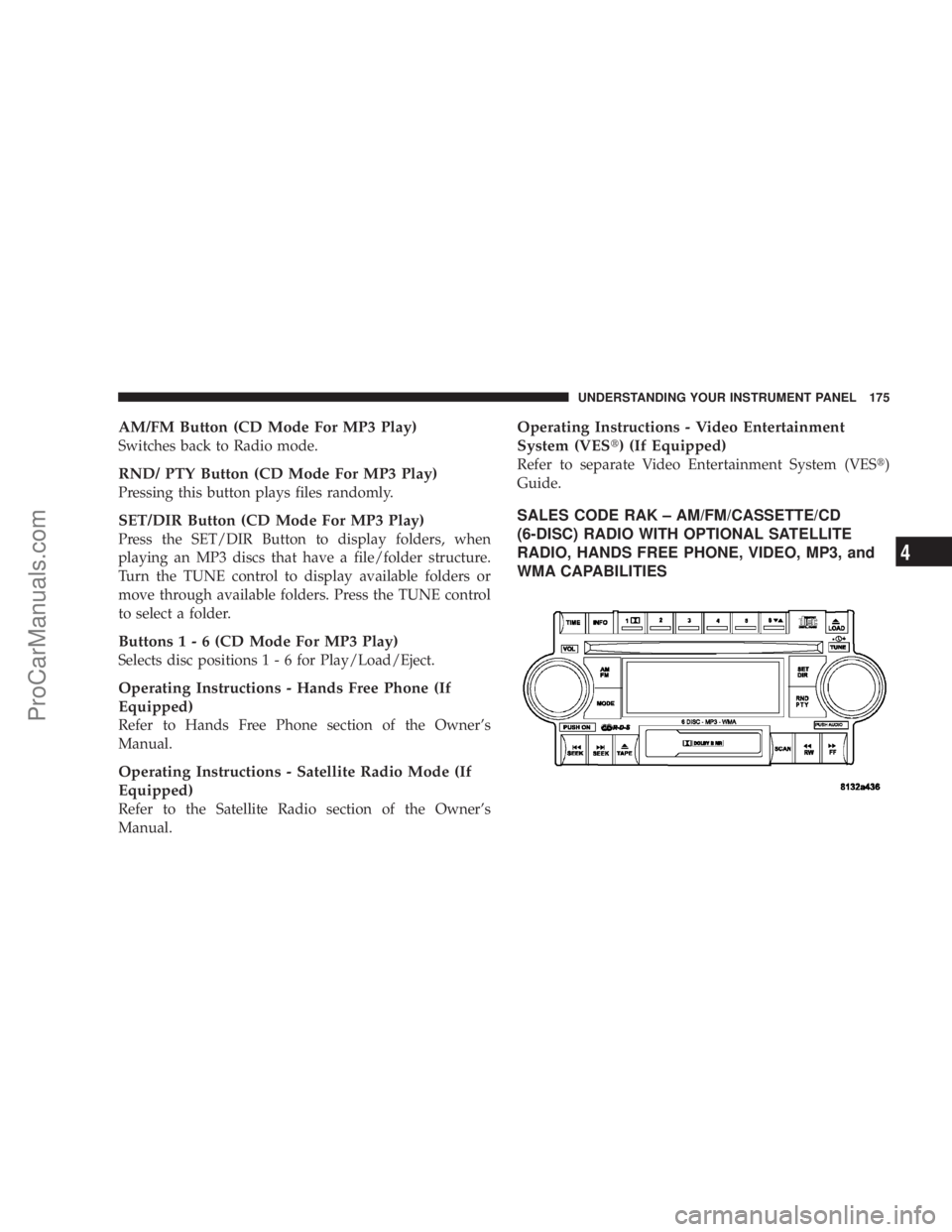
SALES CODE RAK ± AM/FM/CASSETTE/CD
(6-DISC) RADIO WITH OPTIONAL SATELLITE
RADIO, HANDS FREE PHONE, VIDEO, MP3, and
WMA CAPABILITIES
UNDERSTANDING YOUR INSTRUMENT PANEL 175
4
ProCarManuals.com
Page 179 of 374
By pressing the SEEK button when the PTY icon is
displayed, the radio will be tuned to the next frequency
station with the same selected PTY name. The PTY
function only operates when in the FM mode.
If a preset button is activated while in the PTY (Program
Type) mode, the PTY mode will be exited and the radio
will tune to the preset station.
NOTE:If you have selected a PTY with the tune knob,
simply pressing the tune button in will go directly to a
ªPTY seekº.
Buttons1-6(Radio Mode)
These buttons tune the Radio to the stations that you
commit to push-button memory {12AM, 12 FM, and 12
Satellite (if equipped) stations}.
Operating Instructions Ð Tape Player
Insert the cassette with the exposed tape side toward the
left and the mechanical action of the player will gently
pull the cassette into the play position.
NOTE:When subjected to extremely cold temperatures,
the tape mechanism may require a few minutes to warm
up for proper operation. Sometimes poor playback maybe experienced due to a defective cassette tape. Clean and
demagnetize the tape heads at least twice a year.
Seek Button
Press the SEEK button up for the next selection on the
tape and down to return to the beginning of the current
selection.
Press the SEEK button up or down to move the track
number to skip forward or backward 1 to 6 selections.
Press the SEEK button once to move 1 selection, twice to
move 2 selections, etc.
Fast Forward (FF)
Press the FF button up momentarily to advance the tape
in the direction that it is playing. The tape will advance
until the button is pressed again or the end of the tape is
reached. At the end of the tape, the tape will play in the
opposite direction.
Rewind (RW)
Press the RW button momentarily to reverse the tape
direction. The tape will reverse until the button is pressed
again or until the end of the tape is reached. At the end of
the tape, the tape will play in the opposite direction.
UNDERSTANDING YOUR INSTRUMENT PANEL 179
4
ProCarManuals.com
Page 183 of 374
Press and hold the FF button to fast forward through the
tracks. Release the FF button to stop the fast forward
feature. If the RW button is pressed, the current track will
reverse to the beginning of the track and begin playing.
Press the RND button a second time to stop Random
Play.
BUTTONS1-6(CDMODE For CD Audio Play)
Selects disc positions1-6forPlay/Load/Eject.
Notes On Playing MP3 Files
The radio can play MP3 files, however, acceptable MP3
file recording media and formats are limited. When
writing MP3 files, pay attention to the following restric-
tions.
Supported media (disc types)
The MP3 file recording media supported by the radio are
CD-ROM, CD-R and CD-RW.
Supported medium formats (file systems)
The medium formats supported by the radio are ISO 9660
Level 1 and Level 2 and includes the Joliet extension.
When reading discs recorded using formats other than
ISO 9660 Level 1 and Level 2, the radio may fail to readfiles properly and may be unable to play the file nor-
mally. UDF and Apple HFS formats are not supported.
The radio uses the following limits for file systems:
²Maximum number of directory levels: 15
²Maximum number of files: 255
²Maximum number of folders: 100
²Maximum number of characters in file/folder names:
²Level 1: 12 (including a separator9.9and a
3-character extension)
²Level 2: 31 (including a separator9.9and a
3-character extension)
Multisession disc formats are supported by the radio.
Multisession discs may contain combinations of normal
CD audio tracks and computer files (including MP3 files).
Discs created with an option such as9keep disc open after
writing9are most likely multisession discs. The use of
multisession for CD audio or MP3 playback may result in
longer disc loading times.
UNDERSTANDING YOUR INSTRUMENT PANEL 183
4
ProCarManuals.com
Page 186 of 374
INFO Button (CD Mode For MP3 Play)
Press and INFO button while playing MP3 or WMA disc.
The radio scrolls through the following TAG information:
Song Title, Artist, File Name, and Folder Name (if avail-
able).
Press the INFO button once more to return to9elapsed
time9priority mode.
Press and hold the INFO button while in the message
display priority mode or elapsed time display priority
mode will display the song title for each file.
RW/FF (CD Mode For MP3 and WMA Play)
Press the FF side of the button to move forward through
the file or MP3 and WMA selection.
TUNE Control (CD Mode For MP3 Play)
Pressing the TUNE Control allows the adjustment of
Tone, Balance, and Fade.
AM/FM Button (CD Mode For MP3 Play)
Switches back to Radio mode.
RND/ PTY Button (CD Mode For MP3 Play)
Pressing this button plays files randomly.
SET/DIR Button (CD Mode For MP3 Play)
Press the SET/DIR Button to display folders, when
playing an MP3 discs that have a file/folder structure.
Turn the TUNE control to display available folders or
move through available folders. Press the TUNE control
to select a folder.
Buttons1-6(CDMode For MP3 Play)
Selects disc positions1-6forPlay/Load/Eject.
Operating Instructions - Hands Free Phone (if
equipped)
Refer to Hands Free Phone section of the Owner's
Manual.
Operating Instructions - Satellite Radio Mode (if
equipped)
Refer to the Satellite Radio section of the Owner's
Manual.
186 UNDERSTANDING YOUR INSTRUMENT PANEL
ProCarManuals.com
Page 187 of 374
Operating Instructions - Video Entertainment
System (VES) (if equipped)
Refer to separate Video Entertainment System (VES)
Guide.
SATELLITE RADIO Ð IF EQUIPPED
Satellite radio uses direct satellite to receiver broadcast-
ing technology to provide clear digital sound, coast to
coast. The subscription service provider is SiriusŸ Satel-
lite Radio. This service offers up to 100 channels of music,
sports, news, entertainment, and programming for chil-
dren, directly from its satellites and broadcasting studios.
System Activation
To activate your Sirius Satellite Radio service, call the
toll-free number 888-539-7474, or visit the Sirius web site
at www.sirius.com. Please have the following informa-
tion available when activating your system:
1. The Electronic Serial Number/Sirius Identification
Number (ESN/SID).
2. Credit card information.
3. Your Vehicle Identification Number.
Electronic Serial Number/Sirius Identification
Number (ENS/SID)
The Electronic Serial Number/Sirius Identification Num-
ber is needed to activate your Sirius Satellite Radio
system. To access the ESN/SID, refer to the following
steps:
ESN/SID Access With REF Radios
With the ignition switch in the ACCESSORY position and
the radio OFF, press the CD Eject and Time buttons
simultaneously for 3 seconds. The first four digits of the
twelve-digit ESN/SID number will be displayed. Press
the SEEK UP button to display the next four digits.
Continue to press the SEEK UP button until all twelve
ESN/SID digits have been displayed. The SEEK DOWN
will page down until the first four digits are displayed.
The radio will exit the ESN/SID mode when any other
button is pushed, the ignition is turned OFF, or 5 minutes
has passed since any button was pushed.
ESN/SID Access With RAQ and RAK Radios
With the ignition switch in the ACCESSORY position and
the radio OFF, press the CD Eject and TIME buttons
UNDERSTANDING YOUR INSTRUMENT PANEL 187
4
ProCarManuals.com
Page 190 of 374

REMOTE SOUND SYSTEM CONTROLS
The remote sound system controls are located on the
surface of the steering wheel at the 3 and 9 o'clock
positions.
Some models feature an Electronic Vehicle Information
Center (EVIC) with driver-interactive display. This is
located in the upper part of the instrument cluster
between the speedometer and tachometer. The audio
mode of the EVIC can display any one of twelve radio
station preset frequencies, CD disc number, CD tracknumber, tape, or one of 200 Satellite radio channels
depending on which radio is in the vehicle.
The VOLUME switch controls the volume of
the sound system. Pressing the top of the
rocker switch will increase the volume and
pressing the bottom of the rocker switch will
decrease the volume.
The AUDIO MODE SELECT button changes
the mode of the radio from AM to FM to Tape
to CD, or to Satellite (SAT) depending on
which radio is in the vehicle.
The FUNCTION SELECT button advances the
radio to the next preset, changes the tape side
being played, or changes the current disc when
used in audio mode.
The SCROLL buttons change selections such as
radio station, CD track, or satellite radio chan-
nel depending on the current mode.
190 UNDERSTANDING YOUR INSTRUMENT PANEL
ProCarManuals.com
Page 191 of 374
The following describes the operation of the SCROLL
buttons in each mode:
Radio Operation
Pressing the top of the switch will SEEK up for the next
listenable station and pressing the bottom of the switch
will SEEK down for the next listenable station.
Tape Player
Pressing the top of the switch once will go to the next
selection on the cassette. Pressing the bottom of the
switch once will go to the beginning of the current
selection or to the beginning of the previous selection if it
is within the first 5 seconds of the current selection.
If you press the switch up or down twice it plays the
second selection, three times, it will play the third, etc.
Press the FUNCTION SELECT button to switch the side
of the tape to be played.
CD Player
Pressing the top of the switch once will go to the next
track on the CD. Pressing the bottom of the switch oncewill go to the beginning of the current track or to the
beginning of the previous track if it is within one second
after the current track begins to play.
If you press the switch up or down twice it plays the
second track, three times, it will play the third, etc.
Satellite
Pressing the top of the switch will SEEK up for the next
listenable satellite channel and pressing the bottom of the
switch will SEEK down for the next listenable satellite
channel.
RADIO GENERAL INFORMATION
Radio Broadcast Signals
Your new radio will provide excellent reception under
most operating conditions. Like any system, however, car
radios have performance limitations, due to mobile op-
eration and natural phenomena, which might lead you to
believe your sound system is malfunctioning. To help
you understand and save you concern about these ªap-
parentº malfunctions, you must understand a point or
two about the transmission and reception of radio sig-
nals.
UNDERSTANDING YOUR INSTRUMENT PANEL 191
4
ProCarManuals.com