auto off CHRYSLER PACIFICA 2020 Owners Manual
[x] Cancel search | Manufacturer: CHRYSLER, Model Year: 2020, Model line: PACIFICA, Model: CHRYSLER PACIFICA 2020Pages: 516, PDF Size: 28.69 MB
Page 447 of 516
MULTIMEDIA445
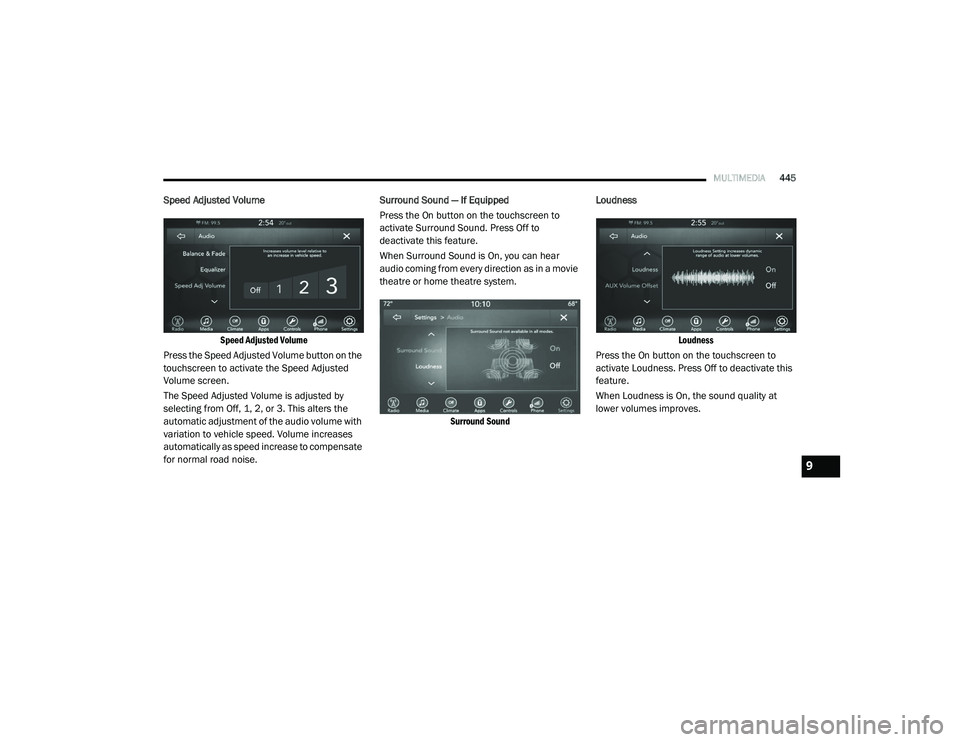
Speed Adjusted Volume
Speed Adjusted Volume
Press the Speed Adjusted Volume button on the
touchscreen to activate the Speed Adjusted
Volume screen.
The Speed Adjusted Volume is adjusted by
selecting from Off, 1, 2, or 3. This alters the
automatic adjustment of the audio volume with
variation to vehicle speed. Volume increases
automatically as speed increase to compensate
for normal road noise. Surround Sound — If Equipped
Press the On button on the touchscreen to
activate Surround Sound. Press Off to
deactivate this feature.
When Surround Sound is On, you can hear
audio coming from every direction as in a movie
theatre or home theatre system.
Surround Sound
Loudness
Loudness
Press the On button on the touchscreen to
activate Loudness. Press Off to deactivate this
feature.
When Loudness is On, the sound quality at
lower volumes improves.
9
20_RU_OM_EN_US_t.book Page 445
Page 448 of 516
446MULTIMEDIA
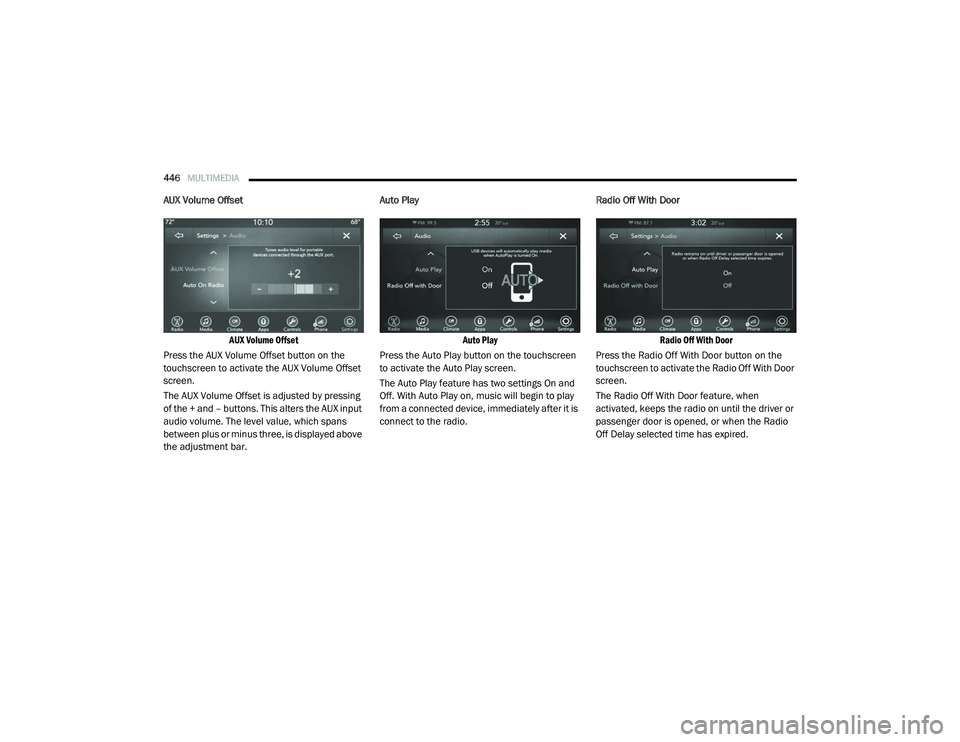
AUX Volume Offset
AUX Volume Offset
Press the AUX Volume Offset button on the
touchscreen to activate the AUX Volume Offset
screen.
The AUX Volume Offset is adjusted by pressing
of the + and – buttons. This alters the AUX input
audio volume. The level value, which spans
between plus or minus three, is displayed above
the adjustment bar. Auto Play
Auto Play
Press the Auto Play button on the touchscreen
to activate the Auto Play screen.
The Auto Play feature has two settings On and
Off. With Auto Play on, music will begin to play
from a connected device, immediately after it is
connect to the radio. Radio Off With Door
Radio Off With Door
Press the Radio Off With Door button on the
touchscreen to activate the Radio Off With Door
screen.
The Radio Off With Door feature, when
activated, keeps the radio on until the driver or
passenger door is opened, or when the Radio
Off Delay selected time has expired.
20_RU_OM_EN_US_t.book Page 446
Page 455 of 516
MULTIMEDIA453
Apple CarPlay® Apps
To use a compatible app with Apple CarPlay®,
you must have the compatible app downloaded,
and you must be signed in to the app.
Refer to http://www.apple.com/ios/carplay/
(US Residents) or https://www.apple.com/ca/
ios/carplay/ (Canadian Residents) to see the
latest list of available apps for Apple CarPlay®.
Android Auto™ And Apple CarPlay® Tips And
Tricks
AutoPlay
AutoPlay is a feature of the Uconnect system
that automatically begins playing music off of
the connected device, as soon as it is
connected. This feature can be turned on or off
in the Uconnect Settings, within the Audio
Settings category. It’s default setting is on.
NOTE:
AutoPlay® is not supported by Android Auto™. Android Auto™ Automatic Bluetooth® Pairing
After connecting to Android Auto™ for the first
time and undergoing the setup procedure, the
smartphone will automatically pair to the
Uconnect system via Bluetooth® without any
setup required every time it is within range, if
Bluetooth® is turned on.
NOTE:
Android Auto™ features cannot be used with
Bluetooth®, a USB connection is required for its
use. Android Auto™ uses both Bluetooth® and
USB connections to function, and the
connected device will be unavailable to other
devices when connected using Android Auto™.
Multiple Devices Connecting To The Uconnect
System
It is possible to have multiple devices
connected to the Uconnect system. For
example, if using Android Auto™/Apple
CarPlay®, the connected device will be the one
that will be used to place hands-free phone calls or send hands-free text messages. However,
another device can also be paired to the
Uconnect system, via Bluetooth®, as an audio
source, so the passenger can stream music.
NOTE:
If using a Samsung device, every time it is
connected to a media USB, and there is
another device plugged in, you will need to
manually change the configuration of the
USB connection in order for the Samsung
device to send data.
The Uconnect 4 built-in media functions will
be unavailable when Android Auto™/Apple
CarPlay® are in use.
9
20_RU_OM_EN_US_t.book Page 453
Page 472 of 516
470MULTIMEDIA
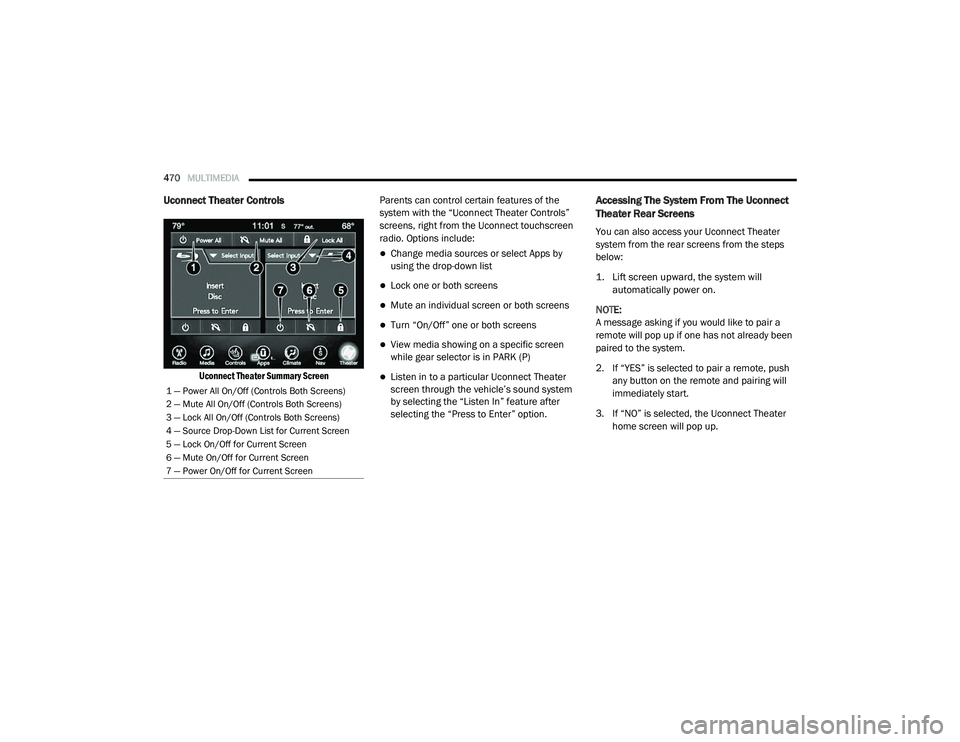
Uconnect Theater Controls
Uconnect Theater Summary Screen
Parents can control certain features of the
system with the “Uconnect Theater Controls”
screens, right from the Uconnect touchscreen
radio. Options include:
Change media sources or select Apps by
using the drop-down list
Lock one or both screens
Mute an individual screen or both screens
Turn “On/Off” one or both screens
View media showing on a specific screen
while gear selector is in PARK (P)
Listen in to a particular Uconnect Theater
screen through the vehicle’s sound system
by selecting the “Listen In” feature after
selecting the “Press to Enter” option.
Accessing The System From The Uconnect
Theater Rear Screens
You can also access your Uconnect Theater
system from the rear screens from the steps
below:
1. Lift screen upward, the system will
automatically power on.
NOTE:
A message asking if you would like to pair a
remote will pop up if one has not already been
paired to the system.
2. If “YES” is selected to pair a remote, push any button on the remote and pairing will
immediately start.
3. If “NO” is selected, the Uconnect Theater home screen will pop up.
1 — Power All On/Off (Controls Both Screens)
2 — Mute All On/Off (Controls Both Screens)
3 — Lock All On/Off (Controls Both Screens)
4 — Source Drop-Down List for Current Screen
5 — Lock On/Off for Current Screen
6 — Mute On/Off for Current Screen
7 — Power On/Off for Current Screen
20_RU_OM_EN_US_t.book Page 470
Page 482 of 516
480MULTIMEDIA
Headphones Operation
The headphones receive two separate channels
of audio using an infrared transmitter from the
video screens.
If no audio is heard after increasing the volume
control, there are a number of things that can
be done to troubleshoot the issue:
Verify that the screen is turned on.
Check to see that the channel is not muted.
Make sure that the headphones are on.
Verify that the headphone channel selector
button is on the desired channel. This button
switches between the audio of screen 1 and
screen 2.
Install two new AAA type batteries in the
headphones.
Uconnect Theater Headphones
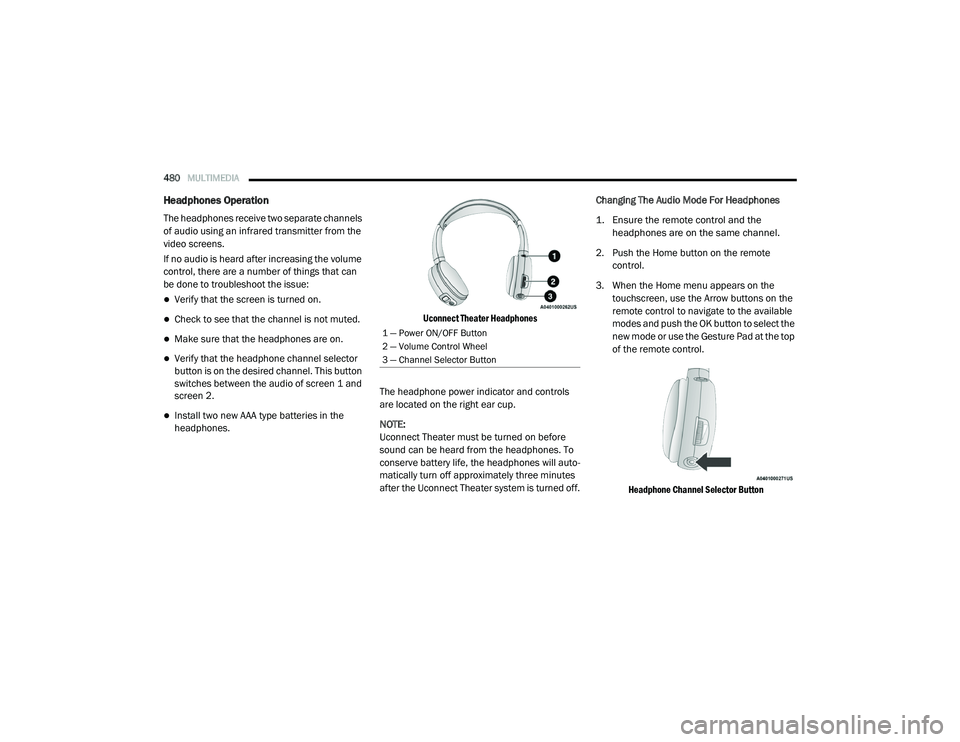
The headphone power indicator and controls
are located on the right ear cup.
NOTE:
Uconnect Theater must be turned on before
sound can be heard from the headphones. To
conserve battery life, the headphones will auto -
matically turn off approximately three minutes
after the Uconnect Theater system is turned off. Changing The Audio Mode For Headphones
1. Ensure the remote control and the
headphones are on the same channel.
2. Push the Home button on the remote control.
3. When the Home menu appears on the touchscreen, use the Arrow buttons on the
remote control to navigate to the available
modes and push the OK button to select the
new mode or use the Gesture Pad at the top
of the remote control.
Headphone Channel Selector Button
1 — Power ON/OFF Button
2 — Volume Control Wheel
3 — Channel Selector Button
20_RU_OM_EN_US_t.book Page 480
Page 484 of 516
482MULTIMEDIA
Listening To Audio With The Screen Closed
To listen to only audio portion of the channel
with the screen closed:
Set the audio to the desired source and
channel.
Close the video screen.
When the screen is reopened, the video
screen will automatically turn back on and
show the appropriate display menu or media. If the screen is closed and there is no audio
heard, verify that the headphones are turned on
(the ON indicator is illuminated) and the
headphone selector switch is on the desired
channel. If the headphones are turned on, push
the remote control’s power button to turn audio
on. If audio is still not heard, check that fully
charged batteries are installed in the
headphones.
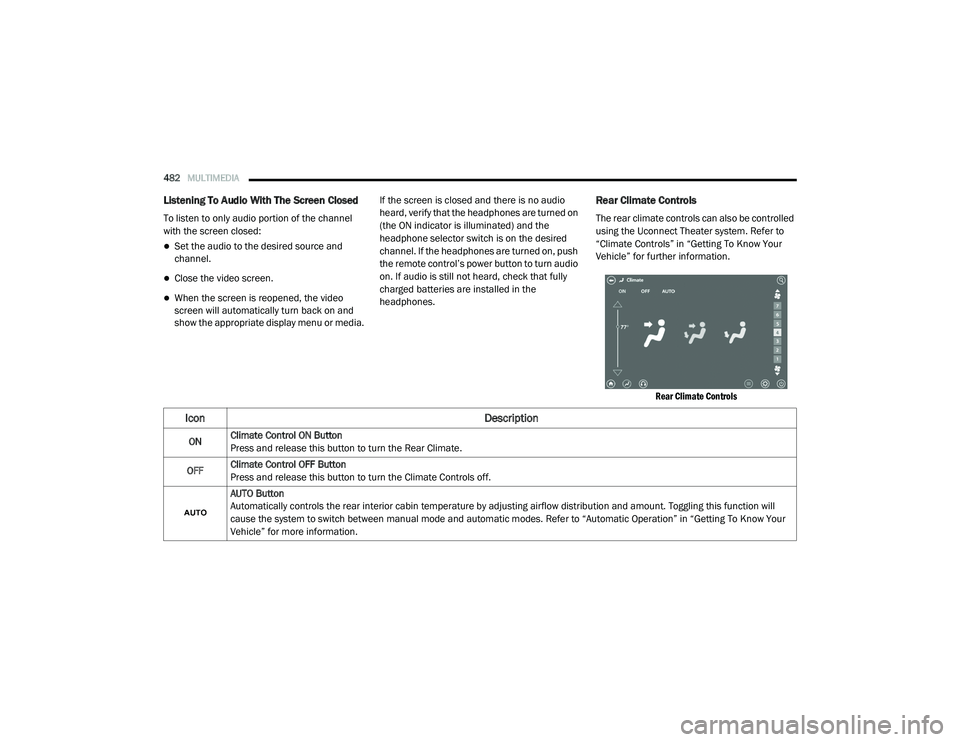
Rear Climate Controls
The rear climate controls can also be controlled
using the Uconnect Theater system. Refer to
“Climate Controls” in “Getting To Know Your
Vehicle” for further information.
Rear Climate Controls
Icon Description
ONClimate Control ON Button
Press and release this button to turn the Rear Climate.
OFF Climate Control OFF Button
Press and release this button to turn the Climate Controls off.
AUTO Button
Automatically controls the rear interior cabin temperature by adjusting airflow distribution and amount. Toggling this function will
cause the system to switch between manual mode and automatic modes. Refer to “Automatic Operation” in “Getting To Know Your
Vehicle” for more information.
20_RU_OM_EN_US_t.book Page 482
Page 485 of 516
MULTIMEDIA483
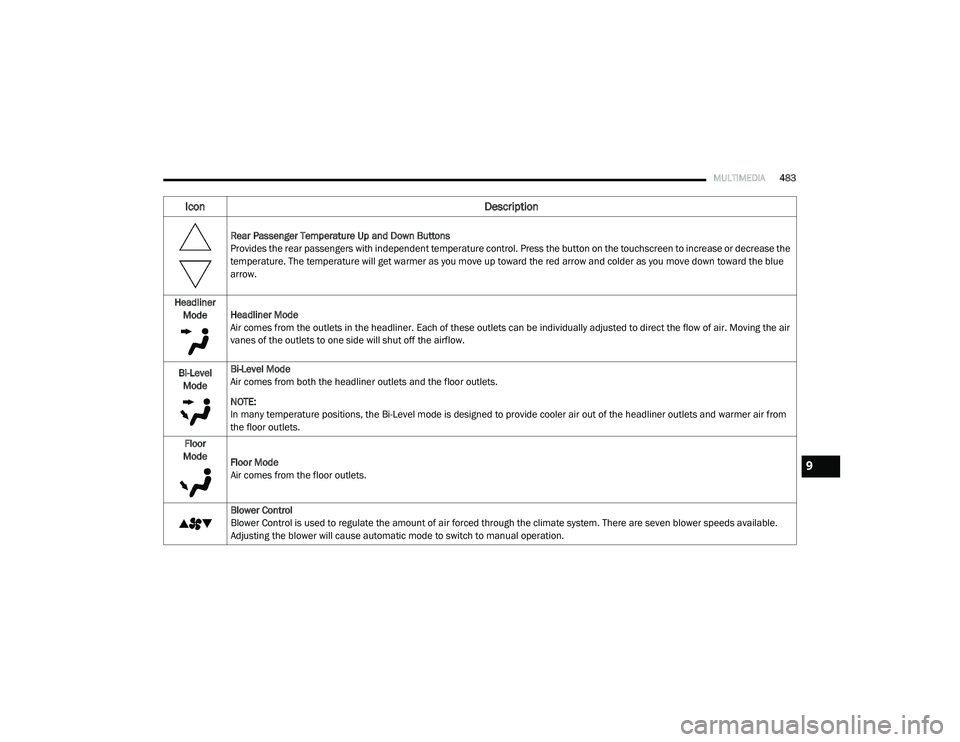
Rear Passenger Temperature Up and Down Buttons
Provides the rear passengers with independent temperature control. Press the button on the touchscreen to increase or decrease the
temperature. The temperature will get warmer as you move up toward the red arrow and colder as you move down toward the blue
arrow.
Headliner Mode Headliner Mode
Air comes from the outlets in the headliner. Each of these outlets can be individually adjusted to direct the flow of air. Moving the air
vanes of the outlets to one side will shut off the airflow.
Bi-Level Mode Bi-Level Mode
Air comes from both the headliner outlets and the floor outlets.
NOTE:
In many temperature positions, the Bi-Level mode is designed to provide cooler air out of the headliner outlets and warmer air from
the floor outlets.
Floor
Mode Floor Mode
Air comes from the floor outlets.
Blower Control
Blower Control is used to regulate the amount of air forced through the climate system. There are seven blower speeds available.
Adjusting the blower will cause automatic mode to switch to manual operation.
Icon Description
9
20_RU_OM_EN_US_t.book Page 483
Page 494 of 516
492MULTIMEDIA
This device complies with Part 15 of the FCC
Rules and with Innovation, Science and
Economic Development Canada license-exempt
RSS standard(s). Operation is subject to the
following two conditions:
1. This device may not cause harmful
interference, and
2. This device must accept any interference received, including interference that may
cause undesired operation.
Le présent appareil est conforme aux CNR
d`Innovation, Science and Economic
Development applicables aux appareils radio
exempts de licence. L'exploitation est autorisée
aux deux conditions suivantes:
1. l'appareil ne doit pas produire de brouillage, et
2. l'utilisateur de l'appareil doit accepter tout brouillage radioélectrique subi, même si le
brouillage est susceptible d'en compro -
mettre le fonctionnement. La operación de este equipo está sujeta a las
siguientes dos condiciones:
1. es posible que este equipo o dispositivo no
cause interferencia perjudicial y
2. este equipo o dispositivo debe aceptar cualquier interferencia, incluyendo la que
pueda causar su operación no deseada.
NOTE:
Changes or modifications not expressly
approved by the party responsible for compli -
ance could void the user’s authority to operate
the equipment.
NOTE:
This equipment has been tested and found to
comply with the limits for a Class B digital
device, pursuant to Part 15 of the FCC Rules.
These limits are designed to provide reason -
able protection against harmful interference
in a residential installation. This equipment
generates, uses and can radiate radio frequency energy and, if not installed and
used in accordance with the instructions,
may cause harmful interference to radio
communications. However, there is no guar
-
antee that interference will not occur in a
particular installation.
If this equipment does cause harmful inter -
ference to radio or television reception,
which can be determined by turning the
equipment off and on, the user is encour -
aged to try to correct the interference by one
or more of the following measures:
a. Increase the separation between the equipment and receiver.
b. Consult an authorized dealer or an expe -
rienced radio technician for help.
20_RU_OM_EN_US_t.book Page 492
Page 498 of 516
496MULTIMEDIA
TIP:
Voice Text Reply is not compatible with
iPhone®, but if your vehicle is equipped with
Siri® Eyes Free, you can use your voice to send
a text message.
Climate
Adjust vehicle temperatures hands-free and
keep everyone comfortable while you keep
moving ahead. (If vehicle is equipped with
climate control.)
Push the VR button . After the beep, say one
of the following commands:
“Set driver temperature to 70 degrees ”
“Set passenger temperature to 70 degrees ”
TIP:
Voice Command for Climate may only be used
to adjust the interior temperature of your
vehicle. Voice Command will not work to adjust
the heated seats or steering wheel if equipped.
Navigation (4C NAV)
The Uconnect navigation feature helps you save
time and become more productive when you
know exactly how to get to where you want to go.
1. To enter a destination, push the VR button
. After the beep, say: “ Find address
800
Chrysler Drive Auburn Hills, Michigan.”
2. Then follow the system prompts.
TIP:
To start a POI search, push the VR button .
After the beep, say: “ Find nearest coffee shop.”
Siri® Eyes Free — If Equipped
Siri lets you use your voice to send text
messages, select media, place phone calls and
much more. Siri uses your natural language to
understand what you mean and responds back
to confirm your requests. The system is
designed to keep your eyes on the road and
your hands on the wheel by letting Siri help you
perform useful tasks.
To enable Siri, push and hold, then release the
Uconnect Voice Recognition (VR) button on the
steering wheel. After you hear a double beep you can ask Siri to play podcasts and music, get
directions, read text messages and many other
useful requests.
Using Do Not Disturb
With Do Not Disturb, you can disable
notifications from incoming calls and texts,
allowing you to keep your eyes on the road and
hands on the wheel. For your convenience,
there is a counter display to keep track of your
missed calls and text messages while you were
using Do Not Disturb.
Do Not Disturb can automatically reply with a
text message, a call or both, when declining an
incoming call and send it to voicemail.
Automatic reply messages can be:
“I am driving right now, I will get back to you
shortly.”
Create a custom auto reply message up to
160 characters.
While in Do Not Disturb, Conference Call can be
selected so you can still place a second call
without being interrupted by incoming calls.
20_RU_OM_EN_US_t.book Page 496
Page 511 of 516
509
Power Brakes
....................................................... 388Inverter...................................................... 119Mirrors......................................................... 61Outlet (Auxiliary Electrical Outlet).............. 118Seats.................................................... 48, 50Steering..................................................... 234Power SeatsDown........................................................... 49Forward....................................................... 49Rearward..................................................... 49Up................................................................ 49Power Sliding DoorOn / Off Switch................................... 30, 100Pregnant Women And Seat Belts...................180Preparation For Jacking................................. 321PretensionersSeat Belts.................................................. 181
R
Radial Ply Tires.............................................. 376Radiator Cap (Coolant Pressure Cap)............ 363RadioPresets...................................................... 440Radio Operation.................................. 438, 491Rear Air Conditioning................................ 78, 87Rear Camera................................................. 284Rear Cross Path............................................. 162Rear ParkSense System...................... 254, 259Rear Seat Removal.......................................... 37
Rear View......................................................... 59Reclining Front Seats....................................... 36Recreational Towing..................................... 298Reformulated Gasoline................................. 390Refrigerant.................................................... 354Release, Hood................................................. 97Reminder, Lights On........................................ 63Reminder, Seat Belt...................................... 173Remote ControlStarting System........................................... 19Remote Keyless EntryArm The Alarm............................................. 24Disarm The Alarm........................................ 24Programming Additional Key Fobs........ 16, 23Remote StartingExit Remote Start Mode.............................. 21Uconnect Customer Programmable Features.................................................. 21Uconnect Settings....................................... 21Remote Starting System.................................. 19Replacement Bulbs...................................... 306Replacement Keys........................................... 23Replacement Tires........................................ 377Reporting Safety Defects.............................. 501Restraints, Child........................................... 198Restraints, Head.............................................. 55Roof Luggage Rack....................................... 121Rotation, Tires.............................................. 382
S
Safety Checks Inside Vehicle........................ 217Safety Checks Outside Vehicle...................... 218Safety Defects, Reporting............................. 501Safety Information, Tire................................. 366Safety Tips.................................................... 216Safety, Exhaust Gas...................................... 216Schedule, Maintenance................................ 345Seat Belt Reminder....................................... 143Seat Belts............................................ 172, 217Adjustable Shoulder Belt.......................... 177Adjustable Upper Shoulder Anchorage..... 177Adjustable Upper Shoulder Belt Anchorage............................................ 177Automatic Locking Retractor (ALR)........... 181Child Restraints........................................ 198Energy Management Feature................... 181Extender................................................... 180Front Seat............................... 172, 174, 175Inspection................................................. 217Lap/Shoulder Belt Operation.................... 175Lap/Shoulder Belt Untwisting................... 176Lap/Shoulder Belts................................... 174Operating Instructions.............................. 175Pregnant Women...................................... 180Pretensioners........................................... 181Rear Seat.................................................. 174Reminder.................................................. 17311
20_RU_OM_EN_US_t.book Page 509