Rear settings CHRYSLER PACIFICA 2020 Owner's Guide
[x] Cancel search | Manufacturer: CHRYSLER, Model Year: 2020, Model line: PACIFICA, Model: CHRYSLER PACIFICA 2020Pages: 516, PDF Size: 28.69 MB
Page 288 of 516

286STARTING AND OPERATING
(Continued)
Rear Cross Path ViewPressing the Rear Cross Path soft key
will give the driver a wider angle view of
the rear camera system. The Top view
will be disabled when this is selected
Front View The Front view will show you what is
immediately in front of the vehicle and
is always paired with the Top view of
the vehicle.
Front Cross Path View
Pressing the Front Cross Path soft key will
give the driver a wider angle view of the
front camera system. The Top view will be
disabled when this is selected.
Deactivation
The system can be deactivated in the following
conditions:
The speed of the vehicle reaches greater
than 8 mph (13 km/h).
The vehicle shifted into PARK from a different
gear.
If the vehicle is in any gear other than
REVERSE, press the “X” button.
The camera delay system is turned off manu -
ally through the Uconnect settings menu.
Refer to “Uconnect Settings” in “Multimedia”
for further information.
NOTE:
If snow, ice, mud, or any foreign substance
builds up on the camera lenses, clean the
lenses, rinse with water, and dry with a soft
cloth. Do not cover the lenses.
If a malfunction with the system has
occurred, see an authorized dealer.REFUELING THE VEHICLE
There is no fuel filler cap. Two flapper doors
inside the pipe seal the system.
WARNING!
Drivers must be careful when backing up even
when using the Surround View Camera. Always
check carefully behind your vehicle, and be
sure to check for pedestrians, animals, other
vehicles, obstructions, or blind spots before
backing up. You are responsible for the safety
of your surroundings and must continue to pay
attention while backing up. Failure to do so can
result in serious injury or death.
CAUTION!
To avoid vehicle damage, Surround View
should only be used as a parking aid. The
Surround View camera is unable to view
every obstacle or object in your drive path.
To avoid vehicle damage, the vehicle must
be driven slowly when using Surround View
to be able to stop in time when an obstacle
is seen. It is recommended that the driver
look frequently over his/her shoulder when
using Surround View.
WARNING!
Never have any smoking materials lit in or
near the vehicle when the fuel door is open
or the tank is being filled.
Never add fuel when the engine is running.
This is in violation of most state and federal
fire regulations and may cause the
“Malfunction Indicator Light” to turn on.
20_RU_OM_EN_US_t.book Page 286
Page 300 of 516
298STARTING AND OPERATING
(Continued)
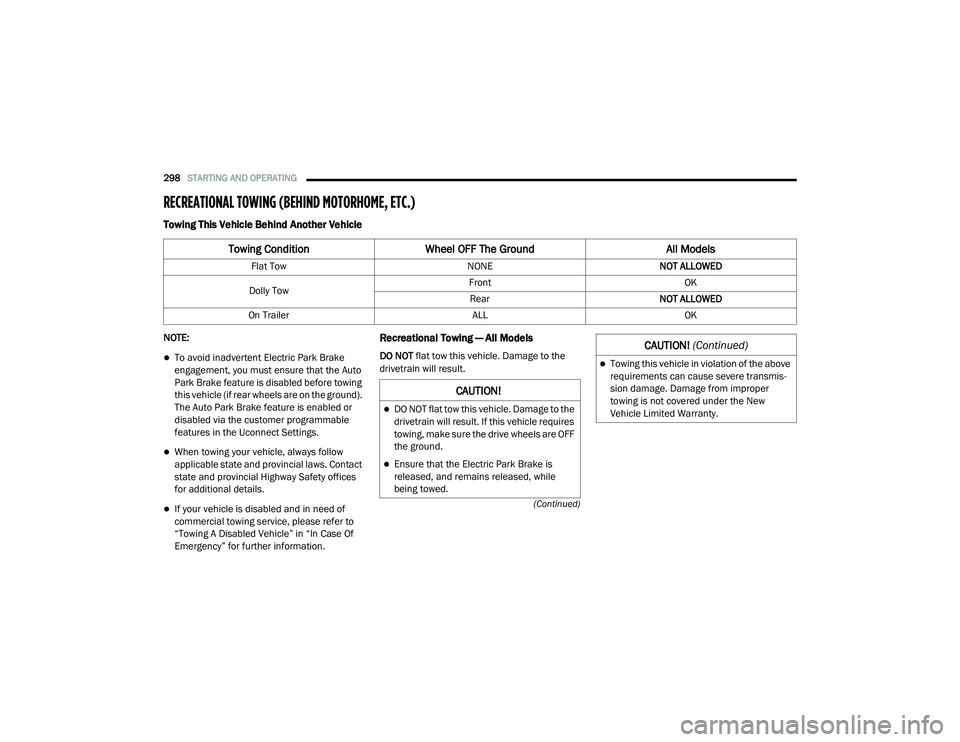
RECREATIONAL TOWING (BEHIND MOTORHOME, ETC.)
Towing This Vehicle Behind Another Vehicle
NOTE:
To avoid inadvertent Electric Park Brake
engagement, you must ensure that the Auto
Park Brake feature is disabled before towing
this vehicle (if rear wheels are on the ground).
The Auto Park Brake feature is enabled or
disabled via the customer programmable
features in the Uconnect Settings.
When towing your vehicle, always follow
applicable state and provincial laws. Contact
state and provincial Highway Safety offices
for additional details.
If your vehicle is disabled and in need of
commercial towing service, please refer to
“Towing A Disabled Vehicle” in “In Case Of
Emergency” for further information.
Recreational Towing — All Models
DO NOT flat tow this vehicle. Damage to the
drivetrain will result.
Towing Condition Wheel OFF The Ground All Models
Flat Tow NONENOT ALLOWED
Dolly Tow Front
OK
Rear NOT ALLOWED
On Trailer ALLOK
CAUTION!
DO NOT flat tow this vehicle. Damage to the
drivetrain will result. If this vehicle requires
towing, make sure the drive wheels are OFF
the ground.
Ensure that the Electric Park Brake is
released, and remains released, while
being towed.
Towing this vehicle in violation of the above
requirements can cause severe transmis-
sion damage. Damage from improper
towing is not covered under the New
Vehicle Limited Warranty.
CAUTION! (Continued)
20_RU_OM_EN_US_t.book Page 298
Page 344 of 516
342IN CASE OF EMERGENCY
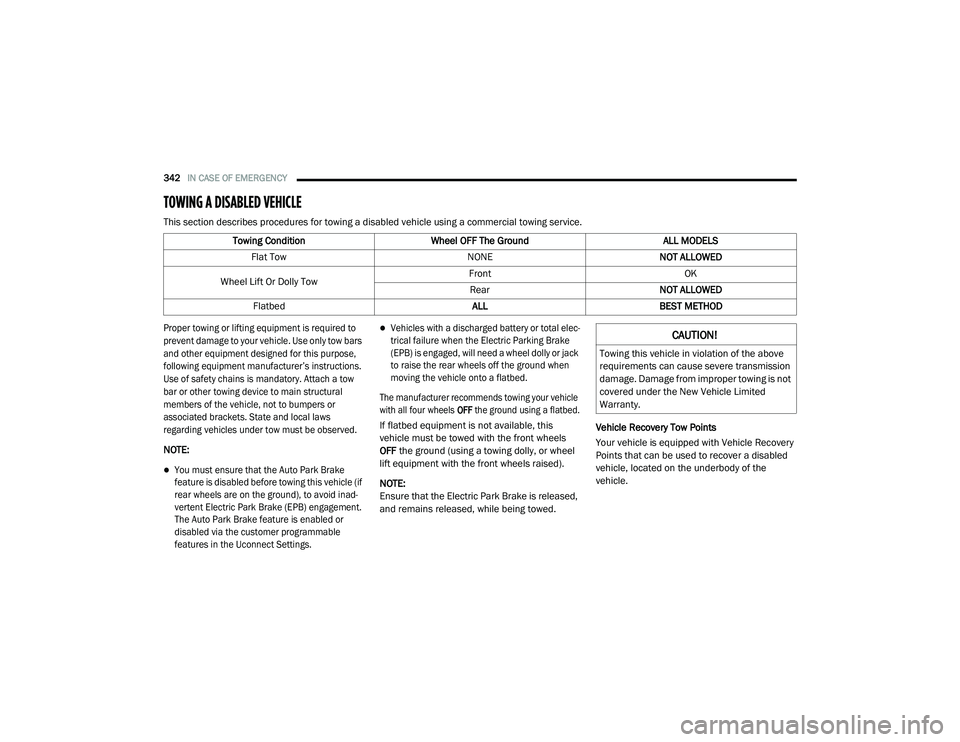
TOWING A DISABLED VEHICLE
This section describes procedures for towing a disabled vehicle using a commercial towing service.
Proper towing or lifting equipment is required to
prevent damage to your vehicle. Use only tow bars
and other equipment designed for this purpose,
following equipment manufacturer’s instructions.
Use of safety chains is mandatory. Attach a tow
bar or other towing device to main structural
members of the vehicle, not to bumpers or
associated brackets. State and local laws
regarding vehicles under tow must be observed.
NOTE:
You must ensure that the Auto Park Brake
feature is disabled before towing this vehicle (if
rear wheels are on the ground), to avoid inad -
vertent Electric Park Brake (EPB) engagement.
The Auto Park Brake feature is enabled or
disabled via the customer programmable
features in the Uconnect Settings.
Vehicles with a discharged battery or total elec -
trical failure when the Electric Parking Brake
(EPB) is engaged, will need a wheel dolly or jack
to raise the rear wheels off the ground when
moving the vehicle onto a flatbed.
The manufacturer recommends towing your vehicle
with all four wheels OFF the ground using a flatbed.
If flatbed equipment is not available, this
vehicle must be towed with the front wheels
OFF the ground (using a towing dolly, or wheel
lift equipment with the front wheels raised).
NOTE:
Ensure that the Electric Park Brake is released,
and remains released, while being towed. Vehicle Recovery Tow Points
Your vehicle is equipped with Vehicle Recovery
Points that can be used to recover a disabled
vehicle, located on the underbody of the
vehicle.
Towing Condition
Wheel OFF The Ground ALL MODELS
Flat Tow NONENOT ALLOWED
Wheel Lift Or Dolly Tow Front
OK
Rear NOT ALLOWED
Flatbed ALLBEST METHODCAUTION!
Towing this vehicle in violation of the above
requirements can cause severe transmission
damage. Damage from improper towing is not
covered under the New Vehicle Limited
Warranty.
20_RU_OM_EN_US_t.book Page 342
Page 401 of 516
MULTIMEDIA399
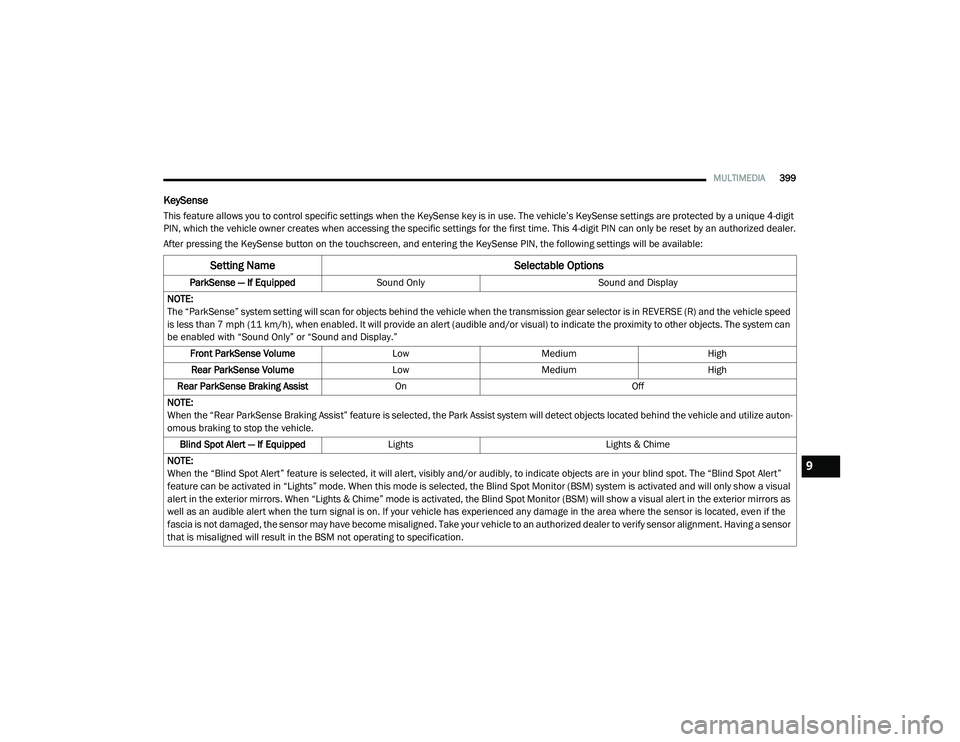
KeySense
This feature allows you to control specific settings when the KeySense key is in use. The vehicle’s KeySense settings are protected by a unique 4-digit
PIN, which the vehicle owner creates when accessing the specific settings for the first time. This 4-digit PIN can only be reset by an authorized dealer.
After pressing the KeySense button on the touchscreen, and entering the KeySense PIN, the following settings will be available:
Setting Name Selectable Options
ParkSense — If EquippedSound Only Sound and Display
NOTE:
The “ParkSense” system setting will scan for objects behind the vehicle when the transmission gear selector is in REVERSE (R) and the vehicle speed
is less than 7 mph (11 km/h), when enabled. It will provide an alert (audible and/or visual) to indicate the proximity to other objects. The system can be enabled with “Sound Only” or “Sound and Display.”
Front ParkSense Volume LowMedium High
Rear ParkSense Volume LowMedium High
Rear ParkSense Braking Assist On Off
NOTE:
When the “Rear ParkSense Braking Assist” feature is selected, the Park Assist system will detect objects located behind the vehicle and utilize auton -
omous braking to stop the vehicle.
Blind Spot Alert — If Equipped Lights Lights & Chime
NOTE:
When the “Blind Spot Alert” feature is selected, it will alert, visibly and/or audibly, to indicate objects are in your blind spot. The “Blind Spot Alert”
feature can be activated in “Lights” mode. When this mode is selected, the Blind Spot Monitor (BSM) system is activated and will only show a visual
alert in the exterior mirrors. When “Lights & Chime” mode is activated, the Blind Spot Monitor (BSM) will show a visual alert in the exterior mirrors as
well as an audible alert when the turn signal is on. If your vehicle has experienced any damage in the area where the sensor is located, even if the
fascia is not damaged, the sensor may have become misaligned. Take your vehicle to an authorized dealer to verify sensor alignment. Having a sensor
that is misaligned will result in the BSM not operating to specification.
9
20_RU_OM_EN_US_t.book Page 399
Page 406 of 516
404MULTIMEDIA
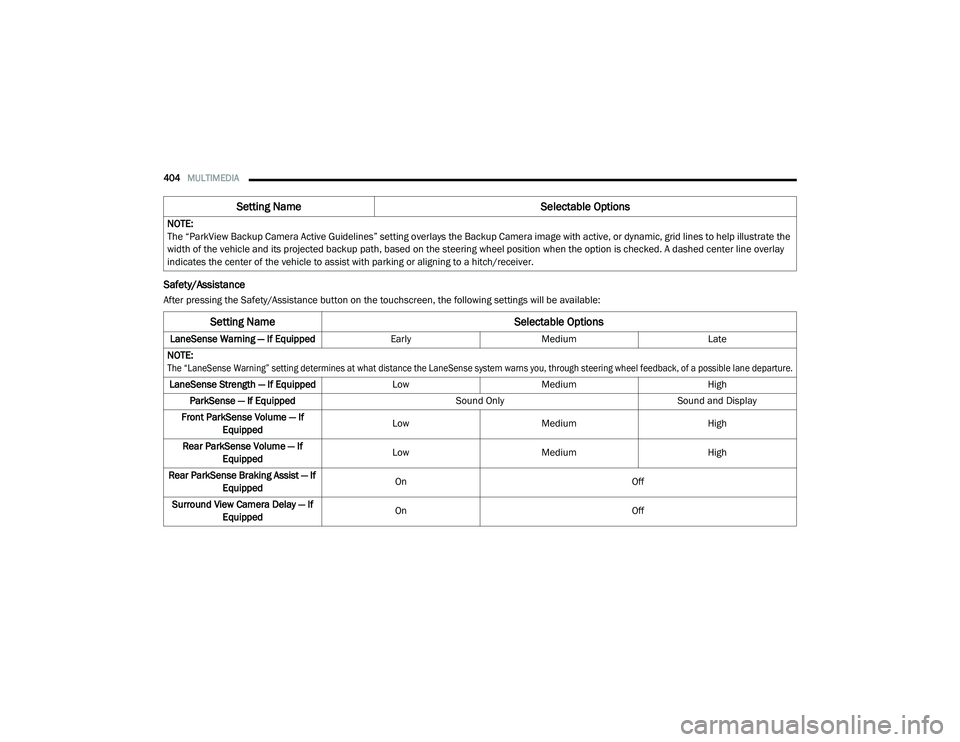
Safety/Assistance
After pressing the Safety/Assistance button on the touchscreen, the following settings will be available:NOTE:
The “ParkView Backup Camera Active Guidelines” setting overlays the Backup Camera image with active, or dynamic, grid lines to help illustrate the
width of the vehicle and its projected backup path, based on the steering wheel position when the option is checked. A dashed center line overlay
indicates the center of the vehicle to assist with parking or aligning to a hitch/receiver.
Setting Name
Selectable Options
Setting NameSelectable Options
LaneSense Warning — If EquippedEarlyMedium Late
NOTE:
The “LaneSense Warning” setting determines at what distance the LaneSense system warns you, through steering wheel feedback, of a possible lane departure.
LaneSense Strength — If Equipped LowMedium High
ParkSense — If Equipped Sound OnlySound and Display
Front ParkSense Volume — If Equipped Low
Medium High
Rear ParkSense Volume — If Equipped Low
Medium High
Rear ParkSense Braking Assist — If Equipped On
Off
Surround View Camera Delay — If Equipped On
Off
20_RU_OM_EN_US_t.book Page 404
Page 414 of 516
412MULTIMEDIA
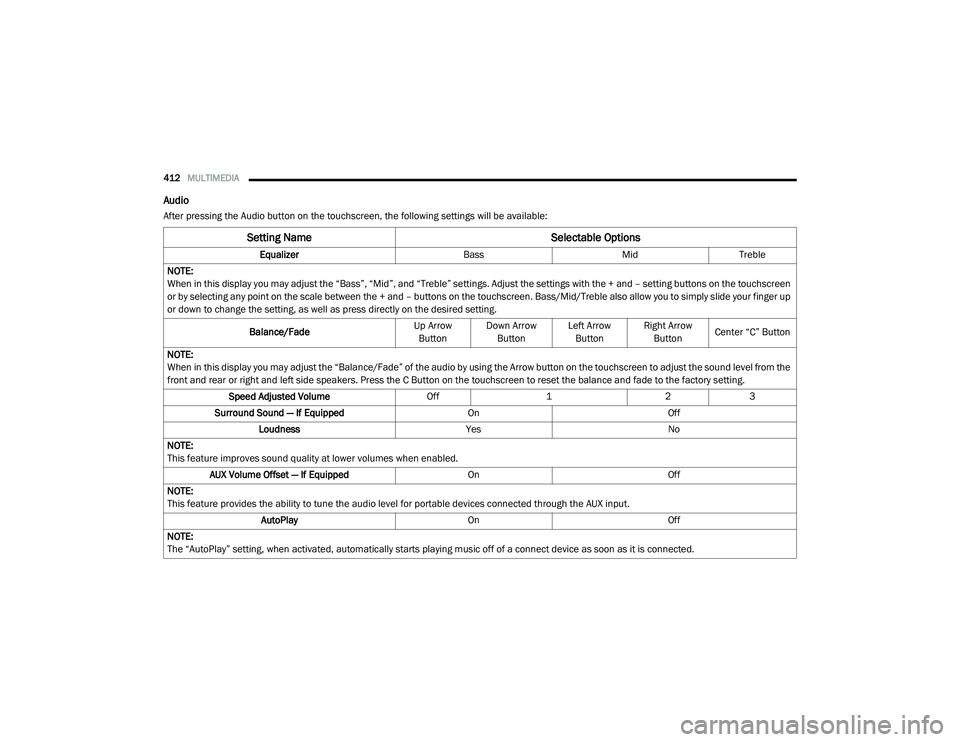
Audio
After pressing the Audio button on the touchscreen, the following settings will be available:
Setting Name Selectable Options
EqualizerBassMidTreble
NOTE:
When in this display you may adjust the “Bass”, “Mid”, and “Treble” settings. Adjust the settings with the + and – setting buttons on the touchscreen
or by selecting any point on the scale between the + and – buttons on the touchscreen. Bass/Mid/Treble also allow you to simply slide your finger up
or down to change the setting, as well as press directly on the desired setting.
Balance/Fade Up Arrow
Button Down Arrow
Button Left Arrow
Button Right Arrow
Button Center “C” Button
NOTE:
When in this display you may adjust the “Balance/Fade” of the audio by using the Arrow button on the touchscreen to adjust the sound level from the
front and rear or right and left side speakers. Press the C Button on the touchscreen to reset the balance and fade to the factory setting. Speed Adjusted Volume Off123
Surround Sound — If Equipped OnOff
Loudness YesNo
NOTE:
This feature improves sound quality at lower volumes when enabled. AUX Volume Offset — If Equipped OnOff
NOTE:
This feature provides the ability to tune the audio level for portable devices connected through the AUX input. AutoPlay OnOff
NOTE:
The “AutoPlay” setting, when activated, automatically starts playing music off of a connect device as soon as it is connected.
20_RU_OM_EN_US_t.book Page 412
Page 418 of 516
416MULTIMEDIA
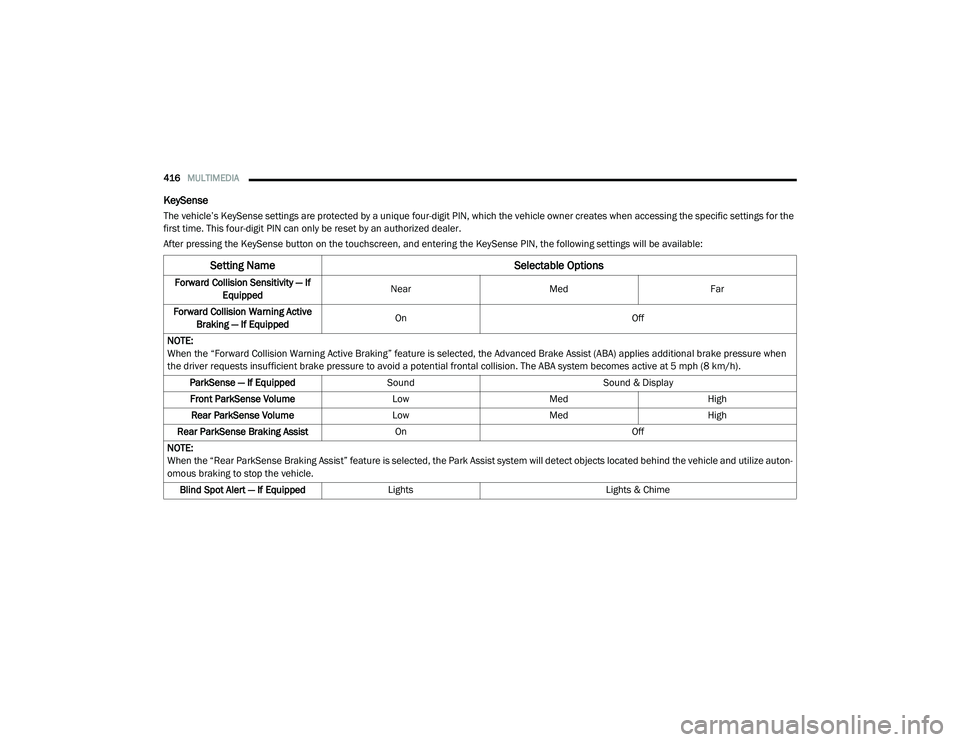
KeySense
The vehicle’s KeySense settings are protected by a unique four-digit PIN, which the vehicle owner creates when accessing the specific settings for the
first time. This four-digit PIN can only be reset by an authorized dealer.
After pressing the KeySense button on the touchscreen, and entering the KeySense PIN, the following settings will be available:
Setting Name Selectable Options
Forward Collision Sensitivity — If
Equipped Near
Med Far
Forward Collision Warning Active Braking — If Equipped On
Off
NOTE:
When the “Forward Collision Warning Active Braking” feature is selected, the Advanced Brake Assist (ABA) applies additional brake pressure when
the driver requests insufficient brake pressure to avoid a potential frontal collision. The ABA system becomes active at 5 mph (8 km/h). ParkSense — If Equipped Sound Sound & Display
Front ParkSense Volume LowMed High
Rear ParkSense Volume LowMed High
Rear ParkSense Braking Assist On Off
NOTE:
When the “Rear ParkSense Braking Assist” feature is selected, the Park Assist system will detect objects located behind the vehicle and utilize auton -
omous braking to stop the vehicle.
Blind Spot Alert — If Equipped Lights Lights & Chime
20_RU_OM_EN_US_t.book Page 416
Page 424 of 516
422MULTIMEDIA
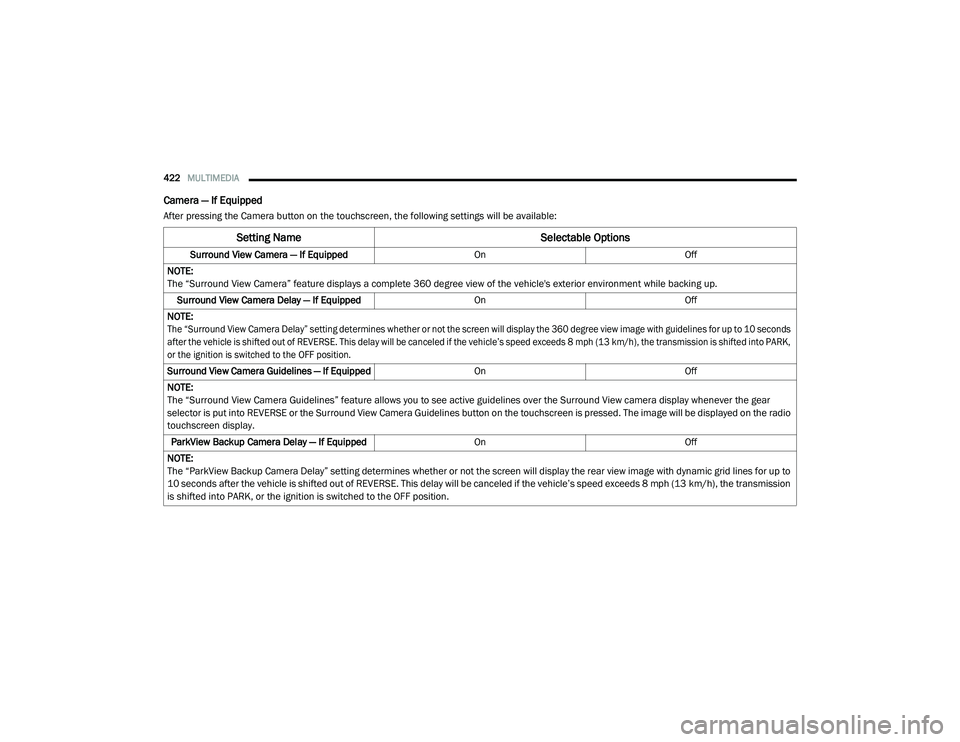
Camera — If Equipped
After pressing the Camera button on the touchscreen, the following settings will be available:
Setting Name Selectable Options
Surround View Camera — If Equipped OnOff
NOTE:
The “Surround View Camera” feature displays a complete 360 degree view of the vehicle's exterior environment while backing up. Surround View Camera Delay — If Equipped OnOff
NOTE:
The “Surround View Camera Delay” setting determines whether or not the screen will display the 360 degree view image with guidelines for up to 10 seconds
after the vehicle is shifted out of REVERSE. This delay will be canceled if the vehicle’s speed exceeds 8 mph (13 km/h), the transmission is shifted into PARK,
or the ignition is switched to the OFF position.
Surround View Camera Guidelines — If Equipped OnOff
NOTE:
The “Surround View Camera Guidelines” feature allows you to see active guidelines over the Surround View camera display whenever the gear
selector is put into REVERSE or the Surround View Camera Guidelines button on the touchscreen is pressed. The image will be displayed on the radio
touchscreen display. ParkView Backup Camera Delay — If Equipped OnOff
NOTE:
The “ParkView Backup Camera Delay” setting determines whether or not the screen will display the rear view image with dynamic grid lines for up to
10 seconds after the vehicle is shifted out of REVERSE. This delay will be canceled if the vehicle’s speed exceeds 8 mph (13 km/h), the transmission
is shifted into PARK, or the ignition is switched to the OFF position.
20_RU_OM_EN_US_t.book Page 422
Page 428 of 516
426MULTIMEDIA
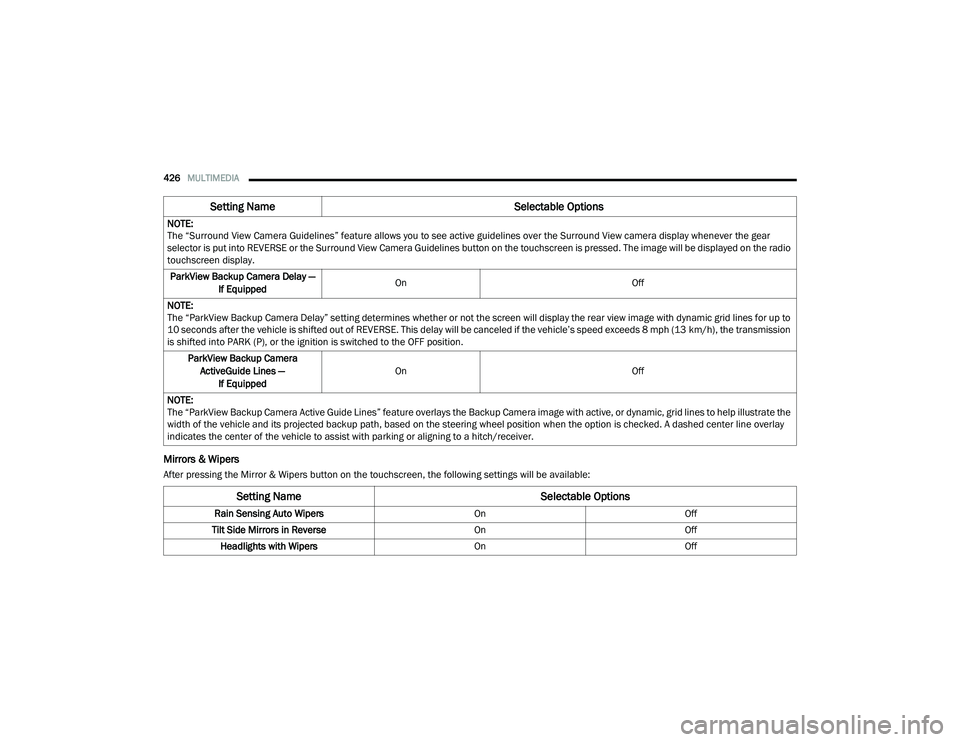
Mirrors & Wipers
After pressing the Mirror & Wipers button on the touchscreen, the following settings will be available:NOTE:
The “Surround View Camera Guidelines” feature allows you to see active guidelines over the Surround View camera display whenever the gear
selector is put into REVERSE or the Surround View Camera Guidelines button on the touchscreen is pressed. The image will be displayed on the radio
touchscreen display.
ParkView Backup Camera Delay — If Equipped On
Off
NOTE:
The “ParkView Backup Camera Delay” setting determines whether or not the screen will display the rear view image with dynamic grid lines for up to
10 seconds after the vehicle is shifted out of REVERSE. This delay will be canceled if the vehicle’s speed exceeds 8 mph (13 km/h), the transmission
is shifted into PARK (P), or the ignition is switched to the OFF position.
ParkView Backup Camera ActiveGuide Lines — If Equipped On
Off
NOTE:
The “ParkView Backup Camera Active Guide Lines” feature overlays the Backup Camera image with active, or dynamic, grid lines to help illustrate the
width of the vehicle and its projected backup path, based on the steering wheel position when the option is checked. A dashed center line overlay
indicates the center of the vehicle to assist with parking or aligning to a hitch/receiver.
Setting Name Selectable Options
Setting NameSelectable Options
Rain Sensing Auto WipersOnOff
Tilt Side Mirrors in Reverse OnOff
Headlights with Wipers OnOff
20_RU_OM_EN_US_t.book Page 426
Page 446 of 516
444MULTIMEDIA
Select Teams
Press the Select Teams button on the
touchscreen to activate the League Scroll list.
Press the chosen league and a scroll list of all
teams within the league will appear, then you
can select a team by pressing the
corresponding box. A check mark appears for all
teams that are chosen.
Remove Selection
Press the Remove Selection tab at the top of the
screen. Press the Delete All button on the
touchscreen to delete all of the Selections or
press the Trash Can Icon next to the Selection to
be deleted.
Alert Settings
Press the Alert Setting tab at the top of the
screen. The Alert Settings menu allows you to
choose from “Alert me to on-air games upon
start” or “Alert upon score update” or both when
one or more of your selections is airing on any
of the SiriusXM® channels.
Featured
Press the Featured button, located on the left of
the Browse screen. This feature provides a list
of your featured favorite stations.Audio Settings
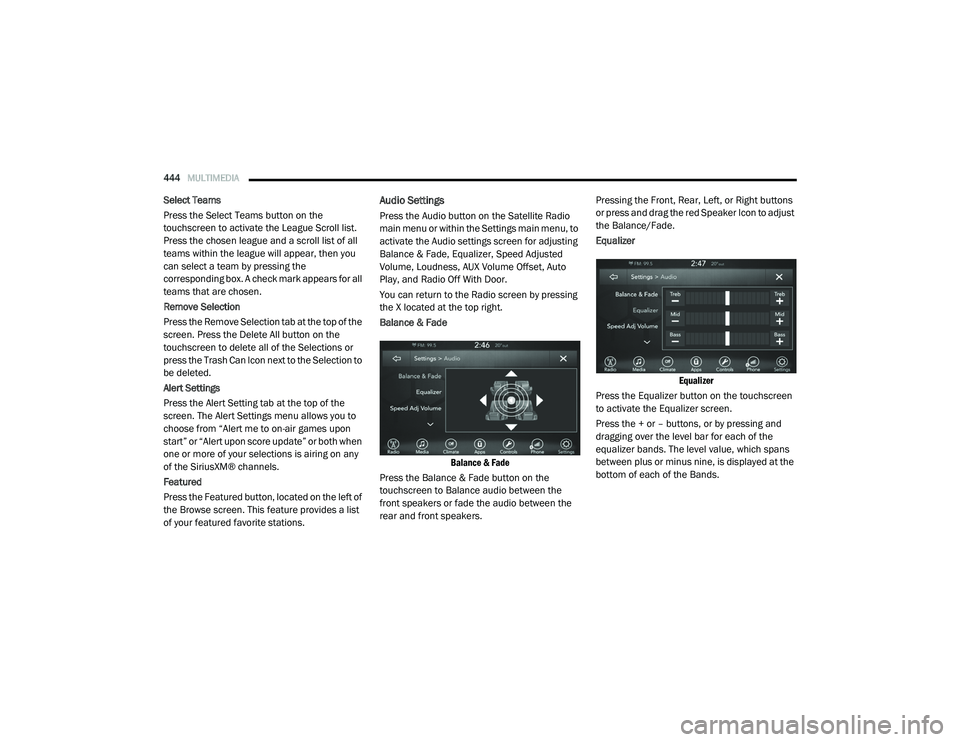
Press the Audio button on the Satellite Radio
main menu or within the Settings main menu, to
activate the Audio settings screen for adjusting
Balance & Fade, Equalizer, Speed Adjusted
Volume, Loudness, AUX Volume Offset, Auto
Play, and Radio Off With Door.
You can return to the Radio screen by pressing
the X located at the top right.
Balance & Fade
Balance & Fade
Press the Balance & Fade button on the
touchscreen to Balance audio between the
front speakers or fade the audio between the
rear and front speakers. Pressing the Front, Rear, Left, or Right buttons
or press and drag the red Speaker Icon to adjust
the Balance/Fade.
Equalizer
Equalizer
Press the Equalizer button on the touchscreen
to activate the Equalizer screen.
Press the + or – buttons, or by pressing and
dragging over the level bar for each of the
equalizer bands. The level value, which spans
between plus or minus nine, is displayed at the
bottom of each of the Bands.
20_RU_OM_EN_US_t.book Page 444