Uconnect CHRYSLER PACIFICA 2020 Workshop Manual
[x] Cancel search | Manufacturer: CHRYSLER, Model Year: 2020, Model line: PACIFICA, Model: CHRYSLER PACIFICA 2020Pages: 516, PDF Size: 28.69 MB
Page 286 of 516
284STARTING AND OPERATING
(Continued)
NOTE:
If snow, ice, mud, or any foreign substance
builds up on the camera lens, clean the lens,
rinse with water, and dry with a soft cloth. Do
not cover the lens.
SURROUND VIEW CAMERA SYSTEM — IF
EQUIPPED
Your vehicle may be equipped with the
Surround View Camera System that allows you
to see an on-screen image of the surroundings
and top view of your vehicle whenever the gear
selector is put into REVERSE or a different view
is selected through the "on screen soft buttons".
The top view of the vehicle will show which
doors are open. The image will be displayed on
the touchscreen display along with a caution
note “Check Entire Surroundings” across the
top of the screen. After five seconds, this note
will disappear. The Surround View Camera
System is comprised of four sequential
cameras located in the front grille, rear liftgate
and side mirrors. NOTE:
The Surround View Camera System has program
-
mable settings that may be selected through the
Uconnect System. Refer to “Uconnect Settings”
in “Multimedia” for further information.
When the vehicle is shifted into REVERSE, the
rear camera view and top view is the default view
of the system.
When the vehicle is shifted out of REVERSE (with
camera delay turned on), the camera image will
continue to be displayed for up to 10 seconds
after shifting out of REVERSE unless the vehicle
speed exceeds 8 mph (13 km/h), the vehicle is
shifted into PARK or the ignition is placed in the
OFF position. There is a touchscreen button “X”
to disable the display of the camera image.
When the vehicle is shifted out of REVERSE (with
camera delay turned off), the Surround View
Camera mode is exited and the last known
screen appears again.
When enabled, active guide lines are overlaid on
the image to illustrate the width of the vehicle,
including the side view mirrors and its projected
backup path based on the steering wheel position.
Different colored zones indicate the distance to
the rear of the vehicle.
WARNING!
Drivers must be careful when backing up
even when using the ParkView Rear Back Up
Camera. Always check carefully behind your
vehicle, and be sure to check for pedestrians,
animals, other vehicles, obstructions, or blind
spots before backing up. You are responsible
for the safety of your surroundings and must
continue to pay attention while backing up.
Failure to do so can result in serious injury or
death.
CAUTION!
To avoid vehicle damage, ParkView should
only be used as a parking aid. The ParkView
camera is unable to view every obstacle or
object in your drive path.
To avoid vehicle damage, the vehicle must
be driven slowly when using ParkView to be
able to stop in time when an obstacle is
seen. It is recommended that the driver
look frequently over his/her shoulder when
using ParkView.
CAUTION! (Continued)
20_RU_OM_EN_US_t.book Page 284
Page 287 of 516
STARTING AND OPERATING285
The following table shows the approximate
distances for each zone:
Modes Of Operation
“Manual” activation of the Surround View
camera is selected by pressing the Surround
View Camera soft key located in the “Controls”
screen within the Uconnect system. Top View
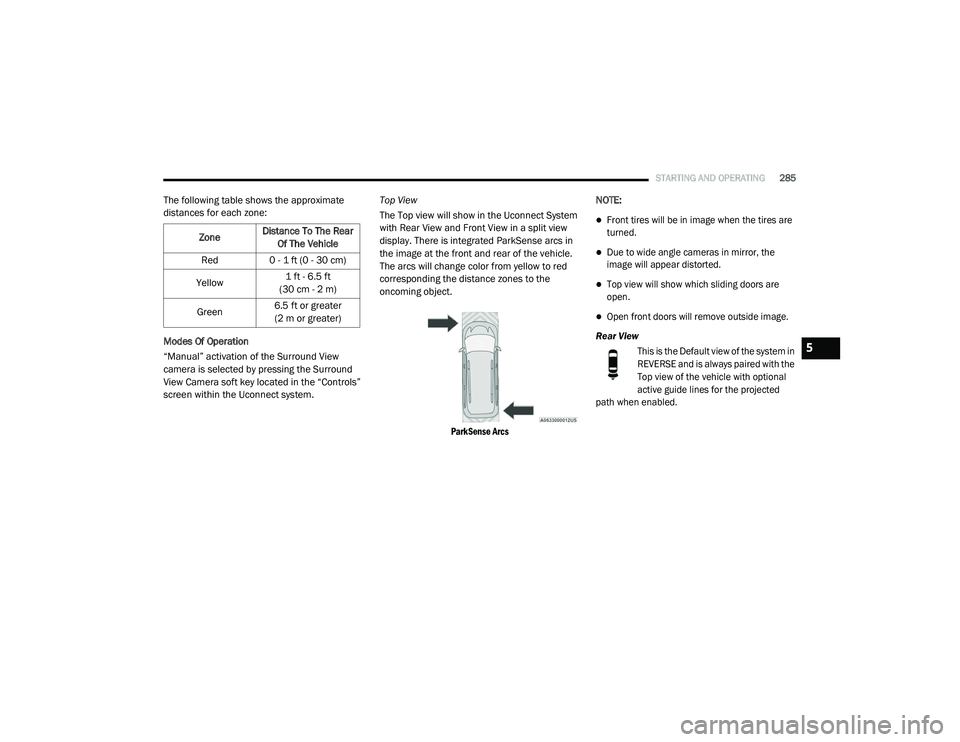
The Top view will show in the Uconnect System
with Rear View and Front View in a split view
display. There is integrated ParkSense arcs in
the image at the front and rear of the vehicle.
The arcs will change color from yellow to red
corresponding the distance zones to the
oncoming object.
ParkSense Arcs
NOTE:
Front tires will be in image when the tires are
turned.
Due to wide angle cameras in mirror, the
image will appear distorted.
Top view will show which sliding doors are
open.
Open front doors will remove outside image.
Rear View This is the Default view of the system in
REVERSE and is always paired with the
Top view of the vehicle with optional
active guide lines for the projected
path when enabled.
Zone
Distance To The Rear
Of The Vehicle
Red 0 - 1 ft (0 - 30 cm)
Yellow 1 ft - 6.5 ft
(30 cm - 2 m)
Green 6.5 ft or greater
(2 m or greater)
5
20_RU_OM_EN_US_t.book Page 285
Page 288 of 516

286STARTING AND OPERATING
(Continued)
Rear Cross Path ViewPressing the Rear Cross Path soft key
will give the driver a wider angle view of
the rear camera system. The Top view
will be disabled when this is selected
Front View The Front view will show you what is
immediately in front of the vehicle and
is always paired with the Top view of
the vehicle.
Front Cross Path View
Pressing the Front Cross Path soft key will
give the driver a wider angle view of the
front camera system. The Top view will be
disabled when this is selected.
Deactivation
The system can be deactivated in the following
conditions:
The speed of the vehicle reaches greater
than 8 mph (13 km/h).
The vehicle shifted into PARK from a different
gear.
If the vehicle is in any gear other than
REVERSE, press the “X” button.
The camera delay system is turned off manu -
ally through the Uconnect settings menu.
Refer to “Uconnect Settings” in “Multimedia”
for further information.
NOTE:
If snow, ice, mud, or any foreign substance
builds up on the camera lenses, clean the
lenses, rinse with water, and dry with a soft
cloth. Do not cover the lenses.
If a malfunction with the system has
occurred, see an authorized dealer.REFUELING THE VEHICLE
There is no fuel filler cap. Two flapper doors
inside the pipe seal the system.
WARNING!
Drivers must be careful when backing up even
when using the Surround View Camera. Always
check carefully behind your vehicle, and be
sure to check for pedestrians, animals, other
vehicles, obstructions, or blind spots before
backing up. You are responsible for the safety
of your surroundings and must continue to pay
attention while backing up. Failure to do so can
result in serious injury or death.
CAUTION!
To avoid vehicle damage, Surround View
should only be used as a parking aid. The
Surround View camera is unable to view
every obstacle or object in your drive path.
To avoid vehicle damage, the vehicle must
be driven slowly when using Surround View
to be able to stop in time when an obstacle
is seen. It is recommended that the driver
look frequently over his/her shoulder when
using Surround View.
WARNING!
Never have any smoking materials lit in or
near the vehicle when the fuel door is open
or the tank is being filled.
Never add fuel when the engine is running.
This is in violation of most state and federal
fire regulations and may cause the
“Malfunction Indicator Light” to turn on.
20_RU_OM_EN_US_t.book Page 286
Page 300 of 516
298STARTING AND OPERATING
(Continued)
RECREATIONAL TOWING (BEHIND MOTORHOME, ETC.)
Towing This Vehicle Behind Another Vehicle
NOTE:
To avoid inadvertent Electric Park Brake
engagement, you must ensure that the Auto
Park Brake feature is disabled before towing
this vehicle (if rear wheels are on the ground).
The Auto Park Brake feature is enabled or
disabled via the customer programmable
features in the Uconnect Settings.
When towing your vehicle, always follow
applicable state and provincial laws. Contact
state and provincial Highway Safety offices
for additional details.
If your vehicle is disabled and in need of
commercial towing service, please refer to
“Towing A Disabled Vehicle” in “In Case Of
Emergency” for further information.
Recreational Towing — All Models
DO NOT flat tow this vehicle. Damage to the
drivetrain will result.
Towing Condition Wheel OFF The Ground All Models
Flat Tow NONENOT ALLOWED
Dolly Tow Front
OK
Rear NOT ALLOWED
On Trailer ALLOK
CAUTION!
DO NOT flat tow this vehicle. Damage to the
drivetrain will result. If this vehicle requires
towing, make sure the drive wheels are OFF
the ground.
Ensure that the Electric Park Brake is
released, and remains released, while
being towed.
Towing this vehicle in violation of the above
requirements can cause severe transmis-
sion damage. Damage from improper
towing is not covered under the New
Vehicle Limited Warranty.
CAUTION! (Continued)
20_RU_OM_EN_US_t.book Page 298
Page 303 of 516
301
IN CASE OF EMERGENCY
HAZARD WARNING FLASHERS
The Hazard Warning Flashers switch is located
in the lower center area of the instrument
panel.
Push the switch to turn on the Hazard
Warning Flashers. When the switch is
activated, all directional turn signals
will flash on and off to warn oncoming
traffic of an emergency. Push the switch a second
time to turn off the Hazard Warning Flashers.
This is an emergency warning system and it
should not be used when the vehicle is in
motion. Use it when your vehicle is disabled and
it is creating a safety hazard for other motorists.
When you must leave the vehicle to seek
assistance, the Hazard Warning Flashers will
continue to operate even though the ignition is
placed in the OFF position.
NOTE:
With extended use, the Hazard Warning
Flashers may wear down your battery.
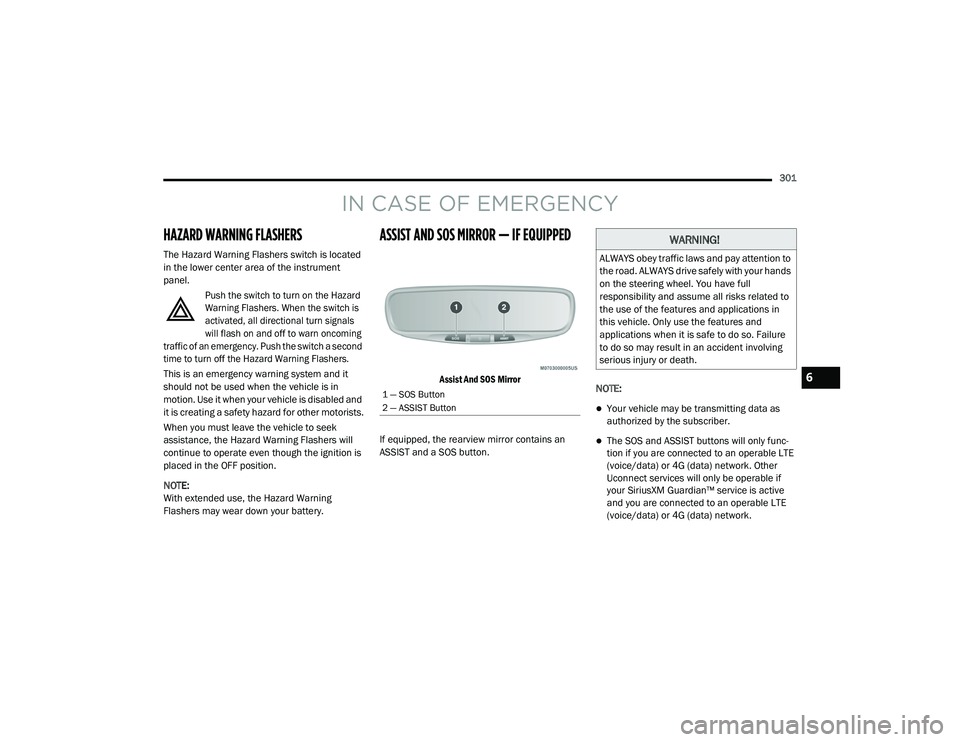
ASSIST AND SOS MIRROR — IF EQUIPPED
Assist And SOS Mirror
If equipped, the rearview mirror contains an
ASSIST and a SOS button. NOTE:
Your vehicle may be transmitting data as
authorized by the subscriber.
The SOS and ASSIST buttons will only func
-
tion if you are connected to an operable LTE
(voice/data) or 4G (data) network. Other
Uconnect services will only be operable if
your SiriusXM Guardian™ service is active
and you are connected to an operable LTE
(voice/data) or 4G (data) network.
1 — SOS Button
2 — ASSIST Button
WARNING!
ALWAYS obey traffic laws and pay attention to
the road. ALWAYS drive safely with your hands
on the steering wheel. You have full
responsibility and assume all risks related to
the use of the features and applications in
this vehicle. Only use the features and
applications when it is safe to do so. Failure
to do so may result in an accident involving
serious injury or death.
6
20_RU_OM_EN_US_t.book Page 301
Page 305 of 516
IN CASE OF EMERGENCY303
(Continued)
in the vehicle. The vehicle’s SOS Call system
will attempt to remain connected with the
SOS operator until the SOS operator termi -
nates the connection.
5. The SOS operator may attempt to contact appropriate emergency responders and
provide them with important vehicle
information and GPS coordinates. SOS Call System Limitations
Vehicles sold in Mexico
DO NOT have SOS Call
system capabilities.
SOS or other emergency line operators in
Mexico may not answer or respond to SOS
system calls.
If the SOS Call system detects a malfunction,
any of the following may occur at the time the
malfunction is detected, and at the beginning of
each ignition cycle:
The Rearview Mirror light located between
the ASSIST and SOS buttons will continuously
be illuminated red.
The Device Screen will display the following
message “Vehicle device requires service.
Please contact your dealer.”
An In-Vehicle Audio message will state
“Vehicle device requires service. Please
contact your dealer.”
WARNING!
If anyone in the vehicle could be in danger
(e.g., fire or smoke is visible, dangerous
road conditions or location), do not wait for
voice contact from an Emergency Services
Agent. All occupants should exit the vehicle
immediately and move to a safe location.
Never place anything on or near the
vehicle’s operable network and GPS
antennas. You could prevent operable
network and GPS signal reception, which
can prevent your vehicle from placing an
emergency call. An operable network and
GPS signal reception is required for the SOS
Call system to function properly.
The SOS Call system is embedded into the
vehicle’s electrical system. Do not add
aftermarket electrical equipment to the
vehicle’s electrical system. This may
prevent your vehicle from sending a signal
to initiate an emergency call. To avoid inter -
ference that can cause the SOS Call system
to fail, never add aftermarket equipment
(e.g., two-way mobile radio, CB radio, data
recorder, etc.) to your vehicle’s electrical
system or modify the antennas on your
vehicle. IF YOUR VEHICLE LOSES BATTERY
POWER FOR ANY REASON (INCLUDING
DURING OR AFTER AN ACCIDENT), THE
UCONNECT FEATURES, APPS AND
SERVICES, AMONG OTHERS, WILL NOT
OPERATE.
Modifications to any part of the SOS Call
system could cause the air bag system to
fail when you need it. You could be injured
if the air bag system is not there to help
protect you.
WARNING! (Continued)
6
20_RU_OM_EN_US_t.book Page 303
Page 319 of 516
IN CASE OF EMERGENCY317
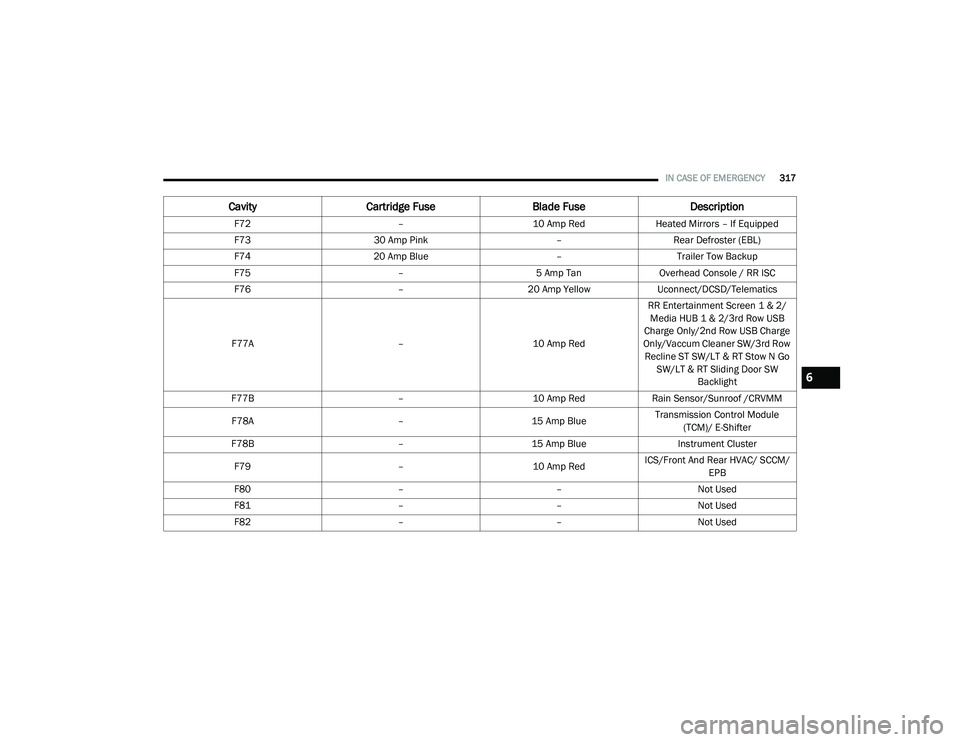
F72 –10 Amp RedHeated Mirrors – If Equipped
F73 30 Amp Pink –Rear Defroster (EBL)
F74 20 Amp Blue –Trailer Tow Backup
F75 –5 Amp TanOverhead Console / RR ISC
F76 –20 Amp YellowUconnect/DCSD/Telematics
F77A –10 Amp RedRR Entertainment Screen 1 & 2/
Media HUB 1 & 2/3rd Row USB
Charge Only/2nd Row USB Charge
Only/Vaccum Cleaner SW/3rd Row Recline ST SW/LT & RT Stow N Go SW/LT & RT Sliding Door SW Backlight
F77B –10 Amp RedRain Sensor/Sunroof /CRVMM
F78A –15 Amp BlueTransmission Control Module
(TCM)/ E-Shifter
F78B –15 Amp Blue Instrument Cluster
F79 –10 Amp RedICS/Front And Rear HVAC/ SCCM/
EPB
F80 ––Not Used
F81 ––Not Used
F82 ––Not Used
CavityCartridge Fuse Blade FuseDescription
6
20_RU_OM_EN_US_t.book Page 317
Page 344 of 516
342IN CASE OF EMERGENCY
TOWING A DISABLED VEHICLE
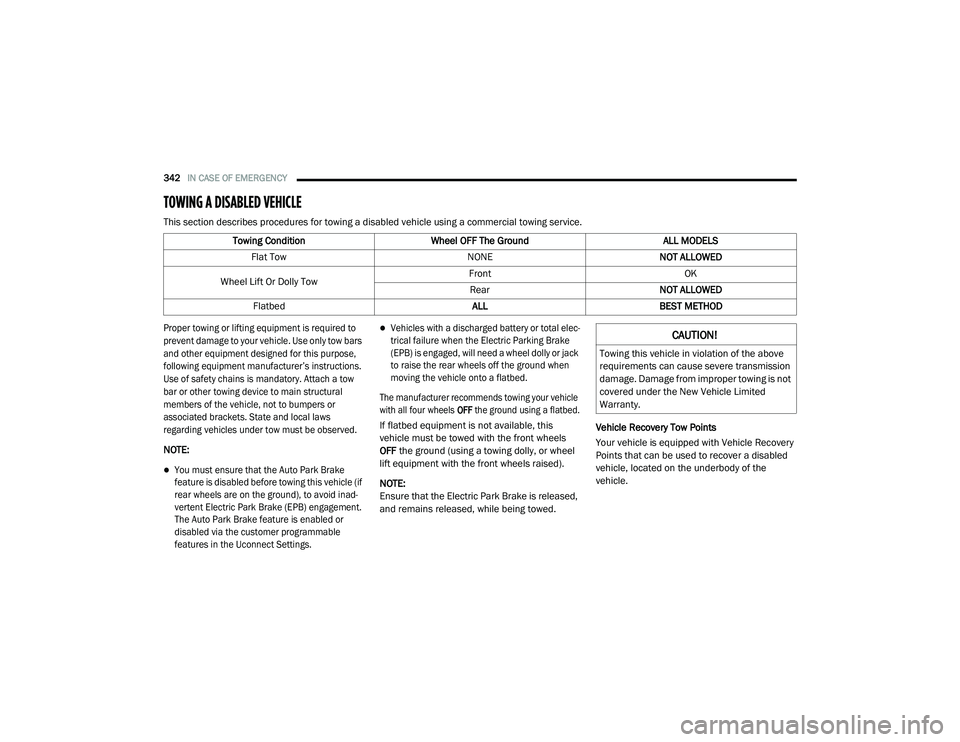
This section describes procedures for towing a disabled vehicle using a commercial towing service.
Proper towing or lifting equipment is required to
prevent damage to your vehicle. Use only tow bars
and other equipment designed for this purpose,
following equipment manufacturer’s instructions.
Use of safety chains is mandatory. Attach a tow
bar or other towing device to main structural
members of the vehicle, not to bumpers or
associated brackets. State and local laws
regarding vehicles under tow must be observed.
NOTE:
You must ensure that the Auto Park Brake
feature is disabled before towing this vehicle (if
rear wheels are on the ground), to avoid inad -
vertent Electric Park Brake (EPB) engagement.
The Auto Park Brake feature is enabled or
disabled via the customer programmable
features in the Uconnect Settings.
Vehicles with a discharged battery or total elec -
trical failure when the Electric Parking Brake
(EPB) is engaged, will need a wheel dolly or jack
to raise the rear wheels off the ground when
moving the vehicle onto a flatbed.
The manufacturer recommends towing your vehicle
with all four wheels OFF the ground using a flatbed.
If flatbed equipment is not available, this
vehicle must be towed with the front wheels
OFF the ground (using a towing dolly, or wheel
lift equipment with the front wheels raised).
NOTE:
Ensure that the Electric Park Brake is released,
and remains released, while being towed. Vehicle Recovery Tow Points
Your vehicle is equipped with Vehicle Recovery
Points that can be used to recover a disabled
vehicle, located on the underbody of the
vehicle.
Towing Condition
Wheel OFF The Ground ALL MODELS
Flat Tow NONENOT ALLOWED
Wheel Lift Or Dolly Tow Front
OK
Rear NOT ALLOWED
Flatbed ALLBEST METHODCAUTION!
Towing this vehicle in violation of the above
requirements can cause severe transmission
damage. Damage from improper towing is not
covered under the New Vehicle Limited
Warranty.
20_RU_OM_EN_US_t.book Page 342
Page 399 of 516
397
(Continued)
MULTIMEDIA
UCONNECT SYSTEMS
For detailed information about your Uconnect
4/4C/4C Nav With 8.4-inch Display system, refer
to your Uconnect Owner’s Manual Supplement.
NOTE:
Uconnect screen images are for illustration
purposes only and may not reflect exact soft-
ware for your vehicle.
CYBERSECURITY
Your vehicle may be a connected vehicle and
may be equipped with both wired and wireless
networks. These networks allow your vehicle to
send and receive information. This information
allows systems and features in your vehicle to
function properly.
Your vehicle may be equipped with certain
security features to reduce the risk of
unauthorized and unlawful access to vehicle
systems and wireless communications. Vehicle
software technology continues to evolve over
time and FCA US LLC, working with its suppliers,
evaluates and takes appropriate steps as
needed. Similar to a computer or other devices, your vehicle may require software updates to
improve the usability and performance of your
systems or to reduce the potential risk of
unauthorized and unlawful access to your
vehicle systems.
The risk of unauthorized and unlawful access to
your vehicle systems may still exist, even if the
most recent version of vehicle software (such as
Uconnect software) is installed.
NOTE:
FCA US LLC or your dealer may contact you
directly regarding software updates.
To help further improve vehicle security and
minimize the potential risk of a security
breach, vehicle owners should:
Routinely check www.driveuconnect.com
(US Residents) or www.driveuconnect.ca
(Canadian Residents) to learn about
available Uconnect software updates.
Only connect and use trusted media
devices (e.g. personal mobile phones,
USBs, CDs).
WARNING!
It is not possible to know or to predict all of
the possible outcomes if your vehicle’s
systems are breached. It may be possible
that vehicle systems, including safety related
systems, could be impaired or a loss of
vehicle control could occur that may result in
an accident involving serious injury or death.
ONLY insert media (e.g., USB, SD card, or CD)
into your vehicle if it came from a trusted
source. Media of unknown origin could
possibly contain malicious software, and if
installed in your vehicle, it may increase the
possibility for vehicle systems to be breached.
As always, if you experience unusual
vehicle behavior, take your vehicle to your
nearest authorized dealer immediately.
WARNING!
(Continued)
9
20_RU_OM_EN_US_t.book Page 397
Page 400 of 516
398MULTIMEDIA
Privacy of any wireless and wired
communications cannot be assured. Third
parties may unlawfully intercept information
and private communications without your
consent. For further information, refer to “Data
Collection & Privacy” in your Uconnect Owner’s
Manual Supplement or “Onboard Diagnostic
System (OBD II) Cybersecurity” in “Getting To
Know Your Instrument Panel”.
UCONNECT SETTINGS
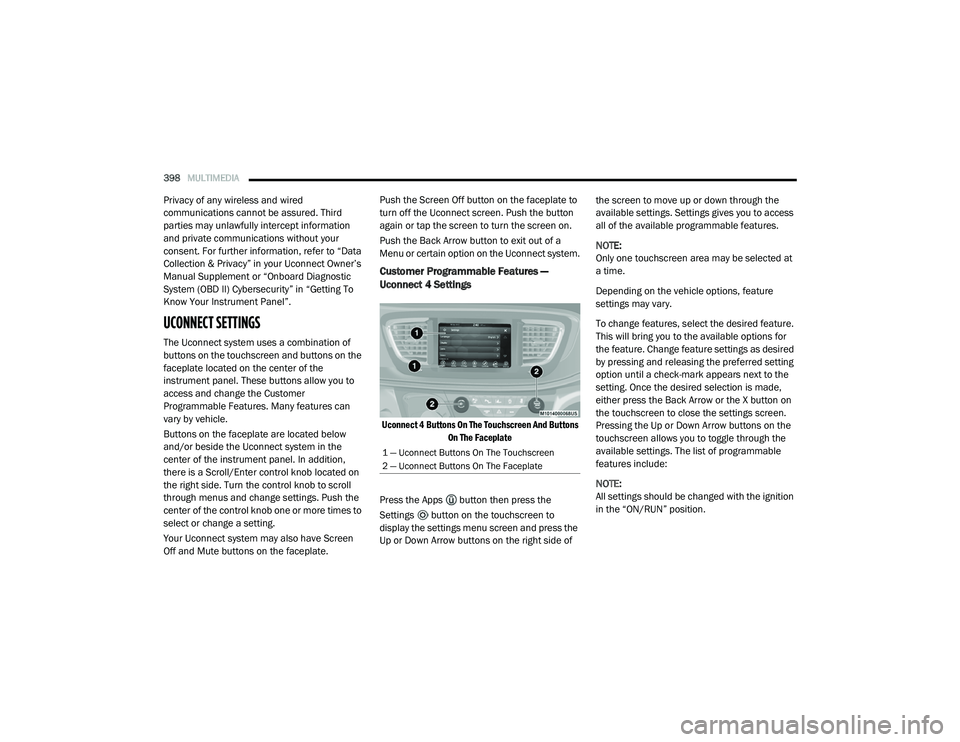
The Uconnect system uses a combination of
buttons on the touchscreen and buttons on the
faceplate located on the center of the
instrument panel. These buttons allow you to
access and change the Customer
Programmable Features. Many features can
vary by vehicle.
Buttons on the faceplate are located below
and/or beside the Uconnect system in the
center of the instrument panel. In addition,
there is a Scroll/Enter control knob located on
the right side. Turn the control knob to scroll
through menus and change settings. Push the
center of the control knob one or more times to
select or change a setting.
Your Uconnect system may also have Screen
Off and Mute buttons on the faceplate. Push the Screen Off button on the faceplate to
turn off the Uconnect screen. Push the button
again or tap the screen to turn the screen on.
Push the Back Arrow button to exit out of a
Menu or certain option on the Uconnect system.
Customer Programmable Features —
Uconnect 4 Settings
Uconnect 4 Buttons On The Touchscreen And Buttons
On The Faceplate
Press the Apps button then press the
Settings button on the touchscreen to
display the settings menu screen and press the
Up or Down Arrow buttons on the right side of the screen to move up or down through the
available settings. Settings gives you to access
all of the available programmable features.
NOTE:
Only one touchscreen area may be selected at
a time.
Depending on the vehicle options, feature
settings may vary.
To change features, select the desired feature.
This will bring you to the available options for
the feature. Change feature settings as desired
by pressing and releasing the preferred setting
option until a check-mark appears next to the
setting. Once the desired selection is made,
either press the Back Arrow or the X button on
the touchscreen to close the settings screen.
Pressing the Up or Down Arrow buttons on the
touchscreen allows you to toggle through the
available settings. The list of programmable
features include:
NOTE:
All settings should be changed with the ignition
in the “ON/RUN” position.
1 — Uconnect Buttons On The Touchscreen
2 — Uconnect Buttons On The Faceplate
20_RU_OM_EN_US_t.book Page 398