amp CHRYSLER PACIFICA 2020 Repair Manual
[x] Cancel search | Manufacturer: CHRYSLER, Model Year: 2020, Model line: PACIFICA, Model: CHRYSLER PACIFICA 2020Pages: 516, PDF Size: 28.69 MB
Page 389 of 516
SERVICING AND MAINTENANCE387
Plastic And Coated Parts
Use Mopar Total Clean to clean vinyl upholstery.
Cleaning Plastic Instrument Cluster Lenses
The lenses in front of the instruments in this
vehicle are molded in clear plastic. When
cleaning the lenses, care must be taken to
avoid scratching the plastic.
1. Clean with a wet soft cloth. A mild soap
solution may be used, but do not use high
alcohol content or abrasive cleaners. If soap
is used, wipe clean with a clean damp cloth.
2. Dry with a soft cloth.
Leather Parts
Mopar Total Clean is specifically recommended
for leather upholstery.
Your leather upholstery can be best preserved
by regular cleaning with a damp soft cloth.
Small particles of dirt can act as an abrasive
and damage the leather upholstery and should
be removed promptly with a damp cloth.
Stubborn soils can be removed easily with a soft
cloth and Mopar Total Clean. Care should be
taken to avoid soaking your leather upholstery
with any liquid. Please do not use polishes, oils,
cleaning fluids, solvents, detergents, or
ammonia-based cleaners to clean your leather
upholstery. Application of a leather conditioner
is not required to maintain the original
condition.
NOTE:
If equipped with light colored leather, it tends to
show any foreign material, dirt, and fabric dye
transfer more so than darker colors. The leather
is designed for easy cleaning, and FCA recom -
mends Mopar total care leather cleaner applied
on a cloth to clean the leather seats as needed.
Glass Surfaces
All glass surfaces should be cleaned on a
regular basis with Mopar Glass Cleaner, or any
commercial household-type glass cleaner.
Never use an abrasive type cleaner. Use caution
when cleaning the inside rear window equipped
with electric defrosters or windows equipped
with radio antennas. Do not use scrapers or
other sharp instruments that may scratch the
elements.
When cleaning the rear view mirror, spray
cleaner on the towel or cloth that you are using.
Do not spray cleaner directly on the mirror.
CAUTION!
Direct contact of air fresheners, insect
repellents, suntan lotions, or hand sani -
tizers to the plastic, painted, or decorated
surfaces of the interior may cause perma -
nent damage. Wipe away immediately.
Damage caused by these type of products
may not be covered by your New Vehicle
Limited Warranty.
CAUTION!
Do not use Alcohol and Alcohol-based and/or
Ketone based cleaning products to clean
leather seats, as damage to the seat may
result.
7
20_RU_OM_EN_US_t.book Page 387
Page 394 of 516
392TECHNICAL SPECIFICATIONS
(Continued)
NOTE:
Intentional tampering with the emissions
control system can result in civil penalties being
assessed against you.
Carbon Monoxide Warnings
The use of fuel additives, which are now
being sold as octane enhancers, is not
recommended. Most of these products
contain high concentrations of methanol.
Fuel system damage or vehicle perfor-
mance problems resulting from the use of
such fuels or additives is not the responsi -
bility of the manufacturer and may void or
not be covered under the New Vehicle
Limited Warranty.
CAUTION! (Continued)
WARNING!
Carbon monoxide (CO) in exhaust gases is
deadly. Follow the precautions below to
prevent carbon monoxide poisoning:
Do not inhale exhaust gases. They contain
carbon monoxide, a colorless and odorless
gas, which can kill. Never run the engine in
a closed area, such as a garage, and never
sit in a parked vehicle with the engine
running for an extended period. If the
vehicle is stopped in an open area with the
engine running for more than a short
period, adjust the ventilation system to
force fresh, outside air into the vehicle.
Guard against carbon monoxide with
proper maintenance. Have the exhaust
system inspected every time the vehicle is
raised. Have any abnormal conditions
repaired promptly. Until repaired, drive with
all side windows fully open.
WARNING! (Continued)
20_RU_OM_EN_US_t.book Page 392
Page 436 of 516
434MULTIMEDIA
Accessibility — If Equipped
After pressing the Accessibility button on the touchscreen, the following settings will be available:
Setting Name Selectable Options
Accessibility — If EquippedOnOff
NOTE:
The “Accessibility” feature announces a function prior to performing the action selected when using DVD/Blu-ray™ and USB Video functions, when it
is activated. For example, when activated, and the Play button is selected, the system will announce “Play button selected”, and then once pressed
again the Play button will perform its action. Video Button Readback OnOff
20_RU_OM_EN_US_t.book Page 434
Page 439 of 516
MULTIMEDIA437
Care And Maintenance
Touchscreen
Do not press the touchscreen with any hard or
sharp objects (pen, USB stick, jewelry, etc.),
which could scratch the touchscreen surface!
Do not spray any liquid or caustic chemicals
directly on the screen! Use a clean and dry
microfiber lens cleaning cloth in order to
clean the touchscreen.
If necessary, use a lint-free cloth dampened
with a cleaning solution, such as isopropyl
alcohol or an isopropyl alcohol and water solu -
tion ratio of 50:50. Be sure to follow the solvent
manufacturer's precautions and directions.
UCONNECT 4 WITH 7-INCH DISPLAY
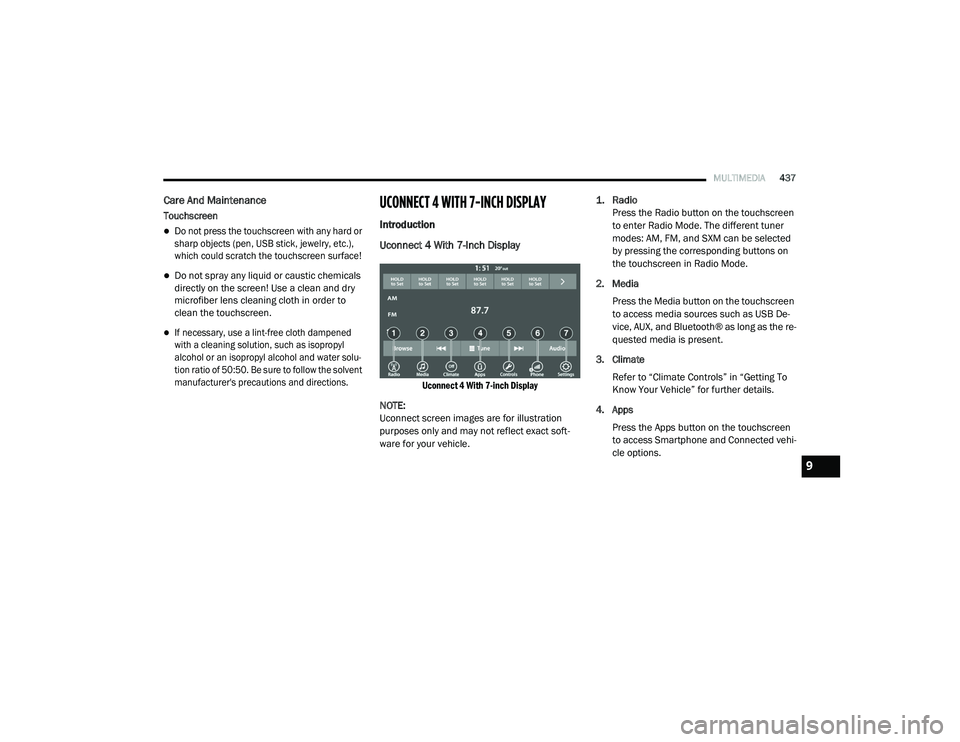
Introduction
Uconnect 4 With 7-Inch Display
Uconnect 4 With 7-inch Display
NOTE:
Uconnect screen images are for illustration
purposes only and may not reflect exact soft -
ware for your vehicle.
1. Radio
Press the Radio button on the touchscreen
to enter Radio Mode. The different tuner
modes: AM, FM, and SXM can be selected
by pressing the corresponding buttons on
the touchscreen in Radio Mode.
2. Media Press the Media button on the touchscreen
to access media sources such as USB De -
vice, AUX, and Bluetooth® as long as the re -
quested media is present.
3. Climate Refer to “Climate Controls” in “Getting To
Know Your Vehicle” for further details.
4. Apps Press the Apps button on the touchscreen
to access Smartphone and Connected vehi -
cle options.
9
20_RU_OM_EN_US_t.book Page 437
Page 450 of 516
448MULTIMEDIA
AUX Mode
Overview
AUX (Auxiliary Mode) is entered by inserting an
AUX device using a cable with a 3.5 mm audio
jack into the AUX port or by pressing the AUX
button on the left side of the display.
Inserting Auxiliary Device
Gently insert the Auxiliary device cable into the
AUX Port. If you insert an Auxiliary device with
the ignition and the radio on, the unit will switch
to AUX mode and begin to play when you insert
the device cable.
Controlling The Auxiliary Device
The control of the auxiliary device (e.g.,
selecting playlists, play, fast forward, etc.)
cannot be provided by the radio; use the device
controls instead. Adjust the volume with the
Volume/Mute rotary knob, or with the volume of
the attached device.
NOTE:
The radio unit is acting as the amplifier for audio
output from the Auxiliary device. Therefore, if the volume control on the Auxiliary device is set
too low, there will be insufficient audio signal for
the radio unit to play the music on the device.
Media Mode
Press the Media button on the touchscreen to
select the desired audio source: AUX.
Audio
Refer to Radio Mode for adjusting the audio
settings.
BLUETOOTH® MODE
Overview
Bluetooth® Streaming Audio (BTSA) or
Bluetooth® Mode is entered by pairing a
Bluetooth® device, containing music, to the
Uconnect System.
Before proceeding, the Bluetooth® device must
be paired to the Uconnect Phone to
communicate with the Uconnect System.
NOTE:
See the pairing procedure in the Uconnect
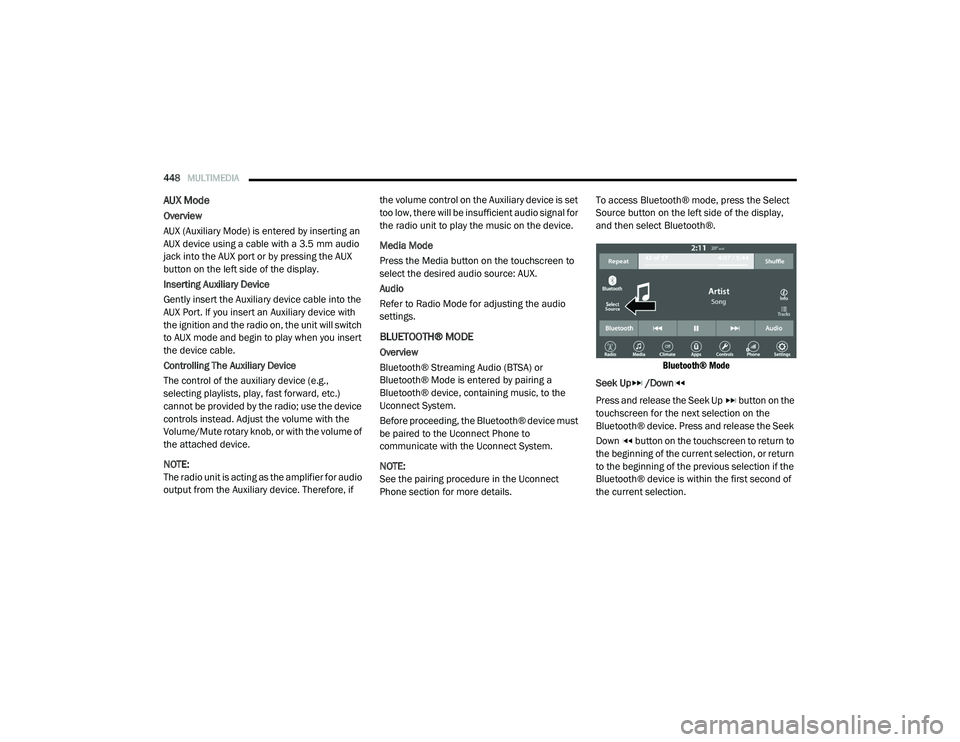
Phone section for more details.To access Bluetooth® mode, press the Select
Source button on the left side of the display,
and then select Bluetooth®.
Bluetooth® Mode
Seek Up /Down
Press and release the Seek Up button on the
touchscreen for the next selection on the
Bluetooth® device. Press and release the Seek
Down button on the touchscreen to return to
the beginning of the current selection, or return
to the beginning of the previous selection if the
Bluetooth® device is within the first second of
the current selection.
20_RU_OM_EN_US_t.book Page 448
Page 455 of 516
MULTIMEDIA453
Apple CarPlay® Apps
To use a compatible app with Apple CarPlay®,
you must have the compatible app downloaded,
and you must be signed in to the app.
Refer to http://www.apple.com/ios/carplay/
(US Residents) or https://www.apple.com/ca/
ios/carplay/ (Canadian Residents) to see the
latest list of available apps for Apple CarPlay®.
Android Auto™ And Apple CarPlay® Tips And
Tricks
AutoPlay
AutoPlay is a feature of the Uconnect system
that automatically begins playing music off of
the connected device, as soon as it is
connected. This feature can be turned on or off
in the Uconnect Settings, within the Audio
Settings category. It’s default setting is on.
NOTE:
AutoPlay® is not supported by Android Auto™. Android Auto™ Automatic Bluetooth® Pairing
After connecting to Android Auto™ for the first
time and undergoing the setup procedure, the
smartphone will automatically pair to the
Uconnect system via Bluetooth® without any
setup required every time it is within range, if
Bluetooth® is turned on.
NOTE:
Android Auto™ features cannot be used with
Bluetooth®, a USB connection is required for its
use. Android Auto™ uses both Bluetooth® and
USB connections to function, and the
connected device will be unavailable to other
devices when connected using Android Auto™.
Multiple Devices Connecting To The Uconnect
System
It is possible to have multiple devices
connected to the Uconnect system. For
example, if using Android Auto™/Apple
CarPlay®, the connected device will be the one
that will be used to place hands-free phone calls or send hands-free text messages. However,
another device can also be paired to the
Uconnect system, via Bluetooth®, as an audio
source, so the passenger can stream music.
NOTE:
If using a Samsung device, every time it is
connected to a media USB, and there is
another device plugged in, you will need to
manually change the configuration of the
USB connection in order for the Samsung
device to send data.
The Uconnect 4 built-in media functions will
be unavailable when Android Auto™/Apple
CarPlay® are in use.
9
20_RU_OM_EN_US_t.book Page 453
Page 456 of 516
454MULTIMEDIA
Phone Mode
Overview
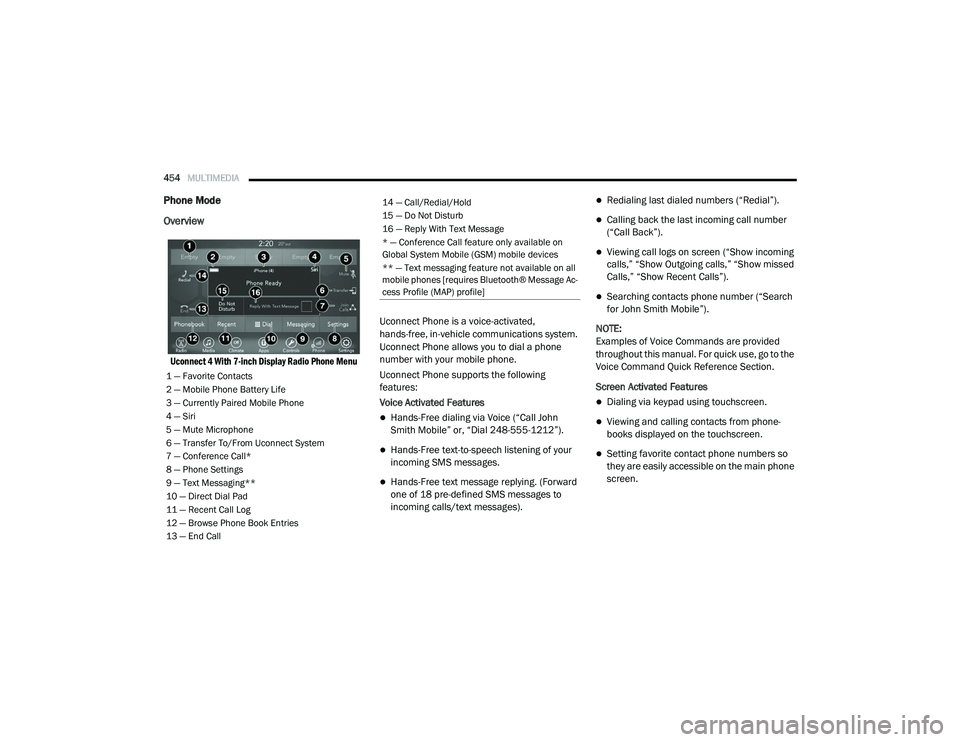
Uconnect 4 With 7-inch Display Radio Phone Menu
Uconnect Phone is a voice-activated,
hands-free, in-vehicle communications system.
Uconnect Phone allows you to dial a phone
number with your mobile phone.
Uconnect Phone supports the following
features:
Voice Activated Features
Hands-Free dialing via Voice (“Call John
Smith Mobile” or, “Dial 248-555-1212”).
Hands-Free text-to-speech listening of your
incoming SMS messages.
Hands-Free text message replying. (Forward
one of 18 pre-defined SMS messages to
incoming calls/text messages).
Redialing last dialed numbers (“Redial”).
Calling back the last incoming call number
(“Call Back”).
Viewing call logs on screen (“Show incoming
calls,” “Show Outgoing calls,” “Show missed
Calls,” “Show Recent Calls”).
Searching contacts phone number (“Search
for John Smith Mobile”).
NOTE:
Examples of Voice Commands are provided
throughout this manual. For quick use, go to the
Voice Command Quick Reference Section.
Screen Activated Features
Dialing via keypad using touchscreen.
Viewing and calling contacts from phone -
books displayed on the touchscreen.
Setting favorite contact phone numbers so
they are easily accessible on the main phone
screen.
1 — Favorite Contacts
2 — Mobile Phone Battery Life
3 — Currently Paired Mobile Phone
4 — Siri
5 — Mute Microphone
6 — Transfer To/From Uconnect System
7 — Conference Call*
8 — Phone Settings
9 — Text Messaging**
10 — Direct Dial Pad
11 — Recent Call Log
12 — Browse Phone Book Entries
13 — End Call
14 — Call/Redial/Hold
15 — Do Not Disturb
16 — Reply With Text Message
* — Conference Call feature only available on
Global System Mobile (GSM) mobile devices
** — Text messaging feature not available on all
mobile phones [requires Bluetooth® Message Ac -
cess Profile (MAP) profile]
20_RU_OM_EN_US_t.book Page 454
Page 458 of 516
456MULTIMEDIA
Uconnect Phone Button
The Uconnect Phone button on your steering
wheel is used to get into the phone mode and
make calls, show recent, incoming, outgoing
calls, view phonebook etc.
Uconnect Voice Command Button
The Uconnect Voice Command button on your
steering wheel is only used for “barge in” and
when you are already in a call and you want to
send tones or make another call.
The button on your steering wheel is also used
to access the Voice Commands for the
Uconnect Voice Command features if your
vehicle is equipped. Please see the Uconnect
Voice Command section for direction on how to
use the button.
The Uconnect Phone is fully integrated with the
vehicle's audio system. The volume of the
Uconnect Phone can be adjusted either from
the radio volume control knob or from the
steering wheel radio control.Phone Operation
Operation
Voice commands can be used to operate the
Uconnect Phone and to navigate through the
Uconnect Phone menu structure. Voice
commands are required after most Uconnect
Phone prompts. There are two general methods
for how Voice Command works:
1. Say compound commands like “Call John
Smith mobile”.
2. Say the individual commands and allow the system to guide you to complete the task.
You will be prompted for a specific command
and then guided through the available options.
Prior to giving a voice command, one must
wait for the beep, which follows the “Listen”
prompt or another prompt.
For certain operations, compound
commands can be used. For example,
instead of saying “Call” and then “John
Smith” and then “mobile”, the following
compound command can be said: “Call John
Smith mobile.”
For each feature explanation in this section,
only the compound command form of the
voice command is given. You can also break
the commands into parts and say each part
of the command when you are asked for it.
For example, you can use the compound
command form voice command “Search for
John Smith,” or you can break the compound
command form into two voice commands:
“Search Contact” and when asked “John
Smith.” Please remember, the Uconnect
Phone works best when you talk in a normal
conversational tone, as if speaking to
someone sitting a few feet/meters away from
you.
Natural Speech
Your Uconnect Phone Voice system uses a
Natural Language Voice Recognition (VR)
engine.
Natural speech allows the user to speak
commands in phrases or complete sentences.
The system filters out certain non-word
utterances and sounds such as “ah” and “eh.”
The system handles fill-in words such as “I
would like to.”
20_RU_OM_EN_US_t.book Page 456
Page 463 of 516
MULTIMEDIA461
Deleting A Phone Or Audio Device
1. Press the Phone Settings button on the
touchscreen.
2. Press the Pair Phones or Paired Audio Devices button on the touchscreen.
3. Press the Settings button located to the right of the device name for a different
Phone or Audio Device than the currently
connected device.
4. The options pop-up will be displayed.
5. Press the Delete Device button on the touchscreen.
6. Press the X button to exit out of the Settings screen. Making A Phone Or Audio Device A Favorite
1. Press the Phone Settings button on the
touchscreen.
2. Press the Paired Phones or Paired Audio Devices button on the touchscreen.
3. Press the Settings button located to the right of the device name.
4. The options pop-up will be displayed.
5. Press the Make Favorite button on the touchscreen; you will see the chosen device
move to the top of the list.
6. Press the X to exit out of the Settings screen. Phonebook Download (Automatic Phonebook
Transfer From Mobile Phone) — If Equipped
If equipped and specifically supported by your
phone, Uconnect Phone automatically
downloads names (text names) and number
entries from the mobile phone’s phonebook.
Specific Bluetooth® Phones with Phonebook
Access Profile may support this feature.
See Uconnect website, UconnectPhone.com,
for supported phones.
To call a name from a downloaded mobile
phone book, follow the procedure in the
“Uconnect Voice Recognition Quick Tips”
section.
Automatic download and update of a phone
book, if supported, begins as soon as the
Bluetooth® wireless phone connection is
made to the Uconnect Phone, for example,
after you start the vehicle.
A maximum of 5,000 contact names with
four numbers per contact will be downloaded
and updated every time a phone is
connected to the Uconnect Phone.9
20_RU_OM_EN_US_t.book Page 461
Page 464 of 516
462MULTIMEDIA
Depending on the maximum number of
entries downloaded, there may be a short
delay before the latest downloaded names
can be used. Until then, if available, the previ -
ously downloaded phonebook is available for
use.
Only the phonebook of the currently
connected mobile phone is accessible.
This downloaded phonebook cannot be
edited or deleted on the Uconnect Phone.
These can only be edited on the mobile
phone. The changes are transferred and
updated to Uconnect Phone on the next
phone connection.
Managing Your Favorites
There are two ways you can add an entry to your
Favorites.
1. After loading the mobile phonebook, press the Favorites button on the touchscreen,
and then press one of the +Add favorite
Contact buttons that appears on the list.
2. After loading the mobile phonebook, select
Contacts from the Phone main screen, and
then select the appropriate number. Press
the Down arrow symbol button next to the
selected number to display the options
pop-up. In the pop-up select Add to
Favorites.
NOTE:
If the Favorites list is full, you will be asked to
remove an existing favorite.
To Remove A Favorite
1. To remove a Favorite, select “Favorites” from the Phone main screen.
2. Next select the Down arrow icon next to the contact you want to remove from your
favorites. This will bring up the options for
that favorite contact.
3. Press Remove from Favs.
Phone Call Features
The following features can be accessed through
the Uconnect Phone if the feature(s) are
available and supported by Bluetooth® on your
mobile service plan. For example, if your mobile
service plan provides three-way calling, this
feature can be accessed through the Uconnect
Phone. Check with your mobile service provider
for the features that you have.
Ways To Initiate A Phone Call
Listed below are all the ways you can initiate a
phone call with Uconnect Phone.
Redial
Dial by pressing in the number
Voice Commands (Dial by Saying a Name,
Call by Saying a Phonebook Name, Redial or
Call Back)
Favorites
Mobile Phonebook
Recent Call Log
SMS Message Viewer
20_RU_OM_EN_US_t.book Page 462