radio CHRYSLER PACIFICA HYBRID 2019 Service Manual
[x] Cancel search | Manufacturer: CHRYSLER, Model Year: 2019, Model line: PACIFICA HYBRID, Model: CHRYSLER PACIFICA HYBRID 2019Pages: 620, PDF Size: 4.92 MB
Page 530 of 620
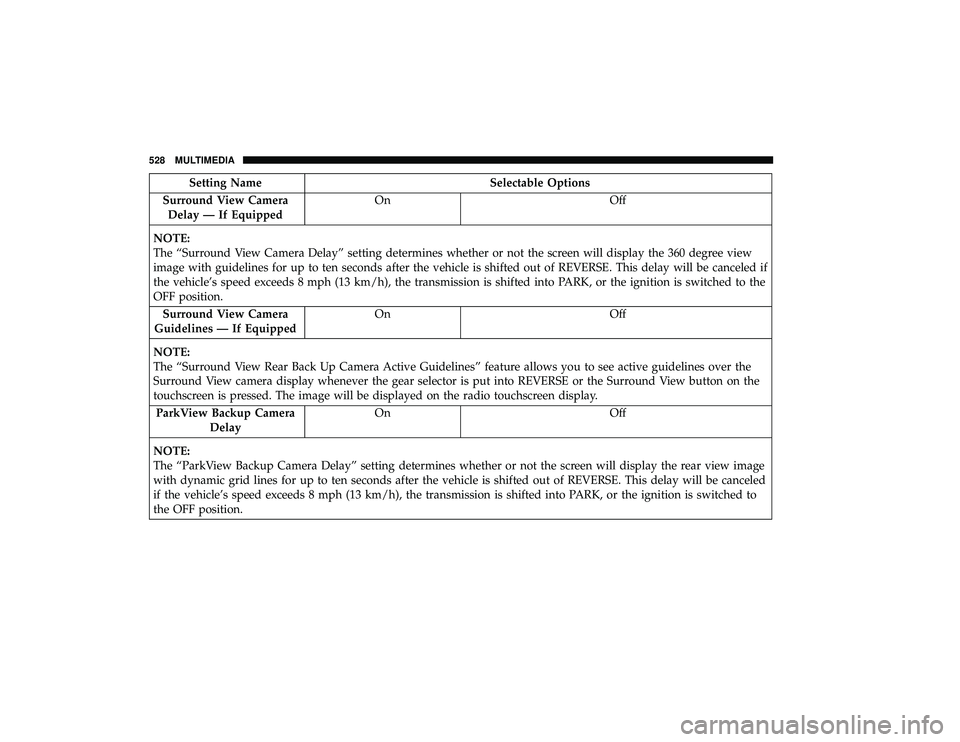
Setting NameSelectable Options
Surround View Camera Delay — If Equipped On
Off
NOTE:
The “Surround View Camera Delay” setting determines whether or not the screen will display the 360 degree view
image with guidelines for up to ten seconds after the vehicle is shifted out of REVERSE. This delay will be canceled if
the vehicle’s speed exceeds 8 mph (13 km/h), the transmission is shifted into PARK, or the ignition is switched to the
OFF position. Surround View Camera
Guidelines — If Equipped On
Off
NOTE:
The “Surround View Rear Back Up Camera Active Guidelines” feature allows you to see active guidelines over the
Surround View camera display whenever the gear selector is put into REVERSE or the Surround View button on the
touchscreen is pressed. The image will be displayed on the radio touchscreen display. ParkView Backup Camera Delay On
Off
NOTE:
The “ParkView Backup Camera Delay” setting determines whether or not the screen will display the rear view image
with dynamic grid lines for up to ten seconds after the vehicle is shifted out of REVERSE. This delay will be canceled
if the vehicle’s speed exceeds 8 mph (13 km/h), the transmission is shifted into PARK, or the ignition is switched to
the OFF position.
528 MULTIMEDIA
Page 538 of 620
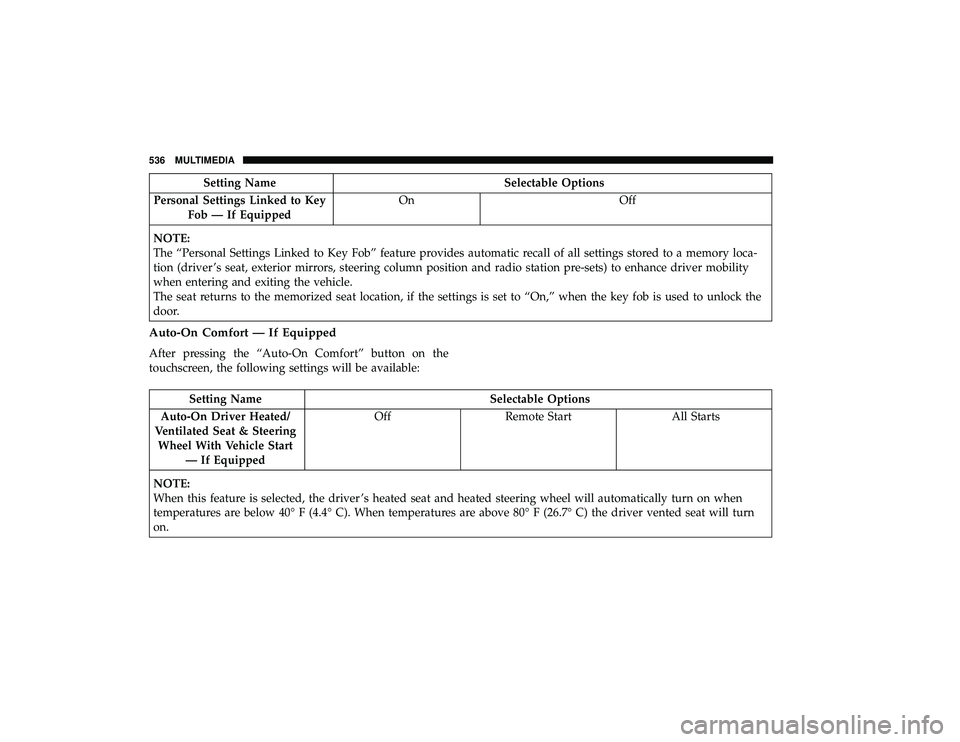
Setting NameSelectable Options
Personal Settings Linked to Key Fob — If Equipped On
Off
NOTE:
The “Personal Settings Linked to Key Fob” feature provides automatic recall of all settings stored to a memory loca-
tion (driver ’s seat, exterior mirrors, steering column position and radio station pre-sets) to enhance driver mobility
when entering and exiting the vehicle.
The seat returns to the memorized seat location, if the settings is set to “On,” when the key fob is used to unlock the
door.
Auto-On Comfort — If Equipped
After pressing the “Auto-On Comfort” button on the
touchscreen, the following settings will be available:
Setting Name Selectable Options
Auto-On Driver Heated/
Ventilated Seat & Steering Wheel With Vehicle Start — If Equipped Off
Remote Start All Starts
NOTE:
When this feature is selected, the driver ’s heated seat and heated steering wheel will automatically turn on when
temperatures are below 40° F (4.4° C). When temperatures are above 80° F (26.7° C) the driver vented seat will turn
on.
536 MULTIMEDIA
Page 539 of 620
Engine Off Options
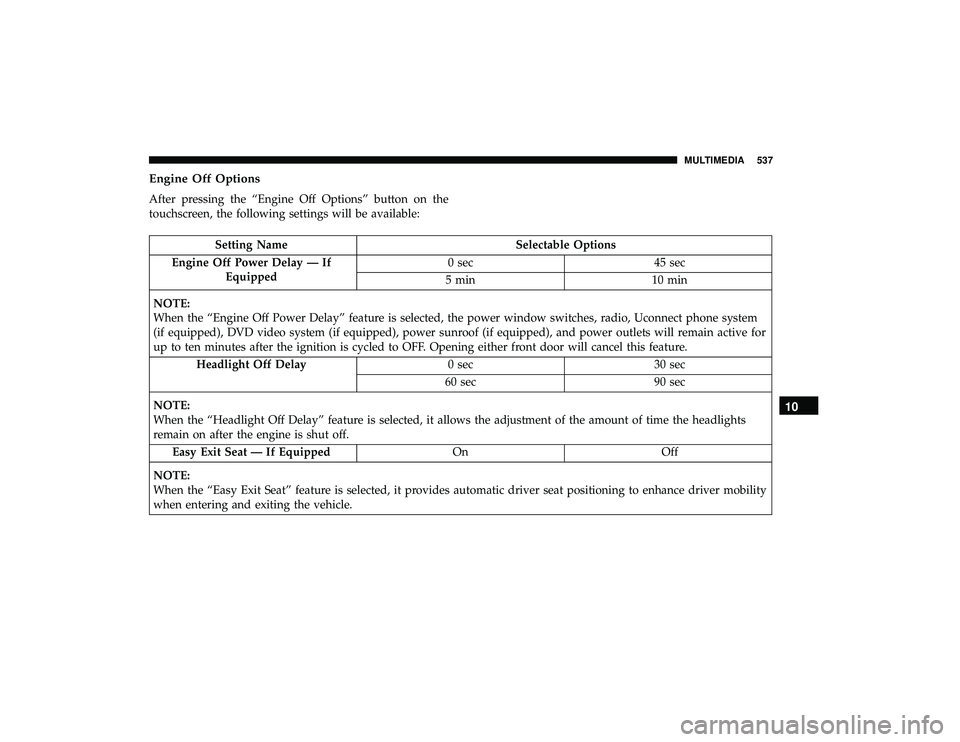
After pressing the “Engine Off Options” button on the
touchscreen, the following settings will be available:
Setting NameSelectable Options
Engine Off Power Delay — If Equipped 0 sec
45 sec
5 min 10 min
NOTE:
When the “Engine Off Power Delay” feature is selected, the power window switches, radio, Uconnect phone system
(if equipped), DVD video system (if equipped), power sunroof (if equipped), and power outlets will remain active for
up to ten minutes after the ignition is cycled to OFF. Opening either front door will cancel this feature. Headlight Off Delay 0 sec30 sec
60 sec 90 sec
NOTE:
When the “Headlight Off Delay” feature is selected, it allows the adjustment of the amount of time the headlights
remain on after the engine is shut off. Easy Exit Seat — If Equipped OnOff
NOTE:
When the “Easy Exit Seat” feature is selected, it provides automatic driver seat positioning to enhance driver mobility
when entering and exiting the vehicle.
10
MULTIMEDIA 537
Page 542 of 620
SiriusXM Setup — If Equipped
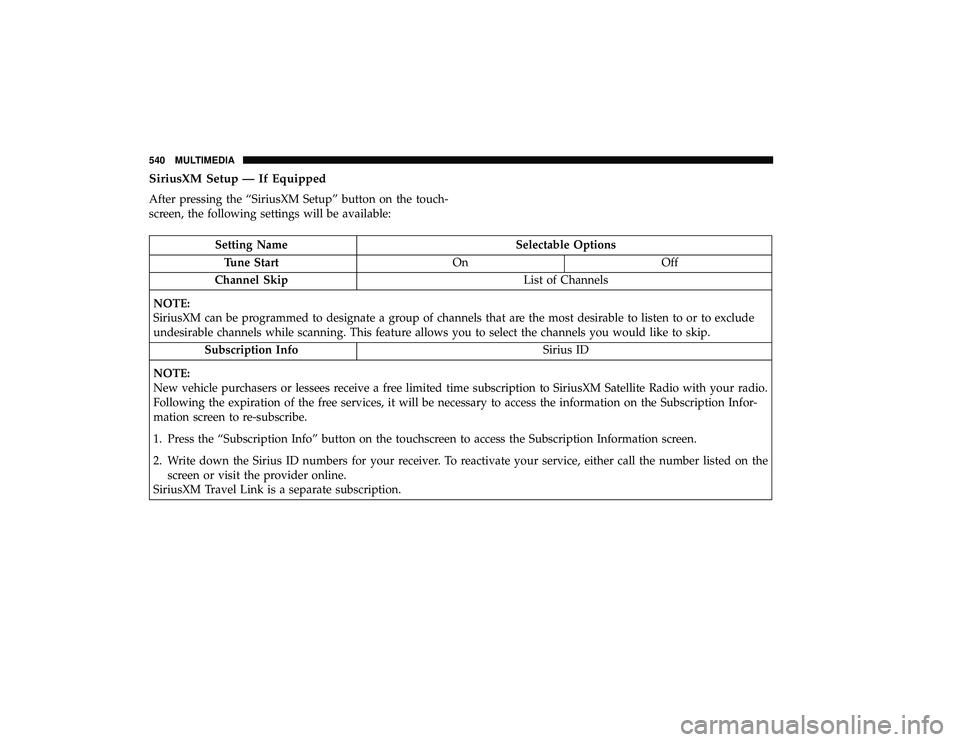
After pressing the “SiriusXM Setup” button on the touch-
screen, the following settings will be available:
Setting NameSelectable Options
Tune Start OnOff
Channel Skip List of Channels
NOTE:
SiriusXM can be programmed to designate a group of channels that are the most desirable to listen to or to exclude
undesirable channels while scanning. This feature allows you to select the channels you would like to skip. Subscription Info Sirius ID
NOTE:
New vehicle purchasers or lessees receive a free limited time subscription to SiriusXM Satellite Radio with your radio.
Following the expiration of the free services, it will be necessary to access the information on the Subscription Infor-
mation screen to re-subscribe.
1. Press the “Subscription Info” button on the touchscreen to access the Subscription Information screen.
2. Write down the Sirius ID numbers for your receiver. To reactivate your service, either call the number listed on the screen or visit the provider online.
SiriusXM Travel Link is a separate subscription.
540 MULTIMEDIA
Page 545 of 620
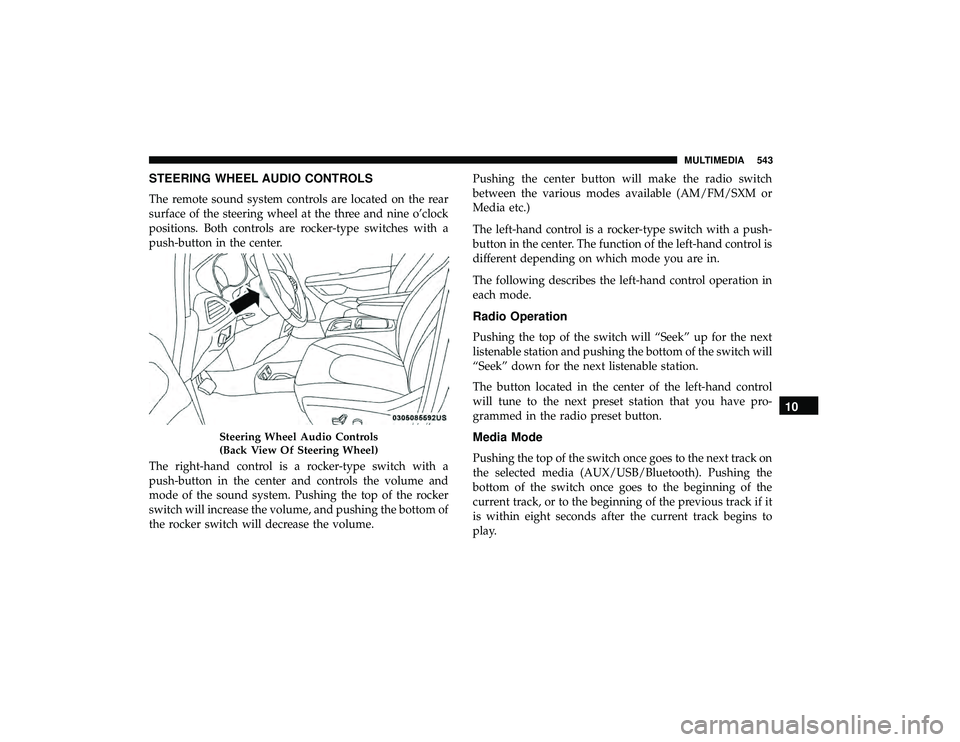
STEERING WHEEL AUDIO CONTROLS
The remote sound system controls are located on the rear
surface of the steering wheel at the three and nine o’clock
positions. Both controls are rocker-type switches with a
push-button in the center.
The right-hand control is a rocker-type switch with a
push-button in the center and controls the volume and
mode of the sound system. Pushing the top of the rocker
switch will increase the volume, and pushing the bottom of
the rocker switch will decrease the volume.Pushing the center button will make the radio switch
between the various modes available (AM/FM/SXM or
Media etc.)
The left-hand control is a rocker-type switch with a push-
button in the center. The function of the left-hand control is
different depending on which mode you are in.
The following describes the left-hand control operation in
each mode.
Radio Operation
Pushing the top of the switch will “Seek” up for the next
listenable station and pushing the bottom of the switch will
“Seek” down for the next listenable station.
The button located in the center of the left-hand control
will tune to the next preset station that you have pro-
grammed in the radio preset button.
Media Mode
Pushing the top of the switch once goes to the next track on
the selected media (AUX/USB/Bluetooth). Pushing the
bottom of the switch once goes to the beginning of the
current track, or to the beginning of the previous track if it
is within eight seconds after the current track begins to
play.
Steering Wheel Audio Controls
(Back View Of Steering Wheel)
10
MULTIMEDIA 543
Page 548 of 620
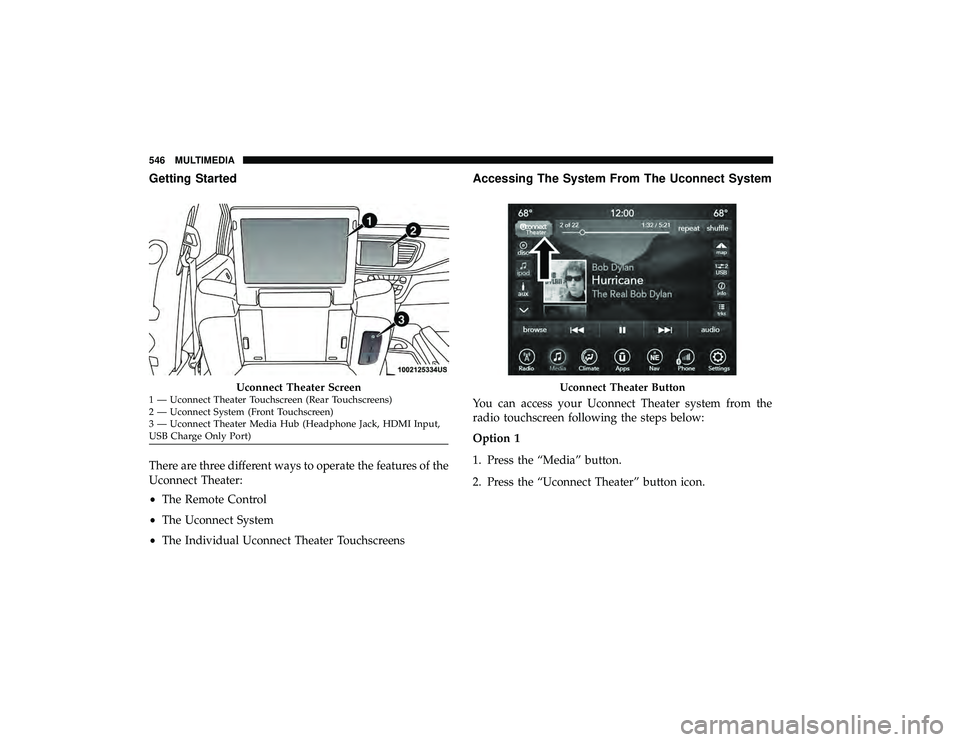
Getting Started
There are three different ways to operate the features of the
Uconnect Theater:
•The Remote Control
• The Uconnect System
• The Individual Uconnect Theater Touchscreens
Accessing The System From The Uconnect System
You can access your Uconnect Theater system from the
radio touchscreen following the steps below:
Option 1
1. Press the “Media” button.
2. Press the “Uconnect Theater” button icon.
Uconnect Theater Screen1 — Uconnect Theater Touchscreen (Rear Touchscreens)
2 — Uconnect System (Front Touchscreen)
3 — Uconnect Theater Media Hub (Headphone Jack, HDMI Input,
USB Charge Only Port)Uconnect Theater Button
546 MULTIMEDIA
Page 550 of 620
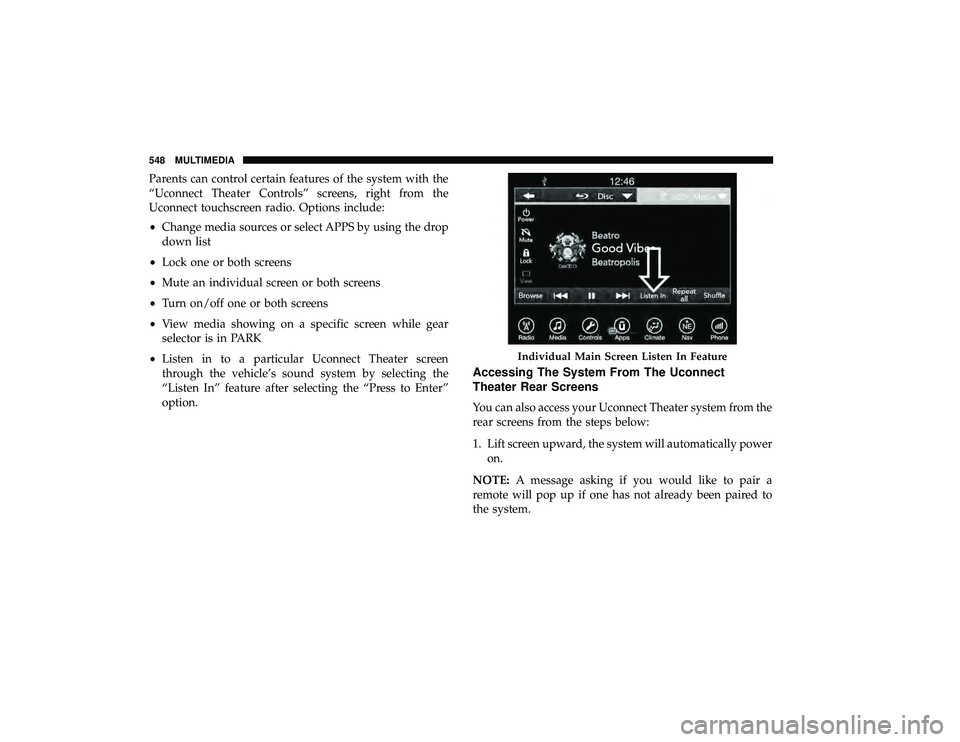
Parents can control certain features of the system with the
“Uconnect Theater Controls” screens, right from the
Uconnect touchscreen radio. Options include:
•Change media sources or select APPS by using the drop
down list
• Lock one or both screens
• Mute an individual screen or both screens
• Turn on/off one or both screens
• View media showing on a specific screen while gear
selector is in PARK
• Listen in to a particular Uconnect Theater screen
through the vehicle’s sound system by selecting the
“Listen In” feature after selecting the “Press to Enter”
option.
Accessing The System From The Uconnect
Theater Rear Screens
You can also access your Uconnect Theater system from the
rear screens from the steps below:
1. Lift screen upward, the system will automatically power on.
NOTE: A message asking if you would like to pair a
remote will pop up if one has not already been paired to
the system.
Individual Main Screen Listen In Feature
548 MULTIMEDIA
Page 553 of 620
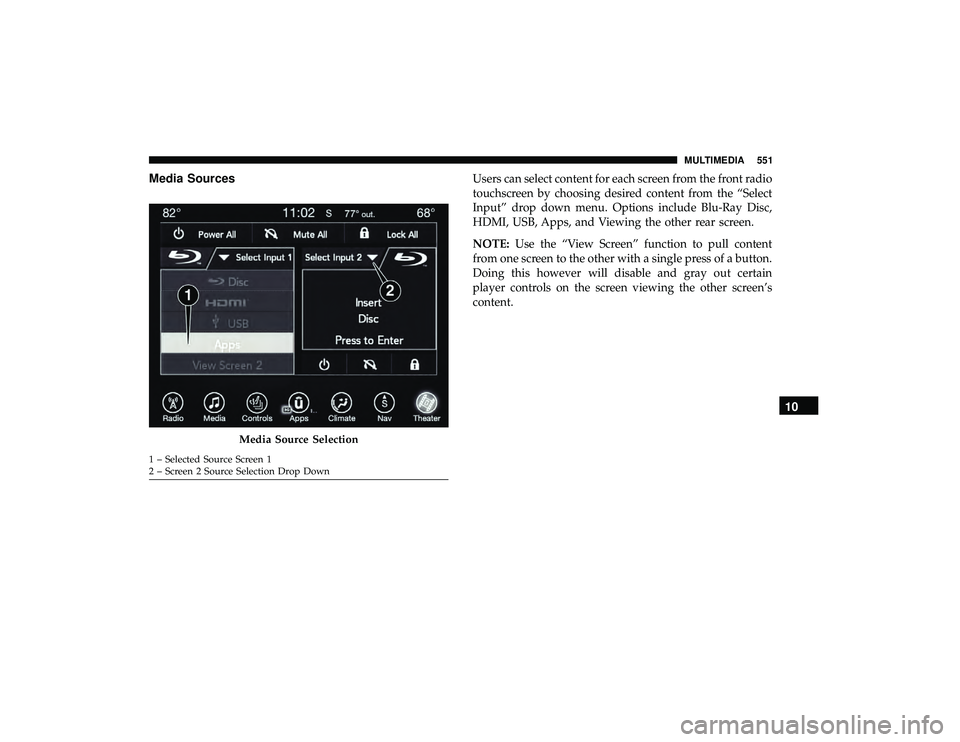
Media SourcesUsers can select content for each screen from the front radio
touchscreen by choosing desired content from the “Select
Input” drop down menu. Options include Blu-Ray Disc,
HDMI, USB, Apps, and Viewing the other rear screen.
NOTE:Use the “View Screen” function to pull content
from one screen to the other with a single press of a button.
Doing this however will disable and gray out certain
player controls on the screen viewing the other screen’s
content.
Media Source Selection
1 – Selected Source Screen 1
2 – Screen 2 Source Selection Drop Down
10
MULTIMEDIA 551
Page 557 of 620
General Information
The following regulatory statement applies to all Radio
Frequency (RF) devices equipped in this vehicle:
This device complies with Part 15 of the FCC Rules and
with Industry Canada license-exempt RSS standard(s).
Operation is subject to the following two conditions:
1. This device may not cause harmful interference, and
2. This device must accept any interference received, in-cluding interference that may cause undesired opera-
tion.
NOTE: Changes or modifications not expressly approved
by the party responsible for compliance could void the
user ’s authority to operate the equipment.
Play A DVD/Blu-ray Or USB Media File From
Uconnect System
1. Insert a Blu-ray disc or DVD disc into the disc player with the label facing up, or insert a USB drive into rear
Video USB port.
NOTE: The DVD/Blu-ray Disc player and Video USB port
are both located under the radio controls in the instrument
panel. 2. Press the “Uconnect Theater” button on the radio touch-
screen.
Refer to “Accessing The System From The Uconnect Sys-
tem” in this section for further information.
3. Select Disc or USB from the source controls (i.e. select the desired source from the “Select Input 1” or “Select
Input 2” menu for the respective screen).
4. For DVD/Blu-ray disc – press the “Press to Enter” feature in the Movie Snapshot on the radio touchscreen,
then press “OK” on the following screen. The steps to
start a DVD are dependent on the steps required by that
specific DVD. For USB Media Files - Press Music, Movie,
or Folders, then select media title from list(s).
5. To play a DVD/Blu-ray disc on both screens simultane- ously, select “Disc” from both screen drop downs, or
choose “Disc Source” on one screen and push the “View
Screen” button on the other.
10
MULTIMEDIA 555
Page 559 of 620
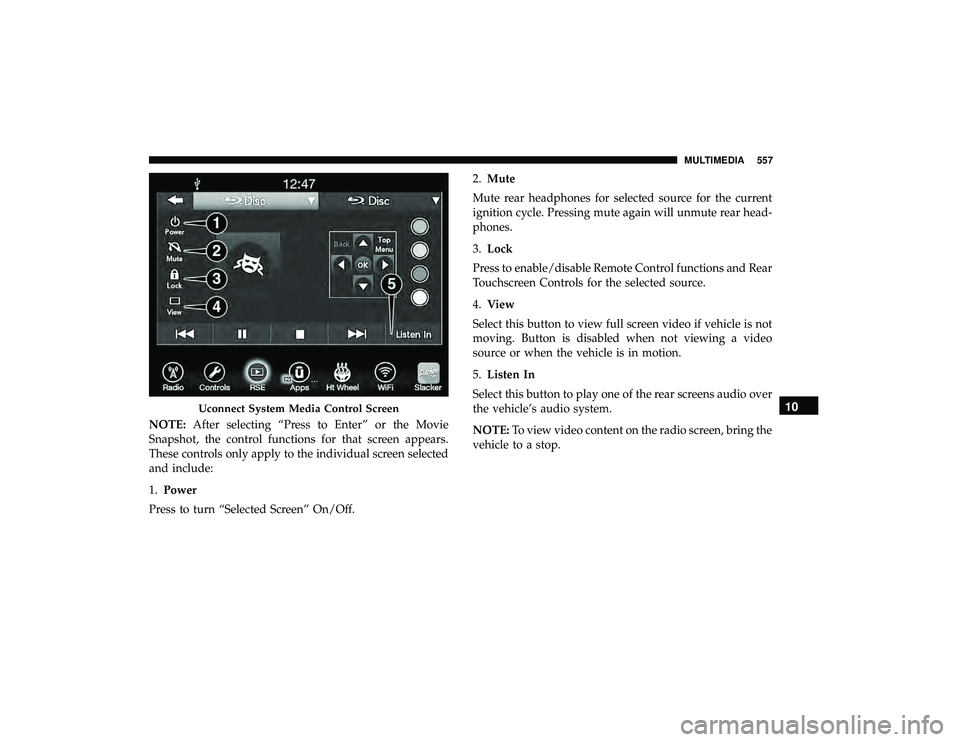
NOTE:After selecting “Press to Enter” or the Movie
Snapshot, the control functions for that screen appears.
These controls only apply to the individual screen selected
and include:
1. Power
Press to turn “Selected Screen” On/Off. 2.
Mute
Mute rear headphones for selected source for the current
ignition cycle. Pressing mute again will unmute rear head-
phones.
3. Lock
Press to enable/disable Remote Control functions and Rear
Touchscreen Controls for the selected source.
4. View
Select this button to view full screen video if vehicle is not
moving. Button is disabled when not viewing a video
source or when the vehicle is in motion.
5. Listen In
Select this button to play one of the rear screens audio over
the vehicle’s audio system.
NOTE: To view video content on the radio screen, bring the
vehicle to a stop.
Uconnect System Media Control Screen10
MULTIMEDIA 557