uconnect CHRYSLER TOWN AND COUNTRY 2014 5.G Owner's Manual
[x] Cancel search | Manufacturer: CHRYSLER, Model Year: 2014, Model line: TOWN AND COUNTRY, Model: CHRYSLER TOWN AND COUNTRY 2014 5.GPages: 148, PDF Size: 4.26 MB
Page 59 of 148
Playing Music From The HDD
• Press the “MEDIA” hard-key to display the media source tabs at the top of the screen. Touchthe “HDD” soft-key tab. Touch the desired track soft-key to play or touch the “SEARCH/
BROWSE” soft-key to search by artist, by album, by song, by genre, from a folder, or from
Favorites.
Cleaning Your Touchscreen Radio
• Do not spray any liquid or caustic chemicals directly on the screen. Use a clean and dry microfiber lens cleaning cloth to clean the touchscreen.
• If necessary, use a lint-free cloth dampened with a cleaning solution such as isopropyl alcohol or an isopropyl alcohol and water solution ratio of 50:50. Always follow the solvent manufac-
turer's precautions and directions.
Garmin® Navigation
•Uconnect® 430N integrates Garmin’s consumer-friendly navigation into your vehicle. Garmin®
Navigation includes a database with over 6 million points of interest.
•Touch the “NAV” soft-key in the upper right corner of the screen to access the Navigation system.
Changing The Navigation Voice Prompt
Volume
1. Program a destination.
2.
While traveling on your route, touch the
upper left area of the map screen where your
next turn is displayed.
3. The Navigation system will then repeat the distance to your next turn.
4. While the Navigation system is speaking, use the ON/OFF VOLUME rotary knob to adjust the volume to a comfortable level. Please note the volume setting for Navigation Voice
Prompt is different than the audio system.
NOTE:
For your own safety and the safety of others, it is not possible to use certain features while the
vehicle is in motion.
ELECTRONICS
57
Page 62 of 148
Acquiring Satellites
• The GPS Satellite strength bars indicate the strength of your satellite reception.
• Acquiring satellite signals can take a few minutes. When at least one of the bars is green, yourdevice has acquired satellite signals.
• You may experience delays receiving satellite signals when in areas with an obstructed view to the sky, such as garages, tunnels, or large cities with tall buildings.
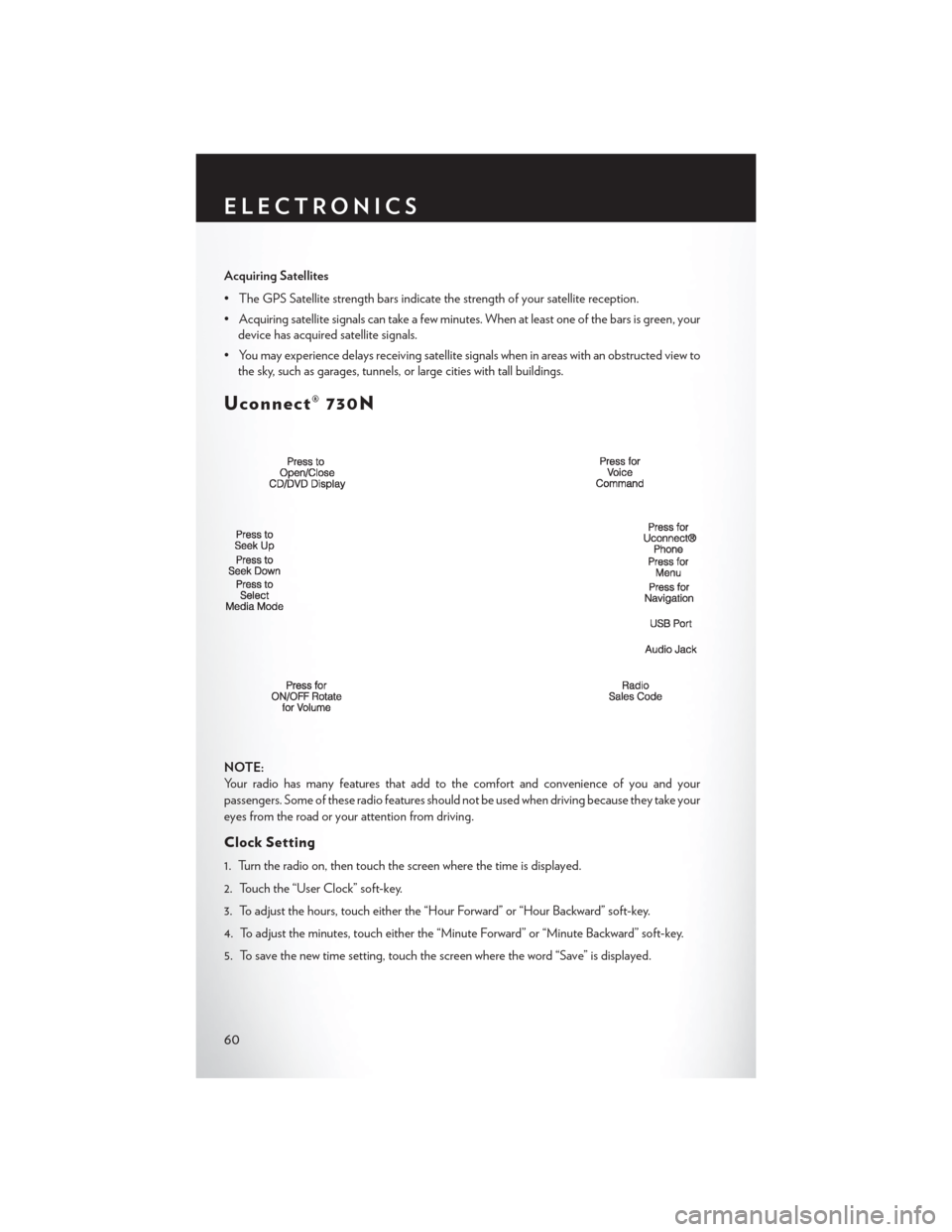
Uconnect® 730N
NOTE:
Your radio has many features that add to the comfort and convenience of you and your
passengers. Some of these radio features should not be used when driving because they take your
eyes from the road or your attention from driving.
Clock Setting
1. Turn the radio on, then touch the screen where the time is displayed.
2. Touch the “User Clock” soft-key.
3. To adjust the hours, touch either the “Hour Forward” or “Hour Backward” soft-key.
4. To adjust the minutes, touch either the “Minute Forward” or “Minute Backward” soft-key.
5. To save the new time setting, touch the screen where the word “Save” is displayed.
ELECTRONICS
60
Page 66 of 148
Audio Jack Operation
• The AUX/Audio Jack provides a means to connect a portable audio device, such as an MP3player or an iPod®, to the vehicle’s sound system. This requires the use of a 3.5 mm stereo audio
patch cable.
• Press the RADIO/MEDIA hard-key, then the “AUX” soft-key to change the mode to auxiliary device if the Audio Jack is connected, allowing the music from your portable device to play
through the vehicle's speakers.
• The functions of the portable device are controlled using the device itself, not the buttons on the radio. The volume may be controlled using the radio or portable device.
Hard Disk Drive (HDD) Operation
• The Hard Disk Drive (HDD) mode gives you access to the audio files on the internal hard diskdrive. It functions similar to a CD player, with the exception that the internal HDD can hold
more tracks.
• It is also possible to import display pictures to the internal hard disk drive. The pictures can be displayed on the right half of the radio screen.
• Before using the HDD mode, you will need to copy songs and pictures to the internal hard drive. Songs and pictures can be added to the hard drive by using a CD or USB device
(e.g. thumb drive or memory stick).
NOTE:
• HDD supports only .jpg/JPEG formats for photos.
• WMA/MP3 Files and selective Songs from a CD can also be added to the HDD. See the Uconnect® 730N Supplement Manual for more information.
Copying Music From CD
• Press the OPEN/CLOSE hard-key.
• Insert a disc, then press the MENU hard-key.
• Touch the “MY FILES” soft-key, then select “MY MUSIC.”
ELECTRONICS
64
Page 73 of 148
SiriusXM SATELLITE RADIO/TRAVEL LINK
• SiriusXM Travel Link requires a subscription, sold separately after the 1 year trial subscriptionincluded with your vehicle purchase.
• SiriusXM Travel Link is only available in the United States.
• The following describes features that are available when in SiriusXM Satellite Radio mode.
• To access SiriusXM Satellite Radio, press the RADIO/MEDIA or RADIO hard-key, then touch the “SAT” soft-key tab.
Info
• Touch the “i” soft-key to view detailed information about the current Sirius XM Satellite channel.
SiriusXM Parental Controls
• SiriusXM offers the option to permanently block selected channels. Call 1-888-539-7474 and request the Family Package.
• Uconnect® 430/430N and 730N: Press the “MENU” hard-key while in SiriusXM Satellite
Radio Mode, then touch the “Channel Lock” to enable and/or disable desired channels.
The SEEK and SCAN function will then only display channels without Channel lock.
Search/Browse
• Touch the “magnifying glass” soft-key to search/browse the SiriusXM channel listing by Favorites and Categories such as Song, Artist and Channel Name. The Search/Browse also
allows you to manage your Favorites.
SiriusXM Satellite Radio Favorites
(SAT Favorites)
• You can save 50 favorite songs and 50 favor- ite artists.
• Touch the “Add Favorite” soft-key to add either the song or the artist of the currently
playing program to the SAT Favorites list.
The favorite star will appear in the upper
right corner, below the “SAT” soft-key.
ELECTRONICS
71
Page 74 of 148
• You will see a favorite star indicator in the upper right side of the screen below the “SAT”soft-key and a pop up will alert you that a favorite song or artist is currently playing on one of
the SiriusXM satellite radio channels.
NOTE:
Refer to your Uconnect® 730N or 430/430N
Supplement Manual for more information.
Display SAT Favorites List
•
Touch the “Search/Browse” soft-key and select
“Favorites” from the SAT Browse screen.
•Touch the desired favorites soft-key to switch
the SAT tuner to the corresponding channel.
• You may use the “LIST” soft-key to toggle between:
• Favorite Songs
• Favorite Artists
• Currently playing favorites
Replay
• While you are in SAT mode, you can replay 44 minutes of the current SiriusXM channel
(when the channel is changed, this audio
buffer is erased). Press the REPLAY button
to listen to the stored audio.
• You can touch the on-screen controls to pause and rewind audio playback, touch the
SCAN button to preview each of the tracks
stored in the buffer, or select a track from the
list.
•
The time displayed below the bar indicates
how much time is present between the current
buffer play position and the live broadcast.
Replay Option Option Description
Play/Pause Touch to pause content playback. Touch Pause/Play again to resume playback.
Rewind/RW Rewinds the channel content in steps of five seconds. Touch and hold to rewind continuously, then release to begin playing content at that point.
Fast Forward/FW Forwards the content, and works similarly to Rewind/RW. However, Fast Forward/FW can only be used when content has been previously rewound.
Replay Time Displays the amount of time in the upper center of the screen by which your content lags the live channel.
Live Resumes playback of live content at any time while replaying rewound content.
ELECTRONICS
72
Page 75 of 148
SiriusXM Travel Link (Uconnect® 730N & Uconnect® 430N Only)
• SiriusXM Travel Link brings a wealth of useful information into your vehicle and right to yourfingertips.
• To access Travel Link, press the MENU hard-key, then the “Travel Link” soft-key.
1 – Favorites View and store your favorite location, theater and sport teams for quick access.
2 – Forecast View detailed weather conditions, forecasts and ski/snowboarding conditions at
resorts.
3 – Ski Info View ski and snowboarding conditions at ski resorts.
4 – Fuel Prices View detailed price information for fuel stations.
5 – Movies View information on movies that are playing at theaters.
6 – Sports View sports scores and upcoming events for all major sports.
NOTE:
• SiriusXM Travel Link requires a subscription, sold separately after the 1 year trial subscription
included with your vehicle purchase.
• SiriusXM Travel Link is only available in the United States.
ELECTRONICS
73
Page 77 of 148
iPod®/USB/MP3 CONTROL
• There are many ways to play music from iPod®/MP3 players or USB devices through yourvehicles sound system.
• The remote USB port, located within the upper glove box, allows you to plug an iPod® into the vehicles sound system.
NOTE:
If equipped with the Uconnect® 730N, the USB
port on the faceplate allows the same functions
as the remote USB port.
• Non-Touchscreen Radios: To hear audio
from devices connected to the USB port,
press the “AUX” button on the radio face-
plate.
• Touchscreen Radios:
To hear audio from
devices connected to the USB port, press the
“MEDIA” hard-key, then touch the “AUX” or
“iPod®” soft-key.
• When connected to this feature: • The iPod® can be controlled using the
radio buttons to Play, Browse, and List the
iPod® or external devices contents.
• The iPod® battery charges when plugged into the USB port (if supported by the
specific audio device).
•
Compatible iPod® devices may also be
controllable using voice commands. Refer
to the Owner's Manual on the DVD for details.
NOTE:
The USB port supports certain Mini, Classic, Nano, Touch, and iPhone® devices. The USB port
also supports playing music from compatible external USB Mass Storage Class memory devices.
For supported audio file formats, refer to the USB Port section in the Owner's Manual on the
DVD. Refer to www.UconnectPhone.com website for a list of tested iPod®s. Some iPod® software
versions may not fully support the USB port features. Please visit Apple’s website for iPod®
software updates.
WARNING!
Do not plug in or remove the iPod® or external device while driving. Failure to follow this
warning could result in a collision.
ELECTRONICS
75
Page 78 of 148
Uconnect® PHONE
Uconnect® Phone
• To determine if your vehicle is equipped with Uconnect® Phone, press the “Uconnect® Phone”button
located on the radio faceplate. If your vehicle has this feature, you will hear a
voice prompt. If not, you will see a message on the radio “Uconnect® Phone not available.”
• The Uconnect® Phone is a voice-activated, hands-free, in-vehicle communications system with Voice Command Capability (see Voice Command section).
NOTE:
To access the tutorial, press the “Uconnect® Phone” button
. After the BEEP, say “tutorial.”
Press any hard-key/button or touch the display (Touchscreen radio) to cancel the “tutorial.”
• The Uconnect® Phone allows you to dial a phone number with your mobile phone using simple voice commands.
• Refer to your vehicle Owner's Manual on the DVD for further details.
NOTE:
The Uconnect® Phone requires a mobile phone equipped with the Bluetooth® Hands-Free Profile,
Version 1.0 or higher. For Uconnect® Customer Support: U.S. residents - visit www.UconnectPhone.com
or call 1–877–855–8400. Canadian residents - visit www.UconnectPhone.com or call, 1-800-465–2001
(English) or 1-800-387-9983 (French). This site will provide specific instructions based on the type of
mobile phone being paired.
Phone Pairing
NOTE:
Pairing is a one - time initial setup before using the phone. Prior to starting the pairing procedure
ensure all additional phones within the vehicle have their Bluetooth® disabled.
1. Press the “Phone”
button to begin.
2. Wait for the “ready” prompt and BEEP.
3. After the BEEP, say ”setup” or “Uconnect device setup.”
4. After the BEEP, say “device pairing.”
5. After the BEEP, say “pair a device.”
6. Follow the audible prompts.
• You will be asked to say a four-digit Personal Identification Number (PIN), which you will
later need to enter into your mobile phone.
You can say any four-digit PIN. You will not
need to remember this PIN after the initial
pairing process.
• You will then be prompted to give the phone pairing a name (each phone paired should have a unique name).
ELECTRONICS
76
Page 79 of 148
• Next you will be asked to give this new pairing a priority of 1 through 7 (up to seven phonesmay be paired); 1 is the highest and 7 is the lowest priority. The system will only connect to the
highest priority phone that exists within the proximity of the vehicle.
• You will then need to start the pairing procedure on your cell phone. Follow the Bluetooth® instructions in your cell phone Owner's Manual to complete the phone pairing setup.
Phonebook
Phonebook Download — Automatic Phonebook Transfer From Mobile Phone
•
If equipped and specifically supported by your phone, Uconnect® Phone automatically down-
loads names (text names) and number entries from your mobile phone’s phonebook. Specific
Bluetooth® Phones with Phone Book Access Profile may support this feature. Automatic Transfer
is indicated by a green arrow at the bottom of the screen. See www.UconnectPhone.com for
supported phones.
• Automatic download and update, if sup- ported, begins as soon as the Bluetooth®
wireless phone connection is made to the
Uconnect® Phone. For example, after you
start the vehicle.
NOTE:
The mobile phone may require authorization
prior to download.
• A maximum of 1000 entries per phone will be downloaded and updated every time a phone is connected to the Uconnect® Phone.
• Depending on the maximum number of entries downloaded, there may be a short delay before the latest downloaded names can be used. Until then, if available, the previously
downloaded phonebook is available for use.
• Only the phonebook of the currently connected mobile phone is accessible.
• Only the mobile phone’s phonebook is downloaded. The SIM card phonebook is not part of the Mobile phonebook.
• This downloaded phonebook cannot be edited or deleted on the Uconnect® Phone. These can only be edited on the mobile phone. The changes are transferred and updated to
Uconnect® Phone on the next phone connection.
Making A Phone Call
• Press the “Phone” button.
• After the BEEP, say “dial” (or “call” a name).
• After the BEEP, say number (or name).
Receiving A Call — Accept (And End)
• When an incoming call rings/is announced on Uconnect®, press the “Phone” button.
• To end a call, press the “Phone” button
.
ELECTRONICS
77
Page 80 of 148
Mute (Or Unmute) Microphone During Call
• During a call, press the “Voice Command” button.
• After the BEEP, say “mute” (or “mute off ”).
Transfer Ongoing Call Between Handset And Vehicle
• During a call, press the “Voice Command” button.
• After the BEEP, say “transfer call.”
Changing The Volume
• Start a dialogue by pressing the “Phone” button, then adjust the volume during a normal
call.
• Use the radio ON/OFF VOLUME rotary knob to adjust the volume to a comfortable level while the Uconnect® system is speaking. Please note the volume setting for Uconnect® is
different than the audio system.
WARNING!
• Any voice commanded system should be used only in safe driving conditions following
applicable laws regarding phone use. Your attention should be focused on safely operating
the vehicle. Failure to do so may result in a collision causing you and others to be severely
injured or killed.
• In an emergency, to use Uconnect® Phone, your mobile phone must be:
• turned on,
• paired to Uconnect® Phone,
• and have network coverage.
Uconnect® VOICE COMMAND
Voice Command Operation
• The Uconnect® Voice Command system allows you to control your AM, FM radio, satelliteradio, disc player, HDD, Uconnect® Phone, a memo recorder, and supported portable media
devices.
• When you press the “Voice Command” button
located on the radio faceplate or
steering wheel, you will hear a beep. The beep is your signal to give a command. If you do not
say a command within a few seconds, the system will present you with a list of options. If you
ever want to interrupt the system while it lists options, press the “Voice Command” button
, listen for the BEEP, and say your command.
NOTE:
Visit http://www.driveuconnect.com/features/voiceCommand/ for more info on which voice
command features apply to your vehicle.
ELECTRONICS
78