Closer CHRYSLER VOYAGER 2023 Owners Manual
[x] Cancel search | Manufacturer: CHRYSLER, Model Year: 2023, Model line: VOYAGER, Model: CHRYSLER VOYAGER 2023Pages: 256, PDF Size: 13.97 MB
Page 90 of 256

88STARTING AND OPERATING
NOTE:
The driver can override the automatic braking function
by pressing the gas pedal, turning ParkSense off via
ParkSense switch, or changing the gear while the auto -
matic brakes are being applied.
Automatic brakes will not be available if Electronic
Stability Control (ESC) is not available.
Automatic brakes will not be available if there is a
faulted condition detected with the ParkSense Park
Assist system or the Braking System Module.
The automatic braking function may not provide
enough vehicle deceleration to avoid colliding with a
detected obstacle depending on vehicle speed, road
conditions, and brake capability.
The automatic braking function may not be applied fast
enough for moving obstacles that approach the rear of
the vehicle from the left and/or right sides.
The automatic braking function can be enabled/
disabled from the Customer Programmable Features
section of the Uconnect system.
ParkSense will retain its last known configuration state
for the automatic braking function through ignition
cycles.
The automatic braking function is intended to assist the
driver in avoiding possible collisions with detected
obstacles when backing up in REVERSE gear.
NOTE:
The system is designed to assist the driver and not to
substitute the driver.
The driver must stay in full control of the vehicle's
acceleration and braking and is responsible for
controlling the vehicle's movements.
For limitations of this system and recommendations/
precautions, see
Úpage 91.
ParkSense will retain the last system state (enabled or
disabled) from the last ignition cycle when the ignition is
changed to the ON/RUN position.
ParkSense can be active only when the gear selector is in
REVERSE. If ParkSense is enabled at this gear selector
position, the system will remain active until the vehicle
speed is increased to approximately 7 mph (11 km/h)
or above. When in REVERSE and above the system's
operating speed, a warning will appear within the
instrument cluster display indicating the vehicle speed is
too fast. The system will become active again if the vehicle
speed is decreased to speeds less than approximately
6 mph (9 km/h).
PARKSENSE SENSORS
The four ParkSense sensors, located in the rear
fascia/bumper, monitor the area behind the vehicle that is
within the sensors’ field of view. The sensors can detect
obstacles from approximately 12 inches (30 cm) up to
79 inches (200 cm) from the rear fascia/bumper in the
horizontal direction, depending on the location, type and
orientation of the obstacle.
PARKSENSE WARNING DISPLAY
The ParkSense Warning screen will only be displayed if Sound
and Display is selected from the Customer-Programmable
Features section of the Uconnect system
Ú
page 105.
The ParkSense Warning screen is located within the
instrument cluster display
Úpage 62. It provides visual
warnings to indicate the distance between the rear
fascia/bumper and the detected obstacle.
PARKSENSE DISPLAY
When the vehicle is in REVERSE and an obstacle has been
detected, the warning display will turn on indicating the
system status, and remain on until the vehicle is moved
out of REVERSE.
The system will indicate a detected obstacle by showing a
single arc in one or more regions based on the obstacle’s
distance and location relative to the vehicle.
If an obstacle is detected in the center rear region, the
display will show a single solid arc in the center rear region
and will produce a one-half second tone. As the vehicle
moves closer to the obstacle, the display will show the
single arc moving closer to the vehicle and the tone will
change from slow, to fast, to continuous.
If an obstacle is detected in the left and/or right rear
region, the display will show a single flashing arc in the
left and/or right rear region and will produce a fast tone.
As the vehicle moves closer to the obstacle, the display will
show the single arc moving closer to the vehicle and the
tone will change from fast to continuous.
23_RUV_OM_EN_US_t.book Page 88
Page 94 of 256
92STARTING AND OPERATING
PARKVIEW REAR BACK UP CAMERA
The ParkView Rear Back Up Camera allows you to see an
on-screen image of the rear surroundings of your vehicle
whenever the gear selector is put into REVERSE. The image will
be displayed on the touchscreen display along with a caution
note “Check Entire Surroundings” across the top of the screen.
After five seconds, this note will disappear. The ParkView Rear
Back Up Camera is located on the rear of the vehicle above the
rear license plate.
NOTE:The ParkView Rear Back Up Camera has programmable
modes of operation that may be selected through the
Uconnect system
Úpage 105.
When the vehicle is shifted out of REVERSE with camera
delay turned off, the rear camera mode is exited and the
previous screen appears.
When the vehicle is shifted out of REVERSE with camera
delay turned on, the camera image will continue to be
displayed for up to 10 seconds unless the vehicle speed
exceeds 8 mph (13 km/h), the vehicle is shifted into PARK, or the ignition is placed in the OFF position.
A touchscreen X button to disable the camera image is
made available when the vehicle is not in REVERSE gear.
Display of the camera image after shifting out of REVERSE
can be disabled through the camera settings menu with
the Uconnect system.
When enabled, active guidelines are overlaid on the image
to illustrate the width of the vehicle and its projected
backup path based on the steering wheel position. Different colored zones indicate the distance to the rear of
the vehicle.
The following table shows the approximate distances for
each zone:
NOTE:If snow, ice, mud, or any foreign substance builds up on
the camera lens, clean the lens, rinse with water, and dry
with a soft cloth. Do not cover the lens.
Before using ParkSense, it is strongly recommended
that the ball mount and hitch ball assembly be
disconnected from the vehicle when the vehicle is
not used for towing. Failure to do so can result in
injury or damage to vehicles or obstacles because
the hitch ball will be much closer to the obstacle than
the rear fascia when the vehicle sounds the contin -
uous tone. Also, the sensors could detect the ball
mount and hitch ball assembly, depending on its size
and shape, giving a false indication that an obstacle
is behind the vehicle.
CAUTION!
ParkSense is only a parking aid and it is unable to
recognize every obstacle, including small obstacles.
Parking curbs might be temporarily detected or not
detected at all. Obstacles located above or below the
sensors will not be detected when they are in close
proximity.
The vehicle must be driven slowly when using ParkSense
in order to be able to stop in time when an obstacle is
detected. It is recommended that the driver looks over
his/her shoulder when using ParkSense.
WARNING!
Zone Distance To The Rear Of The Vehicle
Red 0 - 1 ft (0 - 30 cm)
Yellow 1 ft - 6.5 ft (30 cm - 2 m)
Green 6.5 ft or greater (2 m or greater)
WARNING!
Drivers must be careful when backing up even when
using the ParkView Rear Back Up Camera. Always
check carefully behind your vehicle, and be sure to
check for pedestrians, animals, other vehicles,
obstructions, or blind spots before backing up. You are
responsible for the safety of your surroundings and
must continue to pay attention while backing up.
Failure to do so can result in serious injury or death.
23_RUV_OM_EN_US_t.book Page 92
Page 108 of 256
106MULTIMEDIA
KeySense
The vehicle’s KeySense settings are protected by a unique four-digit PIN, which the vehicle owner creates when accessing the specific settings for the first time. This four-digit PIN
can only be reset by an authorized dealer.
After pressing the KeySense button on the touchscreen, and entering the KeySense PIN, the following settings will be available:
NOTE:Depending on the vehicle’s options, feature settings may vary.
Setting Name Description
Forward Collision Warning SensitivityThis setting will change the distance at which the Forward Collision Warning (FCW) alert sounds. The “Medium”
setting will have the FCW system signal when an object is in view, and the possibility of a collision is detected. The
“Near” setting will have the FCW system signal when the object is closer to the vehicle. The “Far” setting will have the
FCW system signal when an object is at a far distance from the vehicle.
Forward Collision Warning This setting will turn the Forward Collision Warning system on or off. The “Warning Only” setting will provide only an
audible chime when a collision is detected. The “Warning + Active Braking” setting will provide an audible chime and
apply some brake pressure when a collision is detected.
ParkSense This setting will change the type of ParkSense alert when a close object is detected. The “Sound Only” setting will
provide an audible chime when an object is detected. The “Sound and Display” setting will provide both an audible
chime and a visual display when an object is detected.
Front ParkSense Volume
This setting adjusts the volume of the Front ParkSense system. The available settings are “Low”, “Medium”, and “High”.
Rear ParkSense Volume
This setting adjusts the volume of the Rear ParkSense system. The available settings are “Low”, “Medium”, and “High”.
Rear ParkSense Braking Assist This setting will turn the Rear ParkSense Braking Assist on or off.
Blind Spot Alert This setting will change the type of alert provided when an object is detected in a vehicle’s blind spot. The “Lights”
setting will activate the Blind Spot Alert lights on the outside mirrors. The “Lights & Chime” setting will activate both
the lights on the outside mirrors and an audible chime.
Maximum Vehicle Speed This setting adjusts the Maximum Vehicle Speed. This feature can be set to 65, 70, 75, 80, or 85 mph (90, 95, 100,
105 or 110 km/h) by using the “-” and “+” options.
Start Up Fuel Level Message This setting will turn the Start Up Fuel Level Message on or off.
Earlier Low Fuel Alert This setting will turn the Earlier Low Fuel Alert on or off.
23_RUV_OM_EN_US_t.book Page 106
Page 112 of 256
110MULTIMEDIA
Safety & Driving Assistance
After pressing the Safety & Driving Assistance button on the touchscreen, the following settings will be available:
NOTE:Depending on the vehicle’s options, feature settings may vary.
Setting Name Description
Forward Collision Warning Sensitivity — Located In Automatic
Emergency Braking SubmenuThis setting will change the distance at which the Forward Collision Warning (FCW) alert sounds. The “Medium”
setting will have the FCW system signal when an object is in view, and the possibility of a collision is detected. The
“Near” setting will have the FCW system signal when the object is closer to the vehicle. The “Far” setting will have the
FCW system signal when an object is at a far distance from the vehicle.
Forward Collision Warning — Located In Automatic
Emergency Braking Submenu This setting will turn the Forward Collision Warning system on or off. The “Off” setting will deactivate the FCW system.
The “Warning Only” setting will provide only an audible chime when a collision is detected. The “Warning + Active
Braking” setting will provide an audible chime and apply some brake pressure when a collision is detected.
Pedestrian Emergency Braking — Located In Automatic
Emergency Braking Submenu This setting will turn the Pedestrian Emergency Braking system “Off” or to “Warning & Active Braking”.
ParkSense This setting will change the type of ParkSense alert when a close object is detected. The “Sound Only” setting will
provide an audible chime when an object is detected. The “Sound and Display” setting will provide both an audible
chime and a visual display when an object is detected.
Rear ParkSense Volume
This setting adjusts the volume of the Rear ParkSense system. The available settings are “Low”, “Medium”, and “High”.
Rear ParkSense Braking Assist This setting will turn the Rear ParkSense Braking Assist on or off.
Sliding Door Alert This setting will turn the Sliding Door Alert on and off.
Blind Spot Alert This setting will change the type of alert provided when an object is detected in a vehicle’s blind spot. The “Off” setting
will turn off Blind Spot Alert. The “Lights” setting will activate the Blind Spot Alert lights on the outside mirrors.
The “Lights & Chime” setting will activate both the lights on the outside mirrors and an audible chime.
Hill Start Assist This setting will turn the Hill Start Assist system on or off.
KeySense This setting will access KeySense features.
Rear Seat Alert When this setting is turned on and the rear doors are opened while the engine is running, or if the engine is turned on
within 10 minutes of the door opening, a message will appear to check the rear seat when the vehicle is powered OFF.
23_RUV_OM_EN_US_t.book Page 110
Page 132 of 256
130SAFETY
Turning FCW On Or Off
The Forward Collision menu setting is located in the
Uconnect Settings.
NOTE:The default status of FCW is “On”, this allows the system
to warn you of a possible collision with the vehicle in front
of you.
Changing the FCW status to “Off” deactivates the system,
so no warning or active braking will be available in case of
a possible collision.
NOTE:
The FCW system state is kept in memory from one key
cycle to the next. If the system is turned off, it will
remain off when the vehicle is restarted.
FCW can work in conjunction with the KeySense func -
tion of the vehicle (if equipped)
Úpage 64.
FCW Braking Status And Sensitivity
The FCW Sensitivity and Active Braking status are
programmable through the Uconnect system
Úpage 105.
The default sensitivity of FCW is the “Medium” setting and
the system status is “Warning & Braking”. This allows the
system to warn the driver of a possible collision with the
vehicle in front using audible/visual warnings and it
applies autonomous braking.
Changing the FCW status to the “Far” setting allows the
system to warn the driver of a possible collision with the
vehicle in front using audible/visual warning when the
latter is at a farther distance than the “Medium” setting.
This provides the most reaction time to avoid a possible
collision.
NOTE:The “Far” setting may result in a greater number of FCW
possible collision warnings experienced.
Changing the FCW status to the “Near” setting allows the
system to warn the driver of a possible collision with the
vehicle in front when the distance between the vehicle in
the front is much closer. This setting provides less reaction
time than the “Far” and “Medium” settings, which allows
for a more dynamic driving experience.
NOTE:The “Near” setting may result in a lesser number of FCW
possible collision warnings experienced.
NOTE:
Changing the FCW status to “Only Warning” prevents
the system from providing limited active braking, or
additional brake support if the driver is not braking
adequately in the event of a potential frontal collision,
but maintains the audible and visual warnings.
Changing the FCW status to “Off” prevents the system
from providing autonomous braking, or additional
brake support if the driver is not braking adequately in
the event of a potential frontal collision.
The system will retain the last setting selected by the
driver after ignition shut down.
FCW may not react to irrelevant objects such as over -
head objects, ground reflections, objects not in the
path of the vehicle, stationary objects that are far away,
oncoming traffic, or leading vehicles with the same or
higher rates of speed.
FCW will be disabled with the unavailable screens.
FCW Limited Warning
If the instrument cluster displays “FCW Limited
Functionality” or “FCW Limited Functionality Clean Front
Windshield” momentarily, there may be a condition that
limits FCW functionality. Although the vehicle is still
drivable under normal conditions, the active braking may
not be fully available. Once the condition that limited the
system performance is no longer present, the system will
return to its full performance state. If the problem persists,
see an authorized dealer.
WARNING!
Forward Collision Warning (FCW) is not intended
to avoid a collision on its own, nor can FCW detect
every type of potential collision. The driver has the
responsibility to avoid a collision by controlling the
vehicle via braking and steering. Failure to follow this
warning could lead to serious injury or death.
23_RUV_OM_EN_US_t.book Page 130
Page 157 of 256
SAFETY155
Older Children And Child Restraints
Children who are two years old or who have outgrown their
rear-facing convertible child seat can ride forward-facing in the
vehicle. Forward-facing child seats and convertible child seats
used in the forward-facing direction are for children who are over two years old or who have outgrown the rear-facing weight
or height limit of their rear-facing convertible child seat.
Children should remain in a forward-facing child seat with a
harness for as long as possible, up to the highest weight or
height allowed by the child seat.
All children whose weight or height is above the
forward-facing limit for the child seat should use a
belt-positioning booster seat until the vehicle’s seat belts
fit properly. If the child cannot sit with knees bent over the
vehicle’s seat cushion while the child’s back is against the
seatback, they should use a belt-positioning booster seat.
The child and belt-positioning booster seat are held in the
vehicle by the seat belt.
Children Too Large For Booster Seats
Children who are large enough to wear the shoulder
belt comfortably, and whose legs are long enough to bend
over the front of the seat when their back is against the
seatback, should use the seat belt in a rear seat. Use this
simple 5-step test to decide whether the child can use the
vehicle’s seat belt alone:
1. Can the child sit all the way back against the back of
the vehicle seat?
2. Do the child’s knees bend comfortably over the front of the vehicle seat while the child is still sitting all the
way back?
3. Does the shoulder belt cross the child’s shoulder between the neck and arm?
4. Is the lap part of the belt as low as possible, touching the child’s thighs and not the stomach?
5. Can the child stay seated like this for the whole trip?
If the answer to any of these questions was “no,” then the
child still needs to use a booster seat in this vehicle. If the
child is using the lap/shoulder belt, check seat belt fit
periodically and make sure the seat belt buckle is latched.
A child’s squirming or slouching can move the belt out of
position. If the shoulder belt contacts the face or neck,
move the child closer to the center of the vehicle, or use a
booster seat to position the seat belt on the child correctly.WARNING!
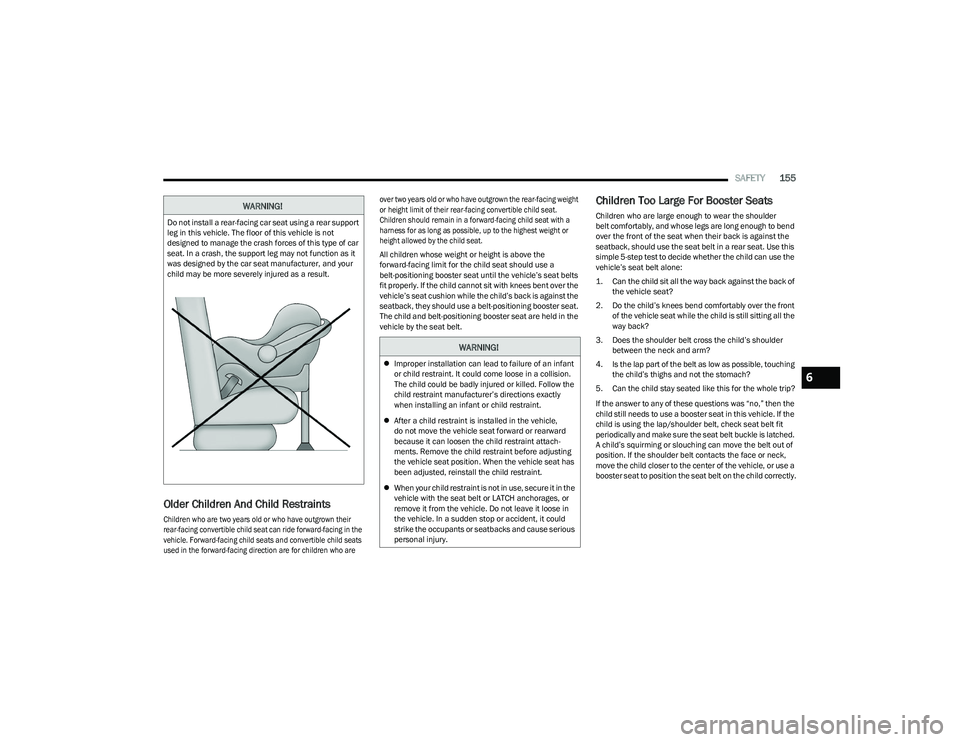
Do not install a rear-facing car seat using a rear support
leg in this vehicle. The floor of this vehicle is not
designed to manage the crash forces of this type of car
seat. In a crash, the support leg may not function as it
was designed by the car seat manufacturer, and your
child may be more severely injured as a result.
WARNING!
Improper installation can lead to failure of an infant
or child restraint. It could come loose in a collision.
The child could be badly injured or killed. Follow the
child restraint manufacturer’s directions exactly
when installing an infant or child restraint.
After a child restraint is installed in the vehicle,
do not move the vehicle seat forward or rearward
because it can loosen the child restraint attach-
ments. Remove the child restraint before adjusting
the vehicle seat position. When the vehicle seat has
been adjusted, reinstall the child restraint.
When your child restraint is not in use, secure it in the
vehicle with the seat belt or LATCH anchorages, or
remove it from the vehicle. Do not leave it loose in
the vehicle. In a sudden stop or accident, it could
strike the occupants or seatbacks and cause serious
personal injury.
6
23_RUV_OM_EN_US_t.book Page 155