Start Citroen BERLINGO 2016 2.G Service Manual
[x] Cancel search | Manufacturer: CITROEN, Model Year: 2016, Model line: BERLINGO, Model: Citroen BERLINGO 2016 2.GPages: 264, PDF Size: 8.42 MB
Page 159 of 264
157
Berlingo-2-VU_en_Chap08_aide-rapide_ed01-2016Berlingo-2-VU_en_Chap08_aide-rapide_ed01-2016
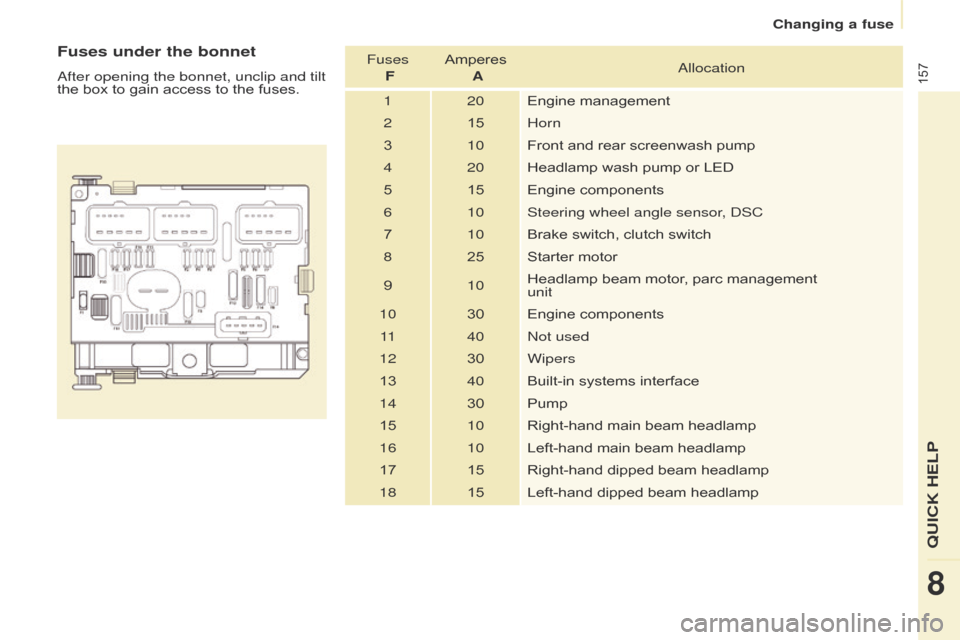
Fuses under the bonnet
after opening the bonnet, unclip and tilt
the box to gain access to the fuses. Fuses
FAmperes
Aa llocation
1 20 Engine management
2 15Horn
3 10Front and rear screenwash pump
4 20 Headlamp wash pump or LED
5 15 Engine components
6 10 Steering wheel angle sensor,
d SC
7 10Brake switch, clutch switch
8 25 Starter motor
9 10Headlamp beam motor, parc management
unit
10 30 Engine components
11 40
n
ot used
12 30Wipers
13 40Built-in systems interface
14 30 Pump
15 10Right-hand main beam headlamp
16 10 Left-hand main beam headlamp
17 15 Right-hand dipped beam headlamp
18 15 Left-hand dipped beam headlamp
8
QUICk HELP
Changing a fuse
Page 161 of 264
159
Berlingo-2-VU_en_Chap08_aide-rapide_ed01-2016Berlingo-2-VU_en_Chap08_aide-rapide_ed01-2016
Without lifting (4 wheels on the
road)
You should always use a towing arm.
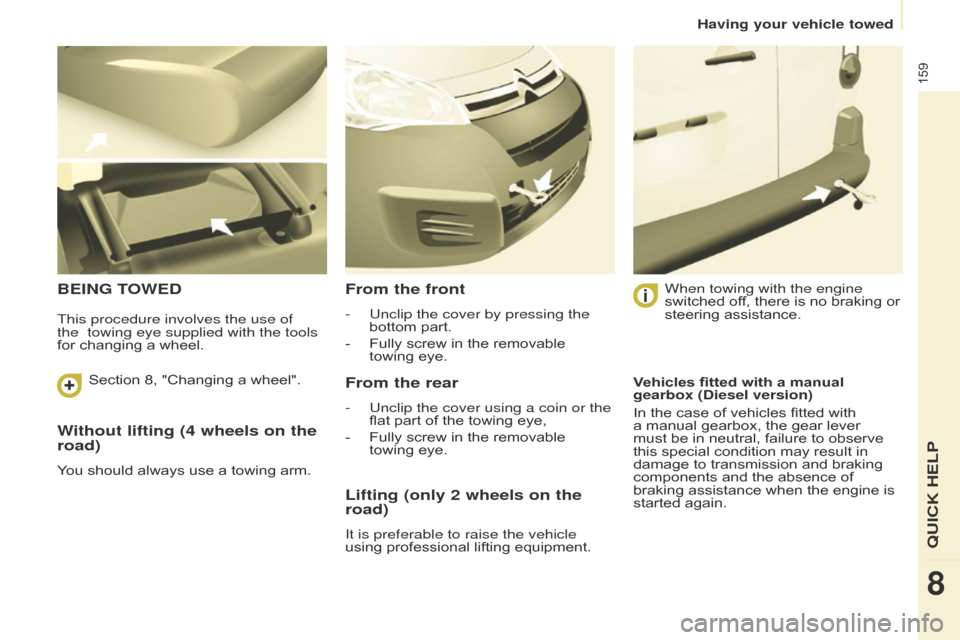
BEING TOWEDFrom the front
- Unclip the cover by pressing the
bottom part.
-
Fully screw in the removable
towing
eye.
From the rear
- Unclip the cover using a coin or the
flat part of the towing eye,
-
Fully screw in the removable
towing
eye. When towing with the engine
switched off, there is no braking or
steering assistance.
Lifting (only 2 wheels on the
road)
It is preferable to raise the vehicle
using professional lifting equipment.
This procedure involves the use of
the
towing eye supplied with the tools
for changing a wheel.
Vehicles fitted with a manual
gearbox (Diesel version)
In the case of vehicles fitted with
a manual gearbox, the gear lever
must be in neutral, failure to observe
this special condition may result in
damage to transmission and braking
components and the absence of
braking assistance when the engine is
started again.
Section 8, "Changing a wheel".
8
QUICk HELP
Having your vehicle towed
Page 177 of 264
175
Berlingo-2-VU_en_Chap10a_SMEGplus_ed01-2016
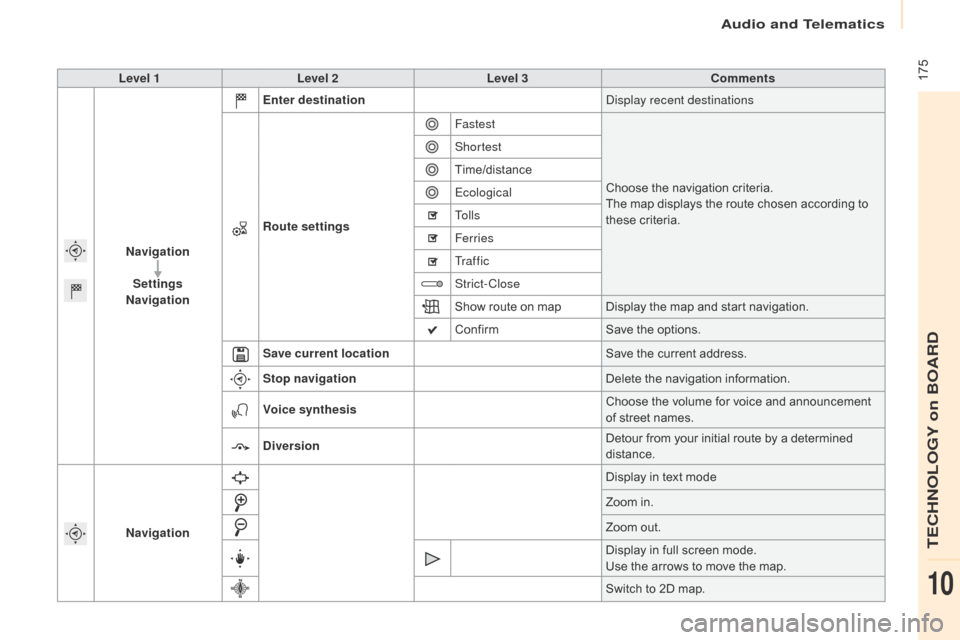
Level 1Level 2 Level 3 Comments
Navigation Settings
Navigation Enter destination
di
splay recent destinations
Route settings Fastest
Choose the navigation criteria.
The map displays the route chosen according to
these criteria.
Shortest
Time/distance
Ecological
To l l s
Ferries
Tr a f f i c
Strict-Close
Show route on map Display the map and start navigation.
Confirm
Save the options.
Save current location Save the current address.
Stop navigation Delete the navigation information.
Voice synthesis Choose the volume for voice and announcement
of street names.
Diversion Detour from your initial route by a determined
distance.
Navigation Display in text mode
Zoom in.
Zoom out.
Display in full screen mode.
Use the arrows to move the map.
Switch to 2D map.
audio and Telematics
TECHnoLoGY on BoaRd
10
Page 184 of 264
182
Berlingo-2-VU_en_Chap10a_SMEGplus_ed01-2016
navigation - Guidance
Choosing a new destination
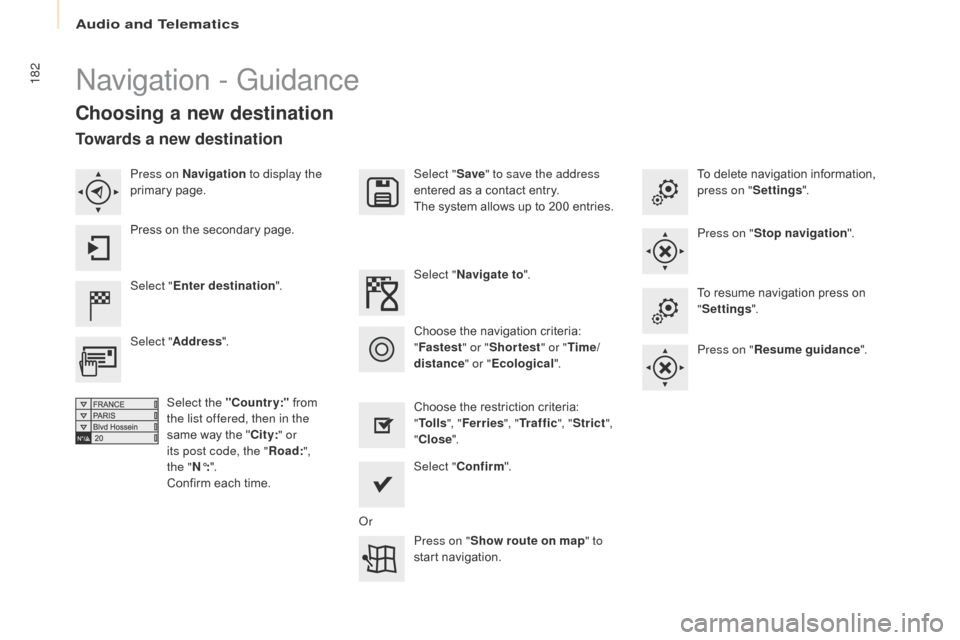
Select "Enter destination ". Select "
Save" to save the address
entered as a contact entry.
The system allows up to 200 entries.
Select " Confirm ".
Press on " Show route on map " to
start navigation.
Select "
Address ".
Select the "Country:" from
the list offered, then in the
same way the " City:" or
its post code, the " Road:",
the
"N°: ".
Confirm each time. Select "
Navigate to ".
Choose the restriction criteria:
" To l l s ", "Ferries ", "Tr a f f i c ", "Strict ",
" Close ".
Choose the navigation criteria:
"
Fastest " or "Shortest " or "Time/
distance " or "Ecological". To delete navigation information,
press on "
Settings".
Press on " Stop navigation ".
To resume navigation press on
" Settings ".
Press on " Resume guidance ".
Press on Navigation
to display the
primary page.
Press on the secondary page.
Towards a new destination
or
audio and Telematics
Page 185 of 264
183
Berlingo-2-VU_en_Chap10a_SMEGplus_ed01-2016
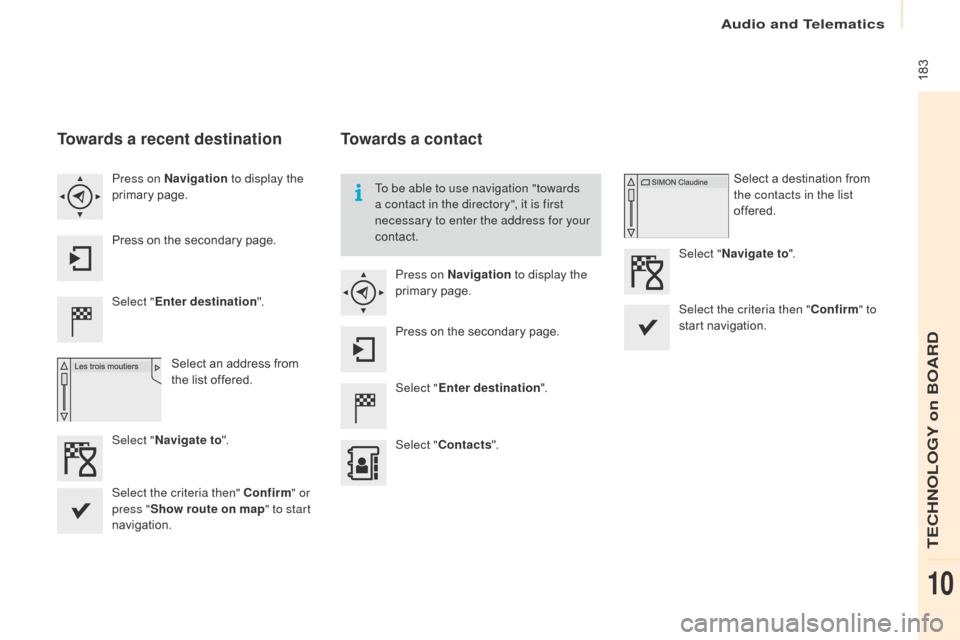
Towards a recent destination
Select "Enter destination ".
Select an address from
the list offered.
Press on Navigation
to display the
primary page.
Press on the secondary page.
Select " Navigate to ".
Towards a contact
Select "Enter destination ".
Select " Contacts ".
Press on Navigation
to display the
primary page.
Press on the secondary page. Select a destination from
the contacts in the list
offered.
Select " Navigate to ".
Select the criteria then " Confirm" to
start navigation.
To be able to use navigation "towards
a contact in the directory", it is first
necessary to enter the address for your
contact.
Select the criteria then" Confirm " or
press " Show route on map " to start
navigation.
audio and Telematics
TECHnoLoGY on BoaRd
10
Page 186 of 264
184
Berlingo-2-VU_en_Chap10a_SMEGplus_ed01-2016
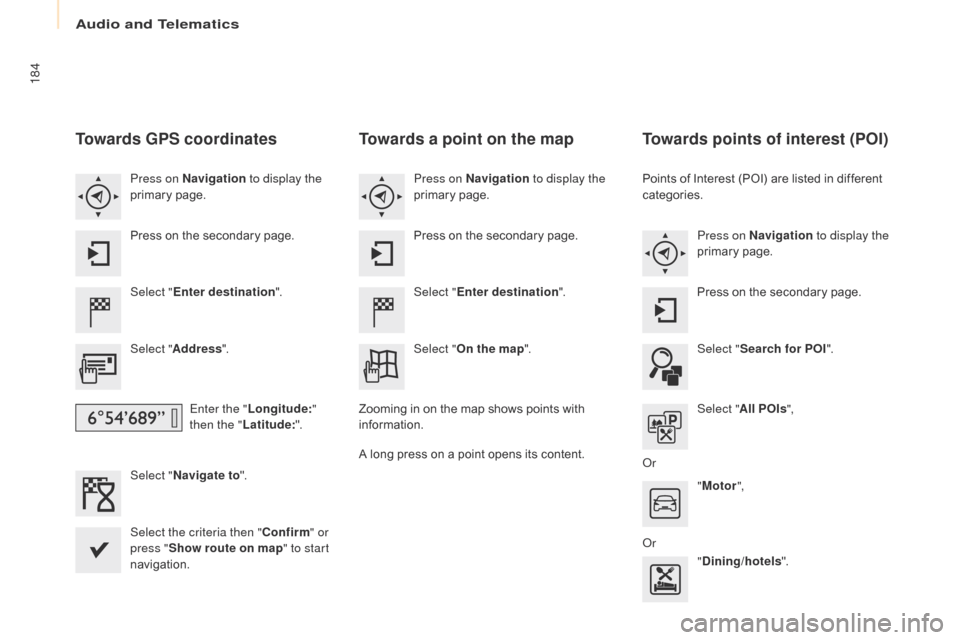
Towards GPS coordinates
Select "Enter destination ".
Select " Address ".
Enter the " Longitude: "
then the " Latitude: ".
Select " Navigate to ".
Select the criteria then " Confirm" or
press " Show route on map " to start
navigation. Press on Navigation to display the
primary page.
Press on the secondary page.
Towards a point on the map
Select " Enter destination ".
Select " On the map ".
Press on Navigation
to display the
primary page.
Press on the secondary page.
Zooming in on the map shows points with
information.
A long press on a point opens its content.
Towards points of interest (POI)
Points of Interest (POI) are listed in different
categories. Press on Navigation to display the
primary page.
Press on the secondary page.
Select " Search for POI ".
Select " All POIs ",
o
r "Motor ",
o
r "Dining/hotels ".
audio and Telematics
Page 202 of 264
200
Berlingo-2-VU_en_Chap10a_SMEGplus_ed01-2016
Bluetooth® audio streaming
Streaming allows audio files on your telephone
to be played through the vehicle's speakers.
Connect the telephone: see the "Telephone"
section, then " Bluetooth".
Choose the " Audio" or "All" profile.
If play does not start automatically, it may be
necessary to start the audio playback from the
telephone.
Control is from the peripheral device or by
using the audio system buttons.
Once connected in streaming mode,
the telephone is considered to be a
media source.
It is recommended that you activate
"Repeat " on the Bluetooth peripheral.
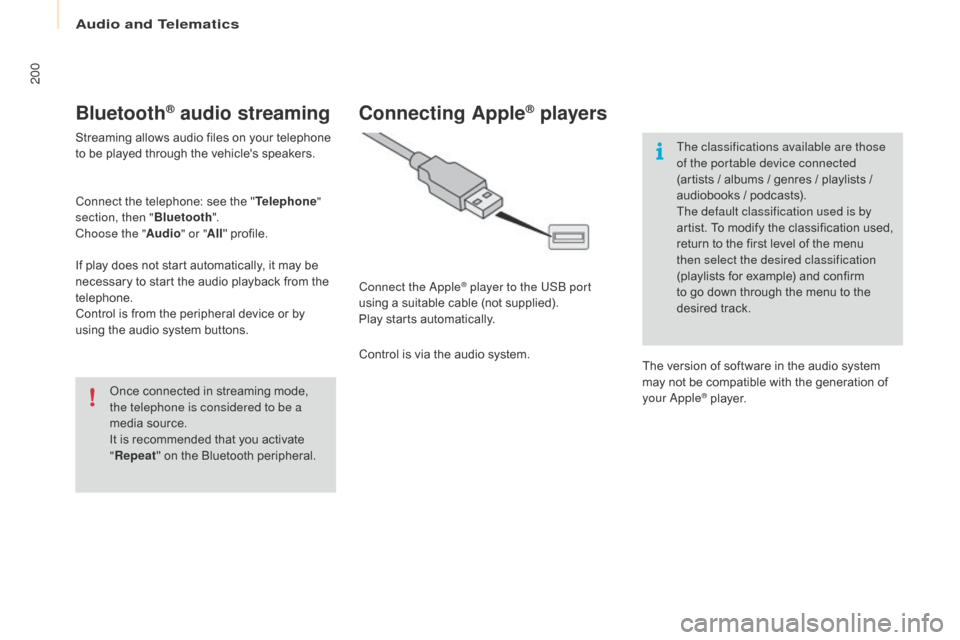
Connecting Apple® players
Connect the apple® player to the USB port
using a suitable cable (not supplied).
Play starts automatically.
Control is via the audio system. The classifications available are those
of the portable device connected
(artists / albums / genres / playlists /
audiobooks / podcasts).
The default classification used is by
artist. To modify the classification used,
return to the first level of the menu
then select the desired classification
(playlists for example) and confirm
to go down through the menu to the
desired track.
The version of software in the audio system
may not be compatible with the generation of
your
a
pple® player.
audio and Telematics
Page 210 of 264
208
Berlingo-2-VU_en_Chap10a_SMEGplus_ed01-2016
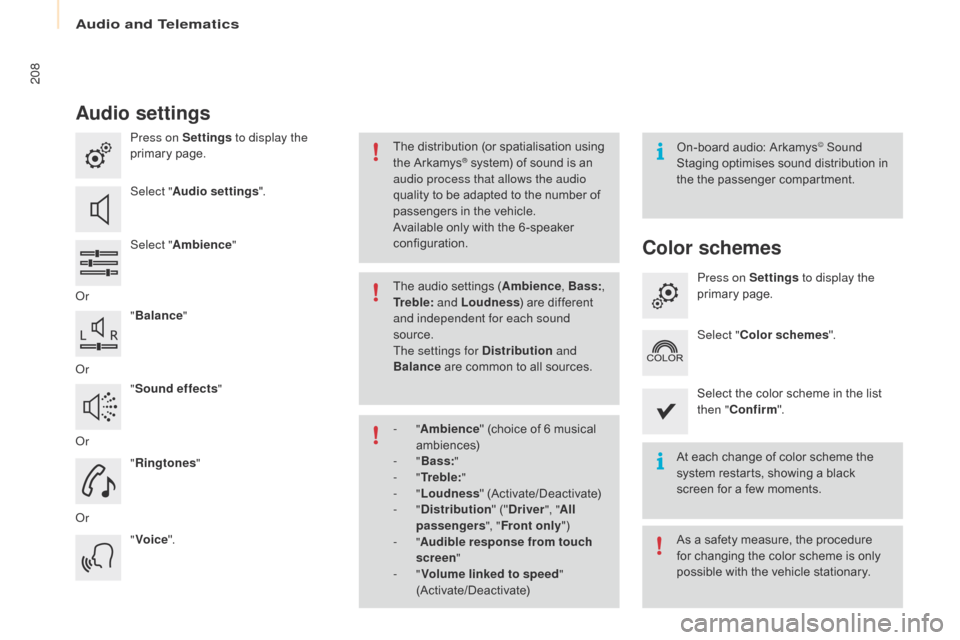
Audio settings
Press on Settings to display the
primary page.
Select " Audio settings ".
Select " Ambience "
o
r "Balance "
o
r "Sound effects "
o
r "Ringtones "
o
r "Voice ". On-board audio: Arkamys© Sound
Staging optimises sound distribution in
the the passenger compartment.
At each change of color scheme the
system restarts, showing a black
screen for a few moments.
The distribution (or spatialisation using
the Arkamys® system) of sound is an
audio process that allows the audio
quality to be adapted to the number of
passengers in the vehicle.
Available only with the 6 -speaker
configuration.
As a safety measure, the procedure
for changing the color scheme is only
possible with the vehicle stationary.
The audio settings (Ambience
, Bass:,
Tr e b l e: and Loudness ) are different
and independent for each sound
source.
The settings for Distribution and
Balance are common to all sources.
-
" Ambience " (choice of 6 musical
ambiences)
-
" Bass: "
-
" Tr e b l e: "
-
" Loudness " (Activate/Deactivate)
-
" Distribution " ("Driver ", "All
passengers ", "Front only ")
-
" Audible response from touch
screen "
-
" Volume linked to speed "
(Activate/Deactivate)
Color schemes
Press on Settings to display the
primary page.
Select " Color schemes ".
Select the color scheme in the list
then " Confirm ".
audio and Telematics
Page 215 of 264
213
Berlingo-2-VU_en_Chap10a_SMEGplus_ed01-2016
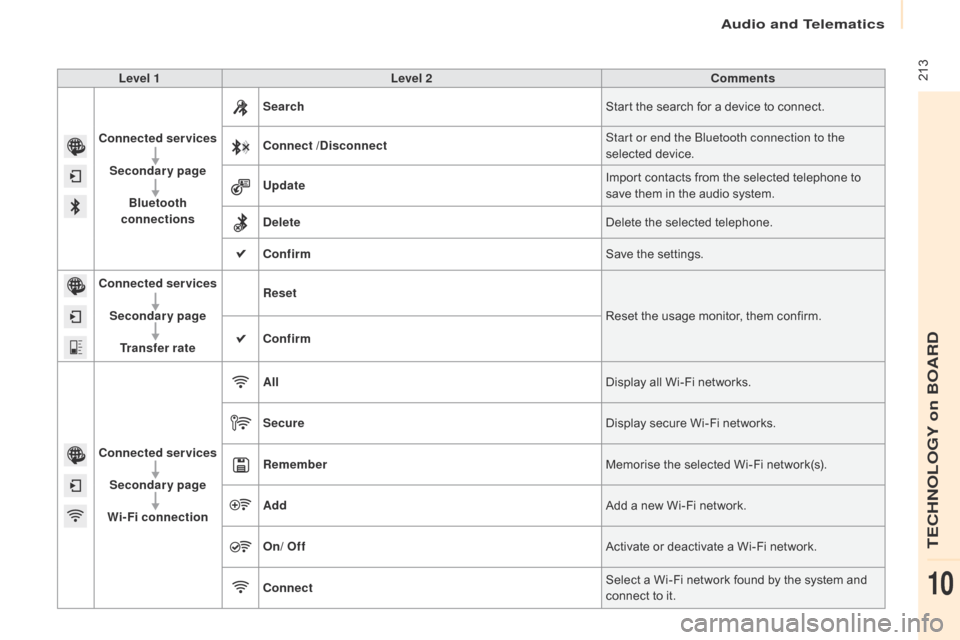
Level 1Level 2 Comments
Connected services Secondary page Bluetooth
connections Search
Start the search for a device to connect.
Connect /Disconnect Start or end the Bluetooth connection to the
selected device.
Update Import contacts from the selected telephone to
save them in the audio system.
Delete Delete the selected telephone.
Confirm Save the settings.
Connected services
Secondary pageTransfer rate Reset
Reset the usage monitor, them confirm.
Confirm
Connected services Secondary page
Wi-Fi connection All
Display all Wi-Fi networks.
Secure Display secure Wi-Fi networks.
Remember Memorise the selected Wi-Fi network(s).
Add Add a new Wi-Fi network.
On/ Off Activate or deactivate a Wi-Fi network.
Connect Select a Wi-Fi network found by the system and
connect to it.
audio and Telematics
TECHnoLoGY on BoaRd
10
Page 217 of 264
215
Berlingo-2-VU_en_Chap10a_SMEGplus_ed01-2016
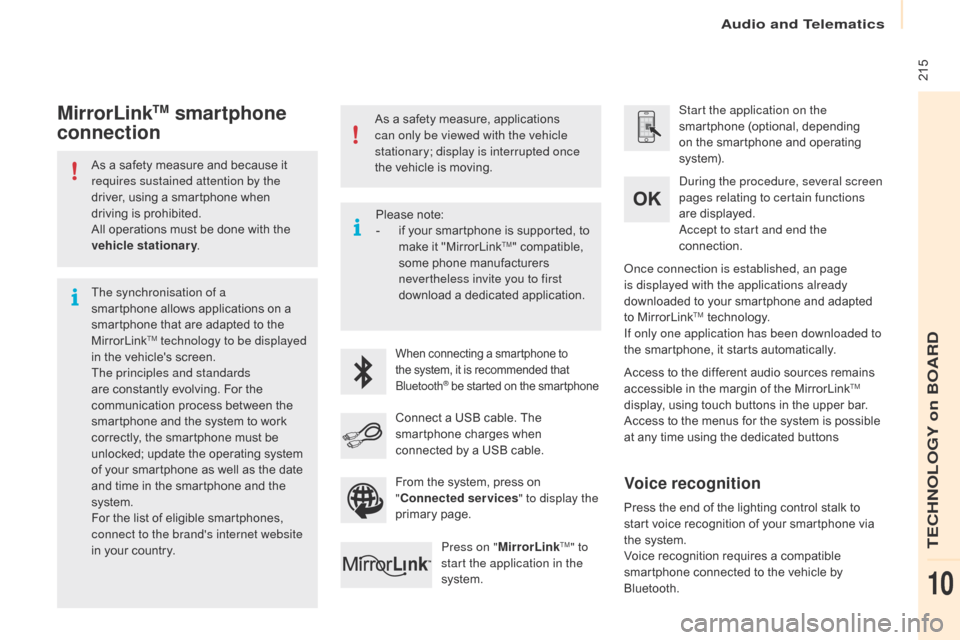
As a safety measure and because it
requires sustained attention by the
driver, using a smartphone when
driving is prohibited.
All operations must be done with the
vehicle stationary.
The synchronisation of a
smartphone allows applications on a
smartphone that are adapted to the
MirrorLink
TM technology to be displayed
i
n the vehicle's screen.
The principles and standards
are constantly evolving. For the
communication process between the
smartphone and the system to work
correctly, the smartphone must be
unlocked; update the operating system
of your smartphone as well as the date
and time in the smartphone and the
system.
For the list of eligible smartphones,
connect to the brand's internet website
in your country. As a safety measure, applications
can only be viewed with the vehicle
stationary; display is interrupted once
the vehicle is moving.When connecting a smartphone to
the system, it is recommended that
Bluetooth
® be started on the smartphone
Start the application on the
smartphone (optional, depending
on the smartphone and operating
syste m).
Access to the different audio sources remains
accessible in the margin of the MirrorLink
TM
display, using touch buttons in the upper bar.
Access to the menus for the system is possible
at any time using the dedicated buttons
du
ring the procedure, several screen
pages relating to certain functions
are displayed.
ac
cept to start and end the
connection.
Connect a USB cable. The
smartphone charges when
connected by a USB cable. Press on " MirrorLink
TM" to
start the application in the
system.
on
ce connection is established, an page
is displayed with the applications already
downloaded to your smartphone and adapted
to MirrorLink
TM technology.
If only one application has been downloaded to
the smartphone, it starts automatically.
MirrorLinkTM smartphone
connection
Press the end of the lighting control stalk to
start voice recognition of your smartphone via
the system.
Voice recognition requires a compatible
smartphone connected to the vehicle by
Bluetooth.
Voice recognition
Please note:
-
i f your smartphone is supported, to
make it "MirrorLink
TM" compatible,
some phone manufacturers
nevertheless invite you to first
download a dedicated application.
From the system, press on
" Connected services " to display the
primary page.
audio and Telematics
TECHnoLoGY on BoaRd
10