Start Citroen BERLINGO 2016 2.G Workshop Manual
[x] Cancel search | Manufacturer: CITROEN, Model Year: 2016, Model line: BERLINGO, Model: Citroen BERLINGO 2016 2.GPages: 264, PDF Size: 8.42 MB
Page 221 of 264
219
Berlingo-2-VU_en_Chap10a_SMEGplus_ed01-2016
As a safety measure and because it
requires sustained attention by the
driver, using a smartphone when
driving is prohibited.
All operations must be done with the
vehicle stationary.
As a safety measure, applications
can only be viewed with the vehicle
stationary; display is interrupted once
the vehicle is moving. The synchronisation of a
smartphone allows applications on a
smartphone that are adapted to the
CarPlay
® technology to be displayed in
t
he vehicle's screen.
as
the principles and standards are
constantly evolving, it is recommended
that you update the operating system of
your smartphone.
For the list of eligible smartphones,
connect to the brand's internet website
in your country.
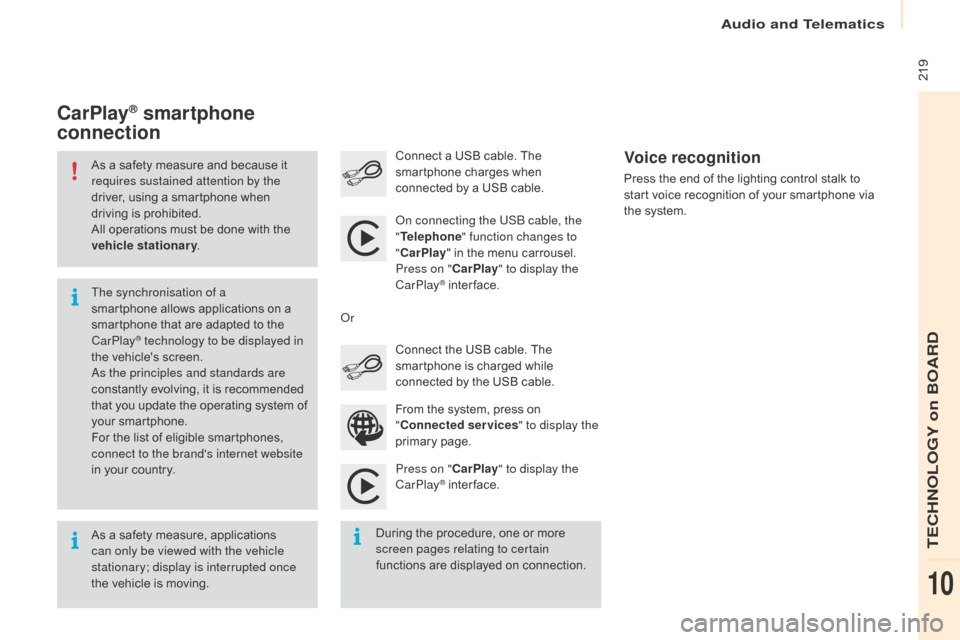
on c
onnecting the USB cable, the
" Telephone " function changes to
" CarPlay " in the menu carrousel.
Press on " CarPlay" to display the
CarPlay
® inter face.
Press on " CarPlay" to display the
CarPlay
® inter face.
Connect a USB cable. The
smartphone charges when
connected by a USB cable.
Press the end of the lighting control stalk to
start voice recognition of your smartphone via
the system.
CarPlay® smartphone
connection
During the procedure, one or more
screen pages relating to certain
functions are displayed on connection. From the system, press on
"
Connected services " to display the
primary page. Connect the USB cable. The
smartphone is charged while
connected by the USB cable.
o
r
Voice recognition
audio and Telematics
TECHnoLoGY on BoaRd
10
Page 225 of 264
223
Berlingo-2-VU_en_Chap10a_SMEGplus_ed01-2016
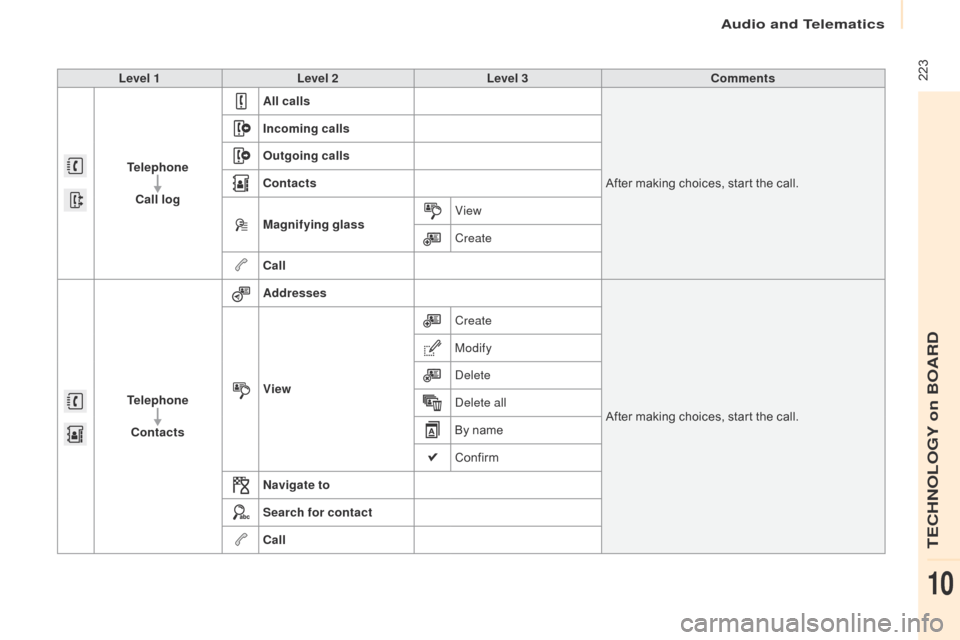
Level 1Level 2 Level 3 Comments
Telephone Call log All calls
After making choices, start the call.
Incoming calls
Outgoing calls
Contacts
Magnifying glass
View
Create
Call
Telephone Contacts Addresses
After making choices, start the call.
View Create
Modify
de
lete
de
lete all
By name
Confirm
Navigate to
Search for contact
Call
audio and Telematics
TECHnoLoGY on BoaRd
10
Page 227 of 264
225
Berlingo-2-VU_en_Chap10a_SMEGplus_ed01-2016
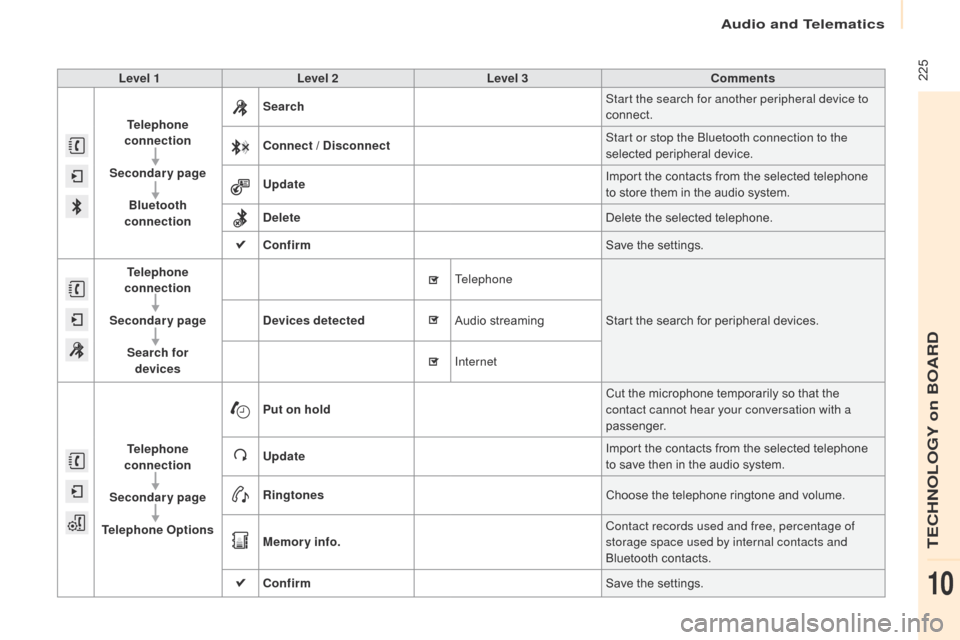
Level 1Level 2 Level 3 Comments
Telephone
connection
Secondary page Bluetooth
connection Search
Start the search for another peripheral device to
connect.
Connect / Disconnect Start or stop the Bluetooth connection to the
selected peripheral device.
Update Import the contacts from the selected telephone
to store them in the audio system.
Delete Delete the selected telephone.
Confirm Save the settings.
Telephone
conn ection
Secondary page Search for devices Devices detected
Telephone
Start the search for peripheral devices.
Audio streaming
Internet
Telephone
connection
Secondary page
Telephone Options Put on hold
Cut the microphone temporarily so that the
contact cannot hear your conversation with a
passenger.
Update Import the contacts from the selected telephone
to save then in the audio system.
Ringtones Choose the telephone ringtone and volume.
Memory info. Contact records used and free, percentage of
storage space used by internal contacts and
Bluetooth contacts.
Confirm Save the settings.
audio and Telematics
TECHnoLoGY on BoaRd
10
Page 230 of 264
228
Berlingo-2-VU_en_Chap10a_SMEGplus_ed01-2016
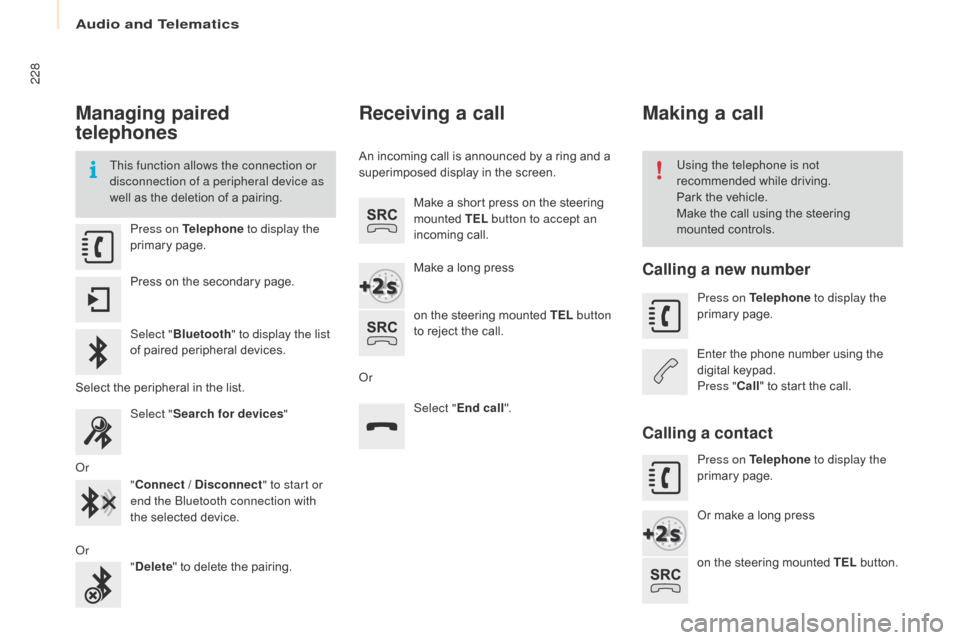
Managing paired
telephones
This function allows the connection or
disconnection of a peripheral device as
well as the deletion of a pairing.Using the telephone is not
recommended while driving.
Park the vehicle.
Make the call using the steering
mounted controls.
Press on Telephone
to display the
primary page.
Press on the secondary page.
Select " Bluetooth " to display the list
of paired peripheral devices.
Select the peripheral in the list. Select "Search for devices "
o
r "Connect / Disconnect " to start or
end the Bluetooth connection with
the selected device.
o
r "Delete " to delete the pairing.
Receiving a call
An incoming call is announced by a ring and a
superimposed display in the screen.
Make a short press on the steering
mounted TEL button to accept an
incoming call.
Make a long press
on the steering mounted TEL button
to reject the call.
o
r Select "End call".
Making a call
Calling a new number
Press on Telephone to display the
primary page.
Enter the phone number using the
digital keypad.
Press " Call" to start the call.
Calling a contact
Press on Telephone to display the
primary page.
Or make a long press
on the steering mounted TEL button.
audio and Telematics
Page 233 of 264
231
Berlingo-2-VU_en_Chap10a_SMEGplus_ed01-2016
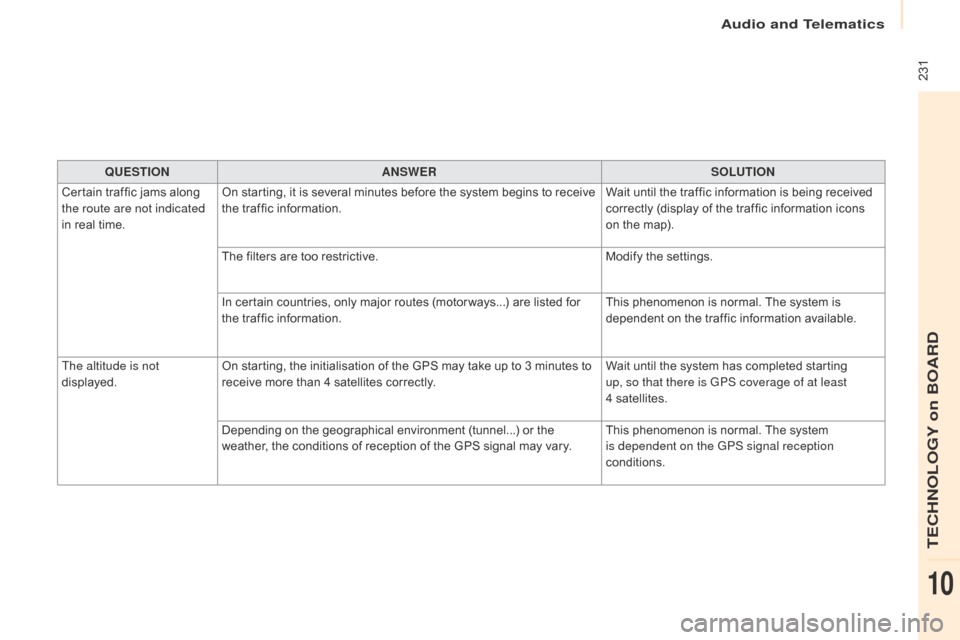
QUESTIONANSWER SOLUTION
Certain traffic jams along
the route are not indicated
in real time. On starting, it is several minutes before the system begins to receive
the traffic information.
Wait until the traffic information is being received
correctly (display of the traffic information icons
on the map).
The filters are too restrictive. Modify the settings.
In certain countries, only major routes (motor ways...) are listed for
the traffic information. This phenomenon is normal. The system is
dependent on the traffic information available.
The altitude is not
displayed. On starting, the initialisation of the GPS may take up to 3 minutes to
receive more than 4 satellites correctly. Wait until the system has completed starting
up, so that there is GPS coverage of at least
4
s
atellites.
Depending on the geographical environment (tunnel...) or the
weather, the conditions of reception of the GPS signal may vary. This phenomenon is normal. The system
is dependent on the GPS signal reception
conditions.
audio and Telematics
TECHnoLoGY on BoaRd
10
Page 235 of 264
233
Berlingo-2-VU_en_Chap10a_SMEGplus_ed01-2016
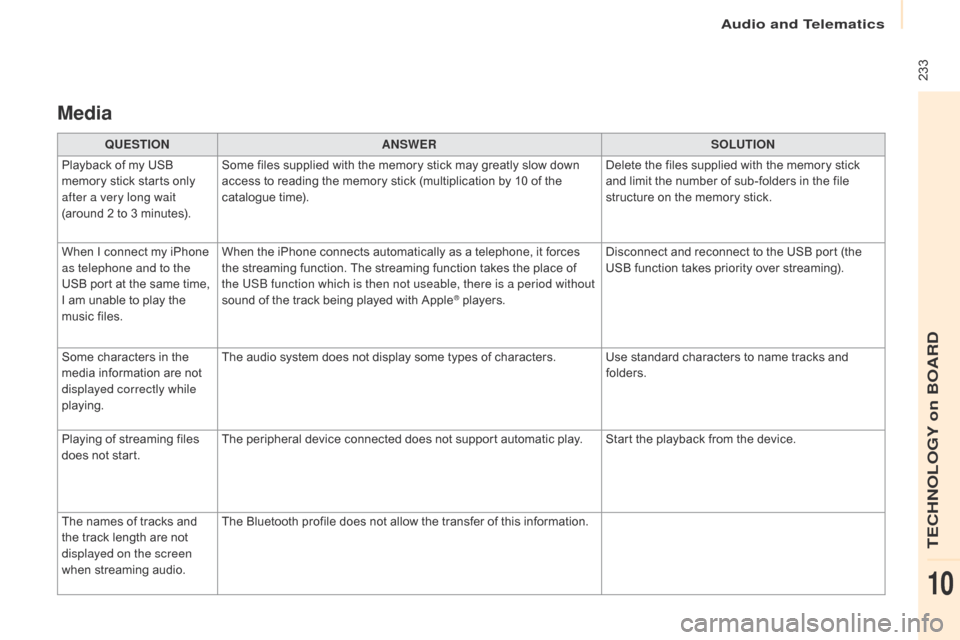
Media
QUESTIONANSWER SOLUTION
Playback of my USB
memory stick starts only
after a very long wait
(around 2 to 3 minutes). Some files supplied with the memory stick may greatly slow down
access to reading the memory stick (multiplication by 10 of the
catalogue time).
Delete the files supplied with the memory stick
and limit the number of sub-folders in the file
structure on the memory stick.
When I connect my iPhone
as telephone and to the
USB port at the same time,
I am unable to play the
music files. When the iPhone connects automatically as a telephone, it forces
the streaming function. The streaming function takes the place of
the USB function which is then not useable, there is a period without
sound of the track being played with Apple
® players.
Disconnect and reconnect to the USB port (the
USB function takes priority over streaming).
Some characters in the
media information are not
displayed correctly while
playing. The audio system does not display some types of characters. Use standard characters to name tracks and
folders.
Playing of streaming files
does not start. The peripheral device connected does not support automatic play. Start the playback from the device.
The names of tracks and
the track length are not
displayed on the screen
when streaming audio. The Bluetooth profile does not allow the transfer of this information.
audio and Telematics
TECHnoLoGY on BoaRd
10
Page 237 of 264
235
Berlingo-2-VU_en_Chap10a_SMEGplus_ed01-2016
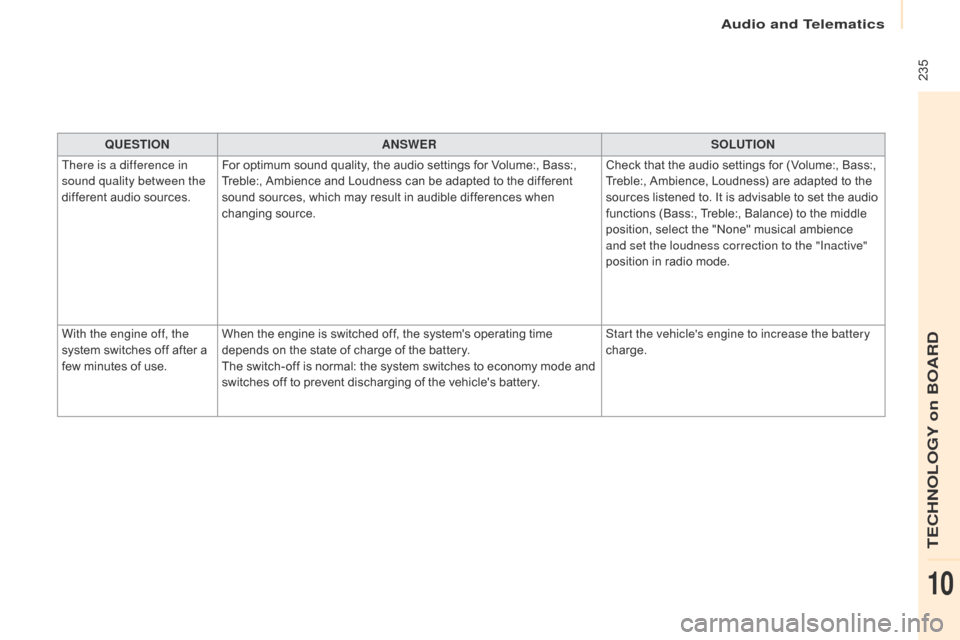
QUESTIONANSWER SOLUTION
There is a difference in
sound quality between the
different audio sources. For optimum sound quality, the audio settings for Volume:, Bass:,
Treble:, Ambience and Loudness can be adapted to the different
sound sources, which may result in audible differences when
changing source. Check that the audio settings for (Volume:, Bass:,
Treble:, Ambience, Loudness) are adapted to the
sources listened to. It is advisable to set the audio
functions (Bass:, Treble:, Balance) to the middle
position, select the "None" musical ambience
and set the loudness correction to the "Inactive"
position in radio mode.
With the engine off, the
system switches off after a
few minutes of use. When the engine is switched off, the system's operating time
depends on the state of charge of the battery.
The switch-off is normal: the system switches to economy mode and
switches off to prevent discharging of the vehicle's battery. Start the vehicle's engine to increase the battery
charge.
audio and Telematics
TECHnoLoGY on BoaRd
10
Page 247 of 264
245
Berlingo-2-VU_en_Chap10b_RD45_ed01-2016
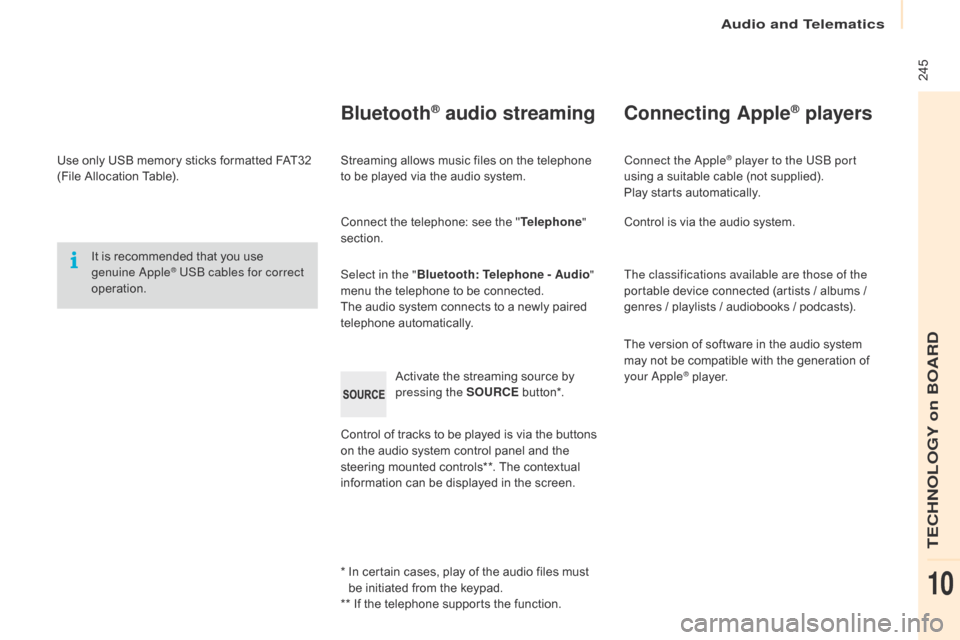
Use only USB memory sticks formatted FAT32
(File Allocation Table).It is recommended that you use
genuine
a
pple® USB cables for correct
operation.
*
I
n certain cases, play of the audio files must
be initiated from the keypad.
** If the telephone supports the function.
Bluetooth® audio streaming
Streaming allows music files on the telephone
to be played via the audio system.
Connect the telephone: see the " Telephone"
section.
Select in the " Bluetooth: Telephone - Audio "
menu the telephone to be connected.
The audio system connects to a newly paired
telephone automatically.
Control of tracks to be played is via the buttons
on the audio system control panel and the
steering mounted controls**. The contextual
information can be displayed in the screen. Activate the streaming source by
pressing the SOURCE
but to n*.
Connecting Apple® players
Connect the apple® player to the USB port
using a suitable cable (not supplied).
Play starts automatically.
Control is via the audio system.
The classifications available are those of the
portable device connected (artists / albums /
genres / playlists / audiobooks / podcasts).
The version of software in the audio system
may not be compatible with the generation of
your
a
pple® player.
audio and Telematics
TECHnoLoGY on BoaRd
10
Page 254 of 264
252
Berlingo-2-VU_en_Chap10b_RD45_ed01-2016
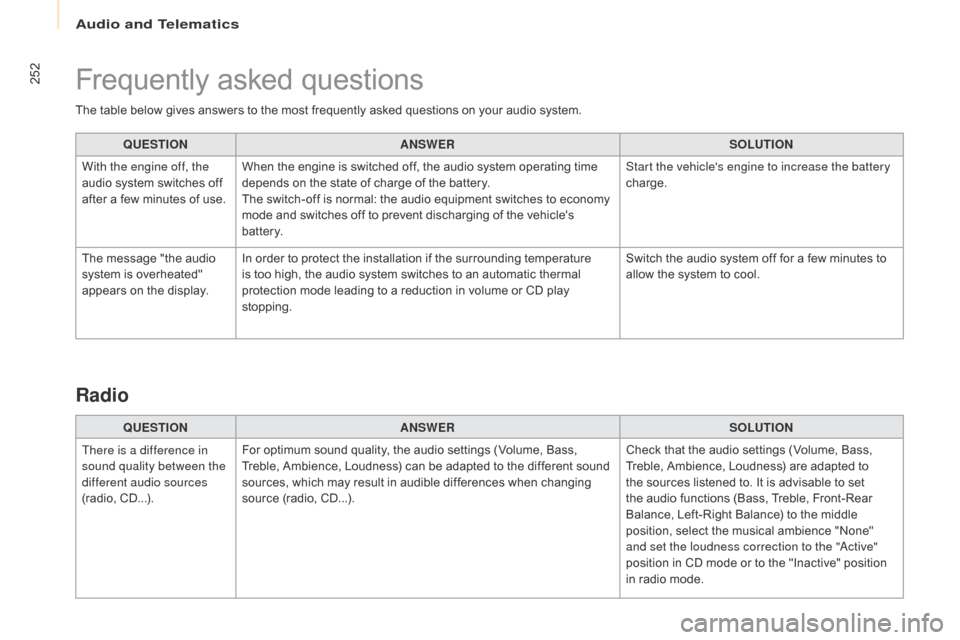
The table below gives answers to the most frequently asked questions on your audio system.QUESTION ANSWER SOLUTION
With the engine off, the
audio system switches off
after a few minutes of use. When the engine is switched off, the audio system operating time
depends on the state of charge of the battery.
The switch-off is normal: the audio equipment switches to economy
mode and switches off to prevent discharging of the vehicle's
battery. Start the vehicle's engine to increase the battery
charge.
The message "the audio
system is overheated"
appears on the display. In order to protect the installation if the surrounding temperature
is too high, the audio system switches to an automatic thermal
protection mode leading to a reduction in volume or CD play
stopping. Switch the audio system off for a few minutes to
allow the system to cool.
Frequently asked questions
QUESTION
ANSWER SOLUTION
There is a difference in
sound quality between the
different audio sources
(radio, CD...). For optimum sound quality, the audio settings (Volume, Bass,
Treble, Ambience, Loudness) can be adapted to the different sound
sources, which may result in audible differences when changing
source (radio, CD...). Check that the audio settings (Volume, Bass,
Treble, Ambience, Loudness) are adapted to
the sources listened to. It is advisable to set
the audio functions (Bass, Treble, Front-Rear
Balance, Left-Right Balance) to the middle
position, select the musical ambience "None"
and set the loudness correction to the "
ac
tive"
position in CD mode or to the "Inactive" position
in radio mode.
Radio
Audio and Telematics