change CITROEN C-ELYSÉE 2022 Handbook (in English)
[x] Cancel search | Manufacturer: CITROEN, Model Year: 2022, Model line: C-ELYSÉE, Model: CITROEN C-ELYSÉE 2022Pages: 260, PDF Size: 8.4 MB
Page 131 of 260

129
Foglamps
To refit, proceed in reverse order.If you experience any difficulty in changing
bulbs, contact your CITROËN dealer or a
qualified workshop.
Direction indicator side repeaters
Contact a CITROËN dealer or a qualified
workshop to obtain the module.
F
I
nsert a flat screwdriver between the lamp
and the housing.
F
P
ull and lever to unclip the housing.
F
R
emove the two fastening screws from the
module.
F
R
emove the module from its housing. F
P
ress the locking clip and disconnect the
connector.
F
T
urn the bulb holder a quarter turn anti-
clockwise.
F
R
emove the bulb holder.
F
R
emove the bulb and change it.
F
I
nsert a screwdriver towards the centre of
the repeater between the repeater and the
base on the body.
F
L
ever with the screwdriver to extract the
repeater and pull it out.
F
D
isconnect the wiring from the repeater.
F
R
eplace the module.
For reassembly, carry out these operations in
reverse order.
8
In the event of a breakdown
Page 132 of 260

130
Rear lampsThird brake lamp
(W5W)
You must access the housing located on the
rear shelf from the rear seats:
F
U
nclip the bulb holder by lifting the two lugs
and remove it.
F
C
hange the faulty bulb.
F
P
ull the housing cover towards you and up
to disengage it.
F
D
isconnect the lamp connector.
F
L
oosen and remove the nut.
F
F
rom the outside, carefully remove the lamp
unit straight from its housing.
These bulbs are changed from inside the boot:
F
O
pen the boot.
F
R
emove the access grille from the
corresponding side trim panel.
F
D
isconnect the lamp connector. F
R
emove the four screws and lift off the bulb
h o l d e r.
F
T
urn the faulty bulb a quarter of a turn and
change it.
For reassembly, carry out these operations in
reverse order.
Take care to engage the lamp unit in its guides,
while keeping it in line with the vehicle.
Tighten sufficiently to ensure sealing, but
without damaging the lamp.
1 Brake lamp / sidelamps (P21/5W).
2
Direction indicators (PY21W).
3 Reversing lamp (W16W).
4 Foglamp (P21/5W).
In the event of a breakdown
Page 133 of 260

131
To refit, carry out these operations in reverse
o r d e r.Check that the housing cover is positioned
correctly on its support before clipping it
on.
Number plate lamps
(W5W)
F Insert a thin screwdriver into one of the exterior holes of the transparent lens.
F
P
ush it outwards to unclip it and remove it.
F
R
emove the faulty bulb and change it.
For reassembly, carry out these operations in
reverse order.
Changing a fuse
Access to tooling Changing a fuseBefore changing a fuse:
F
T he cause of the failure must be identified
and rectified.
F
A
ll devices consuming electricity must be
switched off.
F
T
he vehicle must be immobilised with the
ignition off.
F
I
dentify the faulty fuse using the existing
allocation tables and diagrams.
To remove or fit a fuse, it is essential to:
F
U
se the special pliers to extract the fuse
from its housing and check the condition of
its filament.
F
A
lways replace the failed fuse with a fuse
of the same rating (same colour); using a
different rating could cause faults (risk of
f i r e).
If the fuse fails again soon after
replacement, have the vehicle's electrical
system checked by a CITROËN dealer or
a qualified workshop.
The replacement of a fuse not shown in
the allocation tables below may cause
a serious malfunction of your vehicle.
Contact a CITROËN dealer or a qualified
workshop.
The extraction tweezers are fitted to the back
of the dashboard fusebox cover.
F
U
nclip the cover by pulling at the top right,
then left.
F
D
isengage the cover fully and turn it over.
F
P
ull out the pliers.
8
In the event of a breakdown
Page 149 of 260
1
CITROËN Connect Nav
GPS satellite navigation –
Applications – Multimedia
audio system – Bluetooth
®
telephone
Contents
First steps
2
S
teering mounted controls
3
M
enus
4
V
oice commands
5
N
avigation
1
1
Connected navigation
1
5
Applications
1
8
Radio
2
3
DAB (Digital Audio Broadcasting) radio
2
5
Media
26
T
elephone
2
8
Configuration
3
3
Frequently asked questions
3
7The different functions and settings
described vary according to the version
and configuration of your vehicle.
As a safety measure and because it
requires sustained attention by the
driver, the pairing of a Bluetooth mobile
telephone with the Bluetooth hands-free
system of your audio system must be
done with the vehicle stationary
and the
ignition on.
The system is protected in such a way that
it will only operate in your vehicle.
The display of the Energy Economy
Mode message signals that a change to
standby is imminent.
The link below gives access to OSS (Open
Source Software) codes for the system.
https://www.groupe-psa.com/fr/oss/
https://www.groupe-psa.com/en/oss/
.
CITROËN Connect Nav
Page 151 of 260
3
In the "Settings" menu you can create
a profile for just one person or a group
of people with common points, with the
possibility of entering a multitude of
settings (radio presets, audio settings,
navigation history, contact favourites,
etc.); these settings are taken into account
automatically.
In very hot conditions, the volume may
be limited to protect the system. It may go
into standby (screen and sound off) for at
least 5
minutes.
The return to normal takes place when
the temperature in the passenger
compartment has dropped.Steering mounted controls
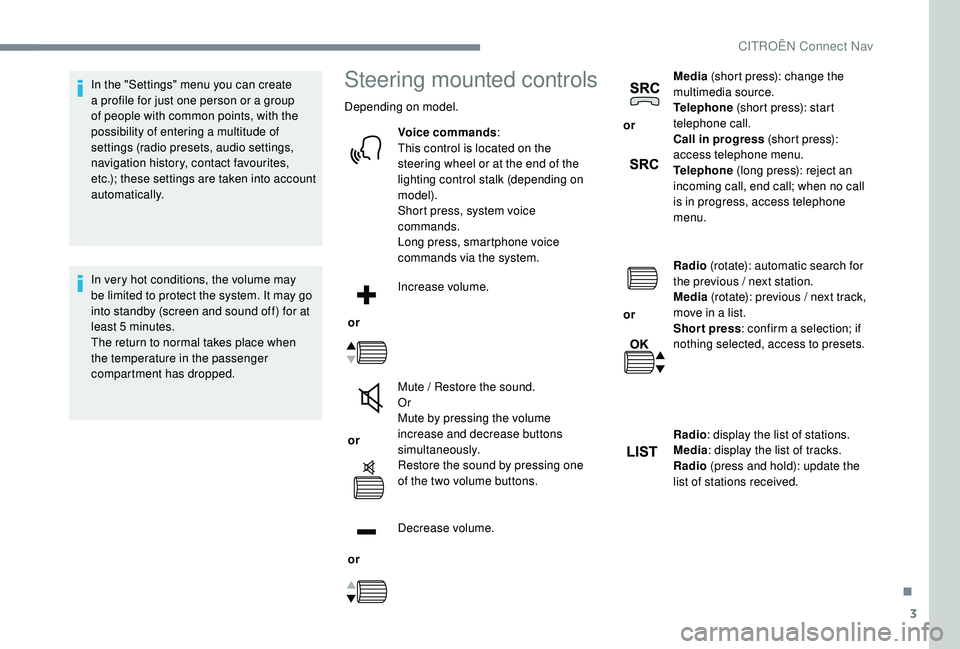
Depending on model.
Voice commands :
This control is located on the
steering wheel or at the end of the
lighting control stalk (depending on
model).
Short press, system voice
commands.
Long press, smartphone voice
commands via the system.
or Increase volume.
or Mute / Restore the sound.
Or
Mute by pressing the volume
increase and decrease buttons
simultaneously.
Restore the sound by pressing one
of the two volume buttons.
or Decrease volume. or
Media
(short press): change the
multimedia source.
Telephone (short press): start
telephone call.
Call in progress (short press):
access telephone menu.
Telephone (long press): reject an
incoming call, end call; when no call
is in progress, access telephone
menu.
or Radio
(rotate): automatic search for
the previous / next station.
Media (rotate): previous / next track,
move in a list.
Short press : confirm a selection; if
nothing selected, access to presets.
Radio : display the list of stations.
Media : display the list of tracks.
Radio (press and hold): update the
list of stations received.
.
CITROËN Connect Nav
Page 170 of 260
22
Connection sharing
The system offers to connect the telephone
with 3 profiles:
-
"Telephone " (hands-free kit, telephone
only),
-
"Streaming " (streaming: wireless playing of
the audio files on the telephone),
-
"Mobile internet data ".
The " Mobile internet data " profile
must be activated for connected
navigation (where the vehicle does not
have "Emergency and assistance call"
services), having first activated sharing of
this connection on your smartphone.
Select one or more profiles.
Press " OK" to confirm.
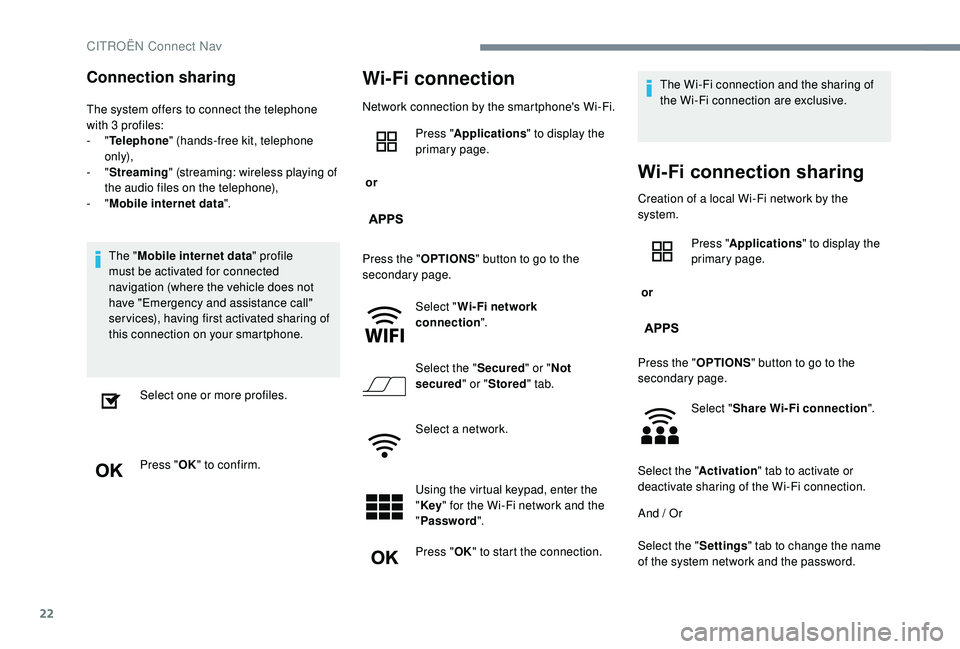
Wi-Fi connection
Network connection by the smartphone's Wi-Fi.
or Press "
Applications " to display the
primary page.
Press the " OPTIONS" button to go to the
secondary page.
Select "Wi- Fi network
connection ".
Select the " Secured" or "Not
secured " or "Stored " tab.
Select a network.
Using the virtual keypad, enter the
" Key " for the Wi-Fi network and the
" Password ".
Press " OK" to start the connection. The Wi-Fi connection and the sharing of
the Wi-Fi connection are exclusive.
Wi-Fi сonnection sharing
Creation of a local Wi-Fi network by the
system.
or
Press "
Applications " to display the
primary page.
Press the " OPTIONS" button to go to the
secondary page.
Select "Share Wi-Fi connection ".
Select the " Activation" tab to activate or
deactivate sharing of the Wi-Fi connection.
And / Or
Select the " Settings" tab to change the name
of the system network and the password.
CITROËN Connect Nav
Page 174 of 260
26
Activate / Deactivate "Station
follow ".
Press " OK".
If "DAB-FM auto tracking" is activated,
there is a difference of a few seconds
when the system switches to FM analogue
radio with sometimes a variation in
volume.
Once the digital signal quality is restored,
the system automatically changes back
to " DA B ".
If the "DAB" station being listened to is not
available on FM (" DAB- FM" option greyed
out), or "DAB/FM auto tracking" is not
activated, the sound will cut out while the
digital signal is too weak.Media
USB port
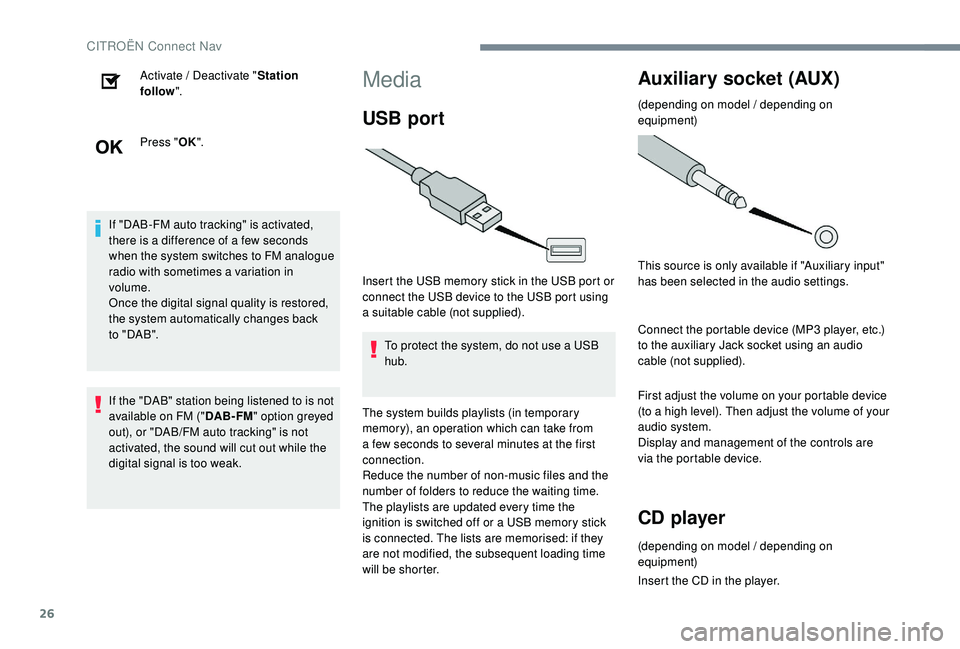
Insert the USB memory stick in the USB port or
connect the USB device to the USB port using
a suitable cable (not supplied).
To protect the system, do not use a USB
hub.
The system builds playlists (in temporary
memory), an operation which can take from
a few seconds to several minutes at the first
connection.
Reduce the number of non-music files and the
number of folders to reduce the waiting time.
The playlists are updated every time the
ignition is switched off or a USB memory stick
is connected. The lists are memorised: if they
are not modified, the subsequent loading time
will be shorter.
Auxiliary socket (AUX)
(depending on model / depending on
equipment)
This source is only available if "Auxiliary input"
has been selected in the audio settings.
Connect the portable device (MP3
player, etc.)
to the auxiliary Jack socket using an audio
cable (not supplied).
First adjust the volume on your portable device
(to a high level). Then adjust the volume of your
audio system.
Display and management of the controls are
via the portable device.
CD player
(depending on model / depending on
equipment)
Insert the CD in the player.
CITROËN Connect Nav
Page 182 of 260
34
The sound balance / distribution (or
spatialisation with the Arkamys© system) is
audio processing that allows the quality of
the sound to be adapted according to the
number of passengers in the vehicle.
Available only with the front and rear
speakers configuration.
The audio settings Ambience (6
optional
ambiences) and Bass , Medium and
Tr e b l e are different and independent for
each audio source.
Activate or Deactivate " Loudness".
The settings for " Position" (All
passengers, Driver and Front passenger
only) are common to all sources.
Activate or Deactivate " Touch tones",
" Volume linked to speed " and "Auxiliary
input ".
Onboard audio: Arkamys
© Sound Staging
optimises the balance / distribution of
sound in the passenger compartment.
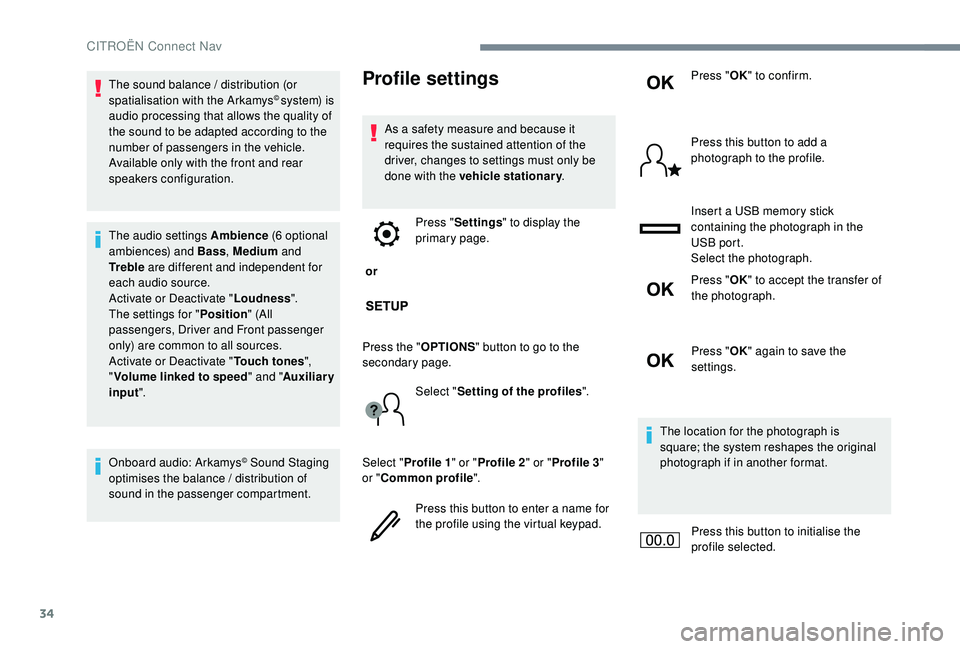
Profile settings
As a safety measure and because it
requires the sustained attention of the
driver, changes to settings must only be
done with the vehicle stationary .
or Press "
Settings " to display the
primary page.
Press the " OPTIONS" button to go to the
secondary page.
Select "Setting of the profiles ".
Select " Profile 1 " or "Profile 2 " or "Profile 3 "
or " Common profile ".
Press this button to enter a name for
the profile using the virtual keypad. Press "
OK" to confirm.
Press this button to add a
photograph to the profile.
Insert a USB memory stick
containing the photograph in the
USB port.
Select the photograph.
Press " OK" to accept the transfer of
the photograph.
Press " OK" again to save the
settings.
The location for the photograph is
square; the system reshapes the original
photograph if in another format.
Press this button to initialise the
profile selected.
CITROËN Connect Nav
Page 183 of 260
35
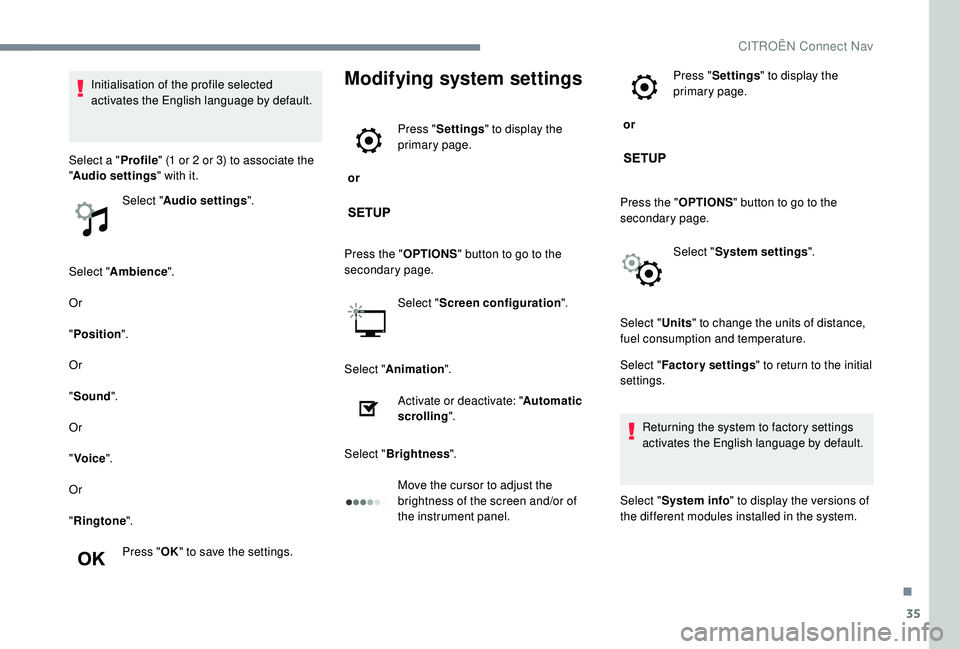
Select "Ambience ".
Or
" Position ".
Or
" Sound ".
Or
" Voice ".
Or
" Ringtone ".
Press " OK" to save the settings.
Modifying system settings
or Press "
Settings " to display the
primary page.
Press the " OPTIONS" button to go to the
secondary page.
Select "Screen configuration ".
Select " Animation ".
Activate or deactivate: " Automatic
scrolling ".
Select " Brightness ".
Move the cursor to adjust the
brightness of the screen and/or of
the instrument panel. or
Press "
Settings " to display the
primary page.
Press the " OPTIONS" button to go to the
secondary page.
Select "System settings ".
Initialisation of the profile selected
activates the English language by default.
Select a " Profile" (1
or 2
or 3) to associate the
" Audio settings " with it.
Select " Audio settings ".
Select "Units" to change the units of distance,
fuel consumption and temperature.
Select " Factory settings " to return to the initial
settings.
Returning the system to factory settings
activates the English language by default.
Select " System info " to display the versions of
the different modules installed in the system.
.
CITROËN Connect Nav
Page 184 of 260

36
Selecting the language
or Press "
Settings " to display the
primary page.
Press the " OPTIONS" button to go to the
secondary page.
Select "Languages " to change the
language.
Setting the date
or Press "
Settings " to display the
primary page.
Press the " OPTIONS" button to go to the
secondary page. Select "
Setting the time- date".
Select " Date".
Press on this button to define the
date.
Press " OK" to confirm.
Select the display format of the date.
Adjustment of the time and date is only
available if "GPS synchronisation" is
deactivated.
The change between winter and summer
time is done by changing the time zone.
Setting the time
or Press "
Settings " to display the
primary page.
Press the " OPTIONS" button to go to the
secondary page.
Select "Setting the time- date".
Select " Time".
Press this button to adjust the time
using the virtual keypad.
Press " OK" to confirm.
Press this button to define the time
zone.
CITROËN Connect Nav