eco Citroen C3 2012 2.G Owners Manual
[x] Cancel search | Manufacturer: CITROEN, Model Year: 2012, Model line: C3, Model: Citroen C3 2012 2.GPages: 252, PDF Size: 8.11 MB
Page 204 of 252
202
08
1
2
2
1
*
The services available depend on the network, the SIM card and the compatibility of the Bluetooth telephone used. Check the telephone manual and with your network provider for details of the services
available to you.
BLUETOOTH TELEPHONE
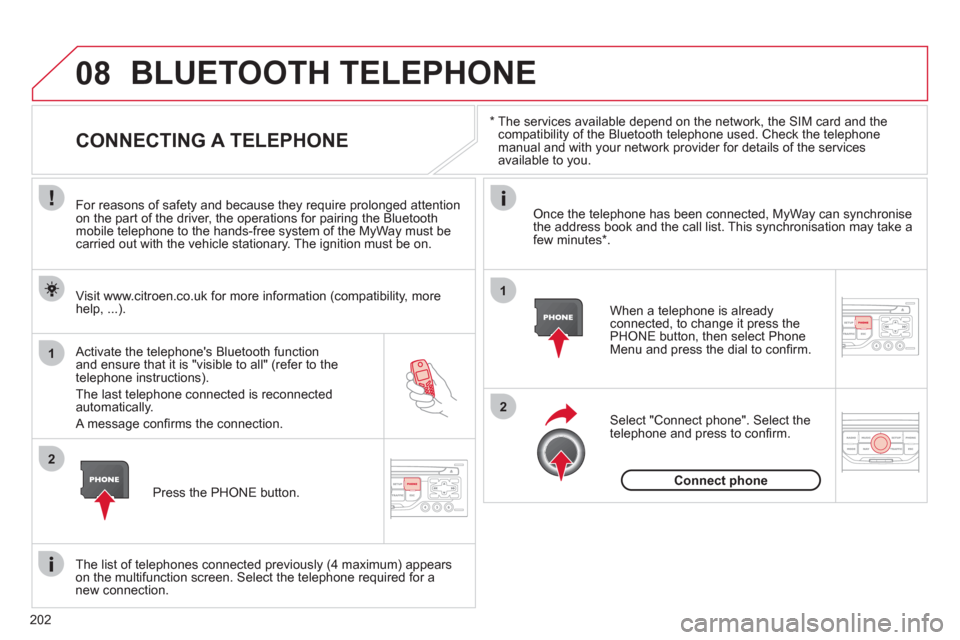
CONNECTING A TELEPHONE
For reasons of safety and because they require prolonged attention
on the part of the driver, the operations for pairing the Bluetooth
mobile telephone to the hands-free system of the MyWay must becarried out with the vehicle stationary. The ignition must be on.
Activate the tele
phone's Bluetooth function and ensure that it is "visible to all" (refer to the
telephone instructions).
The last telephone connected is reconnected automatically.
A messa
ge confi rms the connection. When a telephone is alread
yconnected, to change it press the
PHONE button, then select PhoneMenu and press the dial to confi rm.
Once the telephone has been connected, MyWay can synchronise
the address book and the call list. This synchronisation may take afew minutes * .
The list o
f telephones connected previously (4 maximum) appearson the multifunction screen. Select the telephone required for a
new connection. Visit www.citroen.co.uk
for more information (compatibility, more
help, ...).
Press the PH
ONE button.Select "Connect
phone". Select the
telephone and press to confi rm.
Connect
phone
Page 205 of 252
203
08
1
3 2
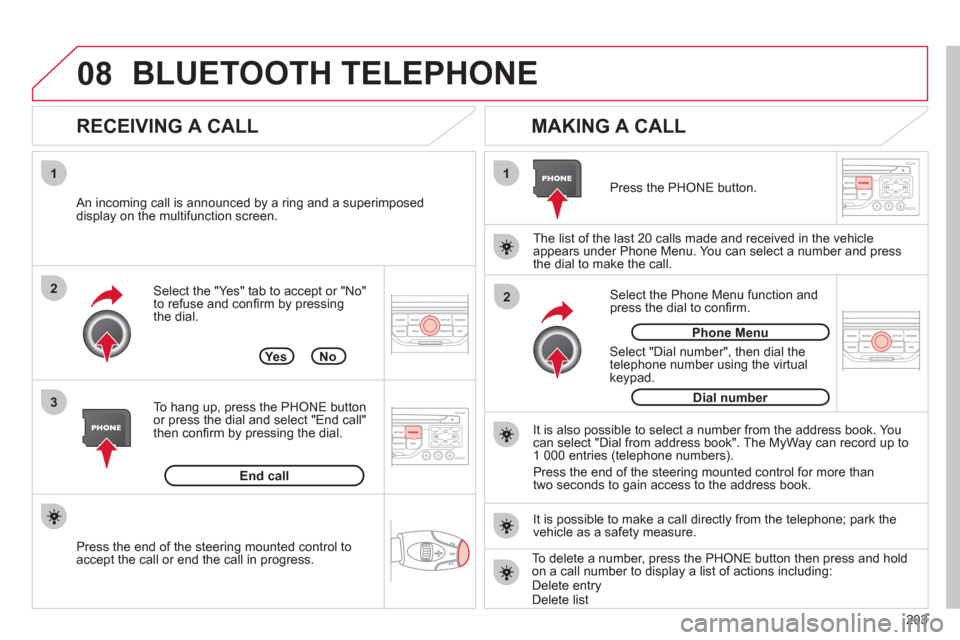
2 1Select the "Yes" tab to accept or "No"
to refuse and confi rm by pressing
the dial.
RECEIVING A CALL
MAKING A CALL
An incoming call is announced by a ring and a superimposed
display on the multifunction screen.
Yes
To han
g up, press the PHONE button
or press the dial and select "End call"then confi rm by pressing the dial.
End callPress the PH
ONE button.
Select "Dial number"
, then dial the
telephone number using the virtualkeypad.
Select the Phone Menu function and
press the dial to confi rm.
The list of the last 2
0 calls made and received in the vehicle
appears under Phone Menu. You can select a number and press
the dial to make the call.
No
It is also possible to select a number from the address book. Youcan select "Dial from address book". The MyWay can record up to
1 000 entries (telephone numbers).
Press the end o
f the steering mounted control for more than
two seconds to gain access to the address book.
Phone Menu
Dial number
It is possible to make a call directl
y from the telephone; park the
vehicle as a safety measure.
BLUETOOTH TELEPHONE
Press the end of the steering mounted control to
accept the call or end the call in progress.To delete a number, press the PHONE button then press and hold
on a call number to display a list of actions including:Delete entryDelete list
Page 206 of 252
204
09
4 3 2 1
65
CONFIGURATION
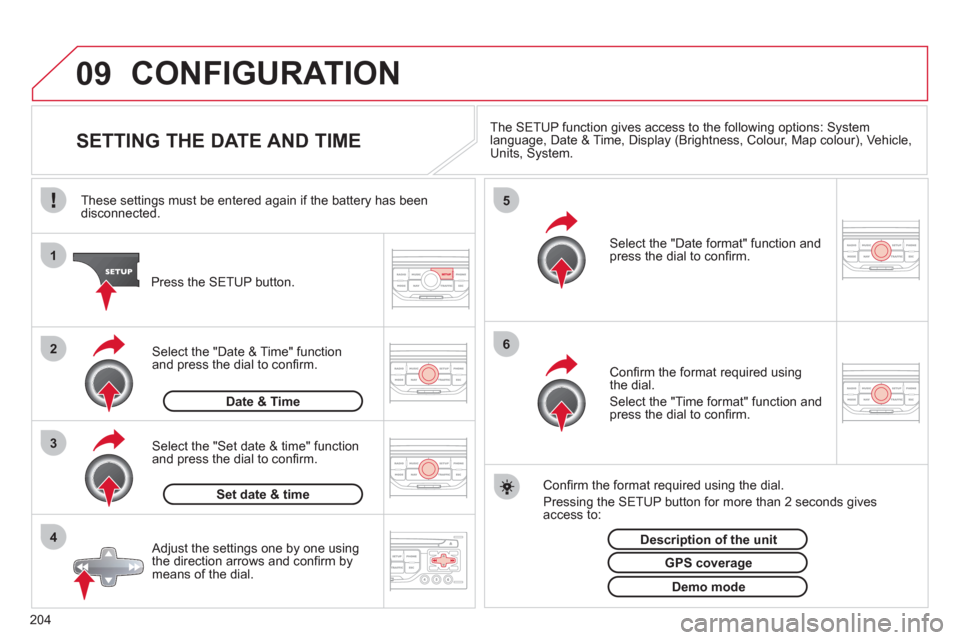
SETTING THE DATE AND TIME The SETUP function gives access to the following options: Systemlanguage, Date & Time, Display (Brightness, Colour, Map colour), Vehicle,Units, System.
Adjust the settings one by one usingthe direction arrows and confi rm bymeans of the dial.
Select the "Date format" function andpress the dial to confi rm.
Select the "Set date
& time" function
and press the dial to confi rm.
Confi rm the format required using the dial.
Pressing the
SETUP button for more than 2 seconds gives access to: These settin
gs must be entered again if the battery has been disconnected.
Pr
ess the SETUP button.
Confi rm the format required usingthe dial.
Select the "Time format" function and press the dial to confi rm.
Set date & tim
e
Select the "Date & Time" function
and press the dial to confi rm.
Demo mode
GPS coverage
Description of the unit
Date & Time
Page 211 of 252
209
FREQUENTLY ASKED QUESTIONS
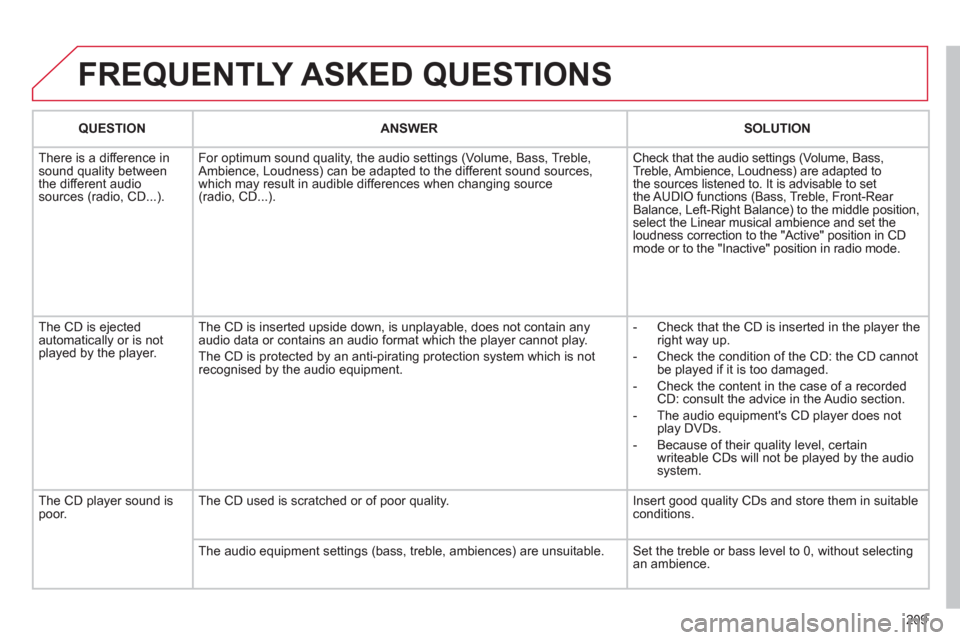
QUESTIONANSWER SOLUTION
There is a difference in sound quality between
the different audiosources (radio, CD...). For optimum sound qualit
y, the audio settings (Volume, Bass, Treble,
Ambience, Loudness) can be adapted to the different sound sources,
which may result in audible differences when changing source (radio, CD...). Check that the audio settin
gs (Volume, Bass,
Treble, Ambience, Loudness) are adapted to
the sources listened to. It is advisable to set
the AUDIO functions (Bass, Treble, Front-Rear
Balance, Left-Right Balance) to the middle position, select the Linear musical ambience and set theloudness correction to the "Active" position in CDmode or to the "Inactive" position in radio mode.
The
CD is ejected
automatically or is not played by the player. The
CD is inserted upside down, is unplayable, does not contain any audio data or contains an audio format which the player cannot play.
The CD is protected b
y an anti-pirating protection system which is not recognised by the audio equipment.
-
Check that the CD is inserted in the player the
right way up.
-
Check the condition of the CD: the CD cannot
be played if it is too damaged.
-
Check the content in the case of a recordedCD: consult the advice in the Audio section.
- The audio equipment's
CD player does not
play DVDs.
- Because o
f their quality level, certain
writeable CDs will not be played by the audio
system.
The CD pla
yer sound ispoor.The CD used is scratched or of poor quality. Insert good quality CDs and store them in suitable conditions.
The audio equipment settings
(bass, treble, ambiences) are unsuitable. Set the treble or bass level to 0, without selectingan ambience.
Page 212 of 252
210
QUESTIONANSWERSOLUTION
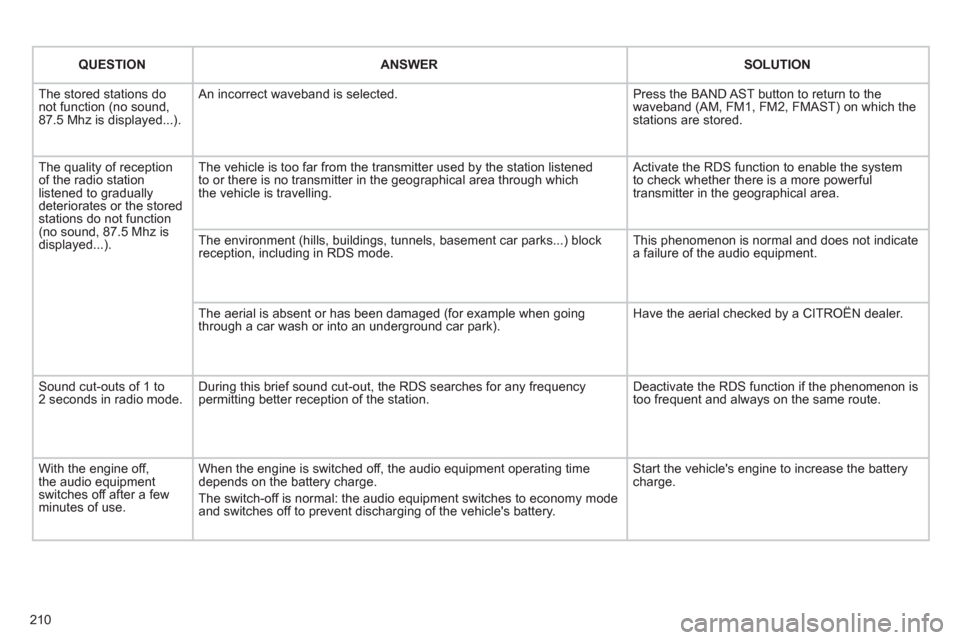
The stored stations donot function (no sound, 87.5 Mhz is displayed...).
An incorrect waveband is selected.
Press the BAND AST button to return to the waveband (AM, FM1, FM2, FMAST) on which thestations are stored.
The quality of receptionof the radio station listened to graduallydeteriorates or the stored stations do not function(no sound, 87.5 Mhz is displayed...).
The vehicle is too far from the transmitter used by the station listenedto or there is no transmitter in the geographical area through whichthe vehicle is travelling.
Activate the RDS function to enable the system to check whether there is a more powerful transmitter in the geographical area.
The environment (hills, buildings, tunnels, basement car parks...) block reception, including in RDS mode.
This phenomenon is normal and does not indicate a failure of the audio equipment.
The aerial is absent or has been damaged (for example when goingthrough a car wash or into an underground car park).
Have the aerial checked by a CITROËN dealer.
Sound cut-outs of 1 to2 seconds in radio mode.During this brief sound cut-out, the RDS searches for any frequency permitting better reception of the station.
Deactivate the RDS function if the phenomenon is too frequent and always on the same route.
With the engine off, the audio equipment switches off after a few minutes of use.
When the engine is switched off, the audio equipment operating timedepends on the battery charge.
The switch-off is normal: the audio equipment switches to economy mode and switches off to prevent discharging of the vehicle's battery.
Start the vehicle's engine to increase the batterycharge.
Page 214 of 252
212
QUESTIONANSWER SOLUTION
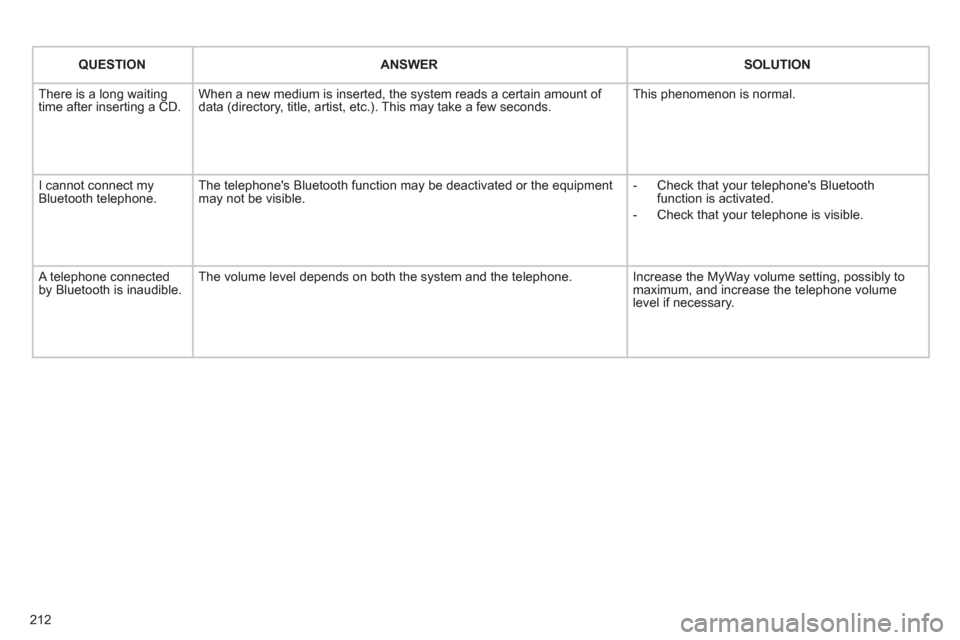
There is a long waiting
time after inserting a CD. When a new medium is inserted, the system reads a certain amount of
data (directory, title, artist, etc.). This may take a few seconds. This phenomenon is normal.
I cannot connect myBluetooth telephone.The telephone's Bluetooth function may be deactivated or the equipment
may not be visible.
- Check that your telephone's Bluetoothfunction is activated.
-
Check that your telephone is visible.
A telephone connected by Bluetooth is inaudible.The volume level depends on both the system and the telephone. Increase the MyWay volume setting, possibly to maximum, and increase the telephone volume level if necessary.
Page 217 of 252
215
02STEERING MOUNTED CONTROLS
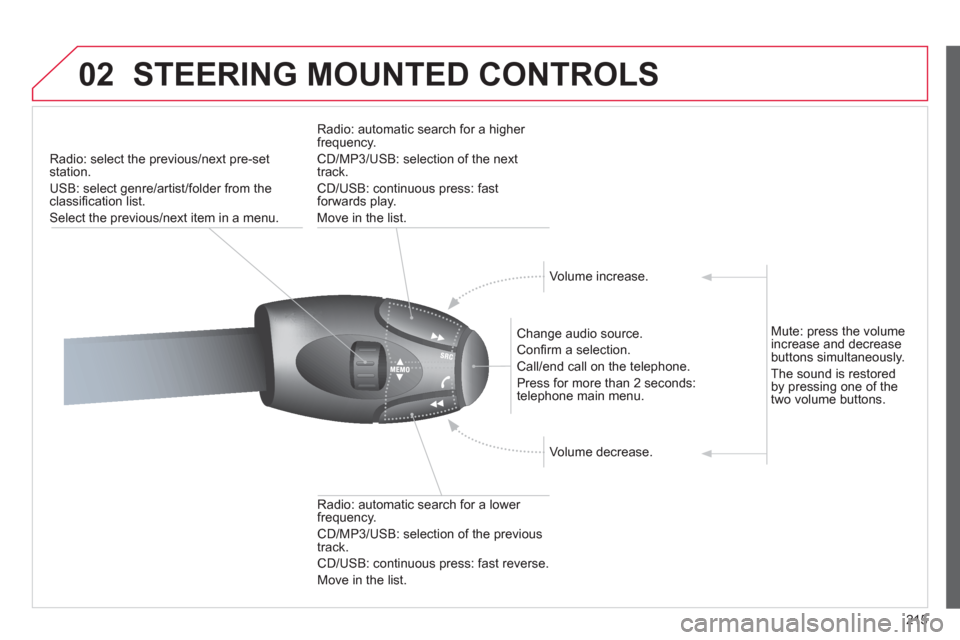
Radio: select the previous/next pre-setstation.
U
SB: select genre/artist/folder from the classifi cation list.
Select the previous/next item in a menu.
Chan
ge audio source.
Confi rm a selection.
Call/end call on the telephone.
Pr
ess for more than 2 seconds:
telephone main menu.
R
adio: automatic search for a lower
frequency.
CD/MP3/USB: selection of the previous
tr
ack.
CD/USB: continuous press: fast reverse.
Move in the list.
Radio: automatic search for a hi
gher
frequency.
CD/MP3/USB: selection of the next
track.
CD/USB: continuous press: fastforwards play.
M
ove in the list.
V
olume increase.
V
olume decrease.
Mute: press the volume increase and decrease buttons simultaneously.
Th
e sound is restoredby pressing one of the
two volume buttons.
Page 219 of 252
217
04
1
2
3
4
1
2
3
4
SOURCE
BANDAST
LISTREFRESH
MENU
AUDIO
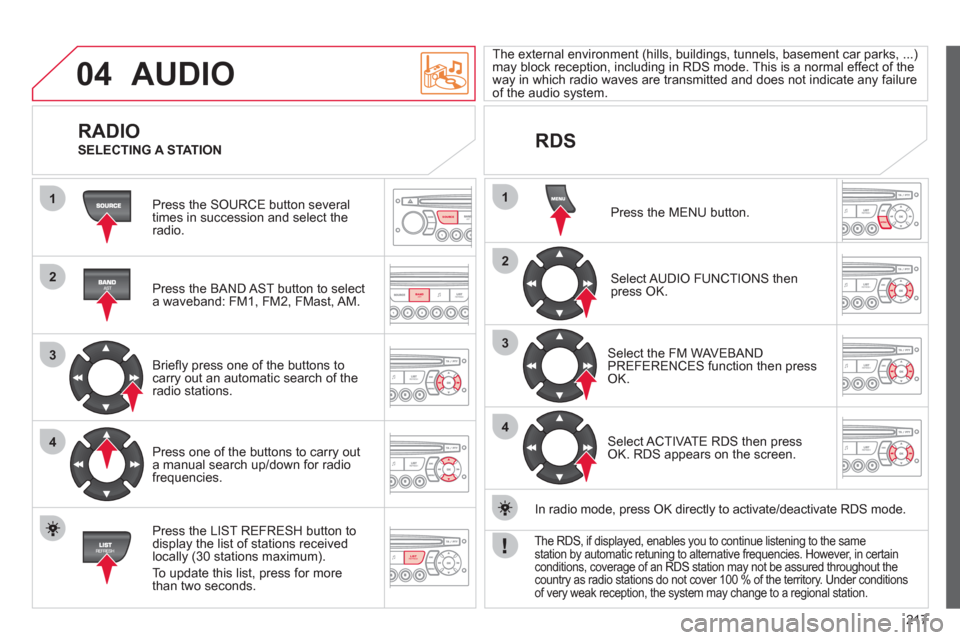
Press the SOURCE button several
times in succession and select theradio.
Press the BAND A
ST button to select
a waveband: FM1, FM2, FMast, AM.
Briefl
y press one of the buttons tocarry out an automatic search of theradio stations.
Press one o
f the buttons to carry out
a manual search up/down for radiofrequencies.
Press the LI
ST REFRESH button to
display the list of stations received
locally (30 stations maximum).
To update this list, press for more
t
han two seconds.
The external environment
(hills, buildings, tunnels, basement car parks, ...)may block reception, including in RDS mode. This is a normal effect of the
way in which radio waves are transmitted and does not indicate any failure of the audio system.
RDS
RADIO
SELECTING A STATION
Press the MENU button.
Select AUDIO FUNCTIONS thenpress OK.
Select the FM WAVEBANDPREFERENCES function then pressOK.
Select ACTIVATE RDS then pressOK. RDS appears on the screen.
In radio mode, press
OK directly to activate/deactivate RDS mode.
The RDS, if displayed, enables you to continue listening to the samestation by automatic retuning to alternative frequencies. However, in certainconditions, coverage of an RDS station may not be assured throughout thecountry as radio stations do not cover 100 % of the territory. Under conditions
of very weak reception, the system may change to a regional station.
Page 220 of 252
218
04
1
2
3
SOURCE
AUDIO
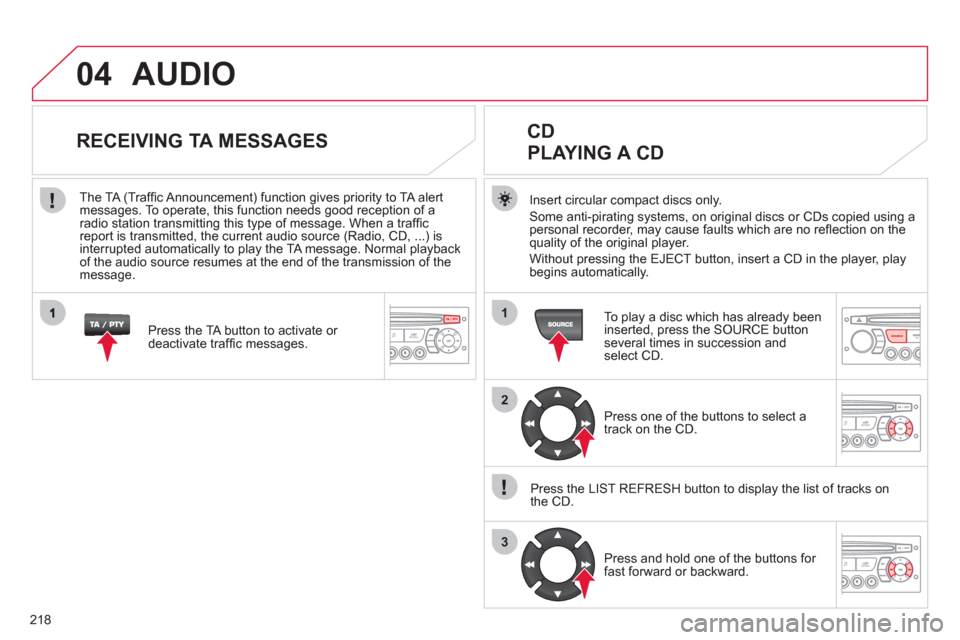
Insert circular compact discs only.
Some anti-pirating systems, on original discs or CDs copied using a
personal recorder, may cause faults which are no refl ection on the quality of the original player.
Without pressin
g the EJECT button, insert a CD in the player, playbegins automatically.
CD
PLAYING A CD
To play a disc which has already been
inserted, press the SOURCE buttonseveral times in succession andselect CD.
Pr
ess one of the buttons to select a
track on the CD.
Press the LI
ST REFRESH button to display the list of tracks on
the CD.
Pr
ess and hold one of the buttons for
fast forward or backward.
RECEIVING TA MESSAGES
Press the TA button to activate or
deactivate traffi c messages.
The TA
(Traffi c Announcement) function gives priority to TA alert messages. To operate, this function needs good reception of a
radio station transmitting this type of message. When a traffi c
report is transmitted, the current audio source (Radio, CD, ...) is
interrupted automatically to play the TA message. Normal playbackof the audio source resumes at the end of the transmission of themessage.
Page 221 of 252
219
04
1
2
3
SOURCE
The MP3 format, an abbreviation of MPEG 1.2 & 2.5 Audio Layer 3,
is an audio compression standard which permits the recording of several tens of music fi les on a single disc.
In order to be able to play a recorded
CDR or CDRW, when recording, the ISO 9660 level 1.2 or Joliet fi le format isrecommended.
If the disc is recorded in another format, it ma
y not be playedcorrectly.
It is recommended that the same recordin
g format is alwaysused for an individual disc, with as low a speed as possible (4x maximum) for optimum sound quality.
In the particular case o
f a multi-session CD, the Joliet format is recommended.
The Audio s
ystem will only play fi les with the extension ".mp3" with
a sampling rate of 22.05 KHz or 44.1 KHz. No other type of fi le(.wma, .mp4, .m3u...) can be played.
It is advisable to restrict fi le names to 20 characters without usin
gspecial characters (e.g. " ? ; ù) to avoid any playing or displaying problems.
MP3 CD
INFORMATION AND ADVICE
AUDIO
Empty CDs are not recognised and may damage the system.
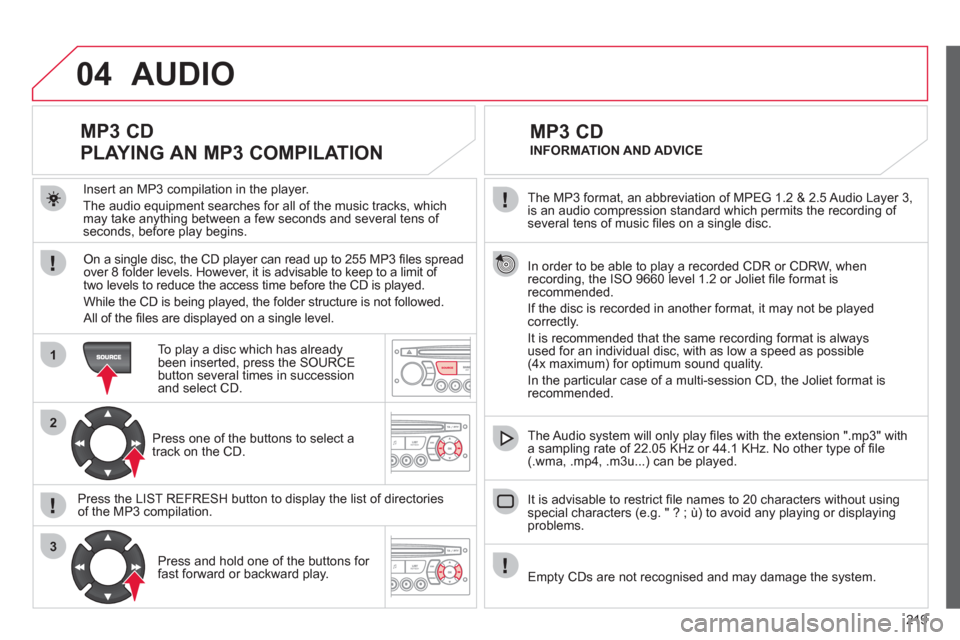
Insert an MP3 compilation in the pla
yer.
The audio equipment searches
for all of the music tracks, which
may take anything between a few seconds and several tens of seconds, before play begins.
MP3 CD
PLAYING AN MP3 COMPILATION
On a single disc, the CD player can read up to 255 MP3 fi les spread
over 8 folder levels. However, it is advisable to keep to a limit of
two levels to reduce the access time before the CD is played.
While the
CD is being played, the folder structure is not followed.
All of the fi les are displayed on a single level.
To play a disc which has already
been inserted, press the SOURCE button several times in successionand select CD.
Pr
ess one of the buttons to select atrack on the CD.
Press the LI
ST REFRESH button to display the list of directories of the MP3 compilation.
Pr
ess and hold one of the buttons for fast forward or backward play.