eco Citroen C3 2012 2.G Manual Online
[x] Cancel search | Manufacturer: CITROEN, Model Year: 2012, Model line: C3, Model: Citroen C3 2012 2.GPages: 252, PDF Size: 8.11 MB
Page 183 of 252
181
The MyWay is protected in such a way that it will onlyoperate in your vehicle. If it is to be installed in another vehicle, contact a CITROËN dealer for confi guration of py
the system.
Certain functions described in this handbook will
become available during the year.
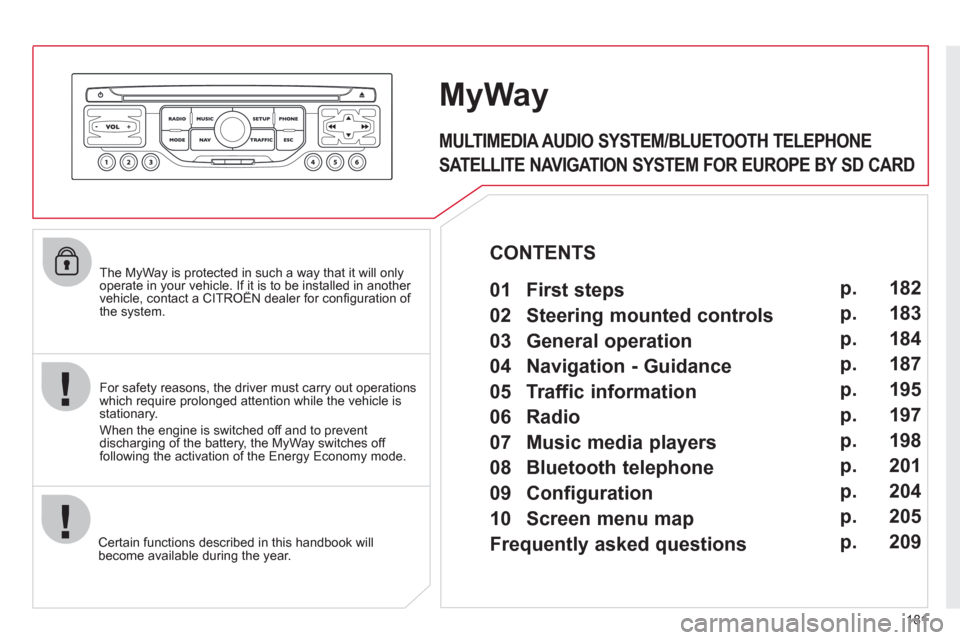
MyWay
For safety reasons, the driver must carry out operations which require prolonged attention while the vehicle is stationary.
When the en
gine is switched off and to prevent
discharging of the battery, the MyWay switches off
following the activation of the Energy Economy mode.
MULTIMEDIA AUDIO SYSTEM/BLUETOOTH TELEPHONE
SATELLITE NAVIGATION SYSTEM FOR EUROPE BY SD CARD
01 First steps
CONTENTS
02 Steering mounted controls
03 General operation
04 Navigation - Guidance
05 Traffic information
06 Radio
07 Music media players
08 Bluetooth telephone
09 Configuration
10 Screen menu map p.
p.
p.
p.
p.
p.
p.
p.
p.
p.
Frequently asked questions p. 182
183
184
187
195
197
198
201
204
205
209
Page 185 of 252
183
02 STEERING MOUNTED CONTROLS
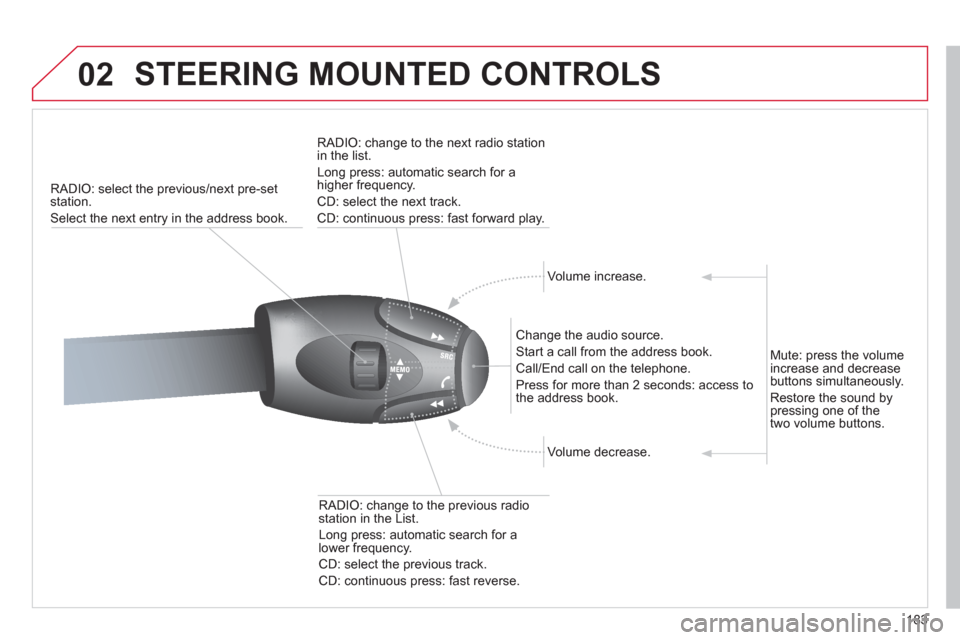
RADIO: select the previous/next pre-set station.
Select the next entr
y in the address book.
RADI
O: change to the next radio station in the list.
Lon
g press: automatic search for ahigher frequency.
CD: select the next track.
CD: continuous press: fast forward pla
y.
Volume increase.
Change the audio source.
Start a call from the address book.
Call/End call on the tele
phone.
Pr
ess for more than 2 seconds: access tothe address book.
V
olume decrease.
RADI
O: change to the previous radio station in the List.
Lon
g press: automatic search for a
lower frequency.
CD: select the previous track.
CD: continuous press: fast reverse.
Mute:
press the volume
increase and decrease
buttons simultaneously.
Restore the sound bypressing one of the
two volume buttons.
Page 186 of 252
184
03 GENERAL OPERATION
For a detailed global view of the menus available, refer to the"Screen menu map" section.
Press the M
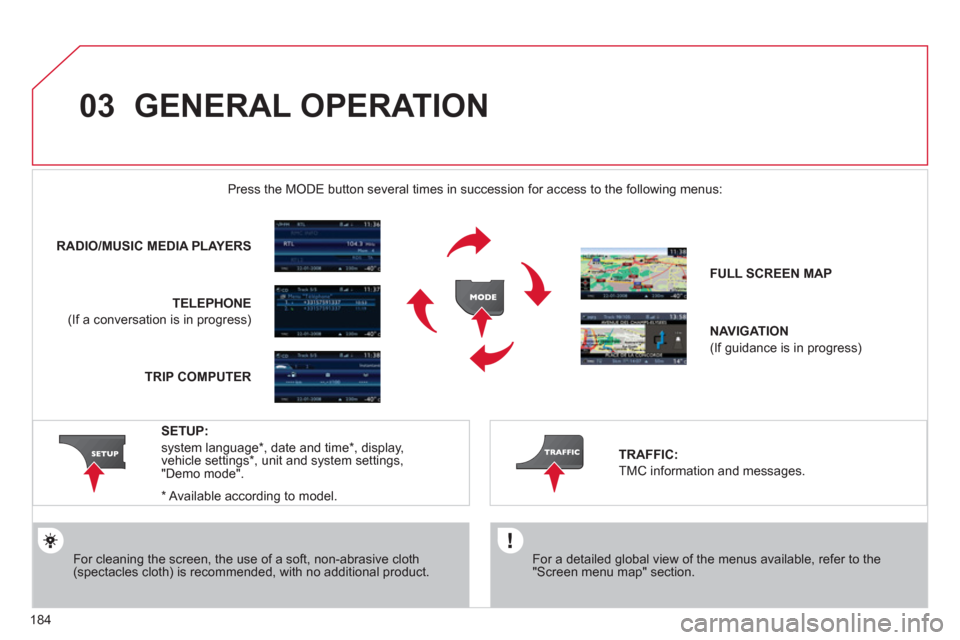
ODE button several times in succession for access to the following menus:
For cleaning the screen, the use of a soft, non-abrasive cloth (spectacles cloth) is recommended, with no additional product. RADIO/MU
SIC MEDIA PLAYERS
TELEPHONE
(If a conversation is in progress)
FULL SCREEN MA
P
NAVIGATION
(If guidance is in progress)
SETUP:
system language *
, date and time *
, display,
vehicle settings * , unit and system settings,
"Demo mode".
TRAFFIC:
TMC information and messages.
*
Available accordin
g to model. TRIP COMPUTE
R
Page 189 of 252
187
04
1
2
3
5
6
4
NAVIGATION - GUIDANCE
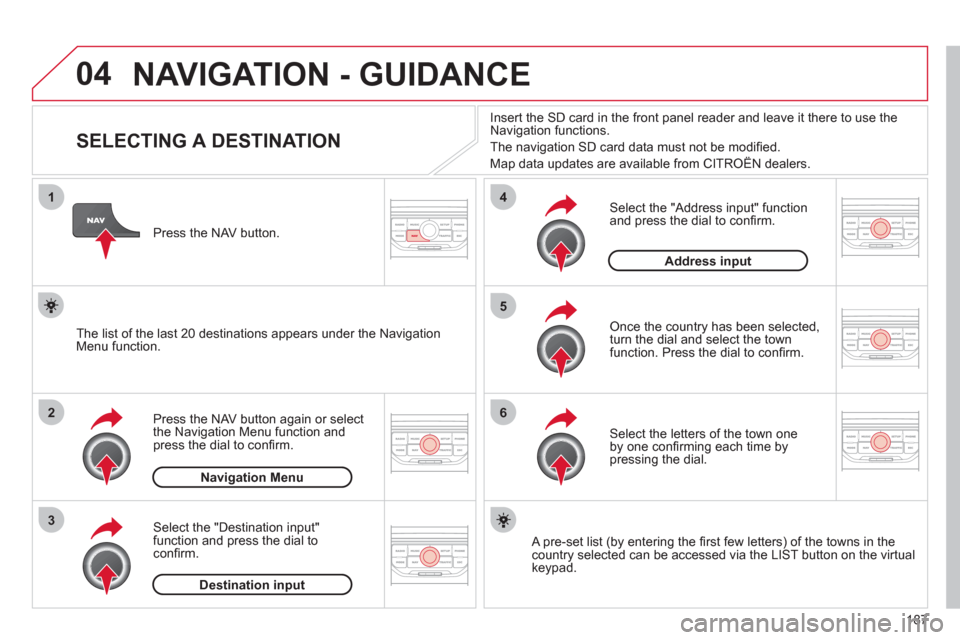
SELECTING A DESTINATION
Press the NAV button again or select
the Navigation Menu function and
press the dial to confi rm.
Select the "Destination in
put"
function and press the dial to
confi rm. Pr
ess the NAV button.
Select the letters of the town one
by one confi rming each time by pressing the dial.
Once the country has been selected,
turn the dial and select the townfunction. Press the dial to confi rm. Insert the
SD card in the front panel reader and leave it there to use the
Navigation functions.
The navi
gation SD card data must not be modifi ed.
Map data updates are available from CITROÀN dealers.
A pre-set list (by entering the fi rst few letters) of the towns in thecountry selected can be accessed via the LIST button on the virtual
keypad.
Select the "Address input" function
and press the dial to confi rm.
The list o
f the last 20 destinations appears under the NavigationMenu function.
Navigation Menu
Destination input
Address input
Page 190 of 252
188
04
7
8
9
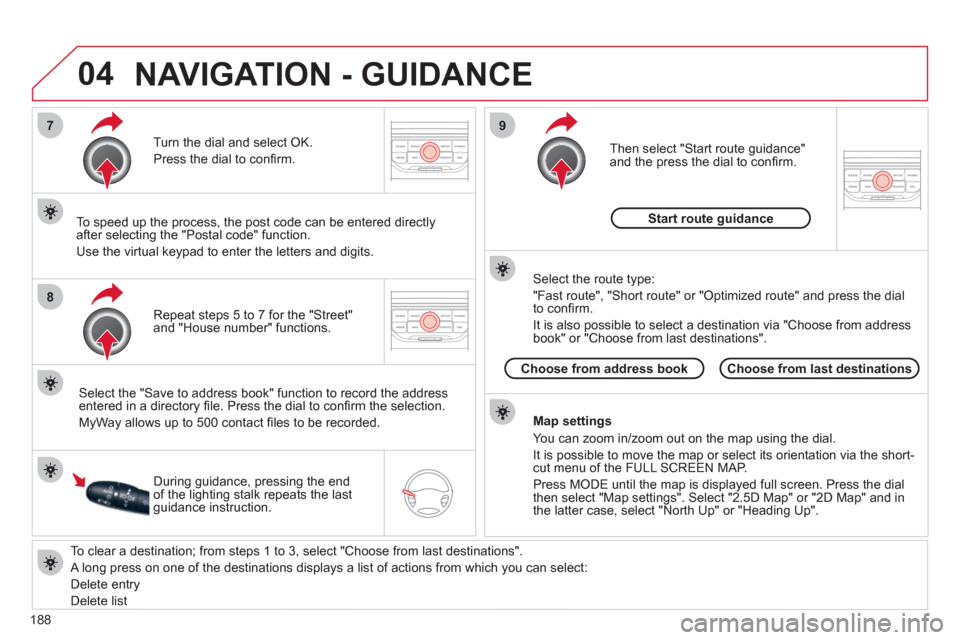
To clear a destination; from steps 1 to 3, select "Choose from last destinations".
A long press on one of the destinations displays a list of actions from which you can select:
Delete entr
y
D
elete listRepeat steps 5 to 7
for the "Street" and "House number" functions. Turn the dial and select
OK.
Pr
ess the dial to confi rm.
Select the "Save to address book" function to record the address
entered in a directory fi le. Press the dial to confi rm the selection.
M
yWay allows up to 500 contact fi les to be recorded.
To speed up the process, the post code can be entered directl
y
after selecting the "Postal code" function.
Use the virtual ke
ypad to enter the letters and digits.
Then select "
Start route guidance"
and the press the dial to confi rm.
During guidance, pressing the endof the lighting stalk repeats the last guidance instruction.
Map settin
gs
You can zoom in/zoom out on the map usin
g the dial.
It is possible to move the map or select its orientation via the short-cut menu of the FULL SCREEN MAP.
Press M
ODE until the map is displayed full screen. Press the dial
then select "Map settings". Select "2.5D Map" or "2D Map" and in
the latter case, select "North Up" or "Heading Up".
Select the route type:
"Fast route", "
Short route" or "Optimized route" and press the dial
to confi rm.
It is also
possible to select a destination via "Choose from address
book" or "Choose from last destinations".
Choose from last destinations Choose from address bookStart route
guidance
NAVIGATION - GUIDANCE
Page 197 of 252
195
05
2 1
3
4
5
TRAFFIC INFORMATION
CONFIGURE THE FILTERING AND
DISPLAY OF TMC MESSAGES
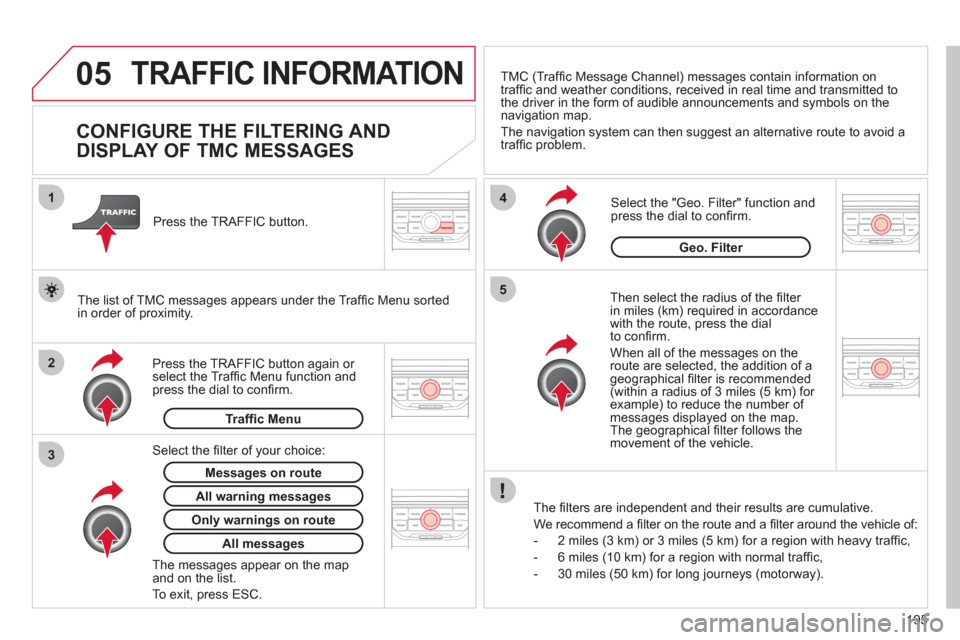
Then select the radius of the fi lter
in miles (km) required in accordance
with the route, press the dial
to confi rm.
When all of the messa
ges on the route are selected, the addition of ageographical fi lter is recommended(within a radius of 3 miles (5 km) for example) to reduce the number of messages displayed on the map.The geographical fi lter follows the movement of the vehicle.
The
fi lters are independent and their results are cumulative.
W
e recommend a fi lter on the route and a fi lter around the vehicle of:
- 2 miles
(3 km) or 3 miles (5 km) for a region with heavy traffi c,
- 6 miles
(10 km) for a region with normal traffi c,
- 30 miles
(50 km) for long journeys (motorway).
Press the TRAFFI
C button again or select the Traffi c Menu function andpress the dial to confi rm. Press the TRAFFI
C button.
TM
C (Traffi c Message Channel) messages contain information on
traffi c and weather conditions, received in real time and transmitted to
the driver in the form of audible announcements and symbols on thenavigation map.
The navi
gation system can then suggest an alternative route to avoid a
traffi c problem.
Select the "Geo. Filter" function and press the dial to confi rm.
Messages on route
The list of TMC messages appears under the Traffi c Menu sorted
in order of proximity.
All warnin
g messages
Traffi c Menu
Select the fi lter of
your choice:
Onl
y warnings on route
All messages
The messages appear on the map and on the list.
To exit, press E
SC.
Geo. Filter
Page 199 of 252
197
06
3 2 1 1
SELECTING A STATION
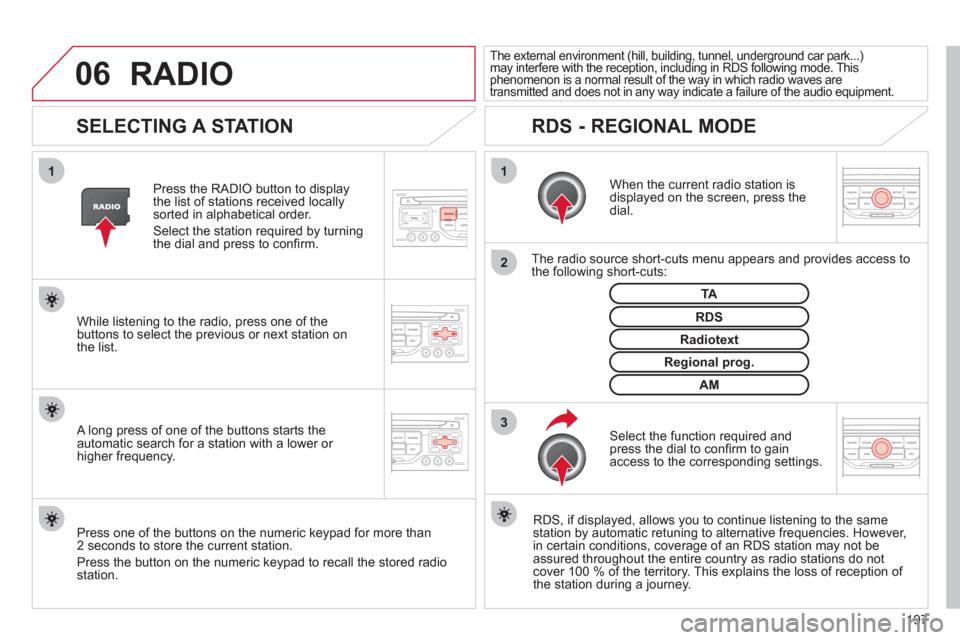
When the current radio station isdisplayed on the screen, press thedial.
The radio source short-cuts menu appears and provides access to
the following short-cuts:
Select the function re
quired and press the dial to confi rm to gain
access to the corresponding settings.
TA
RDS, if displayed, allows you to continue listening to the same station by automatic retuning to alternative frequencies. However,
in certain conditions, coverage of an RDS station may not be
assured throughout the entire country as radio stations do notcover 100 % of the territory. This explains the loss of reception of
the station during a journey.
The external environment (hill, building, tunnel, underground car park...)may interfere with the reception, including in RDS following mode. This(g g(g
phenomenon is a normal result of the way in which radio waves are
transmitted and does not in any way indicate a failure of the audio equipment.
RDS - REGIONAL MODE
Press the RADIO button to display
the list of stations received locally sorted in alphabetical order.
Select the station required by turningthe dial and press to confi rm.
Re
gional prog.
Radiotext
RDSWhile listening to the radio, press one of the
buttons to select the previous or next station on
the list.
Press one o
f the buttons on the numeric keypad for more than
2 seconds to store the current station.
Press the button on the numeric keypad to recall the stored radio
station.
AM
A long press of one of the buttons starts theautomatic search for a station with a lower or
higher frequency.
RADIO
Page 200 of 252
198
07MUSIC MEDIA PLAYERS
CD, MP3/WMA CD
INFORMATION AND ADVICE
In order to be able to play a recorded CDR or CDRW, when recording it is preferable to select the ISO 9660 level 1, 2 or Jolietstandard.
I
f the disc is recorded in another format it may not be playedcorrectly.
It is recommended that the same recordin
g standard is alwaysused for an individual disc, with as low a speed as possible(4x maximum) for optimum sound quality.
In the particular case o
f a multi-session CD, the Joliet standard is recommended.
The M
yWay will only play audio fi les with the extension ".mp3"
with a speed of between 8 Kbps and 320 Kbps and the extension
".wma" with a speed of between 5 Kbps and 384 Kbps.
It also supports the VBR
(Variable Bit Rate) mode.
No other t
ype of fi le (.mp4, .m3u...) can be played. The MP3
format, an abbreviation of MPEG 1, 2 & 2.5 Audio Layer 3 and the WMA format, an abbreviation of Windows Media Audio and
the property of Microsoft, are audio compression standards which permit the recording of several tens of music fi les on a single disc.
It is advisable to restrict fi le names to 20 characters
, without
using special characters (e.g.: " ? ; ù) to avoid any play or display
problems.
Page 201 of 252
199
07
3 2 1
6
4
5
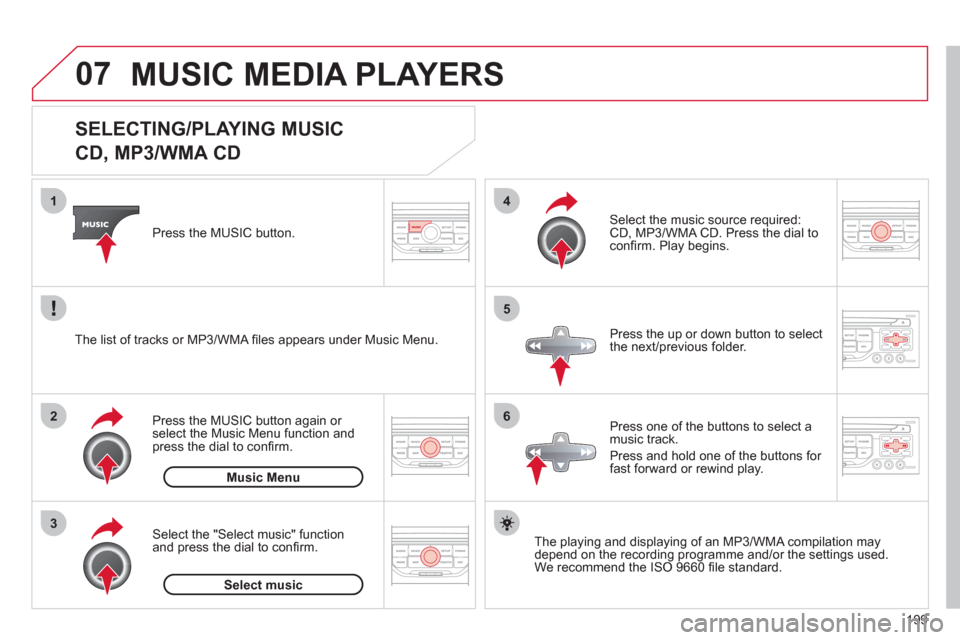
SELECTING/PLAYING MUSIC
CD, MP3/WMA CD
The playing and displaying of an MP3/WMA compilation may
depend on the recording programme and/or the settings used.
We recommend the ISO 9660 fi le standard.
Press the M
USIC button.
Select the "Select music" function
and press the dial to confi rm.
Press the up or down button to select
the next
/previous folder.
Select the music source required:
CD, MP3/WMA CD. Press the dial to
confi rm. Play begins.
Select music Press the MUSIC button a
gain or select the Music Menu function and press the dial to confi rm.
Pr
ess one of the buttons to select amusic track.
Pr
ess and hold one of the buttons for
fast forward or rewind play. Music Menu The list of tracks or MP3/WMA fi les a
ppears under Music Menu.
MUSIC MEDIA PLAYERS
Page 203 of 252
201
08
1
2
3
4
BLUETOOTH TELEPHONE
*
The services available depend on the network, the SIM card and thecompatibility of the Bluetooth telephone used. Check the telephone
manual and with your network provider for details of the servicesavailable to you.
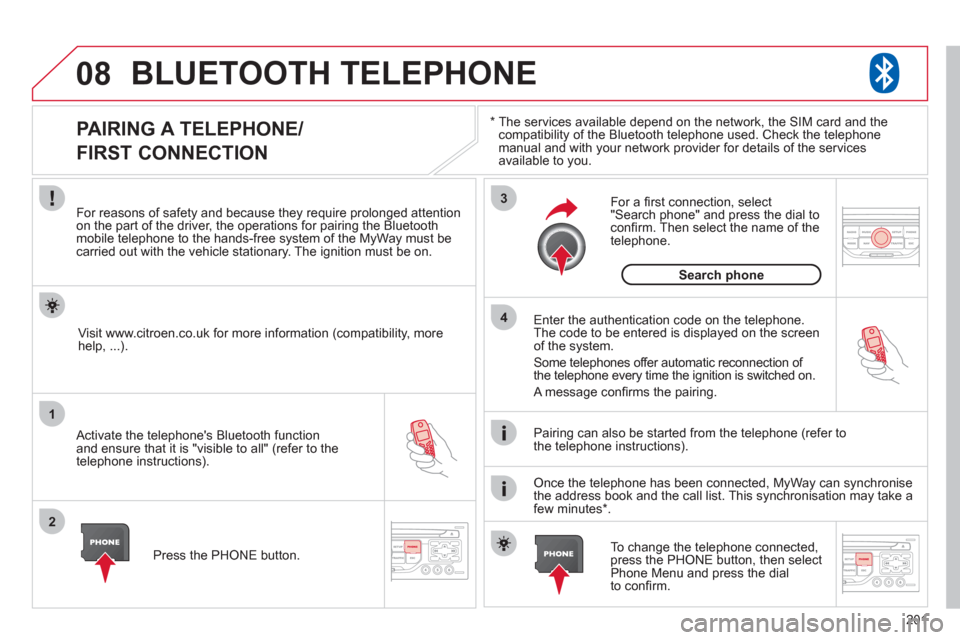
PAIRING A TELEPHONE/
FIRST CONNECTION
For reasons of safety and because they require prolonged attentionon the part of the driver, the operations for pairing the Bluetooth mobile telephone to the hands-free system of the MyWay must be carried out with the vehicle stationary. The ignition must be on.
Activate the telephone's Bluetooth
function
and ensure that it is "visible to all" (refer to the
telephone instructions). Enter the authentication code on the tele
phone.
The code to be entered is displayed on the screen
of the system.
Some telephones offer automatic reconnection o
f
the telephone every time the ignition is switched on.
A messa
ge confi rms the pairing.
To change the telephone connected, press the PHONE button, then select Phone Menu and press the dial
to confi rm.
Once the telephone has been connected, MyWay can synchronise
the address book and the call list. This synchronisation may take a few minutes * . Pairin
g can also be started from the telephone (refer to
the telephone instructions). Visit www.citroen.co.uk
for more information (compatibility, more
help, ...).
Press the PH
ONE button.
For a
fi rst connection, select"Search phone" and press the dial to confi rm. Then select the name of thetelephone.
Search
phone