ignition Citroen C3 2015 2.G Manual PDF
[x] Cancel search | Manufacturer: CITROEN, Model Year: 2015, Model line: C3, Model: Citroen C3 2015 2.GPages: 401, PDF Size: 13.04 MB
Page 336 of 401
Audio and Telematics
8
C3-additif_en_Chap13a_BTA-2_ed01-2015
Localised Assistance Call
The fault with the system does not prevent the vehicle being driven.
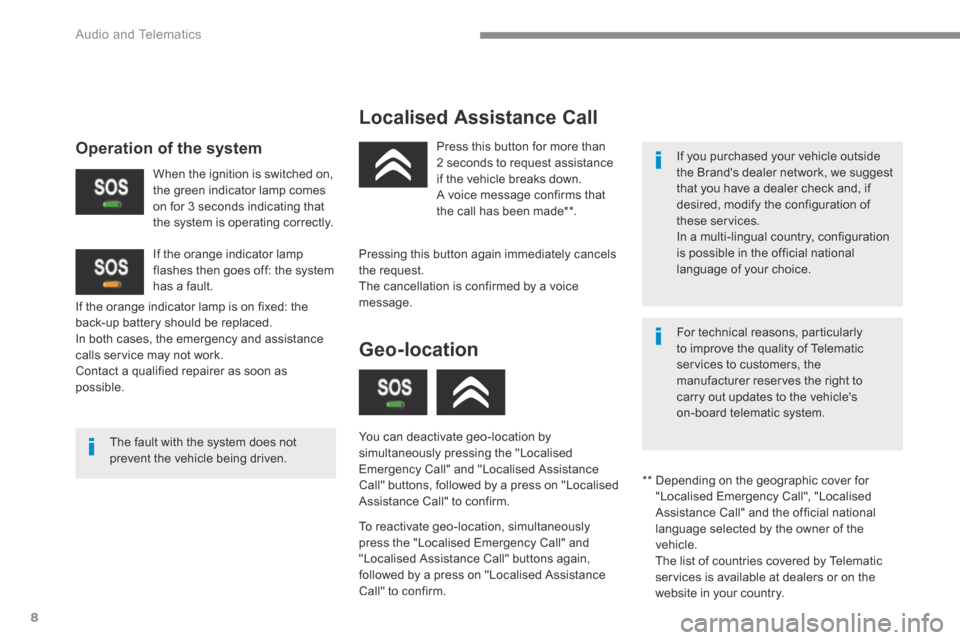
Press this button for more than 2 seconds to request assistance if the vehicle breaks down. A voice message confirms that the call has been made ** .
Pressing this button again immediately cancels the request. The cancellation is confirmed by a voice message.
Geo-location
You can deactivate geo-location by simultaneously pressing the "Localised Emergency Call" and "Localised Assistance Call" buttons, followed by a press on "Localised Assistance Call" to confirm.
To reactivate geo-location, simultaneously press the "Localised Emergency Call" and "Localised Assistance Call" buttons again, followed by a press on "Localised Assistance Call" to confirm.
If the orange indicator lamp is on fixed: the back-up battery should be replaced. In both cases, the emergency and assistance calls service may not work. Contact a qualified repairer as soon as possible.
Operation of the system
When the ignition is switched on, the green indicator lamp comes on for 3 seconds indicating that the system is operating correctly.
If the orange indicator lamp flashes then goes off: the system has a fault.
If you purchased your vehicle outside the Brand's dealer network, we suggest that you have a dealer check and, if desired, modify the configuration of these services. In a multi-lingual country, configuration is possible in the official national language of your choice.
For technical reasons, particularly to improve the quality of Telematic services to customers, the manufacturer reserves the right to carry out updates to the vehicle's on-board telematic system.
** Depending on the geographic cover for "Localised Emergency Call", "Localised Assistance Call" and the official national language selected by the owner of the vehicle. The list of countries covered by Telematic services is available at dealers or on the
website in your country.
Page 366 of 401
38
C3-additif_en_Chap13b_SMEGplus_ed01-2015
The audio system will only play audio files
with ".wma, .aac, .flac, .ogg and .mp3" file
extensions and with a bit rate of between
32 Kbps and 320 Kbps.
It also supports VBR (Variable Bit Rate) mode.
No other type of file (.mp4, ...) can be played.
".wma" files must be of the standard wma 9 type.
The sampling rates supported are 32, 44 and
48 KHz.
Information and advice
Media
USB port
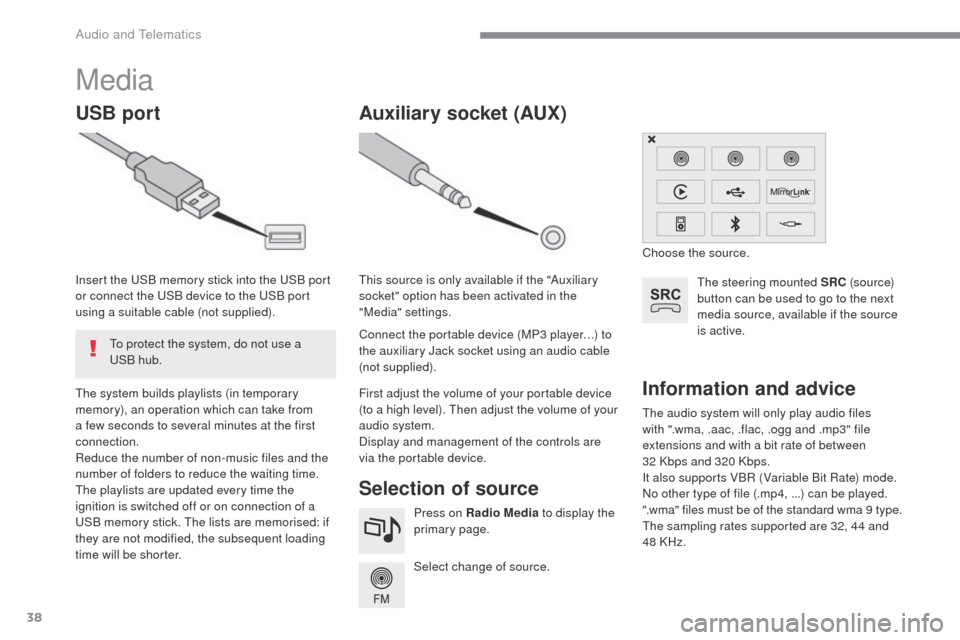
Selection of source
The steering mounted SRC (s o u r c e)
button can be used to go to the next
media source, available if the source
is active.
Select change of source. Press on Radio Media to display the
primary page.
The system builds playlists (in temporary
memory), an operation which can take from
a few seconds to several minutes at the first
connection.
Reduce the number of non-music files and the
number of folders to reduce the waiting time.
The playlists are updated every time the
ignition is switched off or on connection of a
USB memory stick. The lists are memorised: if
they are not modified, the subsequent loading
time will be shorter. Insert the USB memory stick into the USB port
or connect the USB device to the USB port
using a suitable cable (not supplied).
Auxiliary socket (AUX)
Connect the portable device (MP3 player…) to
the auxiliary Jack socket using an audio cable
(not supplied). This source is only available if the "Auxiliary
socket" option has been activated in the
"Media" settings.
First adjust the volume of your portable device
(to a high level). Then adjust the volume of your
audio system.
Display and management of the controls are
via the portable device. Choose the source.
To protect the system, do not use a
USB hub.
Audio and Telematics
Page 387 of 401
59
C3-additif_en_Chap13b_SMEGplus_ed01-2015
The services available depend
on the network, the SIM card and
the compatibility of the Bluetooth
®
telephone used. Check the telephone
manual and with your network provider
for details of the services available
to
you.
The ability of the system to connect
with only one profile depends on the
telephone. The three profiles may all
connect by default.
Visit www.citroen.co.uk for more information
(compatibility, additional help, ...).
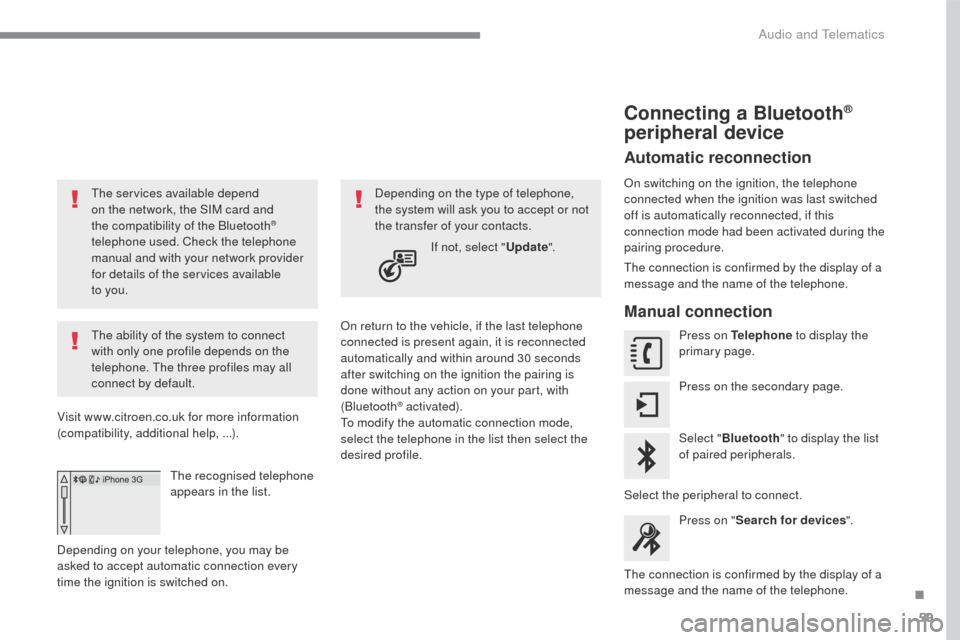
The recognised telephone
appears in the list.
Depending on your telephone, you may be
asked to accept automatic connection every
time the ignition is switched on. On return to the vehicle, if the last telephone
connected is present again, it is reconnected
automatically and within around 30 seconds
after switching on the ignition the pairing is
done without any action on your part, with
(Bluetooth
® activated).
To modify the automatic connection mode,
select the telephone in the list then select the
desired profile. Depending on the type of telephone,
the system will ask you to accept or not
the transfer of your contacts.
If not, select " Update".
Connecting a Bluetooth®
peripheral device
Automatic reconnection
On switching on the ignition, the telephone
connected when the ignition was last switched
off is automatically reconnected, if this
connection mode had been activated during the
pairing procedure.
The connection is confirmed by the display of a
message and the name of the telephone.
Manual connection
Press on Telephone to display the
primary page.
Press on the secondary page.
Select " Bluetooth " to display the list
of paired peripherals.
Select the peripheral to connect. Press on " Search for devices ".
The connection is confirmed by the display of a
message and the name of the telephone.
.
Audio and Telematics
Page 400 of 401
8
Safety107
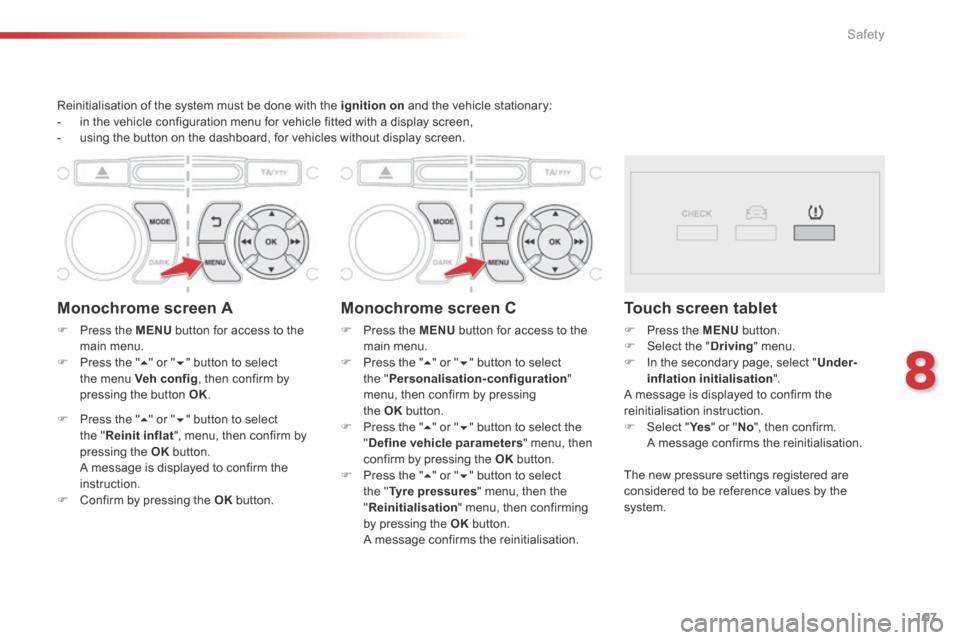
Reinitialisation of the system must be done with the ignition on and the vehicle stationary: - in the vehicle configuration menu for vehicle fitted with a display screen, - using the button on the dashboard, for vehicles without display screen.
Monochrome screen A
Press the MENU button for access to the main menu. Press the " " or " " button to select the menu Veh conf ig , then confirm by pressing the button OK .
Press the " " or " " button to select the " Reinit inflat ", menu, then confirm by pressing the OK b u t t o n . A message is displayed to confirm the instruction. Confirm by pressing the OK b u t t o n .
Monochrome screen C
Press the MENU button for access to the main menu. Press the " " or " " button to select the " Personalisation-configuration " menu, then confirm by pressing
the OK button. Press the " " or " " button to select the " Define vehicle parameters " menu, then confirm by pressing the OK button. Press the " " or " " button to select the " Tyre pressures " menu, then the " Reinitialisation " menu, then confirming by pressing the OK b u t t o n . A message confirms the reinitialisation.
Touch screen tablet
Press the MENU button. Select the " Driving " menu. In the secondary page, select " Under-inflation initialisation " . A message is displayed to confirm the
reinitialisation instruction. Select " Ye s Select " Ye s Select " " or " No ", then confirm. A message confirms the reinitialisation.
The new pressure settings registered are considered to be reference values by the s y s t e m .