cd player Citroen C4 2015 2.G Owner's Guide
[x] Cancel search | Manufacturer: CITROEN, Model Year: 2015, Model line: C4, Model: Citroen C4 2015 2.GPages: 494, PDF Size: 20.49 MB
Page 393 of 494
391
C4-2_en_Chap13c_RD5_ed01-2015
C4-2_en_Chap13c_RD5_ed01-2015
FREqUENTLY ASKED q UESTIONS
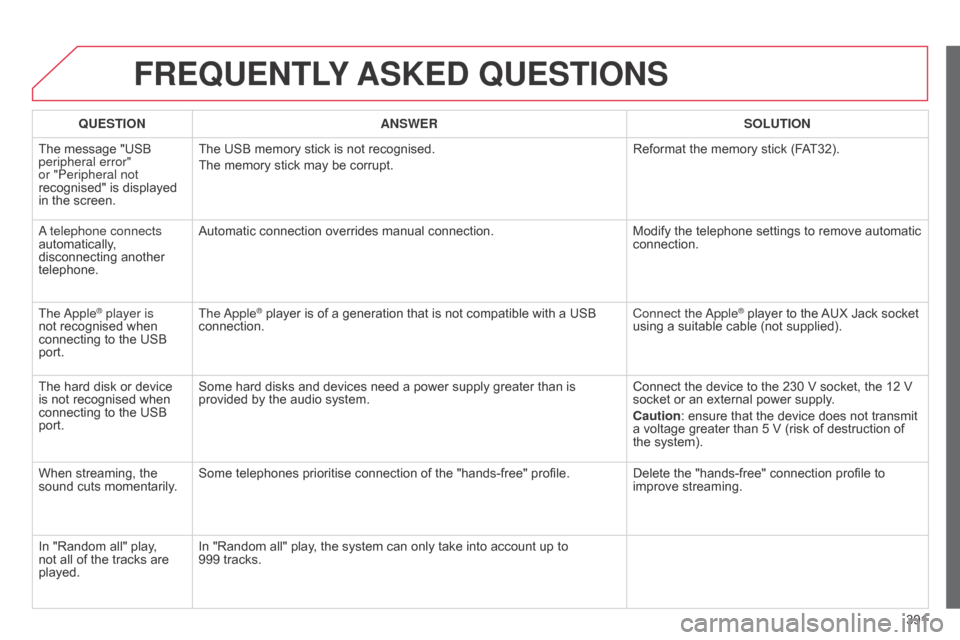
qUESTION ANSWER SOLUTION
The
message "USB
peripheral error"
or "Peripheral not
recognised"
is displayed
in
the
screen. The
USB memory stick is not recognised.
The
memory stick may be corrupt. Reformat
the memory stick (FAT32).
a telephone connects
automatically
,
disconnecting
another
telephone. Automatic
connection overrides manual connection.Modify
the telephone settings to remove automatic
connection.
The
a
pple
® player is
not
recognised when
connecting
to the USB
port. The
a pple® player is of a generation that is not compatible with a USB connection. Connect
the a pple® player to the AUX Jack socket using
a
suitable
cable (not supplied).
The
hard
disk
or
device
is
not
recognised
when
connecting
to
the
USB
port. Some
hard
disks
and
devices
need
a
power
supply
greater
than
is
provided
by
the
audio
system. Connect
the
device
to the 230 V socket, the 12 V
socket
or
an
external power supply.
Caution:
ensure
that the device does not transmit
a
voltage
greater
than 5 V (risk of destruction of
the
system).
When
streaming,
the
sound
cuts
momentarily. Some
telephones
prioritise
connection
of
the
"hands-free"
profile. Delete
the
"hands-free" connection profile to
improve
streaming.
In
"Random
all"
play,
not
all
of
the
tracks
are
played. In
"Random
all"
play,
the
system
can
only
take
into
account
up
to
999
tracks.
Page 398 of 494
396
C4-2_en_Chap14_index-alpha_ed01-2015
C4-2_en_Chap14_index-alpha_ed01-2015
Paint colour code .........................................28 6
Panoramic glass
sunroof
................
......................................... 78
Parcel shelf, rear
................................... 11
4 ,
11
7
Parking
brake
........................................1
77, 220
Parking
brake, electric
............................1
8, 170
Parking
lam
ps
.............................................. 12
2
Parking
sensors, front
..................................20
6
Parking
sensors, rear................................... 205
Particle filter
.......................................... 21
8,
21
9
Passenger
c
ompartment
f
ilter
........
..................................................... 219
Personalisation
...............................
...............36
Player,
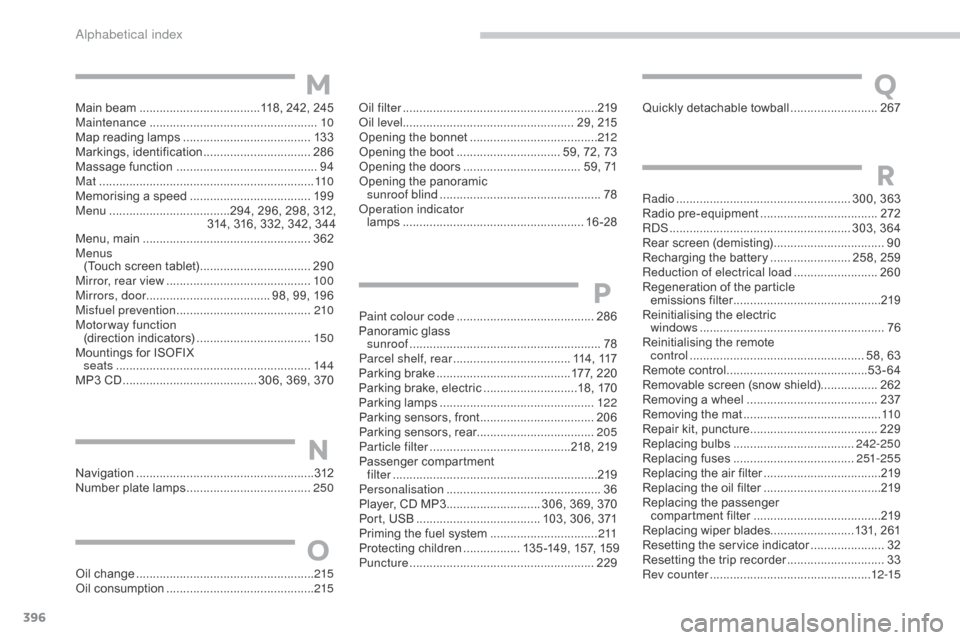
CD MP3
............................ 3
06, 369, 370
Port,
USB
..................................... 1
03, 306, 371
Priming
the fuel system
................................2
11
Protecting
children
................. 1
35 -149, 157, 159
Puncture
................
....................................... 229Quickly
detachable towball
..........................
2
67
P
Navigation ...............................
......................312 N
umber plate lamps ..................................... 25
0
oil
filter
...............
...........................................
219
oi
l level
................................................... 29, 215
Opening the bonnet
......................................
2
12
Opening the boot
..............................
. 59, 72, 73
Opening the doors
...............................
.... 59, 71
Opening the panoramic
sunroof blind
................................................ 78ope
ration indicator
lamps
..............................
........................
16 -28
N
Main beam .............................. ......118, 242, 245
Maintenance .............................. ....................10
Map
reading lamps
...................................... 13
3
Markings,
id
entification
................................ 28
6
Massage
function
...............................
...........94
Mat
.......
......................................................... 11 0
Memorising
a speed
.................................... 19
9
Menu
....................................2
94, 296, 298, 312,
314,
316, 332, 342, 344
Menu,
main
..............................
....................362
Menus (Touch
screen tablet)
.................................29
0
Mirror, rear view
........................................... 10
0
Mirrors, door ..................................... 98,
99, 196
Misfuel prevention
...............................
.........210
Motorway function (direction
i
ndicators)
.................................. 15
0
Mountings
for ISOFIX
seats
...............
........................................... 14 4
MP3
CD
................
........................ 306, 369, 370 Radio
...............
..................................... 300, 363
Radio
pr
e-equipment
...................................2
72
R
dS ................
...................................... 303, 364
Rear
s
creen
(
demisting)
.................................90
R
echarging the battery
........................ 2
58, 259
Reduction of electrical load
......................... 26
0
Regeneration
of the particle
emissions
f
ilter
............................................2
19
Reinitialising
the electric
windows
....................................................... 76
R
einitialising the remote
control
.................................................... 5
8, 63
Remote
control
..........................................53
-64
Removable
screen (snow shield).................262
Removing
a wheel
..............................
.........237
Removing
the mat
...............................
..........11 0
Repair
kit, puncture
......................................2
29
Replacing
bu
lbs
..............................
......242-250
Replacing
f
uses
..............................
......251-255
Replacing
the air filter
...................................2
19
Replacing
the oil filter
...................................2
19
Replacing
t
he
p
assenger
c
ompartment filter
......................................2
19
Replacing
wiper blades.........................131, 261
Resetting
the service indicator
......................32
R
esetting the trip recorder
.............................33
R
ev counter
................................................1
2-15
R
Oil change .....................................................215
Oil consumption ............................................ 2
15
O
QM
alphabetical index
Page 408 of 494
Fittings
4
C4-2-add_en_Chap05_amenagement_ed01-2015
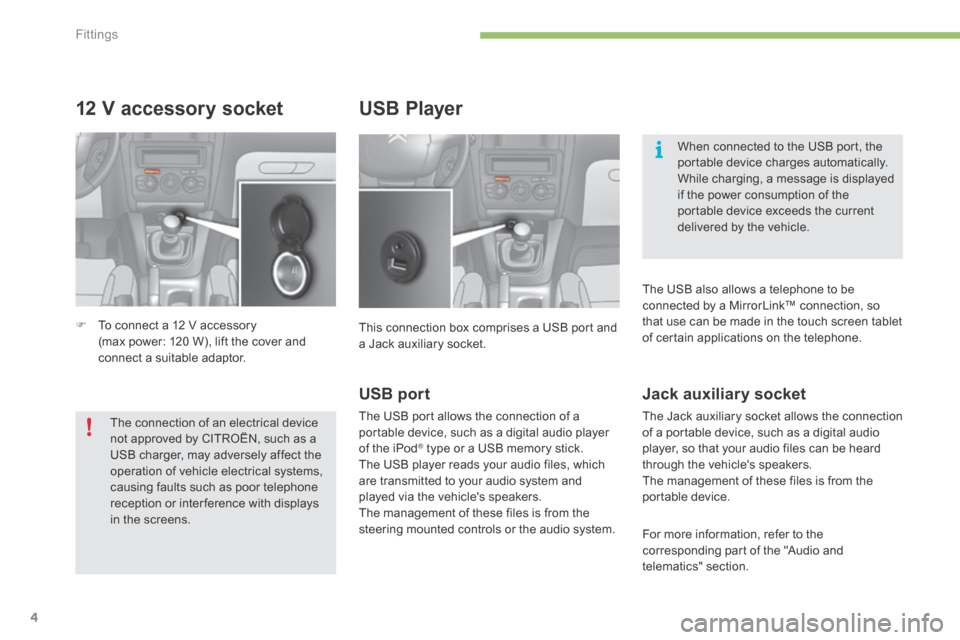
12 V accessory socket
To connect a 12 V accessory (max power: 120 W), lift the cover and connect a suitable adaptor.
USB Player
This connection box comprises a USB port and a Jack auxiliary socket.
When connected to the USB port, the portable device charges automatically. While charging, a message is displayed if the power consumption of the portable device exceeds the current delivered by the vehicle.
The connection of an electrical device not approved by CITROËN, such as a USB charger, may adversely affect the operation of vehicle electrical systems, causing faults such as poor telephone reception or inter ference with displays in the screens.
USB port
The USB port allows the connection of a portable device, such as a digital audio player of the iPod ® type or a USB memory stick. ® type or a USB memory stick. ®
The USB player reads your audio files, which are transmitted to your audio system and played via the vehicle's speakers. The management of these files is from the steering mounted controls or the audio system.
Jack auxiliary socket
The Jack auxiliary socket allows the connection of a portable device, such as a digital audio player, so that your audio files can be heard through the vehicle's speakers. The management of these files is from the portable device.
For more information, refer to the corresponding part of the "Audio and telematics" section.
The USB also allows a telephone to be connected by a MirrorLink™ connection, so that use can be made in the touch screen tablet of certain applications on the telephone.
Page 426 of 494
.
Audio and Telematics 23
C4-2-add_en_Chap13b_SMEGplus_ed01-2015
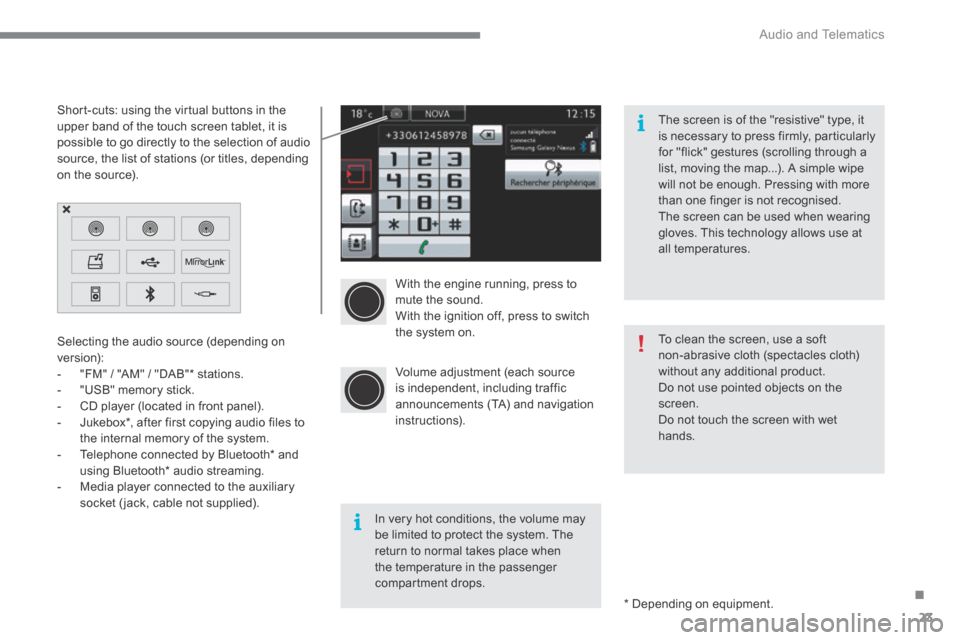
With the engine running, press to mute the sound. With the ignition off, press to switch the system on.
Volume adjustment (each source is independent, including traffic announcements (TA) and navigation instructions).
Selecting the audio source (depending on version): - "FM" / "AM" / "DAB" * stations. - "USB" memory stick. - CD player (located in front panel). - Jukebox * , after first copying audio files to
the internal memory of the system. - Telephone connected by Bluetooth * and using Bluetooth * audio streaming. - Media player connected to the auxiliary socket (jack, cable not supplied).
* Depending on equipment.
Short-cuts: using the virtual buttons in the upper band of the touch screen tablet, it is possible to go directly to the selection of audio source, the list of stations (or titles, depending on the source).
The screen is of the "resistive" type, it is necessary to press firmly, particularly for "flick" gestures (scrolling through a list, moving the map...). A simple wipe will not be enough. Pressing with more than one finger is not recognised. The screen can be used when wearing gloves. This technology allows use at all temperatures.
In very hot conditions, the volume may be limited to protect the system. The return to normal takes place when the temperature in the passenger compartment drops.
To clean the screen, use a soft non-abrasive cloth (spectacles cloth) without any additional product. Do not use pointed objects on the screen. Do not touch the screen with wet
hands.
Page 453 of 494
Audio and Telematics
50
C4-2-add_en_Chap13b_SMEGplus_ed01-2015
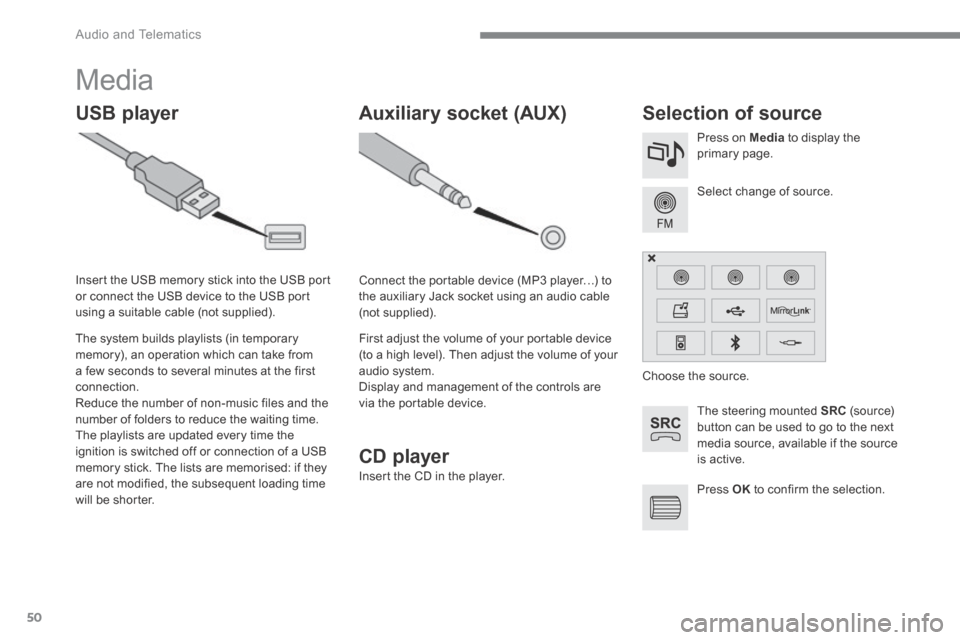
Media
USB player Selection of source
The steering mounted SRC (s o u r c e) button can be used to go to the next media source, available if the source is active.
Select change of source.
Press on Media to display the primary page.
The system builds playlists (in temporary memory), an operation which can take from a few seconds to several minutes at the first connection. Reduce the number of non-music files and the number of folders to reduce the waiting time. The playlists are updated every time the ignition is switched off or connection of a USB memory stick. The lists are memorised: if they are not modified, the subsequent loading time will be shorter.
Insert the USB memory stick into the USB port or connect the USB device to the USB port using a suitable cable (not supplied).
Auxiliary socket (AUX)
Connect the portable device (MP3 player…) to the auxiliary Jack socket using an audio cable (not supplied).
First adjust the volume of your portable device (to a high level). Then adjust the volume of your audio system. Display and management of the controls are via the portable device.
Choose the source.
Press OK to confirm the selection.
CD player
Insert the CD in the player.
Page 454 of 494
.
Audio and Telematics 51
C4-2-add_en_Chap13b_SMEGplus_ed01-2015
The audio equipment will only play audio files with ".wma, .aac, .flac, .ogg and. mp3" file extensions and with a bit rate of between 32 Kbps and 320 Kbps. It also supports VBR (Variable Bit Rate) mode. No other type of file (.mp4, ...) can be played. "wma" files must be of the standard wma 9 type. The sampling rates supported are 11, 22, 44 and 48 KHz.
It is advisable to restrict file names to 20 characters, without using of special characters (e.g.: " " ? ; ù) to avoid any playing and displaying problems.
Information and advice
Use only USB memory sticks formatted FAT 32 (28 -bit file allocation table).
The system supports USB mass storage devices, BlackBerry ® devices ® devices ®
or Apple ® players via USB ports. The ® players via USB ports. The ®
adaptor cable not supplied. Control of the peripheral device is with the audio system controls. Other peripherals, not recognised on connection, must be connected to the auxiliary socket using a Jack cable (not supplied).
It is recommended that the USB cable for the portable device is used.
The system does not support the simultaneous connection of two
identical devices (two memory sticks, two Apple ® players) but it is possible ® players) but it is possible ®
to connect one memory stick and one Apple ® player at the same time. ® player at the same time. ®
In order to be able to play a recorded CDR or CDRW, when recording it is preferable to select the ISO 9660 level 1, 2 or Joliet standard. If the disc is recorded in another format it may not be played correctly. It is recommended that the same recording standard is always used for an individual disc, with as low a speed as possible (4x maximum) for optimum sound quality. In the particular case of a multi-session CD, the Joliet standard is recommended.
Page 455 of 494
Audio and Telematics
52
C4-2-add_en_Chap13b_SMEGplus_ed01-2015
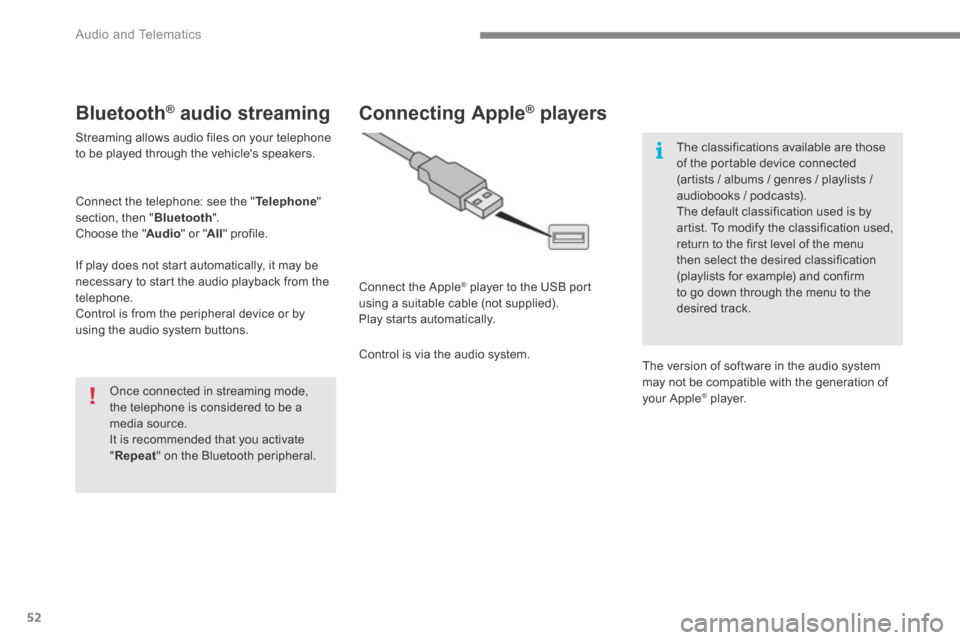
Bluetooth ® Bluetooth ® Bluetooth audio streaming ® audio streaming ®
Streaming allows audio files on your telephone to be played through the vehicle's speakers.
Connect the telephone: see the " Telephone " section, then " Bluetooth ". Choose the " Audio " or " All " profile.
If play does not start automatically, it may be necessary to start the audio playback from the telephone. Control is from the peripheral device or by using the audio system buttons.
Once connected in streaming mode, the telephone is considered to be a media source. It is recommended that you activate " Repeat " on the Bluetooth peripheral.
Connecting Apple ® Connecting Apple ® Connecting Apple players ® players ®
Connect the Apple ® player to the USB port ® player to the USB port ®
using a suitable cable (not supplied). Play starts automatically.
Control is via the audio system.
The classifications available are those of the portable device connected (artists / albums / genres / playlists / audiobooks / podcasts). The default classification used is by
artist. To modify the classification used, return to the first level of the menu then select the desired classification (playlists for example) and confirm to go down through the menu to the desired track.
The version of software in the audio system may not be compatible with the generation of your Apple ® player. ® player. ®
Page 456 of 494
.
Audio and Telematics 53
C4-2-add_en_Chap13b_SMEGplus_ed01-2015
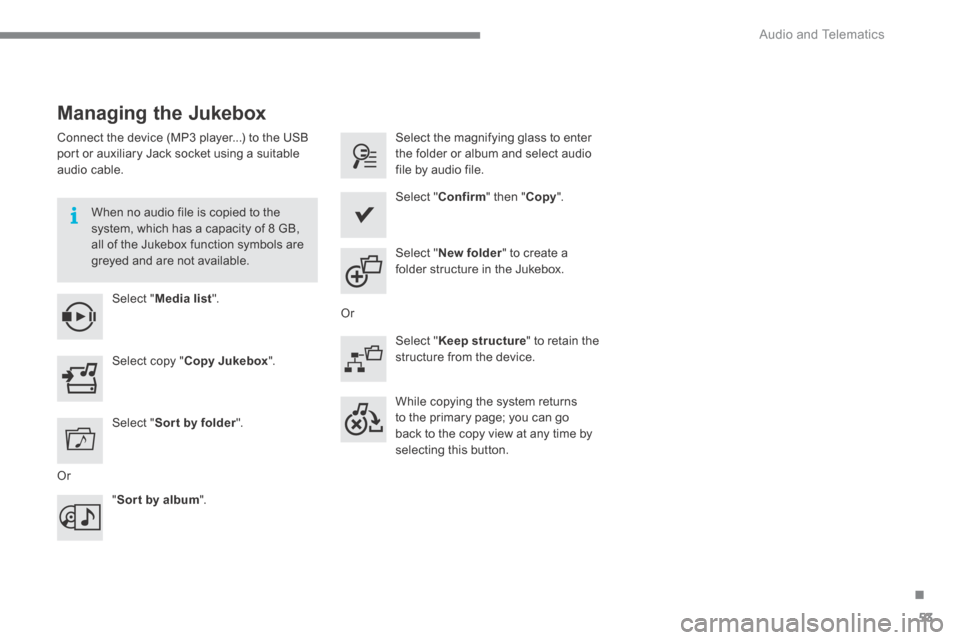
Managing the Jukebox
Connect the device (MP3 player...) to the USB port or auxiliary Jack socket using a suitable audio cable.
When no audio file is copied to the system, which has a capacity of 8 GB, all of the Jukebox function symbols are greyed and are not available.
Select " Media list ".
Select the magnifying glass to enter the folder or album and select audio file by audio file.
Select copy " Copy Jukebox ".
Select " Confirm " then " Copy ".
Select " Sor t by folder ".
Select " New folder " to create a folder structure in the Jukebox.
" Sor t by album ".
Select " Keep structure " to retain the structure from the device.
While copying the system returns to the primary page; you can go
back to the copy view at any time by selecting this button.
Or
Or
Page 482 of 494
.
Audio and Telematics 79
C4-2-add_en_Chap13b_SMEGplus_ed01-2015
Media
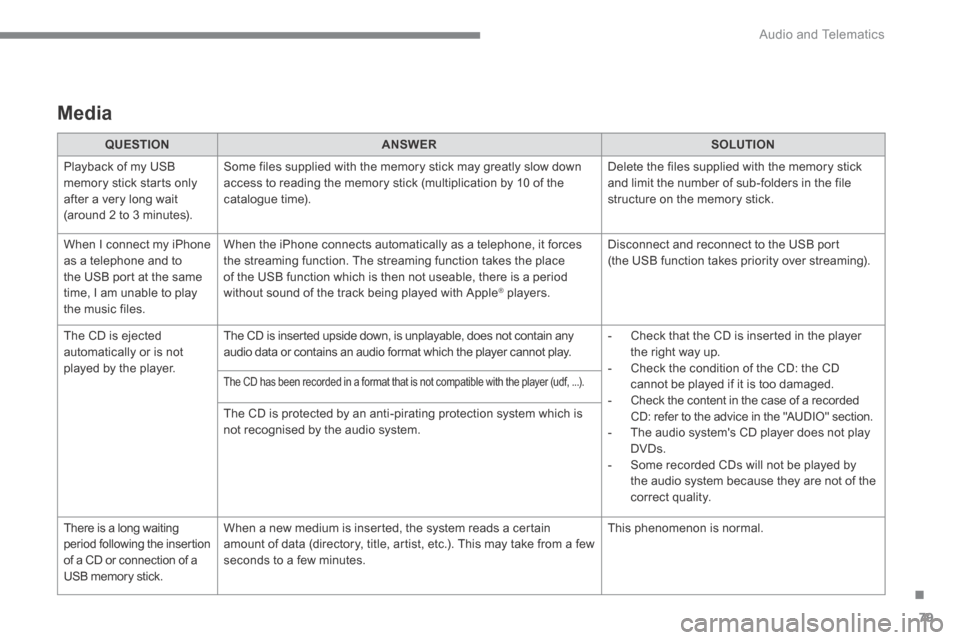
QUESTIONANSWERSOLUTION
Playback of my USB memory stick starts only after a very long wait (around 2 to 3 minutes).
Some files supplied with the memory stick may greatly slow down access to reading the memory stick (multiplication by 10 of the catalogue time).
Delete the files supplied with the memory stick and limit the number of sub-folders in the file structure on the memory stick.
When I connect my iPhone as a telephone and to the USB port at the same time, I am unable to play the music files.
When the iPhone connects automatically as a telephone, it forces the streaming function. The streaming function takes the place of the USB function which is then not useable, there is a period without sound of the track being played with Apple ® players. ® players. ®
Disconnect and reconnect to the USB port (the USB function takes priority over streaming).
The CD is ejected automatically or is not played by the player.
The CD is inserted upside down, is unplayable, does not contain any audio data or contains an audio format which the player cannot play. - Check that the CD is inserted in the player the right way up. - Check the condition of the CD: the CD cannot be played if it is too damaged. - Check the content in the case of a recorded CD: refer to the advice in the "AUDIO" section. - The audio system's CD player does not play DVDs. - Some recorded CDs will not be played by the audio system because they are not of the correct quality.
The CD has been recorded in a format that is not compatible with the player (udf, ...).
The CD is protected by an anti-pirating protection system which is
not recognised by the audio system.
There is a long waiting period following the insertion of a CD or connection of a USB memory stick.
When a new medium is inserted, the system reads a certain amount of data (directory, title, artist, etc.). This may take from a few seconds to a few minutes.
This phenomenon is normal.
Page 483 of 494
Audio and Telematics
80
C4-2-add_en_Chap13b_SMEGplus_ed01-2015
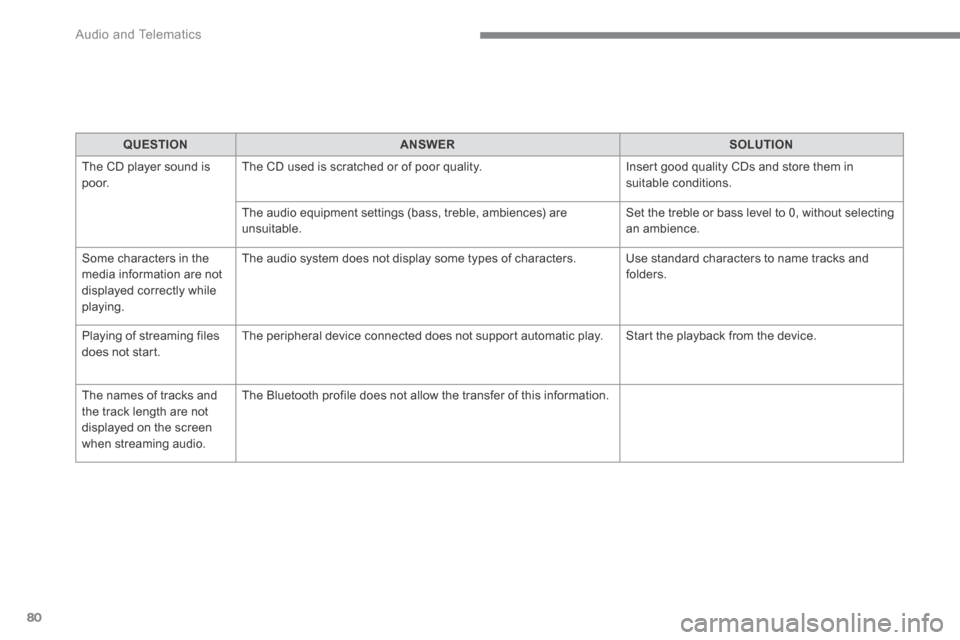
QUESTIONANSWERSOLUTION
The CD player sound is p o o r. The CD used is scratched or of poor quality. Insert good quality CDs and store them in suitable conditions.
The audio equipment settings (bass, treble, ambiences) are unsuitable. Set the treble or bass level to 0, without selecting an ambience.
Some characters in the media information are not displayed correctly while playing.
The audio system does not display some types of characters. Use standard characters to name tracks and folders.
Playing of streaming files does not start. The peripheral device connected does not support automatic play. Start the playback from the device.
The names of tracks and the track length are not displayed on the screen when streaming audio.
The Bluetooth profile does not allow the transfer of this information.