buttons Citroen C4 2015 2.G Owner's Guide
[x] Cancel search | Manufacturer: CITROEN, Model Year: 2015, Model line: C4, Model: Citroen C4 2015 2.GPages: 494, PDF Size: 20.49 MB
Page 425 of 494
Audio and Telematics
22
C4-2-add_en_Chap13b_SMEGplus_ed01-2015
First steps
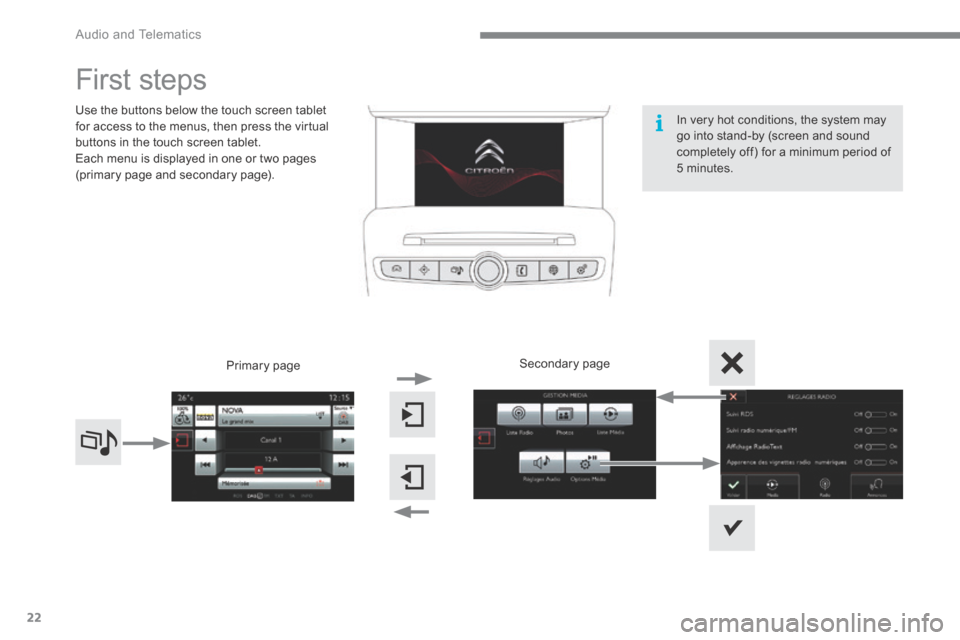
Use the buttons below the touch screen tablet for access to the menus, then press the virtual buttons in the touch screen tablet. Each menu is displayed in one or two pages (primary page and secondary page).
Secondary page Primary page
In very hot conditions, the system may go into stand-by (screen and sound completely off) for a minimum period of 5 minutes.
Page 426 of 494
.
Audio and Telematics 23
C4-2-add_en_Chap13b_SMEGplus_ed01-2015
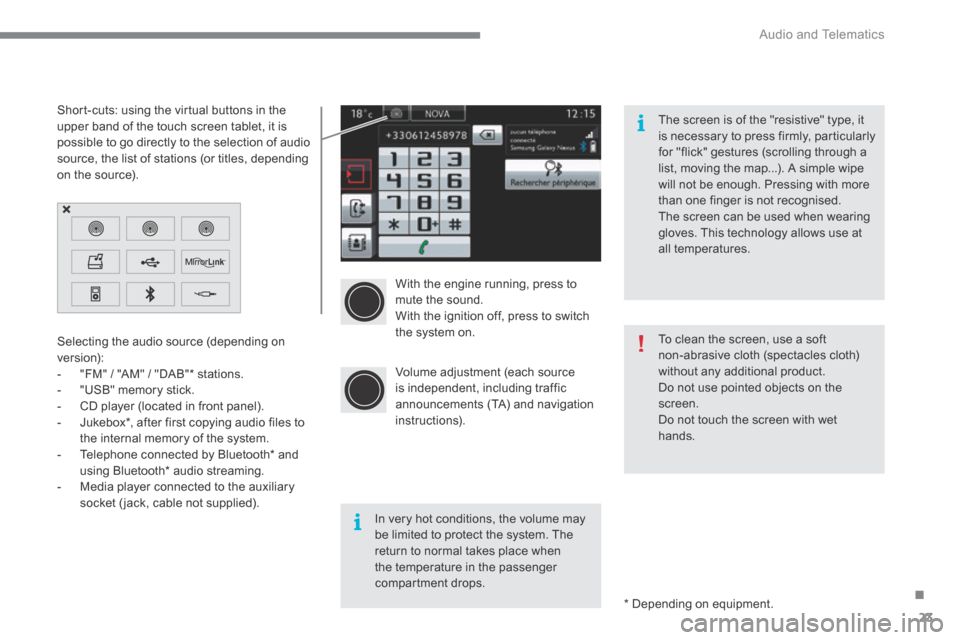
With the engine running, press to mute the sound. With the ignition off, press to switch the system on.
Volume adjustment (each source is independent, including traffic announcements (TA) and navigation instructions).
Selecting the audio source (depending on version): - "FM" / "AM" / "DAB" * stations. - "USB" memory stick. - CD player (located in front panel). - Jukebox * , after first copying audio files to
the internal memory of the system. - Telephone connected by Bluetooth * and using Bluetooth * audio streaming. - Media player connected to the auxiliary socket (jack, cable not supplied).
* Depending on equipment.
Short-cuts: using the virtual buttons in the upper band of the touch screen tablet, it is possible to go directly to the selection of audio source, the list of stations (or titles, depending on the source).
The screen is of the "resistive" type, it is necessary to press firmly, particularly for "flick" gestures (scrolling through a list, moving the map...). A simple wipe will not be enough. Pressing with more than one finger is not recognised. The screen can be used when wearing gloves. This technology allows use at all temperatures.
In very hot conditions, the volume may be limited to protect the system. The return to normal takes place when the temperature in the passenger compartment drops.
To clean the screen, use a soft non-abrasive cloth (spectacles cloth) without any additional product. Do not use pointed objects on the screen. Do not touch the screen with wet
hands.
Page 451 of 494
Audio and Telematics
48
C4-2-add_en_Chap13b_SMEGplus_ed01-2015
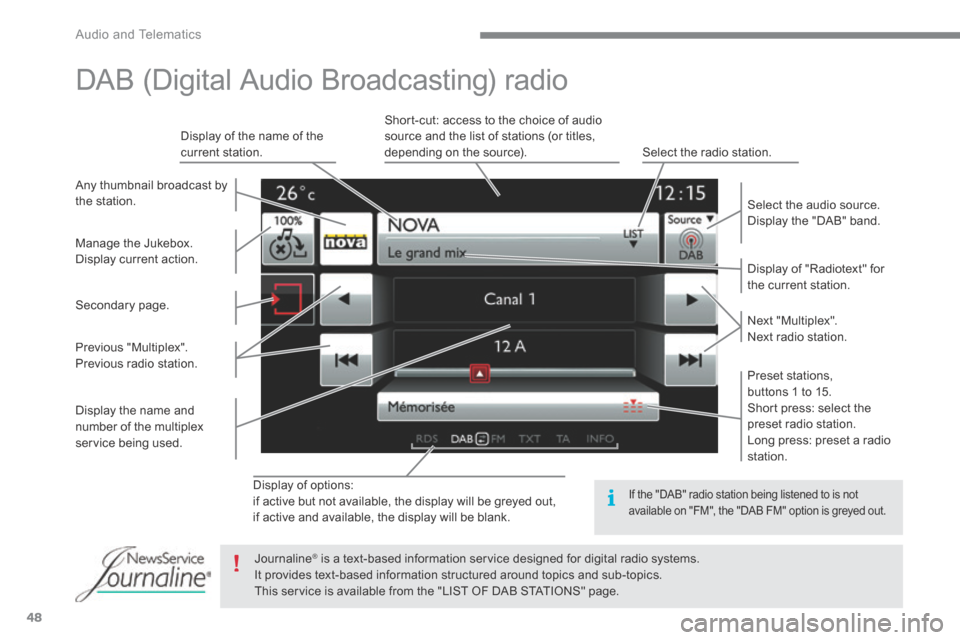
Display of options: if active but not available, the display will be greyed out, if active and available, the display will be blank.
Display of "Radiotext" for the current station.
Manage the Jukebox. Display current action.
Select the audio source. Display the "DAB" band.
Display of the name of the current station.
Short-cut: access to the choice of audio source and the list of stations (or titles, depending on the source). Select the radio station.
Any thumbnail broadcast by the station.
Preset stations, buttons 1 to 15. Short press: select the preset radio station. Long press: preset a radio station.
Next "Multiplex". Next radio station.
Secondary page.
Display the name and number of the multiplex service being used.
Previous "Multiplex". Previous radio station.
DAB (Digital Audio Broadcasting) radio
If the "DAB" radio station being listened to is not available on "FM", the "DAB FM" option is greyed out.
Journaline ® is a text-based information service designed for digital radio systems. ® is a text-based information service designed for digital radio systems. ®
It provides text-based information structured around topics and sub-topics. This service is available from the "LIST OF DAB STATIONS" page.
Page 455 of 494
Audio and Telematics
52
C4-2-add_en_Chap13b_SMEGplus_ed01-2015
Bluetooth ® Bluetooth ® Bluetooth audio streaming ® audio streaming ®
Streaming allows audio files on your telephone to be played through the vehicle's speakers.
Connect the telephone: see the " Telephone " section, then " Bluetooth ". Choose the " Audio " or " All " profile.
If play does not start automatically, it may be necessary to start the audio playback from the telephone. Control is from the peripheral device or by using the audio system buttons.
Once connected in streaming mode, the telephone is considered to be a media source. It is recommended that you activate " Repeat " on the Bluetooth peripheral.
Connecting Apple ® Connecting Apple ® Connecting Apple players ® players ®
Connect the Apple ® player to the USB port ® player to the USB port ®
using a suitable cable (not supplied). Play starts automatically.
Control is via the audio system.
The classifications available are those of the portable device connected (artists / albums / genres / playlists / audiobooks / podcasts). The default classification used is by
artist. To modify the classification used, return to the first level of the menu then select the desired classification (playlists for example) and confirm to go down through the menu to the desired track.
The version of software in the audio system may not be compatible with the generation of your Apple ® player. ® player. ®
Page 492 of 494
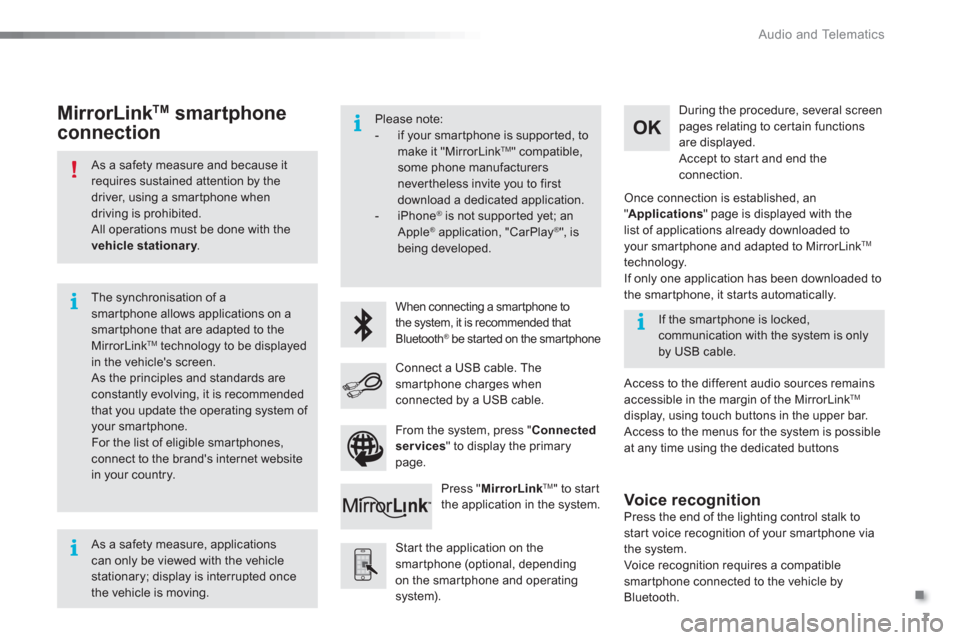
.
Audio and Telematics
7
As a safety measure and because it
requires sustained attention by the
driver, using a smartphone when
driving is prohibited.
All operations must be done with the
vehicle stationary
.
The synchronisation of a
smartphone allows applications on a
smartphone that are adapted to the
MirrorLink
TM technology to be displayed
in the vehicle's screen.
As the principles and standards are
constantly evolving, it is recommended
that you update the operating system of
your smartphone.
For the list of eligible smar tphones,
connect to the brand's internet website
in your country.
Please note:
- if your smartphone is supported, to
make it "MirrorLink
TM " compatible,
some phone manufacturers
nevertheless invite you to first
download a dedicated application.
- iPhone
®
is not supported yet; an
Apple ® application, "CarPlay ®
", is
being developed.
When connecting a smartphone to
the system, it is recommended that
Bluetooth
® be started on the smartphone
Start the application on the
smartphone (optional, depending
on the smartphone and operating
system).
Access to the different audio sources remains
accessible in the margin of the MirrorLink
TM
display, using touch buttons in the upper bar.
Access to the menus for the system is possible
at any time using the dedicated buttons
If the smartphone is locked,
communication with the system is only
by USB cable.
During the procedure, several screen
pages relating to certain functions
are displayed.
Accept to start and end the
connection.
Connect a USB cable. The
smartphone charges when
connected by a USB cable.
Press " MirrorLink
TM
" to start
the application in the system.
Once connection is established, an
" Applications
" page is displayed with the
list of applications already downloaded to
your smartphone and adapted to MirrorLink
TM
technology.
If only one application has been downloaded to
the smartphone, it starts automatically.
MirrorLink TM
smartphone
connection
Press the end of the lighting control stalk to
start voice recognition of your smartphone via
the system.
Voice recognition requires a compatible
smartphone connected to the vehicle by
Bluetooth.
Voice recognition
As a safety measure, applications
can only be viewed with the vehicle
stationary; display is interrupted once
the vehicle is moving.
From the system, press " Connected
services
" to display the primary
page.