buttons Citroen C4 2016 2.G User Guide
[x] Cancel search | Manufacturer: CITROEN, Model Year: 2016, Model line: C4, Model: Citroen C4 2016 2.GPages: 396, PDF Size: 10.22 MB
Page 49 of 396
47
C4-2_en_Chap01_instruments-de-bord_ed02-2015
Touch screen tablet
General operation
Principles
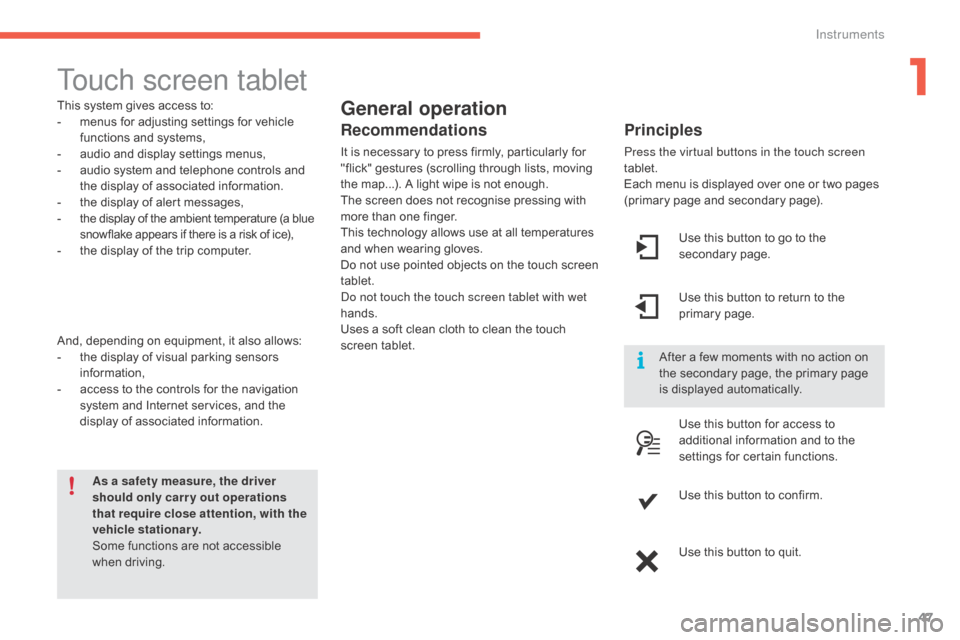
Press the virtual buttons in the touch screen
tablet.
Each menu is displayed over one or two pages
(
primary page and secondary page).
As a safety measure, the driver
should only carr y out operations
that require close attention, with the
vehicle stationary.
Some
functions
are
not
accessible
w
hen
d
riving.
This
system
gives
access
to:
-
m
enus
for
adjusting
settings
for
vehicle
f
unctions
and
systems,
-
a
udio
and
display
settings
menus,
-
a
udio
system
and
telephone
controls
and
t
he
display
of
associated
information.
-
t
he
display
of
alert
messages,
-
t
he
display
of
the
ambient
temperature
(a
blue
s
nowflake
appears
if
there
is
a
risk
of
ice),
-
t
he
display
of
the
trip
computer.
And,
depending
on
equipment,
it
also
allows:
-
t
he
display
of
visual
parking
sensors
i
nformation,
-
a
ccess
to
the
controls
for
the
navigation
s
ystem
and
Internet
services,
and
the
d
isplay
of
associated
information.
Recommendations
It is necessary to press firmly, particularly for " flick" gestures (scrolling through lists, moving
t
he map...). A light wipe is not enough.
The
screen does not recognise pressing with
m
ore than one finger.
This
technology allows use at all temperatures
a
nd when wearing gloves.
Do
not use pointed objects on the touch screen
t
ablet.
Do not touch the touch screen tablet with wet
hands.
Uses
a soft clean cloth to clean the touch
s
creen
t
ablet. Use
this button to go to the
s
econdary
pag
e.
After
a few moments with no action on
t
he secondary page, the primary page
i
s displayed automatically.
Use
this button to return to the
p
rimary
pag
e.
Use
this button for access to
a
dditional information and to the
s
ettings for certain functions.
Use
this button to confirm.
Use
this button to quit.
1
Instruments
Page 50 of 396
48
C4-2_en_Chap01_instruments-de-bord_ed02-2015
Menus
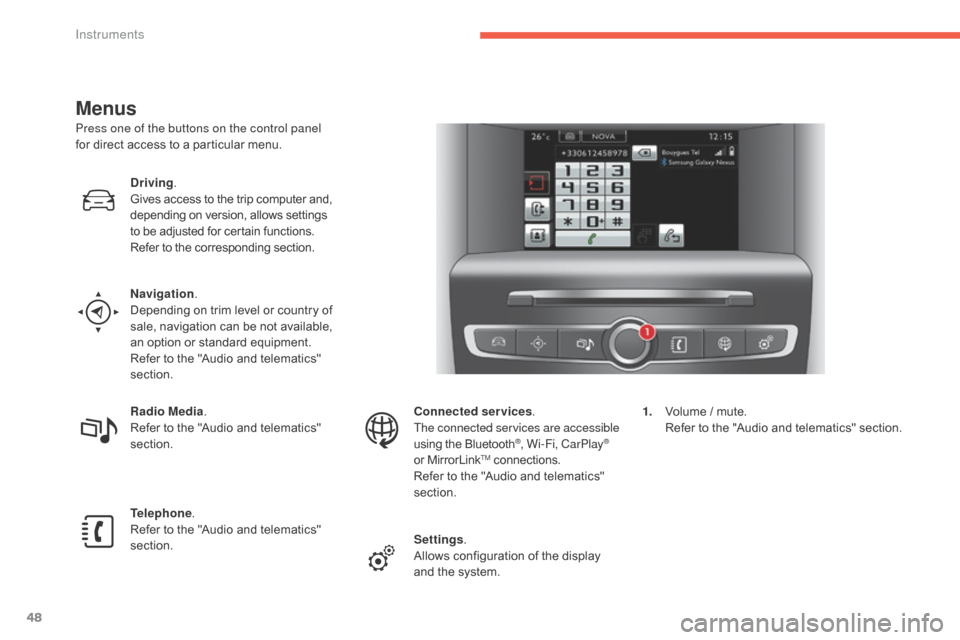
Press one of the buttons on the control panel
for direct access to a particular menu.
Driving .
Gives
access to the trip computer and,
d
epending on version, allows settings
t
o be adjusted for certain functions.
Refer
to the corresponding section.
Navigation .
Depending
on trim level or country of
s
ale, navigation can be not available,
a
n option or standard equipment.
Refer
to the "Audio and telematics"
s
ection.
Radio Media .
Refer
to the "Audio and telematics"
s
ection.
Telephone .
Refer
to the "Audio and telematics"
s
ection. Connected services
.
The connected services are accessible
using
the Bluetooth
®, Wi-Fi, CarPlay®
or
MirrorLinkTM connections.
Refer
to
the
"Audio and telematics"
s
ection.
Settings .
Allows
configuration of the display
a
nd
the
system. 1.
V
olume / mute.
R
efer to the "Audio and telematics" section.
Instruments
Page 56 of 396
54
C4-2_en_Chap01_instruments-de-bord_ed02-2015
Touch screen tablet
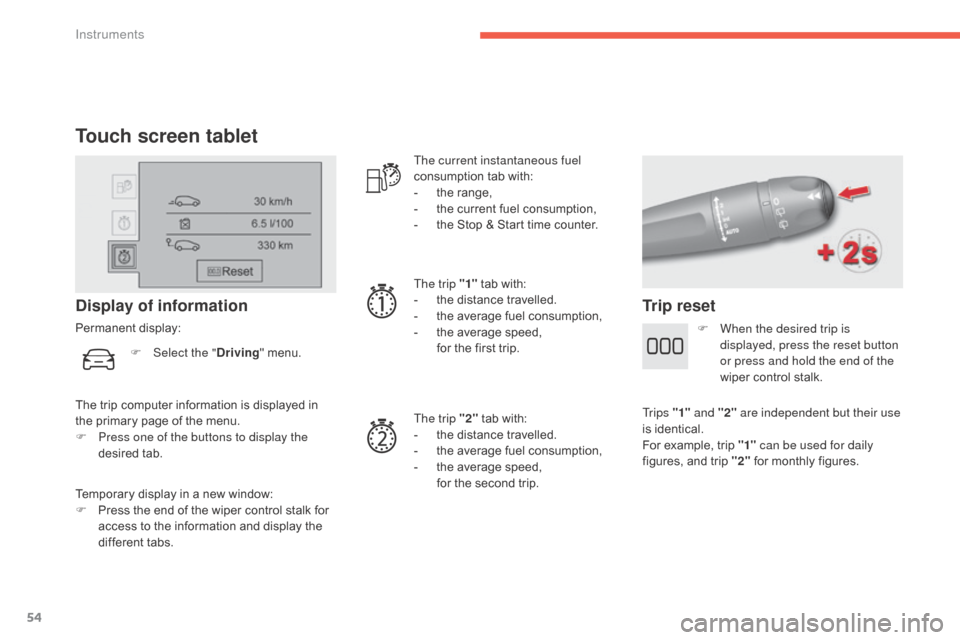
Temporary display in a new window:
F P ress the end of the wiper control stalk for
a
ccess to the information and display the
d
ifferent tabs.
Display of information
Permanent display: The current instantaneous fuel
consumption
tab with:
-
t
he range,
-
t
he current fuel consumption,
-
t
he Stop & Start time counter.
The trip "1"
tab with:
-
t
he distance travelled.
- t he average fuel consumption,
- t he average speed,
f
or the first trip.
The trip "2"
tab with:
-
t
he distance travelled.
-
t
he average fuel consumption,
-
t
he average speed,
f
or the second trip.
Trip reset
The trip computer information is displayed in the primary page of the menu.
F
P
ress one of the buttons to display the
desired
t
ab.
F
Sel
ect the "
Driving" menu.
F
W
hen the desired trip is
displayed, press the reset button
or press and hold the end of the
wiper control stalk.
Tr i p s "1" and "2" are independent but their use
is
identical.
For
example, trip "1" can be used for daily
figures,
and trip "2"
for monthly figures.
Instruments
Page 65 of 396
63
C4-2_en_Chap02_ouvertures_ed02-2015
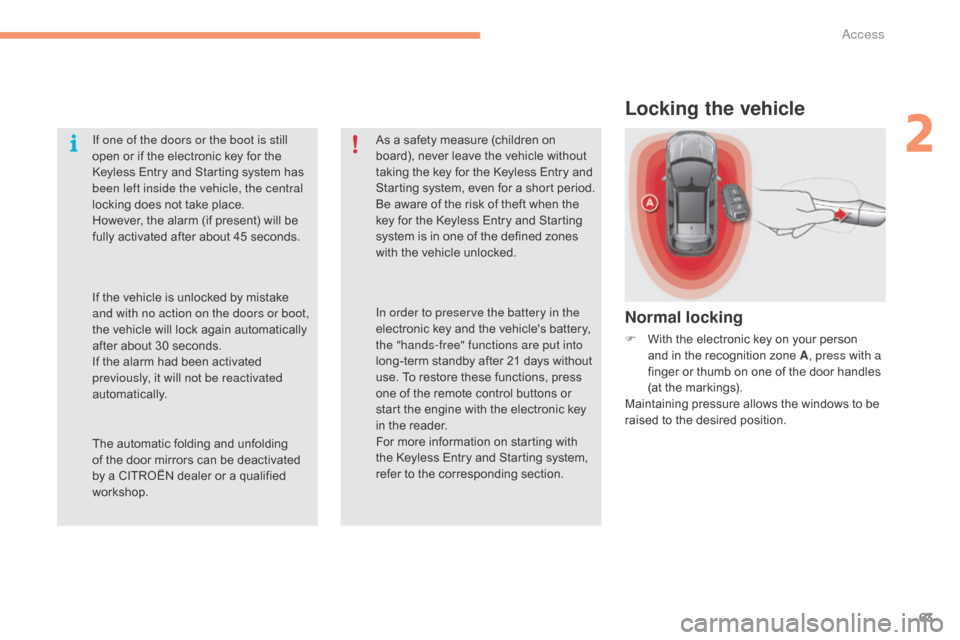
Locking the vehicle
Normal locking
F With the electronic key on your person a
nd in the recognition zone A, press with a
finger
or thumb on one of the door handles
(
at the markings).
Maintaining
pressure allows the windows to be
r
aised to the desired position.
If one of the doors or the boot is still
open
or
if
the
electronic
key
for
the
K
eyless
Entry
and
Starting
system
has
b
een left inside the vehicle, the central
locking
does
not
take
place.
However,
the
alarm
(if
present)
will
be
f
ully
activated
after
about
45
seconds.
As
a
safety
measure
(children
on
b
oard),
never
leave
the
vehicle
without
t
aking
the
key
for
the
Keyless
Entry
and
S
tarting
system,
even
for
a
short
period.
Be
aware
of
the
risk
of
theft
when
the
k
ey
for
the
Keyless
Entry
and
Starting
s
ystem
is
in
one
of
the
defined
zones
w
ith
the
vehicle
unlocked.
The
automatic
folding
and
unfolding
o
f
the
door
mirrors
can
be
deactivated
b
y
a
CITROËN
dealer
or
a
qualified
w
orkshop. In order to preserve the battery in the
electronic
key
and
the
vehicle's
battery,
t
he "hands-free" functions are put into
long-term
standby
after
21
days
without
u
se.
To
restore
these
functions,
press
o
ne
of
the
remote
control
buttons
or
s
tart
the
engine
with
the
electronic
key
i
n
the
reader.
For
more
information
on
starting
with
t
he
Keyless
Entry
and
Starting
system,
r
efer
to
the
corresponding
section.
If
the
vehicle
is
unlocked
by
mistake
a
nd with no action on the doors or boot,
the
vehicle
will
lock
again
automatically
a
fter
about
30
seconds.
If
the
alarm
had
been
activated
p
reviously, it will not be reactivated
automatically.
2
Access
Page 70 of 396
68
C4-2_en_Chap02_ouvertures_ed02-2015
Remote control
The high frequency remote control is a sensitive system; do not operate it while it is in your pocket as there is a possibility that it may unlock the vehicle, without you being aware of it.
Do
not repeatedly press the buttons of your remote control out of range and out of sight of your vehicle. You run the risk of stopping it from
w
orking and the remote control would have to be reinitialised.
The
remote control does not operate when the key is in the ignition, even when the ignition is switched off.
Locking the vehicle
Driving with the doors locked may make access to the passenger compartment by the emergency services more difficult in an emergency.
A s a safety precaution (with children on board), remove the key from the ignition or take the electronic key when you leave the vehicle, even for
a
short time.
Electrical interference
The Keyless Entry and Starting electronic key may not operate if close to certain electronic devices: telephone, laptop computer, strong magnetic fields, ...
Anti-theft protection
Do not make any modifications to the electronic engine immobiliser system; this could cause malfunctions.
D on't forget to turn the steering to engage the steering lock.
Lost keys, remote control, electronic key
Visit a CITROËN dealer with the vehicle's registration certificate, your personal identification documents and if possible, the label bearing the key code.
The
CITROËN dealer will be able to retrieve the key code and the transponder code required to order a new key
Do
not throw the remote control batteries away, they contain metals which are harmful to the environment.
Take
them to an approved collection point.
When purchasing a second-hand vehicle
Have the key codes memorised by a CITROËN dealer, to ensure that the keys in your possession are the only ones which can start the vehicle.
Access
Page 87 of 396
85
C4-2_en_Chap03_ergonomie-et-confort_ed02-2015
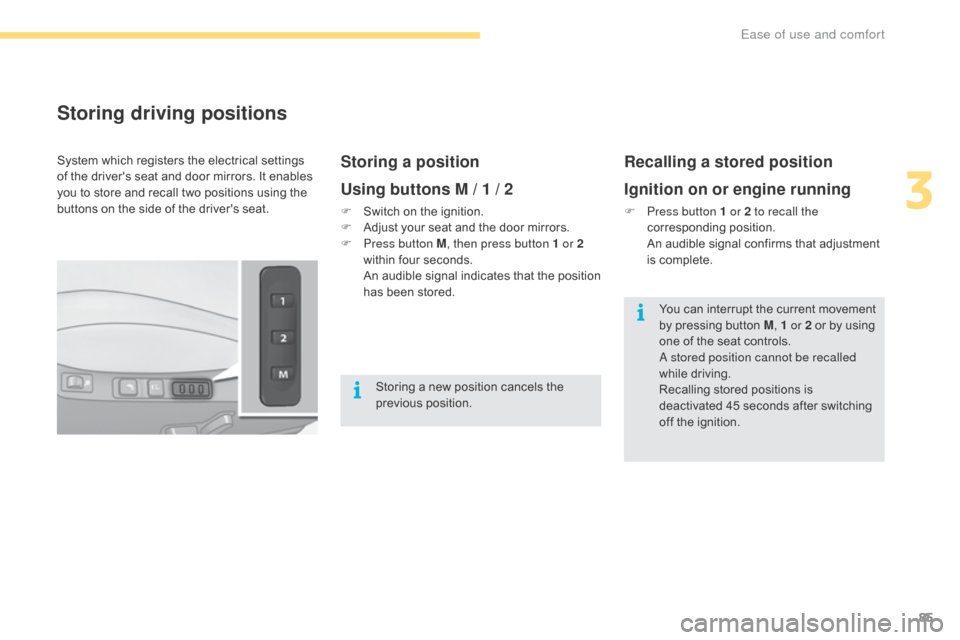
Storing driving positions
Storing a position
Using buttons M / 1 / 2
F Switch on the ignition.
F A djust your seat and the door mirrors.
F
P
ress button M , then press button 1 or 2
within
four seconds.
A
n audible signal indicates that the position
h
as been stored.
Recalling a stored position
Ignition on or engine running
F Press button 1 or 2 to recall the corresponding p osition.
A
n audible signal confirms that adjustment
i
s complete.
System
which
registers
the
electrical
settings
o
f
the
driver's
seat
and
door
mirrors.
It
enables
y
ou
to
store
and
recall
two
positions
using
the
b
uttons
on
the
side
of
the
driver's
seat.
Storing
a
new
position
cancels
the
p
revious
p
osition. You
can interrupt the current movement
b
y pressing button M, 1 or 2
or by using
o
ne of the seat controls.
A stored position cannot be recalled
while
driving.
Recalling
stored positions is
d
eactivated 45 seconds after switching
o
ff the ignition.
3
Ease of use and comfort
Page 99 of 396
97
C4-2_en_Chap03_ergonomie-et-confort_ed02-2015
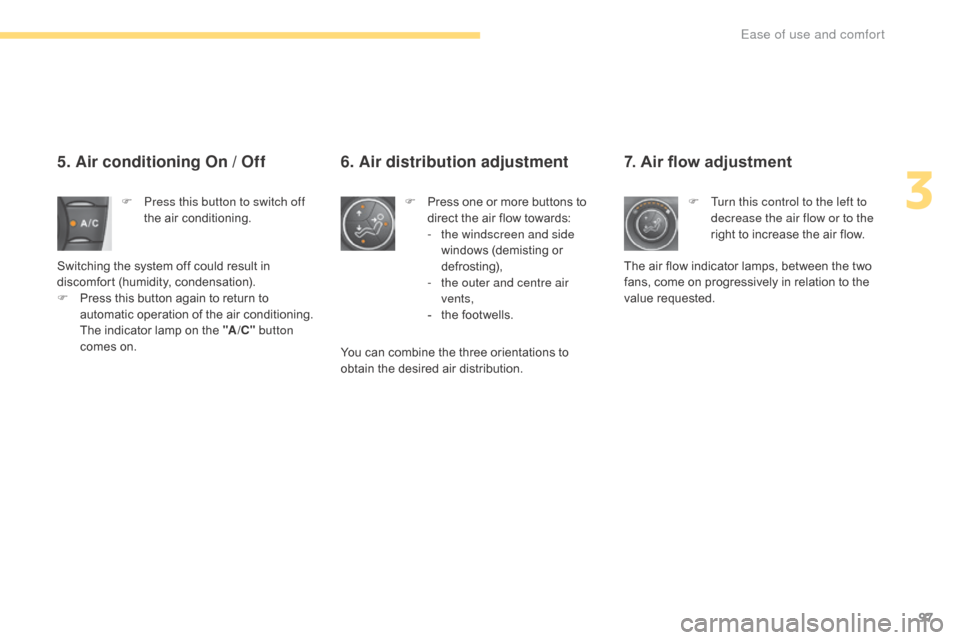
7. Air flow adjustment
F Turn this control to the left to decrease the air flow or to the
right
to increase the air flow.
The
air
flow
indicator lamps, between the two
f
ans,
come
on progressively in relation to the
v
alue
re
quested.
5. Air conditioning On / Off
F Press this button to switch off the air conditioning.
Switching
the system off could result in
d
iscomfort
(
humidity,
c
ondensation).
F
P
ress
this button again to return to
a
utomatic operation of the air conditioning.
T
he
indicator lamp on the "A /C " button
comes
on. F
P ress one or more buttons to d
irect the air flow towards:
-
t
he windscreen and side
windows
(demisting or
d
ef r o st ing),
-
t
he outer and centre air
vents,
-
t
he footwells.
6. Air distribution adjustment
You can combine the three orientations to obtain the desired air distribution.
3
Ease of use and comfort
Page 286 of 396
284
C4-2_en_Chap10b_SMEGplus_ed02-2015
First steps
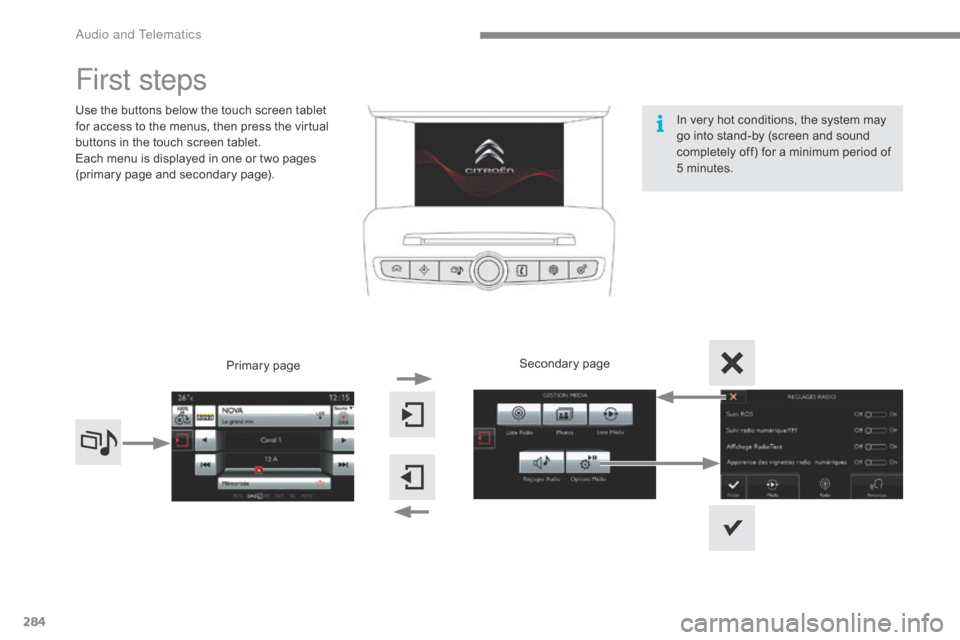
Use the buttons below the touch screen tablet for access to the menus, then press the virtual
b
uttons in the touch screen tablet.
Each
menu is displayed in one or two pages
(
primary page and secondary page).
Secondary
p
age
Primary
pag
e In
very hot conditions, the system may
g
o into stand-by (screen and sound
c
ompletely off) for a minimum period of
5 m
inutes.
Audio and Telematics
Page 287 of 396
285
C4-2_en_Chap10b_SMEGplus_ed02-2015
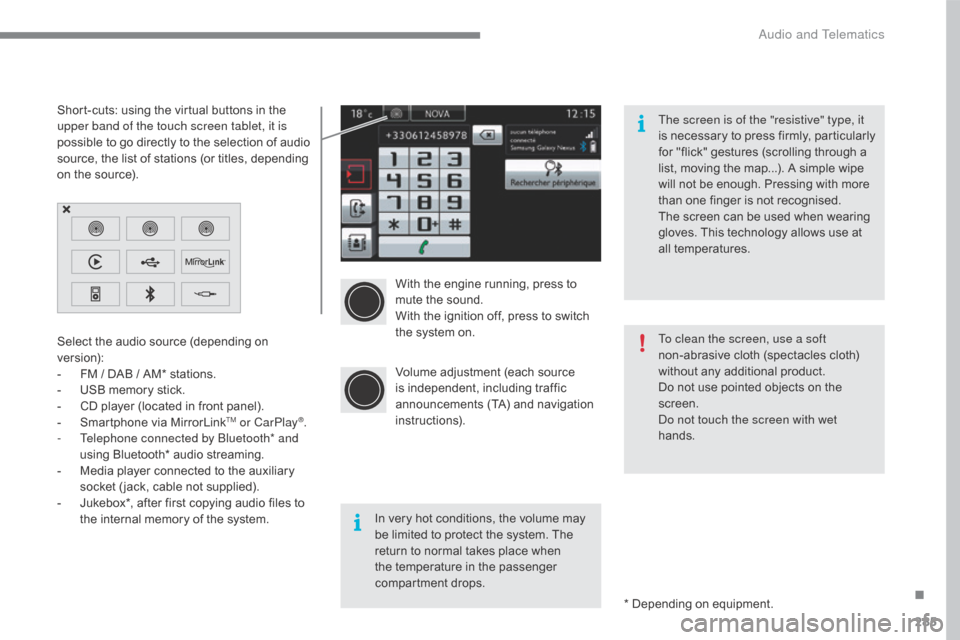
With the engine running, press to mute the sound.
With
the ignition off, press to switch
t
he system on.
Volume
adjustment (each source
i
s
i
ndependent,
i
ncluding
t
raffic
a
nnouncements (TA) and navigation
i
nstructions).
Select
the
audio
source
(depending
on
ve
rsion):
-
F
M
/
DAB
/
AM*
stations.
-
U
SB
memory
stick.
-
C
D
player
(located
in
front
panel).
-
S
martphone
via
MirrorLink
TM or CarPlay®.
-
T
elephone connected by Bluetooth* and
using
Bluetooth*
audio
streaming.
-
M
edia
player
connected
to
the
auxiliary
s
ocket
( jack,
cable
not
supplied).
-
J
ukebox*,
after
first
copying
audio
files
to
t
he
internal
memory
of
the
system. *
Depending on equipment.
Short-cuts:
using
the
virtual
buttons
in
the
u
pper band of the touch screen tablet, it is
possible
to
go
directly
to
the
selection
of
audio
s
ource,
the
list
of
stations
(or
titles,
depending
o
n
the
source).
The screen is of the "resistive" type, it
is
n
ecessary
t
o
p
ress
f
irmly,
p
articularly
f
or "flick" gestures (scrolling through a
l
ist, moving the map...). A simple wipe
w
ill not be enough. Pressing with more
t
han one finger is not recognised.
The screen can be used when wearing
g
loves. This technology allows use at
a
ll
t
emperatures.
In very hot conditions, the volume may
b
e limited to protect the system. The
r
eturn to normal takes place when
t
he temperature in the passenger
c
ompartment drops. To clean the screen, use a soft
non-abrasive
cloth (spectacles cloth)
w
ithout any additional product.
Do not use pointed objects on the
sc
reen.
Do not touch the screen with wet
hands.
.
Audio and Telematics
Page 312 of 396
310
C4-2_en_Chap10b_SMEGplus_ed02-2015
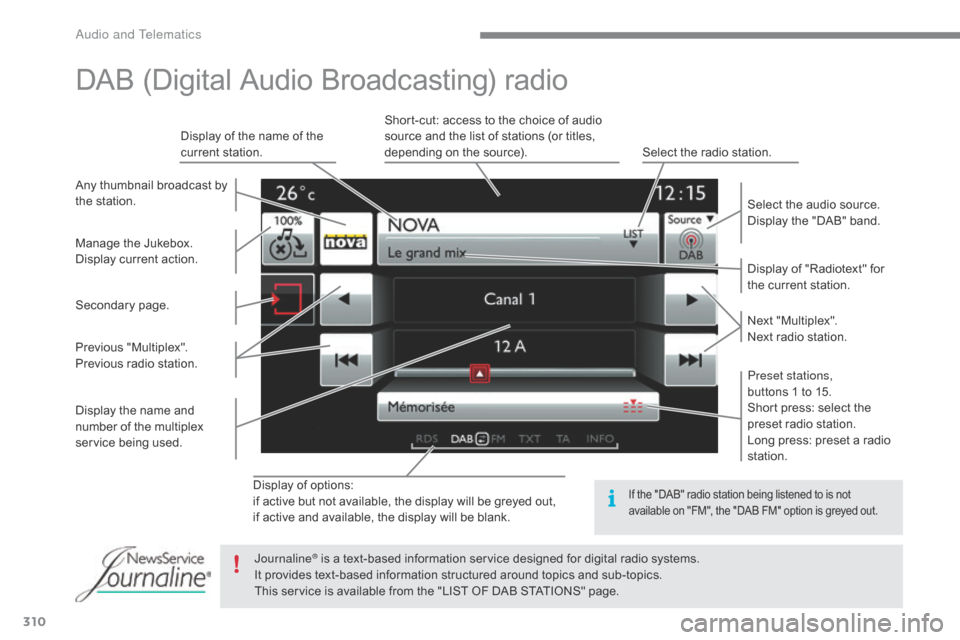
Display of options:
i f active but not available, the display will be greyed out,
if
active and available, the display will be blank. Display
of "Radiotext" for
t
he current station.
Manage
the
Jukebox.
Display
current
action.
Select the audio source.
Display the "DAB" band.
Display
of
the name of the
c
urrent
station.
Short-cut: access to the choice of audio
s
ource and the list of stations (or titles,
d
epending on the source).
Select the radio station.
Any
thumbnail
broadcast
by
t
he
station.
Preset stations,
buttons 1 to 15.
Short press: select the
p
reset radio station.
Long press: preset a radio
s
tation.
Next
"
Multiplex".
Next radio station.
Secondary
p
age.
Display
the
name
and
n
umber
of
the
multiplex
ser
vice
b
eing
u
sed.
Previous
"
Multiplex".
Previous
radio
station.
DAB (Digital Audio Broadcasting) radio
If the "DAB" radio station being listened to is not a
vailable on "FM", the "DAB FM" option is greyed out.
Journaline® is a text-based information service designed for digital radio systems.
I
t
provides
text-based information structured around topics and sub-topics.
This
service is available from the "LIST OF DAB STATIONS" page.
Audio and Telematics