phone Citroen C4 2016 2.G User Guide
[x] Cancel search | Manufacturer: CITROEN, Model Year: 2016, Model line: C4, Model: Citroen C4 2016 2.GPages: 396, PDF Size: 10.22 MB
Page 221 of 396
219
C4-2_en_Chap07_infos-pratiques_ed02-2015
Load reduction modeE nergy ec onomy m ode
Switching to economy mode
Once this period has elapsed, a message a
ppears in the screen indicating that the
v
ehicle has switched to economy mode and the
a
ctive functions are put on standby.
Exiting economy mode
These functions are reactivated automatically the next time the vehicle is driven.
F
I
n order to resume the use of these
f
unctions immediately, start the engine and
l
et it run for a few minutes.
The
time available to you will then be double
t
he period for which the engine is left running.
H
owever, this period will always be between
five
and thirty minutes.
System
which
manages
the
use
of
certain
f
unctions
according
to
the
level
of
charge
r
emaining
in
the
battery.
When
the
vehicle
is
being
driven,
the
load
r
eduction
function
temporarily
deactivates
c
ertain
functions,
such
as
the
air
conditioning,
t
he
heated
rear
screen...
The deactivated functions are reactivated
automatically
as
soon
as
conditions
permit. System
which
manages
the
period
of
use
of
certain
functions to conserve a sufficient level of
c
harge
in
the
battery.
After
the
engine
has
stopped,
you
can
still
use
functions such as the audio equipment, windscreen
w
ipers,
dipped
beam
headlamps, courtesy
lamps,
etc. for a maximum combined period of
t
hirty minutes.
A flat battery prevents the engine from
s
tarting.
For
more information on the 12 V
b
attery, refer to the corresponding
s
ection.
This
period
may
be
greatly
reduced
if
t
he
battery
is
not
fully
charged.
If
the
telephone
is
being
used
at
the
s
ame
time
with
the
touch
screen
tablet,
i
t
will
be
interrupted
after
10
minutes.
7
Practical information
Page 239 of 396
237
C4-2_en_Chap07_infos-pratiques_ed02-2015
"Multimedia":
audio systems, steering mounted audio controls, speakers, Hi-Fi module, Bluetooth
h
ands-free system, portable satellite navigation
s
ystem, semi-integral support bracket for
p
ortable navigation system, mapping update
C
D, driving assistant, portable video screen,
p
ortable video support bracket, 230 V/50 Hz
s
ocket, 230 V/50 Hz adaptor, iPhone
®
compatible
mobile
phone
charger,
mobile
p
hone/smartphone
bracket,
Wi-Fi
on
board...
By
going to a CITROËN dealer, you can also
o
btain cleaning and maintenance products
(
interior and exterior) - including ecological
p
roducts in the "TECHNATURE" range -,
p
roducts for topping up (screenwash...), touch-
up
pens and paint aerosols for the exact colour
o
f your vehicle, recharges (cartridge for the
t
emporary puncture repair kit...), ...
Installation of radio
communication
transmitters
Before installing any after-market radio communication transmitter, you can
c
ontact a CITROËN dealer for the
specification
of transmitters which can
b
e fitted (frequency, maximum power,
a
erial position, specific installation
requirements),
in line with the Vehicle
E
lectromagnetic
C
ompatibility
D
irective (2004/104/EC). The
fitting of electrical equipment or
a
ccessories which are not recommended
b
y CITROËN may result in a failure of
y
our vehicle's electronic system and
e
xcessive electrical consumption.
Contact a CITROËN dealer
for
information on the range of
r
ecommended equipment and
a
ccessories.
Depending
on the legislation in force in
t
he country, certain safety equipment
m
ay be compulsory: high visibility s
afety vests, warning triangles, b
reathalyzers, spare bulbs, spare fuses,
fire
extinguisher, first aid kit, mud flaps
a
t the rear of the vehicle.
7
Practical information
Page 285 of 396
283
C4-2_en_Chap10b_SMEGplus_ed02-2015
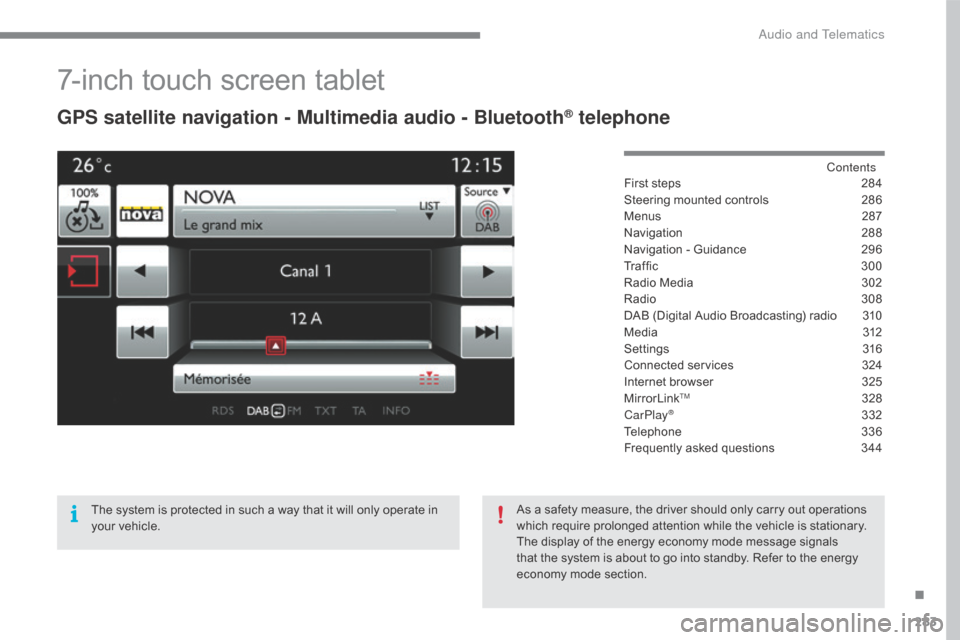
7-inch touch screen tablet
GPS satellite navigation - Multimedia audio - Bluetooth® telephone
Contents
First
steps
2 84
Steering
mounted
controls
2
86
Menus
2
87
Navigation
2
88
Navigation
-
Guidance
2
96
Tr a f fi c
3
0 0
Radio
Media
3
02
Radio
308
D
AB
(Digital
Audio
Broadcasting)
radio
3
10
M edia
3
12
Settings
3
16
Connected
services
3
24
Internet
browser
3
25
MirrorLink
TM 32 8
CarPlay® 3 32
Telephone
3
36
Frequently
asked questions
3
44
The
system
is
protected
in
such
a
way
that
it
will
only
operate
in
y
our
vehicle. As
a
safety
measure,
the
driver should only carry out operations
w
hich
require
prolonged
attention while the vehicle is stationary.
The
display
of
the
energy
economy mode message signals
t
hat
the
system
is
about
to
go into standby. Refer to the energy
ec
onomy
mo
de
s
ection.
.
Audio and Telematics
Page 287 of 396
285
C4-2_en_Chap10b_SMEGplus_ed02-2015
With the engine running, press to mute the sound.
With
the ignition off, press to switch
t
he system on.
Volume
adjustment (each source
i
s
i
ndependent,
i
ncluding
t
raffic
a
nnouncements (TA) and navigation
i
nstructions).
Select
the
audio
source
(depending
on
ve
rsion):
-
F
M
/
DAB
/
AM*
stations.
-
U
SB
memory
stick.
-
C
D
player
(located
in
front
panel).
-
S
martphone
via
MirrorLink
TM or CarPlay®.
-
T
elephone connected by Bluetooth* and
using
Bluetooth*
audio
streaming.
-
M
edia
player
connected
to
the
auxiliary
s
ocket
( jack,
cable
not
supplied).
-
J
ukebox*,
after
first
copying
audio
files
to
t
he
internal
memory
of
the
system. *
Depending on equipment.
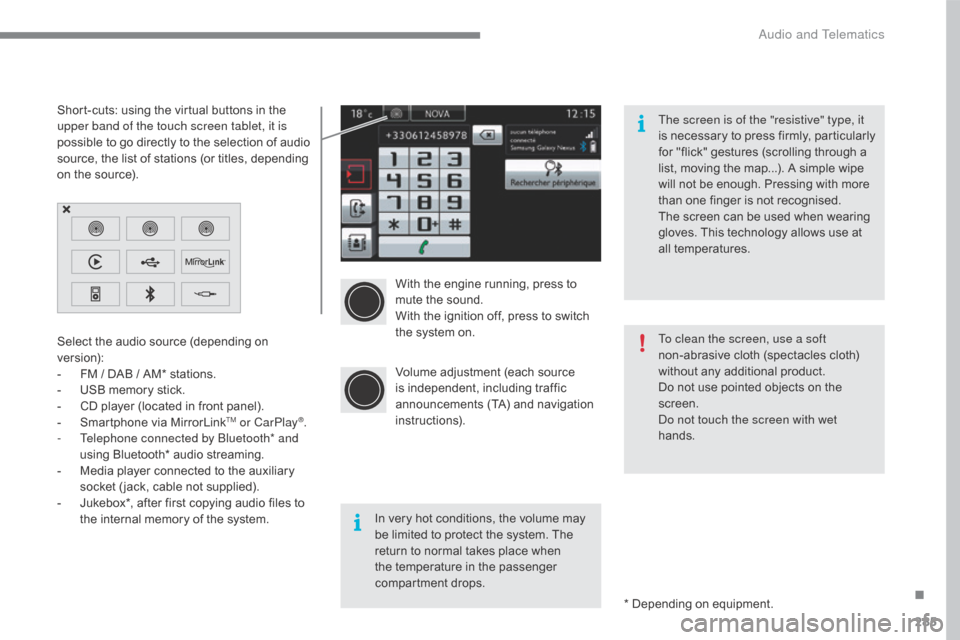
Short-cuts:
using
the
virtual
buttons
in
the
u
pper band of the touch screen tablet, it is
possible
to
go
directly
to
the
selection
of
audio
s
ource,
the
list
of
stations
(or
titles,
depending
o
n
the
source).
The screen is of the "resistive" type, it
is
n
ecessary
t
o
p
ress
f
irmly,
p
articularly
f
or "flick" gestures (scrolling through a
l
ist, moving the map...). A simple wipe
w
ill not be enough. Pressing with more
t
han one finger is not recognised.
The screen can be used when wearing
g
loves. This technology allows use at
a
ll
t
emperatures.
In very hot conditions, the volume may
b
e limited to protect the system. The
r
eturn to normal takes place when
t
he temperature in the passenger
c
ompartment drops. To clean the screen, use a soft
non-abrasive
cloth (spectacles cloth)
w
ithout any additional product.
Do not use pointed objects on the
sc
reen.
Do not touch the screen with wet
hands.
.
Audio and Telematics
Page 288 of 396
286
C4-2_en_Chap10b_SMEGplus_ed02-2015
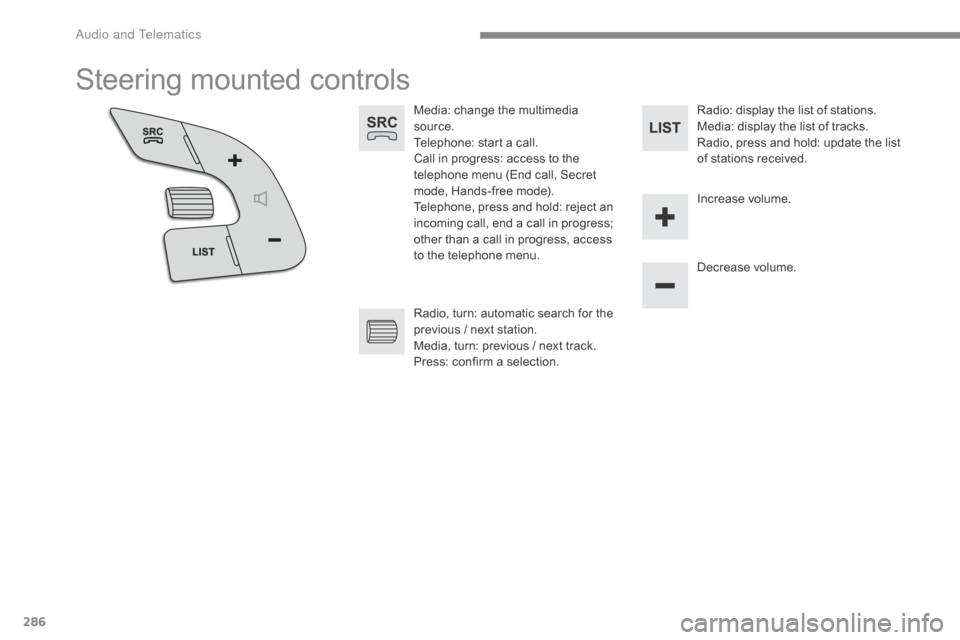
Steering mounted controls
Media: change the multimedia source.
Telephone:
start a call.
Call
in progress: access to the
t
elephone menu (End call, Secret
m
ode, Hands-free mode).
Telephone,
press and hold: reject an
i
ncoming call, end a call in progress;
o
ther than a call in progress, access
t
o the telephone menu. Decrease
volume.
Radio,
turn: automatic search for the
p
revious / next station.
Media,
turn: previous / next track.
Press:
confirm a selection. Radio:
display the list of stations.
Media: display the list of tracks.
Radio,
press and hold: update the list
o
f stations received.
Increase
volume.
Audio and Telematics
Page 289 of 396
287
C4-2_en_Chap10b_SMEGplus_ed02-2015
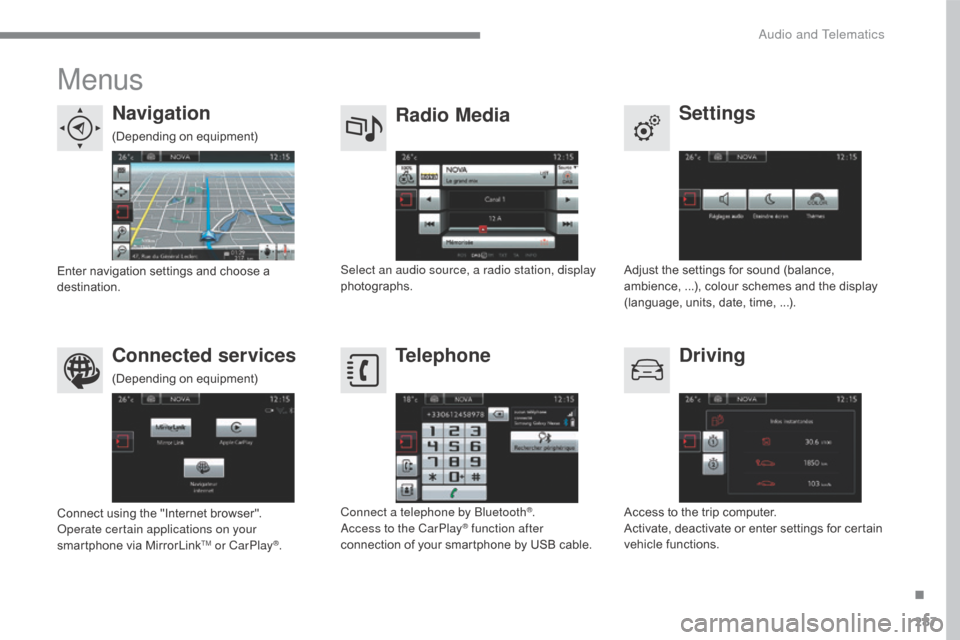
Menus
Settings
Radio Media
Navigation
Driving
Connected services Telephone
Adjust the settings for sound (balance, a
mbience, ...), colour schemes and the display
(
language, units, date, time, ...).
Select an audio source, a radio station, display
photographs.
Enter
navigation
settings
and
choose
a
d
estination.
Access
to the trip computer.
Activate,
deactivate or enter settings for certain
v
ehicle functions.
Connect
using
the
"Internet
browser".
Operate certain applications on your
smartphone
via
MirrorLink
TM or CarPlay®. Connect a telephone by Bluetooth
®.
Access to the CarPlay® function after
connection
of
your
smartphone by USB cable.
(Depending
o
n
e
quipment)
(Depending
o
n
e
quipment)
.
Audio and Telematics
Page 292 of 396
290
C4-2_en_Chap10b_SMEGplus_ed02-2015
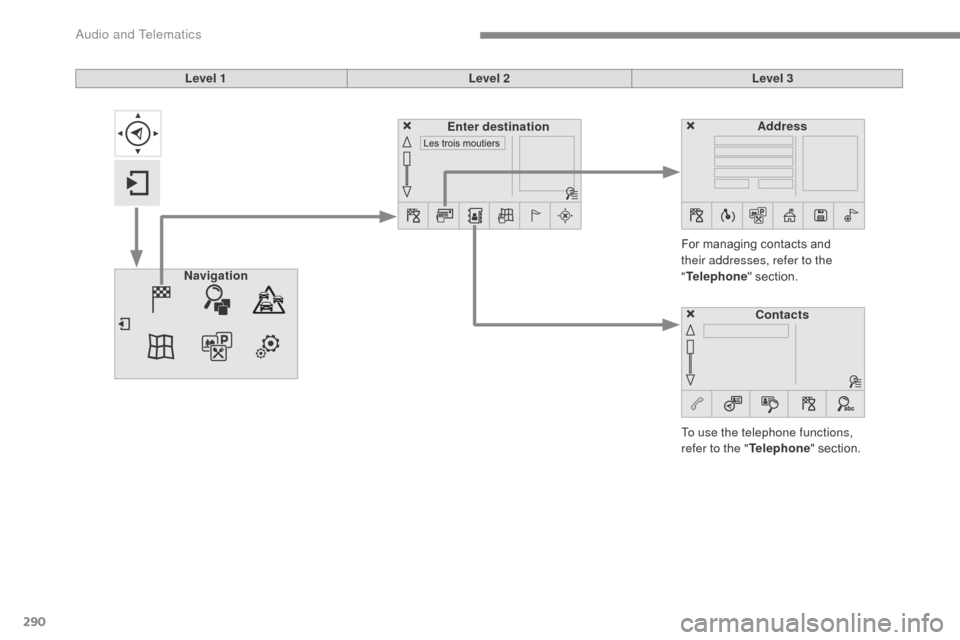
Level 1Level 2Level 3
To use the telephone functions,
refer to the " Telephone"
section.
For
managing contacts and
t
heir addresses, refer to the
" Telephone "
section.
Navigation Address
Enter destination
Contacts
Audio and Telematics
Page 316 of 396
314
C4-2_en_Chap10b_SMEGplus_ed02-2015
Bluetooth® audio streaming
Streaming allows audio files on your telephone to be played through the vehicle's speakers.
Connect
the telephone: see the "Telephone "
section, then " Bluetooth".
Choose the " Audio" or "All"
pro
file.
If
play does not start automatically, it may be
n
ecessary to start the audio playback from the
t
elephone.
Control
is from the peripheral device or by
u
sing the audio system buttons.
Once
connected in streaming mode,
t
he telephone is considered to be a
media
source.
It
is recommended that you activate
"R
epeat"
on the Bluetooth peripheral.
Connecting Apple® players
Connect the Apple® player to the USB port u
sing
a
suitable
cable (not supplied).
Play
starts
automatically.
Control
is
via
the
audio system. The classifications available are those
of the portable device connected
(artists
/ albums / genres / playlists /
a
udiobooks / podcasts).
The default classification used is by
artist. To modify the classification used,
r
eturn to the first level of the menu
t
hen select the desired classification
(playlists for example) and confirm t
o go down through the menu to the
de
sired
t
rack.
The
version of software in the audio system
m
ay not be compatible with the generation of
y
our Apple
® player.
Audio and Telematics
Page 319 of 396
317
C4-2_en_Chap10b_SMEGplus_ed02-2015
Level 1Level 2 Level 3 Comments
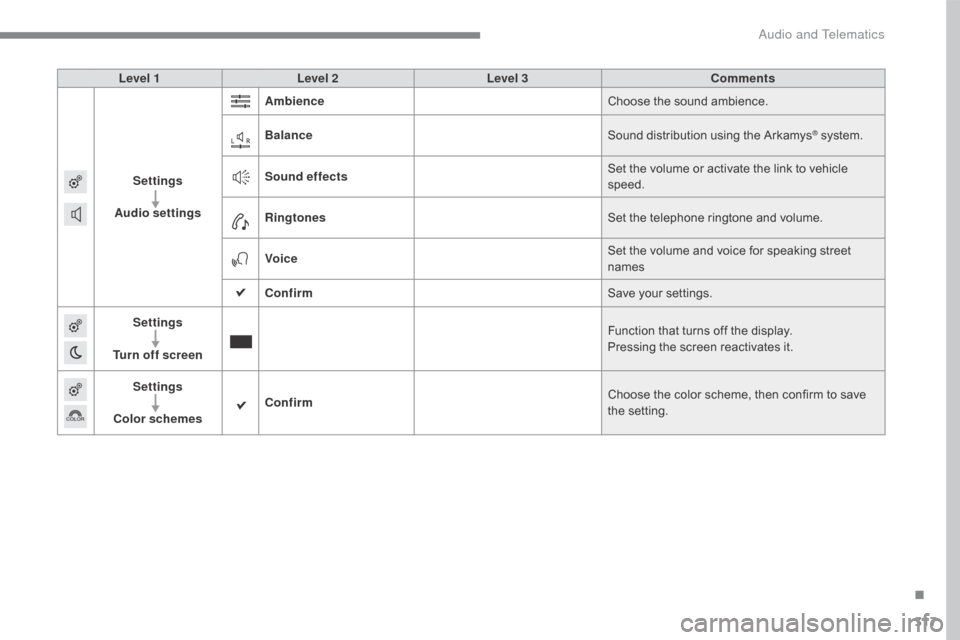
Settings
Audio settings Ambience
Choose
the sound ambience.
Balance Sound
distribution using the Arkamys
® system.
S
ound effects Set
the
volume
or
activate
the
link
to
vehicle
s
peed.
Ringtones Set
the
telephone
ringtone
and
volume.
Voice Set
the
volume
and
voice
for
speaking
street
nam
es
Confirm Save
your
settings.
Settings
Turn off screen Function
that
turns
off
the
display.
Pressing
the
screen
reactivates
it.
Settings
Color schemes Confirm
Choose
the
color
scheme,
then
confirm to save
t
he
se
tting.
.
Audio and Telematics
Page 327 of 396
325
C4-2_en_Chap10b_SMEGplus_ed02-2015
Internet browser
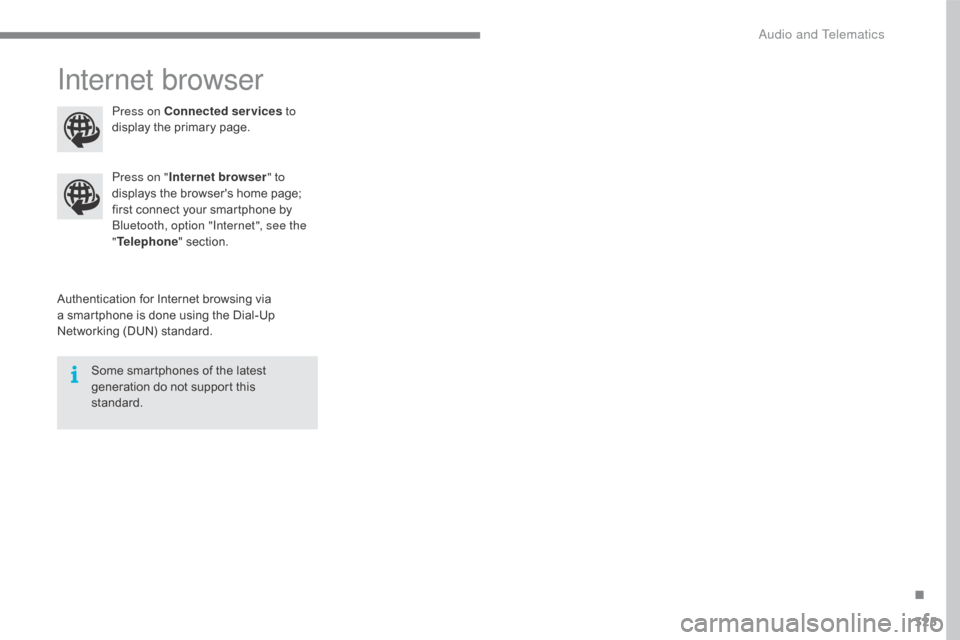
Authentication for Internet browsing via a smartphone is done using the Dial-Up
N
etworking (DUN) standard.
Press on "
Internet browser " to
displays the browser's home page;
f
irst connect your smartphone by
B
luetooth, option "Internet", see the
" Telephone " section.
Some smartphones of the latest
g
eneration do not support this
s
tandard.Press on Connected services
to
display the primary page.
.
Audio and Telematics