audio Citroen C4 2016 2.G Repair Manual
[x] Cancel search | Manufacturer: CITROEN, Model Year: 2016, Model line: C4, Model: Citroen C4 2016 2.GPages: 396, PDF Size: 10.22 MB
Page 324 of 396
322
C4-2_en_Chap10b_SMEGplus_ed02-2015
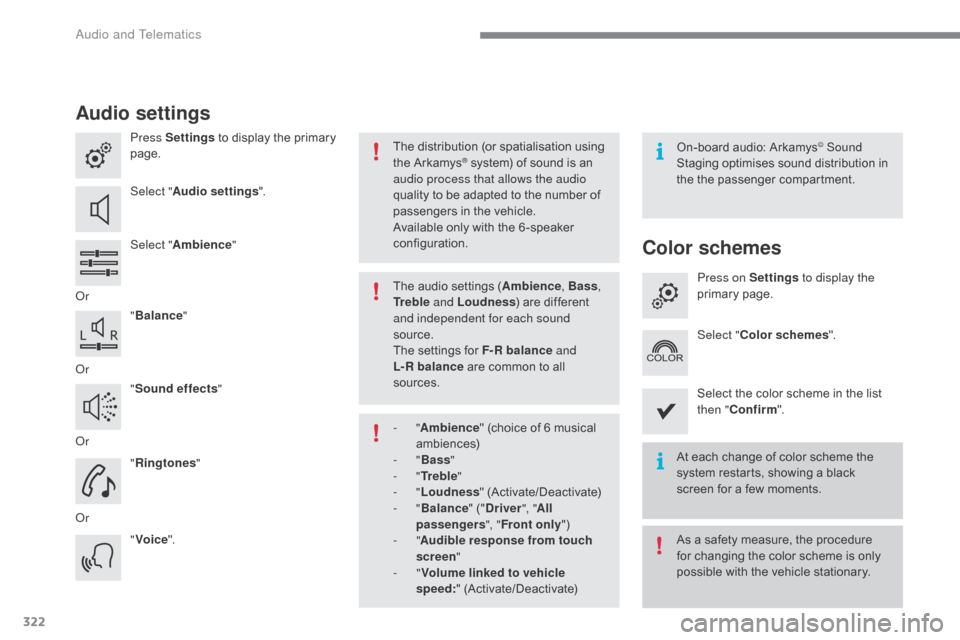
Audio settings
Press Settings to display the primary pag
e.
Select " Audio settings ".
Select " Ambience "
Or "Balance "
Or "Sound effects "
Or "Ringtones "
Or "Voice ". On-board
audio: Arkamys© Sound
Staging
optimises
sound
distribution in
t
he
t
he
p
assenger
c
ompartment.
The
distribution
(or
spatialisation
using
t
he
Arkamys® system) of sound is an a
udio process that allows the audio
quality
to
be
adapted to the number of
p
assengers
in the vehicle.
Available
only with the 6 -speaker
c
onfiguration.
The
audio
settings (Ambience , Bass,
Tr e b l e and Loudness )
are different
a
nd independent for each sound
source.
The
settings
for F-R balance and
L-R
balance
are common to all
s
ources.
-
" Ambience "
(choice of 6 musical
am
biences)
-
" Bass "
-
" Tr e b l e "
-
" Loudness "
(
Activate/Deactivate)
-
" Balance "
(" Driver ", "All
passengers ", "Front only ")
-
" Audible response from touch
screen "
-
" Volume linked to vehicle
speed: "
(
Activate/Deactivate) At
each change of color scheme the
s
ystem restarts, showing a black
s
creen for a few moments.
As
a safety measure, the procedure
f
or changing the color scheme is only
p
ossible with the vehicle stationary.
Color schemes
Press on Settings to display the
primary pag e.
Select " Color schemes ".
Select
the color scheme in the list
t
hen " Confirm ".
Audio and Telematics
Page 325 of 396
323
C4-2_en_Chap10b_SMEGplus_ed02-2015
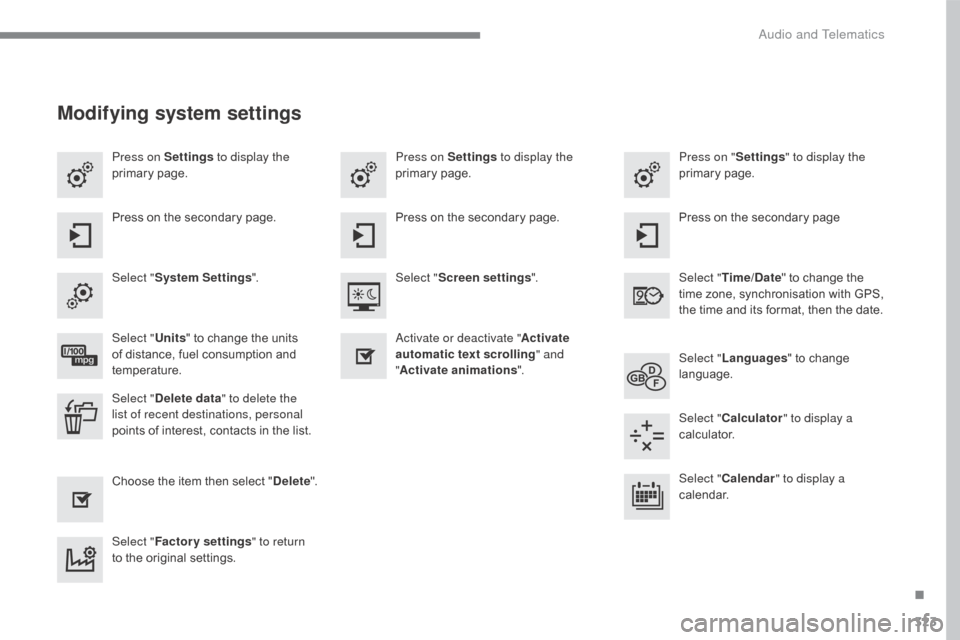
Press on Settings to display the
primary pag e. Press on "
Settings" to display the
primary pag e.
Press on Settings
to display the
primary pag e.
Press
on the secondary page. Press
on the secondary page
Press
on the secondary page.
Select " System Settings ". Select "Time/Date "
to change the
t
ime zone, synchronisation with GPS,
t
he time and its format, then the date.
Select "
Screen settings ".
Select " Units"
to change the units
o
f distance, fuel consumption and
t
emperature. Select "
Languages "
to change
lan
guage.
Activate or deactivate "
Activate
automatic text scrolling " and
" Activate animations ".
Select " Delete data " to delete the
list of recent destinations, personal
points
of interest, contacts in the list. Select "
Calculator " to display a
calculator.
Choose
t
he
i
tem
t
hen
se
lect
"D
elete". Select "
Calendar " to display a
calendar.
Select " Factory settings " to return
to
the original settings.
Modifying system settings
.
Audio and Telematics
Page 326 of 396
324
C4-2_en_Chap10b_SMEGplus_ed02-2015
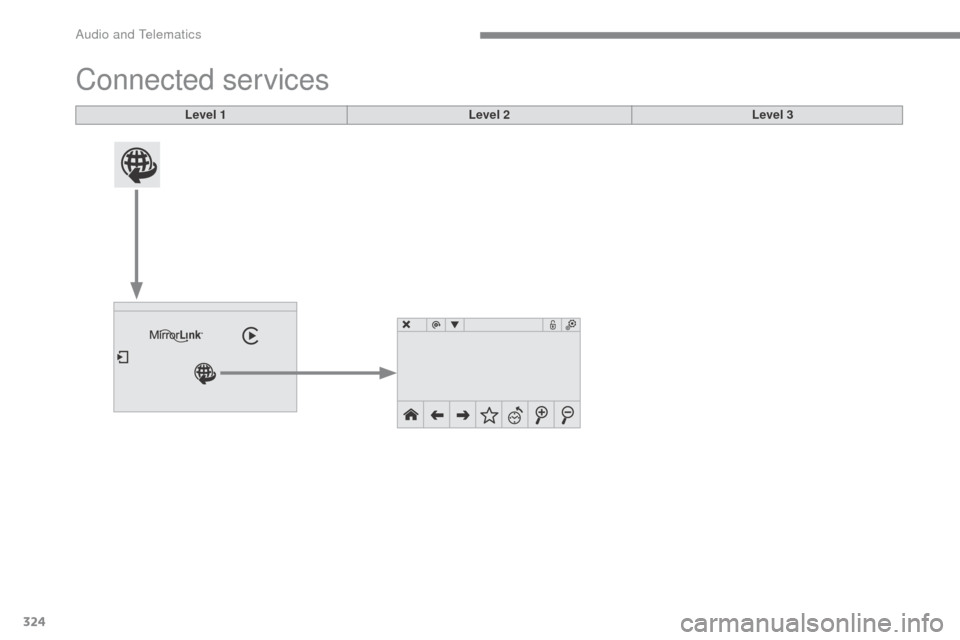
Connected services
Level 1Level 2Level 3
Audio and Telematics
Page 327 of 396
325
C4-2_en_Chap10b_SMEGplus_ed02-2015
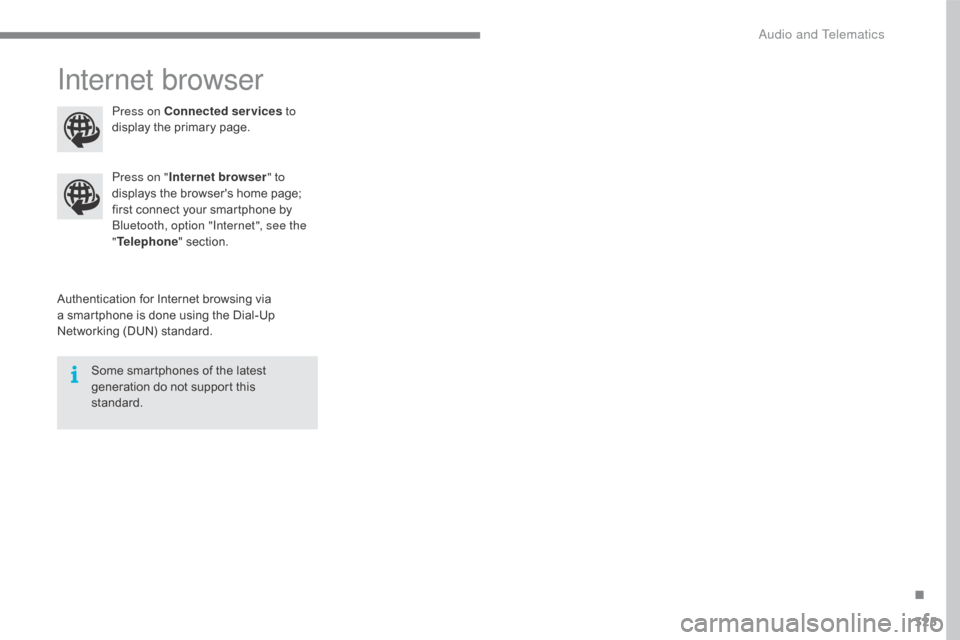
Internet browser
Authentication for Internet browsing via a smartphone is done using the Dial-Up
N
etworking (DUN) standard.
Press on "
Internet browser " to
displays the browser's home page;
f
irst connect your smartphone by
B
luetooth, option "Internet", see the
" Telephone " section.
Some smartphones of the latest
g
eneration do not support this
s
tandard.Press on Connected services
to
display the primary page.
.
Audio and Telematics
Page 328 of 396
326
C4-2_en_Chap10b_SMEGplus_ed02-2015
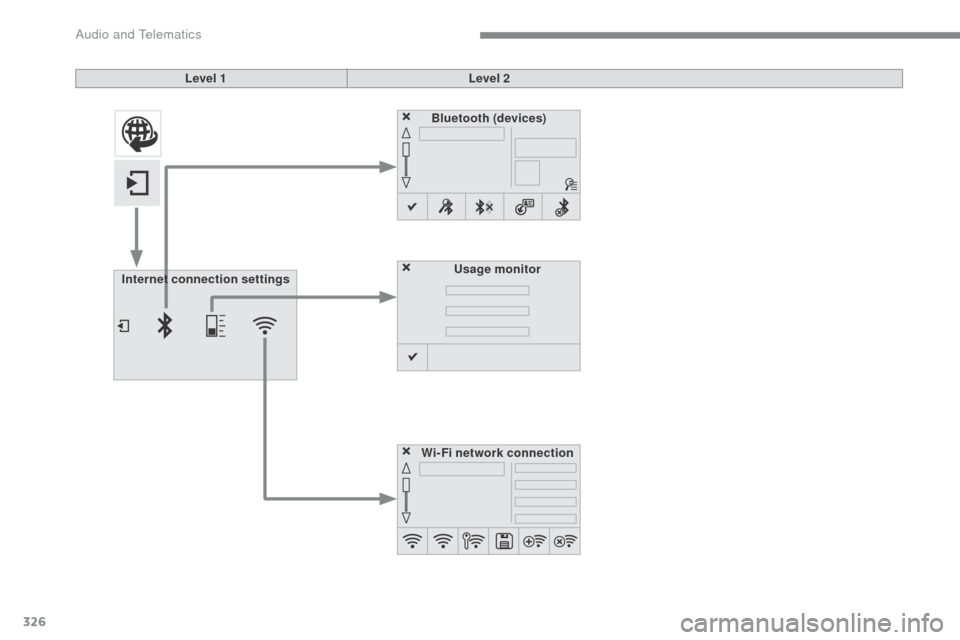
Level 1Level 2
Internet connection settings Wi-Fi network connectionBluetooth (devices)
Usage monitor
Audio and Telematics
Page 329 of 396
327
C4-2_en_Chap10b_SMEGplus_ed02-2015
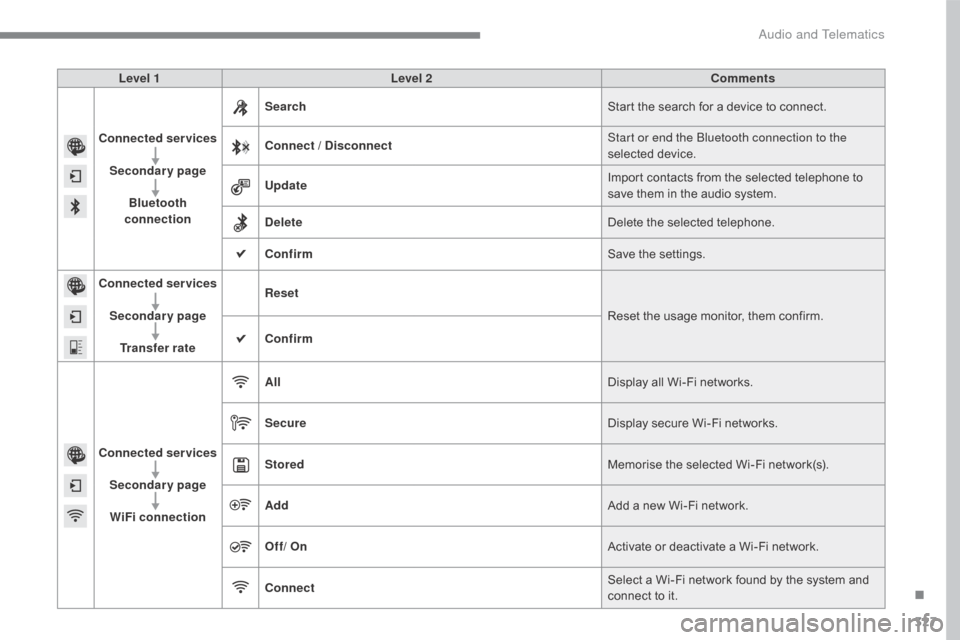
Level 1Level 2 Comments
Connected services Secondary page Bluetooth
connection Search
Start
the search for a device to connect.
Connect / Disconnect Start or end the Bluetooth connection to the
selected
d
evice.
Update Import
contacts from the selected telephone to
s
ave them in the audio system.
Delete Delete
the selected telephone.
Confirm Save
the settings.
Connected services
Secondary pageTransfer rate Reset
Reset
the usage monitor, them confirm.
Confirm
Connected services Secondary pageWiFi connection All
Display
all Wi-Fi networks.
Secure Display
secure Wi-Fi networks.
Stored Memorise
the selected Wi-Fi network(s).
Add Add
a new Wi-Fi network.
Off/ On Activate
or deactivate a Wi-Fi network.
Connect Select
a Wi-Fi network found by the system and
c
onnect to it.
.
Audio and Telematics
Page 330 of 396
328
C4-2_en_Chap10b_SMEGplus_ed02-2015
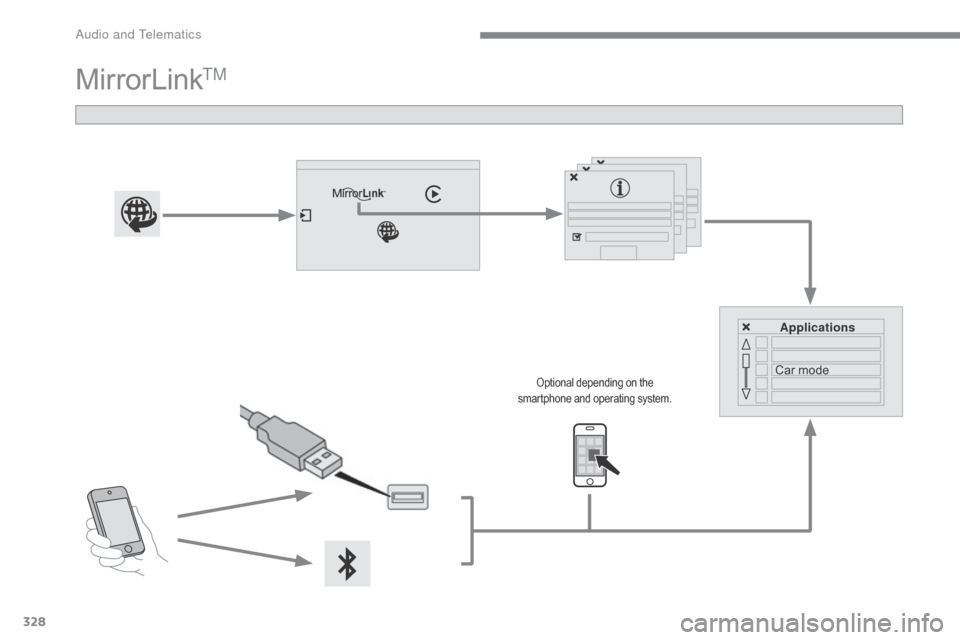
MirrorLinkTM
Applications
Car mode
Optional depending on the s
martphone and operating system.
Audio and Telematics
Page 331 of 396
329
C4-2_en_Chap10b_SMEGplus_ed02-2015
As a safety measure and because it requires sustained attention by the
d
river, using a smartphone when
d
riving is prohibited.
All
operations must be done with the
v
ehicle stationary .
The synchronisation of a
smartphone
allows applications on a
s
martphone that are adapted to the
M
irrorLink
TM technology to be displayed i
n
the
vehicle's screen.
As the principles and standards are
constantly
evolving, it is recommended
t
hat
you
update the operating system of
y
our
smartphone.
For
the
list
of eligible smartphones,
c
onnect
to
the brand's internet website
i
n
your
country. Please
note:
-
i
f your smartphone is supported, to
m
ake it "MirrorLink
TM" compatible, s
ome
phone
manufacturers
n
evertheless invite you to first
download
a
dedicated application.
When connecting a smartphone to the system, it is recommended that Bluetooth®
be
started
on
the
smartphone
Start the application on the
smartphone (optional, depending
o
n the smartphone and operating
s
yste m). During
the procedure, several screen
p
ages relating to certain functions
a
re displayed.
Accept to start and end the
connection.
Connect a USB cable. The
s
martphone charges when
c
onnected by a USB cable.
Press " MirrorLink
TM" to start
the
application
in
the system. Once connection is established, an
"
Applications " page is displayed with the
l
ist of applications already downloaded to
your smartphone and adapted to MirrorLink
TM
technology.
If only one application has been downloaded to
the
smartphone,
it
starts
automatically.
MirrorLinkTM smartphone
connection
Access to the different audio sources remains a
ccessible in the margin of the MirrorLinkTM
display,
using
touch
buttons
in
the
upper
bar.
Access
to
the
menus
for
the
system
is
possible
a
t
any
time
using
the
dedicated
buttons.
If
the
smartphone
is
locked,
c
ommunication
with
the
system
is
only
b
y
USB
cable.
From
the
system,
press
"
Connected
services "
to
display
the
primary
pag
e.
As
a
safety
measure,
applications
c
an only be viewed with the vehicle
stationary;
display
is
interrupted
once
t
he
vehicle
is
moving.
Voice recognition
Press the end of the lighting control stalk to s tart voice recognition of your smartphone via
t
he system.
Voice
recognition requires a compatible
s
martphone connected to the vehicle by
Bl
uetooth.
.
Audio and Telematics
Page 332 of 396
330
C4-2_en_Chap10b_SMEGplus_ed02-2015
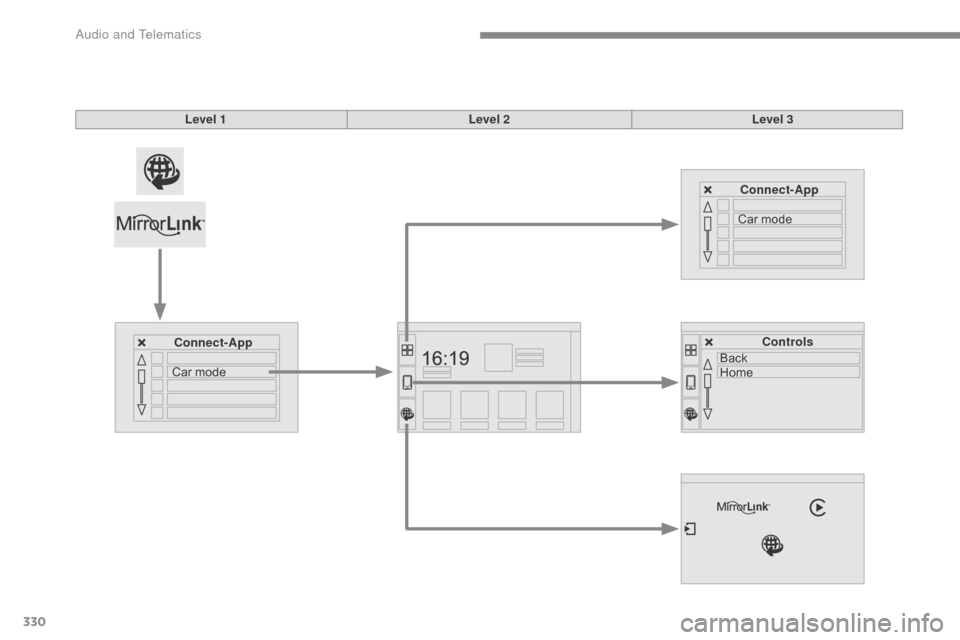
Level 1Level 2Level 3
Connect-App Connect-App
Controls
Car
mode Car
mode
Back
Home
Audio and Telematics
Page 333 of 396
331
C4-2_en_Chap10b_SMEGplus_ed02-2015
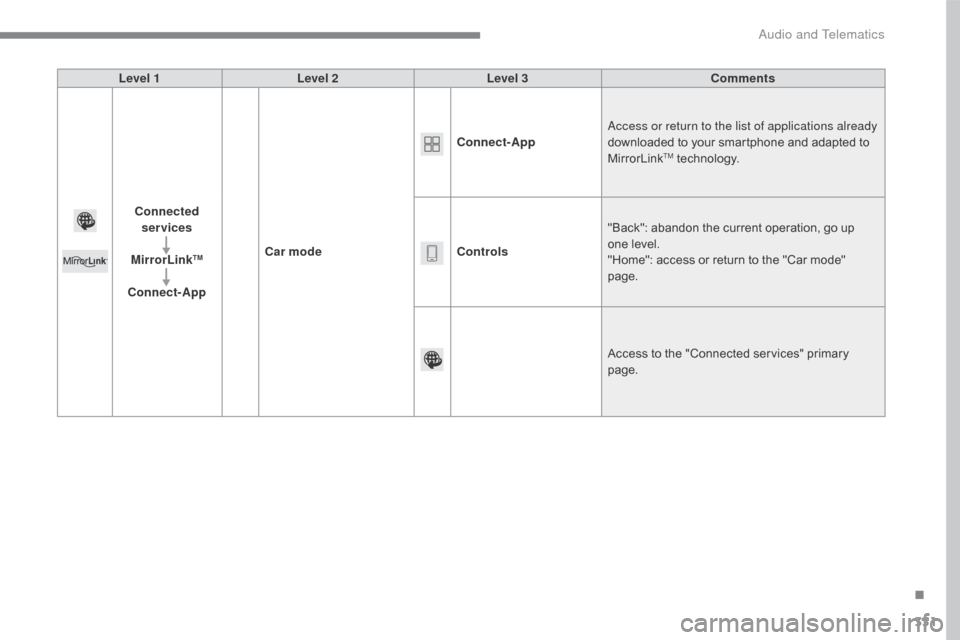
Level 1Level 2 Level 3 Comments
Connected services
MirrorLink
TM
Connect-App Car mode Connect-App
Access or return to the list of applications already
downloaded to your smartphone and adapted to
M
irrorLink
TM technology.
Controls "Back":
abandon the current operation, go up
o
ne
level.
"Home":
access or return to the "Car mode"
pag
e.
Access
to
the "Connected services" primary
pag
e.
.
Audio and Telematics