ad blue CITROEN C4 2020 User Guide
[x] Cancel search | Manufacturer: CITROEN, Model Year: 2020, Model line: C4, Model: CITROEN C4 2020Pages: 260, PDF Size: 7.12 MB
Page 24 of 260
22
Instruments
The remaining range is no longer calculated. The drive train power
gradually decreases.
The heating and air conditioning are switched
off (even if the thermal comfort consumption
indicator is not at the "ECO" level).
Flow indicator (Electric)
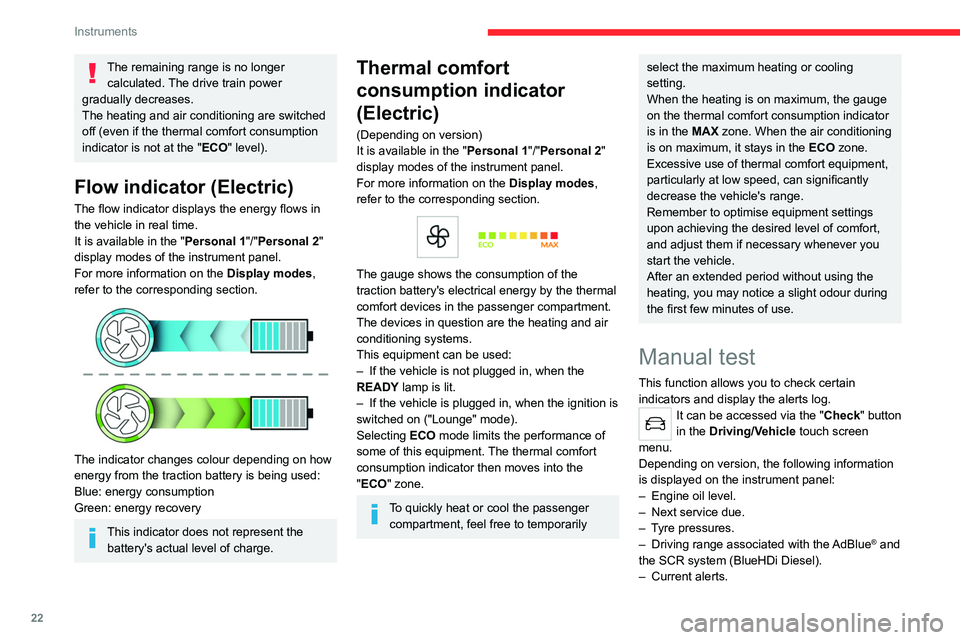
The flow indicator displays the energy flows in
the vehicle in real time.
It is available in the " Personal 1"/"Personal 2"
display modes of the instrument panel.
For more information on the Display modes,
refer to the corresponding section.
The indicator changes colour depending on how
energy from the traction battery is being used:
Blue: energy consumption
Green: energy recovery
This indicator does not represent the battery's actual level of charge.
Thermal comfort
consumption indicator
(Electric)
(Depending on version)
It is available in the " Personal 1"/"Personal 2"
display modes of the instrument panel.
For more information on the Display modes,
refer to the corresponding section.
The gauge shows the consumption of the
traction battery's electrical energy by the thermal
comfort devices in the passenger compartment.
The devices in question are the heating and air
conditioning systems.
This equipment can be used:
–
If the vehicle is not plugged in, when the
READY
lamp is lit.
–
If the vehicle is plugged in, when the ignition is
switched on ("Lounge" mode).
Selecting ECO
mode limits the performance of
some of this equipment. The thermal comfort
consumption indicator then moves into the
"ECO" zone.
To quickly heat or cool the passenger compartment, feel free to temporarily
select the maximum heating or cooling
setting.
When the heating is on maximum, the gauge
on the thermal comfort consumption indicator
is in the MAX zone. When the air conditioning
is on maximum, it stays in the ECO zone.
Excessive use of thermal comfort equipment,
particularly at low speed, can significantly
decrease the vehicle's range.
Remember to optimise equipment settings
upon achieving the desired level of comfort,
and adjust them if necessary whenever you
start the vehicle.
After an extended period without using the
heating, you may notice a slight odour during
the first few minutes of use.
Manual test
This function allows you to check certain
indicators and display the alerts log.
It can be accessed via the "Check" button
in the Driving/Vehicle touch screen
menu.
Depending on version, the following information
is displayed on the instrument panel:
–
Engine oil level.
–
Next service due.
–
T
yre pressures.
–
Driving range associated with the
AdBlue® and
the SCR system (BlueHDi Diesel).
–
Current alerts.
Page 25 of 260
23
Instruments
1This information is also displayed automatically every time the ignition is
switched on.
Total distance recorder
The total distance recorder measures the total
distance travelled by the vehicle since its initial
registration.
With the ignition on, the total distance is
displayed at all times. It remains displayed for
30
seconds after switching off the ignition. It is
displayed when the driver's door is opened, and
when the vehicle is locked or unlocked.
When travelling abroad, you may have to
change the distance units (km or miles):
the road speed must be displayed in the local
country’s official unit (km/h or mph).
The unit is changed via the screen
configuration menu, with the vehicle
stationary.
Lighting dimmer
This system allows the brightness of the
instruments and controls to be adjusted manually
to suit the ambient light level.
With BLUETOOTH touch
screen audio system
► Press on the Settings menu.
► Select "Display".
► Adjust the brightness by
pressing the buttons.
You can also switch off the screen:
► Select " Turn off screen".
The screen goes off completely.
►
Press the screen again (anywhere on its
surface) to activate it.
With MyCitroën Play
/ ► Press Settings from the
status bar or from the menus
buttons.
/ ► Select " Brightness" or
"Screen configuration ",
depending on equipment.
► Adjust the instrument panel and
screen brightness by using the arrows or
moving the slider
.
/ ► Press this button to save and
exit, depending on equipment.
Y
ou can also switch off the screen:
/ ► Press Settings from the
status bar or from the menus
buttons.
► Select " Turn off screen" or "Dark",
depending on equipment.
The screen goes off completely.
►
Press the screen again (anywhere on its
surface) to turn it on.
With CITROËN Connect Nav
With the lamps switched on:► Press this button to select the
Settings menu.
►
Select "
OPTIONS".
► Select " Screen configuration".
►
Select the "
Brightness” tab.
► Adjust the instrument panel and
screen brightness by using the arrows or
moving the slider
.
► Press this button to save and exit.
You can also switch off the screen:
► Press this button to select the
Settings menu.
► Select " Turn off screen".
The screen goes off completely.
►
Press the screen again (anywhere on its
surface) to turn it on.
Trip computer
Displays information related to the current trip
(range, fuel consumption, average speed, etc.).
Page 26 of 260
24
Instruments
Data displayed on the
instrument panel
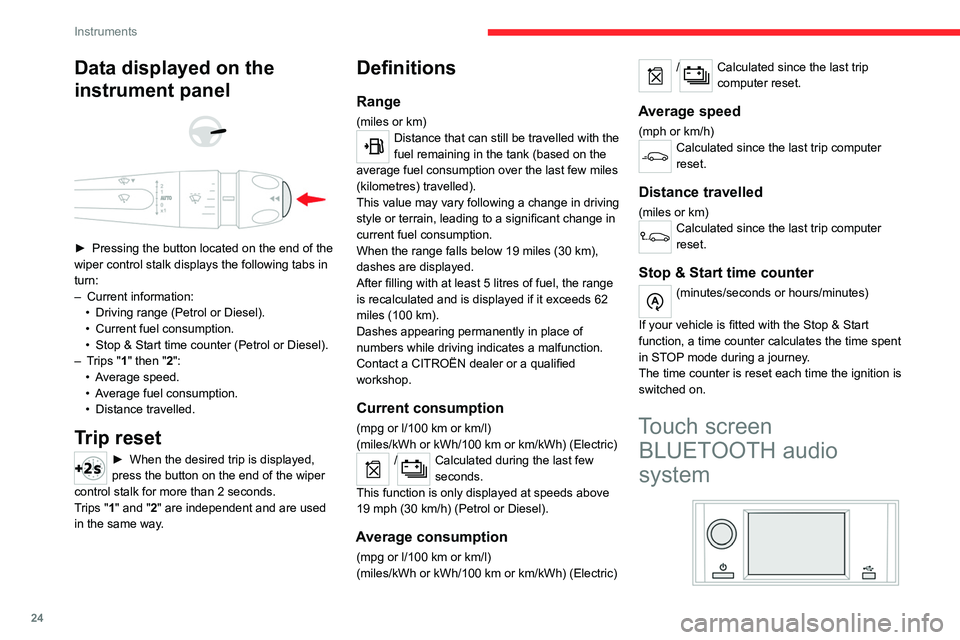
► Pressing the button located on the end of the
wiper control stalk displays the following tabs in
turn:
–
Current information:
•
Driving range (Petrol or Diesel).
•
Current fuel consumption.
•
Stop & Start time counter (Petrol or Diesel).
–
T
rips "1" then "2":
•
A
verage speed.
•
A
verage fuel consumption.
•
Distance travelled.
Trip reset
► When the desired trip is displayed,
press the button on the end of the wiper
control stalk for more than 2
seconds.
Trips "1" and "2" are independent and are used
in the same way.
Definitions
Range
(miles or km)Distance that can still be travelled with the
fuel remaining in the tank (based on the
average fuel consumption over the last few miles
(kilometres) travelled).
This value may vary following a change in driving
style or terrain, leading to a significant change in
current fuel consumption.
When the range falls below 19 miles (30
km),
dashes are displayed.
After filling with at least 5 litres of fuel, the range
is recalculated and is displayed if it exceeds 62
miles (100
km).
Dashes appearing permanently in place of
numbers while driving indicates a malfunction.
Contact a CITROËN dealer or a qualified
workshop.
Current consumption
(mpg or l/100 km or km/l)
(miles/kWh or kWh/100 km or km/kWh) (Electric)
/Calculated during the last few
seconds.
This function is only displayed at speeds above
19 mph (30
km/h) (Petrol or Diesel).
Average consumption
(mpg or l/100 km or km/l)
(miles/kWh or kWh/100 km or km/kWh) (Electric)
/Calculated since the last trip
computer reset.
Average speed
(mph or km/h)Calculated since the last trip computer
reset.
Distance travelled
(miles or km)Calculated since the last trip computer
reset.
Stop & Start time counter
(minutes/seconds or hours/minutes)
If your vehicle is fitted with the Stop & Start
function, a time counter calculates the time spent
in STOP mode during a journey.
The time counter is reset each time the ignition is
switched on.
Touch screen BLUETOOTH audio
system
Page 27 of 260

25
Instruments
1This system gives access to the following elements:
–
Audio system and telephone controls and
display of
related information.
–
V
ehicle function and equipment setting menus.
For safety reasons, always stop the
vehicle before performing operations
that require sustained attention.
Some functions are not accessible while
driving.
Recommendations
Do not use pointed objects on the touch screen.
Do not touch the touch screen with wet hands.
Use a soft, clean cloth to clean the touch screen.
Main controls
With the ignition off: system start-up
With the engine running: mute
Volume adjustment
Access to menus
Return to the previous screen or confirm
After a few moments with no action on
the second page, the first page is
displayed automatically.
Menus
Radio
Media
Telephone
Driving
Activation, deactivation and settings for
certain functions.
Settings
Main system settings.
For more information about the menus,
refer to the sections describing the audio
and telematics systems.
10-inch touch screen
This system gives access to the following elements:
–
Permanent display of the time and outside
temperature (a blue warning lamp appears if
there is a risk of ice).
–
Heating/air conditioning system controls
(depending on version).
– Vehicle functions and equipment setting
menus.
–
Audio system and telephone controls and
display of related information.
–
Display of visual manoeuvring aid functions
(visual parking sensor information, Park
Assist,
etc.).
–
Internet services and display of
related
information.
–
Navigation system controls and
display
of related information (depending on
version).
For safety reasons, always stop the
vehicle before performing operations
that require sustained attention.
Some functions are not accessible while
driving.
Recommendations
This screen is of the capacitive type.
– Do not use pointed objects on the touch
screen.
–
Do not touch the touch screen with wet hands.
–
Use a soft, clean cloth to clean the touch
screen.
Principles
Use this button to access the menus, then
press the buttons that appear on the
touch screen.
Page 28 of 260
26
Instruments
Use this button for direct access to the
Driving/Vehicle menu.
Some menus may display across two pages:
press the "OPTIONS" button to access the
second page.
After a few moments with no action on the second page, the first page is
displayed automatically.
To deactivate/activate a function, select " OFF"
or "ON".
Configuring a function
Access to additional information on the function
Confirm
Return to the previous page or confirm
Audio system on/off
Volume adjustment/mute
Menus
Press the touch screen with three fingers
to show all of the menu buttons.
For more information about the menus,
refer to the sections describing the audio
and telematics systems.
Radio/Media
Climate
Settings for temperature, air flow, etc.
For more information on Manual air
conditioning and Dual-zone automatic air
conditioning , refer to the corresponding
sections.
Navigation (Depending on equipment)
Driving or Vehicle (Depending on
equipment)
Activation, deactivation and settings for certain
functions.
The functions are organised in 2 tabs: " Driving
functions" and "Vehicle settings".
Telephone
Applications
Access to certain configurable equipment.
Settings
Main settings for the audio system, touch
screen and digital instrument panel.
Information banner(s)
Certain information is displayed permanently in
the touch screen banner(s).
–
Outside temperature (a blue warning lamp
appears if there is a risk of ice).
–
Access to the
Settings for the touch screen
and the digital instrument panel (date/time,
languages, units, etc.).
–
Notifications.
–
Reminder of the air conditioning information,
and direct access to the corresponding menu. –
Time.
Energy menu (Electric)
It can be accessed directly by pressing
the button located on the centre console.
The pages available vary depending on the
audio equipment.
Flow
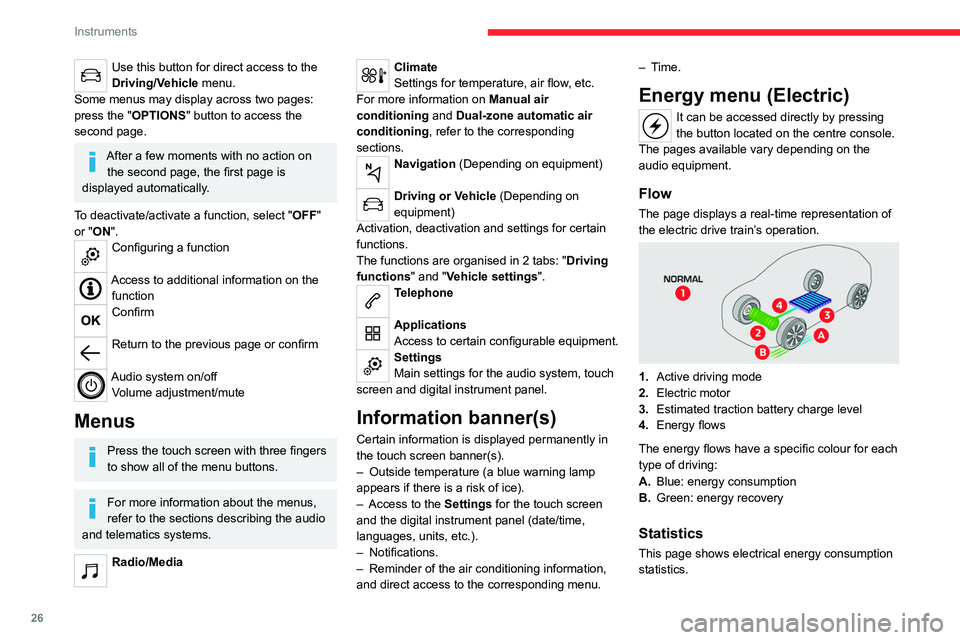
The page displays a real-time representation of
the electric drive train’s operation.
1. Active driving mode
2. Electric motor
3. Estimated traction battery charge level
4. Energy flows
The energy flows have a specific colour for each
type of driving:
A. Blue: energy consumption
B. Green: energy recovery
Statistics
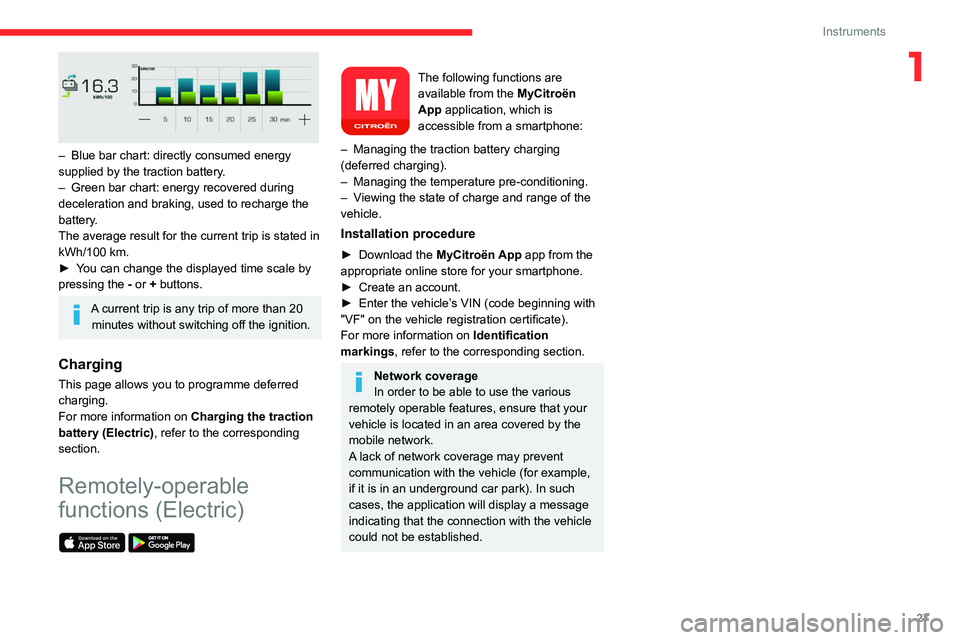
This page shows electrical energy consumption
statistics.
Page 29 of 260
27
Instruments
1
– Blue bar chart: directly consumed energy
supplied by the traction battery .
–
Green bar chart: energy recovered during
deceleration and braking, used to recharge the
battery
.
The average result for the current trip is stated in
kWh/100
km.
►
Y
ou can change the displayed time scale by
pressing the
-
or + buttons.
A current trip is any trip of more than 20 minutes without switching off the ignition.
Charging
This page allows you to programme deferred
charging.
For more information on Charging the traction
battery (Electric) , refer to the corresponding
section.
Remotely-operable
functions (Electric)
The following functions are
available from the MyCitroën
App application, which is
accessible from a smartphone:
–
Managing the traction battery charging
(deferred charging).
–
Managing the temperature pre-conditioning.
–
V
iewing the state of charge and range of the
vehicle.
Installation procedure
► Download the MyCitroën App app from the
appropriate online store for your smartphone.
►
Create an account.
►
Enter the vehicle’
s VIN (code beginning with
"VF" on the vehicle registration certificate).
For more information on Identification
markings, refer to the corresponding section.
Network coverage
In order to be able to use the various
remotely operable features, ensure that your
vehicle is located in an area covered by the
mobile network.
A lack of network coverage may prevent
communication with the vehicle (for example,
if it is in an underground car park). In such
cases, the application will display a message
indicating that the connection with the vehicle
could not be established.
Page 49 of 260

47
Ease of use and comfort
3For more information on the Stop &
Start system, refer to the corresponding
section.
ECO driving mode
Selecting this mode reduces electrical
energy consumption, but restricts the
performance of the heating and air
conditioning systems, although it does not
deactivate them.
Manual air conditioning
1. Adjusting the temperature
Air conditioning on/off
2. Adjusting the air flow
System switch-off
3. Adjusting the air distribution
4. Interior air recirculation
5. Rear screen demisting/de-icing
The air conditioning system only operates with
the engine running.
Adjusting the temperature
► Turn the knob 1 from blue (cold) to red (hot).
Air flow adjustment
► Turn the thumbwheel 2 to obtain a sufficient
air flow to ensure your comfort.
If the air flow control is in
the minimum position (system
deactivated), the temperature in the vehicle
will no longer be controlled. A slight flow of air
can still be felt, due to the forward movement
of the vehicle.
Adjusting the air distribution
Windscreen and side windows
Central and side air vents
Footwells
►
Press one of the buttons
3 to adjust the air
distribution inside the passenger compartment.
The lighting of the button indicates that air
is being blown in the specified direction. It
is possible to activate the following buttons
simultaneously:
–
Central and side air vents + footwells.
–
Windscreen and side windows + footwells.
Air conditioning on/off
The air conditioning system is designed to
operate effectively in all seasons, with the
windows closed.
It is used to:
– lower the temperature in summer ,
– increase the effectiveness of demisting in
winter
, above 3°C.
►
Press knob
1 to turn the air conditioning on/
off.
When the system is activated, the indicator lamp
comes on.
Air conditioning does not operate when the air flow is disabled.
To obtain cool air more quickly, enable interior
air recirculation for a brief period. Then return
to the intake of exterior air.
Switching off the air conditioning may result in
some discomfort (humidity or misting).
Switching the system off
► Press knob 2; all the indicator lamps of the
system go out.
This action deactivates all of the functions of the
air conditioning system.
The temperature is no longer regulated. A slight
flow of air can still be felt, due to the forward
movement of the vehicle.
Dual-zone automatic air
conditioning
This system automatically controls the activation
of the air conditioning system, regulating the
temperature, air flow and air distribution inside
the passenger compartment.
Page 50 of 260

48
Ease of use and comfort
To adjust the system, use the central controls
or press the button in the Climate menu on the
touch screen to display the controls page.
Central controls
Touch screen
1. Left-hand side temperature
adjustment
Air conditioning on/off (central controls) 2.
Right-hand side temperature
adjustment
Maximum air conditioning (central controls)
3. Adjusting the air flow
Automatic Comfort programme (central
controls)
4. Interior air recirculation
5. Automatic V
isibility programme
6. Rear screen demisting/de-icing
7. Direct access to the Climate menu
8. Adjusting the air distribution
9. Air conditioning on/off
10. Automatic Comfort programme
11 . Mono-zone/Dual-zone
12. Access to the secondary page
13. Temperature conditioning (depending on
version)
14. Selection of setting for the Automatic
Comfort programme (Soft/Normal/Fast).
This system works with the engine running but
access to the ventilation and its controls remains
possible with the ignition on.
Adjusting the temperature
The driver and front passenger can each choose
their own temperature setting.
The value indicated corresponds to a level of
comfort and not to a precise temperature.
►
T
urn the knob 1 or 2 or press one of the
buttons 1 or 2 on the touch screen to increase
(red) or decrease (blue) the value.
It is recommended that you avoid a difference of
more than 3°C in the settings for left and right.
Automatic Comfort programme
This automatic mode ensures optimum
management of the passenger compartment
temperature, air flow and air distribution, based
on the selected comfort level.
►
Press knob
3 on the central controls or button
10 on the touch screen to activate/deactivate the
air conditioning system's automatic mode.
The indicator lamp in the button lights up
when the air conditioning system is operating
automatically.
You can adjust the intensity of the
automatic Comfort programme by using the
"OPTIONS "
button to select one of the available
settings:
–
"Soft": provides soft and quiet operation by
limiting air flow.
–
"Normal": offers the best compromise
between a comfortable temperature and quiet
operation (default setting).
–
"Fast": provides strong and effective air flow.
To change the current setting (shown by the
corresponding indicator lamp), press button
14
repeatedly until the desired setting is displayed.
To ensure passenger comfort in the rear seats,
favour "Normal" and "Fast" settings.
This setting is associated with automatic mode
only. However, on deactivation of
AUTO mode,
the indicator lamp for the most recently selected
setting remains on.
Page 130 of 260

128
Driving
The reversing camera is activated automatically
when reverse gear is engaged.
The image is displayed on the touch screen.
The reversing camera function may be supplemented by the parking sensors.
The blue lines 1 indicate the general direction of
the vehicle (the gap corresponds to the width of
your vehicle including the mirrors).
The red line 2 represents a distance of about
30
cm beyond the edge of your vehicle's rear
bumper.
The green lines 3 represent distances of about 1
and 2 metres beyond the edge of your vehicle's
rear bumper.
The turquoise curves 4 show the maximum
turning angle in either direction.
Opening the tailgate causes the display
to disappear.
Clean the reversing camera regularly
using a soft, dry cloth.
Top Rear Vision - 360 vision
For more information, refer to the
General recommendations on the use
of driving and manoeuvring aids .
With the engine running, these systems allow
views of your vehicle’s close surroundings to be
displayed on the touch screen using one camera
for Top Rear Vision and two cameras for 360
vision.
The screen is divided into two parts with a
contextual view and a view from above the
vehicle in its close surroundings.
The parking sensors supplement the information
on the view from above the vehicle.
Various contextual views may be displayed:
–
Standard view
.
–
180° view
.
–
Zoom view
.
AUTO mode is activated by default.
In this mode, the system chooses the best
view
to display (standard or zoom).
You can change the type of view at any time
during a manoeuvre.
►
Press the button in the bottom left-hand
corner of the touch screen.
►
Select the type of view:
•
"Standard view".
•
"180° view".
Page 132 of 260
130
Driving
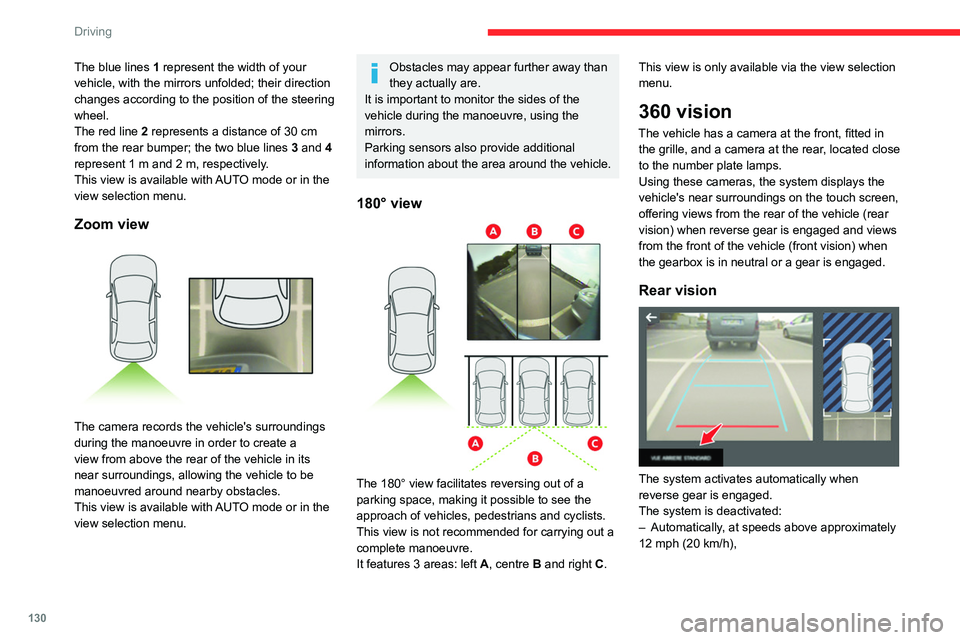
The blue lines 1 represent the width of your
vehicle, with the mirrors unfolded; their direction
changes according to the position of the steering
wheel.
The red line 2 represents a distance of 30
cm
from the rear bumper; the two blue lines 3 and 4
represent 1
m and 2 m, respectively.
This view is available with AUTO mode or in the
view selection menu.
Zoom view
The camera records the vehicle's surroundings
during the manoeuvre in order to create a
view from above the rear of the vehicle in its
near surroundings, allowing the vehicle to be
manoeuvred around nearby obstacles.
This view is available with AUTO mode or in the
view selection menu.
Obstacles may appear further away than
they actually are.
It is important to monitor the sides of the
vehicle during the manoeuvre, using the
mirrors.
Parking sensors also provide additional
information about the area around the vehicle.
180° view
The 180° view facilitates reversing out of a
parking space, making it possible to see the
approach of vehicles, pedestrians and cyclists.
This view is not recommended for carrying out a
complete manoeuvre.
It features 3 areas: left A, centre B and right C. This view is only available via the view selection
menu.
360 vision
The vehicle has a camera at the front
, fitted in
the grille, and a camera at the rear, located close
to the number plate lamps.
Using these cameras, the system displays the
vehicle's near surroundings on the touch screen,
offering views from the rear of the vehicle (rear
vision) when reverse gear is engaged and views
from the front of the vehicle (front vision) when
the gearbox is in neutral or a gear is engaged.
Rear vision
The system activates automatically when
reverse gear is engaged.
The system is deactivated:
–
Automatically
, at speeds above approximately
12 mph (20
km/h),