radio Citroen C4 PICASSO RHD 2014.5 1.G Owner's Manual
[x] Cancel search | Manufacturer: CITROEN, Model Year: 2014.5, Model line: C4 PICASSO RHD, Model: Citroen C4 PICASSO RHD 2014.5 1.GPages: 428, PDF Size: 10.03 MB
Page 25 of 428

23
- "MEDIA": display of information related to t
he media being played or the radio.-
" NAVIGATION": display of information r
elated to the navigation in progress
(map
and instructions).-
" PHOTOS": display of the photo selected i
n the "Media" menu of the touch screen
t
ablet.
1
Monitoring
Page 305 of 428
303
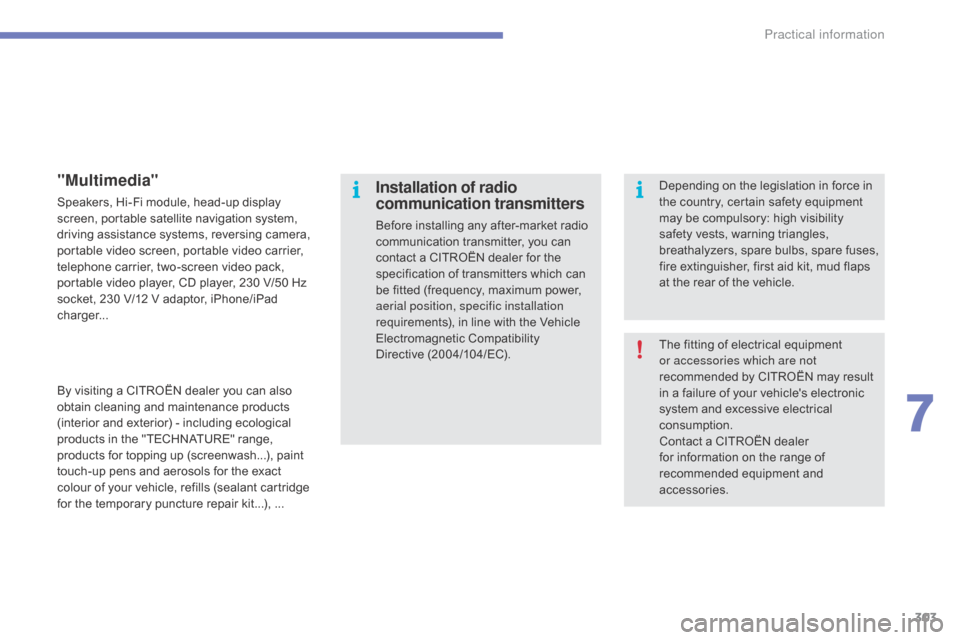
The fitting of electrical equipment or accessories which are not
recommended
by CITROËN may result
i
n a failure of your vehicle's electronic
s
ystem and excessive electrical
c
onsumption.
Contact
a CITROËN dealer
f
or information on the range of
r
ecommended equipment and
a
ccessories.
Installation of radio
communication transmitters
Before installing any after-market radio communication transmitter, you can
c
ontact a CITROËN dealer for the
s
pecification of transmitters which can
b
e fitted (frequency, maximum power,
a
erial position, specific installation
requirements),
in line with the Vehicle
E
lectromagnetic
C
ompatibility
D
irective (2004/104/EC). Depending
on the legislation in force in
t
he country, certain safety equipment m
ay be compulsory: high visibility s
afety vests, warning triangles,
b
reathalyzers,
spar
e
bu
lbs,
spar
e
f
uses,
f
ire extinguisher, first aid kit, mud flaps
a
t the rear of the vehicle.
"Multimedia"
Speakers, Hi-Fi module, head-up display screen, portable satellite navigation system,
d
riving assistance systems, reversing camera,
p
ortable video screen, portable video carrier,
t
elephone carrier, two-screen video pack,
p
ortable video player, CD player, 230 V/50 Hz
s
ocket, 230 V/12 V adaptor, iPhone/iPad
c
harger...
By
visiting a CITROËN dealer you can also
o
btain cleaning and maintenance products
(
interior and exterior) - including ecological
p
roducts in the "TECHNATURE" range,
p
roducts for topping up (screenwash...), paint
t
ouch-up pens and aerosols for the exact
c
olour of your vehicle, refills (sealant cartridge
f
or the temporary puncture repair kit...), ...
7
Practical information
Page 346 of 428

01
"Air conditioning"
allows control of the
settings
for temperature
and
air flow.
"Driving assistance"
allows access to the trip
computer
and certain
vehicle functions to be
activated,
deactivated
and
adjusted.
"Media"
allows selection of a
radio
station, the various
music
sources and the
display
of photographs.
"Navigation"*
allows
settings for
navigation
and
the
choice
of
a destination.
"Configuration
"
allows
sound
settings,
the
color
schemes
and
the
brightness
of
instruments
and
controls
to
be
adjusted
and
gives
access to the interactive
help
for
the
main
vehicle
systems
and
warning
lamps. "
Connected services "*
allows connection to
an applications portal
to
facilitate,
make
safe
and
personalise
journeys
by
means
of
a
connection
key
available
on
subscription
from
a
CITROËN
dealer.
"Telephone"
allows the connection of
a
mobile
telephone
via
Bluetooth.
GENERAL OPERATION
344
* Depending on equipment.
Page 348 of 428
02
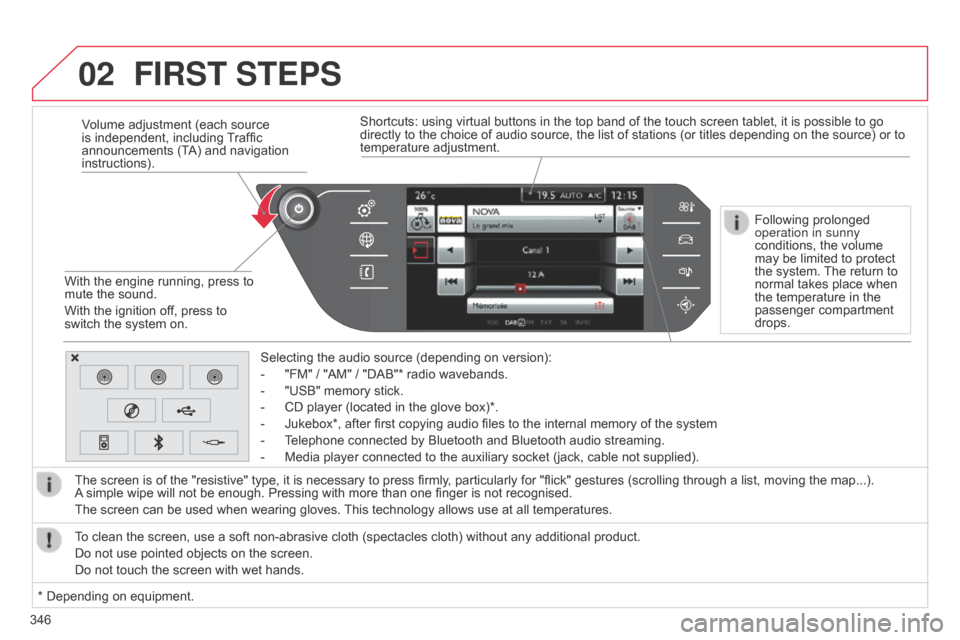
346Volume adjustment (each source
is
independent, including
T
raffic
announcements
(TA) and navigation
instructions).
With
the engine running, press to
mute
the sound.
With the ignition off, press to
switch
the system on.
Selecting the audio source (depending on version):
-
"FM"
/ "AM" / "DAB"* radio wavebands.
-
"USB"
memory stick.
-
CD
player (located in the glove box)*.
-
Jukebox*,
after first copying audio files to the internal memory of the system
-
T
elephone connected by Bluetooth and Bluetooth audio streaming.
-
Media
player connected to the auxiliary socket (jack, cable not supplied).
The screen is of the "resistive" type, it is necessary to press firmly, particularly for "flick" gestures (scrolling through a list, moving the map...).
A
simple wipe will not be enough. Pressing with more than one finger is not recognised.
The screen can be used when wearing gloves.
This
technology allows use at all temperatures.
FIRST STEPS
* Depending on equipment.
T o clean the screen, use a soft non-abrasive cloth (spectacles cloth) without any additional product.
Do not use pointed objects on the screen.
Do not touch the screen with wet hands. Following prolonged
operation in sunny
conditions,
the volume
may
be limited to protect
the
system.
The
return to
normal
takes place when
the
temperature in the
passenger
compartment
drops.
Shortcuts:
using virtual buttons in the top band of the touch screen tablet, it is possible to go
directly
to the choice of audio source, the list of stations (or titles depending on the source) or to
temperature
adjustment.
Page 349 of 428

03
347
STEERING MOUNTED CONTROLS
- Mute.
-
V
olume increase / decrease.
-
Radio:
display the list of stations.
Media:
display the list of tracks.
-
Rotation Radio:
automatic selection of next / previous frequency.
Media:
previous / next track.
-
Press
then rotation: access to preset stations.
-
Change
the audio source.
-
Move
in the menus.
Zoom
the map in and out
Press:
confirmation, choice of source accepted.
-
TEL
button:
Access
to the telephone menu:
Call
list / Contacts / Hands-free mode /
Answer
/ Hang up.
Accept
an incoming call /
Long
press: reject an incoming call or end the current call.-
Short press: Change
the multimedia source.
Accept
an incoming call.
Call
in progress: access to the telephone menu (End call, Secret
mode,
Hands-free mode).
-
Long
press:
Reject
an incoming call.
End
a call in progress.
Other
than call in progress: access to the telephone menu (Dial,
Contacts,
Call log,
Answerphone).
-
Rotation. Radio:
automatic search for previous / next station.
Media:
previous / next track.
-
Press:
confirmation.
-
Short
press:
Radio:
display the list of stations.
Media:
display the list of tracks.
-
Long
press: update the list of stations received.
-
Increase
volume.
-
Decrease
volume.
Page 351 of 428
349
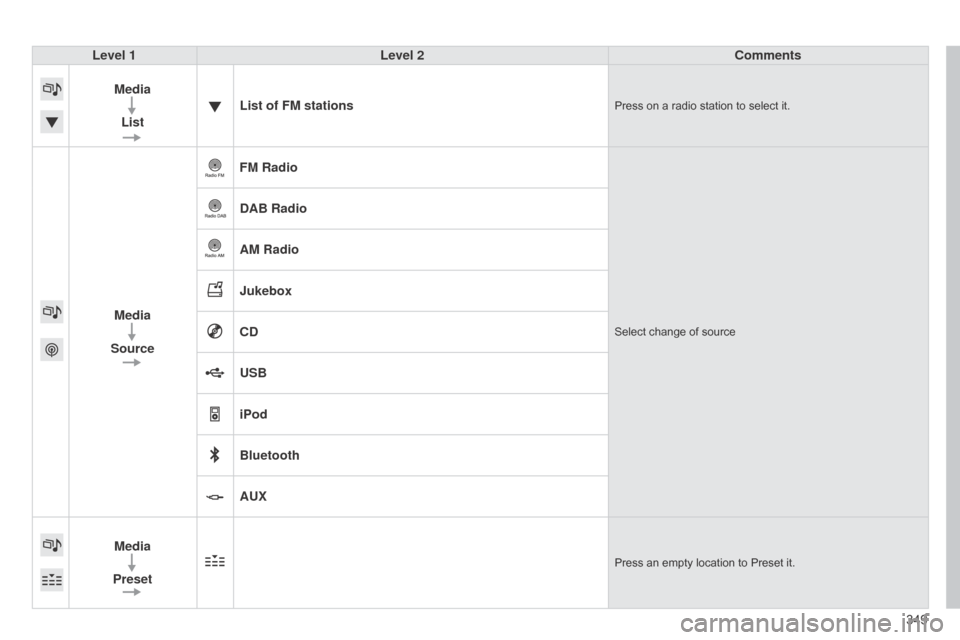
Level 1
Level 2 Comments
Media List List of FM stations
Press on a radio station to select it.
Media
Source FM RadioSelect change of source
DAB Radio
AM Radio
Jukebox
CD
USB
iPod
Bluetooth
AUX
Media
Preset
Press an empty location to Preset it.
Page 353 of 428
351
Level 1
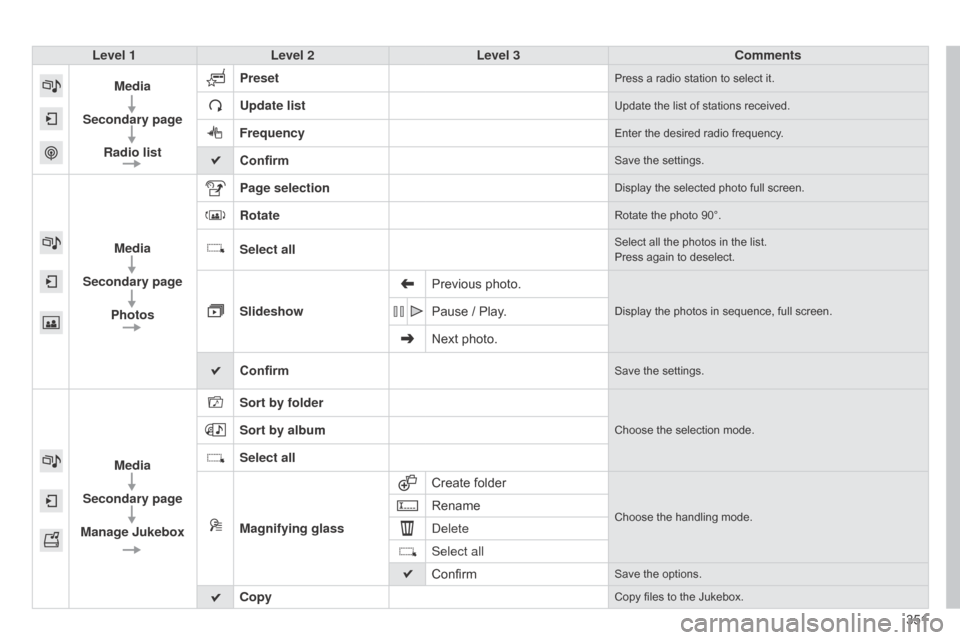
Level 2 Level 3 Comments
Media
Secondary page Radio list Preset
Press a radio station to select it.
Update listUpdate the list of stations received.
FrequencyEnter the desired radio frequency.
ConfirmSave the settings.
Media
Secondary page Photos Page selection
Display the selected photo full screen.
RotateRotate the photo 90°.
Select allSelect all the photos in the list.
Press again to deselect.
Slideshow Previous photo.Display the photos in sequence, full screen.Pause / Play.
Next photo.
Confirm
Save the settings.
Media
Secondary page
Manage Jukebox Sort by folder
Choose the selection mode.Sort by album
Select all
Magnifying glass
Create
folder
Choose the handling mode.Rename
d
elete
Select all
Confirm
Save the options.
CopyCopy files to the Jukebox.
Page 355 of 428
353
Level 1
Level 2 Level 3 Comments
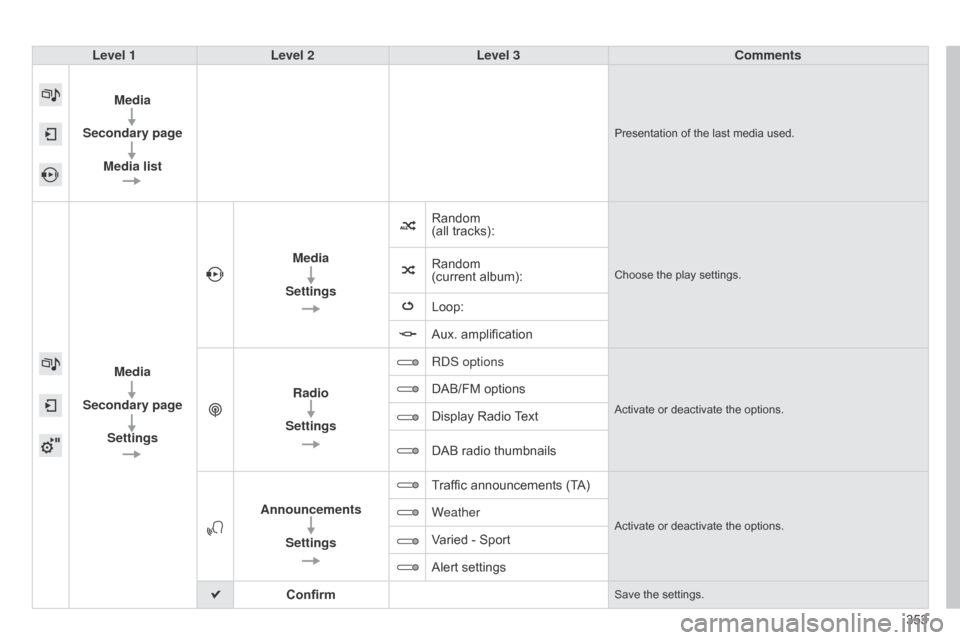
Media
Secondary page Media list
Presentation of the last media used.
Media
Secondary page Settings Media
Settings Random
(all
tracks):
Choose the play settings.Random
(current album):
Loop:
Aux.
amplification
Radio
Settings R
d S options
Activate or deactivate the options.
DAB/FM options
Display Radio
T
ext
DAB
radio thumbnails
Announcements Settings Traffic
announcements (TA)
Activate or deactivate the options.Weather
Varied - Sport
Alert
settings
Confirm
Save the settings.
Page 356 of 428
04
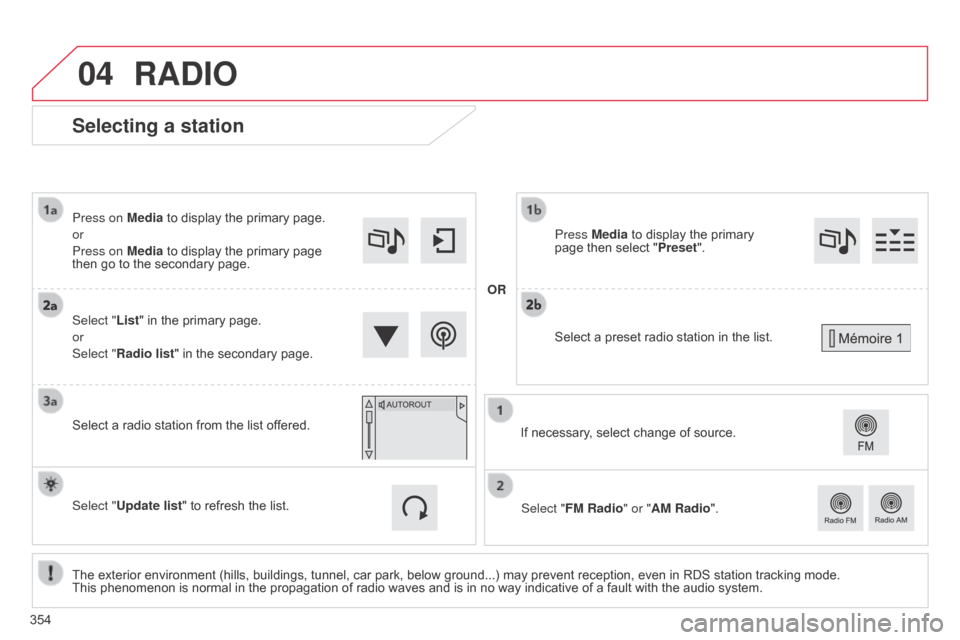
Selecting a station
The exterior environment (hills, buildings, tunnel, car park, below ground...) may prevent reception, even in RDS station tracking mode. This phenomenon is normal in the propagation of radio waves and is in no way indicative of a fault with the audio system.
Select "List"
in the primary page.
or
Select "Radio list" in the secondary page.
Press on Media to display the primary page.
or
Press on Media to display the primary page
then
go to the secondary page.
Select a radio station from the list offered.
If necessary, select change of source.
Press Media to display the primary
page
then select "
Preset ".
Select "FM Radio" or "AM Radio".
OR
Select "Update list" to refresh the list.
RADIO
Select a preset radio station in the list.
354
Page 357 of 428
04
355
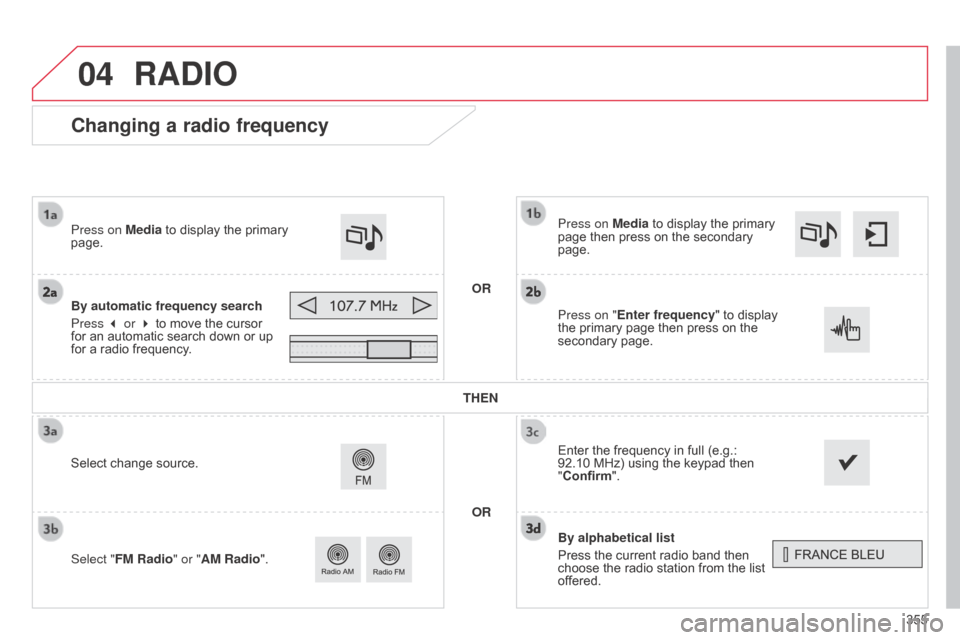
Changing a radio frequency
By alphabetical list
Press the current radio band then
choose
the radio station from the list
of
fered.
Press on Media
to display the primary
page
then press on the secondary
page.
Enter
the frequency in full (e.g.:
92.10 MHz) using the keypad then
"
Confirm".
By automatic frequency search
Press 3 or 4
to
move
the
cursor
for
an
automatic
search
down
or
up
for
a
radio
frequency.
Press on Media
to
display
the
primary
page.
Press on "
Enter frequency" to display
the
primary page then press on the
secondary
page.
OR
RADIO
Select change source.
Select " FM Radio" or "AM Radio". THEN
OR