emergency CITROEN DISPATCH SPACETOURER 2017 Handbook (in English)
[x] Cancel search | Manufacturer: CITROEN, Model Year: 2017, Model line: DISPATCH SPACETOURER, Model: CITROEN DISPATCH SPACETOURER 2017Pages: 774, PDF Size: 48.25 MB
Page 527 of 774
19
6
Driving
Comp _Spacetourer_01_16_EN
Deactivation / Activation of
the alert and the braking
By default, the function is automatically activated at every engine start. The deactivation or activation of the function is done in the vehicle configuration menu.
With the audio system
In the " Personalisation-configuration " menu, activate/deactivate " Auto. emergency braking ".
With the touch screen
In the vehicle settings menu, activate/deactivate " Collision risk alert and automatic
braking ".
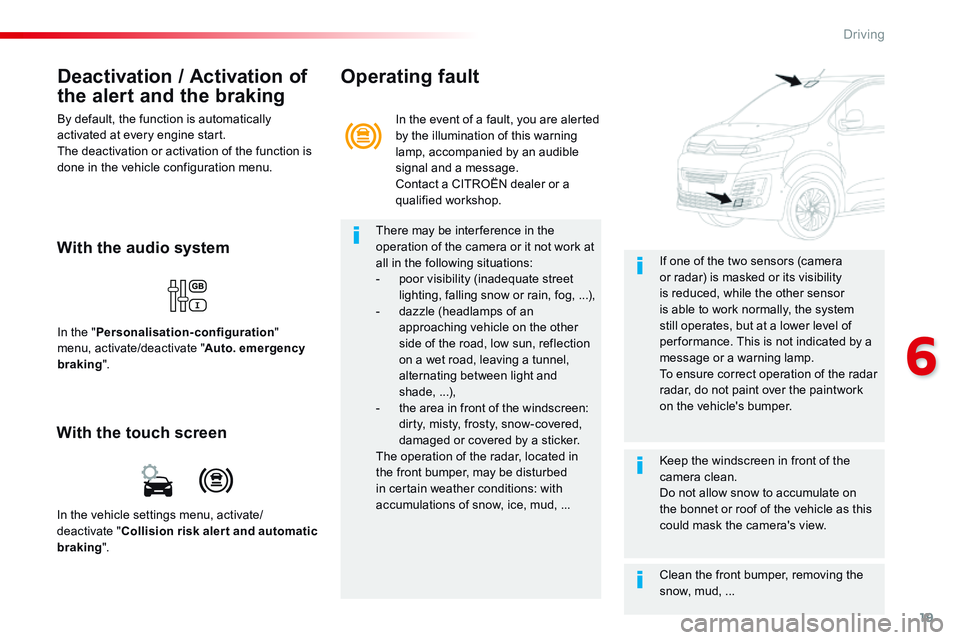
In the event of a fault, you are alerted by the illumination of this warning lamp, accompanied by an audible signal and a message. Contact a CITROËN dealer or a qualified workshop.
Operating fault
There may be interference in the operation of the camera or it not work at all in the following situations: - poor visibility (inadequate street lighting, falling snow or rain, fog, ...), - dazzle (headlamps of an approaching vehicle on the other side of the road, low sun, reflection on a wet road, leaving a tunnel, alternating between light and shade, ...), - the area in front of the windscreen: dirty, misty, frosty, snow-covered,
damaged or covered by a sticker. The operation of the radar, located in the front bumper, may be disturbed in certain weather conditions: with accumulations of snow, ice, mud, ...
Clean the front bumper, removing the snow, mud, ...
If one of the two sensors (camera or radar) is masked or its visibility is reduced, while the other sensor is able to work normally, the system still operates, but at a lower level of per formance. This is not indicated by a message or a warning lamp. To ensure correct operation of the radar radar, do not paint over the paintwork on the vehicle's bumper.
Keep the windscreen in front of the camera clean. Do not allow snow to accumulate on the bonnet or roof of the vehicle as this could mask the camera's view.
Page 621 of 774
17
6
Driving
Comp _Spacetourer_01_16_EN
This level of alert is based on the time before collision. It takes account of the vehicle dynamics, the speed of your vehicle and the
one in front, the environmental conditions, the operation of the vehicle (cornering, pedals pressed, etc.) to trigger the alert at the best moment.
Level 2 : visual and audible alert, warning you that a collision is imminent. A message indicating that you should brake is displayed.
Where the speed of your vehicle is too high approaching another vehicle, the first level of alert may not be displayed: the level 2 alert may be displayed di r e c t l y. Furthermore, the level 1 alert is never displayed with the " Close " threshold. Poor weather conditions (very heavy rain, accumulation of snow in front of the radar and the camera) may hinder the operation of the system, with the display of an operating fault message. The system remains out of service until the message disappears.
Programming the alert thresholds
The thresholds for triggering an alert determine how you wish to be warned of the presence of a vehicle moving or stationary ahead of you, or a pedestrian in your traffic lane. You can select one of three thresholds : - " Distant ", to be warned early (cautious driving). - " Normal ". - " Close ", to be warned later.
In the vehicle settings menu, activate/deactivate " Collision risk alert and automatic braking ".
With the touch screen
With the audio system
In the " Personalisation-configuration " menu, activate/deactivate " Auto. emergency braking ". Then modify the alert threshold.
Then modify the alert threshold. Press on " Confirm " to save the change.
Page 622 of 774

18
Driving
Comp _Spacetourer_01_16_EN
This system, also called automatic emergency
braking, aims to reduce the speed of impact or avoid a frontal collision by your vehicle (between 3 and 87 mph (5 and 140 km/h) where the driver fails to react. Using a radar and a camera, this system acts on the vehicle's braking system.
Active Safety Brake
The driver can take back control of the vehicle at any time by sharply turning the steering wheel and/or pressing the accelerator pedal.
Operation of the system may be felt by slight vibration in the brake pedal. If the vehicle comes to a complete stop, the automatic braking is maintained for 1 to 2 seconds. If your vehicle has a manual gearbox, in the event of the automatic emergency braking bringing the vehicle to a complete stop, the engine may stall.
If your vehicle has an automatic gearbox, in the event of the automatic emergency braking bringing the vehicle to a complete stop, the vehicle will move off again; press the brake pedal.
If automatic emergency braking is not activated, you are alerted by the fixed display of this warning lamp accompanied by a message.
The point at which braking is triggered may be adjusted according to the reaction from the driver, such as movement of the steering wheel or pressing the accelerator pedal.
If the radar and the camera have confirmed the presence of a vehicle or a pedestrian, this warning lamp flashes when the system is operating.
Important : if operation of the automatic emergency braking is triggered, you should take back control of your vehicle and brakewith the pedal to add to or finish the automatic braking.
Intelligent emergency
braking assistance
If the driver does not brake sufficiently to avoid an accident, this system will complete the braking. This emergency braking system will not act if you press the brake pedal.
Page 623 of 774
19
6
Driving
Comp _Spacetourer_01_16_EN
Deactivation / Activation of
the alert and the braking
By default, the function is automatically activated at every engine start. The deactivation or activation of the function is done in the vehicle configuration menu.
With the audio system
In the " Personalisation-configuration " menu, activate/deactivate " Auto. emergency braking ".
With the touch screen
In the vehicle settings menu, activate/deactivate " Collision risk alert and automatic
braking ".
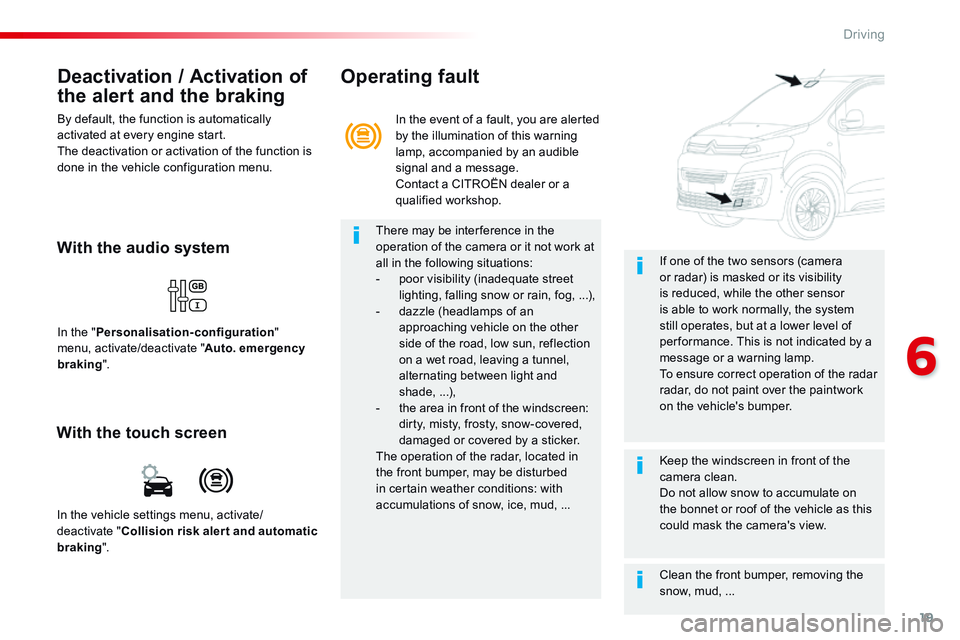
In the event of a fault, you are alerted by the illumination of this warning lamp, accompanied by an audible signal and a message. Contact a CITROËN dealer or a qualified workshop.
Operating fault
There may be interference in the operation of the camera or it not work at all in the following situations: - poor visibility (inadequate street lighting, falling snow or rain, fog, ...), - dazzle (headlamps of an approaching vehicle on the other side of the road, low sun, reflection on a wet road, leaving a tunnel, alternating between light and shade, ...), - the area in front of the windscreen: dirty, misty, frosty, snow-covered,
damaged or covered by a sticker. The operation of the radar, located in the front bumper, may be disturbed in certain weather conditions: with accumulations of snow, ice, mud, ...
Clean the front bumper, removing the snow, mud, ...
If one of the two sensors (camera or radar) is masked or its visibility is reduced, while the other sensor is able to work normally, the system still operates, but at a lower level of per formance. This is not indicated by a message or a warning lamp. To ensure correct operation of the radar radar, do not paint over the paintwork on the vehicle's bumper.
Keep the windscreen in front of the camera clean. Do not allow snow to accumulate on the bonnet or roof of the vehicle as this could mask the camera's view.
Page 640 of 774
15
Connected navigation
Depending on version
Depending on the equipment level of the
vehicle
Network connection provided by
the vehicle
OR
Network connection provided by
the user
Connected navigation
connection
As a safety measure and because it
requires sustained attention by the driver,
using a smartphone when driving is
prohibited.
All operations must be done with the
vehicle stationary. For access to connected navigation, you
can use the connection provided by the
vehicle via the "Emergency or assistance
call" ser vices or use your smartphone as
a modem.
Activate and enter settings for sharing
the smartphone connection.
Network connection provided by
the vehicle
The system is automatically
connected to the modem included
for the "Emergency or assistance
calls" ser vices and does not require
a connection provided by the user
via their smartphone.
Network connection provided by
the user
Connect a USB cable.
The smartphone charges when
connected by a USB cable.
Activate the Bluetooth function on
the telephone and ensure that it is
visible to all (see the "Applications"
section).
Select a Wi-Fi network found by the
system and connect to it (see the
"Applications" section).
Restrictions of use:
- With CarPlay
®, connection sharing is
only with a Wi-Fi connection.
- With MirrorLink
TM, connection sharing
is only with a USB connection.
The quality of ser vices depends on the
quality of the network connection.
With the arrival of "TOMTOM
TR AFFIC", the ser vices are
available.
USB connection Bluetooth connection
Wi-Fi connection
.
CITROËN Connect Nav
Page 647 of 774

22
Connection sharing
The system offers to connect the telephone
with 3 profiles:
- "Telephone " (hands-free kit, telephone
only),
- " Streaming " (streaming: wireless playing of
the audio files on the telephone),
- " Mobile internet data ".
The " Mobile internet data " profile
must be activated for connected
navigation (where the vehicle does not
have "Emergency and assistance call"
services), having first activated sharing of
this connection on your smartphone.
Select one or more profiles.
Press " OK" to confirm.
Wi-Fi connection
Network connection by the smartphone Wi-Fi.
or Press Applications
to display the
primary page.
Press the " OPTIONS" button to go to the
secondary page.
Select "Wi- Fi network
connection ".
Select the " Secured" or "Not
secured " or "Stored " tab.
Select a network.
Using the virtual keypad, enter the
" Key " for the Wi-Fi network and the
" Password ".
Press " OK" to start the connection. The Wi-Fi connection and the sharing of
the Wi-Fi connection are exclusive.
Wi-Fi connection sharing
Creation of a local Wi-Fi network by the
system.
or Press Applications
to display the
primary page.
Press the " OPTIONS" button to go to the
secondary page.
Select "Share Wi-Fi connection ".
Select the " Activation" tab to activate or
deactivate sharing of the Wi-Fi connection.
And / Or
Select the " Settings" to change the name of
the system network and the password.
CITRO