phone CITROEN DS3 CABRIO DAG 2017 Handbook (in English)
[x] Cancel search | Manufacturer: CITROEN, Model Year: 2017, Model line: DS3 CABRIO DAG, Model: CITROEN DS3 CABRIO DAG 2017Pages: 444, PDF Size: 14.09 MB
Page 279 of 444

277
DS3_en_Chap11c_SMEGplus_ed02-2015
Menus
Settings
Radio Medianav
igation
Driving
Connected services Telephone
Adjust the settings for sound (balance, am
bience, . ..), c olour s chemes a nd t he d isplay (l
anguage,
u
nits,
d
ate,
t
ime,
.
..).
Select an audio source, a radio station, display
photographs.
Enter n
avigation s
ettings a
nd c
hoose a des
tination.
Access
t
o
t
he
t
rip
c
omputer.
Activate,
d
eactivate
o
r
e
nter
s
ettings
f
or
c
ertain
ve
hicle
f
unctions.
Connect
u
sing
t
he
"
Internet
b
rowser".
Operate certain applications on your
smartphone
v
ia
M
irrorLink
TM or CarPlay®. Connect a telephone by Bluetooth
®.
Access to the CarPlay® function after
connection o
f y
our s
martphone b y U SB c able.
(Depending
on eq
uipment)
(Depending
on eq
uipment)
Audio and Telematics
Page 282 of 444
1
27
12
38
13
49
14
510
15
611
DS3_en_Chap11c_SMEGplus_ed02-2015
Level 1Level 2Level 3
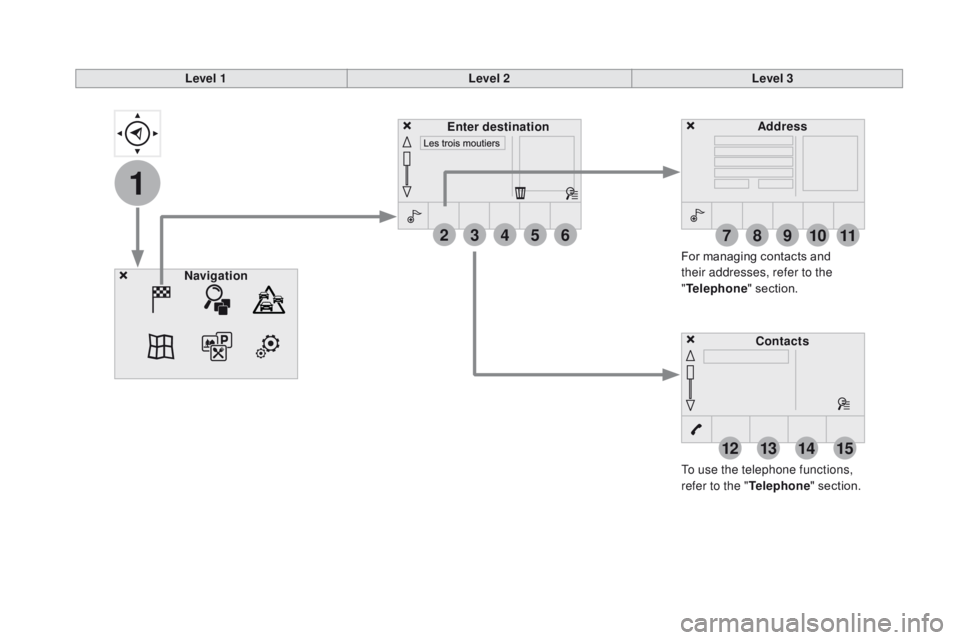
To use the telephone functions,
refer to the " Telephone"
s
ection.
For
m
anaging
c
ontacts
a
nd
thei
r addresses, refer to the
" Telephone "
s
ection.
nav
igation Address
Enter destination
Contacts
Page 306 of 444
DS3_en_Chap11c_SMEGplus_ed02-2015
Bluetooth® audio streaming
Streaming allows audio files on your telephone to be p layed t hrough t he v ehicle's s peakers.
Connect
t
he
t
elephone:
s
ee
t
he
"T
elephone"
section, then " Bluetooth".
Choose the " Audio" or "All"
prof
ile.
If play does not start automatically, it may be
necessary
t
o
s
tart
t
he
a
udio
p
layback
f
rom
t
he
te
lephone.
Control is from the peripheral device or by
using
t
he
a
udio
s
ystem
b
uttons.
Once
c
onnected
i
n
s
treaming
m
ode,
th
e telephone is considered to be a
media
s
ource.
It is recommended that you activate
" Repeat "
o
n
t
he
B
luetooth
p
eripheral.
Connecting Apple® players
Connect the Apple® player to the USB port
using a s
uitable c
able ( not s upplied).
Play
s
tarts
a
utomatically.
Control
i
s
v
ia
t
he
a
udio
s
ystem. The classifications available are those
of the portable device connected
(artists
/ a
lbums
/ g
enres
/ p
laylists
/ au
diobooks
/ p
odcasts).
The default classification used is by
artist.
T
o
m
odify
t
he
c
lassification
u
sed,
re
turn to the first level of the menu
then select the desired classification
(playlists f or e xample) a nd c onfirm to g
o d own t hrough t he m enu t o t he desi
red
tr
ack.
The version of software in the audio system
may
n
ot
b
e
c
ompatible
w
ith
t
he
g
eneration
o
f
yo
ur Apple
® player.
Page 309 of 444
2
3
4
5
6
7
307
DS3_en_Chap11c_SMEGplus_ed02-2015
Level 1Level 2 Level 3 Comments
Settings
Audio settings Ambience
Choose
t
he
s
ound
a
mbience.
Balance Sound
d
istribution
u
sing
t
he
A
rkamys
® system.
So
und effects Set
t
he
v
olume
o
r
a
ctivate
t
he
l
ink
t
o
v
ehicle
spe
ed.
Ringtones Set
t
he
t
elephone
r
ingtone
a
nd
v
olume.
Voice Set
t
he
v
olume
a
nd
v
oice
f
or
s
peaking
s
treet
name
s.
Confirm Save
y
our
s
ettings.
Settings
Turn off screen Function
t
hat
t
urns
o
ff
t
he
d
isplay.
Pressing
t
he
s
creen
r
eactivates
i
t.
Settings
Color schemes Confirm
Choose the color scheme, then confirm to save
the
set
ting.
Audio and Telematics
Page 317 of 444
315
DS3_en_Chap11c_SMEGplus_ed02-2015
Internet browser
Authentication for Internet browsing via a smartphone i s d one u sing t he D ial-Up Ne
tworking
(
DUN)
s
tandard.
Press on "
Internet browser " to
displays
t
he
b
rowser's
h
ome
p
age;
fi
rst connect your smartphone by
Bluetooth, option "Internet", see the
" Telephone "
s
ection.
Some smartphones of the latest
generation
d
o
n
ot
s
upport
t
his
st
andard.Press on Connected services
to
display
t
he
p
rimary
p
age.
Audio and Telematics
Page 319 of 444
1
1
1
2
3
4
5
6
7
8
9
10
11
317
DS3_en_Chap11c_SMEGplus_ed02-2015
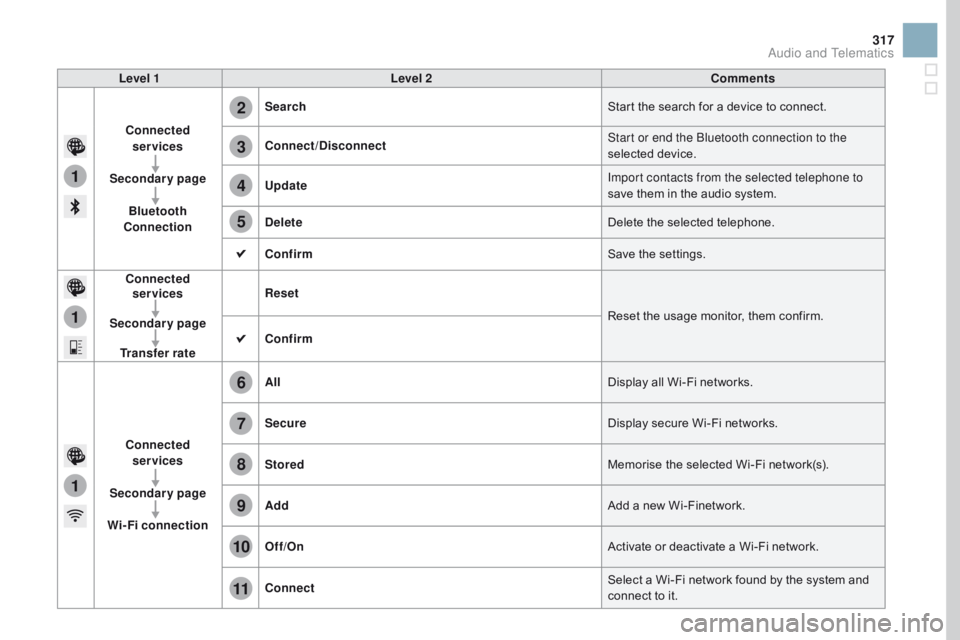
Level 1Level 2 Comments
Connected services
Secondary page Bluetooth
Connection Search
Start
t
he
s
earch
f
or
a d
evice
t
o
c
onnect.
Connect /Disconnect Start or end the Bluetooth connection to the
selected
de
vice.
Update Import contacts from the selected telephone to
save
t
hem
i
n
t
he
a
udio
s
ystem.
Delete Delete
t
he
s
elected
t
elephone.
Confirm Save
t
he
s
ettings.
Connected services
Secondary page Transfer rate Reset
Reset
t
he
u
sage
m
onitor,
t
hem
c
onfirm.
Confirm
Connected services
Secondary page
Wi-Fi connection All
Display
a
ll
W
i-Fi
n
etworks.
Secure Display
s
ecure
W
i-Fi
n
etworks.
Stored Memorise
t
he
s
elected
W
i-Fi
n
etwork(s).
Add Add
a n
ew
W
i-Finetwork.
Off /On Activate
o
r
d
eactivate
a W
i-Fi
n
etwork.
Connect Select
a W
i-Fi
n
etwork
f
ound
b
y
t
he
s
ystem
a
nd
co
nnect
t
o
i
t.
Audio and Telematics
Page 320 of 444
DS3_en_Chap11c_SMEGplus_ed02-2015
MirrorLinkTM
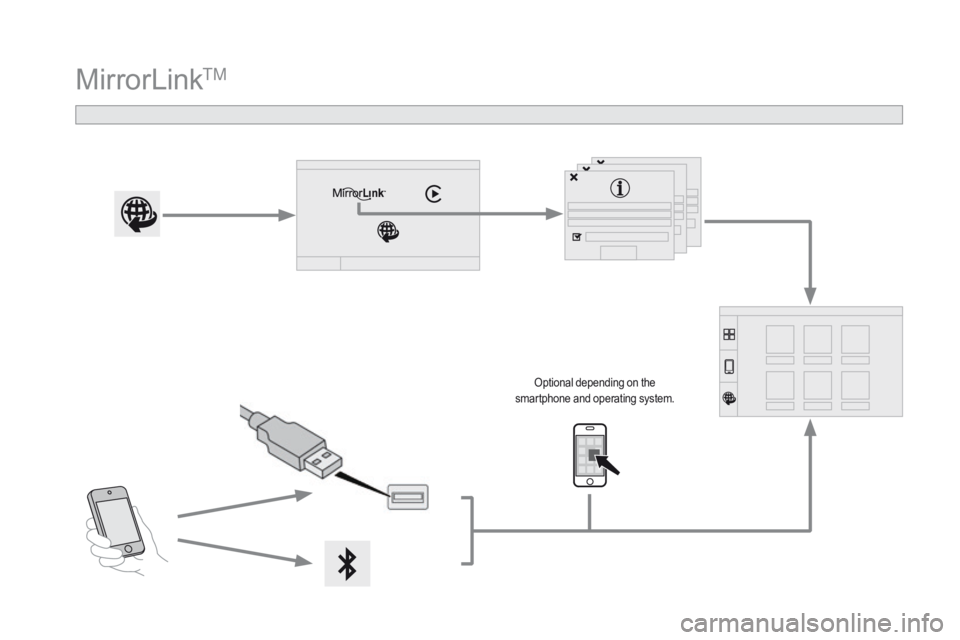
Optional depending on the sm
artphone a nd o perating s ystem.
Page 321 of 444
319
DS3_en_Chap11c_SMEGplus_ed02-2015
As a safety measure and because it
requires sustained attention by the
driver,
u
sing
a s
martphone
w
hen
dr
iving
i
s
p
rohibited.
All operations must be done with the
vehicle stationary .
The synchronisation of a smartphone
allows applications on a smartphone
that
a
re
a
dapted
t
o
t
he
M
irrorLink
TM
technology t
o b
e d
isplayed i
n t
he ve
hicle's
sc
reen.
The principles and standards
are
c
onstantly
e
volving.
F
or
t
he
co
mmunication process between the
smartphone
a
nd
t
he
s
ystem
t
o
w
ork
co
rrectly, the smartphone must be
unlocked;
u
pdate
t
he
o
perating
s
ystem
of y
our smartphone as well as the date
and time in the smartphone and the
system.
For
t
he
l
ist
o
f
e
ligible
s
martphones,
co
nnect
t
o
t
he
b
rand's
i
nternet
w
ebsite
in y
our
c
ountry. Please
n
ote:
-
if y
our smartphone is supported, to
make
i
t
"
MirrorLink
TM" compatible,
some phone manufacturers
nevertheless invite you to first
download
a d
edicated
a
pplication.
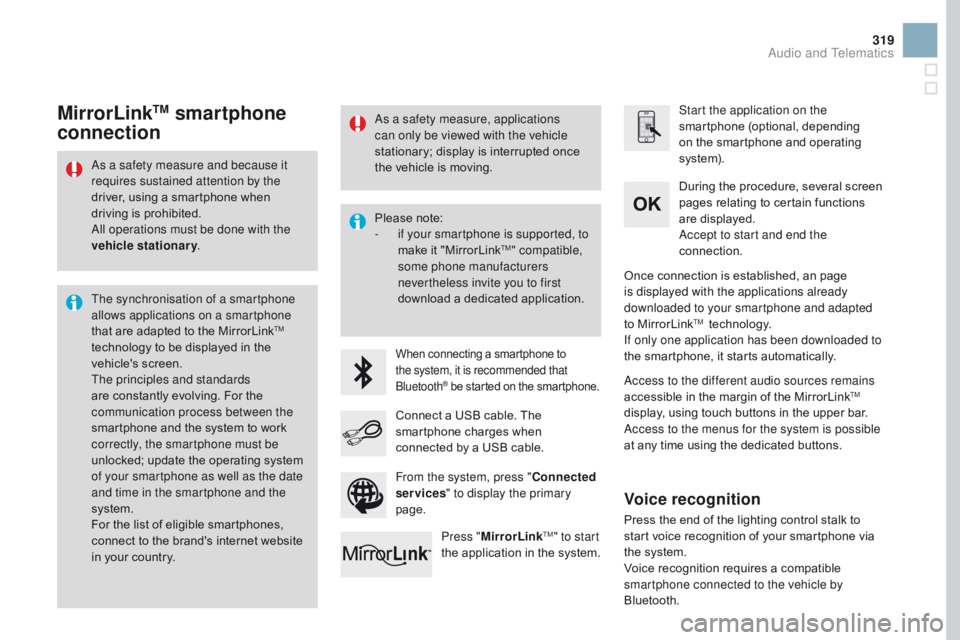
When connecting a smartphone to the system, it is recommended that
Bluetooth
® be started on the smartphone.
Start the application on the
smartphone ( optional, d epending on t
he
s
martphone
a
nd
o
perating
sy
ste m).
During
t
he
p
rocedure,
s
everal
s
creen
pa
ges
r
elating
t
o
c
ertain
f
unctions
ar
e
d
isplayed.
Accept to start and end the
connection.
Connect
a U
SB
c
able.
T
he
sm
artphone
c
harges
w
hen
co
nnected
b
y
a U
SB
c
able.
Press " MirrorLink
TM" to start
the a
pplication i
n t
he s ystem. Once
c
onnection
i
s
e
stablished,
a
n
p
age
is d
isplayed with the applications already
downloaded to your smartphone and adapted
to
M
irrorLink
TM technology.
I
f only one application has been downloaded to
the
s
martphone,
i
t
s
tarts
a
utomatically.
MirrorLinkTM smartphone
connection
Access to the different audio sources remains
accessible i
n t he m argin o f t he M irrorLinkTM
display, u
sing t
ouch b
uttons i
n t
he u
pper b
ar.
Access to the menus for the system is possible
at
a
ny
t
ime
u
sing
t
he
d
edicated
b
uttons.
From the system, press " Connected
services " to display the primary
page.
As a safety measure, applications
can only be viewed with the vehicle
stationary;
d
isplay
i
s
i
nterrupted
o
nce
th
e
v
ehicle
i
s
m
oving.
Voice recognition
Press the end of the lighting control stalk to st
art v oice r ecognition o f y our s martphone v ia th
e
s
ystem.
Voice
r
ecognition
r
equires
a c
ompatible
sm
artphone connected to the vehicle by
Bluetooth.
Audio and Telematics
Page 323 of 444
321
DS3_en_Chap11c_SMEGplus_ed02-2015
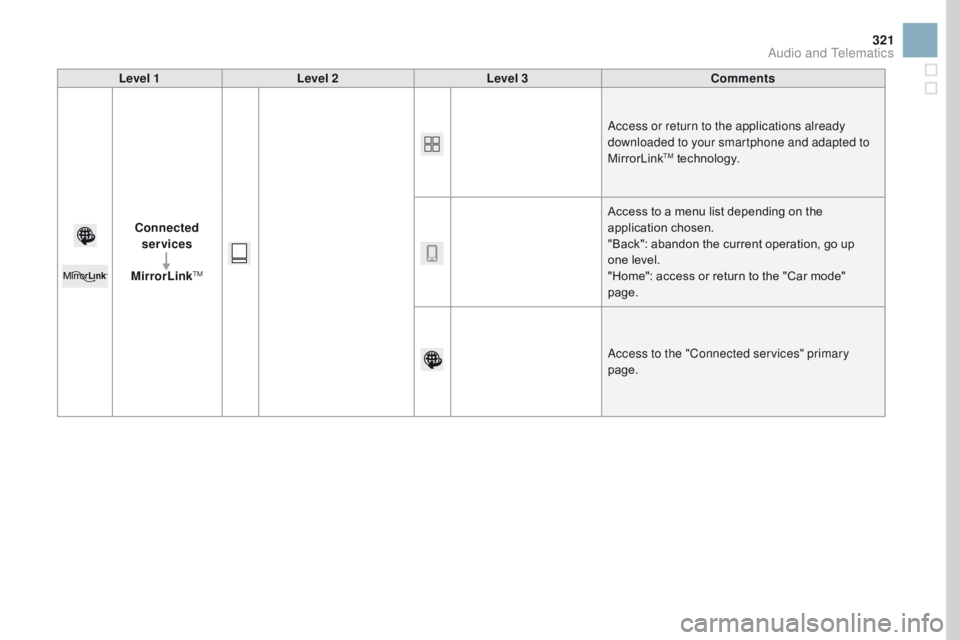
Level 1Level 2 Level 3 Comments
Connected services
MirrorLink
TM
Access or return to the applications already
downloaded to your smartphone and adapted to
MirrorLink
TM technology.
A
ccess
t
o
a m
enu
l
ist
d
epending
o
n
t
he
appl
ication
cho
sen.
"Back":
a
bandon
t
he
c
urrent
o
peration,
g
o
u
p
on
e
l
evel.
"Home":
a
ccess
o
r
r
eturn
t
o
t
he
"
Car
m
ode"
page
.
Access to the "Connected services" primary
page.
Audio and Telematics
Page 325 of 444
323
DS3_en_Chap11c_SMEGplus_ed02-2015
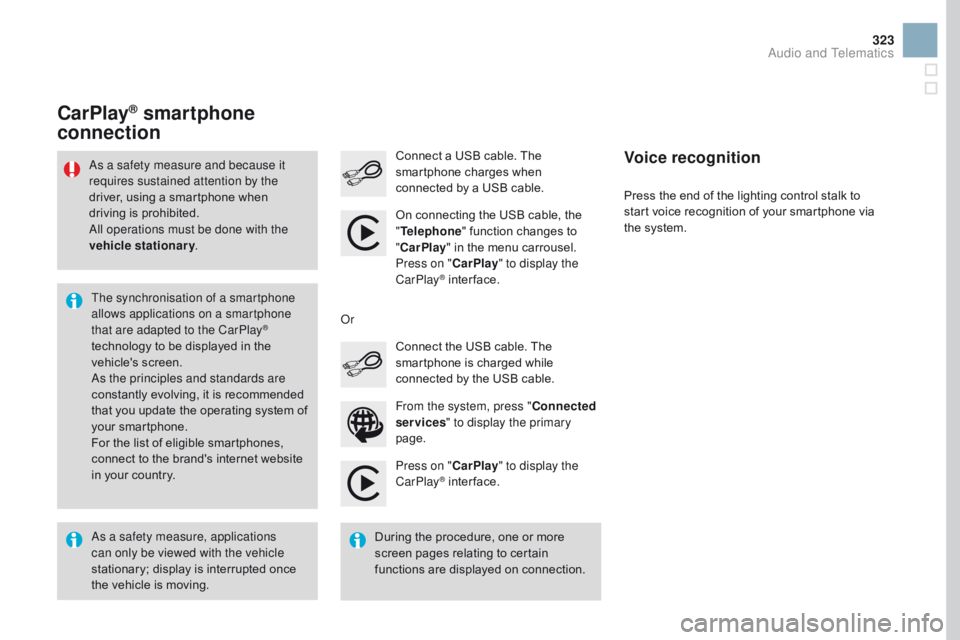
Press on "CarPlay" to display the
CarPlay® inter face.
Co
nnect
a U
SB
c
able.
T
he
sm
artphone
c
harges
w
hen
co
nnected
b
y
a U
SB
c
able.
Press
t
he
e
nd
o
f
t
he
l
ighting
c
ontrol
s
talk
t
o
st
art
v
oice
r
ecognition
o
f
y
our
s
martphone
v
ia
th
e
s
ystem.
CarPlay® smartphone
connection
From the system, press " Connected
services " to display the primary
page. Connect
t
he
U
SB
c
able.
T
he
sm
artphone
i
s
c
harged
w
hile
co
nnected
b
y
t
he
U
SB
c
able.
Or
Voice recognition
As a safety measure, applications
can only be viewed with the vehicle
stationary;
d
isplay
i
s
i
nterrupted
o
nce
th
e
v
ehicle
i
s
m
oving.
The synchronisation of a smartphone
allows applications on a smartphone
that are adapted to the CarPlay
®
technology t
o b
e d
isplayed i
n t
he ve
hicle's
sc
reen.
As the principles and standards are
constantly
e
volving,
i
t
i
s
r
ecommended
th
at
y
ou
u
pdate
t
he
o
perating
s
ystem
o
f
yo
ur
s
martphone.
For
t
he
l
ist
o
f
e
ligible
s
martphones,
co
nnect
t
o
t
he
b
rand's
i
nternet
w
ebsite
in y
our
c
ountry.
As a safety measure and because it
requires sustained attention by the
driver,
u
sing
a s
martphone
w
hen
dr
iving
i
s
p
rohibited.
All operations must be done with the
vehicle stationary .
During
t
he
p
rocedure,
o
ne
o
r
m
ore
sc
reen
p
ages
r
elating
t
o
c
ertain
fu
nctions
a
re
d
isplayed
o
n
c
onnection.
On
c
onnecting
t
he
U
SB
c
able,
t
he
"
Tel
ephone
"
f
unction
c
hanges
t
o
"
Ca
rPlay
"
i
n
t
he
m
enu
c
arrousel.
Press on " CarPlay" to display the
CarPlay
® inter face.
Audio and Telematics