audio Citroen DS4 2011 1.G Service Manual
[x] Cancel search | Manufacturer: CITROEN, Model Year: 2011, Model line: DS4, Model: Citroen DS4 2011 1.GPages: 396, PDF Size: 31.05 MB
Page 345 of 396
343
FREQUENTLY ASKED QUESTIONS
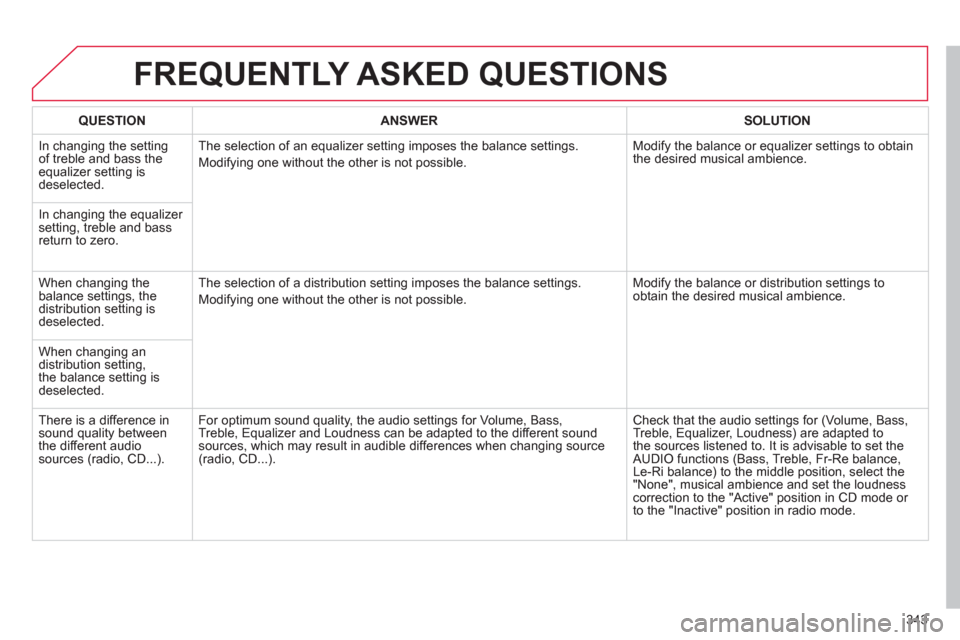
QUESTION
ANSWER
SOLUTION
In changing the setting
of treble and bass the
equalizer setting is
deselected. The selection of an equalizer setting imposes the balance settings.
Modifying one without the other is not possible. Modify the balance or equalizer settings to obtain
the desired musical ambience.
In changing the equalizer
setting, treble and bass
return to zero.
When changing the
balance settings, the
distribution setting is
deselected. The selection of a distribution setting imposes the balance settings.
Modifying one without the other is not possible. Modify the balance or distribution settings to
obtain the desired musical ambience.
When changing an
distribution setting,
the balance setting is
deselected.
There is a difference in
sound quality between
the different audio
sources (radio, CD...). For optimum sound quality, the audio settings for Volume, Bass,
Treble, Equalizer and Loudness can be adapted to the different sound
sources, which may result in audible differences when changing source
(radio, CD...). Check that the audio settings for (Volume, Bass,
Treble, Equalizer, Loudness) are adapted to
the sources listened to. It is advisable to set the
AUDIO functions (Bass, Treble, Fr-Re balance,
Le-Ri balance) to the middle position, select the
"None", musical ambience and set the loudness
correction to the "Active" position in CD mode or
to the "Inactive" position in radio mode.
Page 347 of 396
345
The system is coded in such a way that it will only
operate in your vehicle. If it is to be installed in another
vehicle, contact your CITROËN dealer for confi guration
of the system.
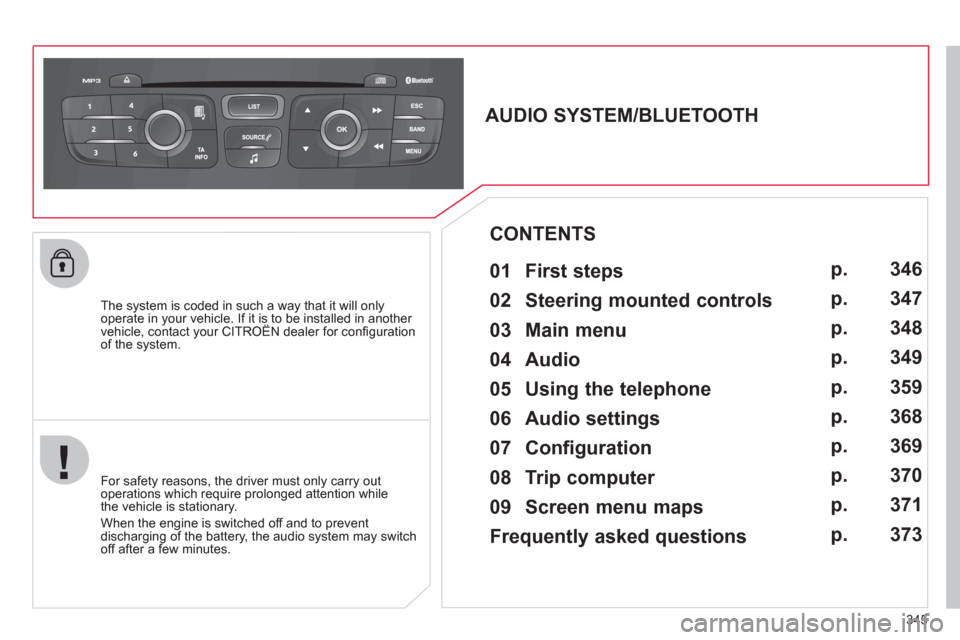
AUDIO SYSTEM/BLUETOOTH
01 First steps
For safety reasons, the driver must only carry out
operations which require prolonged attention while
the vehicle is stationary.
When the engine is switched off and to prevent
discharging of the battery, the audio system may switch
off after a few minutes.
CONTENTS
02 Steering mounted controls
03 Main menu
04 Audio
05 Using the telephone
06 Audio settings
07 Configuration
08 Trip computer
09 Screen menu maps
Frequently asked questions p.
p.
p.
p.
p.
p.
p.
p.
p.
p.
346
347
348
349
359
368
369
370
371
373
Page 348 of 396
346
01
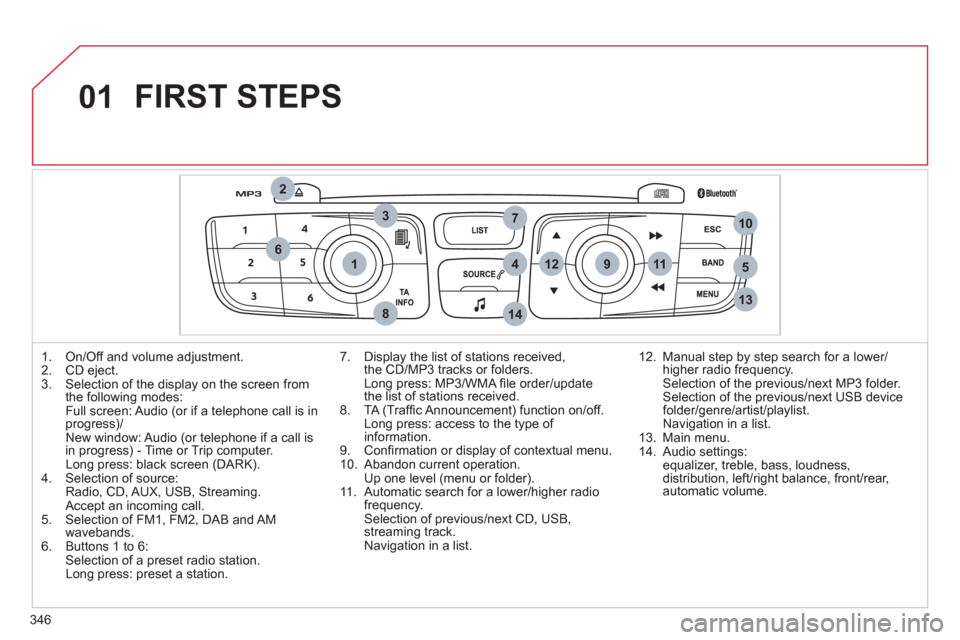
1
2
7
45
6
3
8
9
10
13
1112
14
FIRST STEPS
1. On/Off and volume adjustment.
2. CD eject.
3. Selection of the display on the screen from
the following modes:
Full screen: Audio (or if a telephone call is in
progress)/
New window: Audio (or telephone if a call is
in progress) - Time or Trip computer
.
Long press: black screen (DARK).
4. Selection of source:
Radio, CD, AUX, USB, Streaming.
Accept an incoming call.
5. Selection of FM1, FM2, DAB and AM
wavebands.
6. Buttons 1 to 6:
Selection of a preset radio station.
Long press: preset a station.
7. Display the list of stations received,
the CD/MP3 tracks or folders.
Long press: MP3/WMA fi le order/update
the list of stations received.
8. TA (Traffi c Announcement) function on/off.
Long press: access to the type of
information.
9. Confi rmation or display of contextual menu.
10. Abandon current operation.
Up one level (menu or folder).
11 . Automatic search for a lower/higher radio
frequency.
Selection of previous/next CD, USB,
streaming track.
Navigation in a list.
12. Manual step by step search for a lower/
higher radio frequency.
Selection of the previous/next MP3 folder.
Selection of the previous/next USB device
folder/genre/artist/playlist.
Navigation in a list.
13. Main menu.
14. Audio settings:
equalizer, treble, bass, loudness,
distribution, left/right balance, front/rear,
automatic volume.
Page 349 of 396
02
347
STEERING MOUNTED CONTROLS
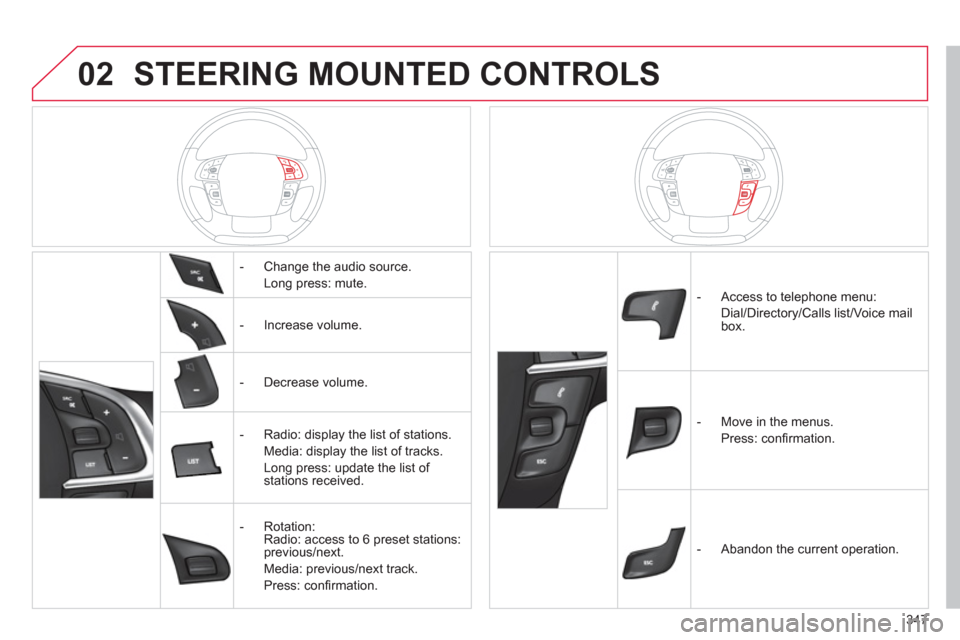
- Change the audio source.
Long press: mute.
- Increase volume.
- Decrease volume.
- Radio: display the list of stations.
Media: display the list of tracks.
Long press: update the list of
stations received.
- Rotation:
Radio: access to 6 preset stations:
previous/next.
Media: previous/next track.
Press: confi rmation.
- Access to telephone menu:
Dial/Directory/Calls list/Voice mail
box.
- Move in the menus.
Press: confi rmation.
- Abandon the current operation.
Page 351 of 396
349
1
2
3
04 AUDIO
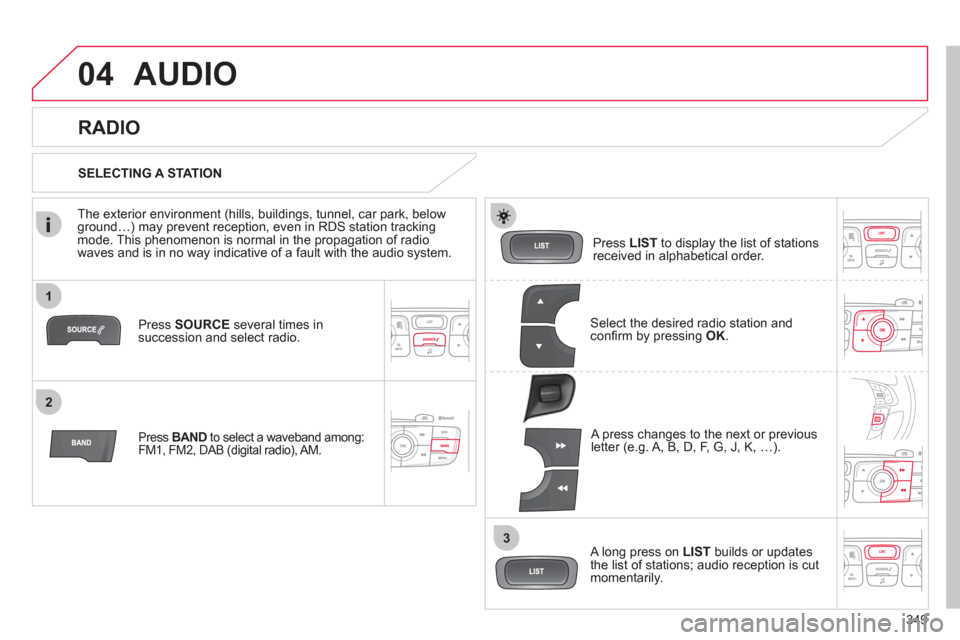
Press SOURCE
several times in
succession and select radio.
Press BAND
to select a waveband among:
FM1, FM2, DAB (digital radio), AM.
Press LIST
to display the list of stations
received in alphabetical order.
A press changes to the next or previous
letter (e.g. A, B, D, F, G, J, K, …).
RADIO
Select the desired radio station and
confi rm by pressing OK
.
SELECTING A STATION
A long press on LIST
builds or updates
the list of stations; audio reception is cut
momentarily.
The exterior environment (hills, buildings, tunnel, car park, below
ground…) may prevent reception, even in RDS station tracking
mode. This phenomenon is normal in the propagation of radio
waves and is in no way indicative of a fault with the audio system.
Page 352 of 396
350
1
2
04
1
1
2
RDS, if displayed, enables you to continue listening to the same
station by automatic retuning to alternative frequencies. However,
in certain conditions, coverage of an RDS station may not be
assured throughout the country as radio stations do not cover
100 % of the territory. This explains the loss of reception of the
station during a journey.
AUDIO
RDS
RECEIVING TA MESSAGES
The TA (Traffi c Announcement) function gives priority to TA alert
messages. To operate, this function needs good reception of a
radio station transmitting this type of message. When a traffi c
report is transmitted, the current audio source (Radio, CD,
USB, …) is interrupted automatically to play the TA message.
Normal playback of the audio source resumes at the end of the
transmission of the message.
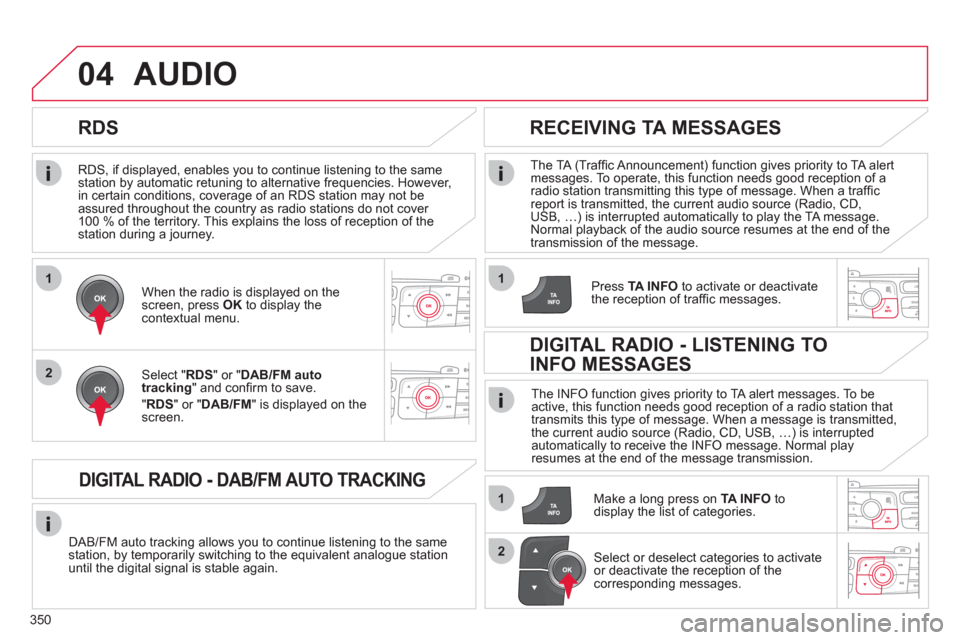
Press TA INFO
to activate or deactivate
the reception of traffi c messages.
When the radio is displayed on the
screen, press OK
to display the
contextual menu.
Select " RDS
" or " DAB/FM auto
tracking
" and confi rm to save.
" RDS
" or " DAB/FM
" is displayed on the
screen.
DIGITAL RADIO - DAB/FM AUTO TRACKING
DAB/FM auto tracking allows you to continue listening to the same
station, by temporarily switching to the equivalent analogue station
until the digital signal is stable again.
The INFO function gives priority to TA alert messages. To be
active, this function needs good reception of a radio station that
transmits this type of message. When a message is transmitted,
the current audio source (Radio, CD, USB, …) is interrupted
automatically to receive the INFO message. Normal play
resumes at the end of the message transmission.
Make a long press on TA INFO
to
display the list of categories.
DIGITAL RADIO - LISTENING TO
INFO MESSAGES
Select or deselect categories to activate
or deactivate the reception of the
corresponding messages.
Page 353 of 396
351
1
2
04 AUDIO
Radio text is information transmitted by the radio station related to
the current programme or song.
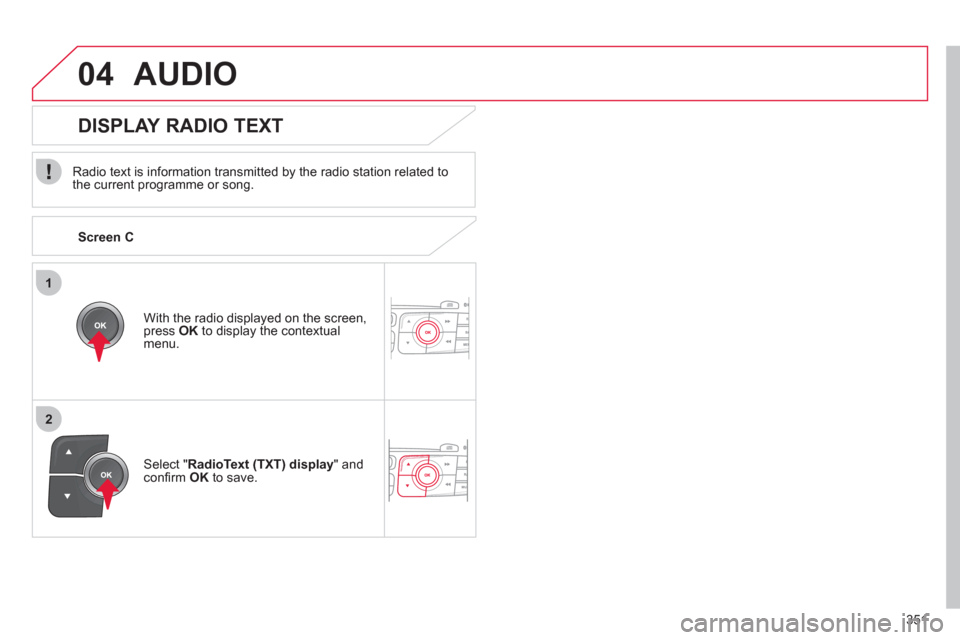
With the radio displayed on the screen,
press OK
to display the contextual
menu.
Select " RadioText (TXT) display
" and
confi rm OK
to save.
DISPLAY RADIO TEXT
Screen C
Page 354 of 396

352
04
1
2
3
AUDIO
AUDIO CD
Insert 12 cm diameter circular compact discs only.
Some anti-pirating systems, on original discs or CDs copied using a
personal recorder, may cause faults which are no refl ection on the
quality of the original player.
Without pressing the EJECT
button, insert a CD in the player,
play begins automatically.
To play a disc which has already been
inserted, press the SOURCE
button several
times in succession and select " CD
".
Press one of the buttons to select a
track on the CD.
PLAYING A CD
Press LIST
to display the list of tracks
on the CD.
Press and hold one of the buttons for
fast forward or backward.
Page 355 of 396
353
04 AUDIO
CD, USB
INFORMATION AND ADVICE
On a single disc, the CD player can read up to 255 MP3 fi les spread
over 8 directory levels. However, it is recommended that this be kept
to 2 levels so as to limit the time taken to access and play the CD.
During play, the folder structure is not observed.
In order to be able to play a recorded CDR or CDRW, when recording
it is preferable to select standards ISO 9660 level 1.2 or Joliet.
If the disc is recorded in another format, it may not be played correctly.
It is recommended that the same recording standard is always used
for an individual disc, with as low a speed as possible (4x maximum)
for optimum sound quality.
In the particular case of a multi-session CD, the Joliet standard is
recommended.
Do not connect a hard disk or USB device other than audio players to
the USB port. This may cause damage to your installation.
The audio system will only play fi les with extension ".mp3" or ".wma"
and a compression rate that is constant or variable between 32 Kbps
and 320 Kbps.
It is advisable to restrict fi le names to 20 characters without using
special characters (e.g. " ? ; ù) to avoid any playing or displaying
problems.
The playlists accepted are types .m3u and .pls.
The number of fi les is limited to 5 000 in 500 directories on a
maximum of 8 levels.
Page 356 of 396

354
04
1
3
2
4
5
CD, USB
AUDIO
PLAYING A COMPILATION
Insert an MP3 compilation in the CD player or
connect a memory stick to the USB port, directly or
via an extension lead.
The system creates playlists (temporary memory) the creation time
for which can take from a few seconds to several minutes.
The playlists are updated every time the ignition is switched off or a
USB memory stick is connected.
Play starts automatically after a period which depends on the
capacity of the USB memory stick.
At a fi rst connection, the order suggested is by folder.
When connecting again, the order previously chosen is
retained.
To play a disc or memory stick which
has already been inserted, press
SOURCE
several times in succession
and select " CD
" or " USB
".
Press one of the buttons to select the
next or previous track.
Press one of the buttons to select the
next or previous folder in the order
chosen.
Press and hold one of the buttons for
fast forwards or backwards.
Press LIST
to display the menu of
folders in the compilation.