CD player DODGE AVENGER 2008 User Guide
[x] Cancel search | Manufacturer: DODGE, Model Year: 2008, Model line: AVENGER, Model: DODGE AVENGER 2008Pages: 467, PDF Size: 7.16 MB
Page 214 of 467
Aspect Ratio Ð If Equipped
Selecting this item allows you to choose between wide
screen, pan scan, and letter box.
AutoPlay Ð If Equipped
When this is set to On and a DVD video is inserted, it will
bypass the DVD menu screen and automatically play the
movie. In some rare cases, the DVD player may not
auto-play the main title. In such cases, use the MENU
button on the remote control to select desired title to play.
NOTE: The user will have to set these defaults before
loading a disc. If changes are made to these settings after
a disc is loaded, changes will not be effective. Also, the
defaults are effective only if the disc supports the
customer-preferred settings.
AM and FM Buttons
Press the buttons to select AM or FM Modes. SET Button Ð To Set the Pushbutton Memory
When you are receiving a station that you wish to
commit to pushbutton memory, press the SET button.
The symbol SET 1 will now show in the display window.
Select the button (1-6) you wish to lock onto this station
and press and release that button. If a button is not
selected within five seconds after pressing the SET but-
ton, the station will continue to play but will not be
stored into pushbutton memory.
You may add a second station to each pushbutton by
repeating the above procedure with this exception: Press
the SET button twice and SET 2 will show in the display
window. Each button can be set for SET 1 and SET 2 in
both AM and FM. This allows a total of 12 AM, 12 FM,
and 12 Satellite (if equipped) stations to be stored into
pushbutton memory. The stations stored in SET 2
memory can be selected by pressing the pushbutton
twice.212 UNDERSTANDING YOUR INSTRUMENT PANEL
Page 215 of 467
Every time a preset button is used, a corresponding
button number will display.
Button s1-6
These buttons tune the radio to the stations that you
commit to pushbutton memory {12 AM, 12 FM, and 12
Satellite (if equipped) stations}.
DISC Button
Pressing the DISC button will allow you to switch from
AM/FM modes to Disc modes.
Operation Instructions - (DISC MODE for CD and
MP3/WMA Audio Play, DVD-VIDEO)
The radio DVD player and many DVD discs are coded by
geographic region. These region codes must match in
order for the disc to play. If the region code for the DVD
disc does not match the region code for the radio DVD
player, it will not play the disc. Customers may take their
vehicle to an authorized dealer to change the region code
of the player a maximum of five times. CAUTION!The radio may shut down during extremely hot
conditions. When this occurs, the radio will indicate
ªDisc Hotº and shut off until a safe temperature is
reached. This shutdown is necessary to protect the
optics of the DVD player and other radio internal
components.
NOTE: The ignition switch must be in the ON or ACC
position to operate the radio.
LOAD Button Ð Loading Compact Disc(s)
Press the LOAD button and the pushbutton with the
corresponding number (1-6) where the CD is being
loaded. The radio will display PLEASE WAIT and
prompt when to INSERT DISC. After the radio displays
9 INSERT DISC, 9 insert the CD into the player. UNDERSTANDING YOUR INSTRUMENT PANEL 213
4
Page 216 of 467
Radio display will show 9 LOADING DISC 9 when the disc
is loading and ªREADING DISCº when the radio is
reading the disc.
CAUTION!This CD player will accept 4±3/4 in (12 cm) discs only.
The use of other sized discs may damage the CD
player mechanism.
Eject Button Ð Ejecting Compact Disc(s)
Press the EJECT button and the pushbutton
with the corresponding number (1-6) where the
CD was loaded and the disc will unload and
move to the entrance for easy removal. Radio
display will show 9 EJECTING DISC 9 when the disc is
being ejected and prompt the user to remove the disc. Press and hold the EJECT button for five seconds and all
CDs will be ejected from the radio.
The disc can be ejected with the radio and ignition OFF.
SEEK Button (CD MODE)
Press the right SEEK button for the next selection on the
CD. Press the left SEEK button to return to the beginning
of the current selection, or return to the beginning of the
previous selection if the CD is within the first second of
the current selection. Pressing and holding the SEEK
button will allow you to scroll through the tracks faster in
CD, MP3/MWA modes.
SCAN Button (CD MODE)
Press the SCAN button to scan through each track on the
CD currently playing.
TIME Button (CD MODE)
Press this button to change the display from a large CD
playing time display to a small CD playing time display.214 UNDERSTANDING YOUR INSTRUMENT PANEL
Page 217 of 467
RW/FF (CD MODE)
Press and hold FF (Fast Forward) and the CD player will
begin to fast forward until FF is released, or RW or
another CD button is pressed. The RW (Rewind) button
works in a similar manner.
AM or FM Button (CD MODE)
Switches the radio to the Radio mode.
Notes On Playing MP3/WMA Files
The radio can play MP3/WMA files; however, acceptable
MP3/WMA file recording media and formats are limited.
When writing MP3/WMA files, pay attention to the
following restrictions.
Supported Media (Disc Types)
The MP3/WMA file recording media supported by the
radio are CDDA, CD-R, CD-RW, MP3,WMA, DVD Video,
DVD-R, DVD-RW, DVD+R, DVD+RW, and CDDA+MP3. Supported Medium Formats (File Systems)
The medium formats supported by the radio are ISO 9660
Level 1 and Level 2 and includes the Joliet extension.
When reading discs recorded using formats other than
ISO 9660 Level 1 and Level 2, the radio may fail to read
files properly and may be unable to play the file nor-
mally. UDF and Apple HFS formats are not supported.
The radio uses the following limits for file systems:
² Maximum number of directory levels: 8
² Maximum number of files: 255
² Maximum number of folders: 100
² Maximum number of characters in file/folder names:
² Level 1: 12 (including a separator 9 . 9 and a three-
character extension)
² Level 2: 31 (including a separator 9 . 9 and a three-
character extension) UNDERSTANDING YOUR INSTRUMENT PANEL 215
4
Page 220 of 467
LIST Button (DISC Mode for MP3/WMA Play)
Pressing the LIST button will bring up a list of all folders
on the disc. Scrolling up or down the list is done by
turning the Tune/Scroll control knob. Selecting a folder
by pressing the Tune/Scroll control knob will begin
playing the files contained in that folder (or the next
folder in sequence if the selection does not contain
playable files).
The folder list will time out after five seconds.
INFO Button (DISC Mode for MP3/WMA Play)
Pressing the INFO button repeatedly will scroll through
the following TAG information: Song Title, Artist, File
Name, and Folder Name (if available).
Press the INFO button once more to return to 9 elapsed
time 9 priority mode.
Press and hold the INFO button for three seconds or
more and radio will display song titles for each file. Press and hold the INFO button again for three seconds
to return to 9 elapsed time 9 display.
Operation Instructions - Auxiliary Mode
The auxiliary (AUX) jack is an audio input jack, which
allows the user to plug in a portable device such as an
MP3/WMA player, cassette player, or microphone and
utilize the vehicle's audio system to amplify the source
and play through the vehicle speakers.
Pressing the AUX button will change the mode to auxil-
iary device if the AUX jack is connected.
NOTE: The AUX device must be turned on and the
device's volume set to the proper level. If the AUX audio
is not loud enough, turn the device's volume up. If the
AUX audio sounds distorted, turn the device's volume
down.
SEEK Button (Auxiliary Mode)
No function.218 UNDERSTANDING YOUR INSTRUMENT PANEL
Page 222 of 467
Dolby t
Manufactured under license from Dolby t Laboratories.
9 Dolby t9 and the double-D symbol are trademarks of
Dolby t Laboratories.
Macrovision
This product incorporates copyright protection technol-
ogy that is protected by U.S. patents and other intellec-
tual property rights. Use of this copyright protection
technology must be authorized by Macrovision, and is
intended for home and other limited viewing uses only,
unless otherwise authorized by Macrovision. Reverse
engineering or disassembly is prohibited
DTSŸ
9 DTSŸ 9 and 9 DTSŸ 2.0 9 are trademarks of Digital The-
ater Systems, Inc. SALES CODE REN Ð MULTIMEDIA SYSTEM Ð IF
EQUIPPED
NOTE: The sales code is located on the lower right side
of the unit's faceplate.
The REN Multimedia system contains a radio, CD/DVD
player, USB port, a 20-gigabyte hard drive (HDD), and a
ªJukeBoxº (virtual CD changer). Sirius Satellite Radio is
optional. The 6.5 in (16.5 cm) touch screen allows for easy
menu selection.
A 20-gigabyte HDD allows uploads of music and photos
from CDs or through the USB port. The Gracenote
database finds the artist, track, and title for the music.
An auxiliary input jack permits passengers to listen to a
portable MP3 player through the vehicle's speakers. For
vehicles equipped with the Vehicle Entertainment System
(VES) t , separate audio outputs allow passengers to listen
to the vehicle speakers while different audio tracks play220 UNDERSTANDING YOUR INSTRUMENT PANEL
Page 225 of 467
Touch the screen where the words ªShow Time if Radio is
Offº are displayed to change the current setting.
Changing the Time Zone
1. Turn on the multimedia system.
2. Touch the screen where the time is displayed. The
clock setting menu will appear on the screen.
3. Touch the screen where the words ªSet Time Zoneº are
displayed. The time zone selection menu will appear on
the screen.
4. Select a time zone by touching the screen where your
selection appears. If you do not see a time zone that you
want to select, touch the screen where the word ªPageº is
displayed to view additional time zones in the menu.
5. Touch the screen where the word ªSaveº is displayed. SALES CODE RER Ð MULTIMEDIA SYSTEM Ð IF
EQUIPPED
NOTE: The sales code is located on the lower right side
of the unit's faceplate.
The RER Multimedia system contains a radio, Sirius
Satellite Radio player, navigation system, CD/DVD
player, USB port, 20-gigabyte hard drive (HDD), and the
UConnect t Hands-Free Bluetooth t cellular system.
NOTE: If your vehicle is not equipped with UConnect t ,
the unit will respond with a ªNot Equipped With
UConnect t º message when selecting controls related to
this feature.
A 6.5 in (16.5 cm) touch screen allows easy menu selec-
tion, while the Advanced Voice Dialog System recognizes
more than 1,000 words for audio, navigation, entertain-
ment, and hands-free mobile phone use. UNDERSTANDING YOUR INSTRUMENT PANEL 223
4
Page 226 of 467
The satellite navigation capability combines a Global-
Positioning System (GPS)-based navigation system with
an integrated color screen to provide maps, turn identi-
fication, selection menus, and instructions for selecting a
variety of destinations and routes.
A shared HDD for the navigation system, the database,
and other radio features allows uploads of music and
photos from CDs or through the USB port. The Gracenote
database finds the artist, track, and title for the music.
An auxiliary input jack permits passengers to listen to a
portable MP3 player through the vehicle's speakers. For
vehicles equipped with the Vehicle Entertainment System
(VES) t , separate audio outputs allow passengers to listen
to the vehicle speakers while different audio tracks play
through the system's wireless headphones. This means
rear-seat passengers can watch a DVD on the optional
rear-seat entertainment system while the driver and
front-seat passenger listen to the radio. Other special features include direct tune, music type
selections, traffic messaging (optional), easy store presets,
parental lockout for VES t (if equipped), backup camera
display for vehicles equipped with a backup camera, and
on some models, a dual display screen operation. Refer to
your ªNavigation User's Manualº for detailed operating
instructions.
Operating Instructions Ð Satellite Radio
Refer to your ªNavigation User's Manualº for detailed
operating instructions.
Operating Instructions Ð Hands-Free
Communication (UConnect T ) (If Equipped)
Refer to your ªNavigation User's Manualº for detailed
operating instructions.224 UNDERSTANDING YOUR INSTRUMENT PANEL
Page 239 of 467
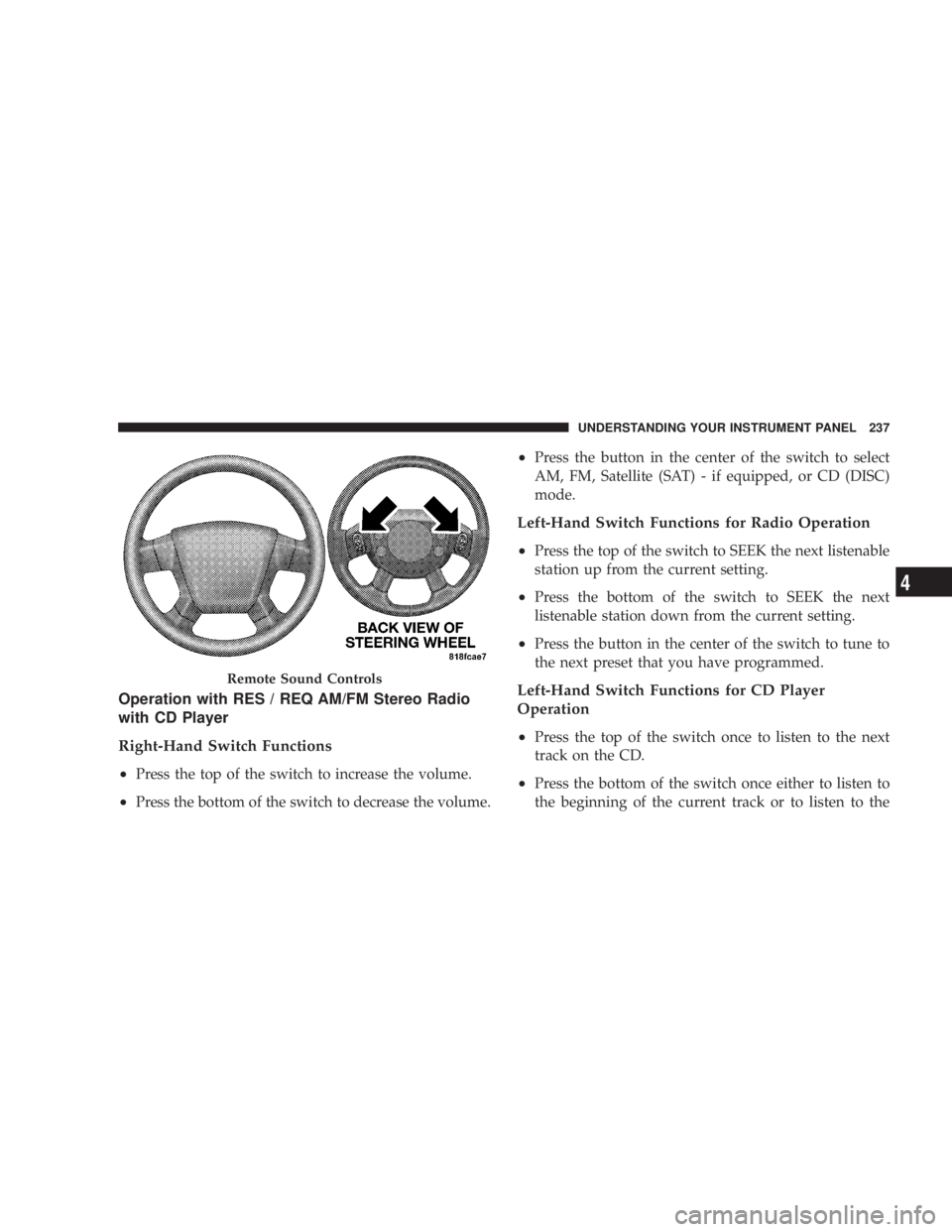
Operation with RES / REQ AM/FM Stereo Radio
with CD Player
Right-Hand Switch Functions
² Press the top of the switch to increase the volume.
² Press the bottom of the switch to decrease the volume. ² Press the button in the center of the switch to select
AM, FM, Satellite (SAT) - if equipped, or CD (DISC)
mode.
Left-Hand Switch Functions for Radio Operation
² Press the top of the switch to SEEK the next listenable
station up from the current setting.
² Press the bottom of the switch to SEEK the next
listenable station down from the current setting.
² Press the button in the center of the switch to tune to
the next preset that you have programmed.
Left-Hand Switch Functions for CD Player
Operation
² Press the top of the switch once to listen to the next
track on the CD.
² Press the bottom of the switch once either to listen to
the beginning of the current track or to listen to theRemote Sound Controls UNDERSTANDING YOUR INSTRUMENT PANEL 237
4
Page 240 of 467
beginning of the previous track if it is within one
second after the current track begins to play.
² Press the switch up or down twice to listen to the
second track on the CD, three times to listen to the
third track, and so forth.
² Press the button located in the center of the control to
change CDs on the 6-Disc in-dash CD changer radio.
This button does not function for other radios.
Operation with RER Multi-Media System
Right-Hand Switch Functions
² Press the top of the switch to increase the volume.
² Press the bottom of the switch to decrease the volume.
² Press the button in the center of the switch to select
AM, FM, Satellite (SAT), Hard Drive (HD), or CD
(DISC) mode. Left-Hand Switch Functions for Radio Operation
² Press the top of the switch to SEEK the next listenable
station up from the current setting.
² Press the bottom of the switch to SEEK the next
listenable station down from the current setting.
² Press the button in the center of the switch to go to the
next preset that you have programmed.
Left-Hand Switch Functions for CD Player
Operation
² Press the top of the switch once to listen to the next
track on the CD.
² Press the bottom of the switch once either to listen to
the beginning of the current track or to listen to the
beginning of the previous track if it is within one
second after the current track begins to play.238 UNDERSTANDING YOUR INSTRUMENT PANEL