light DODGE AVENGER 2008 Repair Manual
[x] Cancel search | Manufacturer: DODGE, Model Year: 2008, Model line: AVENGER, Model: DODGE AVENGER 2008Pages: 467, PDF Size: 7.16 MB
Page 192 of 467
when exiting the vehicle. To make your selection, press
and hold the RESET button until 0, 30, 60, or 90 seconds
appears.
Headlights With Wipers (Available with Auto
Headlights Only)
When ON is selected, and the headlight switch is in the
AUTO position, the headlights will turn on approxi-
mately 10 seconds after the wipers are turned on. The
headlights will also turn off when the wipers are turned
off if they were turned on by this feature. To make your
selection, press and hold the RESET button until ON or
OFF appears.
NOTE: Turning the headlights on during the daytime
causes the instrument panel lights to dim. To increase the
brightness, refer to ªLightsº in Section 3 of this manual.
Key-Off Power Delay
When this feature is selected, the power window
switches, radio, hands±free system (if equipped), and power outlets will remain active for up to 10 minutes
after the ignition switch is turned to the LOCK position.
Opening a vehicle door will cancel this feature. To make
your selection, press and hold the RESET button until
Off, 45 sec., 5 min., or 10 min. appears.
Illumination Approach
When this feature is selected, the headlights will activate
and remain on for up to 90 seconds when the doors are
unlocked with the remote keyless entry transmitter. To
make your selection, press and hold the RESET button
until OFF, 30, 60, or 90 seconds appears.
Display Units in English or Metric
The EVIC and odometer can be changed between English
and Metric units of measure. To make your selection,
press and release the RESET button until U.S. or METRIC
appears.190 UNDERSTANDING YOUR INSTRUMENT PANEL
Page 193 of 467
RADIO GENERAL INFORMATION
RADIO BROADCAST SIGNALS
The radio will provide excellent reception under most
operating conditions. Like any system, however, automo-
tive radios have performance limitations, due to mobile
operation and natural phenomena, which might lead you
to believe your sound system is malfunctioning. To help
you understand and save you concern about these ªap-
parentº malfunctions, you must understand a point or
two about the transmission and reception of radio sig-
nals.
Electrical Disturbances
Radio waves may pick up electrical disturbances during
transmission. They mainly affect the wave amplitude,
and thus remain a part of the AM reception. They
interfere very little with the frequency variations that
carry the FM signal. TWO TYPES OF SIGNALS
There are two basic types of radio signals: AM or
Amplitude Modulation, in which the transmitted sound
causes the amplitude, or height, of the radio waves to
vary; and FM or Frequency Modulation, in which the
frequency of the wave is varied to carry the sound.
AM Reception
AM sound is based on wave amplitude, so AM reception
can be disrupted by such things as lightning, power lines
and neon signs.
FM Reception
Because FM transmission is based on frequency varia-
tions, interference that consists of amplitude variations
can be filtered out, leaving the reception relatively clear,
which is the major feature of FM radio. UNDERSTANDING YOUR INSTRUMENT PANEL 191
4
Page 211 of 467
Program Type 16-Digit Character
Display
Rhythm and Blues R & B
Religious Music Rel Musc
Religious Talk Rel Talk
Rock Rock
Soft Soft
Soft Rock Soft Rck
Soft Rhythm and Blues Soft R&B
Sports Sports
Talk Talk
Top 40 Top 40
Weather Weather
By pressing the SEEK button when the Music Type icon
is displayed, the radio will be tuned to the next frequency station with the same selected Music Type name. The
Music Type function only operates when in the FM
mode.
If a preset button is activated while in the Music Type
(Program Type) mode, the Music Type mode will be
exited and the radio will tune to the preset station.
SETUP Button
Pressing the SETUP button allows you to select between
the following items:
NOTE: Turn the Tune/Scroll control knob to scroll
through the entries. Push the AUDIO/SELECT button to
select an entry and make changes.
² DVD Enter - When the disc is in DVD Menu mode,
selecting DVD Enter will allow you to play the current
highlighted selection. Use the remote control to scroll
up and down the menu (if equipped). UNDERSTANDING YOUR INSTRUMENT PANEL 209
4
Page 224 of 467
3. To move the hour forward, touch the screen where the
word ªHourº with the arrow pointing upward is dis-
played. To move the hour backward, touch the screen
where the word ªHourº with the arrow pointing down-
ward is displayed.
4. To move the minute forward, touch the screen where
the word ªMinº with the arrow pointing upward is
displayed. To move the minute backward, touch the
screen where the word ªMinº with the arrow pointing
downward is displayed.
5. To save the new time setting, touch the screen where
the word ªSaveº is displayed.
Changing Daylight Savings Time
When selected, this feature will display the time of day in
daylight savings time. Proceed as follows to change the
current setting:
1. Turn on the multimedia system. 2. Touch the screen where the time is displayed. The
clock setting menu will appear on the screen.
3. When this feature is on, a check mark will appear in
the box next to the words ªDaylight Savings.º Touch the
screen where the words ªDaylight Savingsº are dis-
played to change the current setting.
Show Time if Radio is Off
When selected, this feature will display the time of day
on the touch screen when the multimedia system is
turned off. Proceed as follows to change the current
setting:
1. Turn on the multimedia system.
2. Touch the screen where the time is displayed. The
clock setting menu will appear on the screen.
3. When this feature is on, a check mark will appear in
the box next to the words ªShow Time if Radio is Off.º222 UNDERSTANDING YOUR INSTRUMENT PANEL
Page 227 of 467
Clock Setting Procedure
The GPS receiver in this system is synchronized to the
time data being transmitted by the GPS satellites. The
satellites' clock is Greenwich Mean Time (GMT). This is
the worldwide standard for time. This makes the sys-
tem's clock very accurate once the appropriate time zone
and daylight savings information is set.
Changing the Time Zone
1. Turn on the multimedia system.
2. Touch the screen where the time is displayed. The
clock setting menu will appear on the screen. If the words
ªTime: GPS Timeº are displayed at the top of the screen,
proceed to Step 4. Otherwise, proceed to Step 3.
3. If the words ªTime: User Clockº are displayed at the
top of the screen, touch the bottom of the screen where
the words ªUser Clockº are displayed. The GPS time
setting menu will appear on the screen. 4. Touch the screen where the words ªSet Time Zoneº are
displayed. The time zone selection menu will appear on
the screen.
5. Select a time zone by touching the screen where your
selection appears. If you do not see a time zone that you
want to select, touch the screen where the word ªPageº is
displayed to view additional time zones in the menu.
Changing Daylight Savings Time
When selected, this feature will display the time of day in
daylight savings time. Proceed as follows to change the
current setting:
1. Turn on the multimedia system.
2. Touch the screen where the time is displayed. The
clock setting menu will appear on the screen. UNDERSTANDING YOUR INSTRUMENT PANEL 225
4
Page 228 of 467
3. When this feature is on, a check mark will appear in
the box next to the words ªDaylight Savings.º Touch the
screen where the words ªDaylight Savingsº are dis-
played to change the current setting.
Setting the User Clock
If you wish to set the clock to a time different from the
system clock, you can manually adjust the time by
performing the following:
1. Turn on the multimedia system.
2. Touch the screen where the time is displayed. The
clock setting menu will appear on the screen. If the words
ªTime: User Clockº are displayed at the top of the screen,
proceed to Step 4. Otherwise, proceed to Step 3.
3. If the words ªTime: GPS Timeº are displayed at the top
of the screen, touch the bottom of the screen where the
words ªGPS Timeº are displayed. The user clock time
setting menu will appear on the screen. 4. To move the hour forward, touch the screen where the
word ªHourº with the arrow pointing upward is dis-
played. To move the hour backward, touch the screen
where the word ªHourº with the arrow pointing down-
ward is displayed.
5. To move the minute forward, touch the screen where
the word ªMinº with the arrow pointing upward is
displayed. To move the minute backward, touch the
screen where the word ªMinº with the arrow pointing
downward is displayed.
6. To save the new time setting, touch the screen where
the word ªSaveº is displayed.
Show Time if Radio is Off
When selected, this feature will display the time of day
on the touch screen when the system is turned off.
Proceed as follows to change the current setting:
1. Turn on the multimedia system.226 UNDERSTANDING YOUR INSTRUMENT PANEL
Page 232 of 467
List or Browse Mode
During Play mode, pressing any of the following buttons
will take you to List mode. List mode enables you to
scroll through the list of menus and tracks on the iPod t
device.
Tune/Scroll Knob
In the List mode, the Tune/Scroll knob functions in a
similar manner as the scroll wheel on the iPod t .
Turning the Tune/Scroll knob clockwise (forward) and
counterclockwise (backward) scrolls through lists, dis-
playing the track detail on the radio display. Once you
have the track to be played highlighted on the radio
display, press the Tune/Scroll knob to select and start
playing the track. By turning the Tune/Scroll knob fast,
you can jump through the list faster. During fast scroll,
you may notice a slight delay in updating the informa-
tion on the radio display. During all List modes, the iPod t will display all lists in
ªwrap-aroundº mode. So if the track you wish to select is
at the bottom of the list, you just turn the Tune/Scroll
knob backward (counterclockwise) to get to the track
faster.
Radio Preset Buttons
In the List mode, the radio preset buttons are used as
shortcuts to the following lists on the iPod t device.
² 1 ± Playlists
² 2 ± Artists
² 3 ± Albums
² 4 ± Genres
² 5 - Audiobooks
² 6 ± Podcasts230 UNDERSTANDING YOUR INSTRUMENT PANEL
Page 244 of 467
3. Do not apply paper, paper CD labels, or tape to the
disc; avoid scratching a disc.
4. Do not use solvents such as benzine, thinner, cleaners,
or antistatic sprays.
5. Store a disc in its case after playing.
6. Do not expose a disc to direct sunlight.
7. Do not store a disc where temperatures may become
too high.
8. Do not play discs that are small in size or have
irregular shapes. CLIMATE CONTROLS
The Air Conditioning and Heating System is designed to
make you comfortable in all types of weather.
Manual Air Conditioning and Heating System
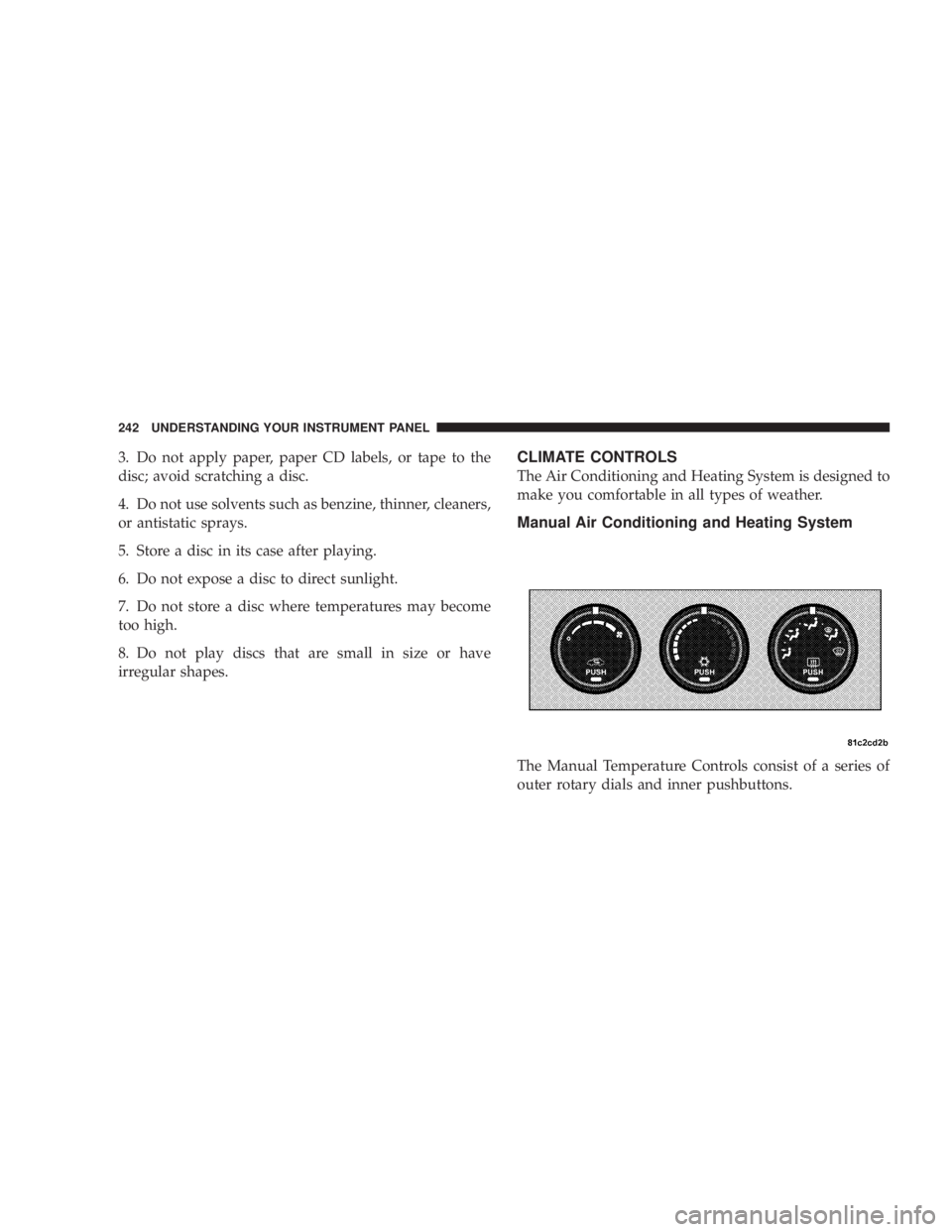
The Manual Temperature Controls consist of a series of
outer rotary dials and inner pushbuttons.242 UNDERSTANDING YOUR INSTRUMENT PANEL
Page 247 of 467
NOTE: The air conditioning compressor operates in Mix
and Defrost, or a blend of these modes, even if the Air
Conditioning Snowflake button is not pressed. This de-
humidifies the air to help dry the windshield. To improve
fuel economy, use these modes only when necessary.
² Recirculation Control
Use this button to block the flow of outside
air from coming into the passenger compart-
ment. A light will illuminate when the sys-
tem is in recirculation mode. Only use the
recirculation mode as a temporary means to block out
any outside odors, smoke, or dust, and to cool the
interior rapidly upon initial start up in very hot or
humid weather.
NOTE:
² Continuous use of the recirculation mode may make
the inside air stuffy and window fogging may occur.
Extended use of this mode is not recommended. ² The use of the recirculation mode in cold or damp
weather will cause windows to fog on the inside,
because of moisture build-up inside the vehicle. Select
the Outside Air position for maximum defogging.
² The A/C will engage automatically to prevent fogging
when the recirculation button is pressed and the mode
control is set to panel or panel / floor.
² The A/C can be deselected manually without disturb-
ing the mode control selection.
Air Conditioning Control
Use this button to engage the Air Conditioning. A
light will illuminate when the Air Conditioning
System is engaged
NOTE: The air conditioning compressor will not engage
until the engine has been running for about 10 seconds. UNDERSTANDING YOUR INSTRUMENT PANEL 245
4
Page 248 of 467
² MAX A/C
For maximum cooling use the A/C and recirculation
buttons at the same time.
² Economy Mode
If economy mode is desired, press the A/C button to turn
off the indicator light and the A/C compressor. Then,
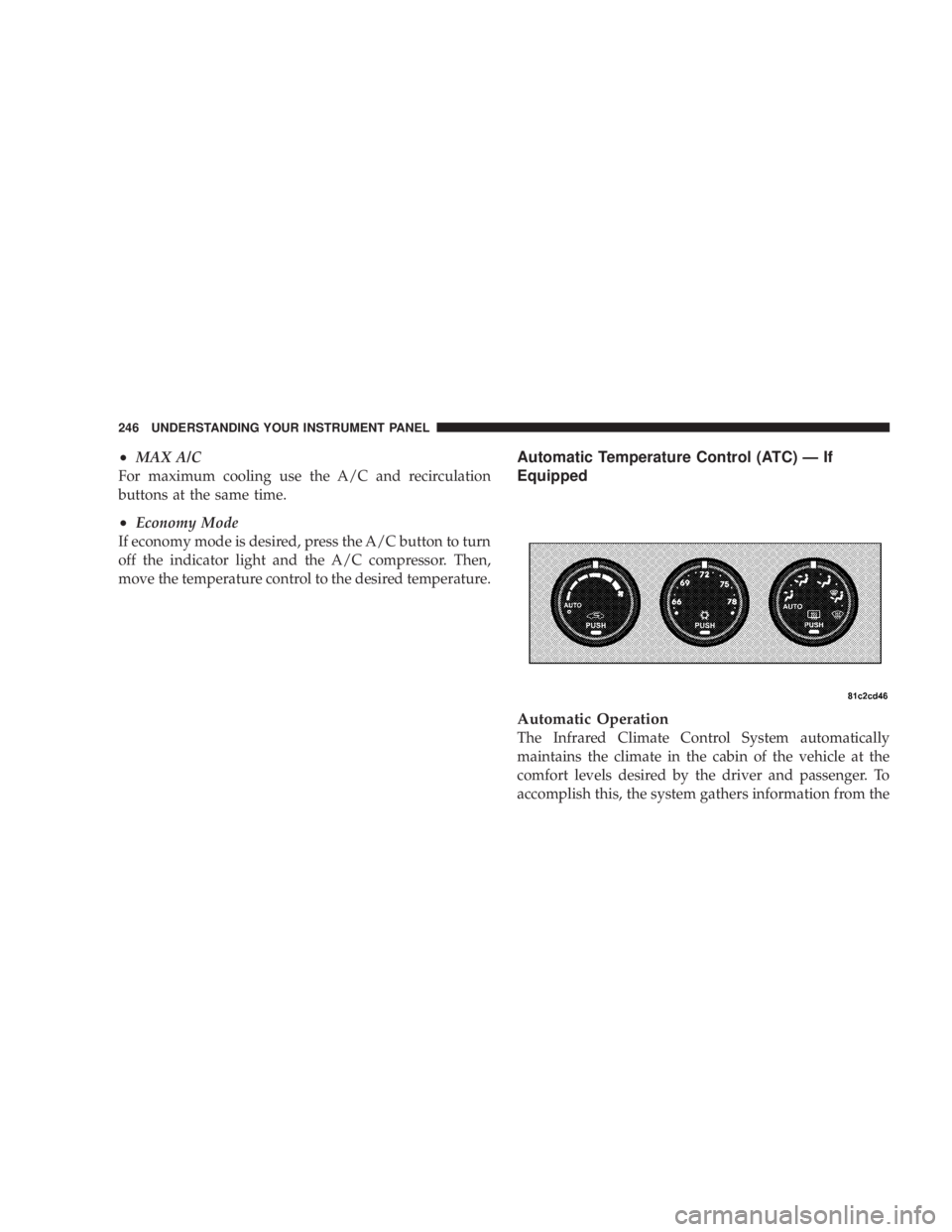
move the temperature control to the desired temperature. Automatic Temperature Control (ATC) Ð If
Equipped
Automatic Operation
The Infrared Climate Control System automatically
maintains the climate in the cabin of the vehicle at the
comfort levels desired by the driver and passenger. To
accomplish this, the system gathers information from the246 UNDERSTANDING YOUR INSTRUMENT PANEL