audio DODGE CALIBER SRT 2008 1.G Owner's Manual
[x] Cancel search | Manufacturer: DODGE, Model Year: 2008, Model line: CALIBER SRT, Model: DODGE CALIBER SRT 2008 1.GPages: 373, PDF Size: 3 MB
Page 198 of 373
TUNE Control (CD MODE for CD Audio Play)
Pressing the TUNE control allows the setting of the Tone,
Fade, and Balance. See Radio Mode.
AM/FM Button (CD MODE for CD Audio Play)
Switches the Radio to the Radio mode.
RND/PTY Button (Random Play Button) (CD
MODE for CD Audio Play)
Press this button while the CD is playing to activate
Random play. This feature plays the selections on the
compact disc in random order to provide an interesting
change of pace.
NOTE:MP3 and WMA Random play are for file folders
only.
Press the SEEK button to move to the next randomly
selected track.
Press the RND button a second time to stop Random
play.
Buttons1-6(CDMODE for CD Audio Play)
Selects disc positions1-6forPlay/Load/Eject.
Notes On Playing MP3 Files
The radio can play MP3 files; however, acceptable MP3
file recording media and formats are limited. When
writing MP3 files, pay attention to the following restric-
tions.
Supported Media (Disc Types)
The MP3 file recording media supported by the radio are
CD-ROM, CD-R, and CD-RW.
Supported Medium Formats (File Systems)
The medium formats supported by the radio are ISO 9660
Level 1 and Level 2 and includes the Joliet extension.
When reading discs recorded using formats other than
ISO 9660 Level 1 and Level 2, the radio may fail to read
files properly and may be unable to play the file nor-
mally. UDF and Apple HFS formats are not supported.
UNDERSTANDING YOUR INSTRUMENT PANEL 197
4
Page 199 of 373
The radio uses the following limits for file systems:
²Maximum number of directory levels: 15
²Maximum number of files: 255
²Maximum number of folders: 100
²Maximum number of characters in file/folder names:
²Level 1: 12 (including a separator9.9and a
3-character extension)
²Level 2: 31 (including a separator9.9and a
3-character extension)
Multisession disc formats are supported by the radio.
Multisession discs may contain combinations of normal
CD audio tracks and computer files (including MP3 files).
Discs created with an option such as9keep disc open after
writing9are most likely multisession discs. The use of
multisession for CD audio or MP3 playback may result in
longer disc loading times.
Supported MP3 File Formats
The radio will recognize only files with the *.mp3 exten-
sion as MP3 files. Non-MP3 files named with the *.mp3
extension may cause playback problems. The radio is
designed to recognize the file as an invalid MP3 and will
not play the file.
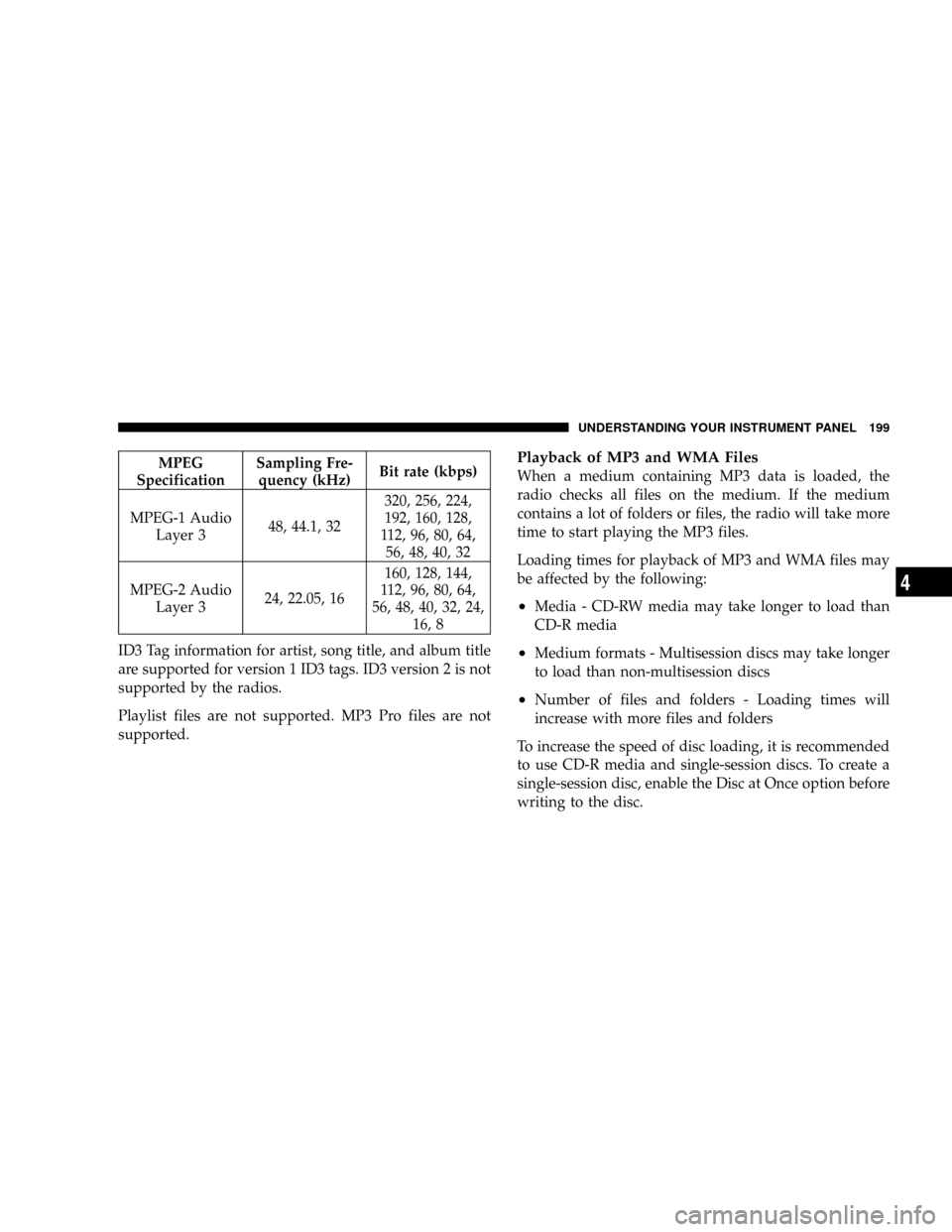
When using the MP3 encoder to compress audio data to
an MP3 file, the bit rate and sampling frequencies in the
following table are supported. In addition, variable bit
rates (VBR) are also supported. The majority of MP3 files
use a 44.1 kHz sampling rate and a 192, 160, 128, 96 or
VBR bit rates.
198 UNDERSTANDING YOUR INSTRUMENT PANEL
Page 200 of 373
MPEG
SpecificationSampling Fre-
quency (kHz)Bit rate (kbps)
MPEG-1 Audio
Layer 348, 44.1, 32320, 256, 224,
192, 160, 128,
112, 96, 80, 64,
56, 48, 40, 32
MPEG-2 Audio
Layer 324, 22.05, 16160, 128, 144,
112, 96, 80, 64,
56, 48, 40, 32, 24,
16, 8
ID3 Tag information for artist, song title, and album title
are supported for version 1 ID3 tags. ID3 version 2 is not
supported by the radios.
Playlist files are not supported. MP3 Pro files are not
supported.Playback of MP3 and WMA Files
When a medium containing MP3 data is loaded, the
radio checks all files on the medium. If the medium
contains a lot of folders or files, the radio will take more
time to start playing the MP3 files.
Loading times for playback of MP3 and WMA files may
be affected by the following:
²Media - CD-RW media may take longer to load than
CD-R media
²Medium formats - Multisession discs may take longer
to load than non-multisession discs
²Number of files and folders - Loading times will
increase with more files and folders
To increase the speed of disc loading, it is recommended
to use CD-R media and single-session discs. To create a
single-session disc, enable the Disc at Once option before
writing to the disc.
UNDERSTANDING YOUR INSTRUMENT PANEL 199
4
Page 201 of 373
Operation Instructions - (CD Mode for MP3 and
WMA Audio Play)
SEEK Button (CD Mode for MP3 and WMA Play)
Pressing the right side of the SEEK button plays the next
file. Pressing the left side of the SEEK button plays the
beginning of the file. Pressing the button within the first
10 seconds plays the previous file.
LOAD/EJECT Button (CD Mode for MP3 and WMA
Play)
LOAD/EJT - Load
Press the LOAD/EJT button and the push-
button with the corresponding number where
the CD is being loaded. The radio will display
PLEASE WAIT and prompt when to INSERT
DISC. After the radio displays9INSERT DISC,9insert the
CD into the player.The radio display will show9LOADING DISC9when the
disc is loading.
LOAD/EJT - Eject
Press the LOAD/EJT button and the push-
button with the corresponding number where
the CD was loaded and the disc will unload
and move to the entrance for easy removal.
Radio display will show9EJECTING DISC9when the disc
is being ejected and prompt the user to remove the disc.
If you have ejected a disc and have not removed it within
15 seconds, it will be reloaded. If the CD is not removed,
the radio will continue to play the non-removed CD. If
the CD is removed and there are other CDs in the radio,
the radio will play the next CD after a two-minute
timeout. If the CD is removed and there are no other CDs
in the radio, the radio will remain in CD mode and
display9INSERT DISCº for two minutes. After two
minutes, the radio will go to the previous tuner mode.
200 UNDERSTANDING YOUR INSTRUMENT PANEL
Page 210 of 373
Reception Quality
Satellite reception may be interrupted due to one of the
following reasons.
²The vehicle is parked in an underground parking
structure or under a physical obstacle.
²Dense tree coverage may interrupt reception in the
form of short audio mutes.
²Driving under wide bridges or along tall buildings can
cause intermittent reception.
²Placing objects over or too close to the antenna can
cause signal blockage.
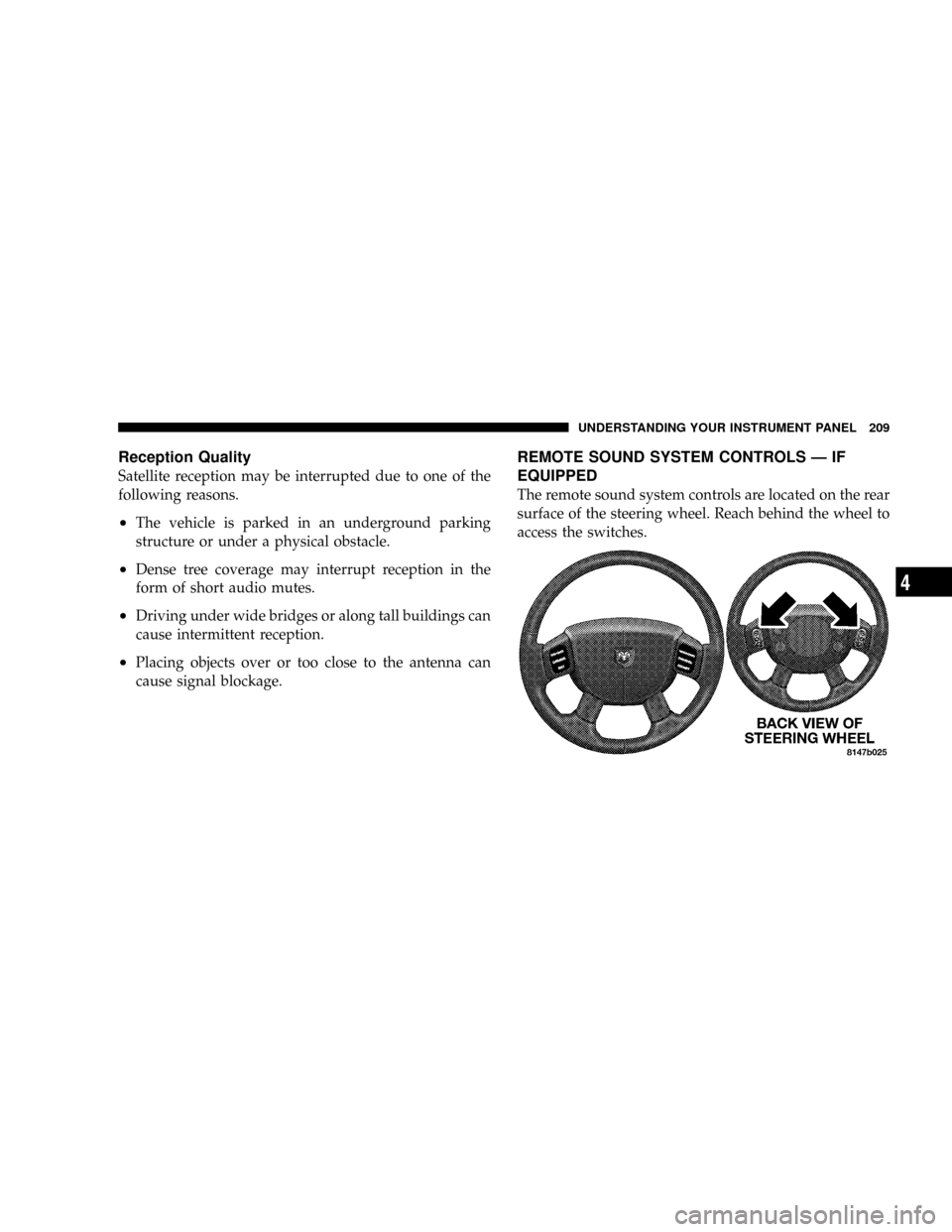
REMOTE SOUND SYSTEM CONTROLS Ð IF
EQUIPPED
The remote sound system controls are located on the rear
surface of the steering wheel. Reach behind the wheel to
access the switches.
UNDERSTANDING YOUR INSTRUMENT PANEL 209
4