wheel DODGE CHARGER 2015 7.G Owner's Manual
[x] Cancel search | Manufacturer: DODGE, Model Year: 2015, Model line: CHARGER, Model: DODGE CHARGER 2015 7.GPages: 638, PDF Size: 16.56 MB
Page 217 of 638
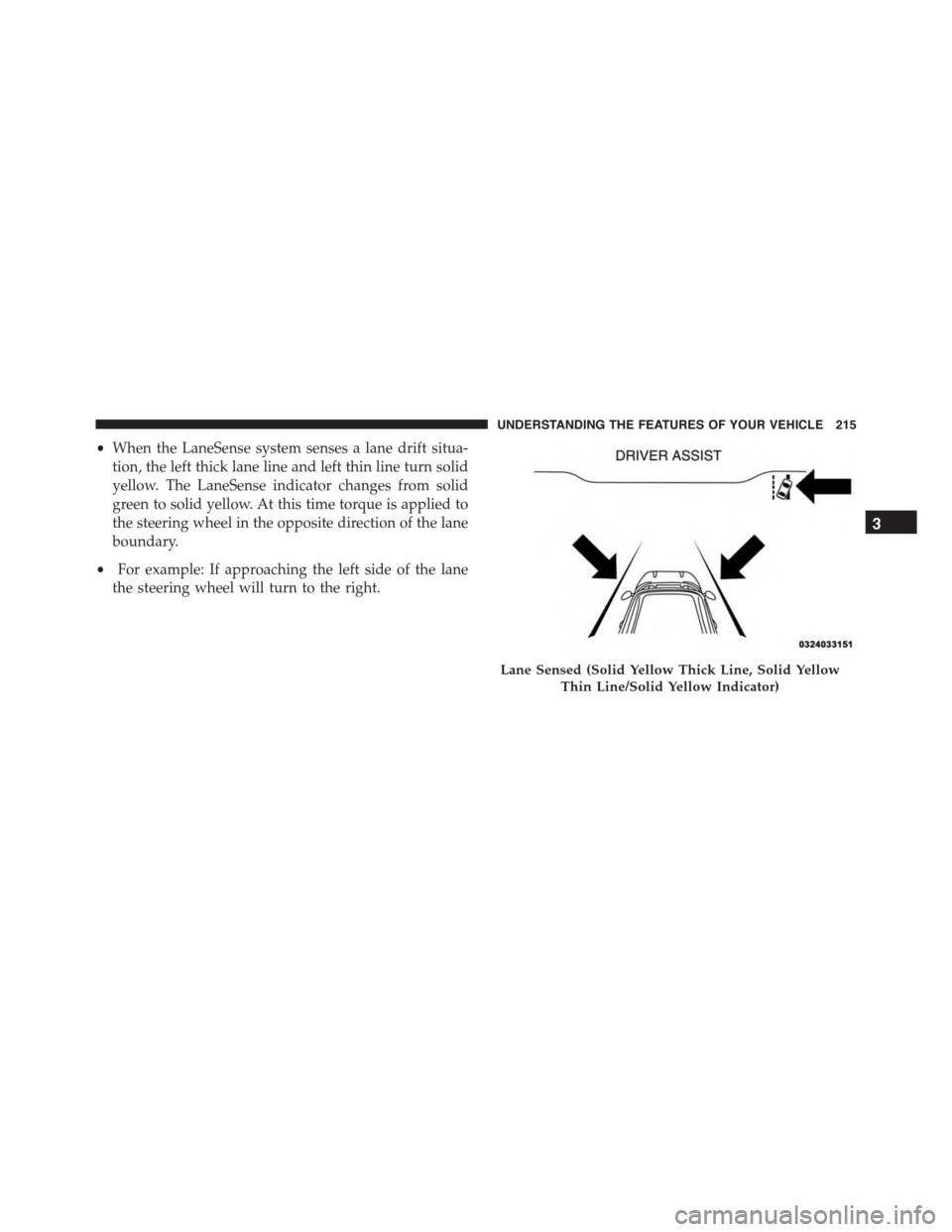
•When the LaneSense system senses a lane drift situa-
tion, the left thick lane line and left thin line turn solid
yellow. The LaneSense indicator changes from solid
green to solid yellow. At this time torque is applied to
the steering wheel in the opposite direction of the lane
boundary.
•For example: If approaching the left side of the lane
the steering wheel will turn to the right.
Lane Sensed (Solid Yellow Thick Line, Solid Yellow
Thin Line/Solid Yellow Indicator)
3
UNDERSTANDING THE FEATURES OF YOUR VEHICLE 215
Page 218 of 638
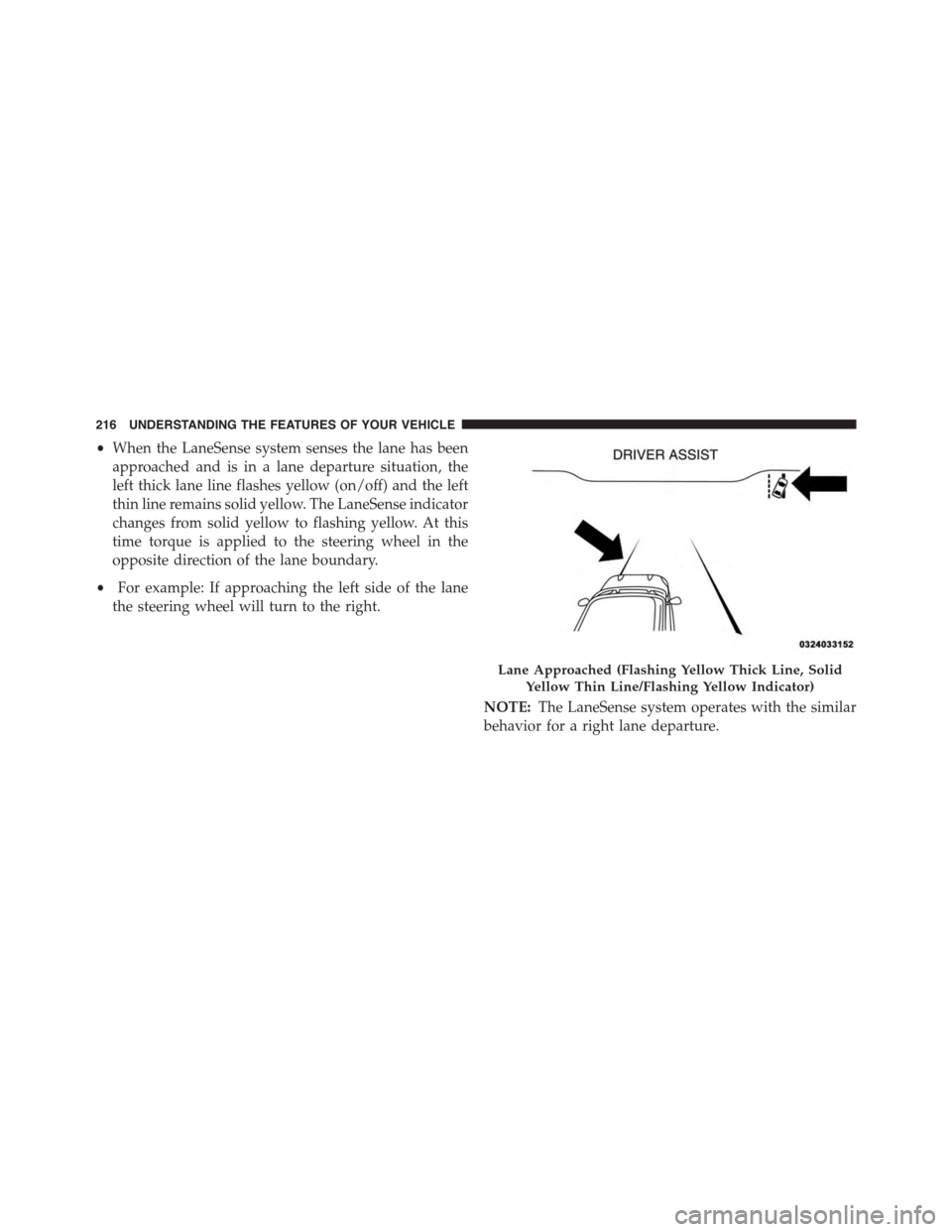
•When the LaneSense system senses the lane has been
approached and is in a lane departure situation, the
left thick lane line flashes yellow (on/off) and the left
thin line remains solid yellow. The LaneSense indicator
changes from solid yellow to flashing yellow. At this
time torque is applied to the steering wheel in the
opposite direction of the lane boundary.
•For example: If approaching the left side of the lane
the steering wheel will turn to the right.
NOTE:The LaneSense system operates with the similar
behavior for a right lane departure.
Lane Approached (Flashing Yellow Thick Line, Solid
Yellow Thin Line/Flashing Yellow Indicator)
216 UNDERSTANDING THE FEATURES OF YOUR VEHICLE
Page 219 of 638
Changing LaneSense Status
The LaneSense system settings can be configured
through the Uconnect® system screen.
Follow these steps to change the LaneSense settings:
1. Push the “Controls” button on touchscreen located on
the bottom of the Uconnect® display.
2. Push the “Settings” button.
3. Push the “Safety & Driving Assistance” button.
When in the Safety & Driving Assistance screen, you can
configure the intensity of the torque warning and the
warning zone sensitivity (early/late) through the person-
alization settings.
NOTE:
•When enabled the system operates above 37 mph
(60 km/h) and below 112 mph (180 km/h).
•Use of the turn signal suppresses the warnings.
•The system will not apply torque to the steering wheel
whenever a safety system engages. (anti-lock brakes,
traction control system, electronic stability control,
forward collision warning, etc.)
3
UNDERSTANDING THE FEATURES OF YOUR VEHICLE 217
Page 230 of 638
“check entire surroundings” across the top of the screen.
After five seconds this note will disappear.
NOTE:The ParkView® Rear Back Up Camera has pro-
grammable modes of operation that may be selected
through the Uconnect® System. Refer to “Uconnect®
Settings” in “Understanding Your Instrument Panel” for
further information.
If your vehicle is equipped with the Camera Delay feature
and it is turned ON, the rear camera image will be
displayed for up to 10 seconds when the vehicle is shifted
out of REVERSE unless the forward vehicle speed exceeds
8 mph (13 km/h), the transmission is shifted into#PARK#
or the vehicle’s ignition is cycled to the OFF position.
When the Vehicle is shifted out of Reverse (with camera
delay turned OFF) the rear camera mode is exited and the
last touchscreen appears again.
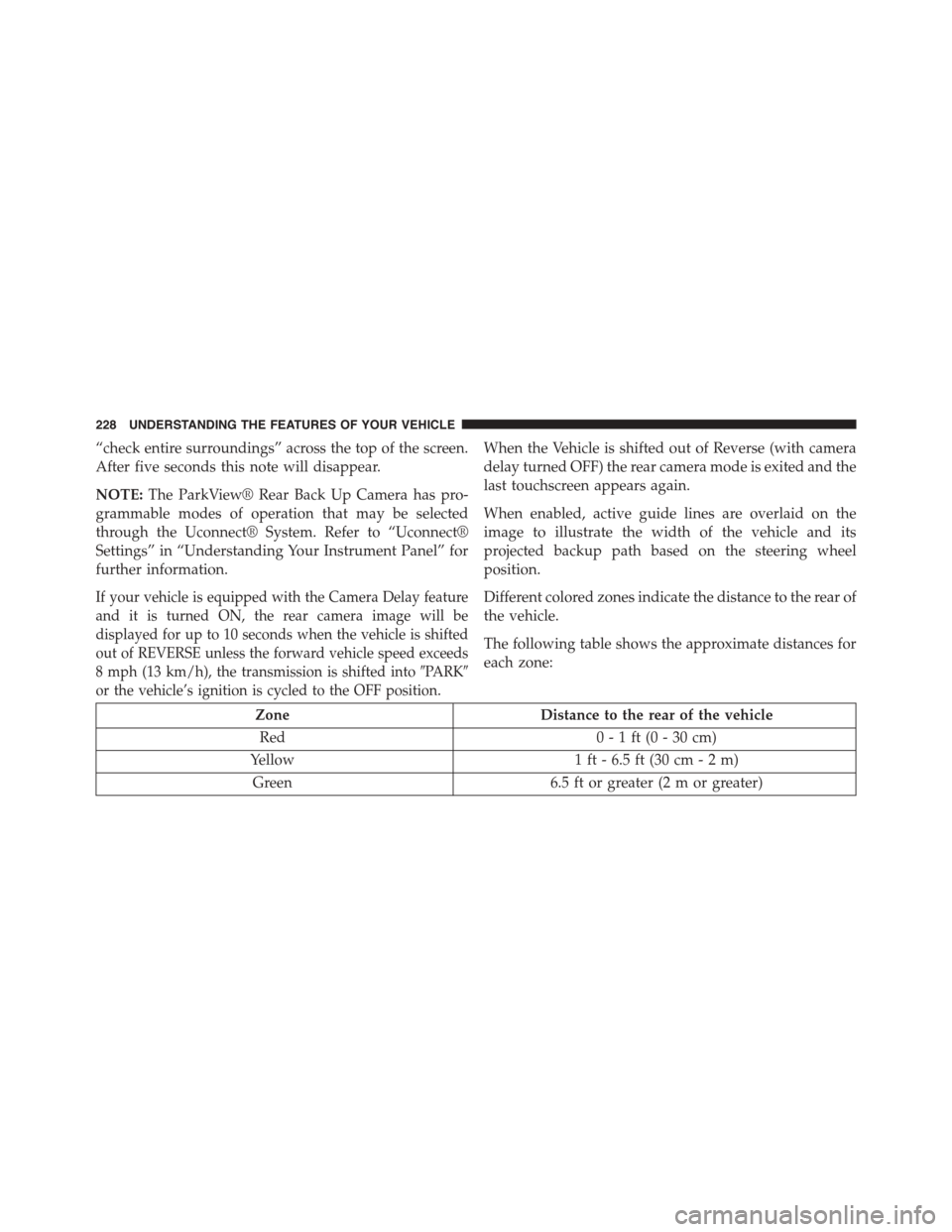
When enabled, active guide lines are overlaid on the
image to illustrate the width of the vehicle and its
projected backup path based on the steering wheel
position.
Different colored zones indicate the distance to the rear of
the vehicle.
The following table shows the approximate distances for
each zone:
ZoneDistance to the rear of the vehicle
Red0 - 1 ft (0 - 30 cm)
Yellow1 ft - 6.5 ft (30 cm - 2 m)
Green6.5 ft or greater (2 m or greater)
228 UNDERSTANDING THE FEATURES OF YOUR VEHICLE
Page 260 of 638
!iPod®/USB/MP3 CONTROL..............349
!STEERING WHEEL AUDIO CONTROLS —
IF EQUIPPED.........................350
▫Radio Operation......................351
!RADIO OPERATION AND MOBILE PHONES . .351
!CLIMATE CONTROLS...................352
▫Manual Climate Controls With Touchscreen —
If Equipped.........................352
▫Climate Control Functions...............358
▫Dual Zone Automatic Climate Controls With
Touchscreen — If Equipped..............360
▫Climate Control Functions...............365
▫Automatic Temperature Control (ATC)......367
▫Operating Tips.......................368
!Uconnect® VOICE RECOGNITION QUICK
TIPS................................371
▫Introducing Uconnect®.................371
▫Get Started..........................372
▫Basic Voice Commands..................373
▫Radio..............................374
▫Media..............................376
▫Phone..............................377
▫Voice Text Reply......................379
▫Climate (8.4A/8.4AN)..................380
▫Navigation (8.4A/8.4AN)................381
▫Uconnect® Access* (8.4A/8.4AN)..........382
▫Register (8.4A/8.4AN)..................383
258 UNDERSTANDING YOUR INSTRUMENT PANEL
Page 265 of 638
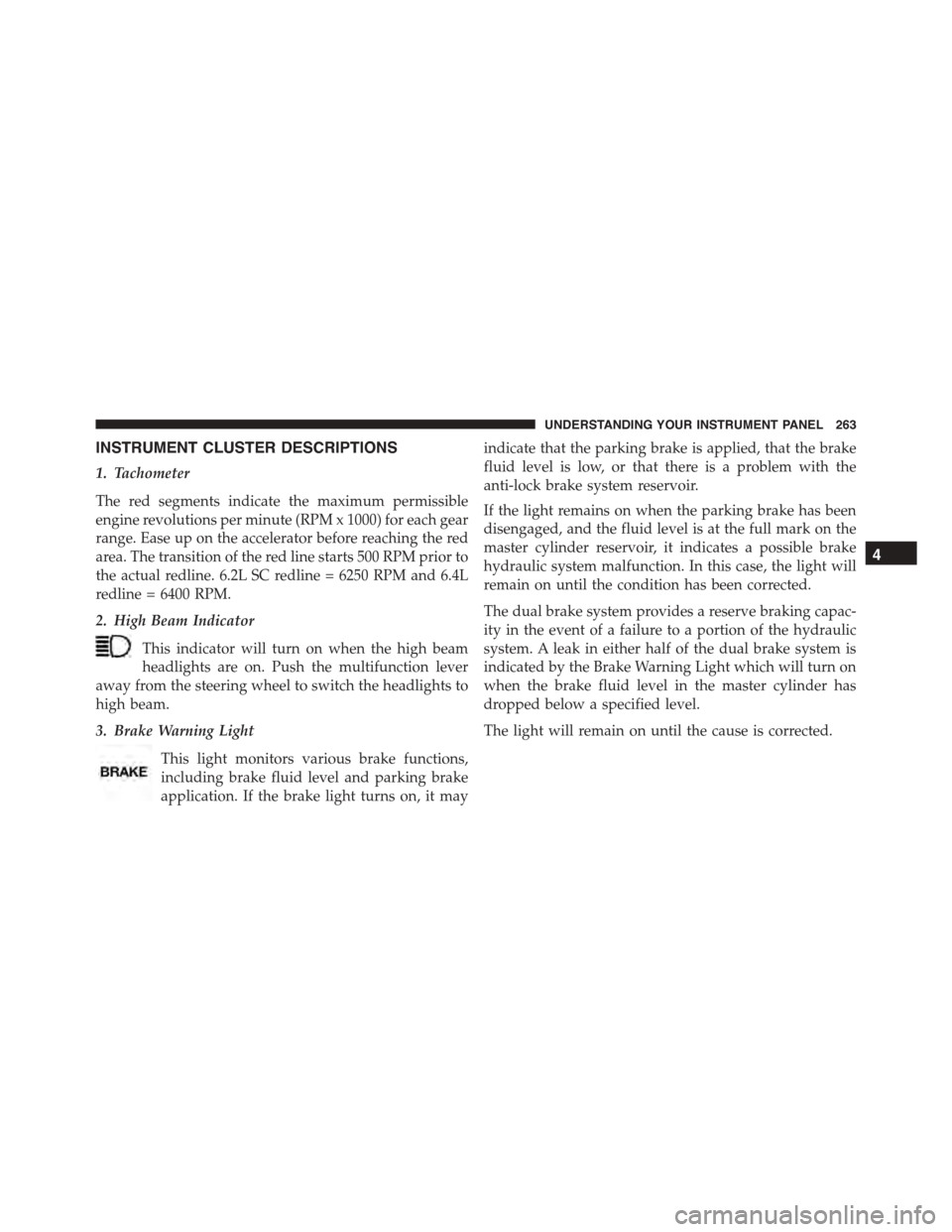
INSTRUMENT CLUSTER DESCRIPTIONS
1. Tachometer
The red segments indicate the maximum permissible
engine revolutions per minute (RPM x 1000) for each gear
range. Ease up on the accelerator before reaching the red
area. The transition of the red line starts 500 RPM prior to
the actual redline. 6.2L SC redline = 6250 RPM and 6.4L
redline = 6400 RPM.
2. High Beam Indicator
This indicator will turn on when the high beam
headlights are on. Push the multifunction lever
away from the steering wheel to switch the headlights to
high beam.
3. Brake Warning Light
This light monitors various brake functions,
including brake fluid level and parking brake
application. If the brake light turns on, it may
indicate that the parking brake is applied, that the brake
fluid level is low, or that there is a problem with the
anti-lock brake system reservoir.
If the light remains on when the parking brake has been
disengaged, and the fluid level is at the full mark on the
master cylinder reservoir, it indicates a possible brake
hydraulic system malfunction. In this case, the light will
remain on until the condition has been corrected.
The dual brake system provides a reserve braking capac-
ity in the event of a failure to a portion of the hydraulic
system. A leak in either half of the dual brake system is
indicated by the Brake Warning Light which will turn on
when the brake fluid level in the master cylinder has
dropped below a specified level.
The light will remain on until the cause is corrected.
4
UNDERSTANDING YOUR INSTRUMENT PANEL 263
Page 269 of 638
combined with the low tire pressure telltale. When the
system detects a malfunction, the telltale will flash for
approximately one minute and then remain continuously
illuminated. This sequence will continue upon subse-
quent vehicle start-ups as long as the malfunction exists.
When the malfunction indicator is illuminated, the sys-
tem may not be able to detect or signal low tire pressure
as intended. TPMS malfunctions may occur for a variety
of reasons, including the installation of replacement or
alternate tires or wheels on the vehicle that prevent the
TPMS from functioning properly. Always check the
TPMS malfunction telltale after replacing one or more
tires or wheels on your vehicle, to ensure that the
replacement or alternate tires and wheels allow the TPMS
to continue to function properly.
CAUTION!
The TPMS has been optimized for the original
equipment tires and wheels. TPMS pressures and
warning have been established for the tire size
equipped on your vehicle. Undesirable system opera-
tion or sensor damage may result when using re-
placement equipment that is not of the same size,
type, and/or style. Aftermarket wheels can cause
sensor damage. Using aftermarket tire sealants may
cause the Tire Pressure Monitoring System (TPMS)
sensor to become inoperable. After using an after-
market tire sealant it is recommended that you take
your vehicle to an authorized dealership to have your
sensor function checked.
4
UNDERSTANDING YOUR INSTRUMENT PANEL 267
Page 274 of 638
WARNING!
A malfunctioning catalytic converter, as referenced
above, can reach higher temperatures than in normal
operating conditions. This can cause a fire if you
drive slowly or park over flammable substances such
as dry plants, wood, cardboard, etc. This could result
in death or serious injury to the driver, occupants or
others.
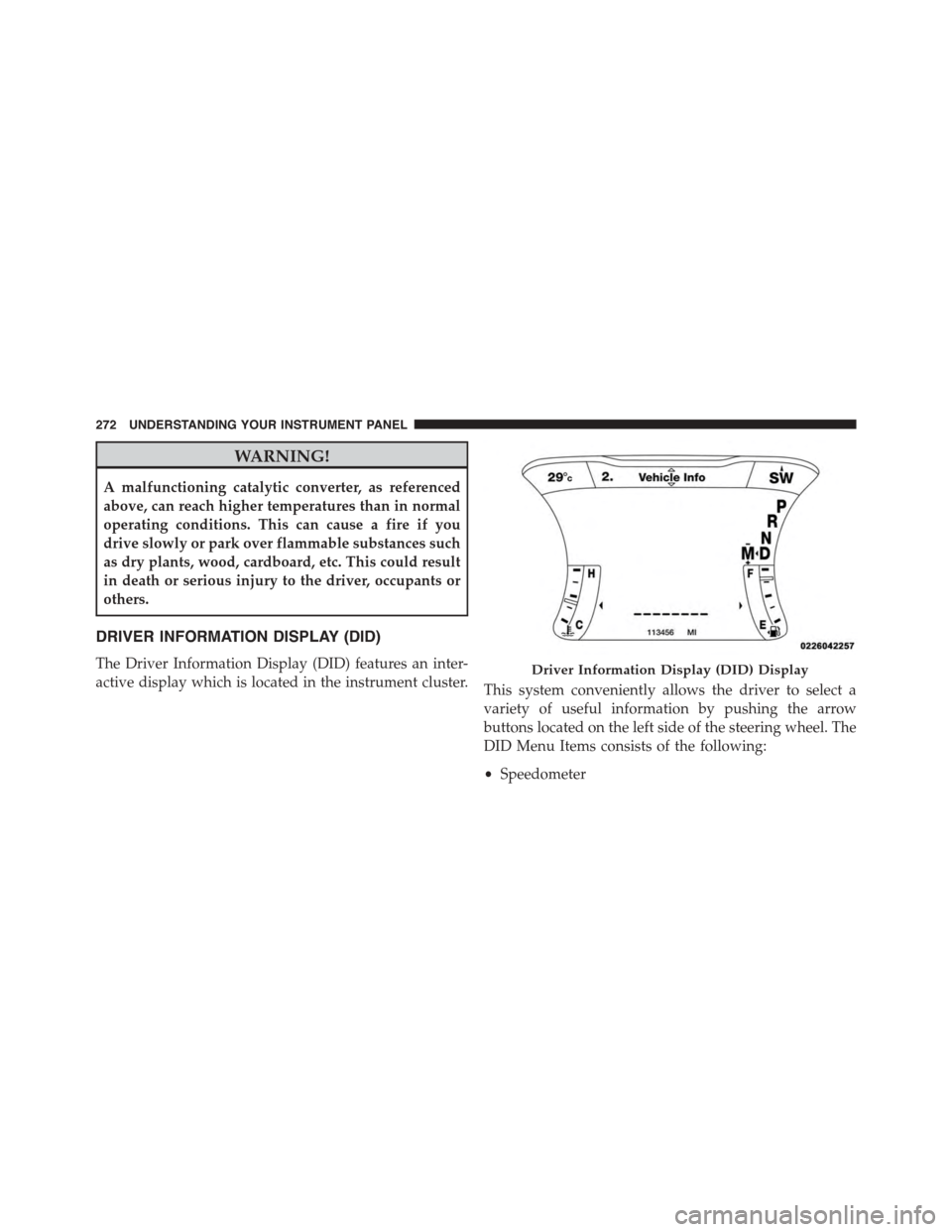
DRIVER INFORMATION DISPLAY (DID)
The Driver Information Display (DID) features an inter-
active display which is located in the instrument cluster.This system conveniently allows the driver to select a
variety of useful information by pushing the arrow
buttons located on the left side of the steering wheel. The
DID Menu Items consists of the following:
•Speedometer
Driver Information Display (DID) Display
272 UNDERSTANDING YOUR INSTRUMENT PANEL
Page 275 of 638
•Vehicle Info
•Performance
•Driver Assist — If Equipped
•Fuel Economy
•Trip
•Audio
•Messages
•Screen Setup
•Speed Warning — If Equipped
•Diagnostics — If Equipped
•Performance Shift Indicator (PSI) — If Equipped
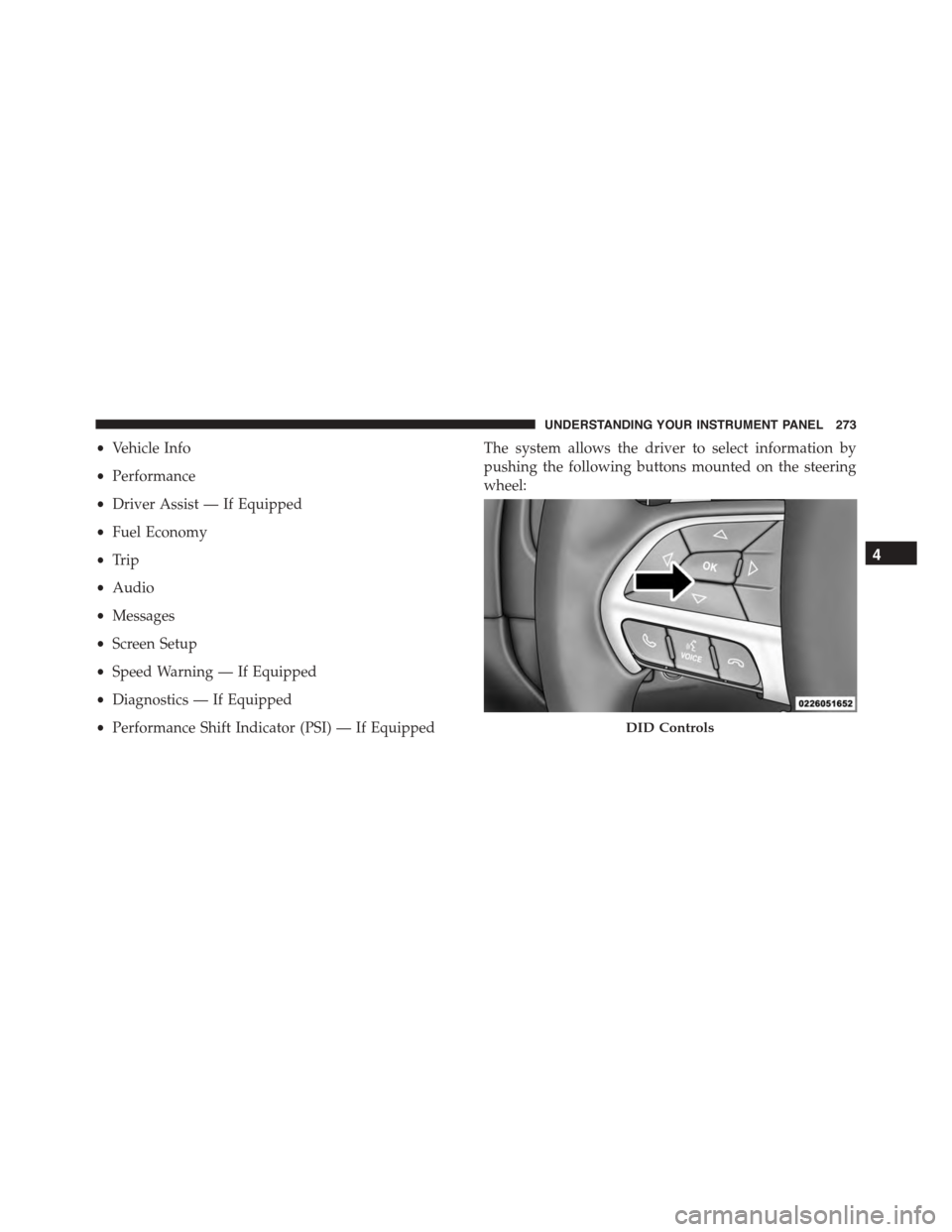
The system allows the driver to select information by
pushing the following buttons mounted on the steering
wheel:
DID Controls
4
UNDERSTANDING YOUR INSTRUMENT PANEL 273
Page 278 of 638
NOTE:If the indicator message illuminates when you
start the vehicle, the oil change indicator system did not
reset. If necessary, repeat this procedure.
Secondary Method Of Navigating To The Oil Life
Screen In The DID And Holding Ok
Your vehicle is equipped with an engine oil change
indicator system. The “Oil Change Required” message
will flash in the DID display for approximately 10
seconds after a single chime has sounded to indicate the
next scheduled oil change interval. The engine oil change
indicator system is duty cycle based, which means the
engine oil change interval may fluctuate, dependent
upon your personal driving style.
Use the steering wheel DID controls for the following
procedure(s):
1. Without pushing the brake pedal, place the ignition in
the ON/RUN position (do not start the engine).
2. Push and release theDOWNarrow button to scroll
downward through the main menu to “Vehicle Info.”
3. Push and release theRIGHTarrow button to access
the ”Oil Life” screen.
4. Push and hold theOKbutton until the “Oil Life”
screen displays.
5. Push and release theDOWNarrow button to select “
Ye s,” then push and release theOKbutton to select
reset of the Oil Life.
6. Push and release theUparrow button to exit the
submenu screen.
NOTE:If the indicator message illuminates when you
start the vehicle, the oil change indicator system did not
reset. If necessary, repeat this procedure.
276 UNDERSTANDING YOUR INSTRUMENT PANEL