lock DODGE CHARGER 2020 Owner's Manual
[x] Cancel search | Manufacturer: DODGE, Model Year: 2020, Model line: CHARGER, Model: DODGE CHARGER 2020Pages: 412, PDF Size: 18.96 MB
Page 33 of 412
GETTING TO KNOW YOUR VEHICLE31
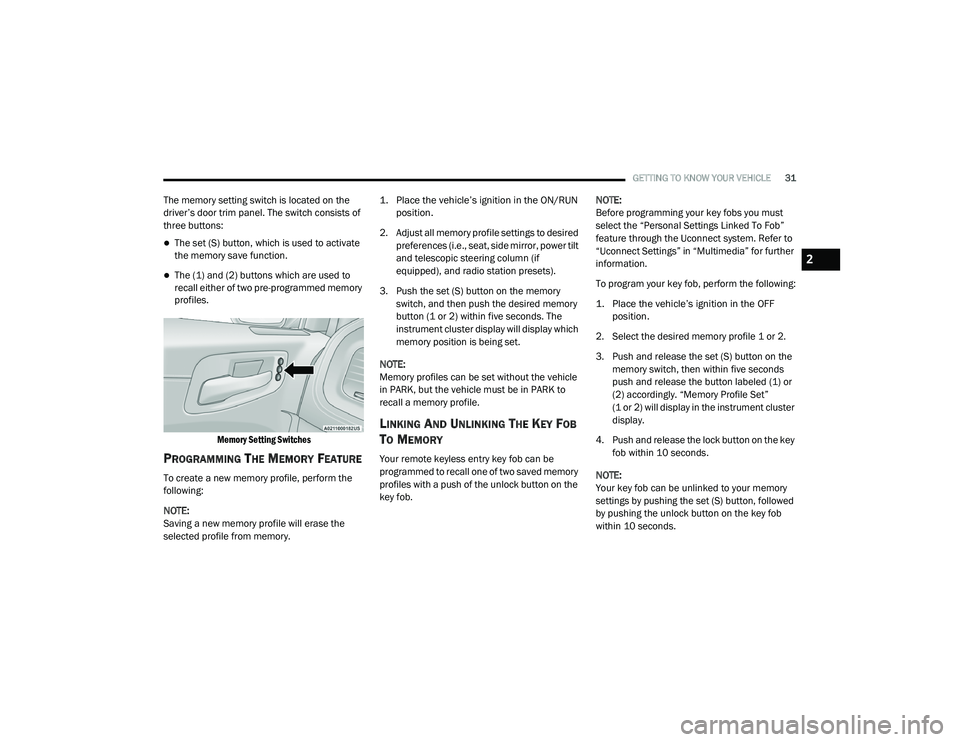
The memory setting switch is located on the
driver’s door trim panel. The switch consists of
three buttons:
The set (S) button, which is used to activate
the memory save function.
The (1) and (2) buttons which are used to
recall either of two pre-programmed memory
profiles.
Memory Setting Switches
PROGRAMMING THE MEMORY FEATURE
To create a new memory profile, perform the
following:
NOTE:
Saving a new memory profile will erase the
selected profile from memory.
1. Place the vehicle’s ignition in the ON/RUN
position.
2. Adjust all memory profile settings to desired preferences (i.e., seat, side mirror, power tilt
and telescopic steering column (if
equipped), and radio station presets).
3. Push the set (S) button on the memory switch, and then push the desired memory
button (1 or 2) within five seconds. The
instrument cluster display will display which
memory position is being set.
NOTE:
Memory profiles can be set without the vehicle
in PARK, but the vehicle must be in PARK to
recall a memory profile.
LINKING AND UNLINKING THE KEY FOB
T
O MEMORY
Your remote keyless entry key fob can be
programmed to recall one of two saved memory
profiles with a push of the unlock button on the
key fob. NOTE:
Before programming your key fobs you must
select the “Personal Settings Linked To Fob”
feature through the Uconnect system. Refer to
“Uconnect Settings” in “Multimedia” for further
information.
To program your key fob, perform the following:
1. Place the vehicle’s ignition in the OFF
position.
2. Select the desired memory profile 1 or 2.
3. Push and release the set (S) button on the memory switch, then within five seconds
push and release the button labeled (1) or
(2) accordingly. “Memory Profile Set”
(1 or 2) will display in the instrument cluster
display.
4. Push and release the lock button on the key fob within 10 seconds.
NOTE:
Your key fob can be unlinked to your memory
settings by pushing the set (S) button, followed
by pushing the unlock button on the key fob
within 10 seconds.
2
20_LD_OM_EN_USC_t.book Page 31
Page 34 of 412
32GETTING TO KNOW YOUR VEHICLE
MEMORY POSITION RECALL
NOTE:
If a recall is attempted when the vehicle is not in
PARK, a message will display in the instrument
cluster display.
To recall the memory settings for driver one or
two, push the desired memory button number
(1 or 2) or the unlock button on the key fob
linked to the desired memory position.
NOTE:
If the vehicle is equipped with Passive Entry, the
memory settings are recalled when using
Passive Entry to unlock the driver's door with a
linked key fob.
A recall can be canceled by pushing any of the
memory buttons (S, 1, or 2) during a recall.
When a recall is canceled, the driver seat will
stop moving. A delay of one second will occur
before another recall can be selected.
SEATS
Seats are a part of the Occupant Restraint
System of the vehicle.
MANUAL ADJUSTMENT (FRONT SEATS)
— I
F EQUIPPED
WARNING!
It is dangerous to ride in a cargo area,
inside or outside of a vehicle. In a collision,
people riding in these areas are more likely
to be seriously injured or killed.
Do not allow people to ride in any area of
your vehicle that is not equipped with seats
and seat belts. In a collision, people riding
in these areas are more likely to be seri -
ously injured or killed.
Be sure everyone in your vehicle is in a seat
and using a seat belt properly.
WARNING!
Adjusting a seat while the vehicle is moving
is dangerous. The sudden movement of the
seat could cause you to lose control. The
seat belt might not be adjusted properly
and you could be injured. Adjust the seat
only while the vehicle is parked.
Do not ride with the seatback reclined so
that the shoulder belt is no longer resting
against your chest. In a collision you could
slide under the seat belt and be seriously or
even fatally injured. Use the recliner only
when the vehicle is parked.
20_LD_OM_EN_USC_t.book Page 32
Page 36 of 412
34GETTING TO KNOW YOUR VEHICLE
NOTE:
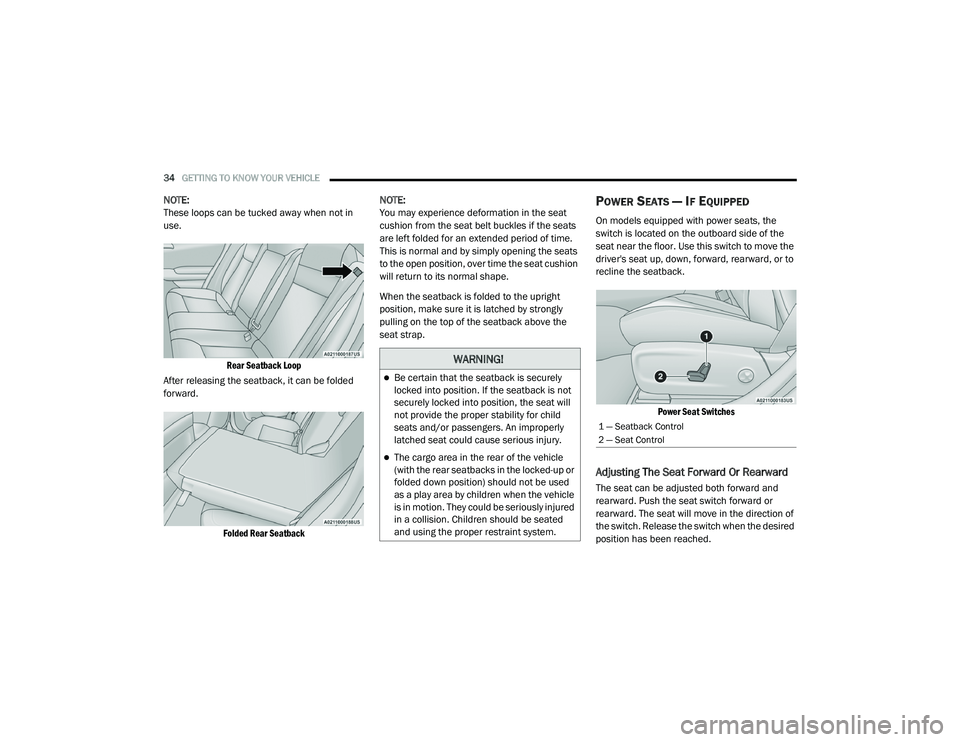
These loops can be tucked away when not in
use.
Rear Seatback Loop
After releasing the seatback, it can be folded
forward.
Folded Rear Seatback
NOTE:
You may experience deformation in the seat
cushion from the seat belt buckles if the seats
are left folded for an extended period of time.
This is normal and by simply opening the seats
to the open position, over time the seat cushion
will return to its normal shape.
When the seatback is folded to the upright
position, make sure it is latched by strongly
pulling on the top of the seatback above the
seat strap.POWER SEATS — IF EQUIPPED
On models equipped with power seats, the
switch is located on the outboard side of the
seat near the floor. Use this switch to move the
driver's seat up, down, forward, rearward, or to
recline the seatback.
Power Seat Switches
Adjusting The Seat Forward Or Rearward
The seat can be adjusted both forward and
rearward. Push the seat switch forward or
rearward. The seat will move in the direction of
the switch. Release the switch when the desired
position has been reached.
WARNING!
Be certain that the seatback is securely
locked into position. If the seatback is not
securely locked into position, the seat will
not provide the proper stability for child
seats and/or passengers. An improperly
latched seat could cause serious injury.
The cargo area in the rear of the vehicle
(with the rear seatbacks in the locked-up or
folded down position) should not be used
as a play area by children when the vehicle
is in motion. They could be seriously injured
in a collision. Children should be seated
and using the proper restraint system.
1 — Seatback Control
2 — Seat Control
20_LD_OM_EN_USC_t.book Page 34
Page 42 of 412
40GETTING TO KNOW YOUR VEHICLE
STEERING WHEEL
MANUAL TILT/TELESCOPING STEERING
C
OLUMN — IF EQUIPPED
This feature allows you to tilt the steering
column upward or downward. It also allows you
to lengthen or shorten the steering column. The
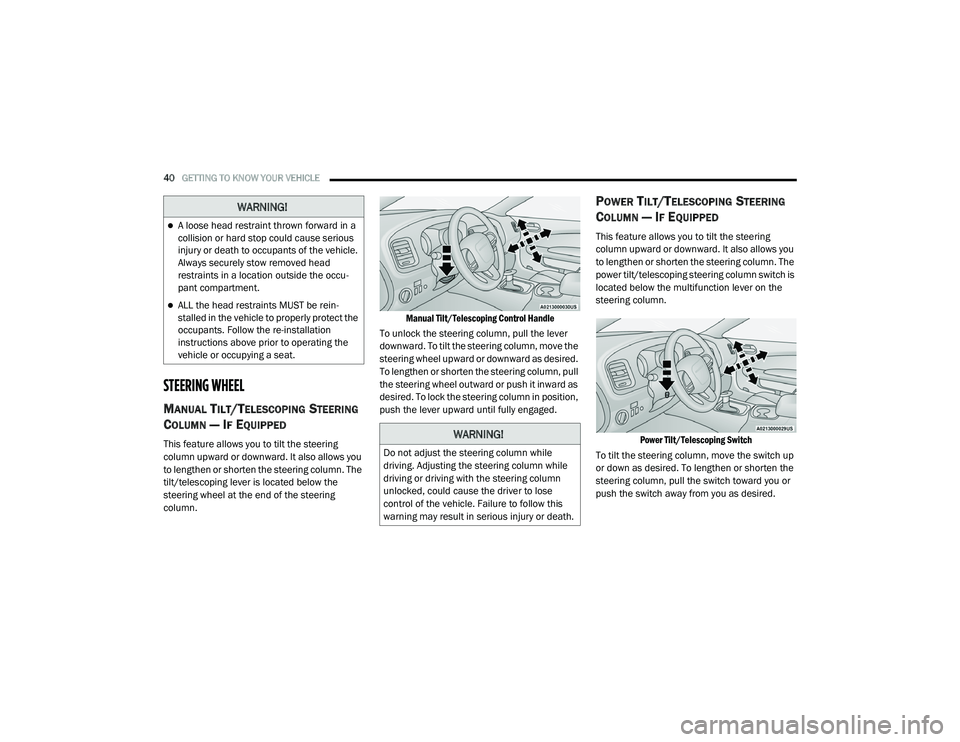
tilt/telescoping lever is located below the
steering wheel at the end of the steering
column.
Manual Tilt/Telescoping Control Handle
To unlock the steering column, pull the lever
downward. To tilt the steering column, move the
steering wheel upward or downward as desired.
To lengthen or shorten the steering column, pull
the steering wheel outward or push it inward as
desired. To lock the steering column in position,
push the lever upward until fully engaged.
POWER TILT/TELESCOPING STEERING
C
OLUMN — IF EQUIPPED
This feature allows you to tilt the steering
column upward or downward. It also allows you
to lengthen or shorten the steering column. The
power tilt/telescoping steering column switch is
located below the multifunction lever on the
steering column.
Power Tilt/Telescoping Switch
To tilt the steering column, move the switch up
or down as desired. To lengthen or shorten the
steering column, pull the switch toward you or
push the switch away from you as desired.
WARNING!
A loose head restraint thrown forward in a
collision or hard stop could cause serious
injury or death to occupants of the vehicle.
Always securely stow removed head
restraints in a location outside the occu -
pant compartment.
ALL the head restraints MUST be rein -
stalled in the vehicle to properly protect the
occupants. Follow the re-installation
instructions above prior to operating the
vehicle or occupying a seat.
WARNING!
Do not adjust the steering column while
driving. Adjusting the steering column while
driving or driving with the steering column
unlocked, could cause the driver to lose
control of the vehicle. Failure to follow this
warning may result in serious injury or death.
20_LD_OM_EN_USC_t.book Page 40
Page 43 of 412
GETTING TO KNOW YOUR VEHICLE41
NOTE:
For vehicles equipped with Driver Memory
Settings, you can use your remote keyless entry
key fob or the memory switch on the driver's
door trim panel to return the tilt/telescopic
steering column to pre-programmed positions.
Refer to “Driver Memory Settings” in this
chapter.
HEATED STEERING WHEEL —
I
F EQUIPPED
The steering wheel contains a heating element
that helps warm your hands in cold weather.
The heated steering wheel has only one
temperature setting. Once the heated steering
wheel has been turned on, it will stay on for an
average of 80 minutes before automatically shutting off. This time will vary based on
environmental temperatures. The heated
steering wheel can shut off early or may not turn
on when the steering wheel is already warm.
The heated steering wheel control button is
located within the Uconnect system. You can
gain access to the control button through the
climate screen or the controls screen.
Press the heated steering wheel button
once to turn the heating element on.
Press the heated steering wheel button a
second time to turn the heating element off.
NOTE:
The engine must be running for the heated
steering wheel to operate.
Vehicles Equipped With Remote Start
On models that are equipped with remote start,
the heated steering wheel can be programmed
to come on during a remote start through the
Uconnect system. Refer to “Uconnect Settings”
in “Multimedia” for further information.
MIRRORS
INSIDE DAY/NIGHT MIRROR —
I
F EQUIPPED
A single ball joint mirror is provided in the
vehicle. It is a twist on mirror that has a fixed
position at the windshield. The mirror installs on
the windshield button with a counterclockwise
rotation and requires no tools for mounting. The
WARNING!
Do not adjust the steering column while
driving. Adjusting the steering column while
driving or driving with the steering column
unlocked, could cause the driver to lose
control of the vehicle. Failure to follow this
warning may result in serious injury or death.
WARNING!
Persons who are unable to feel pain to the
skin because of advanced age, chronic
illness, diabetes, spinal cord injury, medica -
tion, alcohol use, exhaustion, or other phys -
ical conditions must exercise care when
using the steering wheel heater. It may
cause burns even at low temperatures,
especially if used for long periods.
Do not place anything on the steering wheel
that insulates against heat, such as a
blanket or steering wheel covers of any type
and material. This may cause the steering
wheel heater to overheat.
2
20_LD_OM_EN_USC_t.book Page 41
Page 47 of 412
GETTING TO KNOW YOUR VEHICLE45
EXTERIOR LIGHTS
HEADLIGHT SWITCH
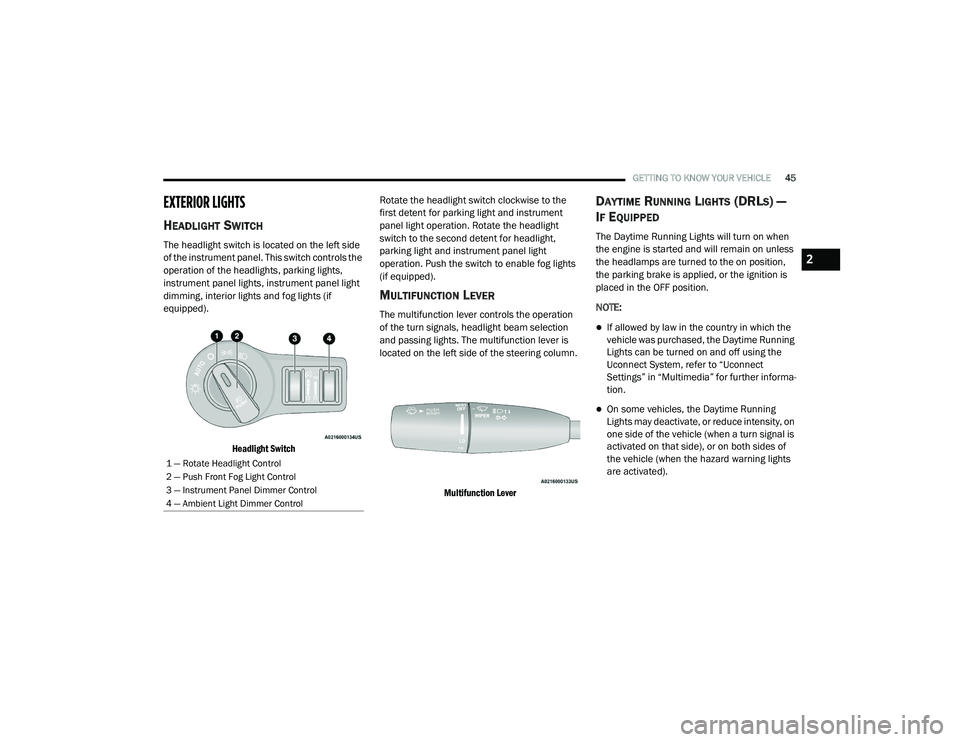
The headlight switch is located on the left side
of the instrument panel. This switch controls the
operation of the headlights, parking lights,
instrument panel lights, instrument panel light
dimming, interior lights and fog lights (if
equipped).
Headlight Switch
Rotate the headlight switch clockwise to the
first detent for parking light and instrument
panel light operation. Rotate the headlight
switch to the second detent for headlight,
parking light and instrument panel light
operation. Push the switch to enable fog lights
(if equipped).
MULTIFUNCTION LEVER
The multifunction lever controls the operation
of the turn signals, headlight beam selection
and passing lights. The multifunction lever is
located on the left side of the steering column.
Multifunction Lever
DAYTIME RUNNING LIGHTS (DRLS) —
I
F EQUIPPED
The Daytime Running Lights will turn on when
the engine is started and will remain on unless
the headlamps are turned to the on position,
the parking brake is applied, or the ignition is
placed in the OFF position.
NOTE:
If allowed by law in the country in which the
vehicle was purchased, the Daytime Running
Lights can be turned on and off using the
Uconnect System, refer to “Uconnect
Settings” in “Multimedia” for further informa -
tion.
On some vehicles, the Daytime Running
Lights may deactivate, or reduce intensity, on
one side of the vehicle (when a turn signal is
activated on that side), or on both sides of
the vehicle (when the hazard warning lights
are activated).
1 — Rotate Headlight Control
2 — Push Front Fog Light Control
3 — Instrument Panel Dimmer Control
4 — Ambient Light Dimmer Control
2
20_LD_OM_EN_USC_t.book Page 45
Page 49 of 412
GETTING TO KNOW YOUR VEHICLE47
AUTOMATIC HEADLIGHTS
This system automatically turns the headlights
on or off according to ambient light levels. To
turn the system on, rotate the headlight switch
counterclockwise to the AUTO position. When
the system is on, the headlight time delay
feature is also on. This means the headlights
will stay on for up to 90 seconds after you place
the ignition into the OFF position. The headlight
time delay can be programmed 0/30/60/90
seconds.
Refer to “Uconnect Settings” in “Multimedia”
for further information.
To turn the automatic system off, move the
headlight switch out of the AUTO position.
NOTE:
The engine must be running before the head -
lights will come on in the automatic mode.
PARKING LIGHTS
Turn the headlight switch knob to the first
detent to turn the parking lights on. This also
turns on all instrument panel lighting.
HEADLIGHTS ON WITH WIPERS
When this feature is active, the headlights will
turn on after the wipers are turned on if the
headlight switch is placed in the AUTO position
and the programmable feature is set to on. In
addition, the headlights will turn off when the
wipers are turned off if they were turned on by
this feature.
NOTE:
The “Headlights On With Wipers” feature can be
turned on or off using the Uconnect system.
Refer to “Uconnect Settings” in “Multimedia”
for further information.
HEADLIGHT TIME DELAY
This feature provides the safety of headlight
illumination for up to 90 seconds when leaving
your vehicle in an unlit area with the headlight
switch in the O (off) position.
To activate the delay feature, place the ignition
in the OFF position while the headlights are still
on. Then, turn off the headlights within 45
seconds. The delay interval begins when the
headlight switch is turned off. NOTE:
The lights must be turned off within 45 seconds
of placing the ignition in the OFF position to acti
-
vate this feature.
If you turn the headlights, park lights or ignition
ON again, the system will cancel the delay.
If you turn the headlights off before the ignition,
they will turn off in the normal manner.
NOTE:
The Headlight Time Delay is programmable
using the Uconnect System, refer to “Uconnect
Settings” in “Multimedia” for further informa -
tion.
LIGHTS-ON REMINDER
If the headlights or parking lights are on after
the ignition is placed in the OFF position, a
chime will sound to alert the driver when the
driver's door is opened.
2
20_LD_OM_EN_USC_t.book Page 47
Page 51 of 412
GETTING TO KNOW YOUR VEHICLE49
COURTESY LIGHTS
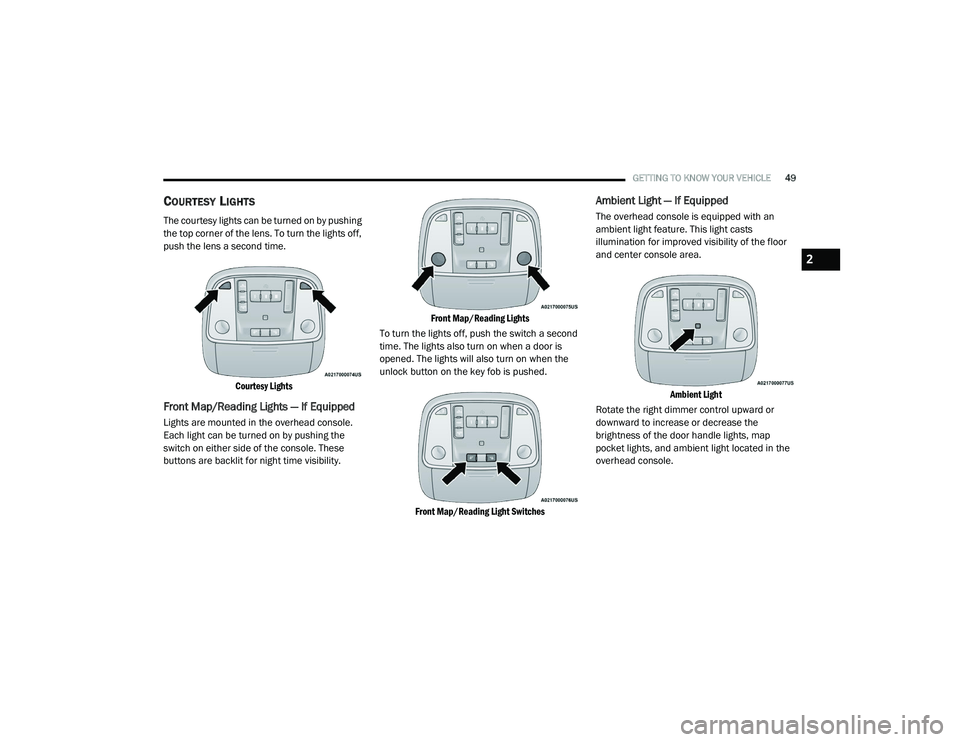
The courtesy lights can be turned on by pushing
the top corner of the lens. To turn the lights off,
push the lens a second time.
Courtesy Lights
Front Map/Reading Lights — If Equipped
Lights are mounted in the overhead console.
Each light can be turned on by pushing the
switch on either side of the console. These
buttons are backlit for night time visibility.
Front Map/Reading Lights
To turn the lights off, push the switch a second
time. The lights also turn on when a door is
opened. The lights will also turn on when the
unlock button on the key fob is pushed.
Front Map/Reading Light Switches
Ambient Light — If Equipped
The overhead console is equipped with an
ambient light feature. This light casts
illumination for improved visibility of the floor
and center console area.
Ambient Light
Rotate the right dimmer control upward or
downward to increase or decrease the
brightness of the door handle lights, map
pocket lights, and ambient light located in the
overhead console.
2
20_LD_OM_EN_USC_t.book Page 49
Page 57 of 412
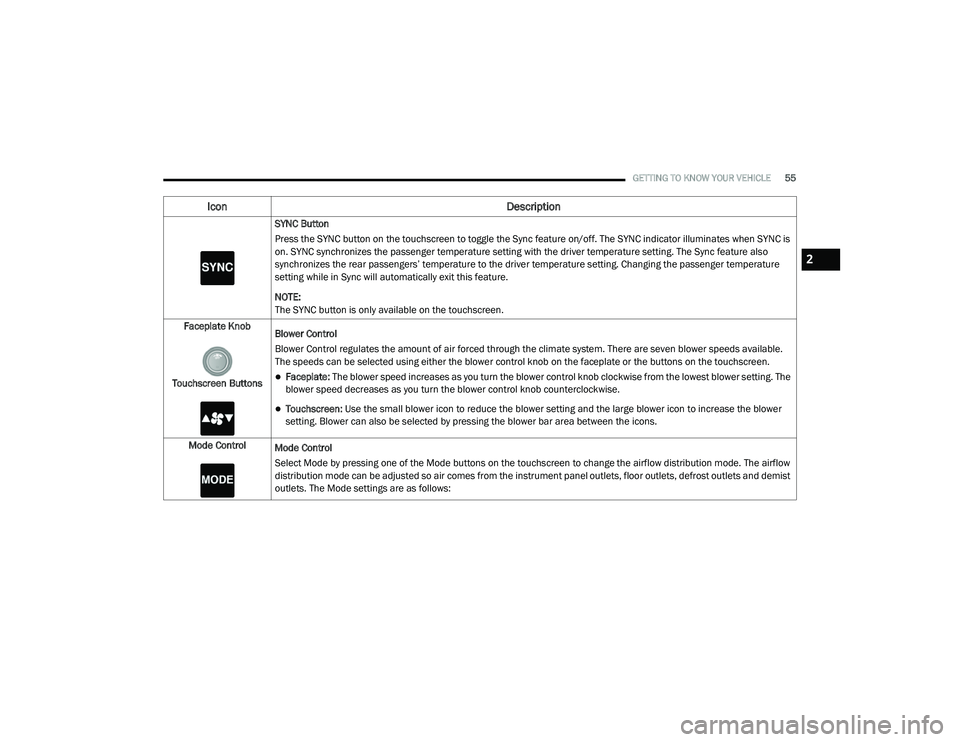
GETTING TO KNOW YOUR VEHICLE55
SYNC Button
Press the SYNC button on the touchscreen to toggle the Sync feature on/off. The SYNC indicator illuminates when SYNC is
on. SYNC synchronizes the passenger temperature setting with the driver temperature setting. The Sync feature also
synchronizes the rear passengers’ temperature to the driver temperature setting. Changing the passenger temperature
setting while in Sync will automatically exit this feature.
NOTE:
The SYNC button is only available on the touchscreen.
Faceplate Knob
Touchscreen Buttons Blower Control
Blower Control regulates the amount of air forced through the climate system. There are seven blower speeds available.
The speeds can be selected using either the blower control knob on the faceplate or the buttons on the touchscreen.
Faceplate: The blower speed increases as you turn the blower control knob clockwise from the lowest blower setting. The
blower speed decreases as you turn the blower control knob counterclockwise.
Touchscreen:
Use the small blower icon to reduce the blower setting and the large blower icon to increase the blower
setting. Blower can also be selected by pressing the blower bar area between the icons.
Mode Control Mode Control
Select Mode by pressing one of the Mode buttons on the touchscreen to change the airflow distribution mode. The airflow
distribution mode can be adjusted so air comes from the instrument panel outlets, floor outlets, defrost outlets and demist
outlets. The Mode settings are as follows:
Icon Description
2
20_LD_OM_EN_USC_t.book Page 55
Page 61 of 412
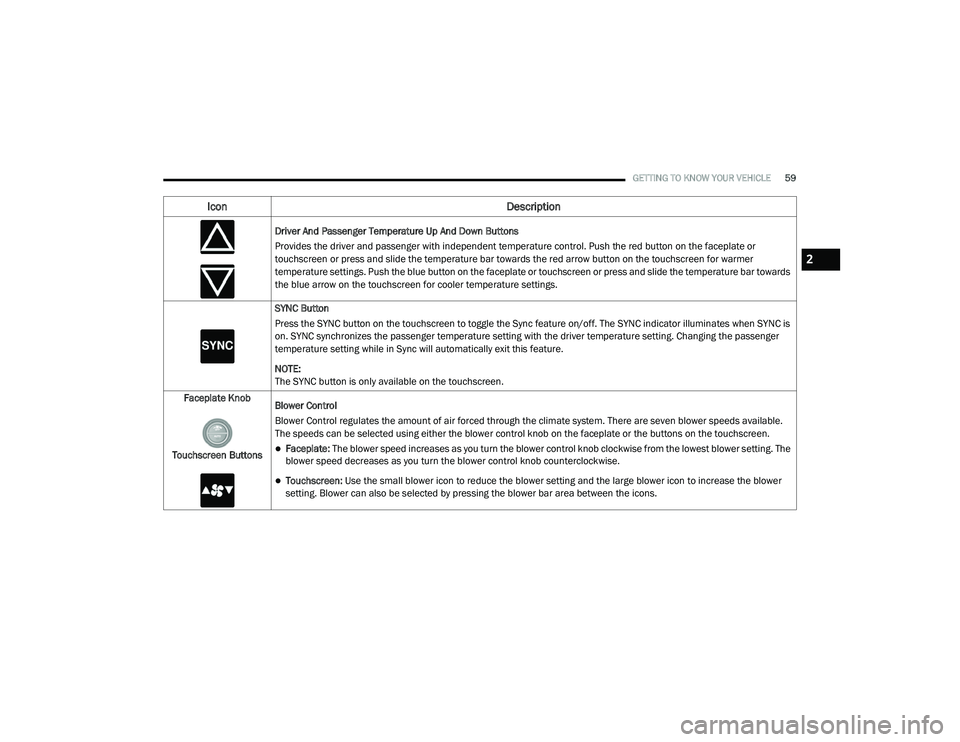
GETTING TO KNOW YOUR VEHICLE59
Driver And Passenger Temperature Up And Down Buttons
Provides the driver and passenger with independent temperature control. Push the red button on the faceplate or
touchscreen or press and slide the temperature bar towards the red arrow button on the touchscreen for warmer
temperature settings. Push the blue button on the faceplate or touchscreen or press and slide the temperature bar towards
the blue arrow on the touchscreen for cooler temperature settings.
SYNC Button
Press the SYNC button on the touchscreen to toggle the Sync feature on/off. The SYNC indicator illuminates when SYNC is
on. SYNC synchronizes the passenger temperature setting with the driver temperature setting. Changing the passenger
temperature setting while in Sync will automatically exit this feature.
NOTE:
The SYNC button is only available on the touchscreen.
Faceplate Knob
Touchscreen Buttons Blower Control
Blower Control regulates the amount of air forced through the climate system. There are seven blower speeds available.
The speeds can be selected using either the blower control knob on the faceplate or the buttons on the touchscreen.
Faceplate: The blower speed increases as you turn the blower control knob clockwise from the lowest blower setting. The
blower speed decreases as you turn the blower control knob counterclockwise.
Touchscreen:
Use the small blower icon to reduce the blower setting and the large blower icon to increase the blower
setting. Blower can also be selected by pressing the blower bar area between the icons.
Icon Description
2
20_LD_OM_EN_USC_t.book Page 59