change wheel DODGE CHARGER 2021 User Guide
[x] Cancel search | Manufacturer: DODGE, Model Year: 2021, Model line: CHARGER, Model: DODGE CHARGER 2021Pages: 320, PDF Size: 20.61 MB
Page 164 of 320
162MULTIMEDIA
phonebook. When a contact has multiple phone
numbers, you can say “ Call John Smith work”.
Voice Text Reply — If Equipped
Uconnect can announce incoming text messages.
Push the VR button or Phone button and say:
1. “
Listen
” to have the system read an incoming
text message. (Must have compatible mobile
phone paired to Uconnect system.)
2. “ Reply ” after an incoming text message has
been read.
Listen to the Uconnect prompts. After the
beep, repeat one of the predefined messages
and follow the system prompts.
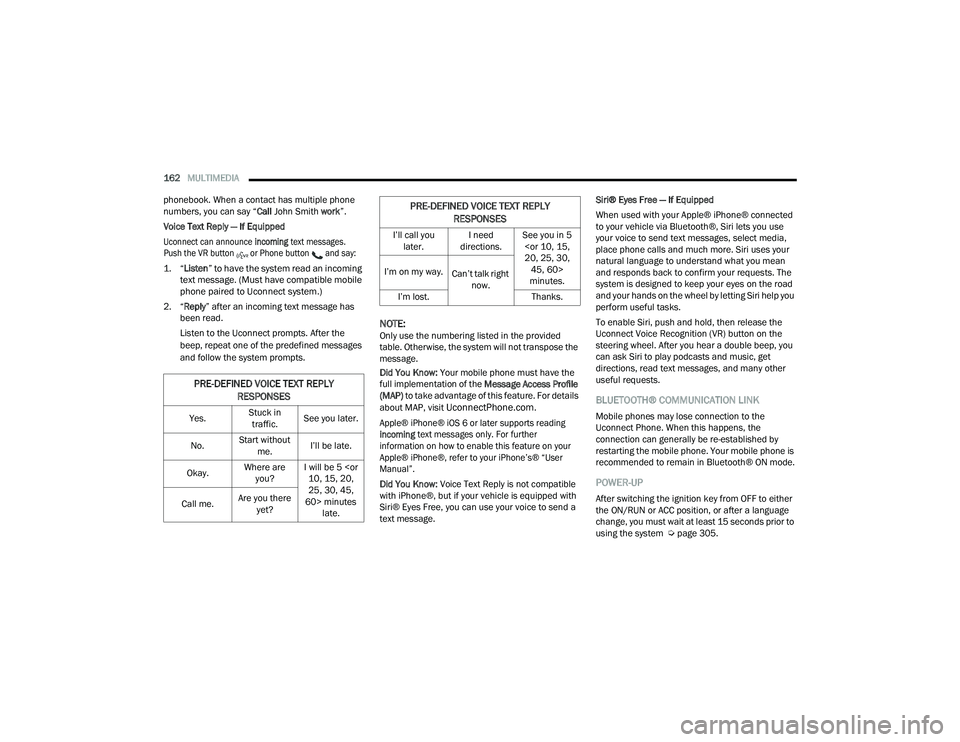
NOTE:Only use the numbering listed in the provided
table. Otherwise, the system will not transpose the
message.
Did You Know: Your mobile phone must have the
full implementation of the Message Access Profile
(MAP) to take advantage of this feature. For details
about MAP, visit
UconnectPhone.com.
Apple® iPhone® iOS 6 or later supports reading
incoming text messages only. For further
information on how to enable this feature on your
Apple® iPhone®, refer to your iPhone’s® “User
Manual”.
Did You Know: Voice Text Reply is not compatible
with iPhone®, but if your vehicle is equipped with
Siri® Eyes Free, you can use your voice to send a
text message. Siri® Eyes Free — If Equipped
When used with your Apple® iPhone® connected
to your vehicle via Bluetooth®, Siri lets you use
your voice to send text messages, select media,
place phone calls and much more. Siri uses your
natural language to understand what you mean
and responds back to confirm your requests. The
system is designed to keep your eyes on the road
and your hands on the wheel by letting Siri help you
perform useful tasks.
To enable Siri, push and hold, then release the
Uconnect Voice Recognition (VR) button on the
steering wheel. After you hear a double beep, you
can ask Siri to play podcasts and music, get
directions, read text messages, and many other
useful requests.BLUETOOTH® COMMUNICATION LINK
Mobile phones may lose connection to the
Uconnect Phone. When this happens, the
connection can generally be re-established by
restarting the mobile phone. Your mobile phone is
recommended to remain in Bluetooth® ON mode.
POWER-UP
After switching the ignition key from OFF to either
the ON/RUN or ACC position, or after a language
change, you must wait at least 15 seconds prior to
using the system Ú
page 305.
PRE-DEFINED VOICE TEXT REPLY
RESPONSES
Yes. Stuck in
traffic. See you later.
No. Start without
me. I’ll be late.
Okay. Where are
you? I will be 5
25, 30, 45,
60> minutes late.
Call me.
Are you there
yet?
I’ll call you later. I need
directions. See you in 5
minutes.
I’m on my way.
Can’t talk right
now.
I’m lost. Thanks.
PRE-DEFINED VOICE TEXT REPLY
RESPONSES
21_LD_OM_EN_USC_t.book Page 162
Page 165 of 320
MULTIMEDIA163
ANDROID AUTO™ & APPLE CARPLAY® —
IF EQUIPPED
ANDROID AUTO™
Use this QR code to access your
digital experience.
Android Auto™ is a feature of your
Uconnect system, and your Android™
6.0 or higher powered smartphone
with a data plan, that allows you to
project your smartphone and a
number of its apps onto the touchscreen radio display.
Android Auto™ brings you useful information, and
organizes it into simple cards that appear just when
they are needed. Android Auto™ can be used with
speech technology, the steering wheel controls, the
knobs and buttons on your radio faceplate, and the
radio display’s touchscreen to control many of your
apps. To use Android Auto™, perform the following
procedure:
NOTE:Feature availability depends on your carrier and
mobile phone manufacturer. Some Android Auto™
features may or may not be available in every
region and/or language.
1. Download the Android Auto™ app from the
Google Play store on your Android™-powered
smartphone.
2. Connect your Android™-powered smartphone to one of the media USB ports in your vehicle.
If the Android Auto™ app was not downloaded,
the first time you plug your device in the app
begins to download. Your vehicle should be in
PARK the first time you use the app.
NOTE:Be sure to use the factory-provided USB cable that
came with your phone, as aftermarket cables may
not work.
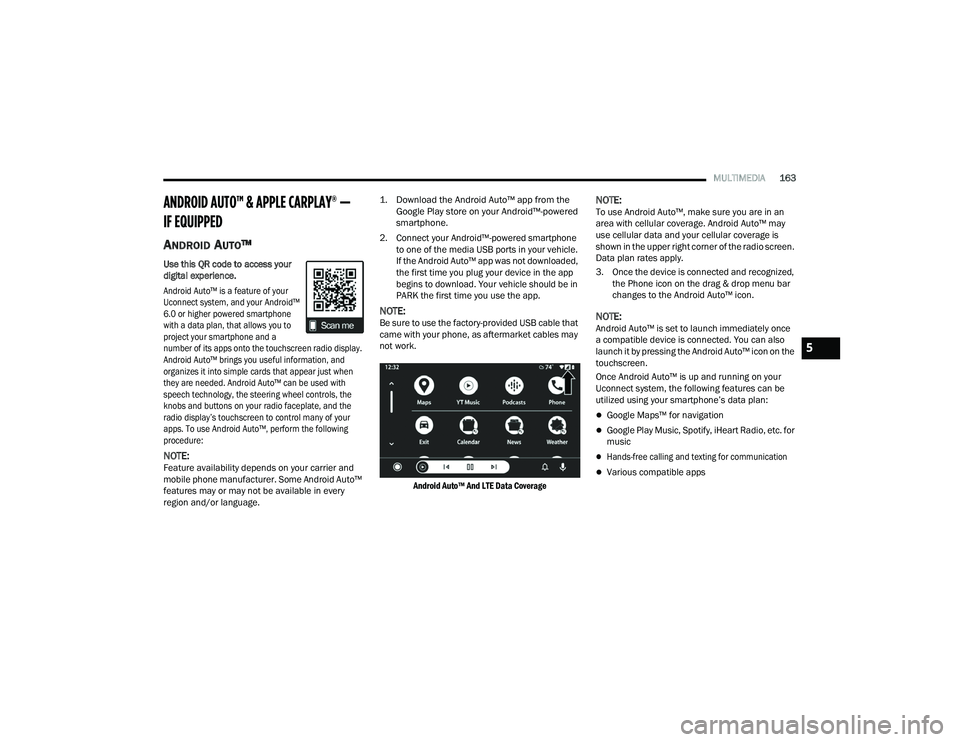
Android Auto™ And LTE Data Coverage
NOTE:To use Android Auto™, make sure you are in an
area with cellular coverage. Android Auto™ may
use cellular data and your cellular coverage is
shown in the upper right corner of the radio screen.
Data plan rates apply.
3. Once the device is connected and recognized, the Phone icon on the drag & drop menu bar
changes to the Android Auto™ icon.
NOTE:Android Auto™ is set to launch immediately once
a compatible device is connected. You can also
launch it by pressing the Android Auto™ icon on the
touchscreen.
Once Android Auto™ is up and running on your
Uconnect system, the following features can be
utilized using your smartphone’s data plan:
Google Maps™ for navigation
Google Play Music, Spotify, iHeart Radio, etc. for
music
Hands-free calling and texting for communication
Various compatible apps
5
21_LD_OM_EN_USC_t.book Page 163
Page 167 of 320
MULTIMEDIA165
NOTE:
Requires compatible smartphone running
Android™ 6.0 or higher and download app on
Google Play. Android™, Android Auto™, and
Google Play are trademarks of Google Inc.
Android Auto™ may be downloaded automati -
cally depending on the software version
installed on your mobile device.
To wirelessly use Android Auto™ on your car
display, you need a compatible Android™ smart -
phone with an active data plan. You can check
which smartphones are compatible at
g.co/
androidauto/requirements.
APPLE CARPLAY®
Use this QR code to access your
digital experience.
Uconnect works seamlessly with
Apple CarPlay®, the smarter, more
secure way to use your iPhone® in the
car, and stay focused on the road. Use
your Uconnect Touchscreen display,
the vehicle's knobs and controls, and your voice with
Siri to get access to Apple Music®, Maps, Messages,
and more.
NOTE:Feature availability depends on your carrier
and mobile phone manufacturer. Some Apple
CarPlay® features may or may not be available in
every region and/or language. To use Apple CarPlay®, make sure you are using
iPhone® 5 or later, have Siri enabled in Settings,
ensure your iPhone® is unlocked for the very first
connection only, and then use the following
procedure:
1. Connect your iPhone® to one of the media
USB ports in your vehicle.
NOTE:Be sure to use the factory-provided Lightning cable
that came with your phone, as aftermarket cables
may not work.
2. Once the device is connected and recognized, the Phone icon on the drag & drop menu bar
changes to the Apple CarPlay® Icon.
NOTE:Apple CarPlay® is set to launch immediately. You
can also launch it by pressing the Apple CarPlay®
icon on the touchscreen.
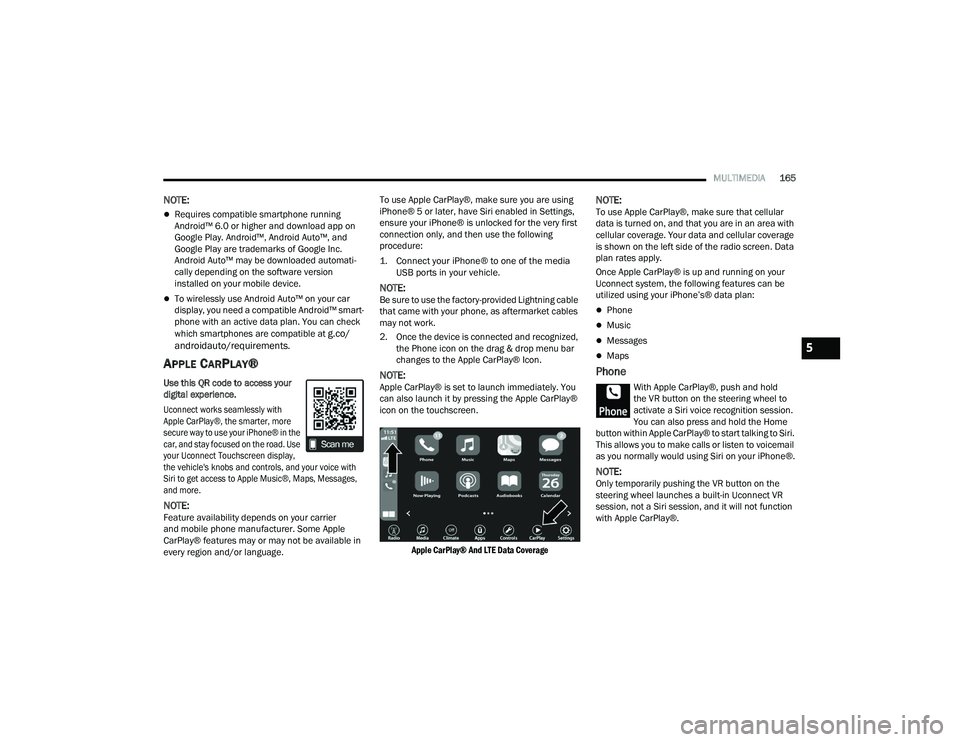
Apple CarPlay® And LTE Data Coverage
NOTE:To use Apple CarPlay®, make sure that cellular
data is turned on, and that you are in an area with
cellular coverage. Your data and cellular coverage
is shown on the left side of the radio screen. Data
plan rates apply.
Once Apple CarPlay® is up and running on your
Uconnect system, the following features can be
utilized using your iPhone’s® data plan:
Phone
Music
Messages
Maps
Phone
With Apple CarPlay®, push and hold
the VR button on the steering wheel to
activate a Siri voice recognition session.
You can also press and hold the Home
button within Apple CarPlay® to start talking to Siri.
This allows you to make calls or listen to voicemail
as you normally would using Siri on your iPhone®.
NOTE:Only temporarily pushing the VR button on the
steering wheel launches a built-in Uconnect VR
session, not a Siri session, and it will not function
with Apple CarPlay®.
5
21_LD_OM_EN_USC_t.book Page 165
Page 178 of 320
176MULTIMEDIA
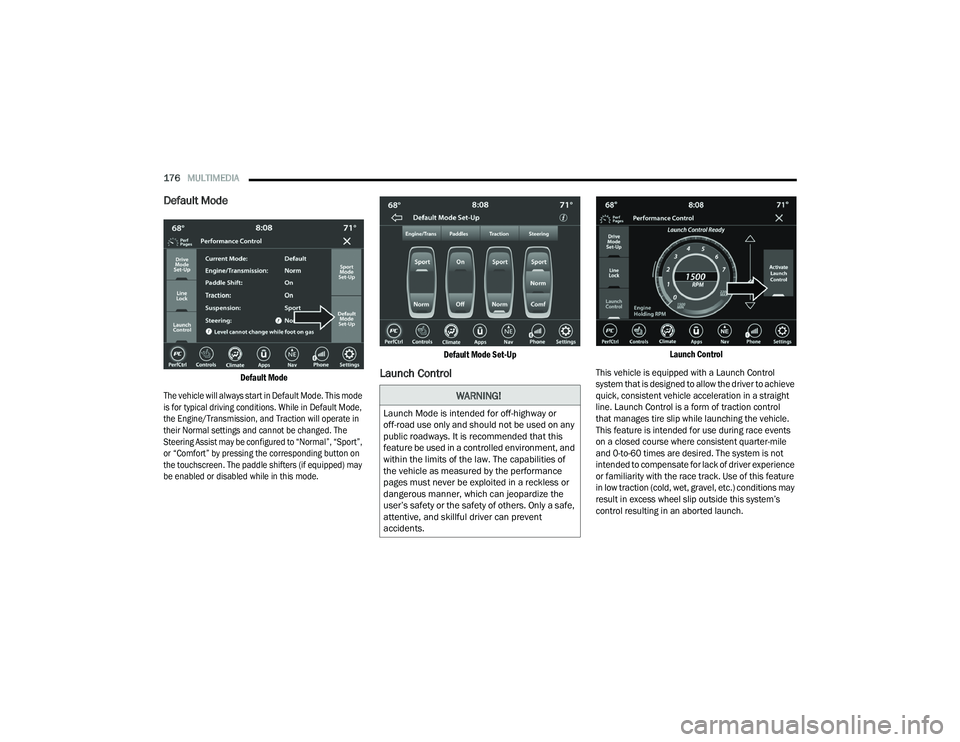
Default Mode
Default Mode
The vehicle will always start in Default Mode. This mode
is for typical driving conditions. While in Default Mode,
the Engine/Transmission, and Traction will operate in
their Normal settings and cannot be changed. The
Steering Assist may be configured to “Normal”, “Sport”,
or “Comfort” by pressing the corresponding button on
the touchscreen. The paddle shifters (if equipped) may
be enabled or disabled while in this mode.
Default Mode Set-Up
Launch Control
Launch Control
This vehicle is equipped with a Launch Control
system that is designed to allow the driver to achieve
quick, consistent vehicle acceleration in a straight
line. Launch Control is a form of traction control
that manages tire slip while launching the vehicle.
This feature is intended for use during race events
on a closed course where consistent quarter-mile
and 0-to-60 times are desired. The system is not
intended to compensate for lack of driver experience
or familiarity with the race track. Use of this feature
in low traction (cold, wet, gravel, etc.) conditions may
result in excess wheel slip outside this system’s
control resulting in an aborted launch.
WARNING!
Launch Mode is intended for off-highway or
off-road use only and should not be used on any
public roadways. It is recommended that this
feature be used in a controlled environment, and
within the limits of the law. The capabilities of
the vehicle as measured by the performance
pages must never be exploited in a reckless or
dangerous manner, which can jeopardize the
user’s safety or the safety of others. Only a safe,
attentive, and skillful driver can prevent
accidents.
21_LD_OM_EN_USC_t.book Page 176
Page 179 of 320
MULTIMEDIA177
NOTE:
Launch Control should not be used on public
roads. Always check track conditions and the
surrounding area.
Launch Control is not available for the first
500 miles (805 km) of the vehicle’s life.
Launch Control should only be used when the
engine and transmission are at operating
temperature.
Launch Control is intended to be used on dry,
paved road surfaces only. Use on slippery or
loose surfaces may cause damage to vehicle
components and is not recommended.
Launch Control is not available in ESC Full Off
mode.
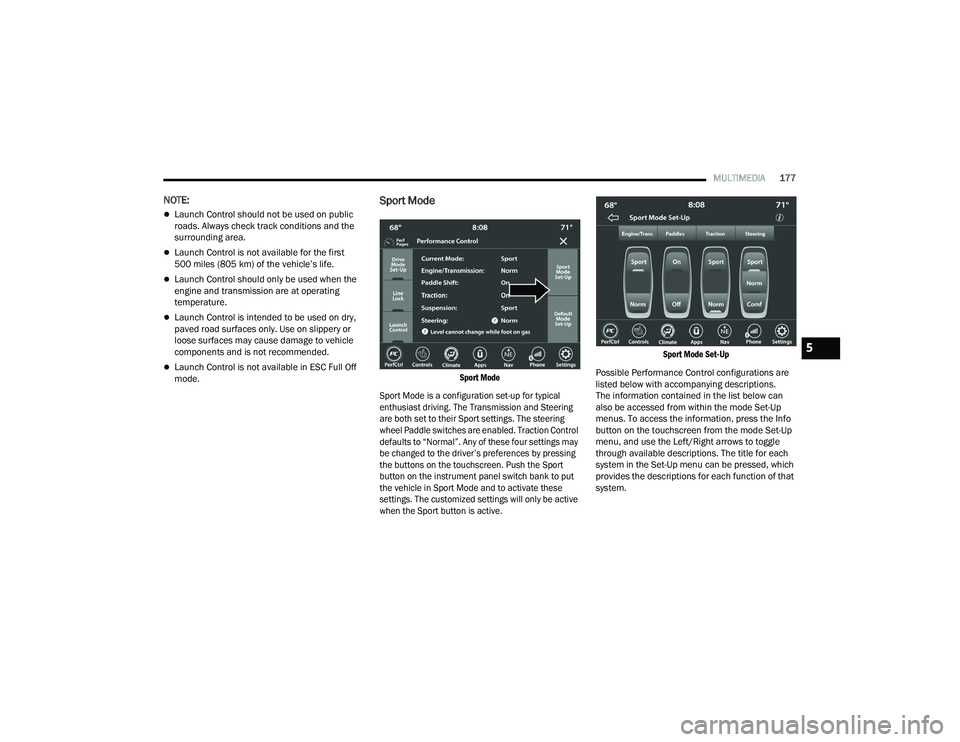
Sport Mode
Sport Mode
Sport Mode is a configuration set-up for typical
enthusiast driving. The Transmission and Steering
are both set to their Sport settings. The steering
wheel Paddle switches are enabled. Traction Control
defaults to “Normal”. Any of these four settings may
be changed to the driver’s preferences by pressing
the buttons on the touchscreen. Push the Sport
button on the instrument panel switch bank to put
the vehicle in Sport Mode and to activate these
settings. The customized settings will only be active
when the Sport button is active. Sport Mode Set-Up
Possible Performance Control configurations are
listed below with accompanying descriptions.
The information contained in the list below can
also be accessed from within the mode Set-Up
menus. To access the information, press the Info
button on the touchscreen from the mode Set-Up
menu, and use the Left/Right arrows to toggle
through available descriptions. The title for each
system in the Set-Up menu can be pressed, which
provides the descriptions for each function of that
system.
5
21_LD_OM_EN_USC_t.book Page 177
Page 183 of 320
SAFETY181
ELECTRONIC BRAKE CONTROL (EBC)
S
YSTEM
Your vehicle is equipped with an advanced Electronic
Brake Control (EBC) system. This system includes
Electronic Brake Force Distribution (EBD), Anti-Lock
Brake System (ABS), Brake Assist System (BAS), Hill
Start Assist (HSA), Traction Control System (TCS),
Electronic Stability Control (ESC), and Electronic Roll
Mitigation (ERM). These systems work together to
enhance both vehicle stability and control in various
driving conditions.
Your vehicle may also be equipped with Ready
Alert Braking (RAB) and Rain Brake Support (RBS).
Brake System Warning Light
The red Brake System Warning Light will turn on
when the ignition is placed in the ON/RUN mode
and may stay on for as long as four seconds.
If the Brake System Warning Light remains on
or comes on while driving, it indicates that the
brake system is not functioning properly and that
immediate service is required. If the Brake System
Warning Light does not come on when the ignition
is placed in the ON/RUN mode, have the light
repaired as soon as possible.
Brake Assist System (BAS)
The BAS is designed to optimize the vehicle’s
braking capability during emergency braking
maneuvers. The system detects an emergency
braking situation by sensing the rate and amount
of brake application and then applies optimum
pressure to the brakes. This can help reduce
braking distances. The BAS complements the
Anti-Lock Brake System (ABS). Applying the brakes
very quickly results in the best BAS assistance.
To receive the benefit of the system, you must
apply continuous braking pressure during the
stopping sequence (do not “pump” the brakes).
Do not reduce brake pedal pressure unless
braking is no longer desired. Once the brake
pedal is released, the BAS is deactivated.
Electronic Brake Force Distribution (EBD)
EBD manages the distribution of the braking
torque between the front and rear axles by limiting
braking pressure to the rear axle. This is done to
prevent overslip of the rear wheels to avoid vehicle
instability, and to prevent the rear axle from
entering ABS before the front axle.
Electronic Roll Mitigation (ERM)
ERM anticipates the potential for wheel lift by
monitoring the driver’s steering wheel input and
the speed of the vehicle. When ERM determines
that the rate of change of the steering wheel angle
and vehicle’s speed are sufficient to potentially
cause wheel lift, it then applies the appropriate
brake and may also reduce engine power to lessen
the chance that wheel lift will occur. ERM can only
reduce the chance of wheel lift occurring during
severe or evasive driving maneuvers; it cannot
prevent wheel lift due to other factors, such as
road conditions, leaving the roadway, striking
objects or other vehicles.
NOTE:ERM is disabled any time the ESC is in “Full Off”
mode (if equipped). See Ú page 182 for a
complete explanation of the available ESC modes.
WARNING!
The Brake Assist System (BAS) cannot prevent the
natural laws of physics from acting on the vehicle,
nor can it increase the traction afforded by prevailing
road conditions. BAS cannot prevent collisions,
including those resulting from excessive speed in
turns, driving on very slippery surfaces, or
hydroplaning. The capabilities of a BAS-equipped
vehicle must never be exploited in a reckless or
dangerous manner, which could jeopardize the
user's safety or the safety of others.
6
21_LD_OM_EN_USC_t.book Page 181
Page 184 of 320
182SAFETY
(Continued)
Electronic Stability Control (ESC)
ESC enhances directional control and stability
of the vehicle under various driving conditions.
ESC corrects for oversteering or understeering
of the vehicle by applying the brake of the
appropriate wheel(s) to counteract the above
conditions. Engine power may also be reduced to
help the vehicle maintain the desired path.
Oversteer — when the vehicle is turning more
than appropriate for the steering wheel position.
Understeer — when the vehicle is turning less
than appropriate for the steering wheel position.
ESC uses sensors in the vehicle to determine the
vehicle path intended by the driver and compares
it to the actual path of the vehicle. When the actual
path does not match the intended path, ESC
applies the brake of the appropriate wheel to
assist in counteracting the above conditions.
The ESC Activation/Malfunction Indicator Light
located in the instrument cluster will start to flash as
soon as the ESC system becomes active. The ESC
Activation/Malfunction Indicator Light also flashes
when the TCS is active. If the ESC Activation/
Malfunction Indicator Light begins to flash during
acceleration, ease up on the accelerator and apply
as little throttle as possible. Be sure to adapt your
speed and driving to the prevailing road conditions.
ESC Operating Modes
Depending upon model and mode of operation, the
ESC system may have multiple operating modes.
"ESC On"
This is the normal operating mode for the ESC.
Whenever the vehicle is started, the ESC system
will be in this mode. This mode should be used for
most driving conditions. Alternate ESC modes
should only be used for specific reasons as noted
in the following paragraphs.
WARNING!
Many factors, such as vehicle loading, road
conditions and driving conditions, influence the
chance that wheel lift or rollover may occur. ERM
cannot prevent all wheel lift or roll overs, especially
those that involve leaving the roadway or striking
objects or other vehicles. The capabilities of an
ERM-equipped vehicle must never be exploited
in a reckless or dangerous manner which could
jeopardize the user's safety or the safety of others.
WARNING!
Electronic Stability Control (ESC) cannot
prevent the natural laws of physics from
acting on the vehicle, nor can it increase the
traction afforded by prevailing road conditions.
ESC cannot prevent accidents, including those
resulting from excessive speed in turns, driving
on very slippery surfaces, or hydroplaning. ESC
also cannot prevent accidents resulting from
loss of vehicle control due to inappropriate
driver input for the conditions. Only a safe,
attentive, and skillful driver can prevent acci
-
dents. The capabilities of an ESC equipped
vehicle must never be exploited in a reckless or
dangerous manner which could jeopardize the
user’s safety or the safety of others.
Vehicle modifications, or failure to properly
maintain your vehicle, may change the
handling characteristics of your vehicle, and
may negatively affect the performance of the
ESC system. Changes to the steering system,
suspension, braking system, tire type and size
or wheel size may adversely affect ESC perfor -
mance. Improperly inflated and unevenly worn
tires may also degrade ESC performance. Any
vehicle modification or poor vehicle mainte -
nance that reduces the effectiveness of the
ESC system can increase the risk of loss of
vehicle control, vehicle rollover, personal
injury and death.
WARNING!
21_LD_OM_EN_USC_t.book Page 182
Page 187 of 320
SAFETY185
Rain Brake Support (RBS)
RBS may improve braking performance in wet
conditions. It will periodically apply a small amount
of brake pressure to remove any water buildup
on the front brake rotors. It functions when the
windshield wipers are in LO or HI speed. When RBS
is active, there is no notification to the driver and
no driver interaction is required.
Ready Alert Braking (RAB)
RAB may reduce the time required to reach full braking
during emergency braking situations. It anticipates
when an emergency braking situation may occur by
monitoring how fast the throttle is released by the
driver. The Electronic Brake Controller (EBC) will
prepare the brake system for a panic stop.
Traction Control System (TCS)
The TCS monitors the amount of wheel spin of each of
the driven wheels. If wheel spin is detected, the TCS
may apply brake pressure to the spinning wheel(s)
and/or reduce engine power to provide enhanced
acceleration and stability. A feature of the TCS, Brake
Limited Differential (BLD) functions similarly to a
limited slip differential and controls the wheel spin
across a driven axle. If one wheel on a driven axle is
spinning faster than the other, the system will apply the
brake of the spinning wheel. This will allow more engine
power to be applied to the wheel that is not spinning.
BLD may remain enabled even if TCS and ESC are in
reduced modes.
AUXILIARY DRIVING SYSTEMS
BLIND SPOT MONITORING (BS M) —
I
F EQUIPPED
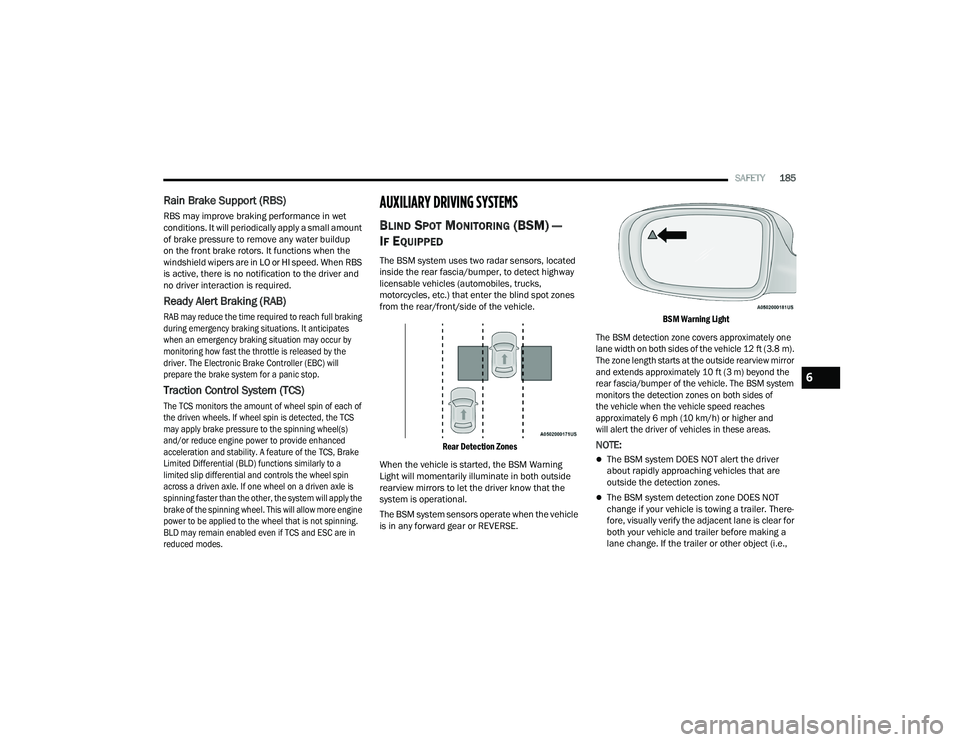
The BSM system uses two radar sensors, located
inside the rear fascia/bumper, to detect highway
licensable vehicles (automobiles, trucks,
motorcycles, etc.) that enter the blind spot zones
from the rear/front/side of the vehicle.
Rear Detection Zones
When the vehicle is started, the BSM Warning
Light will momentarily illuminate in both outside
rearview mirrors to let the driver know that the
system is operational.
The BSM system sensors operate when the vehicle
is in any forward gear or REVERSE.
BSM Warning Light
The BSM detection zone covers approximately one
lane width on both sides of the vehicle 12 ft (3.8 m).
The zone length starts at the outside rearview mirror
and extends approximately 10 ft (3 m) beyond the
rear fascia/bumper of the vehicle. The BSM system
monitors the detection zones on both sides of
the vehicle when the vehicle speed reaches
approximately 6 mph (10 km/h) or higher and
will alert the driver of vehicles in these areas.
NOTE:
The BSM system DOES NOT alert the driver
about rapidly approaching vehicles that are
outside the detection zones.
The BSM system detection zone DOES NOT
change if your vehicle is towing a trailer. There -
fore, visually verify the adjacent lane is clear for
both your vehicle and trailer before making a
lane change. If the trailer or other object (i.e.,
6
21_LD_OM_EN_USC_t.book Page 185
Page 193 of 320
SAFETY191
NOTE:
The TPMS is not intended to replace normal tire
care and maintenance or to provide warning of
a tire failure or condition.
The TPMS should not be used as a tire pressure
gauge while adjusting your tire pressure.
Driving on a significantly underinflated tire
causes the tire to overheat and can lead to tire
failure. Underinflation also reduces fuel effi -
ciency and tire tread life, and may affect the
vehicle’s handling and stopping ability.
The TPMS is not a substitute for proper tire
maintenance, and it is the driver’s responsibility
to maintain correct tire pressure using an accu -
rate tire pressure gauge, even if underinflation
has not reached the level to trigger illumination
of the TPMS Warning Light.
Seasonal temperature changes will affect tire
pressure, and the TPMS will monitor the actual
tire pressure in the tire Ú page 305.
Premium System
The Tire Pressure Monitoring System (TPMS) uses
wireless technology with wheel rim mounted
electronic sensors to monitor tire pressure levels.
Sensors, mounted to each wheel as part of the
valve stem, transmit tire pressure readings to the
receiver module.
NOTE:It is particularly important for you to check the tire
pressure in all of the tires on your vehicle monthly
and to maintain the proper pressure.
The TPMS consists of the following components:
Receiver module
Four Tire Pressure Monitoring System sensors
Various Tire Pressure Monitoring System
messages, which display in the instrument
cluster
Tire Pressure Monitoring System Warning Light
Tire Pressure Monitoring System Low
Pressure Warnings
The Tire Pressure Monitoring System
(TPMS) Warning Light will illuminate in
the instrument cluster and a chime will
sound when tire pressure is low in one or
more of the four active road tires. In addition, the
instrument cluster will display an “Inflate to XX”
message and a graphic showing the pressure
values of each tire with the low tire pressure values
shown in a different color.
CAUTION!
The TPMS has been optimized for the original
equipment tires and wheels. TPMS pressures
and warning have been established for the tire
size equipped on your vehicle. Undesirable
system operation or sensor damage may
result when using replacement equipment
that is not of the same size, type, and/or style.
The TPMS sensor is not designed for use on
aftermarket wheels and may contribute to a
poor overall system performance or sensor
damage. Customers are encouraged to use
OEM wheels to ensure proper TPMS feature
operation.
Using aftermarket tire sealants may cause the
Tire Pressure Monitoring System (TPMS)
sensor to become inoperable. After using an
aftermarket tire sealant it is recommended
that you take your vehicle to your authorized
dealer to have your sensor function checked.
After inspecting or adjusting the tire pressure
always reinstall the valve stem cap. This will
prevent moisture and dirt from entering the
valve stem, which could damage the TPMS
sensor.
6
21_LD_OM_EN_USC_t.book Page 191
Page 194 of 320
192SAFETY
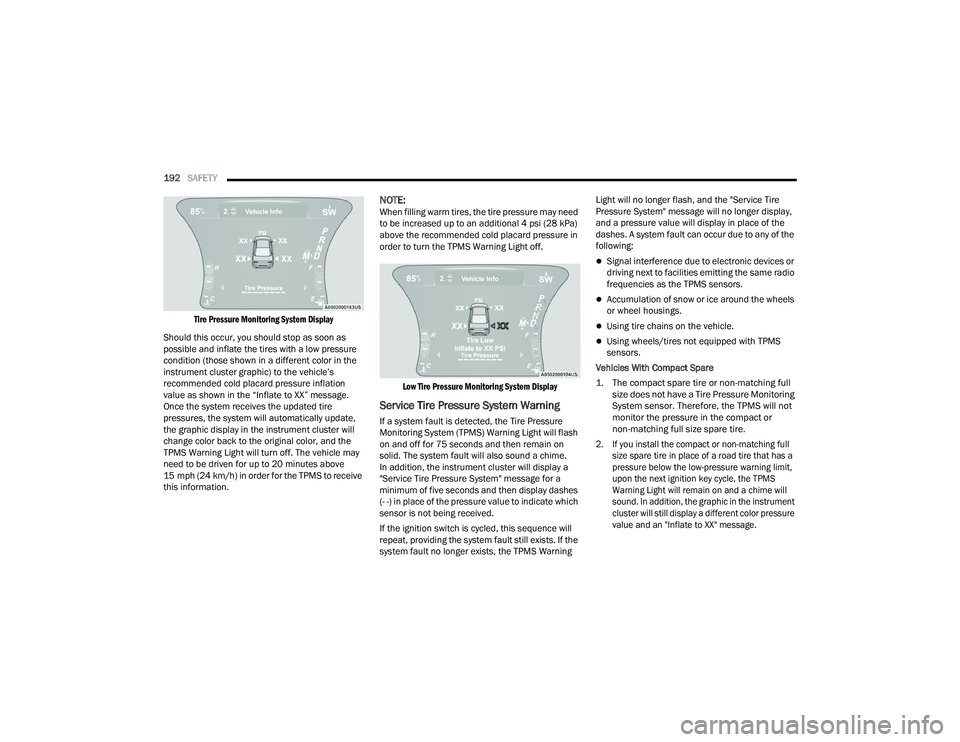
Tire Pressure Monitoring System Display
Should this occur, you should stop as soon as
possible and inflate the tires with a low pressure
condition (those shown in a different color in the
instrument cluster graphic) to the vehicle’s
recommended cold placard pressure inflation
value as shown in the “Inflate to XX” message.
Once the system receives the updated tire
pressures, the system will automatically update,
the graphic display in the instrument cluster will
change color back to the original color, and the
TPMS Warning Light will turn off. The vehicle may
need to be driven for up to 20 minutes above
15 mph (24 km/h) in order for the TPMS to receive
this information.
NOTE:When filling warm tires, the tire pressure may need
to be increased up to an additional 4 psi (28 kPa)
above the recommended cold placard pressure in
order to turn the TPMS Warning Light off.
Low Tire Pressure Monitoring System Display
Service Tire Pressure System Warning
If a system fault is detected, the Tire Pressure
Monitoring System (TPMS) Warning Light will flash
on and off for 75 seconds and then remain on
solid. The system fault will also sound a chime.
In addition, the instrument cluster will display a
"Service Tire Pressure System" message for a
minimum of five seconds and then display dashes
(- -) in place of the pressure value to indicate which
sensor is not being received.
If the ignition switch is cycled, this sequence will
repeat, providing the system fault still exists. If the
system fault no longer exists, the TPMS Warning Light will no longer flash, and the "Service Tire
Pressure System" message will no longer display,
and a pressure value will display in place of the
dashes. A system fault can occur due to any of the
following:
Signal interference due to electronic devices or
driving next to facilities emitting the same radio
frequencies as the TPMS sensors.
Accumulation of snow or ice around the wheels
or wheel housings.
Using tire chains on the vehicle.
Using wheels/tires not equipped with TPMS
sensors.
Vehicles With Compact Spare
1. The compact spare tire or non-matching full size does not have a Tire Pressure Monitoring
System sensor. Therefore, the TPMS will not
monitor the pressure in the compact or
non-matching full size spare tire.
2. If you install the compact or non-matching full size spare tire in place of a road tire that has a
pressure below the low-pressure warning limit,
upon the next ignition key cycle, the TPMS
Warning Light will remain on and a chime will
sound. In addition, the graphic in the instrument
cluster will still display a different color pressure
value and an "Inflate to XX" message.
21_LD_OM_EN_USC_t.book Page 192