wheel DODGE CHARGER 2021 Owner's Manual
[x] Cancel search | Manufacturer: DODGE, Model Year: 2021, Model line: CHARGER, Model: DODGE CHARGER 2021Pages: 320, PDF Size: 20.61 MB
Page 95 of 320

STARTING AND OPERATING93
Operation
In AutoStick mode, you can use the gear selector
(in the MANUAL position), or the shift paddles to
the MANUAL (M) position (beside the DRIVE (D)
position), or tap one of the shift paddles on the
steering wheel. Tapping the (-) shift paddle to enter
AutoStick mode will downshift the transmission
to the next lower gear, while tapping (+) to enter
AutoStick mode will retain the current gear.
The current transmission gear will be displayed in
the instrument cluster.
Paddle Shifters
NOTE:
Tapping one of the steering wheel-mounted
shift paddles (+/-), if equipped, while the gear
selector is in DRIVE, will activate a temporary
AutoStick mode. Tapping (-) to enter AutoStick
mode will downshift the transmission to the next
lower gear, while tapping (+) to enter AutoStick
mode will retain the current gear. The current
gear will be displayed in the instrument cluster,
but the “M” will not be highlighted. The trans -
mission will revert back to normal operation
(if the gear selector remains in DRIVE) after a
period of time, depending on accelerator pedal
activity.
In some models, the shift paddles may be
disabled (or re-enabled, as desired) using Drive
Mode Set-Up, accessed by selecting Perfor -
mance Control.
In AutoStick mode, the transmission will shift up
or down when (+/-) is manually selected by the
driver (using the gear selector, or the shift paddles
[if equipped]), unless an engine lugging or
overspeed condition would result. It will remain
in the selected gear until another upshift or downshift
is chosen, except as described below.
If normal AutoStick mode is engaged (gear
selector in MANUAL position), manual gear
selection will be maintained until the gear
selector is returned to DRIVE, or as described
below. The transmission will not upshift auto -
matically at redline in this mode, nor will down -
shifts be obtained if the accelerator pedal is
pressed to the floor.
The transmission will automatically downshift
as the vehicle slows (to prevent engine lugging)
and will display the current gear.
The transmission will automatically downshift to
FIRST gear when coming to a stop. After a stop,
the driver should manually upshift (+) the trans -
mission as the vehicle is accelerated.
You can start out, from a stop, in FIRST or
SECOND gear. Tapping (+) (at a stop) will allow
starting in SECOND gear. Starting out in
SECOND gear can be helpful in snowy or icy
conditions.
If a requested downshift would cause the
engine to over-speed, that shift will not occur.
The system will ignore attempts to upshift at too
low of a vehicle speed and an indication will
display.
1 — (–) Shift Paddle
2 — (+) Shift Paddle
4
21_LD_OM_EN_USC_t.book Page 93
Page 96 of 320
94STARTING AND OPERATING
Holding the (-) paddle pressed (if equipped), or
holding the gear selector in the (-) position, will
downshift the transmission to the lowest gear
possible at the current speed.
Transmission shifting will be more noticeable
when AutoStick is enabled.
The system may revert to automatic shift mode
if a fault or overheat condition is detected.
To disengage AutoStick mode, return the gear
selector to the DRIVE position, or press and hold
the (+) shift paddle (if equipped, and the gear
selector is already in DRIVE) until “D” is once again
indicated in the instrument cluster. You can shift in
or out of the AutoStick mode at any time without
taking your foot off the accelerator pedal.
SPORT MODE — WITHOUT PERFORMANCE
CONTROL
Your vehicle is equipped with a SPORT Mode feature.
This mode is a configuration set up for typical
enthusiast driving. The engine, transmission, and
steering systems are all set to their SPORT settings.
SPORT Mode will provide improved throttle response
and modified shifting for an enhanced driving
experience, as well the greatest amount of steering
feel. This mode may be activated and deactivated by
pushing the Sport button on the instrument panel
switch bank.
For vehicles equipped with Drive Modes or a
“SUPER TRACK PAK” button, refer to “Drive Modes
Supplement” for further information.
FUEL SAVER TECHNOLOGY 5.7L ONLY—
IF EQUIPPED
This feature offers improved fuel economy by
shutting off four of the engine's eight cylinders
during light load and cruise conditions. The system
is automatic with no driver inputs or additional
driving skills required.
NOTE:This system may take some time to return to full
functionality after a battery disconnect.
ELECTRIC POWER STEERING
The electric power steering system provides
increased vehicle response and ease of
maneuverability. The system adapts to different
driving conditions. If the electric steering system
experiences a fault that prevents it from providing
assist, you will still have the ability to steer the
vehicle manually.
If the Electric Power Steering Fault Warning Light is
displayed and the “SERVICE POWER STEERING” or the
“POWER STEERING ASSIST OFF – SERVICE SYSTEM”
message is displayed within the instrument cluster
display, this indicates the vehicle needs to be taken to
the dealer for service
Ú
page 74.
NOTE:
Even if the power steering assistance is no longer
operational, it is still possible to steer the vehicle.
Under these conditions there will be a substantial
increase in steering effort, especially at low speeds
and during parking maneuvers.
If the condition persists, see an authorized
dealer for service.
WARNING!
Do not downshift for additional engine braking
on a slippery surface. The drive wheels could
lose their grip and the vehicle could skid,
causing a collision or personal injury.
WARNING!
Continued operation with reduced assist could
pose a safety risk to yourself and others. Service
should be obtained as soon as possible.
21_LD_OM_EN_USC_t.book Page 94
Page 97 of 320
STARTING AND OPERATING95
If the Electric Power Steering Fault Warning Light is
displayed and the “POWER STEERING SYSTEM
OVER TEMP” message is displayed on the
instrument cluster screen, they indicate that
extreme steering maneuvers may have occurred
which caused an over temperature condition in the
power steering system. Once driving conditions are
safe, pull over and let the vehicle idle for a few
moments until the Electric Power Steering Fault
Warning Light and message turn off.
CRUISE CONTROL SYSTEMS — IF EQUIPPED
Your vehicle may be equipped with the Cruise
Control system, or the Adaptive Cruise Control
(ACC) system:
Cruise Control will keep your vehicle at a
constant preset speed.
Adaptive Cruise Control (ACC) will adjust the
vehicle speed up to the preset speed to main -
tain a distance with the vehicle ahead.
NOTE:
In vehicles equipped with ACC, if ACC is not
enabled, Fixed Speed Cruise Control will not
detect vehicles directly ahead of you. Always be
aware of the feature selected.
Only one Cruise Control feature can operate at a
time. For example, if Fixed Speed Cruise Control
is enabled, Adaptive Cruise Control will be
unavailable, and vice versa.
CRUISE CONTROL
When engaged, the Cruise Control takes over
accelerator operations at speeds greater than 25 mph
(40 km/h) or 20 mph (32 km/h), depending on engine
size and axle ratio.
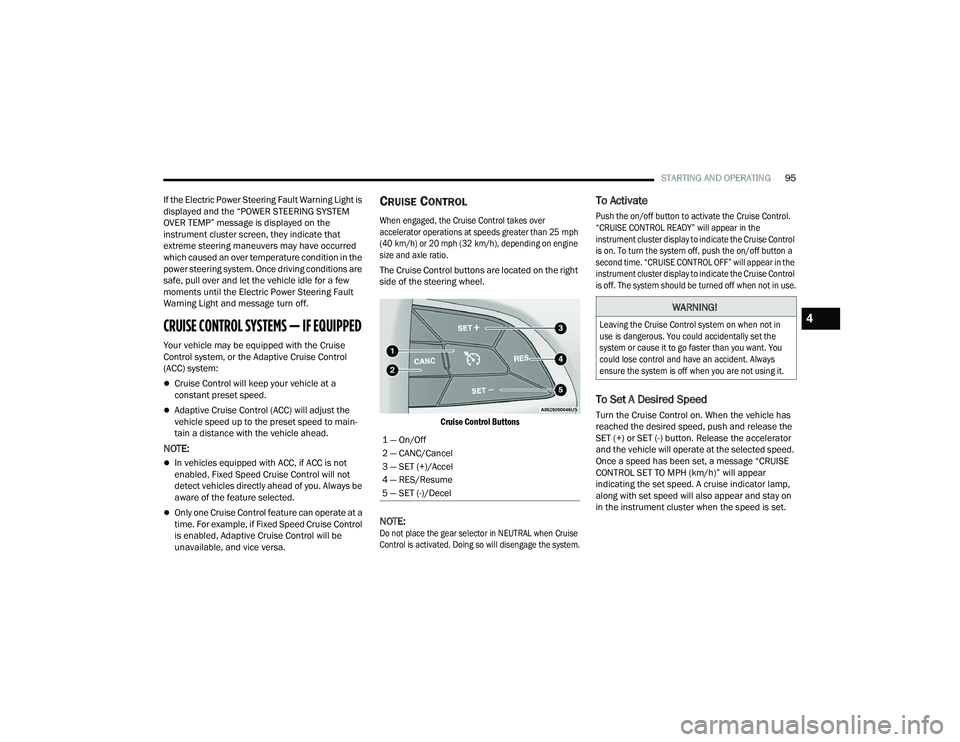
The Cruise Control buttons are located on the right
side of the steering wheel.
Cruise Control Buttons
NOTE:
Do not place the gear selector in NEUTRAL when Cruise
Control is activated. Doing so will disengage the system.
To Activate
Push the on/off button to activate the Cruise Control.
“CRUISE CONTROL READY” will appear in the
instrument cluster display to indicate the Cruise Control
is on. To turn the system off, push the on/off button a
second time. “CRUISE CONTROL OFF” will appear in the
instrument cluster display to indicate the Cruise Control
is off. The system should be turned off when not in use.
To Set A Desired Speed
Turn the Cruise Control on. When the vehicle has
reached the desired speed, push and release the
SET (+) or SET (-) button. Release the accelerator
and the vehicle will operate at the selected speed.
Once a speed has been set, a message “CRUISE
CONTROL SET TO MPH (km/h)” will appear
indicating the set speed. A cruise indicator lamp,
along with set speed will also appear and stay on
in the instrument cluster when the speed is set.
1 — On/Off
2 — CANC/Cancel
3 — SET (+)/Accel
4 — RES/Resume
5 — SET (-)/Decel
WARNING!
Leaving the Cruise Control system on when not in
use is dangerous. You could accidentally set the
system or cause it to go faster than you want. You
could lose control and have an accident. Always
ensure the system is off when you are not using it.
4
21_LD_OM_EN_USC_t.book Page 95
Page 100 of 320
98STARTING AND OPERATING
Adaptive Cruise Control (ACC) Operation
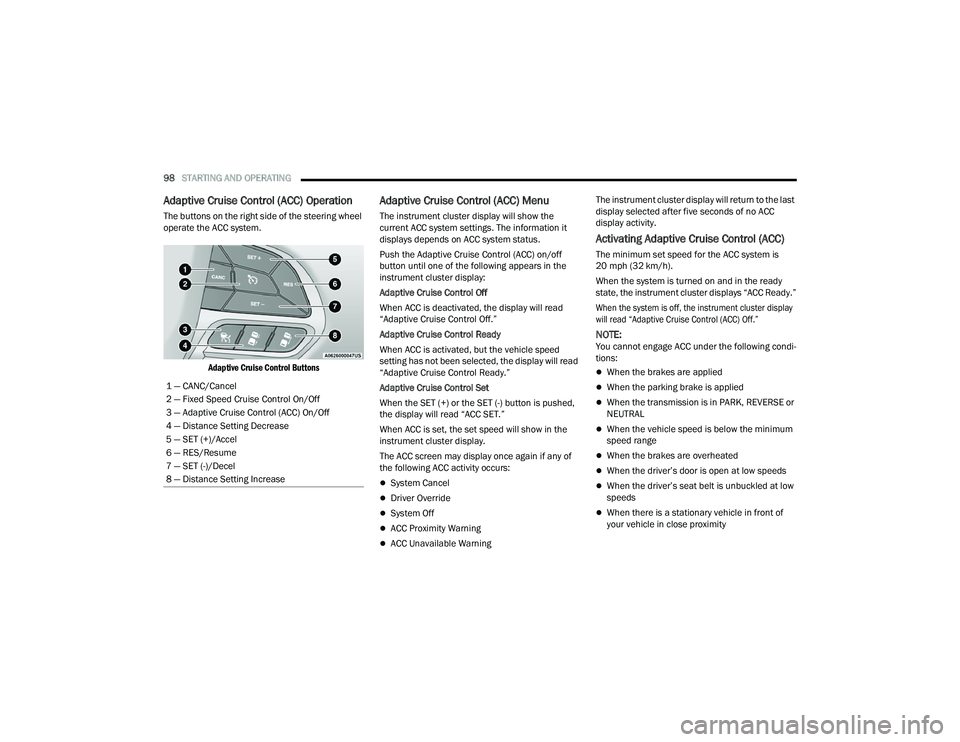
The buttons on the right side of the steering wheel
operate the ACC system.
Adaptive Cruise Control Buttons
Adaptive Cruise Control (ACC) Menu
The instrument cluster display will show the
current ACC system settings. The information it
displays depends on ACC system status.
Push the Adaptive Cruise Control (ACC) on/off
button until one of the following appears in the
instrument cluster display:
Adaptive Cruise Control Off
When ACC is deactivated, the display will read
“Adaptive Cruise Control Off.”
Adaptive Cruise Control Ready
When ACC is activated, but the vehicle speed
setting has not been selected, the display will read
“Adaptive Cruise Control Ready.”
Adaptive Cruise Control Set
When the SET (+) or the SET (-) button is pushed,
the display will read “ACC SET.”
When ACC is set, the set speed will show in the
instrument cluster display.
The ACC screen may display once again if any of
the following ACC activity occurs:
System Cancel
Driver Override
System Off
ACC Proximity Warning
ACC Unavailable Warning The instrument cluster display will return to the last
display selected after five seconds of no ACC
display activity.
Activating Adaptive Cruise Control (ACC)
The minimum set speed for the ACC system is
20 mph (32 km/h).
When the system is turned on and in the ready
state, the instrument cluster displays “ACC Ready.”
When the system is off, the instrument cluster display
will read “Adaptive Cruise Control (ACC) Off.”
NOTE:You cannot engage ACC under the following condi
-
tions:
When the brakes are applied
When the parking brake is applied
When the transmission is in PARK, REVERSE or
NEUTRAL
When the vehicle speed is below the minimum
speed range
When the brakes are overheated
When the driver’s door is open at low speeds
When the driver’s seat belt is unbuckled at low
speeds
When there is a stationary vehicle in front of
your vehicle in close proximity
1 — CANC/Cancel
2 — Fixed Speed Cruise Control On/Off
3 — Adaptive Cruise Control (ACC) On/Off
4 — Distance Setting Decrease
5 — SET (+)/Accel
6 — RES/Resume
7 — SET (-)/Decel
8 — Distance Setting Increase
21_LD_OM_EN_USC_t.book Page 98
Page 111 of 320
STARTING AND OPERATING109
When you move the gear selector to the
REVERSE position and ParkSense is turned off,
the instrument cluster display will show the
“PARKSENSE OFF” message for as long as the
vehicle is in REVERSE.
ParkSense will reduce the volume of the radio
when it is sounding an audio tone.
Clean the ParkSense sensors regularly, taking care
not to scratch or damage them. The sensors must
not be covered with ice, snow, slush, mud, dirt or
debris. Failure to do so can result in the system not
working properly. The ParkSense system might not
detect an obstacle behind the fascia/bumper, or it
could provide a false indication that an obstacle is
behind the fascia/bumper.
Use the ParkSense switch to turn the ParkSense
system off if objects such as bicycle carriers,
trailer hitches, etc. are placed within 12 inches
(30 cm) from the rear fascia/bumper. Failure to
do so can result in the system misinterpreting a
close object as a sensor problem, causing the
“PARKSENSE UNAVAILABLE WIPE REAR
SENSORS” message to be displayed in the
instrument cluster.
LANESENSE — IF EQUIPPED
LANESENSE OPERATION
The LaneSense system is operational at speeds
above 37 mph (60 km/h) and below 112 mph
(180 km/h). The LaneSense system uses a
forward looking camera to detect lane markings
and measure vehicle position within the lane
boundaries.
When both lane markings are detected and the driver
unintentionally drifts out of the lane (no turn signal
applied), the LaneSense system provides a haptic
warning in the form of torque applied to the steering
wheel to prompt the driver to remain within the lane
boundaries. If the driver unintentionally drifts out of the
lane, the LaneSense system provides a visual warning
through the instrument cluster display to prompt the
driver to remain within the lane boundaries.
The driver may manually override the haptic
warning by applying torque to the steering wheel at
any time.
When only a single lane marking is detected and
the driver drifts across the lane marking (no turn
signal applied), the LaneSense system provides
visual warnings through the instrument cluster
display to prompt the driver to remain within the
lane. When only a single lane marking is detected,
a haptic or a torque warning will not be provided.
WARNING!
Drivers must be careful when backing up even
when using ParkSense. Always check carefully
behind your vehicle, look behind you, and be
sure to check for pedestrians, animals, other
vehicles, obstructions, and blind spots before
backing up. You are responsible for safety
and must continue to pay attention to your
surroundings. Failure to do so can result in
serious injury or death.
CAUTION!
ParkSense is only a parking aid and it is
unable to recognize every obstacle, including
small obstacles. Parking curbs might be
temporarily detected or not detected at all.
Obstacles located above or below the sensors
will not be detected when they are in close
proximity.
The vehicle must be driven slowly when using
ParkSense in order to be able to stop in time
when an obstacle is detected. It is recom -
mended that the driver looks over his/her
shoulder when using ParkSense.
4
21_LD_OM_EN_USC_t.book Page 109
Page 112 of 320
110STARTING AND OPERATING
NOTE:
When operating conditions have been met, the Lane -
Sense system will monitor if the driver’s hands are on
the steering wheel and provide an audible warning to
the driver if removed. The system will cancel if the
driver does not return their hands to the wheel.
TURNING LANESENSE ON OR OFF
The LaneSense button is located on the
center stack below the Uconnect display.
To turn the LaneSense system on, push the
LaneSense button (LED turns off). A “LaneSense
On” message is shown in the instrument cluster
display.
To turn the LaneSense system off, push the
LaneSense button once (LED turns on).
NOTE:The LaneSense system will retain the last system
state, on or off, from the last ignition cycle when
the ignition is placed in the ON/RUN position.
LANESENSE WARNING MESSAGE
The LaneSense system will indicate the current
lane drift condition through the instrument cluster
display. Premium Instrument Cluster Display
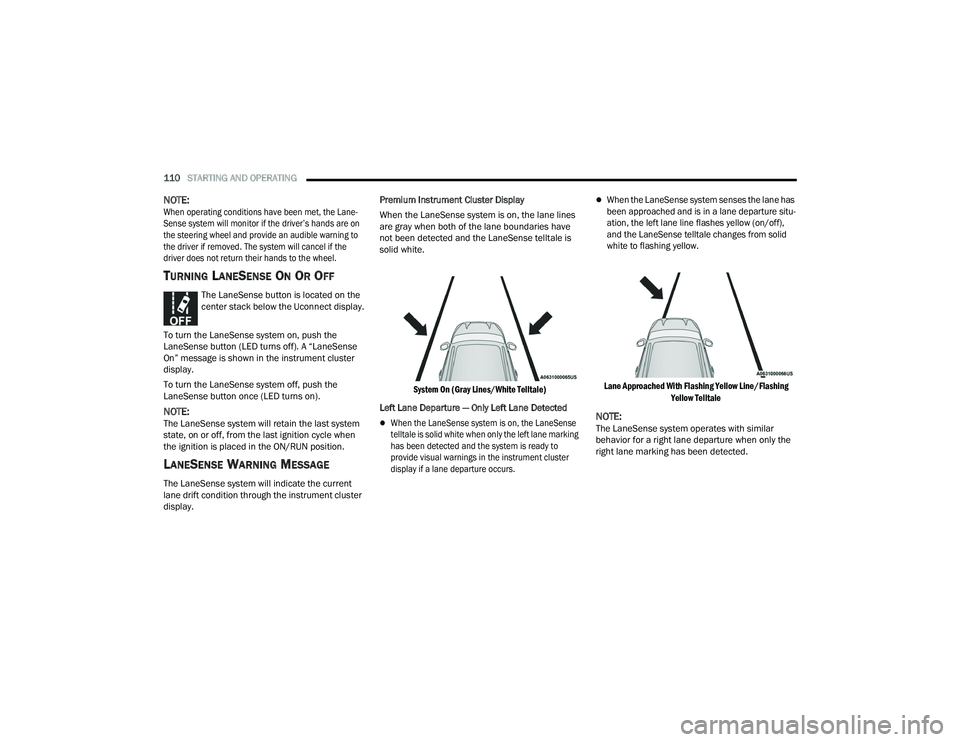
When the LaneSense system is on, the lane lines
are gray when both of the lane boundaries have
not been detected and the LaneSense telltale is
solid white.
System On (Gray Lines/White Telltale)
Left Lane Departure — Only Left Lane Detected
When the LaneSense system is on, the LaneSense
telltale is solid white when only the left lane marking
has been detected and the system is ready to
provide visual warnings in the instrument cluster
display if a lane departure occurs.
When the LaneSense system senses the lane has
been approached and is in a lane departure situ-
ation, the left lane line flashes yellow (on/off),
and the LaneSense telltale changes from solid
white to flashing yellow.
Lane Approached With Flashing Yellow Line/Flashing Yellow Telltale
NOTE:The LaneSense system operates with similar
behavior for a right lane departure when only the
right lane marking has been detected.
21_LD_OM_EN_USC_t.book Page 110
Page 113 of 320
STARTING AND OPERATING111
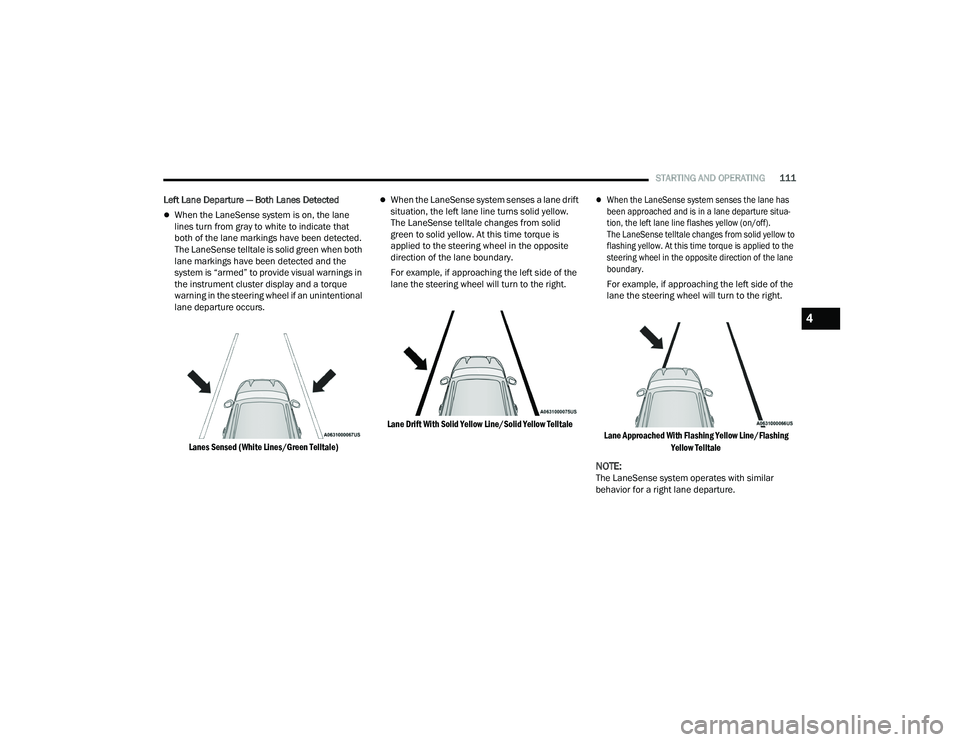
Left Lane Departure — Both Lanes Detected
When the LaneSense system is on, the lane
lines turn from gray to white to indicate that
both of the lane markings have been detected.
The LaneSense telltale is solid green when both
lane markings have been detected and the
system is “armed” to provide visual warnings in
the instrument cluster display and a torque
warning in the steering wheel if an unintentional
lane departure occurs.
Lanes Sensed (White Lines/Green Telltale)
When the LaneSense system senses a lane drift
situation, the left lane line turns solid yellow.
The LaneSense telltale changes from solid
green to solid yellow. At this time torque is
applied to the steering wheel in the opposite
direction of the lane boundary.
For example, if approaching the left side of the
lane the steering wheel will turn to the right.
Lane Drift With Solid Yellow Line/Solid Yellow Telltale
When the LaneSense system senses the lane has
been approached and is in a lane departure situa -
tion, the left lane line flashes yellow (on/off).
The LaneSense telltale changes from solid yellow to
flashing yellow. At this time torque is applied to the
steering wheel in the opposite direction of the lane
boundary.
For example, if approaching the left side of the
lane the steering wheel will turn to the right.
Lane Approached With Flashing Yellow Line/Flashing Yellow Telltale
NOTE:The LaneSense system operates with similar
behavior for a right lane departure.
4
21_LD_OM_EN_USC_t.book Page 111
Page 114 of 320
112STARTING AND OPERATING
CHANGING LANESENSE STATUS
The LaneSense system has settings to adjust the
intensity of the torque warning and the warning zone
sensitivity (early/med/late) that you can configure
through the Uconnect system
Ú
page 125.
NOTE:
When enabled the system operates above
37 mph (60 km/h) and below 112 mph
(180 km/h).
The warnings are disabled with the use of the
turn signal.
The system will not apply torque to the steering
wheel whenever a safety system engages
(Anti-Lock Brakes, Traction Control System,
Electronic Stability Control, Forward Collision
Warning, etc.).
PARKVIEW REAR BACK UP CAMERA
The ParkView Rear Back Up Camera allows you to
see an on-screen image of the rear surroundings of
your vehicle whenever the gear selector is put into
REVERSE. The image will be displayed on the
Navigation/Multimedia radio display screen along
with a caution note to “Check Entire Surroundings”
across the top of the screen. After five seconds this
note will disappear. The ParkView Rear Back Up
Camera is located on the rear of the vehicle above
the rear license plate. Manual Activation Of The Rear View Camera
1. Press the “Controls” button located on the
bottom of the Uconnect display.
2. Press the “Backup Camera” button to turn the Rear View Camera system on.
NOTE:The ParkView Rear Back Up Camera has program -
mable modes of operation that may be selected
through the Uconnect system Ú page 125.
When the vehicle is shifted out of REVERSE (with
camera delay turned off), the rear camera mode is
exited and the previous screen appears. When the
vehicle is shifted out of REVERSE (with camera
delay turned on), the camera image will continue
to be displayed for up to 10 seconds unless the
following conditions occur: The vehicle speed
exceeds 8 mph (13 km/h), the vehicle is shifted
into PARK, the vehicle’s ignition is placed in the
OFF position, or the user presses image defeat “X”
to exit out of the camera video display.
When manually activated, a counter will be
initiated after the vehicle speed is above 8 mph
(13 km/h). The rear view camera image will turn
off when this counter reaches 10 seconds. The
counter will be reset when the vehicle speed is
8 mph (13 km/h) or below. If the vehicle speed
remains below 8 mph (13 km/h), the rear view
camera image will continue to be displayed until the transmission is shifted into PARK, the vehicle’s
ignition is placed in the OFF position, or the image
defeat “X” button is pressed.
When enabled, active guidelines are overlaid on the
image to illustrate the width of the vehicle and its
projected backup path based on the steering wheel
position. Different colored zones indicate the distance
to the rear of the vehicle. The following table shows the
approximate distances for each zone:
Zone Distance To The Rear Of The
Vehicle
Red 0 - 1 ft (0 - 30 cm)
Yellow 1 ft - 6.5 ft (30 cm - 2 m) Green 6.5 ft or greater (2 m or greater)
WARNING!
Drivers must be careful when backing up even
when using the ParkView Rear Back Up Camera.
Always check carefully behind your vehicle, and
be sure to check for pedestrians, animals, other
vehicles, obstructions, or blind spots before
backing up. You are responsible for the safety of
your surroundings and must continue to pay
attention while backing up. Failure to do so can
result in serious injury or death.
21_LD_OM_EN_USC_t.book Page 112
Page 116 of 320
114STARTING AND OPERATING
VEHICLE LOADING
The load carrying capacity of your vehicle is shown
on the Vehicle Certification Label. This information
should be used for passenger and luggage loading
as indicated.
Do not exceed the specified Gross Vehicle Weight
Rating (GVWR) or the Gross Axle Weight Rating
(GAWR).
VEHICLE CERTIFICATION LABEL
Your vehicle has a Vehicle Certification Label
affixed to the drivers side B-pillar or the rear of the
driver’s door.
The label contains the following information:
Name of manufacturer
Month and year of manufacture
Gross Vehicle Weight Rating (GVWR)
Gross Axle Weight Rating (GAWR) front
Gross Axle Weight Rating (GAWR) rear
Vehicle Identification Number (VIN)
Type of vehicle
Month, Day, and Hour (MDH) of manufacture
The bar code allows a computer scanner to read
the VIN.
GROSS VEHICLE WEIGHT RATING (GVWR)
The GVWR is the total allowable weight of your
vehicle. This includes driver, passengers, and
cargo. The total load must be limited so that you do
not exceed the GVWR.
GROSS AXLE WEIGHT RATING (GAWR)
The GAWR is the maximum capacity of the front
and rear axles. Distribute the load over the front
and rear axles evenly. Make sure that you do not
exceed either front or rear GAWR.
WARNING!
Never have any smoking materials lit in or
near the vehicle when the fuel door is open or
the tank is being filled.
Never add fuel when the engine is running.
This is in violation of most state and federal
fire regulations and may cause the Malfunc -
tion Indicator Light to turn on.
A fire may result if fuel is pumped into a
portable container that is inside of a vehicle.
You could be burned. Always place fuel
containers on the ground while filling.
CAUTION!
To avoid fuel spillage and overfilling, do not “top
off” the fuel tank after filling.
WARNING!
Because the front wheels steer the vehicle, it is
important that you do not exceed the maximum front
or rear GAWR. A dangerous driving condition can
result if either rating is exceeded. You could lose
control of the vehicle and have a collision.
21_LD_OM_EN_USC_t.book Page 114
Page 117 of 320
STARTING AND OPERATING115
OVERLOADING
The load carrying components (axle, springs,
tires, wheels, etc.) of your vehicle will provide
satisfactory service as long as you do not exceed
the GVWR and the front and rear GAWR.
The best way to figure out the total weight of your
vehicle is to weigh it when it is fully loaded and
ready for operation. Weigh it on a commercial scale
to ensure that it is not over the GVWR.
Figure out the weight on the front and rear of the
vehicle separately. It is important that you distribute the
load evenly over the front and rear axles.
Overloading can cause potential safety hazards
and shorten useful service life. Heavier axles or
suspension components do not necessarily
increase the vehicle's GVWR.
LOADING
To load your vehicle properly, first figure out its empty
weight, axle-by-axle and side-by-side. Store heavier
items down low and be sure you distribute their weight
as evenly as possible. Stow all loose items securely
before driving. If weighing the loaded vehicle shows
that you have exceeded either GAWR, but the total load
is within the specified GVWR, you must redistribute the
weight. Improper weight distribution can have an
adverse effect on the way your vehicle steers and
handles and the way the brakes operate.
NOTE:
Refer to the Vehicle Certification Label affixed to
the rear of the driver's door for your vehicle's
GVWR and GAWR.
Refer to the Tire and Loading Information
Placard for your vehicle's proper tire pressure
Úpage 280.
TRAILER TOWING
In this section you will find safety tips and
information on limits to the type of towing you can
reasonably do with your vehicle. Before towing a
trailer, carefully review this information to tow your
load as efficiently and safely as possible.
To maintain the New Vehicle Limited Warranty
coverage, follow the requirements and
recommendations in this manual concerning
vehicles used for trailer towing.
COMMON TOWING DEFINITIONS
The following trailer towing related definitions will
assist you in understanding the following
information:
Gross Vehicle Weight Rating (GVWR)
The GVWR is the total allowable weight of your
vehicle. This includes driver, passengers, cargo
and tongue weight. The total load must be limited
so that you do not exceed the GVWR Ú page 114.
Gross Trailer Weight (GTW)
The GTW is the weight of the trailer plus the weight
of all cargo, consumables, and equipment
(permanent or temporary) loaded in or on the
trailer in its "loaded and ready for operation"
condition.
The recommended way to measure GTW is to put
your fully loaded trailer on a vehicle scale. The
entire weight of the trailer must be supported by
the scale.
Gross Combination Weight Rating (GCWR)
The GCWR is the total allowable weight of your
vehicle and trailer when weighed in combination.
4
21_LD_OM_EN_USC_t.book Page 115