ad blue DODGE CHARGER 2021 Owners Manual
[x] Cancel search | Manufacturer: DODGE, Model Year: 2021, Model line: CHARGER, Model: DODGE CHARGER 2021Pages: 320, PDF Size: 20.61 MB
Page 5 of 320
3
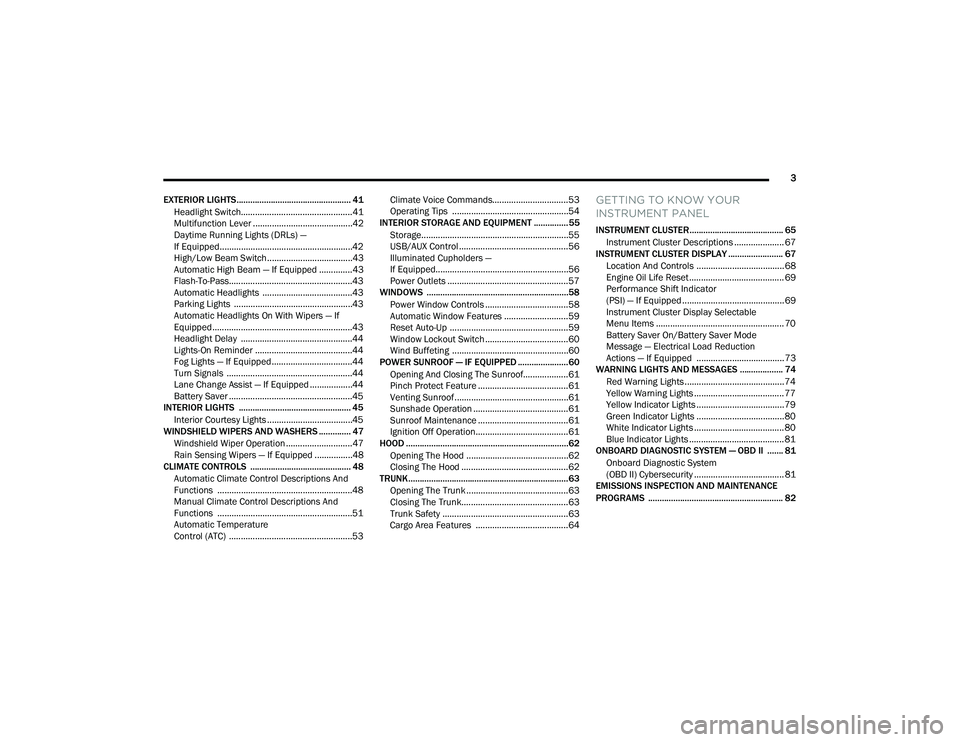
EXTERIOR LIGHTS.................................................. 41 Headlight Switch...............................................41
Multifunction Lever ..........................................42
Daytime Running Lights (DRLs) —
If Equipped........................................................42
High/Low Beam Switch....................................43
Automatic High Beam — If Equipped ..............43
Flash-To-Pass....................................................43
Automatic Headlights ......................................43
Parking Lights ..................................................43
Automatic Headlights On With Wipers — If
Equipped ...........................................................43
Headlight Delay ...............................................44
Lights-On Reminder .........................................44
Fog Lights — If Equipped ..................................44
Turn Signals .....................................................44
Lane Change Assist — If Equipped ..................44
Battery Saver ....................................................45
INTERIOR LIGHTS ................................................. 45
Interior Courtesy Lights ....................................45
WINDSHIELD WIPERS AND WASHERS .............. 47
Windshield Wiper Operation ............................47
Rain Sensing Wipers — If Equipped ................48
CLIMATE CONTROLS ............................................ 48
Automatic Climate Control Descriptions And
Functions .........................................................48
Manual Climate Control Descriptions And
Functions .........................................................51
Automatic Temperature
Control (ATC) ....................................................53 Climate Voice Commands................................53
Operating Tips .................................................54
INTERIOR STORAGE AND EQUIPMENT ............... 55
Storage..............................................................55
USB/AUX Control ..............................................56
Illuminated Cupholders —
If Equipped........................................................56
Power Outlets ...................................................57
WINDOWS ..............................................................58
Power Window Controls ...................................58
Automatic Window Features ...........................59
Reset Auto-Up ..................................................59
Window Lockout Switch ...................................60
Wind Buffeting .................................................60
POWER SUNROOF — IF EQUIPPED ...................... 60
Opening And Closing The Sunroof...................61
Pinch Protect Feature ......................................61
Venting Sunroof................................................61
Sunshade Operation ........................................61
Sunroof Maintenance ......................................61
Ignition Off Operation.......................................61
HOOD .......................................................................62
Opening The Hood ...........................................62
Closing The Hood .............................................62
TRUNK......................................................................63
Opening The Trunk ...........................................63
Closing The Trunk.............................................63
Trunk Safety .....................................................63
Cargo Area Features .......................................64
GETTING TO KNOW YOUR
INSTRUMENT PANEL
INSTRUMENT CLUSTER......................................... 65
Instrument Cluster Descriptions ..................... 67
INSTRUMENT CLUSTER DISPLAY ........................ 67
Location And Controls ..................................... 68
Engine Oil Life Reset ........................................ 69
Performance Shift Indicator
(PSI) — If Equipped ........................................... 69
Instrument Cluster Display Selectable
Menu Items ...................................................... 70
Battery Saver On/Battery Saver Mode
Message — Electrical Load Reduction
Actions — If Equipped ..................................... 73
WARNING LIGHTS AND MESSAGES ................... 74
Red Warning Lights ..........................................74
Yellow Warning Lights ...................................... 77
Yellow Indicator Lights ..................................... 79
Green Indicator Lights ..................................... 80
White Indicator Lights ...................................... 80
Blue Indicator Lights ........................................ 81
ONBOARD DIAGNOSTIC SYSTEM — OBD II ....... 81
Onboard Diagnostic System
(OBD II) Cybersecurity ...................................... 81
EMISSIONS INSPECTION AND MAINTENANCE
PROGRAMS ........................................................... 82
21_LD_OM_EN_USC_t.book Page 3
Page 14 of 320
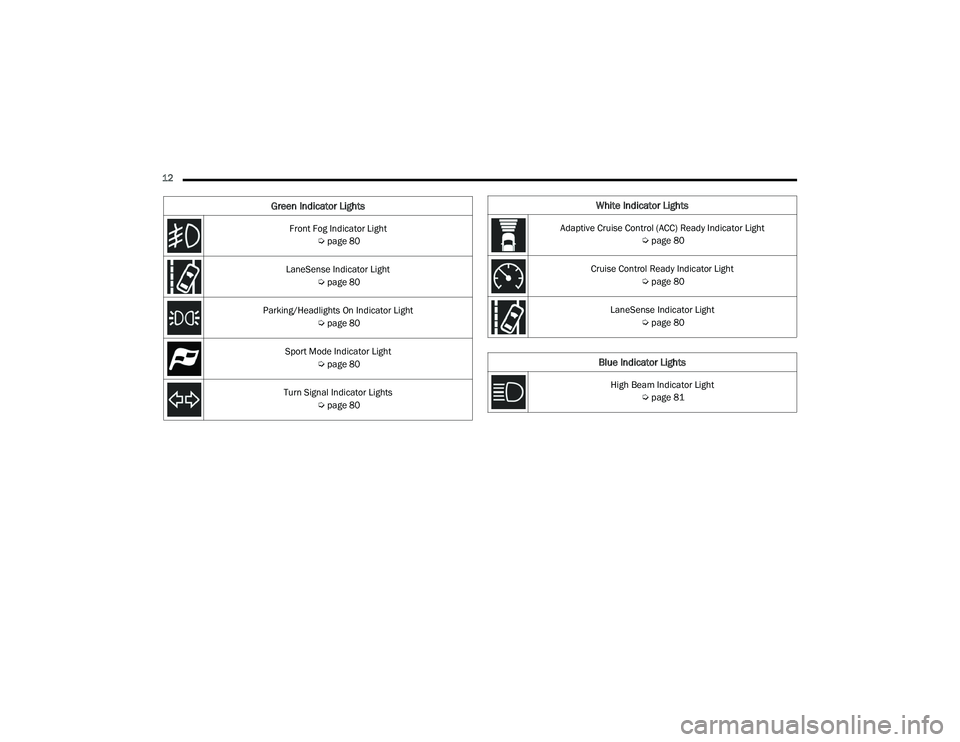
12 Front Fog Indicator Light Úpage 80
LaneSense Indicator Light Úpage 80
Parking/Headlights On Indicator Light Úpage 80
Sport Mode Indicator Light Úpage 80
Turn Signal Indicator Lights Úpage 80
Green Indicator LightsWhite Indicator Lights
Adaptive Cruise Control (ACC) Ready Indicator Light
Úpage 80
Cruise Control Ready Indicator Light Úpage 80
LaneSense Indicator Light Úpage 80
Blue Indicator Lights
High Beam Indicator Light
Úpage 81
21_LD_OM_EN_USC_t.book Page 12
Page 52 of 320
50GETTING TO KNOW YOUR VEHICLE
Driver And Passenger Temperature Up And
Down Buttons
These buttons provide the driver and passenger
with independent temperature control.
Push the red button on the faceplate
or touchscreen or press and slide the
temperature bar towards the red arrow
button on the touchscreen for warmer
temperature settings.
Push the blue button on the faceplate
or touchscreen or press and slide the
temperature bar towards the blue arrow
button on the touchscreen for cooler
temperature settings.
SYNC Button
Press the SYNC button on the
touchscreen to toggle the SYNC feature
on/off. The SYNC indicator illuminates
when SYNC is on. SYNC synchronizes the
passenger temperature setting with the driver
temperature setting. Changing the passenger’s
temperature setting while in SYNC will
automatically exit this feature.
NOTE:The SYNC button is only available on the touch-
screen.
Blower Control
Blower Control regulates the amount of
air forced through the Climate Control
system. There are seven blower speeds
available. Adjusting the blower will cause
automatic mode to switch to manual operation.
The speeds can be selected using either the
blower control knob on the faceplate or the
buttons on the touchscreen.
Faceplate
The blower speed increases as you turn the blower
control knob clockwise from the lowest blower
setting. The blower speed decreases as you turn
the blower control knob counterclockwise.
Touchscreen
Use the small blower icon to reduce the blower
setting and the large blower icon to increase the
blower setting. Blower can also be selected by
pressing the blower bar area between the icons.
Mode Control
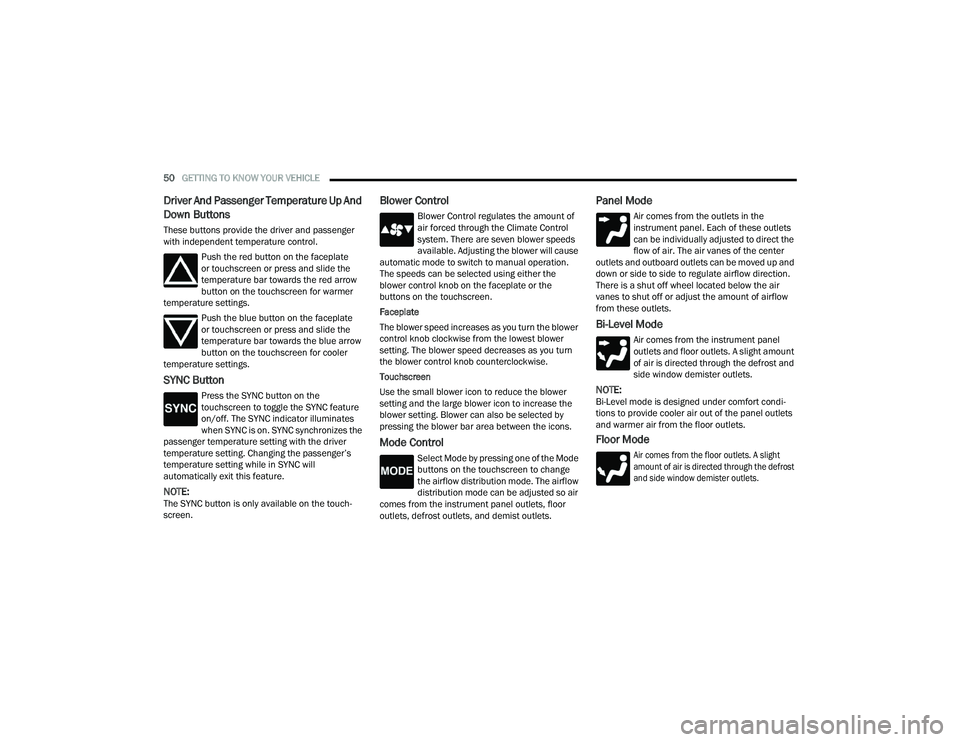
Select Mode by pressing one of the Mode
buttons on the touchscreen to change
the airflow distribution mode. The airflow
distribution mode can be adjusted so air
comes from the instrument panel outlets, floor
outlets, defrost outlets, and demist outlets.
Panel Mode
Air comes from the outlets in the
instrument panel. Each of these outlets
can be individually adjusted to direct the
flow of air. The air vanes of the center
outlets and outboard outlets can be moved up and
down or side to side to regulate airflow direction.
There is a shut off wheel located below the air
vanes to shut off or adjust the amount of airflow
from these outlets.
Bi-Level Mode
Air comes from the instrument panel
outlets and floor outlets. A slight amount
of air is directed through the defrost and
side window demister outlets.
NOTE:Bi-Level mode is designed under comfort condi -
tions to provide cooler air out of the panel outlets
and warmer air from the floor outlets.
Floor Mode
Air comes from the floor outlets. A slight
amount of air is directed through the defrost
and side window demister outlets.
21_LD_OM_EN_USC_t.book Page 50
Page 54 of 320
52GETTING TO KNOW YOUR VEHICLE
Rear Defrost Button
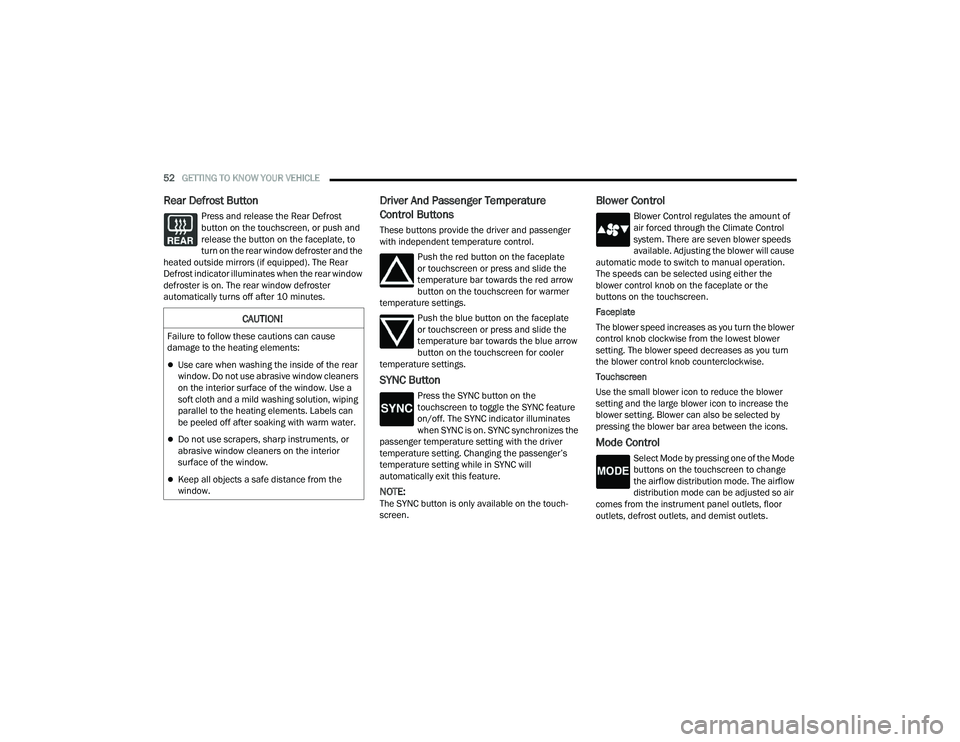
Press and release the Rear Defrost
button on the touchscreen, or push and
release the button on the faceplate, to
turn on the rear window defroster and the
heated outside mirrors (if equipped). The Rear
Defrost indicator illuminates when the rear window
defroster is on. The rear window defroster
automatically turns off after 10 minutes.
Driver And Passenger Temperature
Control Buttons
These buttons provide the driver and passenger
with independent temperature control.
Push the red button on the faceplate
or touchscreen or press and slide the
temperature bar towards the red arrow
button on the touchscreen for warmer
temperature settings.
Push the blue button on the faceplate
or touchscreen or press and slide the
temperature bar towards the blue arrow
button on the touchscreen for cooler
temperature settings.
SYNC Button
Press the SYNC button on the
touchscreen to toggle the SYNC feature
on/off. The SYNC indicator illuminates
when SYNC is on. SYNC synchronizes the
passenger temperature setting with the driver
temperature setting. Changing the passenger’s
temperature setting while in SYNC will
automatically exit this feature.
NOTE:The SYNC button is only available on the touch-
screen.
Blower Control
Blower Control regulates the amount of
air forced through the Climate Control
system. There are seven blower speeds
available. Adjusting the blower will cause
automatic mode to switch to manual operation.
The speeds can be selected using either the
blower control knob on the faceplate or the
buttons on the touchscreen.
Faceplate
The blower speed increases as you turn the blower
control knob clockwise from the lowest blower
setting. The blower speed decreases as you turn
the blower control knob counterclockwise.
Touchscreen
Use the small blower icon to reduce the blower
setting and the large blower icon to increase the
blower setting. Blower can also be selected by
pressing the blower bar area between the icons.
Mode Control
Select Mode by pressing one of the Mode
buttons on the touchscreen to change
the airflow distribution mode. The airflow
distribution mode can be adjusted so air
comes from the instrument panel outlets, floor
outlets, defrost outlets, and demist outlets.
CAUTION!
Failure to follow these cautions can cause
damage to the heating elements:
Use care when washing the inside of the rear
window. Do not use abrasive window cleaners
on the interior surface of the window. Use a
soft cloth and a mild washing solution, wiping
parallel to the heating elements. Labels can
be peeled off after soaking with warm water.
Do not use scrapers, sharp instruments, or
abrasive window cleaners on the interior
surface of the window.
Keep all objects a safe distance from the
window.
21_LD_OM_EN_USC_t.book Page 52
Page 83 of 320
GETTING TO KNOW YOUR INSTRUMENT PANEL81
BLUE INDICATOR LIGHTS
High Beam Indicator Light
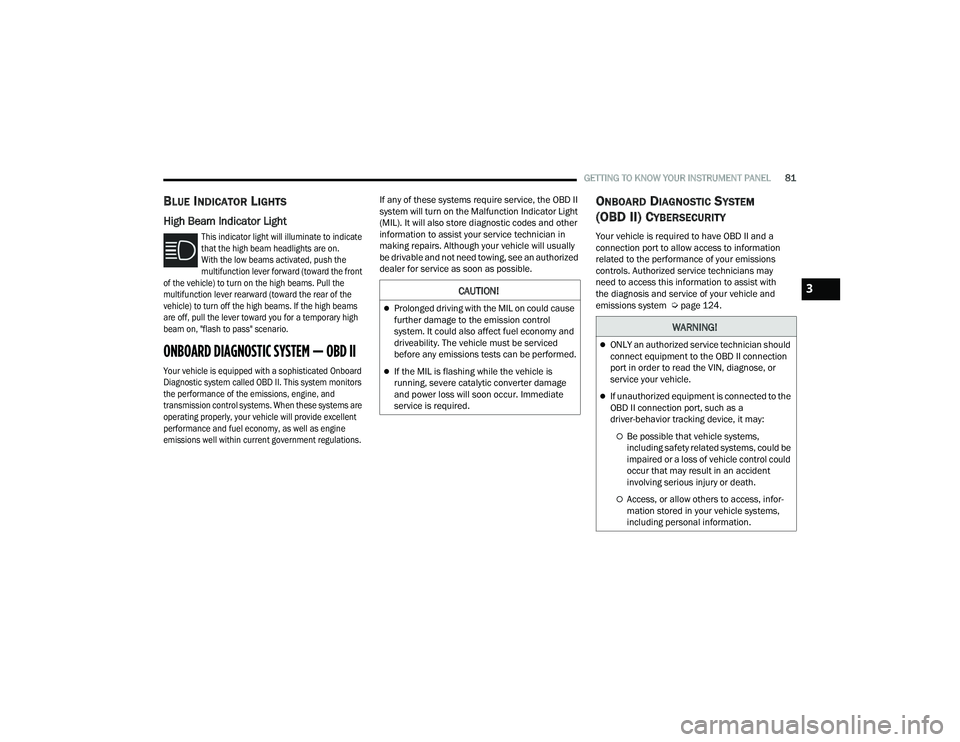
This indicator light will illuminate to indicate
that the high beam headlights are on.
With the low beams activated, push the
multifunction lever forward (toward the front
of the vehicle) to turn on the high beams. Pull the
multifunction lever rearward (toward the rear of the
vehicle) to turn off the high beams. If the high beams
are off, pull the lever toward you for a temporary high
beam on, "flash to pass" scenario.
ONBOARD DIAGNOSTIC SYSTEM — OBD II
Your vehicle is equipped with a sophisticated Onboard
Diagnostic system called OBD II. This system monitors
the performance of the emissions, engine, and
transmission control systems. When these systems are
operating properly, your vehicle will provide excellent
performance and fuel economy, as well as engine
emissions well within current government regulations.
If any of these systems require service, the OBD II
system will turn on the Malfunction Indicator Light
(MIL). It will also store diagnostic codes and other
information to assist your service technician in
making repairs. Although your vehicle will usually
be drivable and not need towing, see an authorized
dealer for service as soon as possible.
ONBOARD DIAGNOSTIC SYSTEM
(OBD II) C
YBERSECURITY
Your vehicle is required to have OBD II and a
connection port to allow access to information
related to the performance of your emissions
controls. Authorized service technicians may
need to access this information to assist with
the diagnosis and service of your vehicle and
emissions system Ú page 124.
CAUTION!
Prolonged driving with the MIL on could cause
further damage to the emission control
system. It could also affect fuel economy and
driveability. The vehicle must be serviced
before any emissions tests can be performed.
If the MIL is flashing while the vehicle is
running, severe catalytic converter damage
and power loss will soon occur. Immediate
service is required.
WARNING!
ONLY an authorized service technician should
connect equipment to the OBD II connection
port in order to read the VIN, diagnose, or
service your vehicle.
If unauthorized equipment is connected to the
OBD II connection port, such as a
driver-behavior tracking device, it may:
Be possible that vehicle systems,
including safety related systems, could be
impaired or a loss of vehicle control could
occur that may result in an accident
involving serious injury or death.
Access, or allow others to access, infor -
mation stored in your vehicle systems,
including personal information.
3
21_LD_OM_EN_USC_t.book Page 81
Page 138 of 320
136MULTIMEDIA
Phone/Bluetooth®
SiriusXM® Setup
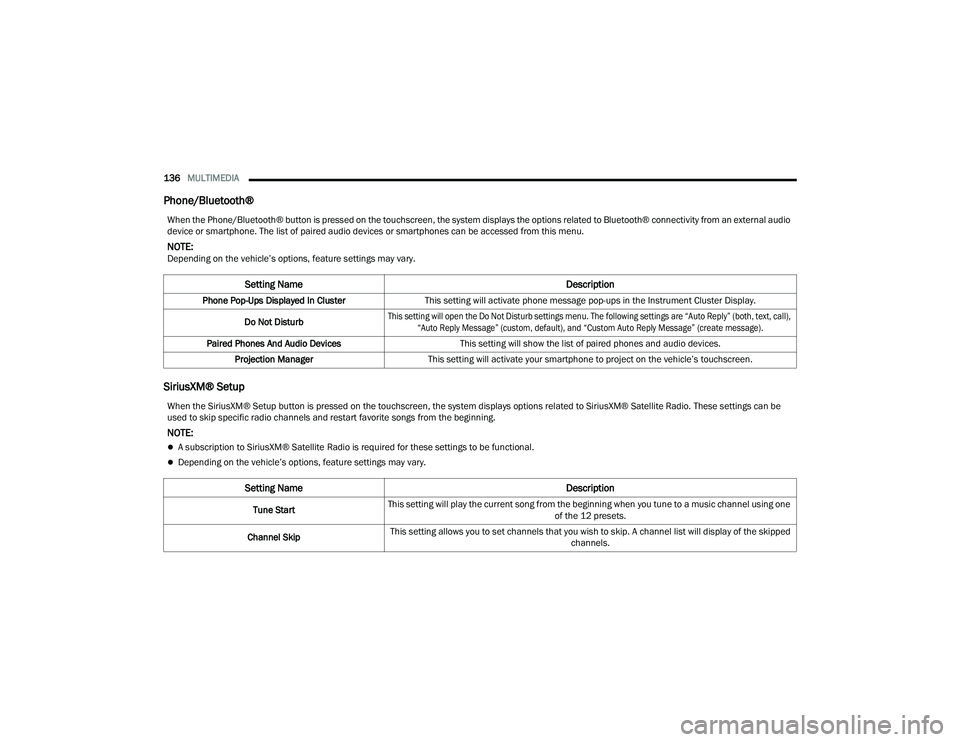
When the Phone/Bluetooth® button is pressed on the touchscreen, the system displays the options related to Bluetooth® connectivity from an external audio
device or smartphone. The list of paired audio devices or smartphones can be accessed from this menu.
NOTE:Depending on the vehicle’s options, feature settings may vary.
Setting Name Description
Phone Pop-Ups Displayed In ClusterThis setting will activate phone message pop-ups in the Instrument Cluster Display.
Do Not Disturb
This setting will open the Do Not Disturb settings menu. The following settings are “Auto Reply” (both, text, call),
“Auto Reply Message” (custom, default), and “Custom Auto Reply Message” (create message).
Paired Phones And Audio Devices This setting will show the list of paired phones and audio devices.
Projection Manager This setting will activate your smartphone to project on the vehicle’s touchscreen.
When the SiriusXM® Setup button is pressed on the touchscreen, the system displays options related to SiriusXM® Satellite Radio. These settings can be
used to skip specific radio channels and restart favorite songs from the beginning.
NOTE:
A subscription to SiriusXM® Satellite Radio is required for these settings to be functional.
Depending on the vehicle’s options, feature settings may vary.
Setting Name Description
Tune StartThis setting will play the current song from the beginning when you tune to a music channel using one
of the 12 presets.
Channel Skip This setting allows you to set channels that you wish to skip. A channel list will display of the skipped
channels.
21_LD_OM_EN_USC_t.book Page 136
Page 139 of 320
MULTIMEDIA137
Reset/Restore Settings
System Information
Subscription Information This menu provides SiriusXM® subscription information. SiriusXM® Travel Link is a separate
subscription.
Setting Name Description
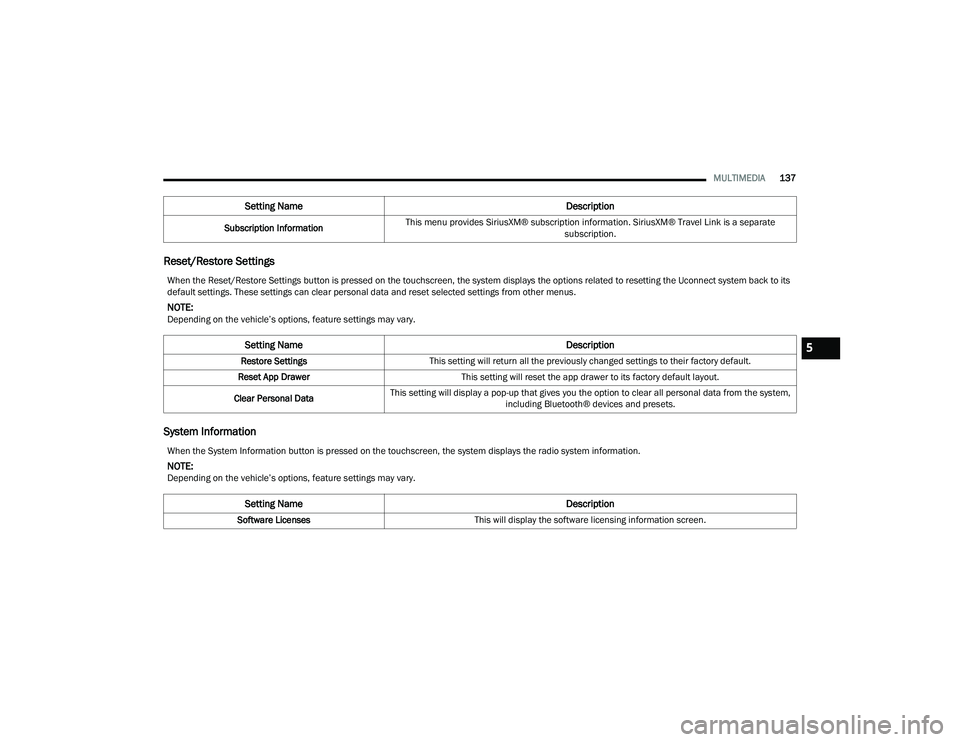
When the Reset/Restore Settings button is pressed on the touchscreen, the system displays the options related to resetting the Uconnect system back to its
default settings. These settings can clear personal data and reset selected settings from other menus.
NOTE:Depending on the vehicle’s options, feature settings may vary.
Setting NameDescription
Restore SettingsThis setting will return all the previously changed settings to their factory default.
Reset App Drawer This setting will reset the app drawer to its factory default layout.
Clear Personal Data This setting will display a pop-up that gives you the option to clear all personal data from the system,
including Bluetooth® devices and presets.
When the System Information button is pressed on the touchscreen, the system displays the radio system information.
NOTE:Depending on the vehicle’s options, feature settings may vary.
Setting Name Description
Software LicensesThis will display the software licensing information screen.
5
21_LD_OM_EN_USC_t.book Page 137
Page 143 of 320
MULTIMEDIA141
UCONNECT MODES
STEERING WHEEL AUDIO CONTROLS
The remote sound system controls are located on
the rear surface of the steering wheel at the three
and nine o’clock positions.
Remote Sound System Controls
The right-hand control is a rocker-type switch with
a push button in the center and controls the
volume and mode of the sound system. Pushing
the top of the rocker switch will increase the
volume, and pushing the bottom of the rocker
switch will decrease the volume.
Pushing the center button will make the radio
switch between the various modes available
(AM/FM/SXM or Media, etc.). The left-hand control is a rocker-type switch with a
push button in the center. The function of the
left-hand control is different depending on which
mode you are in.
The following describes the left-hand control
operation in each mode:
Radio Operation
Pushing the top of the switch will Seek Up for the
next available station and pushing the bottom of
the switch will Seek Down for the next available
station.
The button located in the center of the left-hand
control will tune to the next preset station that you
have programmed in the radio presets.
Media Mode
Pushing the top of the switch skips to the next track on
the selected media (AUX/USB/Bluetooth®). Pushing
the switch up twice will go forward two tracks. Pushing
the bottom switch goes to the beginning of the current
track, or the beginning of the previous track if it is within
eight seconds after the current track begins to play.
Double pressing the bottom button switch will skip to
the previous track if it is after eight seconds into the
current track.
RADIO MODE
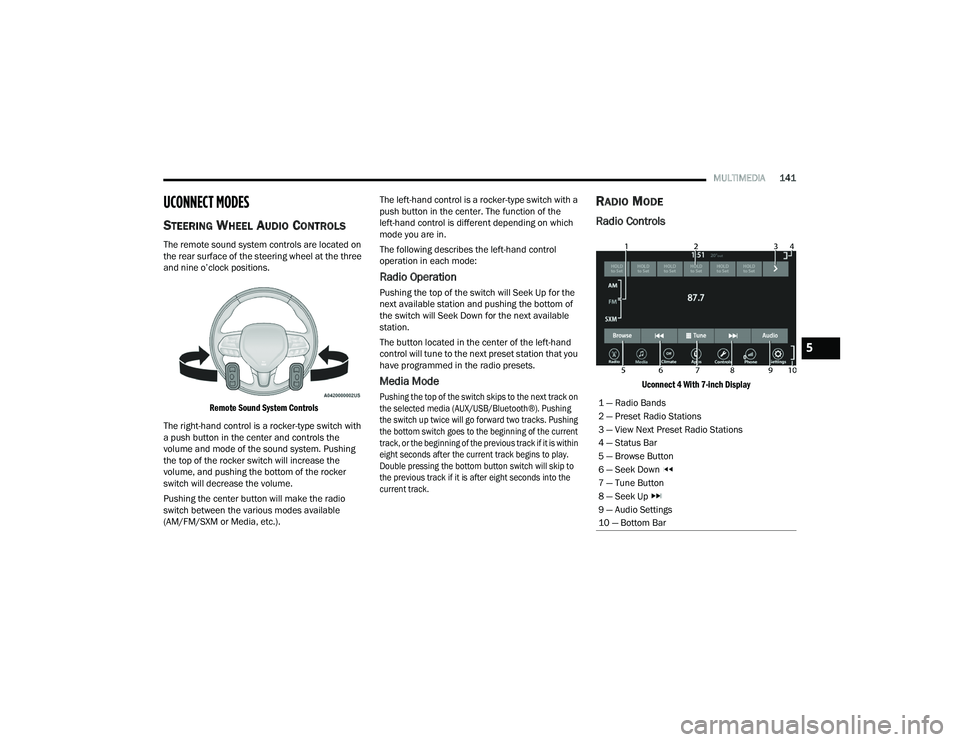
Radio Controls
Uconnect 4 With 7-inch Display
1 — Radio Bands
2 — Preset Radio Stations
3 — View Next Preset Radio Stations
4 — Status Bar
5 — Browse Button
6 — Seek Down
7 — Tune Button
8 — Seek Up
9 — Audio Settings
10 — Bottom Bar
5
21_LD_OM_EN_USC_t.book Page 141
Page 152 of 320
150MULTIMEDIA
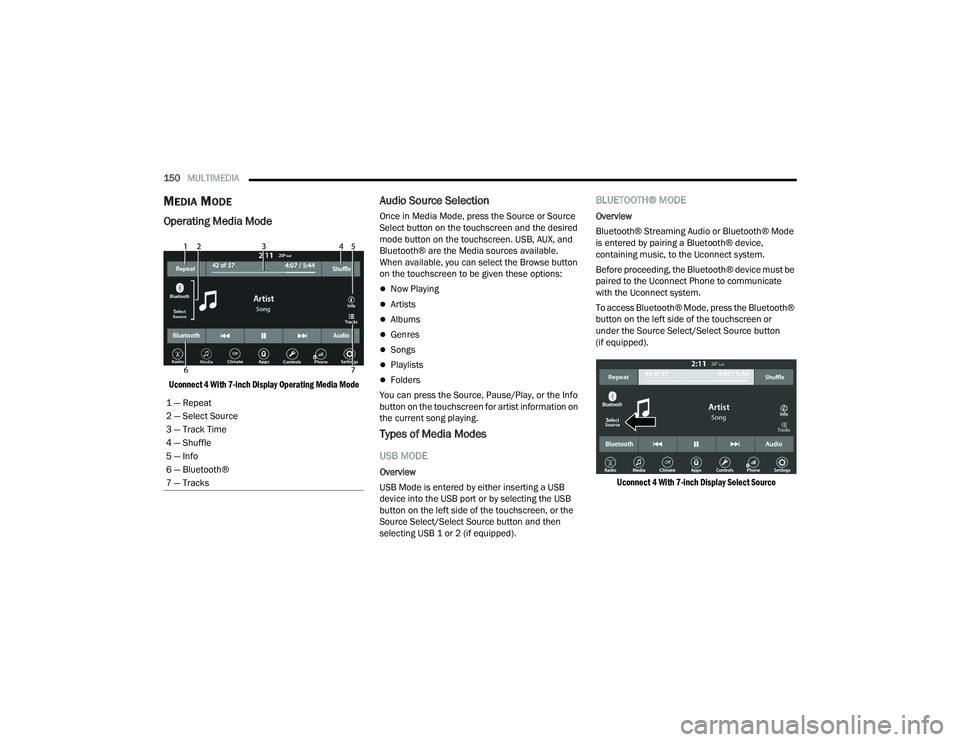
MEDIA MODE
Operating Media Mode
Uconnect 4 With 7-inch Display Operating Media Mode
Audio Source Selection
Once in Media Mode, press the Source or Source
Select button on the touchscreen and the desired
mode button on the touchscreen. USB, AUX, and
Bluetooth® are the Media sources available.
When available, you can select the Browse button
on the touchscreen to be given these options:
Now Playing
Artists
Albums
Genres
Songs
Playlists
Folders
You can press the Source, Pause/Play, or the Info
button on the touchscreen for artist information on
the current song playing.
Types of Media Modes
USB MODE
Overview
USB Mode is entered by either inserting a USB
device into the USB port or by selecting the USB
button on the left side of the touchscreen, or the
Source Select/Select Source button and then
selecting USB 1 or 2 (if equipped).
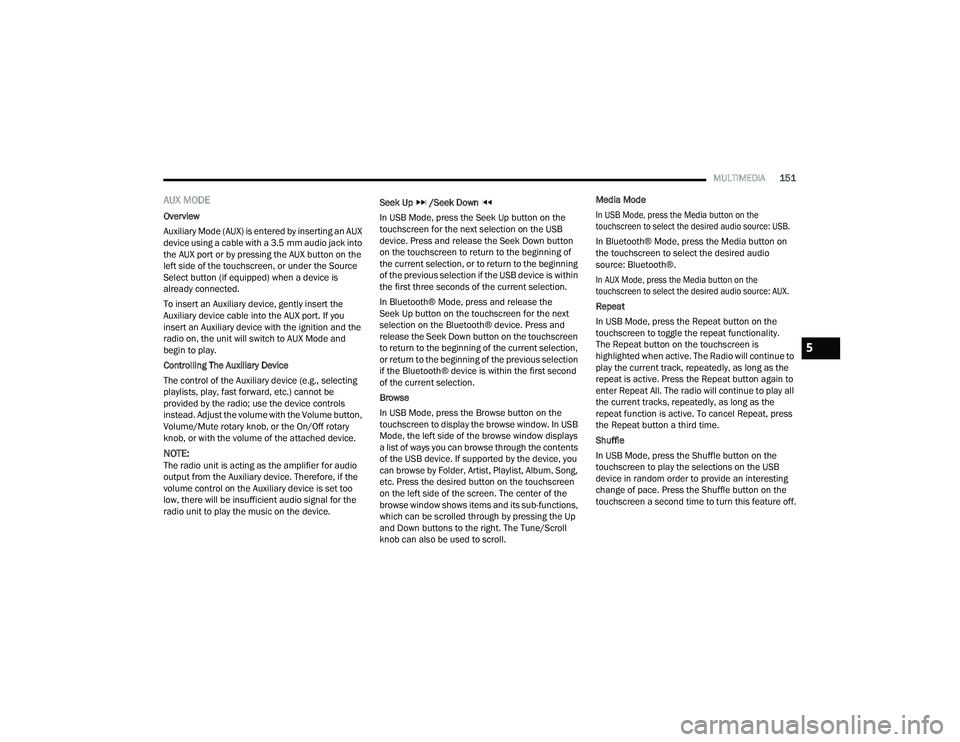
BLUETOOTH® MODE
Overview
Bluetooth® Streaming Audio or Bluetooth® Mode
is entered by pairing a Bluetooth® device,
containing music, to the Uconnect system.
Before proceeding, the Bluetooth® device must be
paired to the Uconnect Phone to communicate
with the Uconnect system.
To access Bluetooth® Mode, press the Bluetooth®
button on the left side of the touchscreen or
under the Source Select/Select Source button
(if equipped).
Uconnect 4 With 7-inch Display Select Source
1 — Repeat
2 — Select Source
3 — Track Time
4 — Shuffle
5 — Info
6 — Bluetooth®
7 — Tracks
21_LD_OM_EN_USC_t.book Page 150
Page 153 of 320
MULTIMEDIA151
AUX MODE
Overview
Auxiliary Mode (AUX) is entered by inserting an AUX
device using a cable with a 3.5 mm audio jack into
the AUX port or by pressing the AUX button on the
left side of the touchscreen, or under the Source
Select button (if equipped) when a device is
already connected.
To insert an Auxiliary device, gently insert the
Auxiliary device cable into the AUX port. If you
insert an Auxiliary device with the ignition and the
radio on, the unit will switch to AUX Mode and
begin to play.
Controlling The Auxiliary Device
The control of the Auxiliary device (e.g., selecting
playlists, play, fast forward, etc.) cannot be
provided by the radio; use the device controls
instead. Adjust the volume with the Volume button,
Volume/Mute rotary knob, or the On/Off rotary
knob, or with the volume of the attached device.
NOTE:The radio unit is acting as the amplifier for audio
output from the Auxiliary device. Therefore, if the
volume control on the Auxiliary device is set too
low, there will be insufficient audio signal for the
radio unit to play the music on the device. Seek Up
/Seek Down
In USB Mode, press the Seek Up button on the
touchscreen for the next selection on the USB
device. Press and release the Seek Down button
on the touchscreen to return to the beginning of
the current selection, or to return to the beginning
of the previous selection if the USB device is within
the first three seconds of the current selection.
In Bluetooth® Mode, press and release the
Seek Up button on the touchscreen for the next
selection on the Bluetooth® device. Press and
release the Seek Down button on the touchscreen
to return to the beginning of the current selection,
or return to the beginning of the previous selection
if the Bluetooth® device is within the first second
of the current selection.
Browse
In USB Mode, press the Browse button on the
touchscreen to display the browse window. In USB
Mode, the left side of the browse window displays
a list of ways you can browse through the contents
of the USB device. If supported by the device, you
can browse by Folder, Artist, Playlist, Album, Song,
etc. Press the desired button on the touchscreen
on the left side of the screen. The center of the
browse window shows items and its sub-functions,
which can be scrolled through by pressing the Up
and Down buttons to the right. The Tune/Scroll
knob can also be used to scroll. Media Mode
In USB Mode, press the Media button on the
touchscreen to select the desired audio source: USB.
In Bluetooth® Mode, press the Media button on
the touchscreen to select the desired audio
source: Bluetooth®.
In AUX Mode, press the Media button on the
touchscreen to select the desired audio source: AUX.
Repeat
In USB Mode, press the Repeat button on the
touchscreen to toggle the repeat functionality.
The Repeat button on the touchscreen is
highlighted when active. The Radio will continue to
play the current track, repeatedly, as long as the
repeat is active. Press the Repeat button again to
enter Repeat All. The radio will continue to play all
the current tracks, repeatedly, as long as the
repeat function is active. To cancel Repeat, press
the Repeat button a third time.
Shuffle
In USB Mode, press the Shuffle button on the
touchscreen to play the selections on the USB
device in random order to provide an interesting
change of pace. Press the Shuffle button on the
touchscreen a second time to turn this feature off.
5
21_LD_OM_EN_USC_t.book Page 151