wheel DODGE CHARGER SRT 2015 7.G Owner's Manual
[x] Cancel search | Manufacturer: DODGE, Model Year: 2015, Model line: CHARGER SRT, Model: DODGE CHARGER SRT 2015 7.GPages: 595, PDF Size: 16.43 MB
Page 248 of 595
!Uconnect® RADIOS — IF EQUIPPED........332
!iPod®/USB/MP3 CONTROL..............333
!STEERING WHEEL AUDIO CONTROLS — IF
EQUIPPED...........................334
▫Radio Operation......................335
!RADIO OPERATION AND MOBILE PHONES . .335
▫Regulatory And Safety Information.........335
!CLIMATE CONTROLS...................337
▫Dual Zone Automatic Climate Controls With
Touchscreen.........................338
▫Climate Control Functions...............343
▫Automatic Temperature Control (ATC)......345
▫Operating Tips.......................346
!Uconnect® VOICE RECOGNITION QUICK
TIPS................................350
▫Introducing Uconnect®.................350
▫Get Started..........................351
▫Basic Voice Commands..................352
▫Radio..............................353
▫Media..............................354
▫Phone..............................355
▫Voice Text Reply......................356
▫Climate (8.4A/8.4AN)..................357
▫Navigation (8.4A/8.4AN)................358
▫Uconnect® Access* (8.4A/8.4AN)..........358
▫Register (8.4A/8.4AN)..................359
246 UNDERSTANDING YOUR INSTRUMENT PANEL
Page 253 of 595
INSTRUMENT CLUSTER DESCRIPTIONS
1. Tachometer
The red segments indicate the maximum permissible
engine revolutions per minute (RPM x 1000) for each gear
range. Ease up on the accelerator before reaching the red
area. The transition of the red line starts 500 RPM prior to
the actual redline. 6.2L SC redline = 6250 RPM and 6.4L
redline = 6400 RPM.
2. High Beam Indicator
This indicator will turn on when the high beam
headlights are on. Push the multifunction lever
away from the steering wheel to switch the headlights to
high beam.
3. Brake Warning Light
This light monitors various brake functions,
including brake fluid level and parking brake
application. If the brake light turns on, it may
indicate that the parking brake is applied, that
the brake fluid level is low, or that there is a problem with
the anti-lock brake system reservoir.
If the light remains on when the parking brake has been
disengaged, and the fluid level is at the full mark on the
master cylinder reservoir, it indicates a possible brake
hydraulic system malfunction. In this case, the light will
remain on until the condition has been corrected.
The dual brake system provides a reserve braking capac-
ity in the event of a failure to a portion of the hydraulic
system. A leak in either half of the dual brake system is
indicated by the Brake Warning Light which will turn on
when the brake fluid level in the master cylinder has
dropped below a specified level.
4
UNDERSTANDING YOUR INSTRUMENT PANEL 251
Page 257 of 595
Your vehicle has also been equipped with a TPMS
malfunction indicator to indicate when the system is not
operating properly. The TPMS malfunction indicator is
combined with the low tire pressure telltale. When the
system detects a malfunction, the telltale will flash for
approximately one minute and then remain continuously
illuminated. This sequence will continue upon subse-
quent vehicle start-ups as long as the malfunction exists.
When the malfunction indicator is illuminated, the sys-
tem may not be able to detect or signal low tire pressure
as intended. TPMS malfunctions may occur for a variety
of reasons, including the installation of replacement or
alternate tires or wheels on the vehicle that prevent the
TPMS from functioning properly. Always check the
TPMS malfunction telltale after replacing one or more
tires or wheels on your vehicle, to ensure that the
replacement or alternate tires and wheels allow the TPMS
to continue to function properly.
CAUTION!
The TPMS has been optimized for the original
equipment tires and wheels. TPMS pressures and
warning have been established for the tire size
equipped on your vehicle. Undesirable system opera-
tion or sensor damage may result when using re-
placement equipment that is not of the same size,
type, and/or style. Aftermarket wheels can cause
sensor damage. Using aftermarket tire sealants may
cause the Tire Pressure Monitoring System (TPMS)
sensor to become inoperable. After using an after-
market tire sealant it is recommended that you take
your vehicle to an authorized dealership to have your
sensor function checked.
4
UNDERSTANDING YOUR INSTRUMENT PANEL 255
Page 263 of 595
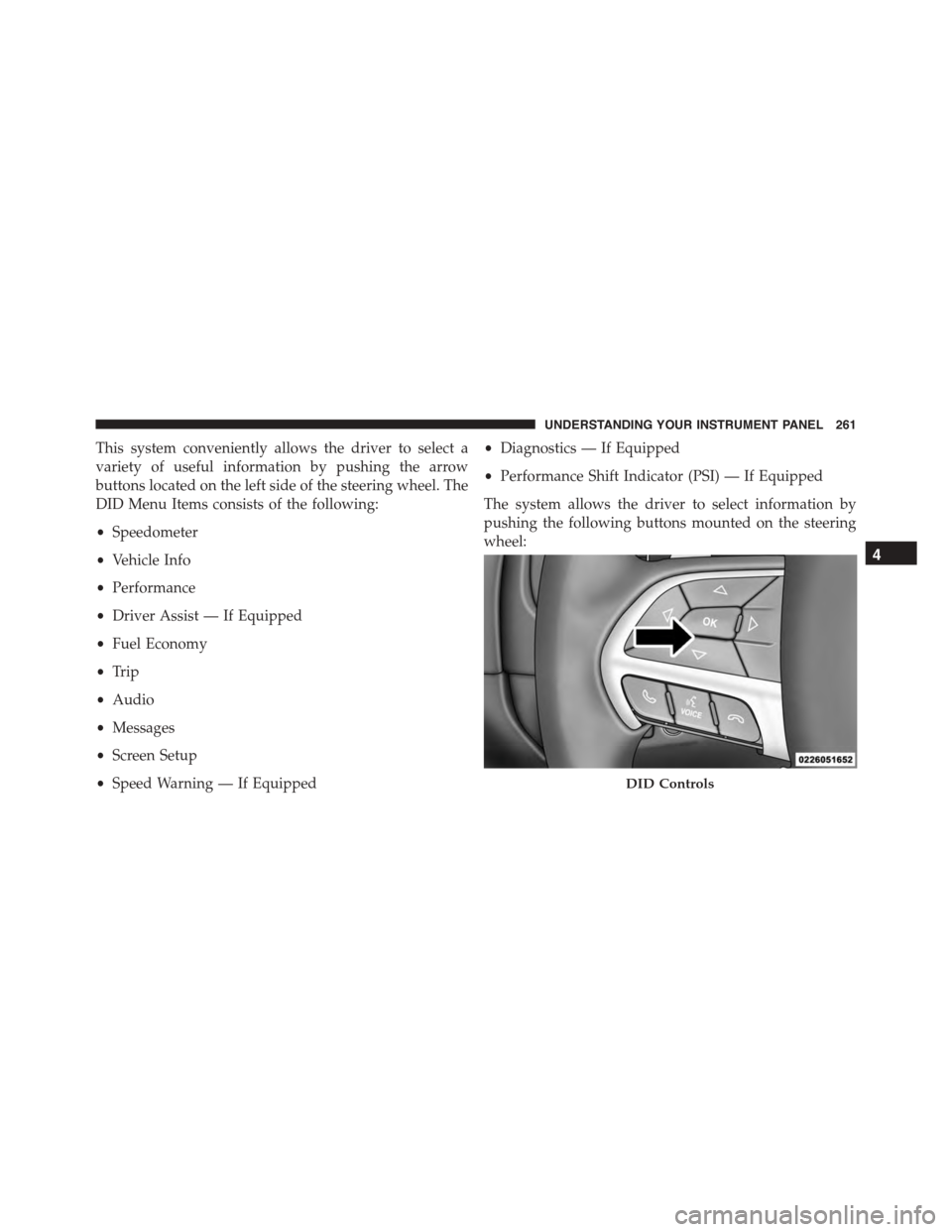
This system conveniently allows the driver to select a
variety of useful information by pushing the arrow
buttons located on the left side of the steering wheel. The
DID Menu Items consists of the following:
•Speedometer
•Vehicle Info
•Performance
•Driver Assist — If Equipped
•Fuel Economy
•Trip
•Audio
•Messages
•Screen Setup
•Speed Warning — If Equipped
•Diagnostics — If Equipped
•Performance Shift Indicator (PSI) — If Equipped
The system allows the driver to select information by
pushing the following buttons mounted on the steering
wheel:
DID Controls
4
UNDERSTANDING YOUR INSTRUMENT PANEL 261
Page 266 of 595
NOTE:If the indicator message illuminates when you
start the vehicle, the oil change indicator system did not
reset. If necessary, repeat this procedure.
Secondary Method Of Navigating To The Oil Life
Screen In The DID And Holding Ok
Your vehicle is equipped with an engine oil change
indicator system. The “Oil Change Required” message
will flash in the DID display for approximately 10
seconds after a single chime has sounded to indicate the
next scheduled oil change interval. The engine oil change
indicator system is duty cycle based, which means the
engine oil change interval may fluctuate, dependent
upon your personal driving style.
Use the steering wheel DID controls for the following
procedure(s):
1. Without pushing the brake pedal, place the ignition in
the ON/RUN position (do not start the engine).
2. Push and release theDOWNarrow button to scroll
downward through the main menu to “Vehicle Info.”
3. Push and release theRIGHTarrow button to access
the ”Oil Life” screen.
4. Push and hold theOKbutton until the “Oil Life”
screen displays.
5. Push and release theDOWNarrow button to select “
Ye s,” then push and release theOKbutton to select
reset of the Oil Life.
6. Push and release theUparrow button to exit the
submenu screen.
NOTE:If the indicator message illuminates when you
start the vehicle, the oil change indicator system did not
reset. If necessary, repeat this procedure.
264 UNDERSTANDING YOUR INSTRUMENT PANEL
Page 268 of 595
•LaneSense Failure Telltale
This telltale will turn on to indicate that the
LaneSense Departure has detected a failure.
•Service AWD Indicator
This telltale will turn on to indicate the All
Wheel Drive (AWD) system is not functioning
properly and that service is required.
DID Red Telltales
This area will show reconfigurable red caution telltales.
These telltales include:
•Power Steering System Over Temperature — If
Equipped
If the “SERVICE POWER STEERING” message
and a steering wheel icon are displayed on the
DID screen, it indicates that the vehicle needs
to be taken to the dealer for service. It is likely the vehicle
has lost power steering assistance. Refer to “Power
Steering” in “Starting And Operating” for further
information.
NOTE:
•Even if power steering assistance is no longer opera-
tional, it is still possible to steer the vehicle. Under
these conditions there will be a substantial increase in
steering effort, especially at very low vehicle speeds
and during parking maneuvers.
•If the condition persists, see your authorized dealer for
service.
•Door Ajar
This light will turn on to indicate that one or
more doors may be ajar.
266 UNDERSTANDING YOUR INSTRUMENT PANEL
Page 278 of 595
Top Speed
When selected, this screen displays the Top Speed since
last reset:
•Populates a top speed from first drive cycle and every
time that speed is exceeded that number is stored here
unless/until the driver resets the screen.
•Latching over ignition cycles.
•Units will change with the global change in units.
Driver Assist — If Equipped
Adaptive Cruise Control (ACC) Menu
The DID displays the current ACC system settings. The
information displayed depends on ACC system status.
Push the ADAPTIVE CRUISE CONTROL (ACC) ON/
OFF button (located on the steering wheel) until one of
the following displays in the DID:
Adaptive Cruise Control Off
When ACC is deactivated, the display will read “Adap-
tive Cruise Control Off.”
Adaptive Cruise Control Ready
When ACC is activated but the vehicle speed setting has
not been selected, the display will read “Adaptive Cruise
Control Ready.”
Push the SET + or the SET- button (located on the steering
wheel) and the following will display in the DID:
ACC SET
When ACC is set, the set speed will display in the
instrument cluster.
276 UNDERSTANDING YOUR INSTRUMENT PANEL
Page 290 of 595
Near. The default status of FCW is the Far setting. This
means the system will warn you of a possible collision
with the vehicle in front of you when you are farther
away. This gives you the most reaction time. To change
the setting for more dynamic driving, select the Near
setting. This warns you of a possible collision when you
are much closer to the vehicle in front of you. To change
the FCW status, press and release the “Near” or “Far”
button. Then press the back arrow button on the touch-
screen.
For further information, refer to “Adaptive Cruise Con-
trol (ACC)” in “Understanding The Features Of Your
Vehicle”.
•Forward Collision Warning (FCW) — Active Braking
The FCW system includes Advanced Brake Assist (ABA).
When this feature is selected, the ABA applies additional
brake pressure when the driver requests insufficient
brake pressure to avoid a potential frontal collision. The
ABA system becomes active at 5 mph (8 km/h). To make
your selection, press the “Forward Collision Warning
Active Braking” button on the touchscreen, until a check-
mark appears next to setting, indicating that the setting
had been selected. Press the back arrow button on the
touchscreen to return to the previous menu. For further
information, refer to “Forward Collision Warning (FCW)
With Mitigation” in “Understanding The Features Of
Your Vehicle.”
•LaneSense Warning — If Equipped
When this feature is selected, it sets the distance at which
the steering wheel will provide feedback for potential
lane departures. The LDW sensitivity can be set to
provide either an “Early,” “Medium,” or “Late” warning
zone start point.
For further information, refer to “LaneSense Warning
(LDW)” in “Understanding The Features Of Your Ve-
hicle”.
288 UNDERSTANDING YOUR INSTRUMENT PANEL
Page 291 of 595
•LaneSense Strength — If Equipped
When this feature is selected, it sets the strength of the
steering wheel feedback for potential lane departures.
The amount of directional torque the steering system can
apply to the steering wheel to correct for vehicle lane
departure can be set at “Low,” “Medium” or “High.”
For further information, refer to “Lane Departure Warn-
ing (LDW)” in “Understanding The Features Of Your
Vehicle”.
•Steering Feel Options — If Equipped
The Steering Feel Options feature will allow you to adjust
the steering effort and feel. Press the “Sport” button on
the touchscreen to provide the greatest amount of steer-
ing feel, requiring the highest amount of steering effort.
Press the “Normal” button on the touchscreen to provide
greater steering feel, requiring greater steering effort.
Press the “Comfort” button on the touchscreen to provide
a balance of steering feel and steering effort. Press the
back arrow button on the touchscreen to return to the
previous menu.
•ParkSense®
The ParkSense® system will scan for objects behind the
vehicle when the transmission shift lever is in REVERSE
and the vehicle speed is less than 11 mph (18 km/h). It
will provide an alert (audible and/or visual) to indicate
the proximity to other objects. The system can be enabled
with Sound Only, or Sound and Display. To change the
ParkSense® status, press and release the “Sound Only”
or “Sound and Display” button. Then press the back
arrow button on the touchscreen. Refer to “ParkSense®”
in “Understanding The Features Of Your Vehicle” for
system function and operating information.
4
UNDERSTANDING YOUR INSTRUMENT PANEL 289
Page 299 of 595
setting, showing that the setting has been selected. Press
the back arrow button on the touchscreen to return to the
previous menu. Refer to “Keyless Enter-N-Go™” in
“Things To Know Before Starting Your Vehicle”.
•Personal Settings Linked to Key Fob On/Off — If
Equipped
This feature provides automatic recall of all settings
stored to a memory location (driver ’s seat, exterior
mirrors, steering column position and radio station pre-
sets) to enhance driver mobility when entering and
exiting the vehicle. To make your selection, press the
“Personal Settings Linked to Key Fob” button on the
touchscreen, until a check-mark appears next to setting,
showing that setting has been selected. Press the back
arrow button on the touchscreen to return to the previous
menu, or push the back button on the faceplate.
NOTE:The seat will return to the memorized seat
location (if Recall Memory with Remote Key Unlock is set
to ON) when the Remote Keyless Entry (RKE) transmitter
is used to unlock the door. Refer to “Driver Memory
Seat” in “Understanding The Features Of Your Vehicle”
for further information.
Auto Comfort Systems — If Equipped
After pressing the “Auto-On Comfort” button on the
touchscreen the following settings will be available:
•Auto-On Driver Heated/Ventilated Seat & Steering
Wheel With Vehicle Start — If Equipped
When this feature is selected the driver’s heated seat and
heated steering wheel will automatically turn ON when
temperatures are below 40° F (4.4° C). When tempera-
tures are above 80° F (26.7° C) the driver vented seat will
turn ON. To make your selection, press the “Auto-On
Driver Heated/Ventilated Seat & Steering Wheel With
4
UNDERSTANDING YOUR INSTRUMENT PANEL 297