radio DODGE CHARGER SRT 2015 7.G Uconnect 5
[x] Cancel search | Manufacturer: DODGE, Model Year: 2015, Model line: CHARGER SRT, Model: DODGE CHARGER SRT 2015 7.GPages: 56, PDF Size: 1.09 MB
Page 2 of 56
TABLE OF CONTENTSSECTIONPAGE
1IDENTIFYING YOUR RADIO....................................................3
2RADIO MODE...............................................................9
3MEDIA MODE. . . . . . . . . . . . . . . . . . . . . . . . . . . . . . . . . . . . . . . . . . . . . . . . . . . . . . . . . . . . . . 17
4UCONNECT® PHONE. . . . . . . . . . . . . . . . . . . . . . . . . . . . . . . . . . . . . . . . . . . . . . . . . . . . . . . . . 25
5UCONNECT® 5.0 VOICE RECOGNITION QUICK TIPS. . . . . . . . . . . . . . . . . . . . . . . . . . . . . . 31
6SETTINGS MAIN MENU. . . . . . . . . . . . . . . . . . . . . . . . . . . . . . . . . . . . . . . . . . . . . . . . . . . . . . 41
7+ MORE MAIN MENU . . . . . . . . . . . . . . . . . . . . . . . . . . . . . . . . . . . . . . . . . . . . . . . . . . . . . . . . 47
8SAFETY GUIDELINES. . . . . . . . . . . . . . . . . . . . . . . . . . . . . . . . . . . . . . . . . . . . . . . . . . . . . . . . . 49
1
2
3
4
5
6
7
8
Page 4 of 56
IDENTIFYING YOUR RADIO
CONTENTS
!IDENTIFYING YOUR RADIO. . . . . . . . . . . . . . . .4
▫Uconnect® 5.0 System With Integrated Center
Stack. . . . . . . . . . . . . . . . . . . . . . . . . . . . . . . .5
▫Uconnect® 5.0 System w/o Integrated Center
Stack. . . . . . . . . . . . . . . . . . . . . . . . . . . . . . . .7
1
Page 5 of 56
IDENTIFYING YOUR RADIO
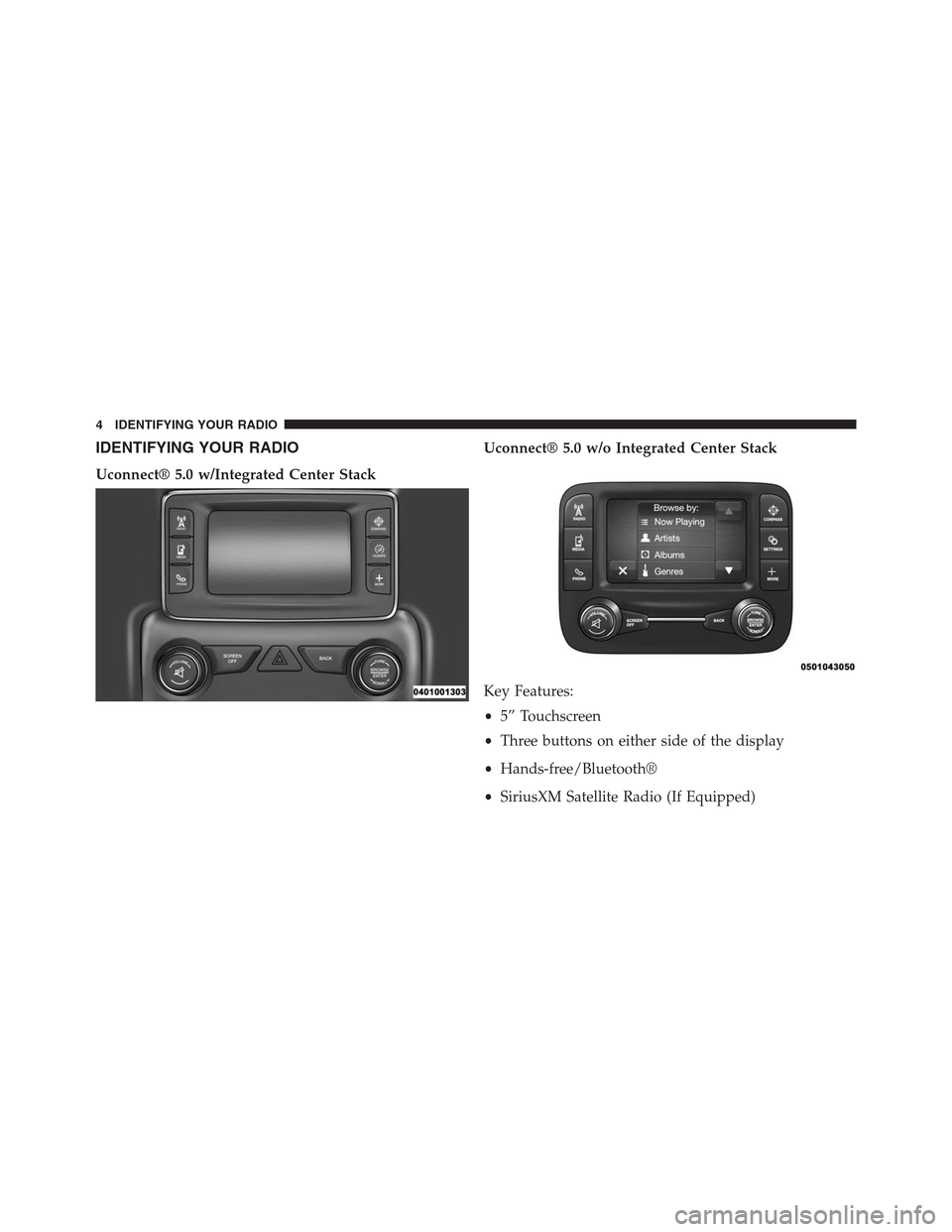
Uconnect® 5.0 w/Integrated Center Stack
Uconnect® 5.0 w/o Integrated Center Stack
Key Features:
•5” Touchscreen
•Three buttons on either side of the display
•Hands-free/Bluetooth®
•SiriusXM Satellite Radio (If Equipped)
4 IDENTIFYING YOUR RADIO
Page 6 of 56
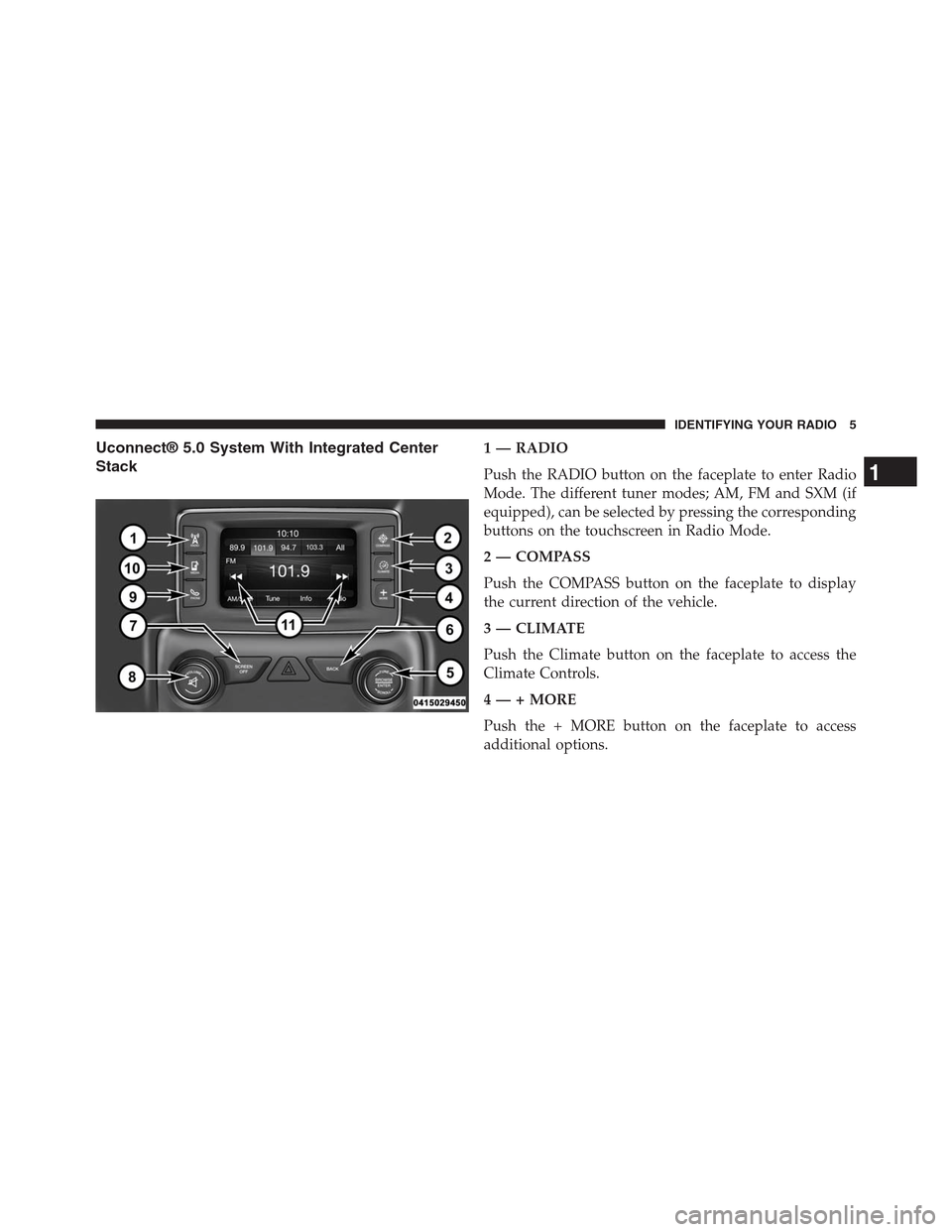
Uconnect® 5.0 System With Integrated Center
Stack
1 — RADIO
Push the RADIO button on the faceplate to enter Radio
Mode. The different tuner modes; AM, FM and SXM (if
equipped), can be selected by pressing the corresponding
buttons on the touchscreen in Radio Mode.
2 — COMPASS
Push the COMPASS button on the faceplate to display
the current direction of the vehicle.
3 — CLIMATE
Push the Climate button on the faceplate to access the
Climate Controls.
4 — + MORE
Push the + MORE button on the faceplate to access
additional options.
1
IDENTIFYING YOUR RADIO 5
Page 7 of 56
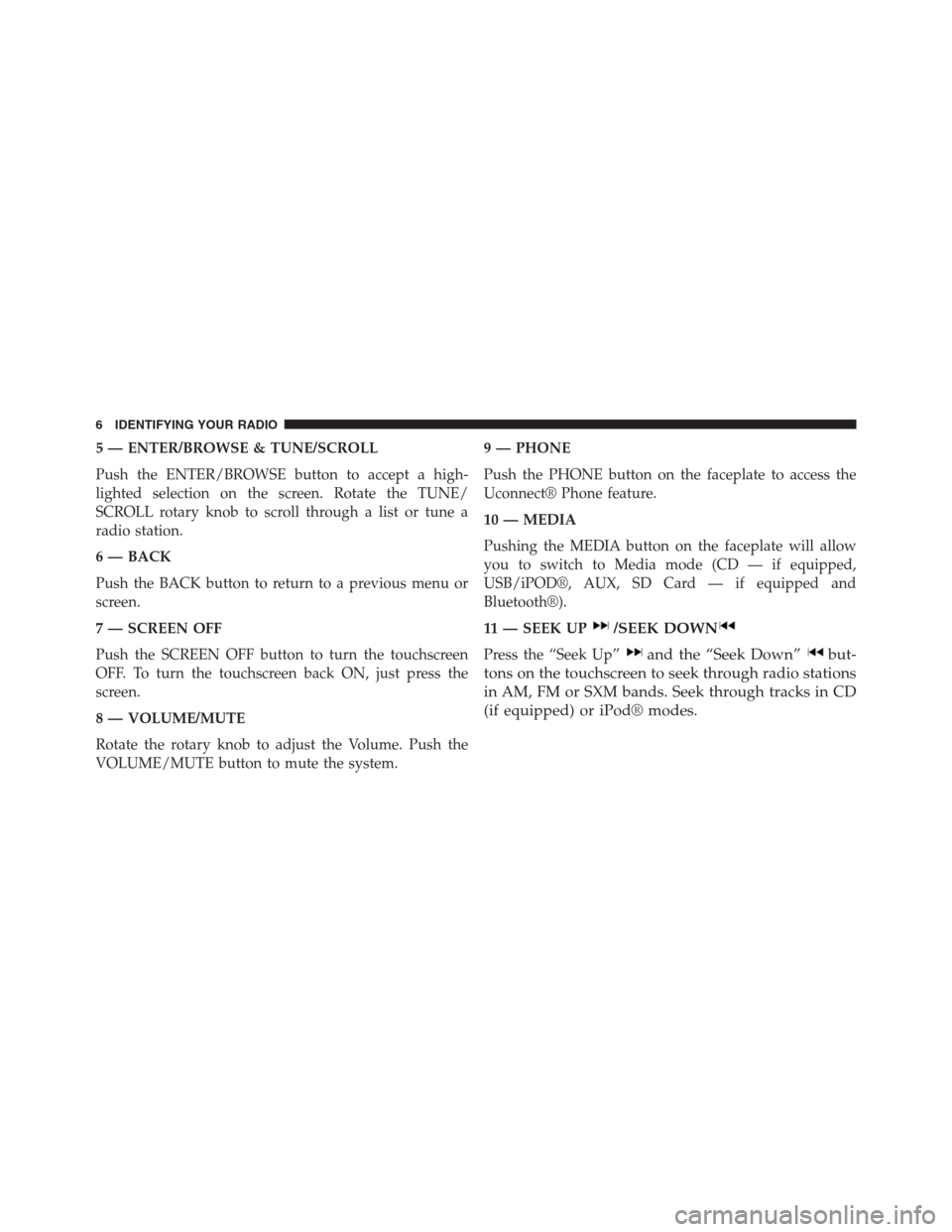
5 — ENTER/BROWSE & TUNE/SCROLL
Push the ENTER/BROWSE button to accept a high-
lighted selection on the screen. Rotate the TUNE/
SCROLL rotary knob to scroll through a list or tune a
radio station.
6 — BACK
Push the BACK button to return to a previous menu or
screen.
7 — SCREEN OFF
Push the SCREEN OFF button to turn the touchscreen
OFF. To turn the touchscreen back ON, just press the
screen.
8 — VOLUME/MUTE
Rotate the rotary knob to adjust the Volume. Push the
VOLUME/MUTE button to mute the system.
9 — PHONE
Push the PHONE button on the faceplate to access the
Uconnect® Phone feature.
10 — MEDIA
Pushing the MEDIA button on the faceplate will allow
you to switch to Media mode (CD — if equipped,
USB/iPOD®, AUX, SD Card — if equipped and
Bluetooth®).
11 — SEEK UP/SEEK DOWN
Press the “Seek Up”and the “Seek Down”but-
tons on the touchscreen to seek through radio stations
in AM, FM or SXM bands. Seek through tracks in CD
(if equipped) or iPod® modes.
6 IDENTIFYING YOUR RADIO
Page 8 of 56
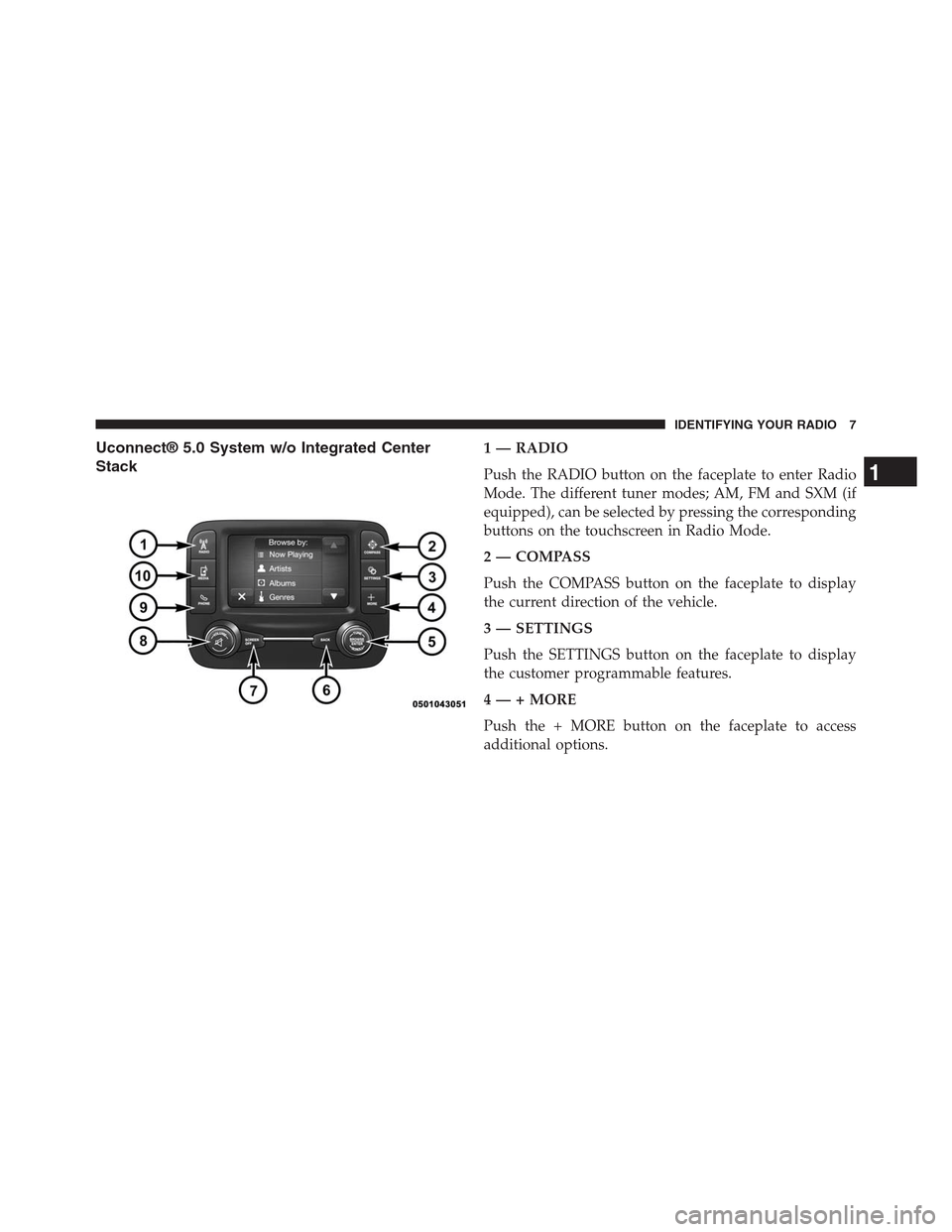
Uconnect® 5.0 System w/o Integrated Center
Stack
1 — RADIO
Push the RADIO button on the faceplate to enter Radio
Mode. The different tuner modes; AM, FM and SXM (if
equipped), can be selected by pressing the corresponding
buttons on the touchscreen in Radio Mode.
2 — COMPASS
Push the COMPASS button on the faceplate to display
the current direction of the vehicle.
3 — SETTINGS
Push the SETTINGS button on the faceplate to display
the customer programmable features.
4 — + MORE
Push the + MORE button on the faceplate to access
additional options.
1
IDENTIFYING YOUR RADIO 7
Page 9 of 56
5 — ENTER/BROWSE & TUNE/SCROLL
Push the ENTER/BROWSE button to accept a high-
lighted selection on the screen. Rotate the TUNE/
SCROLL rotary knob to scroll through a list or tune a
radio station.
6 — BACK
Push the BACK button to return to a previous menu or
screen.
7 — SCREEN OFF
Push the SCREEN OFF button to turn the touchscreen
OFF. To turn the touchscreen back ON, just press the
screen.
8 — VOLUME/MUTE
Rotate the rotary knob to adjust the Volume. Push the
VOLUME/MUTE button to mute the system.
9 — PHONE
Push the PHONE button on the faceplate to access the
Uconnect® Phone feature.
10 — MEDIA
Pushing the MEDIA button on the faceplate will allow
you to switch to Media mode (CD — if equipped,
USB/iPOD®, AUX, SD Card — if equipped and
Bluetooth®).
8 IDENTIFYING YOUR RADIO
Page 10 of 56
RADIO MODE
CONTENTS
!RADIO MODE. . . . . . . . . . . . . . . . . . . . . . . . . .10
▫Volume/Mute. . . . . . . . . . . . . . . . . . . . . . . . .10
▫Enter/Browse & Tune/Scroll Control. . . . . . . .10
▫Seek Functions. . . . . . . . . . . . . . . . . . . . . . . .10
▫Setting Presets. . . . . . . . . . . . . . . . . . . . . . . . .11
▫SiriusXM Satellite Radio Mode — If Equipped . .12
▫SiriusXM All Access Package. . . . . . . . . . . . . .12
▫Audio. . . . . . . . . . . . . . . . . . . . . . . . . . . . . .13
▫Clock Setting. . . . . . . . . . . . . . . . . . . . . . . . .15
2
Page 11 of 56
RADIO MODE
The radio is equipped with the following modes:
•AM
•FM
•SXM SiriusXM Satellite Radio (If Equipped)
Push the RADIO button on the faceplate to enter Radio
Mode. The different tuner modes; AM, FM, and SXM, can
then be selected by pressing the corresponding button on
the touchscreen in the Radio mode.
Volume/Mute
Rotate the VOLUME/MUTE rotary knob to adjust the
Volume. When the audio system is turned on, the sound
will be set at the same volume level as last played.
Push the VOLUME/MUTE button to mute the system.
Push the VOLUME/MUTE button again to unmute the
system.
Enter/Browse & Tune/Scroll Control
Turn the rotary TUNE/SCROLL control knob clockwise
to increase or counterclockwise to decrease the radio
station frequency. Push the ENTER/BROWSE button to
choose a selection.
Seek Functions
Seek Up
Press and release the “Seek Up”button on the
touchscreen to tune the radio to the next listenable
station or channel.
During a Seek Up function, if the radio reaches the
starting station after passing through the entire band two
times, the radio will stop at the station where it began.
10 RADIO MODE
Page 12 of 56
Fast Seek Up
Press and hold the “Seek Up”button on the touch-
screen to advance the radio through the available
stations or channels at a faster rate, the radio stops at
the next available station or channel when the button
on the touchscreen is released.
Seek Down
Press and release the “Seek Down”button on the
touchscreen to tune the radio to the next listenable
station or channel.
During a Seek Down function, if the radio reaches the
starting station after passing through the entire band two
times, the radio will stop at the station where it began.
Fast Seek Down
Press and hold the “Seek Down”button on the
touchscreen to advance the radio through the avail-
able stations or channel at a faster rate, the radio stops
at the next available station or channel when the
button on the touchscreen is released.
Setting Presets
The Presets are available for all Radio Modes, and are
activated by pressing any of the four “Preset” buttons on
the touchscreen, located at the top of the screen.
When you are receiving a station that you wish to
commit into memory, press and hold the desired num-
bered button on the touchscreen for more that two
seconds or until you hear a confirmation beep.
The Radio stores up to 12 presets in each of the Radio modes.
Four presets are visible at the top of the radio screen.
2
RADIO MODE 11