bluetooth DODGE CHARGER SRT 2015 7.G Uconnect 8.4A
[x] Cancel search | Manufacturer: DODGE, Model Year: 2015, Model line: CHARGER SRT, Model: DODGE CHARGER SRT 2015 7.GPages: 429, PDF Size: 4.01 MB
Page 104 of 429
10.Can I use Text Messaging if the “messaging” button
doesn’t turn white?Only MAP compatible phones
will work with Text Messaging. If your phone is
compatible, the “messaging” light will turn white,
after the phone is Bluetooth® connected, and you
will then be able to do hands free Text Messaging.
The system will respond with “Sorry, I didn’t under-
stand you” if you push the steering wheel “Phone”
button and say a voice command for Text Messaging,
when the button isn’t active (“white”).
Remote Door Lock/Unlock
Lock Or Unlock Your Vehicle From Virtually Anywhere
Using Your Computer Or Smartphone App.
Description
The Remote Door Lock/Unlock feature provides you the
ability to lock or unlock the door on your vehicle,
without the keys and from virtually any distance. You
can send a request to your vehicle in one of three ways:
•Using the Uconnect® Access App from a compatible
smartphone
•From the Mopar® Owner Connect website
(moparownerconnect.com)
•Contacting Uconnect® Care
If you want, you can set up notifications for your account
to receive an email or text (SMS) message every time a
command is sent to lock or unlock your doors.
How It Works
Uconnect® Access App:
1. Download the Uconnect® Access App to a compatible
smartphone and login using your username and pass-
word.
2. To lock the doors, push the button with the closed lock
icon; to unlock the driver ’s door push the button with
the open lock icon.
2
ALL ABOUT Uconnect® ACCESS 103
Page 122 of 429
How It Works
Via Mobile uses the Uconnect® Access smartphone app
and your smartphone’s data plan to access your personal
Pandora® account from the vehicle and control it using
the vehicle touchscreen. A compatible smartphone is
required. The Pandora® mobile app on your phone does
not need to be launched to use Pandora® Via Mobile.
1. If you haven’t yet registered with Uconnect® Access,
begin by pushing the “Apps” icon on the touchscreen
inside your vehicle, and then push “Uconnect Regis-
tration.”
2. Once you receive an email from “Uconnect Access,”
click on the secure link to complete your registration
onmoparownerconnect.comwhere you’ll be guided
through setup of your Via Mobile profile.
3. Next, link app accounts to your Via Mobile profile by
entering your login information for Pandora®.
If you’ve already registered with Uconnect® Access,
log in tomoparownerconnect.comto set up your Via
Mobile profile. Click on “Via Mobile Profile.”
4. Next, connect your smartphone to the vehicle touch-
screen. The Uconnect® Access app is compatible with
select iPhone® and Android smartphones. Visit
UconnectPhone.comto confirm that your smart-
phone is compatible with Uconnect®. Once you’ve
confirmed your smartphone is compatible, pair it to
the vehicle touchscreen via Bluetooth® to use Via
Mobile apps. If using an iPhone®, a USB cable may
also be supported for the data connection.
2
ALL ABOUT Uconnect® ACCESS 121
Page 124 of 429
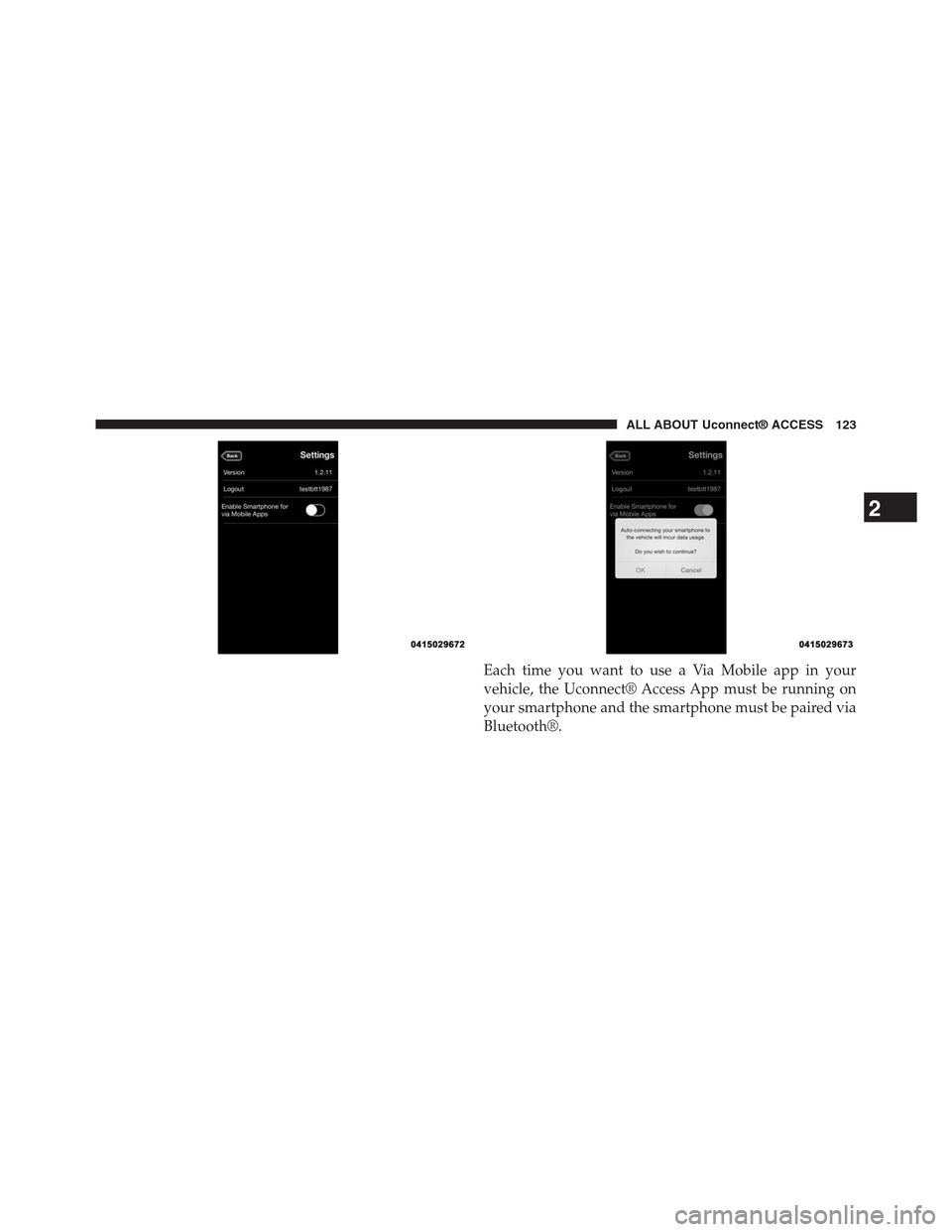
Each time you want to use a Via Mobile app in your
vehicle, the Uconnect® Access App must be running on
your smartphone and the smartphone must be paired via
Bluetooth®.
2
ALL ABOUT Uconnect® ACCESS 123
Page 130 of 429
the vehicle touchscreen. A compatible smartphone is
required. The iHeartRadio mobile app on your phone
does not need to be launched to use iHeartRadio Via
Mobile.
1. If you haven’t yet registered with Uconnect® Access,
begin by pressing the “Apps” icon on the touchscreen
inside your vehicle, and then press “Uconnect Regis-
tration.”
2. Once you receive an email from “Uconnect Access,”
click on the secure link to complete your registration
onmoparownerconnect.comwhere you’ll be guided
through setup of your Via Mobile profile.
3. Next, link app accounts to your Via Mobile profile by
entering your login information for apps like iHeart-
Radio.
If you’ve already registered with Uconnect® Access,
log in tomoparownerconnect.comto set up your Via
Mobile profile. Click on “Via Mobile Profile”.
4. Connect your smartphone to the vehicle touchscreen.
The Uconnect® Access app is compatible with select
iPhone® and Android smartphones. Visit
UconnectPhone.comto confirm that your smart-
phone is compatible with Uconnect®. Once you’ve
confirmed your smartphone is compatible, pair it to
the vehicle touchscreen via Bluetooth® to use Via
Mobile apps. If using an iPhone®, a USB cable may
also be supported for the data connection.
5. Launch the Uconnect® Access app on your connected
smartphone and log in with your Mopar Owner
Connect Username/Email and password. From the
vehicle touchscreen press the “Apps” button and
select iHeartRadio from the list. iHeartRadio is located
within the “All Apps” tab. To launch iHeartRadio
using voice recognition, push the button on the steer-
ing wheel and say, “launch iHeartRadio Via Mobile.”
2
ALL ABOUT Uconnect® ACCESS 129
Page 132 of 429
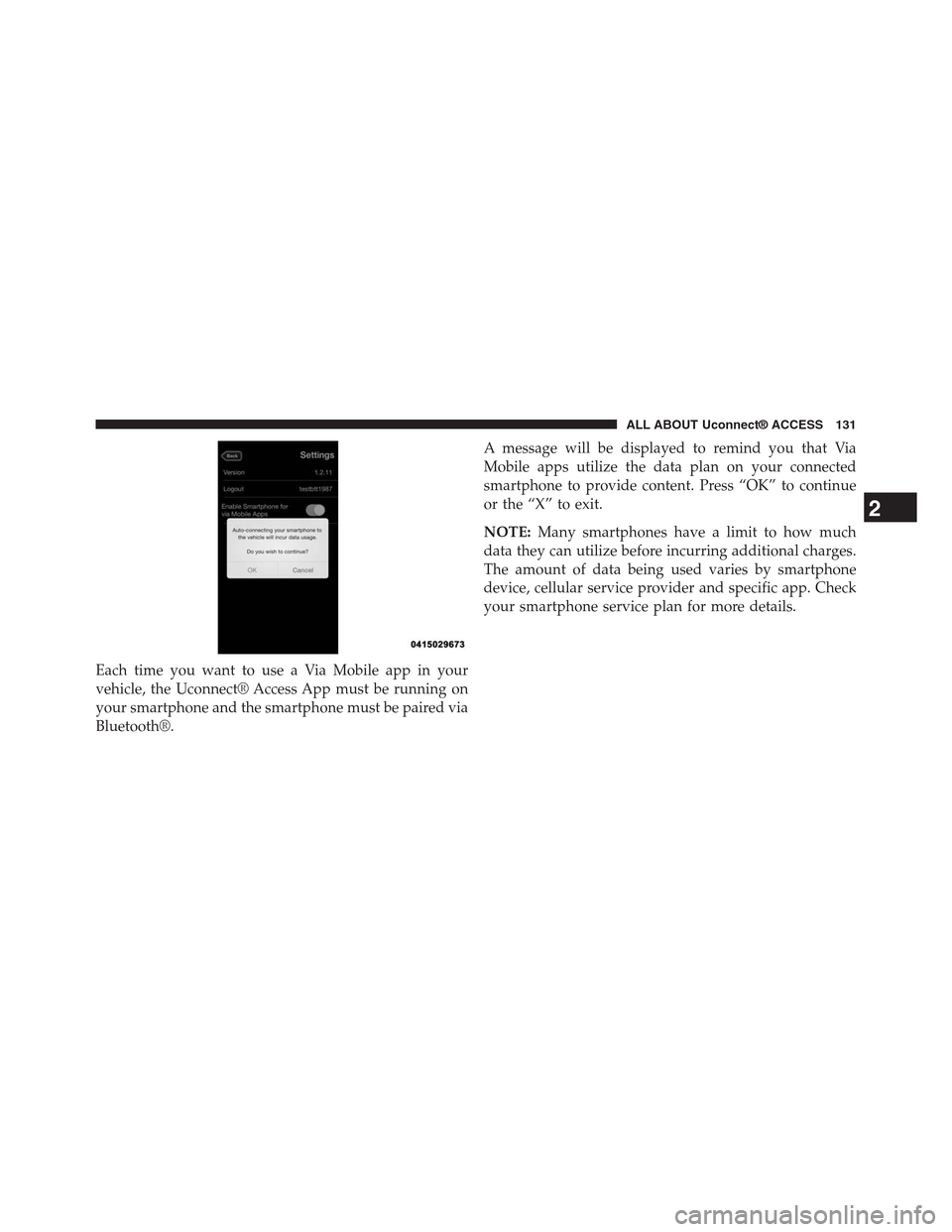
Each time you want to use a Via Mobile app in your
vehicle, the Uconnect® Access App must be running on
your smartphone and the smartphone must be paired via
Bluetooth®.
A message will be displayed to remind you that Via
Mobile apps utilize the data plan on your connected
smartphone to provide content. Press “OK” to continue
or the “X” to exit.
NOTE:Many smartphones have a limit to how much
data they can utilize before incurring additional charges.
The amount of data being used varies by smartphone
device, cellular service provider and specific app. Check
your smartphone service plan for more details.
2
ALL ABOUT Uconnect® ACCESS 131
Page 139 of 429
1. If you have not registered with Uconnect® Access,
begin by pressing the “Apps” button on the touch-
screen inside your vehicle, and then press “Uconnect
Registration.”
2. Once you receive an email from “Uconnect Access,”
click on the secure link to complete your registration
onmoparownerconnect.comwhere you’ll be guided
through setup of your Via Mobile profile.
3. Next, link app accounts to your Via Mobile profile by
entering your login information for apps like Slacker
Radio.
If you’ve already registered with Uconnect Access, log
in tomoparownerconnect.comto set up your Via
Mobile profile. Click on “Via Mobile Profile”.
4. Next, connect your smartphone to the vehicle touch-
screen. The Uconnect® Access app is compatible with
select iPhone® and Android smartphones. Visit
UconnectPhone.comto confirm that your smart-
phone is compatible with Uconnect®. Once you’ve
confirmed your smartphone is compatible, pair it to
the vehicle touchscreen via Bluetooth® to use Via
Mobile apps. If using an iPhone®, a USB cable may
also be supported for the data connection.
5. Launch the Uconnect® Access app on your connected
smartphone and log in with your Mopar Owner
Connect Username/Email and password. From the
vehicle touchscreen press the “Apps” button and
select Slacker Radio from the list. Slacker Radio is
located within the “All Apps” tab. To launch Slacker
Radio using voice recognition, push the button on the
steering wheel and say, “launch Slacker Via Mobile.”
138 ALL ABOUT Uconnect® ACCESS
Page 141 of 429
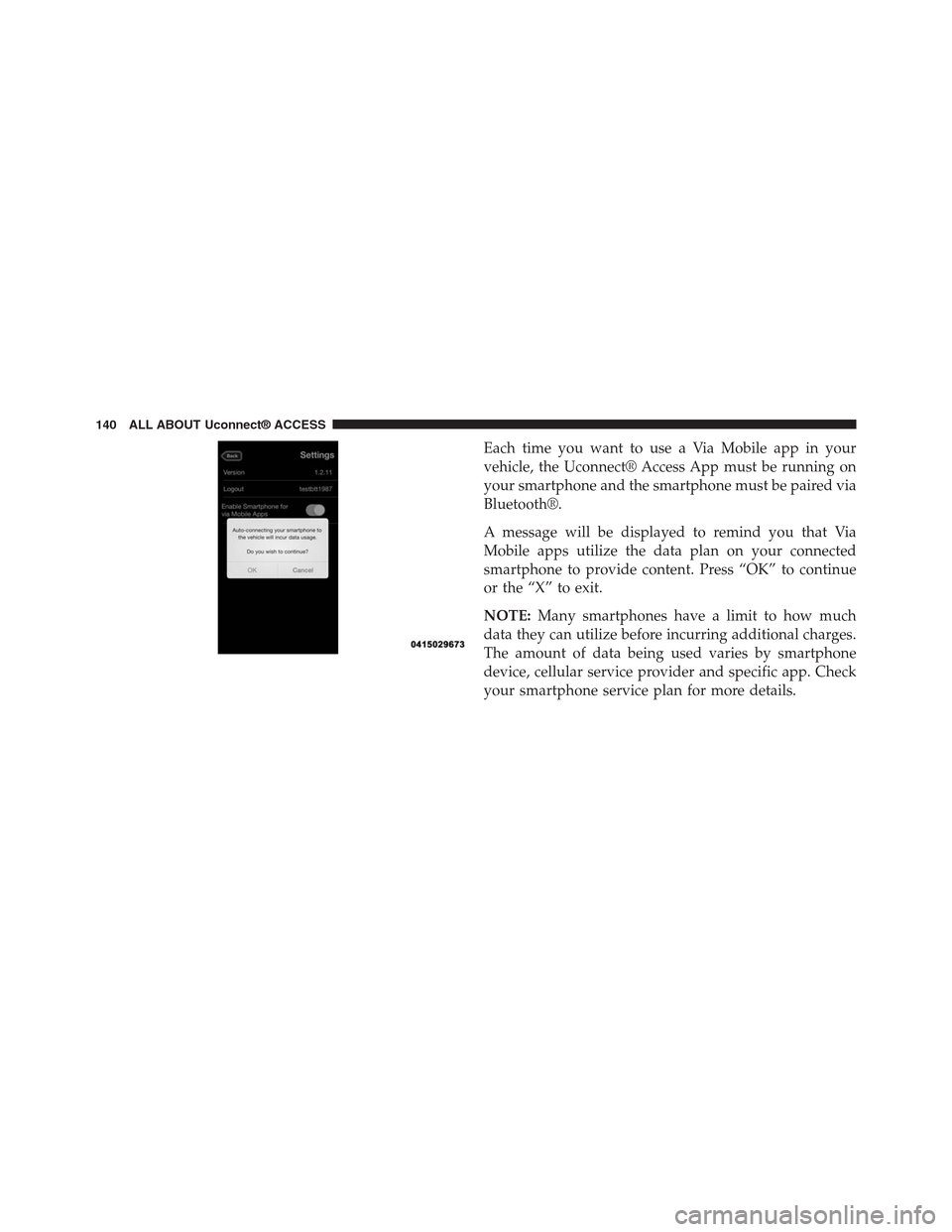
Each time you want to use a Via Mobile app in your
vehicle, the Uconnect® Access App must be running on
your smartphone and the smartphone must be paired via
Bluetooth®.
A message will be displayed to remind you that Via
Mobile apps utilize the data plan on your connected
smartphone to provide content. Press “OK” to continue
or the “X” to exit.
NOTE:Many smartphones have a limit to how much
data they can utilize before incurring additional charges.
The amount of data being used varies by smartphone
device, cellular service provider and specific app. Check
your smartphone service plan for more details.
140 ALL ABOUT Uconnect® ACCESS
Page 147 of 429
1. If you have not yet registered with Uconnect® Access,
begin by pressing the “Apps” icon on the touchscreen
inside your vehicle, then pressing “Uconnect Registra-
tion.”
2. Once you receive an email from “Uconnect Access,”
click on the secure link to complete your registration
onmoparownerconnect.comwhere you will be
guided through the setup of your Via Mobile profile.
3. Next, link app accounts to your Via Mobile profile by
entering your login information for Aha™.
If you have already registered with Uconnect® Access,
log in tomoparownerconnect.comto set up your Via
Mobile profile. Click on “Via Mobile Profile.”
4. Next, connect your smartphone to the vehicle touch-
screen. The Uconnect® Access app is compatible with
select iPhone® and Android smartphones. Visit
UconnectPhone.comto confirm that your smart-
phone is compatible with Uconnect. Once you have
confirmed your smartphone is compatible, pair it to
the vehicle touchscreen via Bluetooth® to use Via
Mobile apps. If using an iPhone®, a USB cable may
also be supported for the data connection.
5. Launch the Uconnect® Access app on your connected
smartphone and log in with your Mopar Owner
Connect Username/Email and password. From the
vehicle touchscreen press the#Apps#button and select
Aha™ from the list. Aha™ is located within the “All
Apps” tab. To launch Aha™ using voice recognition,
push the VR button on the steering wheel and say,
“launch Aha™ Via Mobile.”
146 ALL ABOUT Uconnect® ACCESS
Page 149 of 429
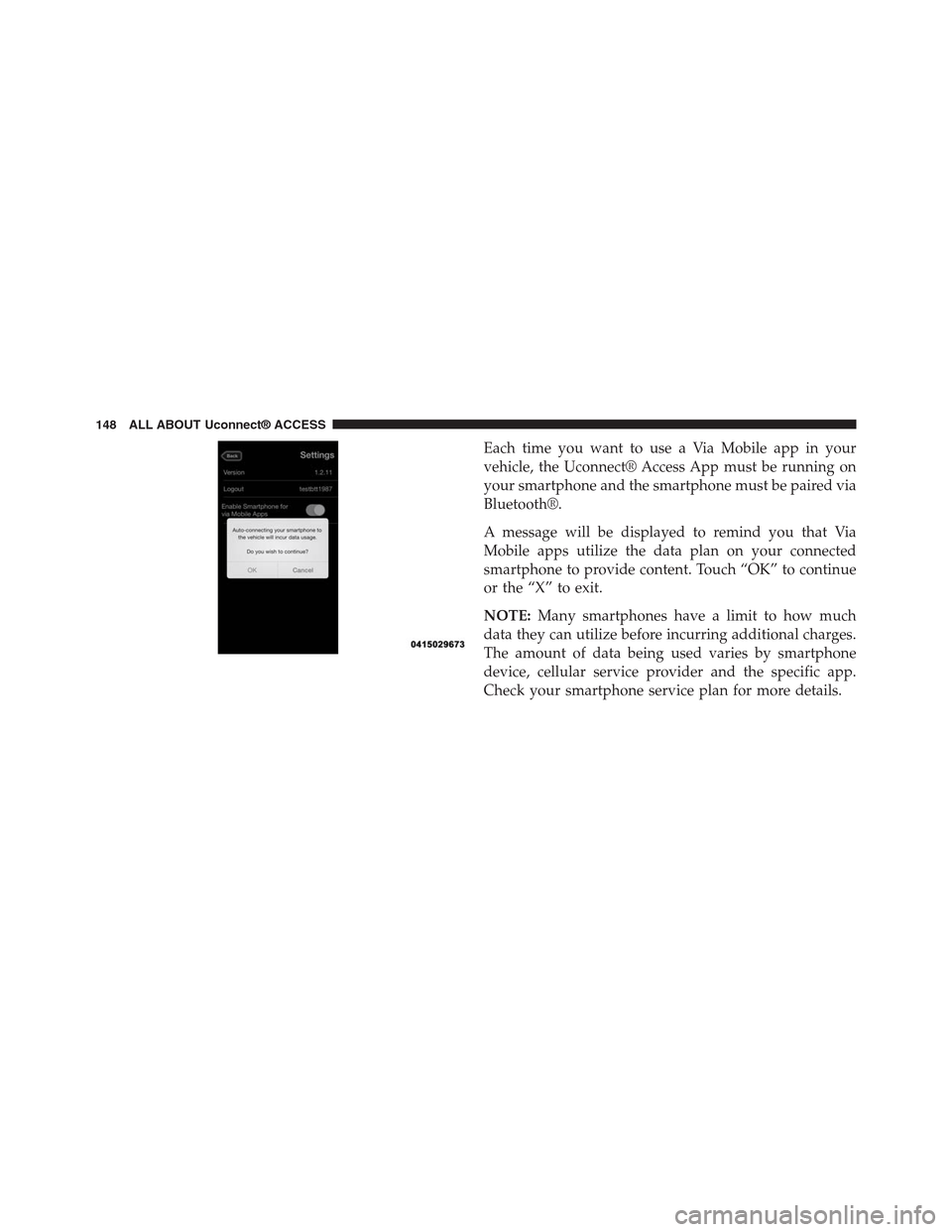
Each time you want to use a Via Mobile app in your
vehicle, the Uconnect® Access App must be running on
your smartphone and the smartphone must be paired via
Bluetooth®.
A message will be displayed to remind you that Via
Mobile apps utilize the data plan on your connected
smartphone to provide content. Touch “OK” to continue
or the “X” to exit.
NOTE:Many smartphones have a limit to how much
data they can utilize before incurring additional charges.
The amount of data being used varies by smartphone
device, cellular service provider and the specific app.
Check your smartphone service plan for more details.
148 ALL ABOUT Uconnect® ACCESS
Page 170 of 429
The internal wireless radio operates within guidelines
found in radio frequency safety standards and recom-
mendations, which reflect the consensus of the scientific
community. The radio manufacturer believes the internal
wireless radio is safe for use by consumers. The level of
energy emitted is far less than the electromagnetic energy
emitted by wireless devices such as mobile phones.
DEVICE CONNECTION AND AUDIO TIPS WITH
Uconnect®
•More than one phone or device can be paired to your
vehicle. The connected device with the highest priority
will be used. To transition between devices, Select
Phone > Settings, then press the desired device.
•Multiple devices may be connected at one time. For
example, a phone can be paired and connected for
hands-free calling and texting, while a USB media
source is connected for audio. However, only one
Bluetooth® connection can be used at a time.
•Phone calls will always have the highest priority
regardless of which connection is active (only the 9-1-1
Call and Assist will have a higher priority than the
phone). For example, if an App is launched and the
user receives a call, the user will be exited out of the
App and returned to the App when the call ends.
•After all devices are connected/paired, when switch-
ing to a different audio source, audio will auto-play
from the new source.
2
ALL ABOUT Uconnect® ACCESS 169